Moniic Integration
Connect Moniic with an access token, follow its synchronisation logs and see its revenue.
The Moniic Integration page works like the Uber page, with one difference: Moniic does not log in by itself, so you give Transportech an access token that you copy from Moniic.
Navigation: Dispatch > Platform Integration > Moniic
Revenue
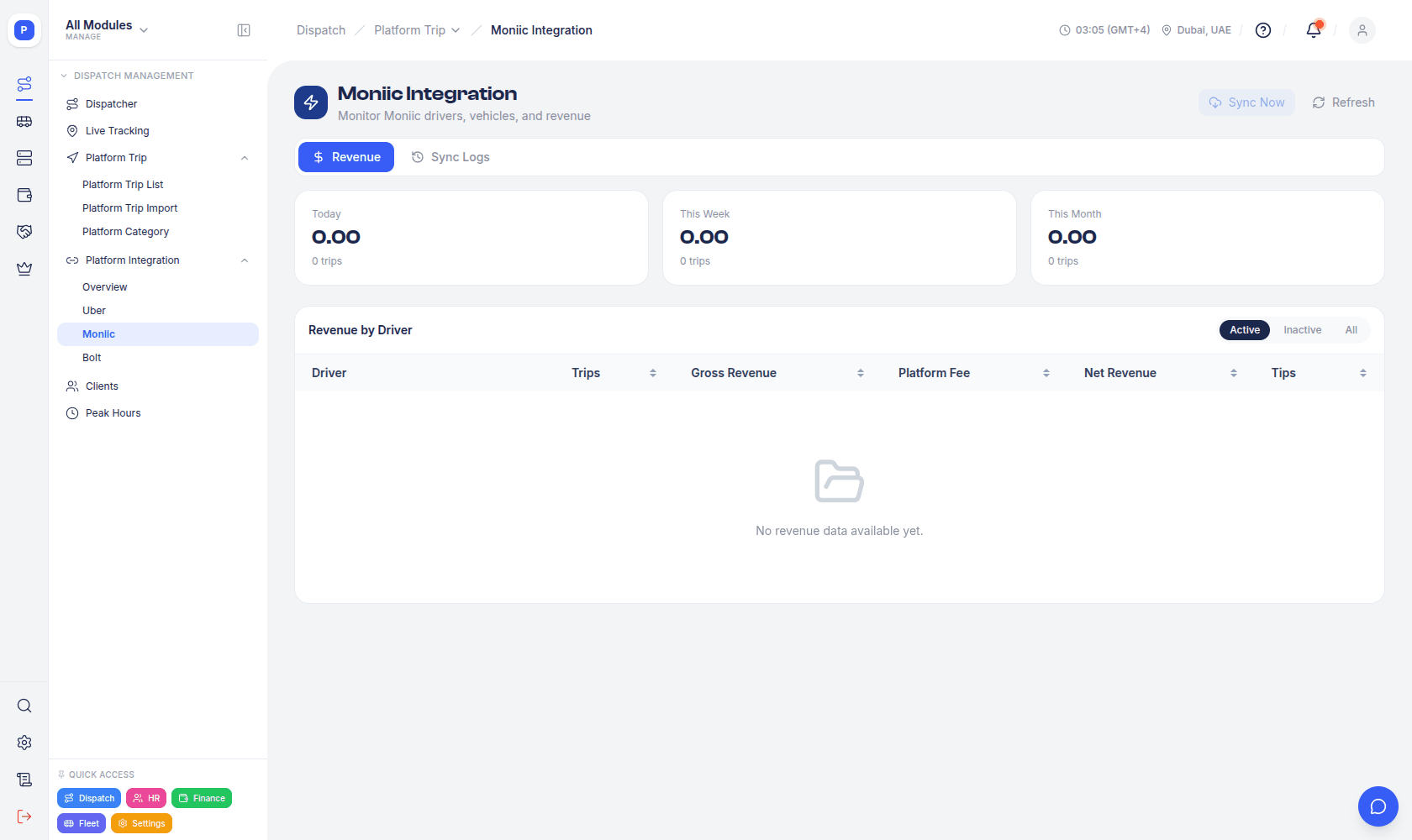
The page shows Today, This Week and This Month, and Revenue by Driver with Trips, Gross Revenue, Platform Fee, Net Revenue and Tips. Active, Inactive and All choose which drivers are listed. Until a first synchronisation has run, the table says No revenue data available yet.
Sync Logs and the Token
The Sync Logs tab holds the Token Status card, the Auto Sync switch and the history of the synchronisations.
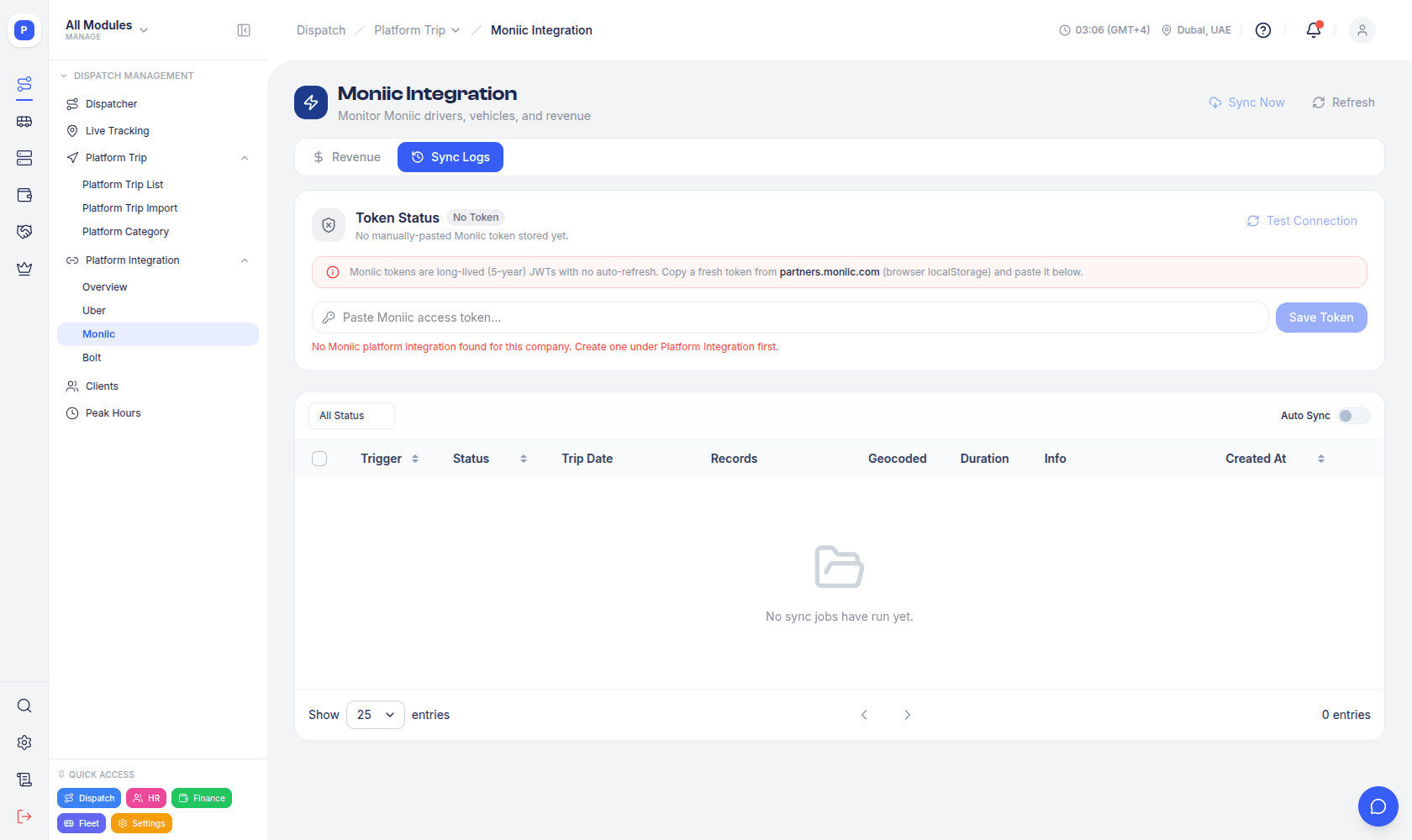
The Token Status Card
| Status | Meaning |
|---|---|
| No Token | No token has been saved yet |
| Healthy | The token is valid, with more than 90 days left |
| Renew Soon | Less than 90 days are left |
| Expiring Soon | Less than 30 days are left |
| Expired | The token no longer works |
The card shows how many days remain. Test Connection checks that the saved token is accepted.
Saving a Token
Moniic tokens last a long time and are not renewed automatically. When the card asks for a token:
- Open Moniic's partner site (partners.moniic.com) in your browser and sign in.
- Copy the access token that the site keeps in the browser's local storage.
- Paste it in Paste Moniic access token... and click Save Token.
The box is shown whenever there is no token, the token has expired, or it is about to expire.
Save Token and Sync Now need a Moniic integration to exist. When your company has none, the page tells you to create one first under Platform Integration, and Sync Now stays grey.
The Logs
The log table and its actions are the same as on the Uber page: Trigger, Status, Trip Date, Records, Geocoded (always shown as -), Duration, Info and Created At, with View Details, View Records, Retry and Delete in the row menu, and the Auto Sync switch above the table.