Personal Info
Update your profile photo, personal details, and emergency contact from a single form.
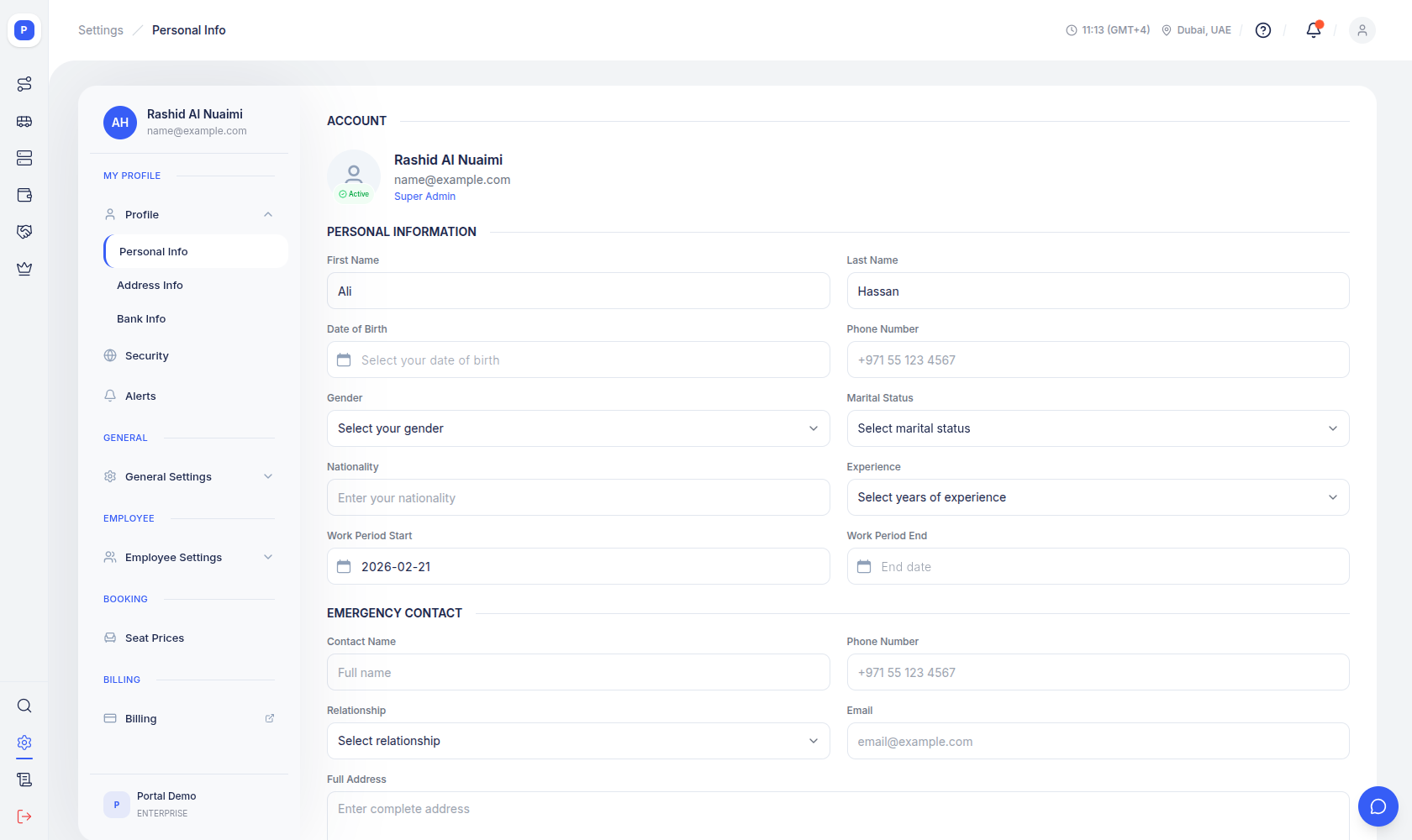
The Personal Info page holds the identity details that the platform shows to your colleagues and that HR and Finance use for contracts, payroll, and compliance records. It is one continuously scrollable form made of three sections -- Account, Personal Information, and Emergency Contact -- with a single Cancel / Save Changes bar at the bottom. The whole form is saved in one request.
Navigation: Settings > My Profile > Profile > Personal Info
Overview
Unlike most settings screens, Personal Info has no tabs. All three sections are stacked on the same page and share one save action.
| Section | What it holds |
|---|---|
| Account | Avatar, display name, login email, job position, account status |
| Personal Information | Name, date of birth, contact, nationality, and employment period |
| Emergency Contact | Who to contact if something happens to you at work |
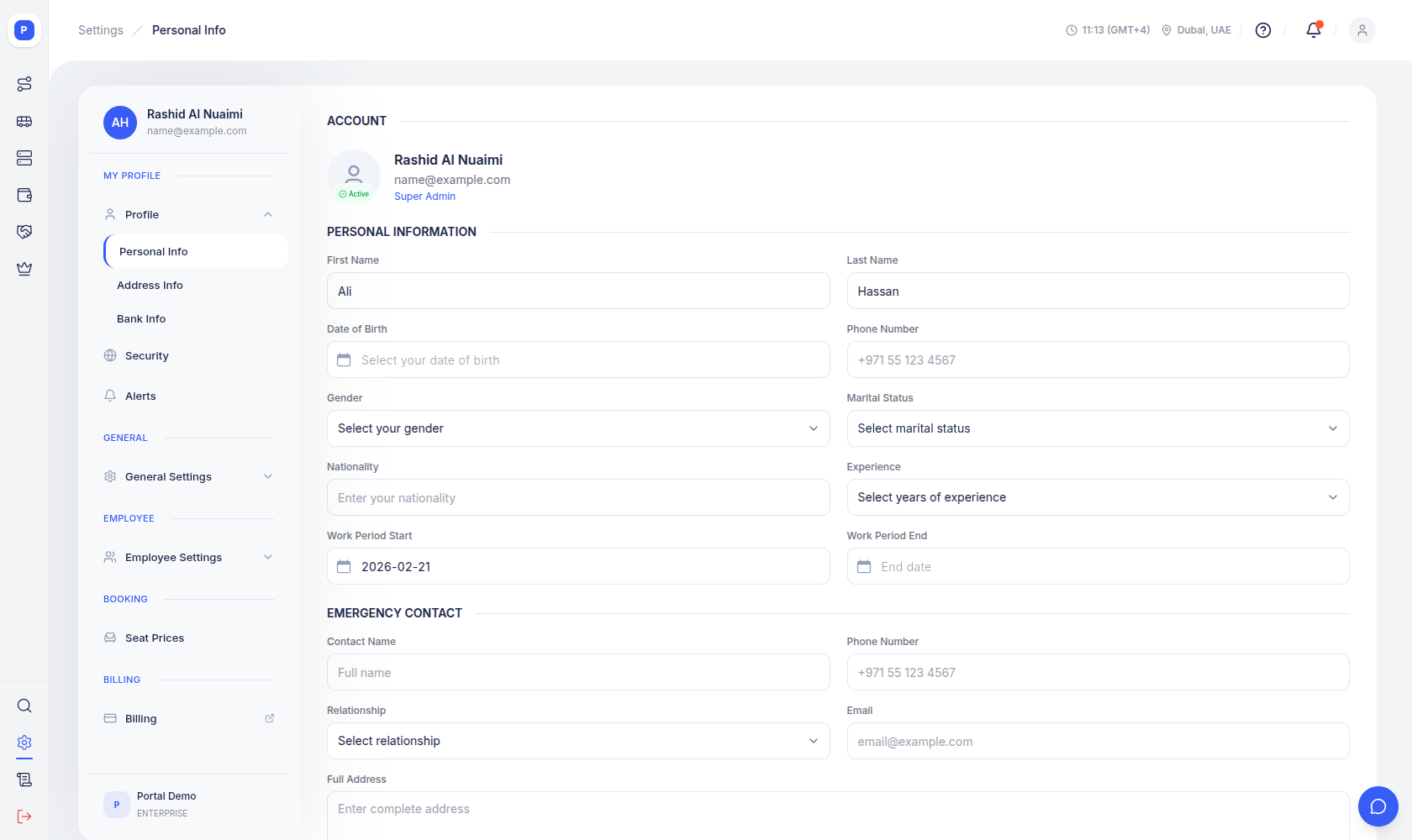
Account
The top block is a read-mostly summary of your identity:
- Avatar -- hover over the photo to reveal Change, then pick an image file. The avatar is uploaded and saved immediately; it does not wait for Save Changes, and it is not reverted by Cancel.
- Display name -- your first and last name, updating live as you type in the form below.
- Email -- your login email, shown as plain text here. It is not editable on this page (see the callout below).
- Position -- your job title, displayed only when the profile has one.
- Active badge -- a green Active badge under the avatar appears when your account is enabled.
Personal Information
The fields are laid out in two columns.
| Field | Control | Notes |
|---|---|---|
| First Name | Text | Used as part of your display name across chat, bookings, and approvals |
| Last Name | Text | Same as above |
| Date of Birth | Date picker | Calendar input, not a free-text field |
| Phone Number | Text (telephone) | Your primary contact number |
| Gender | Select | Male or Female |
| Marital Status | Select | Single, Married, Divorced, or Widowed |
| Nationality | Text | Free text |
| Experience | Select | 1, 2, 3, 5, or 10+ years |
| Work Period Start | Date picker | Start of your employment |
| Work Period End | Date picker | Leave empty while you are still employed |
Emergency Contact
This section tells HR who to call if something happens to you at work -- an accident on the road or a health emergency. It is easy to forget after a family change, so it is worth reviewing whenever your circumstances change.
| Field | Control | Notes |
|---|---|---|
| Contact Name | Text | Full name of the person to contact |
| Phone Number | Text (telephone) | Their reachable number |
| Relationship | Select | Spouse, Parent, Sibling, Child, Friend, or Other |
| Text (email) | Optional address for the contact | |
| Full Address | Multi-line text | Their complete address |
Saving Your Changes
The action bar sits at the bottom of the page, separated by a rule:
- Cancel reverts every unsaved field on the page back to the values currently stored on the server.
- Save Changes is disabled until at least one field differs from the saved values. While the request is in flight the button shows Saving... with a spinner.
- On success a toast confirms Profile updated successfully.
The save goes through your current-user profile endpoint (PUT /users/me) and the same handler updates your display name in the navigation bar immediately.
Email cannot be changed on this page. It is shown as read-only text. To change it, go to Account Security and use the two-step Change Email flow.
There is no required-field validation on this form. Any field can be left empty, and only fields that contain a value are sent to the server. That means a field you clear is not erased on save -- the previously stored value stays in place. If you need a wrong value genuinely removed or replaced, ask your HR administrator to correct it.
What to Check
- Your name matches your official documents -- it is used on contracts and appears in approvals and report signatures.
- Work Period Start is the real employment start date; Work Period End should stay empty until you actually leave.
- Phone Number is one you actually answer, since it is used for urgent contact.
- Emergency Contact has a current phone number -- this is the field most often out of date.
- Avatar is a square image; the file uploads as soon as you select it, so cancel will not undo it.
Related Pages
- Address Info -- your residential address for official documents
- Bank Info -- payout details used by Finance for salary
- Account Security -- email, notifications, devices, and account deletion
- Settings Overview -- how settings are organised and who manages them