Account Security
Manage your login email, browser notifications, signed-in devices, and account removal.
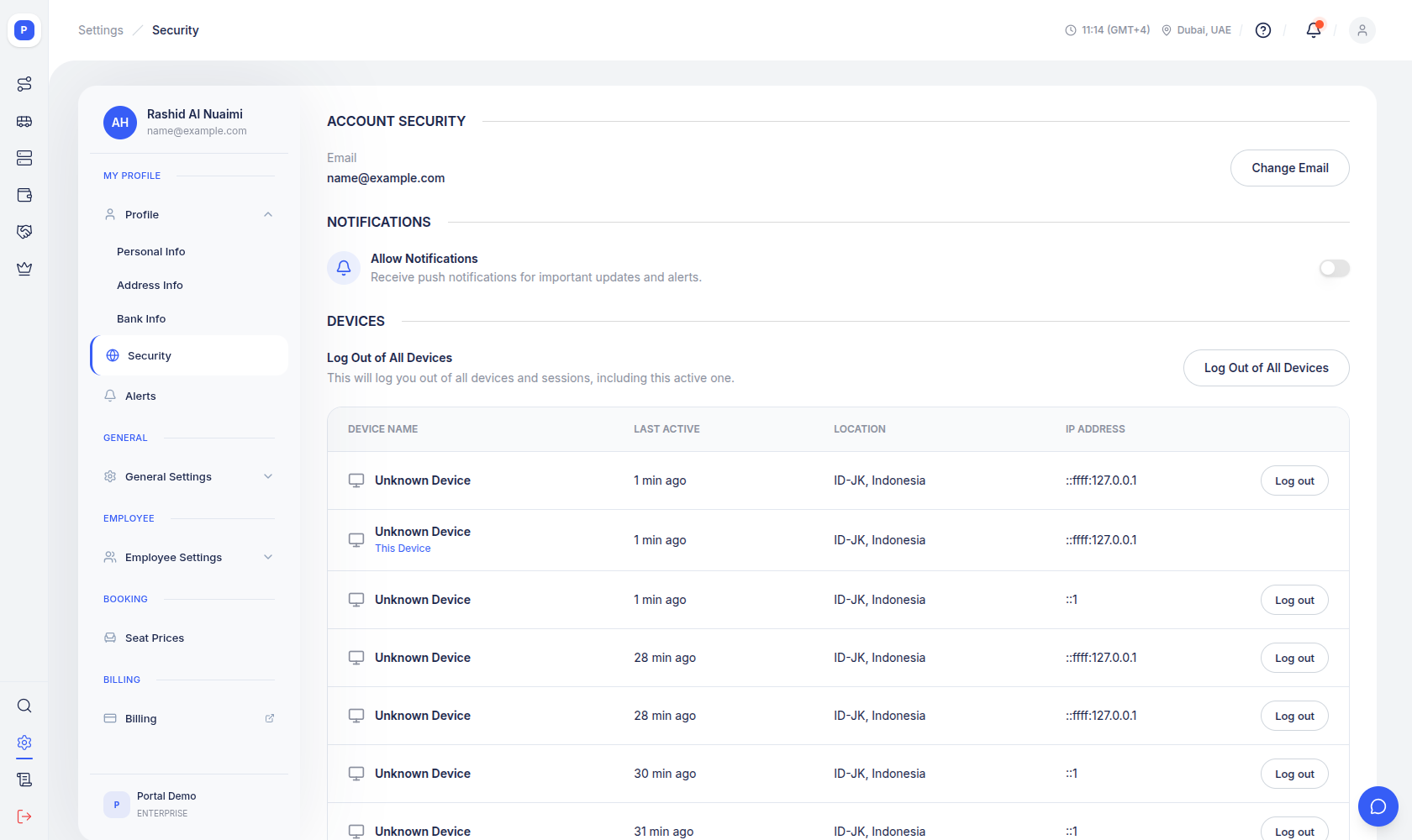
Account Security is where you control access to your own account: the email you sign in with, whether the browser may send you push notifications, which devices are currently signed in, and what happens when you leave an account. It contains four stacked sections -- Account Security, Notifications, Devices, and Other.
Navigation: Settings > My Profile > Security
Overview
| Section | What it controls |
|---|---|
| Account Security | Your login email and the two-step change-email flow |
| Notifications | Browser push notifications for this device |
| Devices | Every active session, with per-device and global sign-out |
| Other | Removing yourself from the account, or deleting the account entirely |
Account Security
The section shows a single row: the label Email, your current login address as plain text, and a Change Email button on the right. The address is read-only -- it changes only through the flow below.
Changing Your Email
Clicking Change Email opens a two-step modal.
Step 1 -- Change Email
- Enter the New Email Address. It must be a valid email address.
- Click Send OTP. The system sends a 4-digit code to the new address.
Step 2 -- Verify OTP
The modal title changes to Verify OTP and the description reads Enter the 4-digit OTP sent to your new address.
- Type the 4-digit code. A countdown under the field shows how long it stays valid, in
m:ssformat, and disappears once it reaches zero. - Click Verify.
On success a toast confirms Email changed successfully, the modal closes, and your profile is refreshed so the new address appears everywhere. Closing the modal at either step discards the pending change and clears the form.
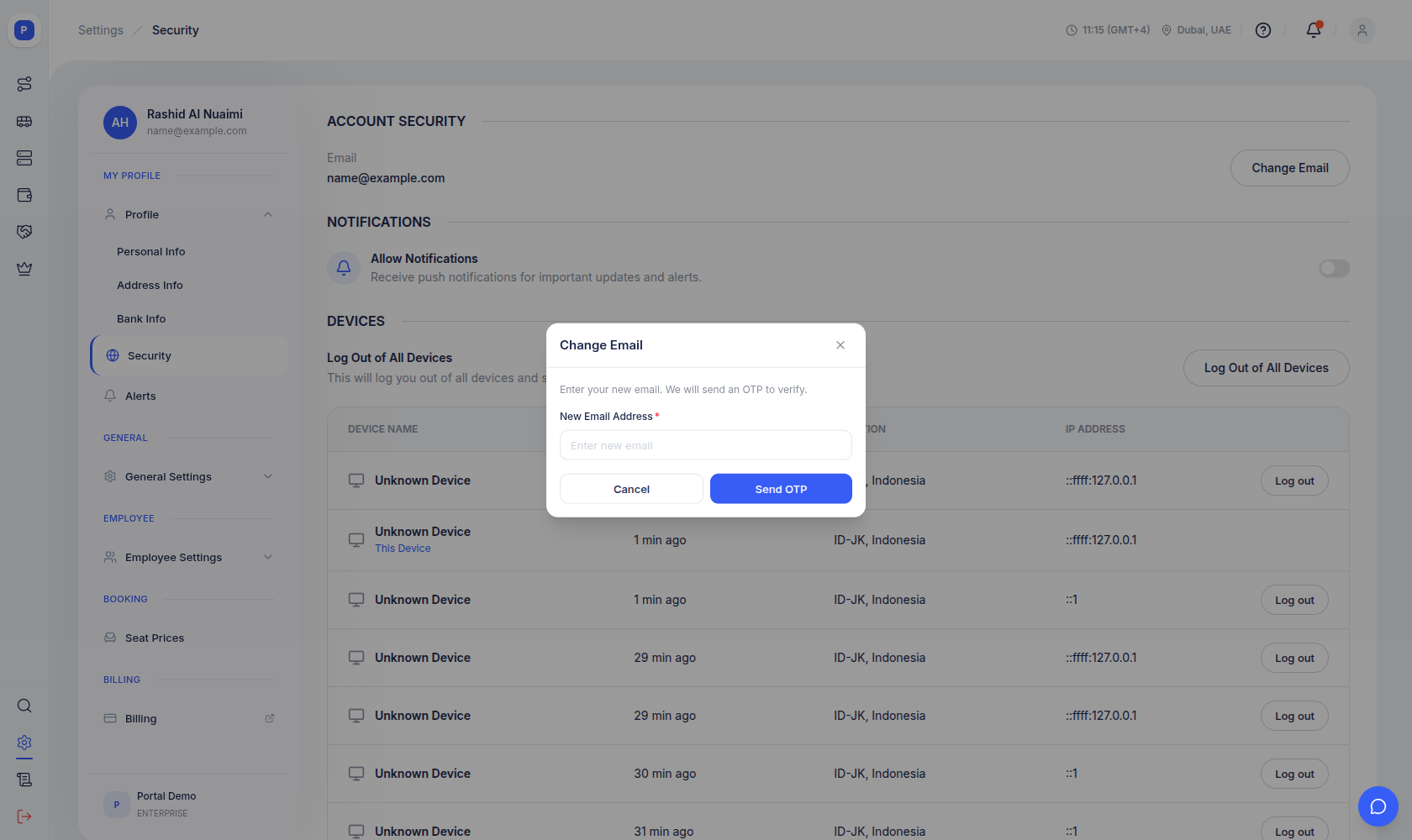
If the OTP never arrives, check the spam folder of the new address first -- the code goes to the new mailbox, not the current one. You can close the modal and start again to request a fresh code.
Notifications
There is one master switch, Allow Notifications, described as Receive push notifications for important updates and alerts. It turns browser push on or off for the device you are using; it is not a per-category setting.
- Turning it on asks the browser for notification permission. If you deny it at browser level, a toast explains that permission was denied and the switch stays off until you enable notifications in your browser settings.
- Turning it off stops push delivery on this device.
Which categories of alert reach you -- and by which channel -- is configured on the Alerts page.
Devices
The Devices section lists every active session for your account.
| Column | Description |
|---|---|
| Device Name | Device and browser label; the session you are using is tagged This Device |
| Last Active | When the session was last used |
| Location | Approximate location reported for the session |
| IP Address | The address the session connected from |
| Action | A Log out button for every session except the current one |
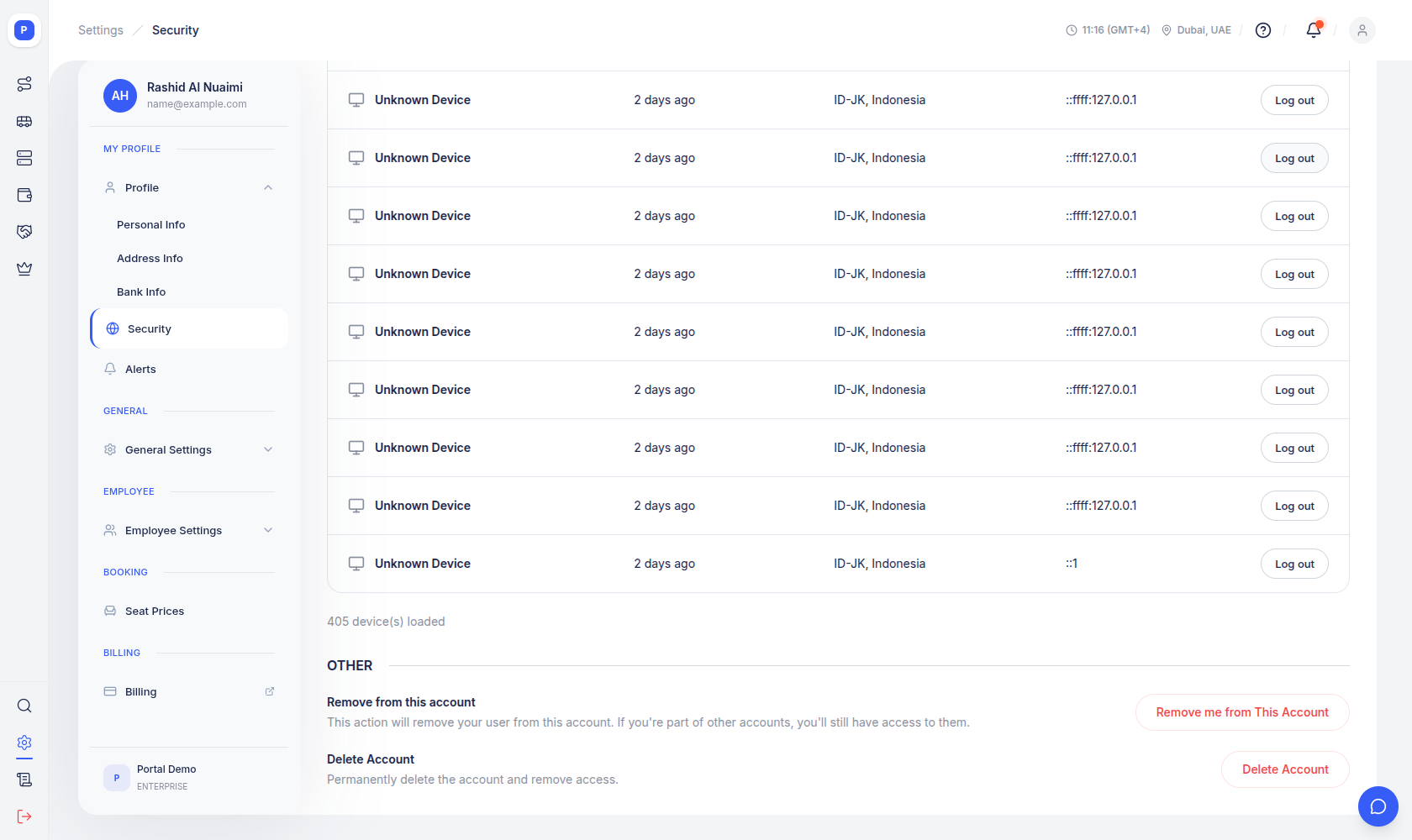
A counter below the table shows how many devices were loaded, and an empty table reads No active devices found.
Signing Out One Device
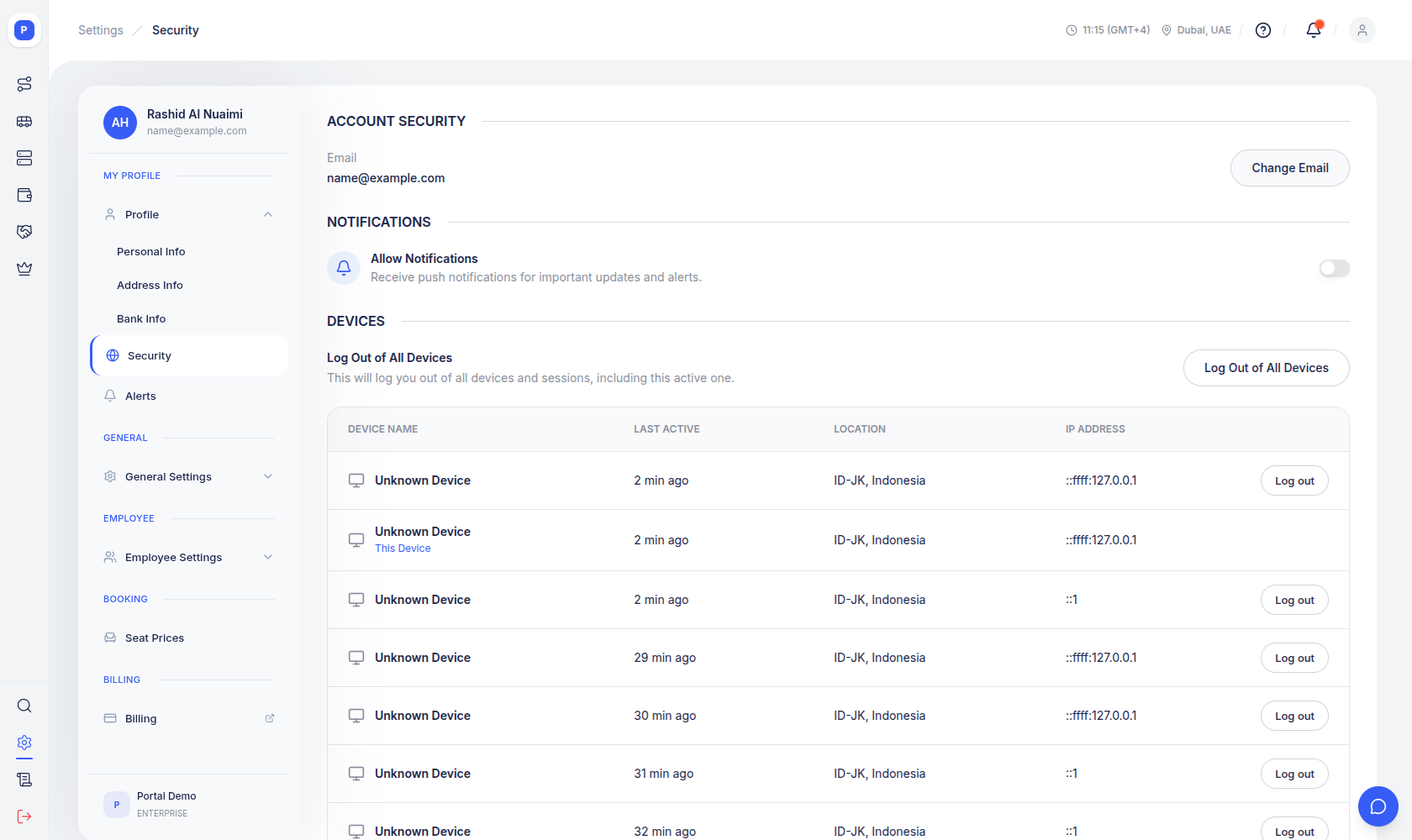
Click Log out in the row of the device you want to end. The row is removed from the list and a toast confirms the device was logged out. The This Device row deliberately has no Log out button -- to end your own session, sign out normally.
Signing Out Everywhere
Log Out of All Devices sits above the table. Its helper text warns that it ends all devices and sessions, including this active one -- so expect to be signed out and asked to log in again. A toast reports how many sessions were revoked, and the table reloads.
Use it when a device is lost or stolen, or when you don't recognise an entry in the list.
Other
The Other section carries the two irreversible actions.
Remove From This Account
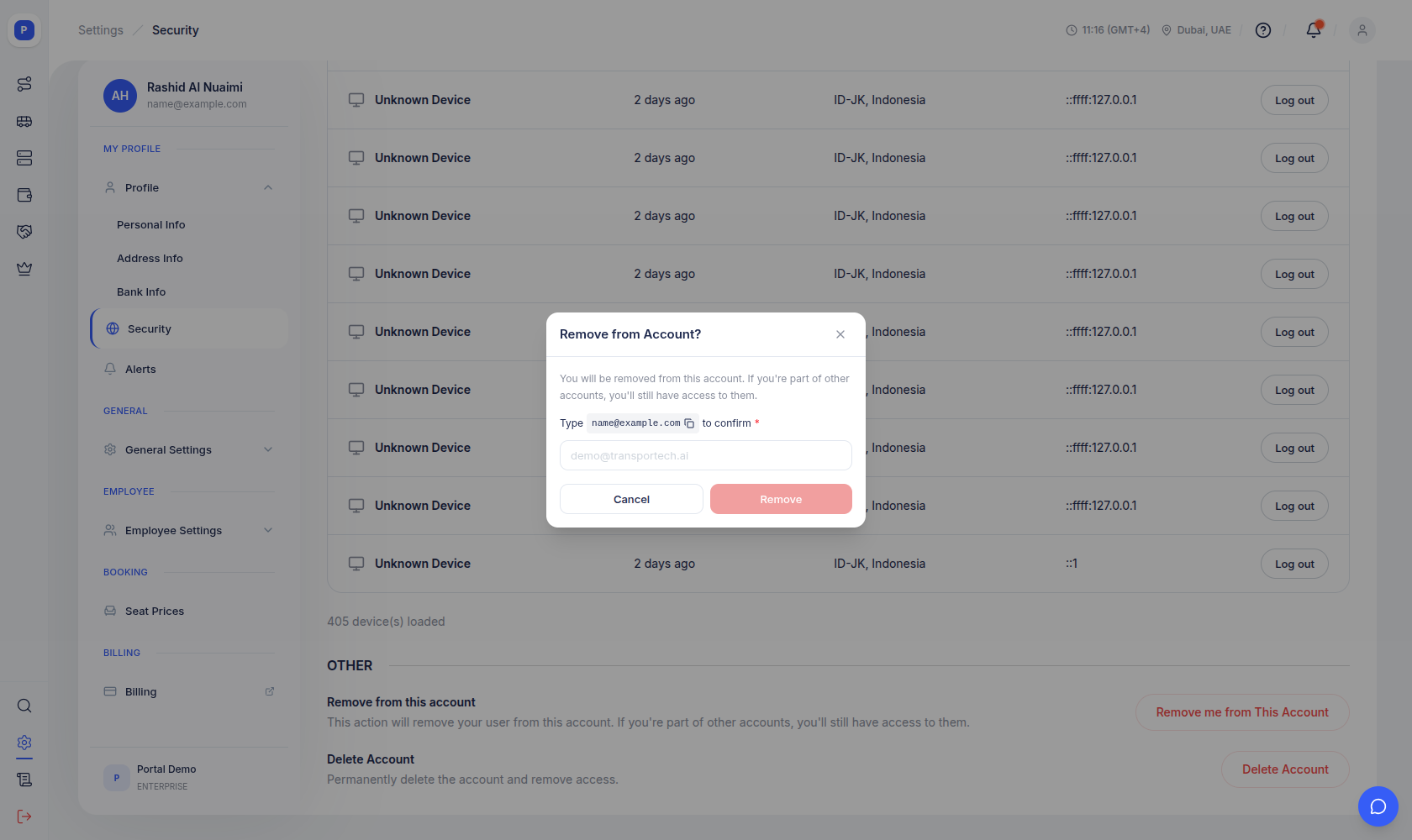
Remove me from This Account detaches your user from the current company account. If you belong to other accounts, you keep access to them -- this is not the same as deleting your user.
The modal is titled Remove from Account? and requires you to type your own email address. The current address is shown above the field with a copy icon so you do not have to type it by hand. The Remove button stays disabled until what you typed matches your email exactly (case does not matter). After a successful removal you are sent back to the sign-in page.
Delete Account
Delete Account permanently deletes the account and removes access. This cannot be undone.
The modal is titled Delete Account? and asks for two things:
- Your email address, typed to confirm. The Delete button stays disabled until it matches.
- Your password, which can be revealed with the eye icon. It is required before the request is accepted.
After a successful deletion you are redirected to the sign-in page.
Delete is not reversible. If you only need to leave one company account, use Remove me from This Account instead. Deleting removes the account outright, including its access and settings.
Changing Your Password
There is no change-password screen in the current build. Although the API exposes a change-password endpoint (POST /users/me/change-password), no control for it appears on this page or elsewhere in the app. The sign-in screen in the current build also has no self-service reset link. Contact your administrator to have your password reset; do not rely on a password change you cannot see in the interface.
What to Check
- Email is one you can actually receive mail at -- it is both your sign-in identifier and where OTP codes go.
- Devices contains only hardware you recognise. Sign out anything unfamiliar, then sign out of all devices if you are unsure.
- Notifications being off is the usual reason alerts appear in the app but never as browser pop-ups.
- Remove and Delete both sign you out at the end; finish any unsaved work elsewhere first.
Related Pages
- Personal Info -- name, contact details, and emergency contact
- Address Info -- residential address for official documents
- Bank Info -- payout details used by Finance for salary
- Alerts -- choose which notification categories you receive
- Settings Overview -- how settings are organised and who manages them