Agreements
Create and manage investor agreements, monthly payment components, billed costs, arrears and monthly statements.
This page is the staff view of the Investor Agreements module. It is shown to users holding the investor-agreements permission and covers every agreement in the company. An investor visiting the same URL sees only their own agreement instead -- see My Agreements.
Navigation: Investor > Investor Agreements
The menu entry is also visible to investors, who then get their own read-only page. If a staff member opens the page and sees Access Denied, the investor-agreements permission has not been granted to them -- see Employee Permissions.
The Two Tabs
At the top of the page there are two tabs:
| Tab | Contents |
|---|---|
| Agreements | The list of agreements and the actions on them |
| Investor costs | The company-wide catalogue of costs billed to investors |
The Change a price and New agreement buttons appear only on the Agreements tab, and only when your permissions allow it.
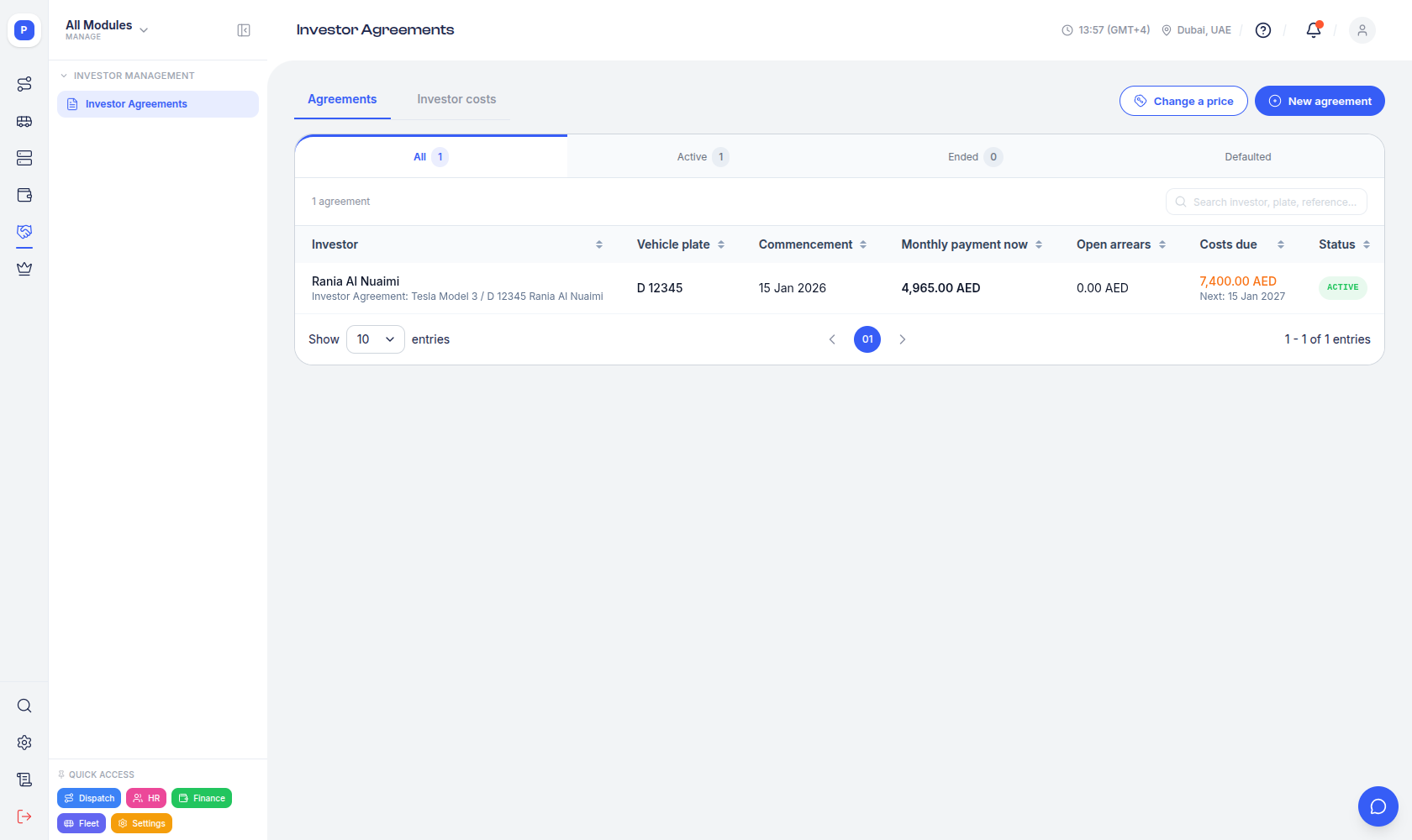
The Agreements Table
Below the tabs the table is preceded by:
- Status tabs -- All, Active, Ended and Defaulted, each with a count. Status is filtered in the browser, so every tab shows its count from a single load. Agreements in any other status, such as Recovered or Cancelled, appear only under All.
- A count line -- for example 3 agreements, reflecting the active tab.
- A search box -- Search investor, plate, reference… narrows the list by investor name, vehicle plate or agreement reference.
- Two buttons -- Change a price (needs edit permission) and New agreement (needs add permission).
| Column | Description |
|---|---|
| Investor | The investor's name, with the agreement reference underneath |
| Vehicle plate | The plate of the vehicle the agreement covers |
| Commencement | The date the agreement started |
| Monthly payment now | The monthly payment in effect today, in AED |
| Open arrears | The outstanding arrears amount. Shown in red when there is something outstanding |
| Costs due | The amount the investor still owes by transfer, plus Next: <date> for the next due cost |
| Status | A badge with the agreement status |
Clicking a row opens the detail page.
Creating an Agreement
New agreement opens a right-hand panel titled New investor agreement with the subtitle A driver funds a vehicle registered in the company's name and pays a monthly payment.
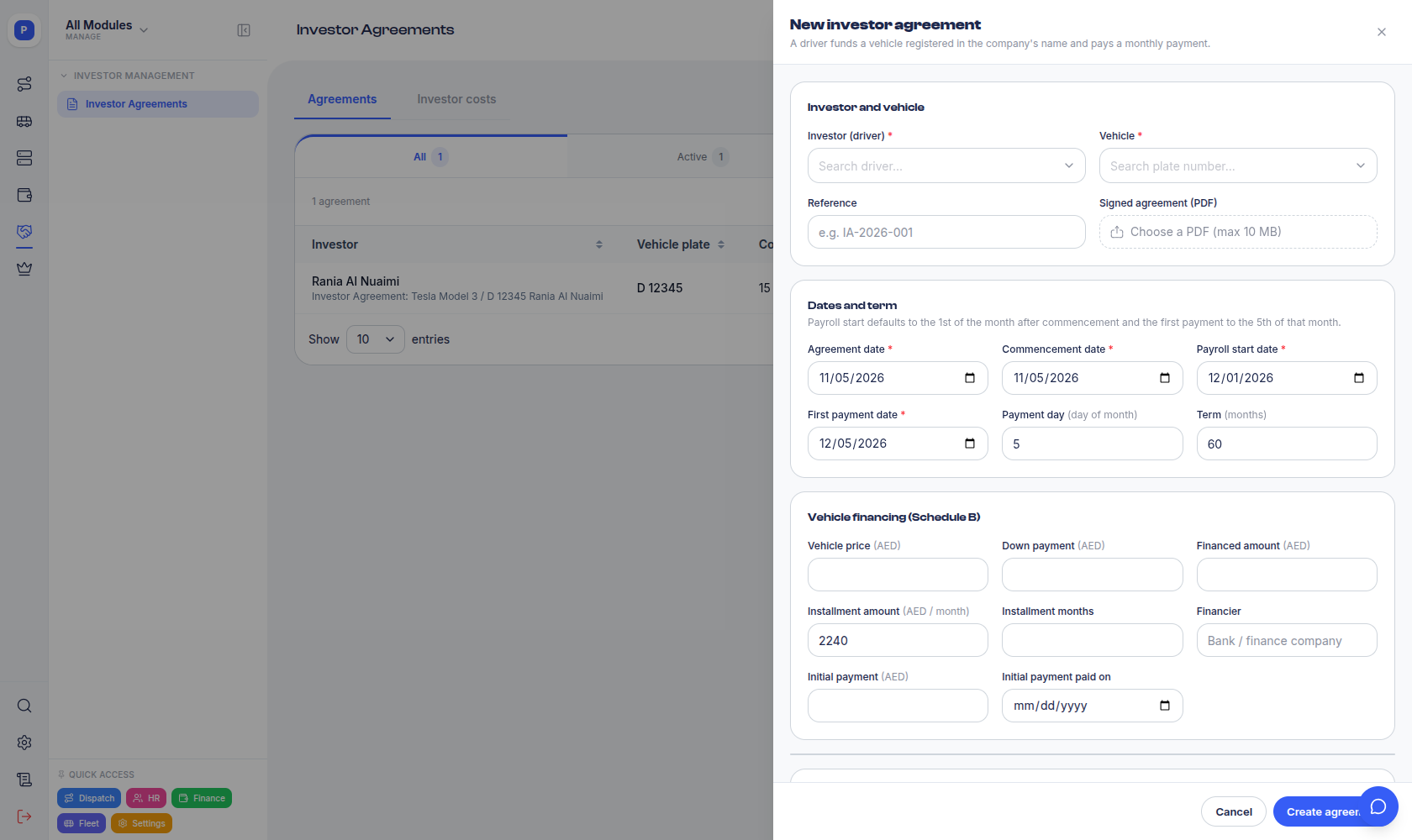
The panel is split into four sections plus notes.
Investor and vehicle
| Field | Notes |
|---|---|
| Investor (driver) | Required. Searchable, listing drivers by name, employee number and department |
| Vehicle | Required. Searchable by plate number |
| Reference | Free text, for example IA-2026-001 |
| Signed agreement (PDF) | Upload the signed PDF, up to 10 MB. The selected file can be removed before saving |
Dates and term
| Field | Notes |
|---|---|
| Agreement date | Required |
| Commencement date | Required |
| Payroll start date | Required. Defaults to the 1st of the month after commencement |
| First payment date | Required. Defaults to day 5 of that month |
| Payment day | Day of the month the payment is due. Defaults to 5 |
| Term | Length of the agreement in months. Defaults to 60 |
The payroll start and first payment dates follow the commencement date as long as you have not edited them yourself. Once you type your own date, the panel keeps it. The first payment date also follows the payment day while it is still automatic.
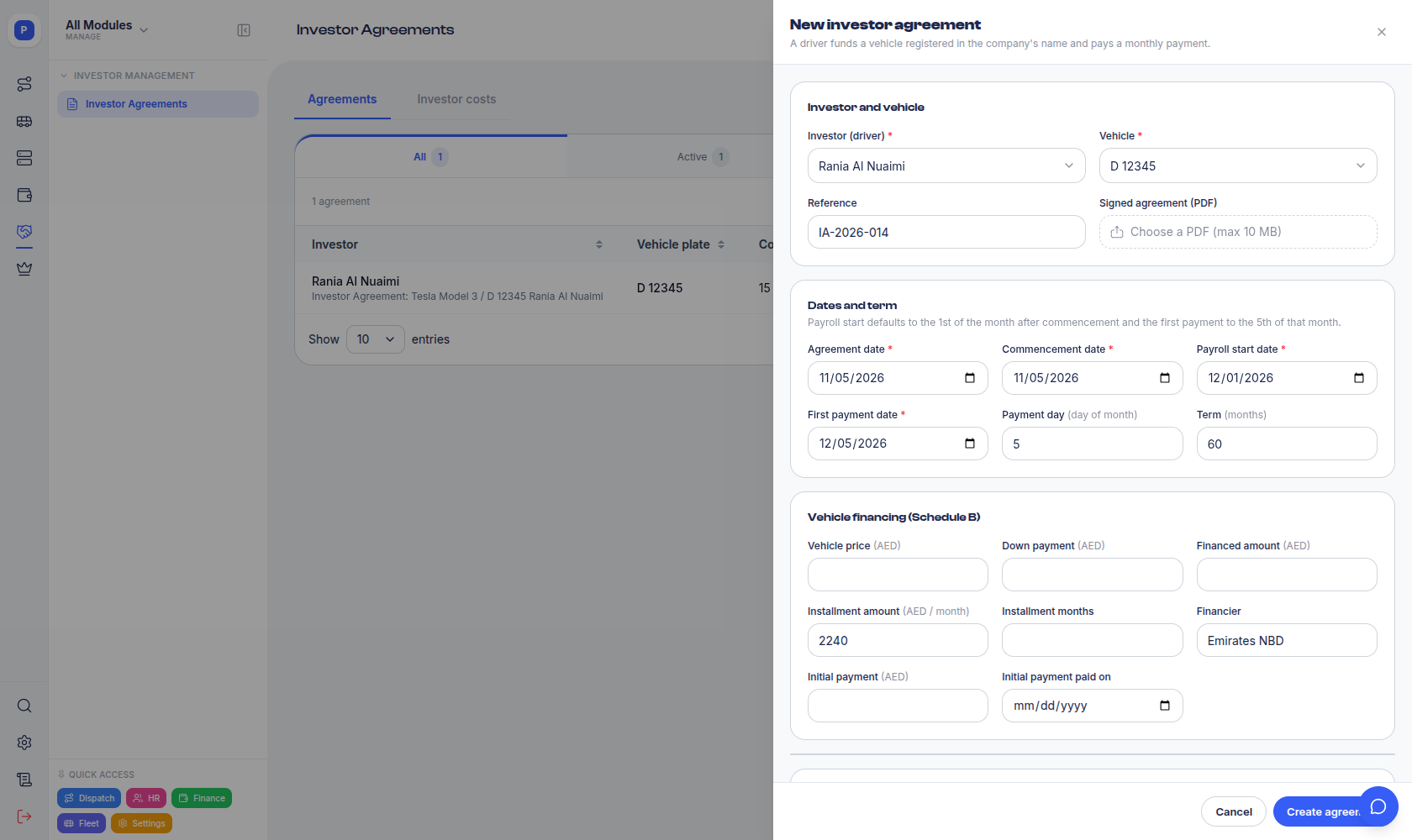
Vehicle financing (Schedule B)
| Field | Notes |
|---|---|
| Vehicle price | AED |
| Down payment | AED |
| Financed amount | AED |
| Installment amount | AED per month. Defaults to 2240 |
| Installment months | Number of installments |
| Financier | Bank or finance company |
| Initial payment | AED |
| Initial payment paid on | Date, left empty when it has not been paid yet |
The installment amount here is the Schedule B figure. The amount actually charged every month comes from the monthly payment components below, so the two can differ -- for example when the installment row is changed later.
Monthly payment components
This is the list of rows that add up to the monthly payment. Each row has a type, an optional label, an amount, an effective-from date and an effective-to date.
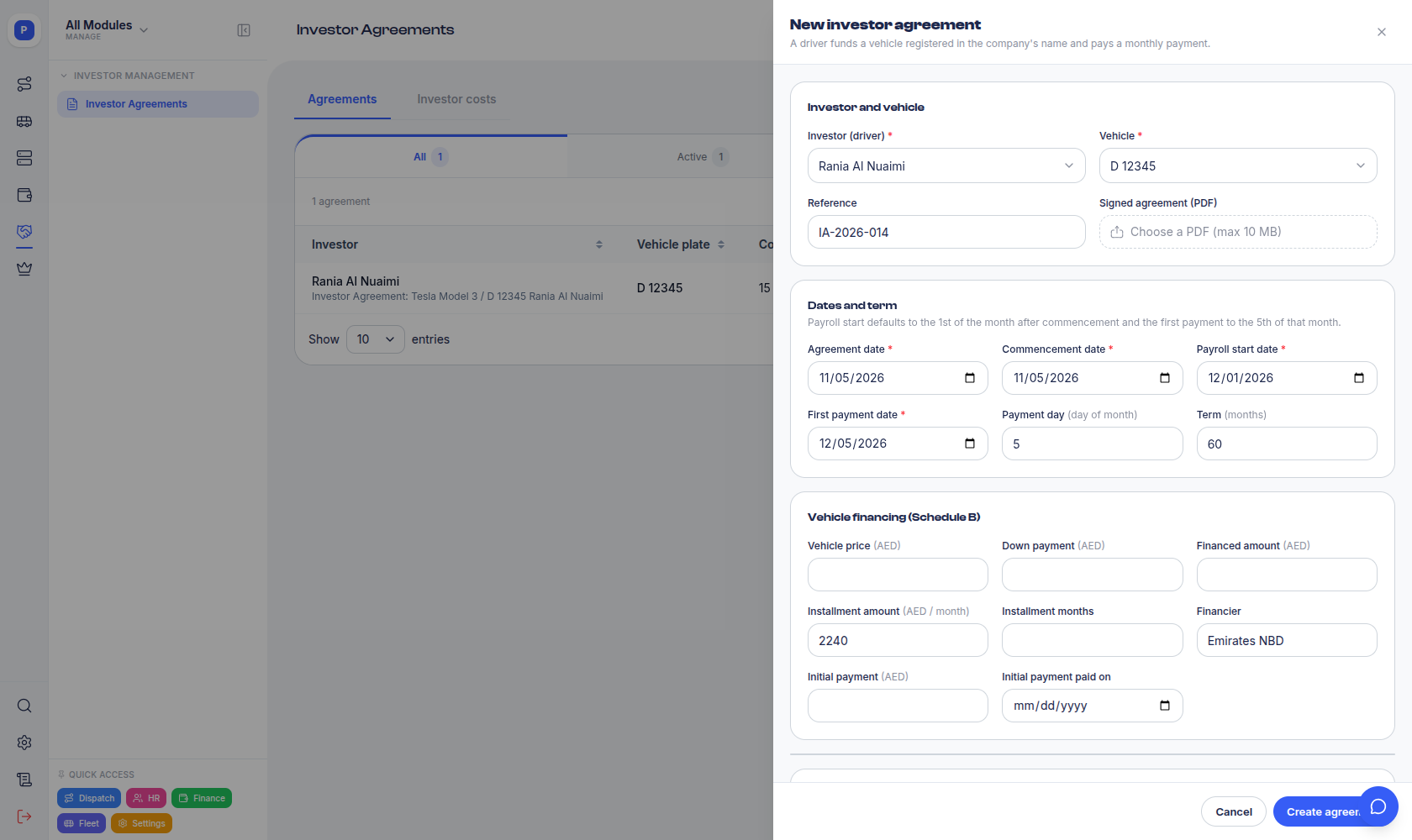
The available types are Installment, RTA fee, Plate fee, Software, Additional driver and Other. A new agreement starts with these rows:
| Type | Amount | Effective |
|---|---|---|
| Installment | 2240 (or the installment amount you type) | From the payroll start date, open-ended |
| RTA fee | 1200 | From the payroll start date until 31 Dec 2026 |
| RTA fee | 1800 | From 1 Jan 2027, open-ended |
| Plate fee | 1500 | From the payroll start date, open-ended |
| Software | 25 | From the payroll start date, open-ended |
If the payroll start date is already after 31 Dec 2026, the panel adds a single RTA fee row of 1800 instead of the two-step change. Add row appends an empty row, and Additional driver appends one with a suggested amount of 1025. The rows follow the payroll start date until you edit one of them.
To change an amount from a date, end the old row the day before and add a new row -- a row has one fixed amount for its whole period.
At the bottom of the section a live total shows the Monthly payment in the first payroll month, which is the sum of the rows in effect on the payroll start date.
Notes and validation
Notes is free text and is shown again on the agreement detail page.
The panel refuses to save and shows a message when:
- no investor is selected -- Select the investor (driver).
- no vehicle is selected -- Select the vehicle.
- any of the four dates is empty -- Agreement, commencement, payroll start and first payment dates are required.
- a component row has no amount or no start date -- Every monthly payment component needs an amount and a start date.
- a component ends before it starts -- A monthly payment component ends before it starts.
The footer holds Cancel and Create agreement. After creating, the panel closes and opens the new agreement.
The Agreement Detail Page
The breadcrumb reads Investor Agreements / <investor> - <plate>.
Header and status actions
The header shows the investor's name with the status badge, the vehicle plate with model, year and colour, the reference, phone and email, and the date the agreement commenced. An investor who is no longer active is flagged next to the name.
The buttons are:
| Button | When it appears |
|---|---|
| Employee | When the investor has an employee record. Opens the employee page |
| Edit | With edit permission. Turns the terms section into a form |
| End agreement, Mark defaulted, Cancel agreement | While the agreement is Active |
| Mark recovered, End agreement, Cancel agreement | While the agreement is Defaulted |
| Reactivate | For any other status. The agreement becomes active again and its end date is cleared |
| A delete icon | With delete permission. Opening it warns that deleting is only possible when no payroll has used the agreement -- end or cancel it instead |
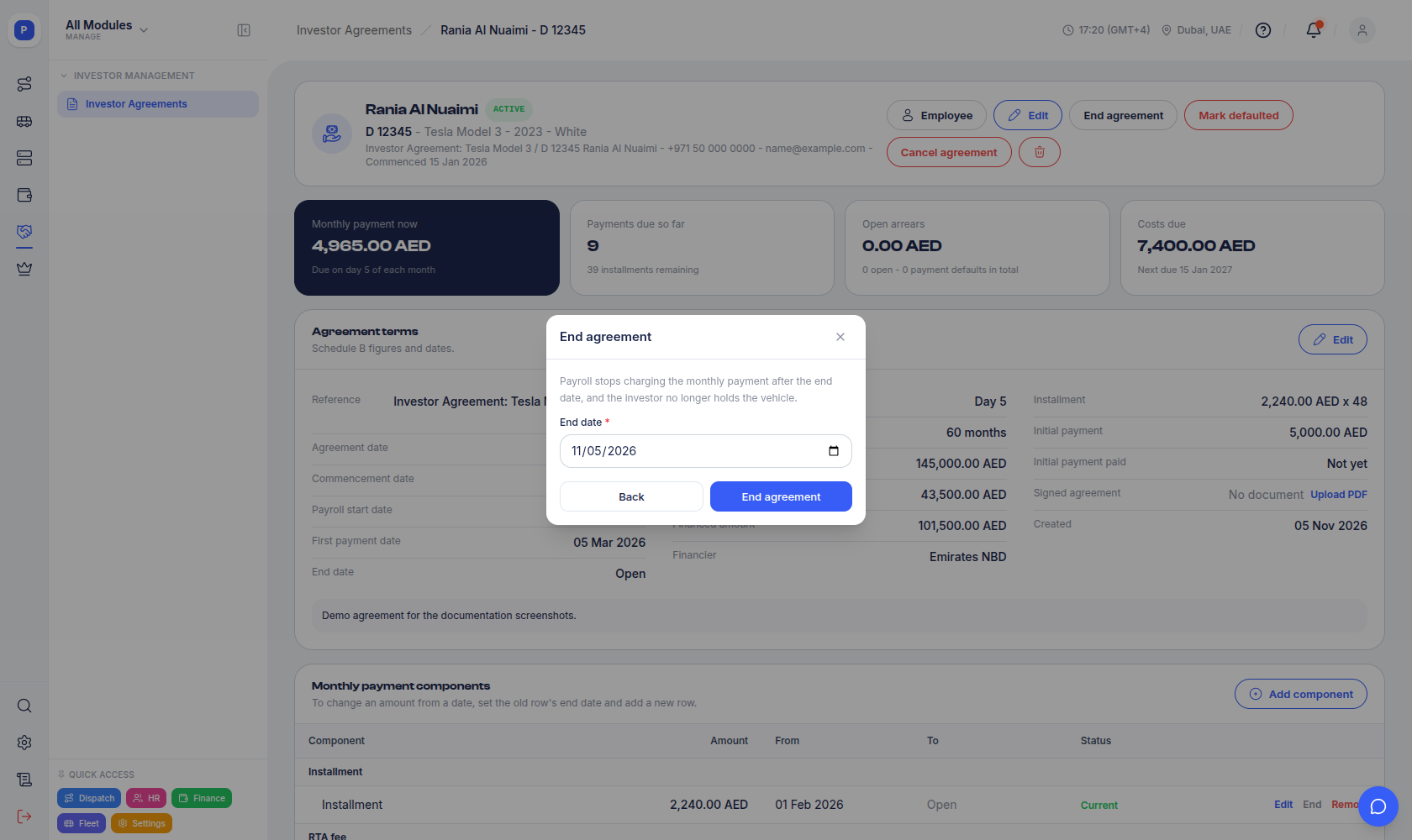
Each status action opens a short confirmation. End agreement asks for an end date, and explains that payroll stops charging the monthly payment after that date and that the investor no longer holds the vehicle.
Summary cards
Four cards summarise the agreement:
| Card | Contents |
|---|---|
| Monthly payment now | The current monthly payment, with the day of the month it is due |
| Payments due so far | How many payments have fallen due, plus how many installments remain |
| Open arrears | The outstanding arrears, with the number of open arrears and the total number of payment defaults |
| Costs due | The amount still owed by transfer, with the next due date or Nothing due |
Agreement terms
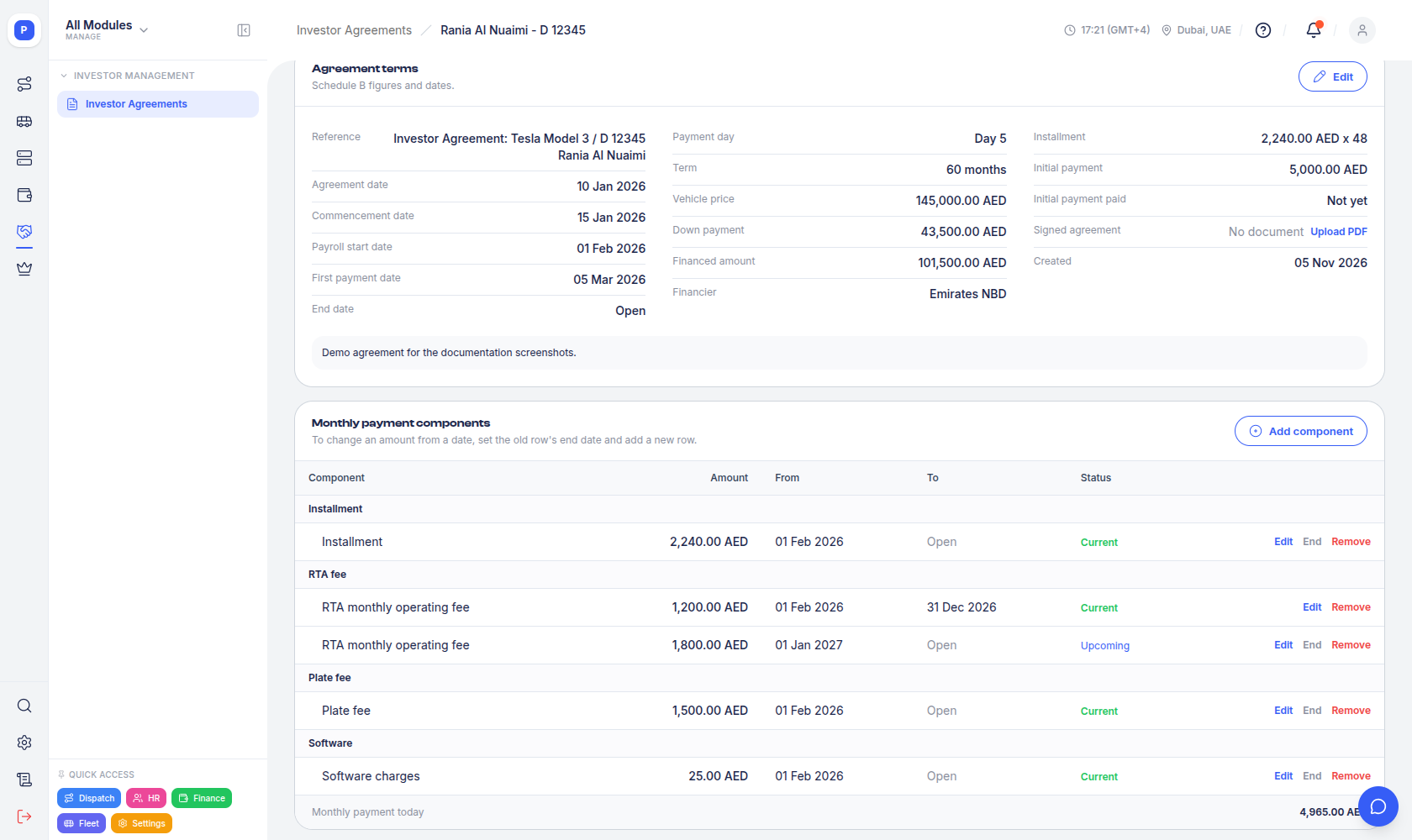
A three-column summary of the Schedule B figures and dates:
- reference, agreement date, commencement date, payroll start date, first payment date, end date (Open while there is none)
- payment day, term, vehicle price, down payment, financed amount, financier
- installment amount and number of months, initial payment, the date it was paid (or Not yet), the signed document, and the date the agreement was created
- notes, when there are any
The Signed agreement row shows the PDF file name with Preview and Download, plus Replace and Remove with edit permission. When no PDF is stored it shows No document and an Upload PDF link, or Open link when only an external URL was recorded.
Edit turns this section into a form with the same fields plus End date (empty = open). Saving with an end date also ends the investor's hold on the vehicle. Because the money columns default to 0 in the database, clearing an amount saves it as 0.
Monthly payment components
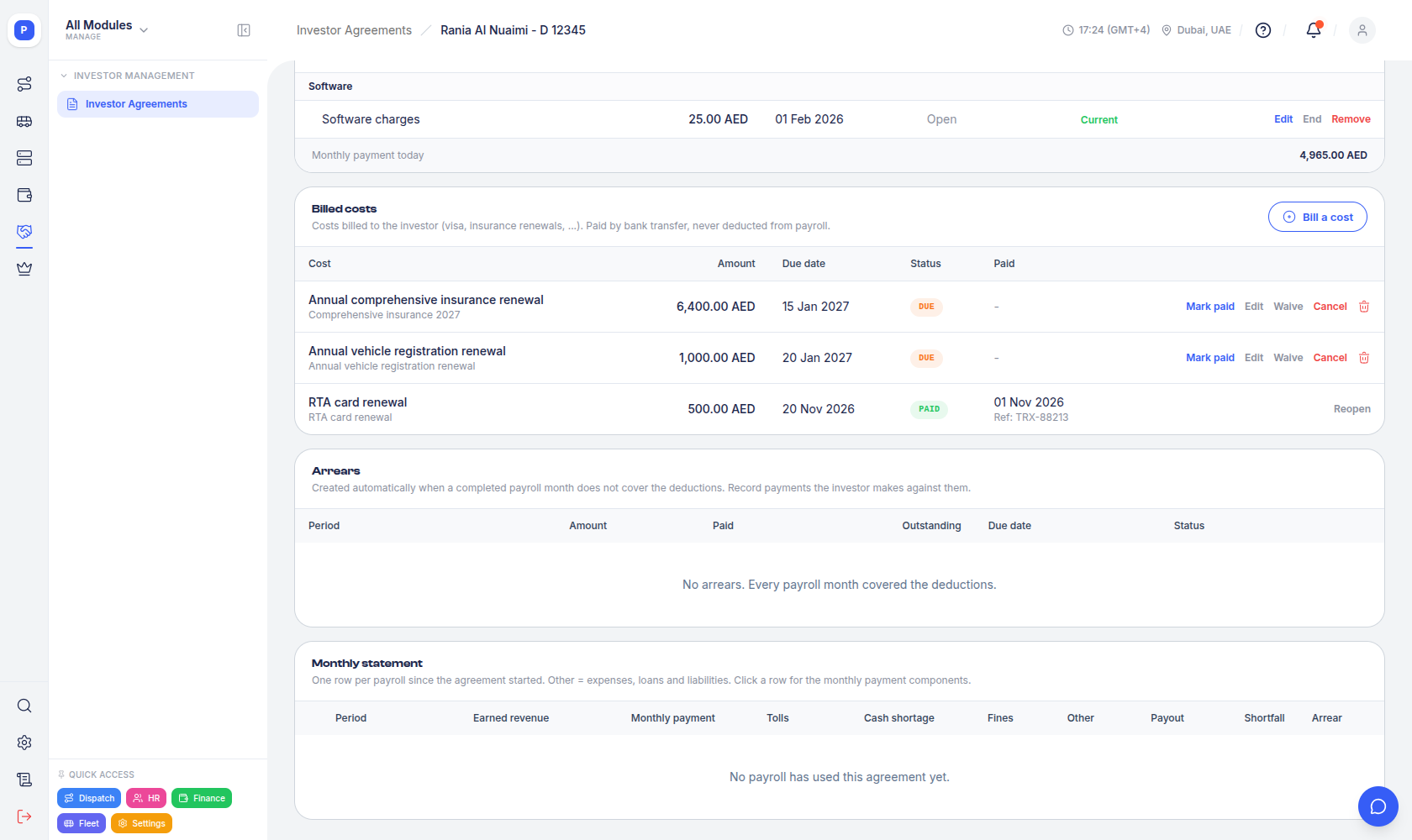
The components are grouped by type, each row showing its amount, From, To (Open when there is no end date) and a status of Current, Upcoming or Ended. With edit permission each open row has Edit, End and Remove; closed rows lose End. A Monthly payment today total sits under the table.
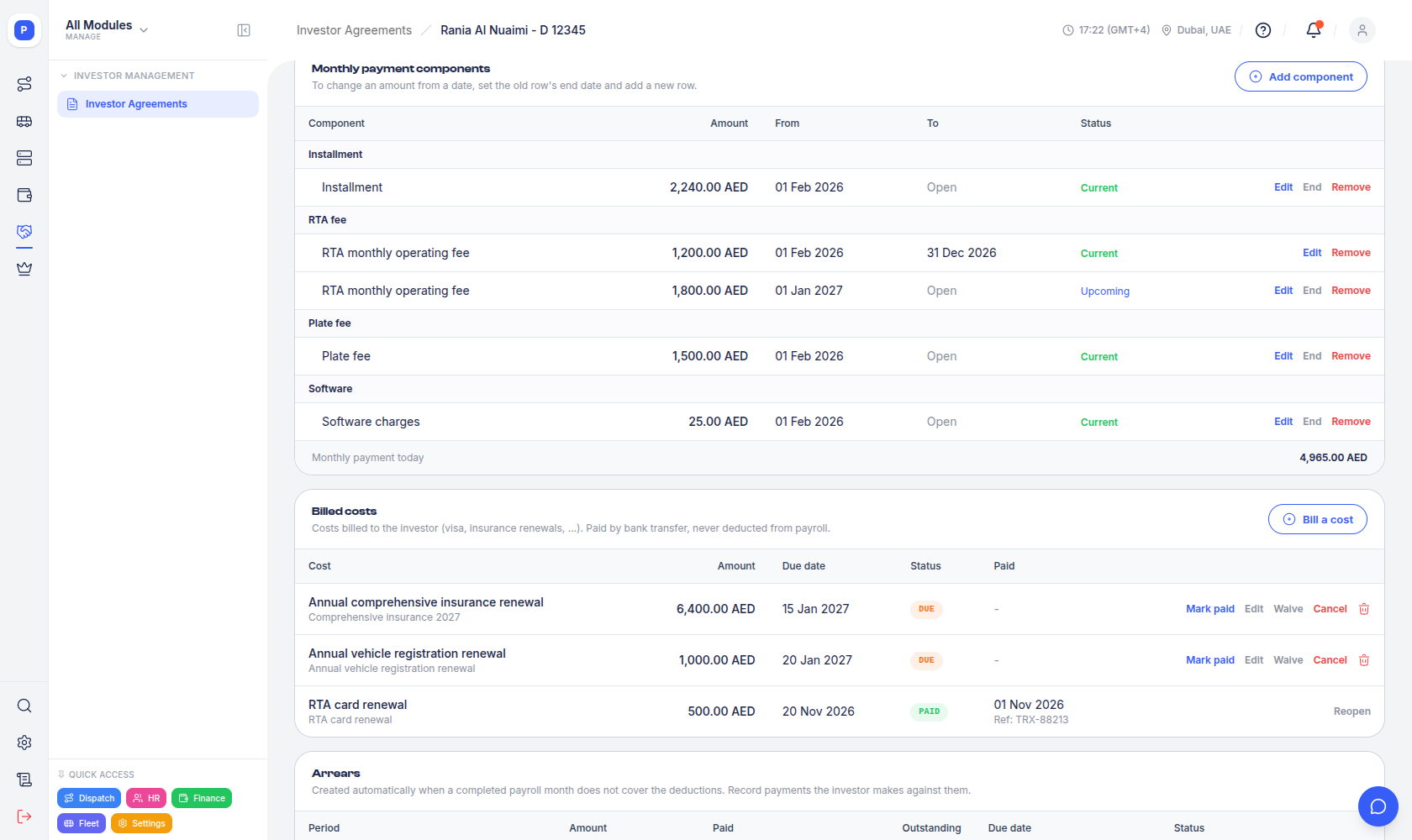
- Add component opens a dialog with type, amount, optional label, From, To (empty = open), and an Email the investor about this change checkbox with an optional message. If the investor has no email address, the dialog says the notification will be in-app only.
- End asks for an end date and stops the component after it.
- Remove deletes the row and warns that this changes the monthly payment for every period the row covered -- ending the row is the safer option when the amount only changes from a date.
Billed costs
Costs billed to the investor -- visa, insurance renewal, registration and similar -- that are paid by bank transfer and never deducted from payroll.
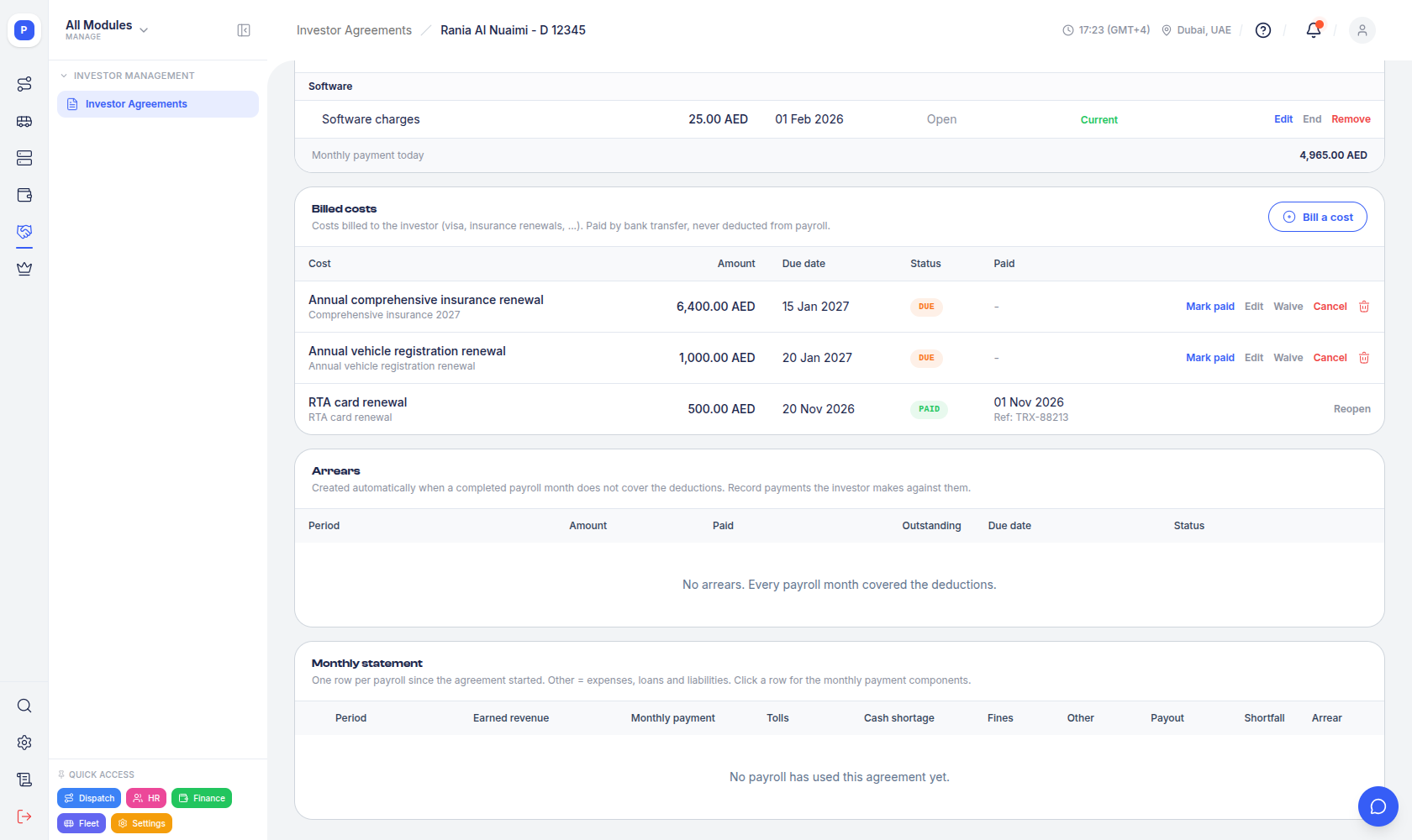
| Column | Description |
|---|---|
| Cost | The cost name from the catalogue, with the description and notes underneath |
| Amount | AED |
| Due date | When the transfer is expected |
| Status | Due or Paid |
| Paid | The transfer date and the bank reference, once paid |
Costs that are still Due appear first. With edit permission a due cost offers Mark paid, Edit, Waive and Cancel, and a delete icon; costs in other statuses offer Reopen.
- Bill a cost picks a type from the investor cost catalogue and fills in its default amount, which you can change. Choose Other (describe below) to bill something with no catalogue entry, in which case a description is required. A type with no default amount is billed at actual cost, so the amount is required there.
- Mark paid records the transfer date and an optional payment reference.
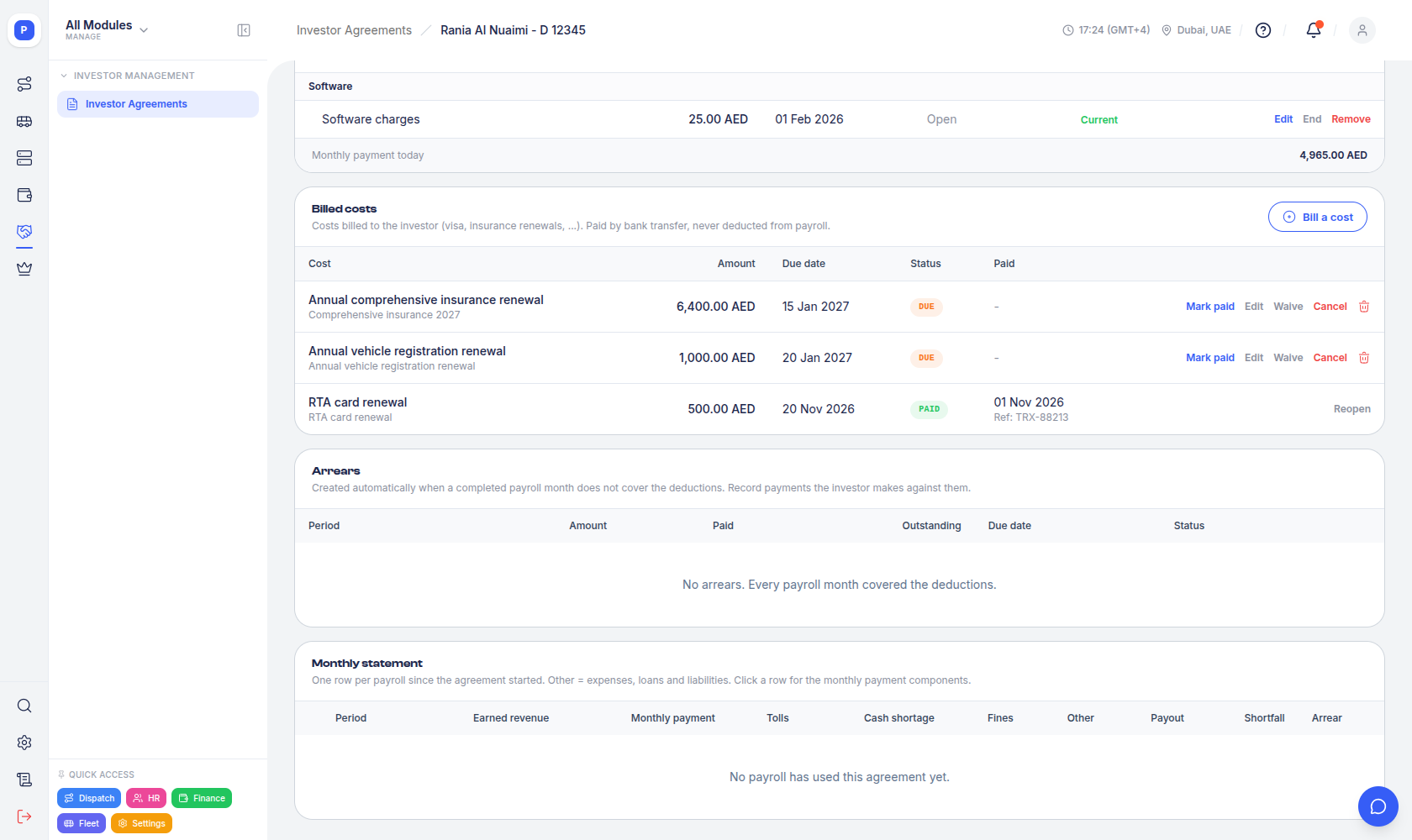
Arrears
Arrears are created automatically when a completed payroll month does not cover the deductions on the agreement.
| Column | Description |
|---|---|
| Period | The payroll period, with notes and the date the investor was notified |
| Amount | The arrear amount |
| Paid | How much has been paid, with the payment date |
| Outstanding | What is still owed, in red while the arrear is open |
| Due date | When it is due |
| Status | For example Open, Paid or Waived |
While an arrear is open it offers Record payment and Waive. A payment cannot exceed the outstanding amount, and paying in full settles the arrear. Waiving records a reason and means the investor no longer owes the rest.
When every payroll month covered its deductions the table shows No arrears. Every payroll month covered the deductions. That is the normal steady state, not an error.
Monthly statement
One row per payroll that used the agreement, newest first.
| Column | Description |
|---|---|
| Period | The payroll period, with the payroll status underneath |
| Earned revenue | The vehicle's revenue in the period, including tips where relevant |
| Monthly payment | The monthly payment deducted |
| Tolls | Personal tolls |
| Cash shortage | Cash shortage deducted |
| Fines | Fines deducted |
| Other | Expenses, loans and liabilities together |
| Payout | What the investor receives |
| Shortfall | What the revenue could not cover, in red when it is above zero |
| Arrear | The status of the arrear created from the shortfall, when there is one |
Clicking a row expands it into the monthly payment that fell due in that period -- each due date with its total and the individual components -- and a breakdown of platform revenue, booking revenue, tips included, expenses, loans, liabilities and total deductions. Any arrear on that period is summarised at the bottom.
Before the first payroll has used the agreement the section reads No payroll has used this agreement yet. It fills in as soon as the first payroll with this vehicle is completed.
Investor Costs
The Investor costs tab holds the company catalogue that Bill a cost picks from.
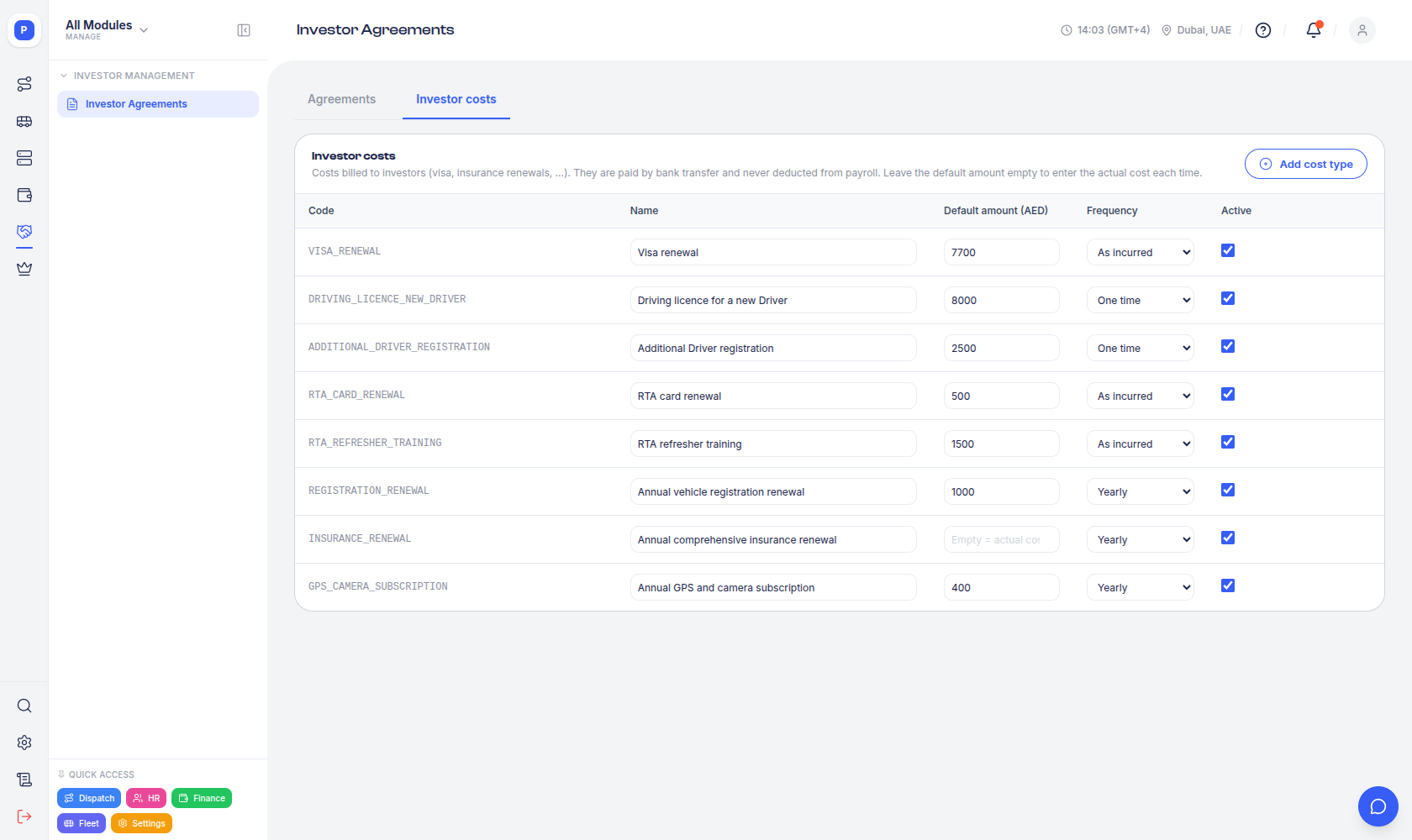
| Column | Description |
|---|---|
| Code | The short code, for example VISA |
| Name | The display name |
| Default amount | AED. When empty the row reads Actual cost, and the real amount is entered each time the cost is billed |
| Frequency | As incurred, One time or Yearly |
| Active | Whether the type can be picked when billing a cost |
With edit permission the rows are editable in place -- name, default amount, frequency and active -- and a row shows Save and Reset once it is changed. Changing a default amount reveals a checkbox to email investors with an active agreement about the new price, with an optional message.
Add cost type adds a row where you enter the code, name, default amount, frequency and active flag. The code is upper-cased and spaces become underscores.
Whatever is billed here is collected by bank transfer. Costs in this catalogue are never deducted from payroll, so they do not appear in the monthly statement.
Changing a Price for All Investors
Change a price applies one component change across every active agreement in a single step. It is available with edit permission.
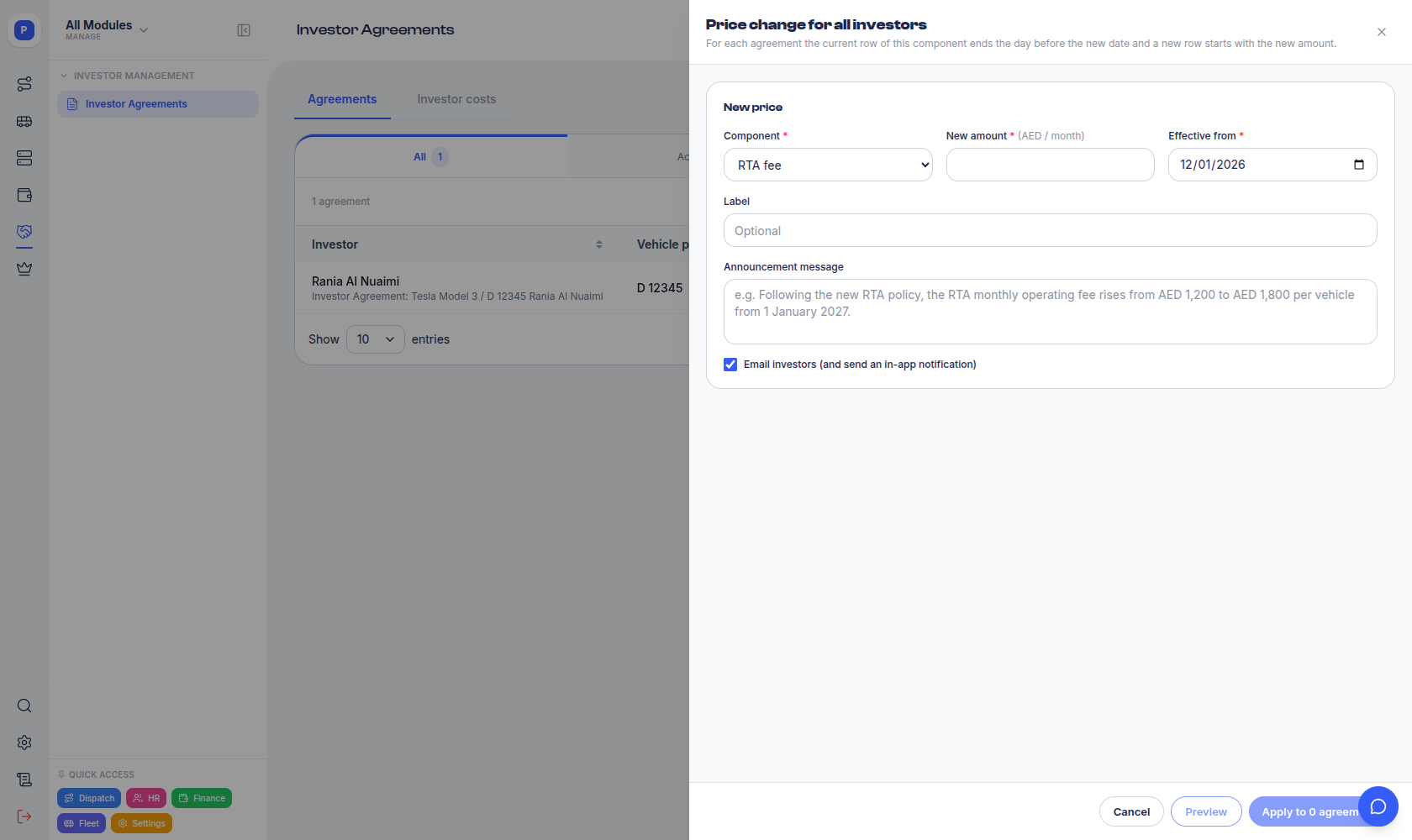
- Choose the Component -- Installment, RTA fee, Plate fee, Software, Additional driver or Other. The panel starts on RTA fee.
- Enter the New amount in AED per month and the Effective from date. The date defaults to the 1st of next month.
- Optionally add a Label and an Announcement message.
- Leave Email investors (and send an in-app notification) ticked if the investors should be told. Investors without an email address are marked No email: in-app only.
- Click Preview. This is a dry run and writes nothing.
- Review the table of Investor, Plate, Email, Old → New amount and Monthly payment before → after. Untick any agreement you want to leave unchanged.
- Click Apply to N agreements.
For each agreement the current row of that component ends the day before the new date, and a new row starts on the new date with the new amount. Agreements that cannot be changed are listed separately under Skipped with the reason. After applying, the panel reports how many agreements were updated and how many investors were notified.
Applying a price change is not reversible from the panel. Run the preview first, check the Monthly payment before → after column, and untick anything that should stay as it is.
Next Steps
- Investor Agreements overview -- The two audiences and where the money comes from
- My Agreements -- What the investor sees in their own portal
- Payroll -- How the monthly payment is deducted and the payout calculated
- Vehicles -- The vehicle each agreement covers
- Employee Permissions -- Grant the
investor-agreementspermission