Overview
The Fleet Operations Dashboard — jobs, drivers on duty, alerts, fleet status, upcoming maintenance and open incidents on one screen, plus the Fleet data export.
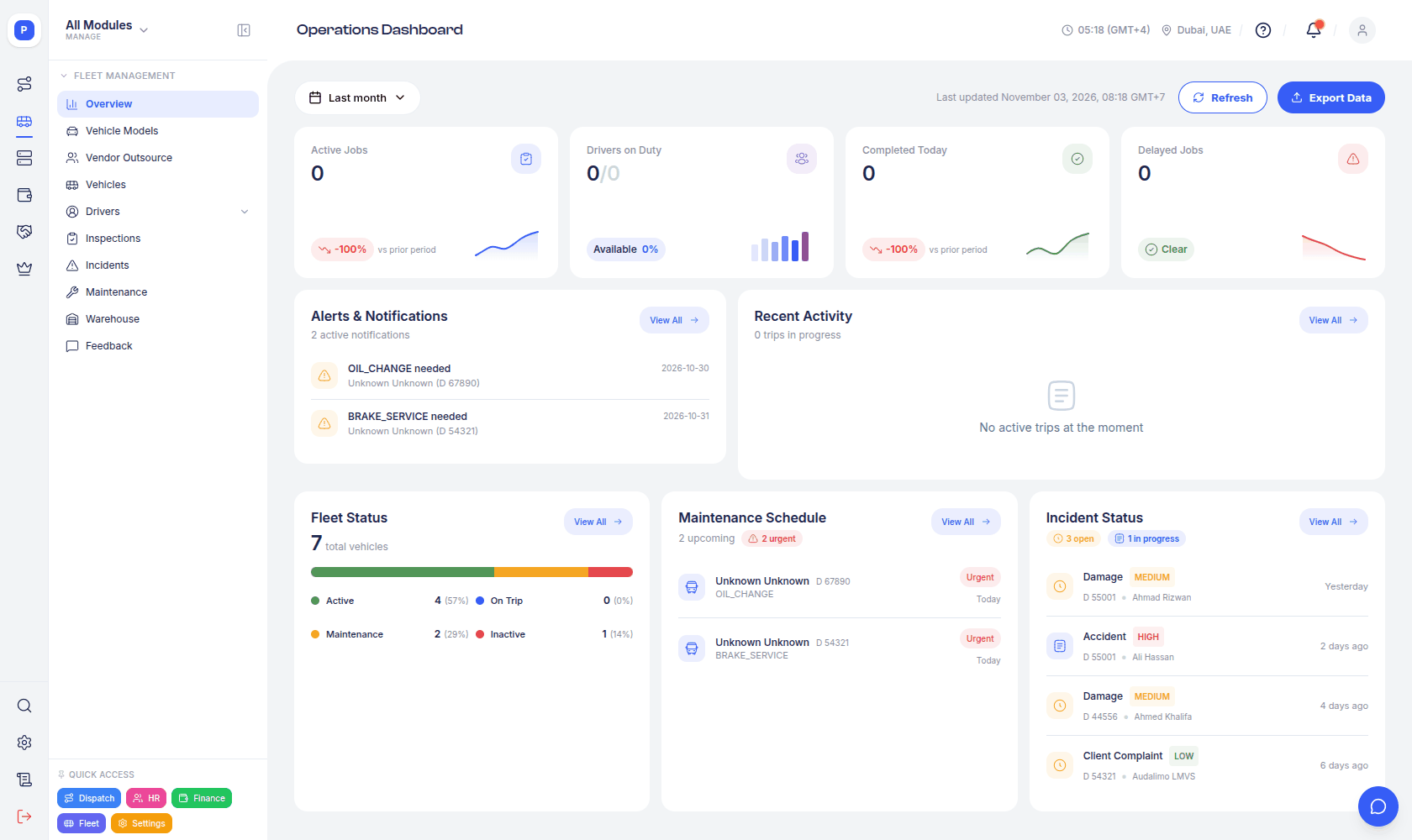
Fleet > Overview is the home screen of the Fleet module. It is titled Operations Dashboard and brings jobs, drivers, vehicles, maintenance and incidents together on one page. Nothing is edited here: every card is a read-only summary, and most cards have a View All link to the page that holds the full list.
Toolbar
| Control | What it does |
|---|---|
| Date range (default Last month) | Sets the period used by the cards that are period based. Presets: Today, Last 7 days, Last 30 days, This month, Last month and Custom (pick the dates on the calendar). |
| Last updated … | The time the page was last refreshed. |
| Refresh | Reloads the numbers of all cards and updates the "Last updated" time. |
| Export Data | Opens the Fleet export. |
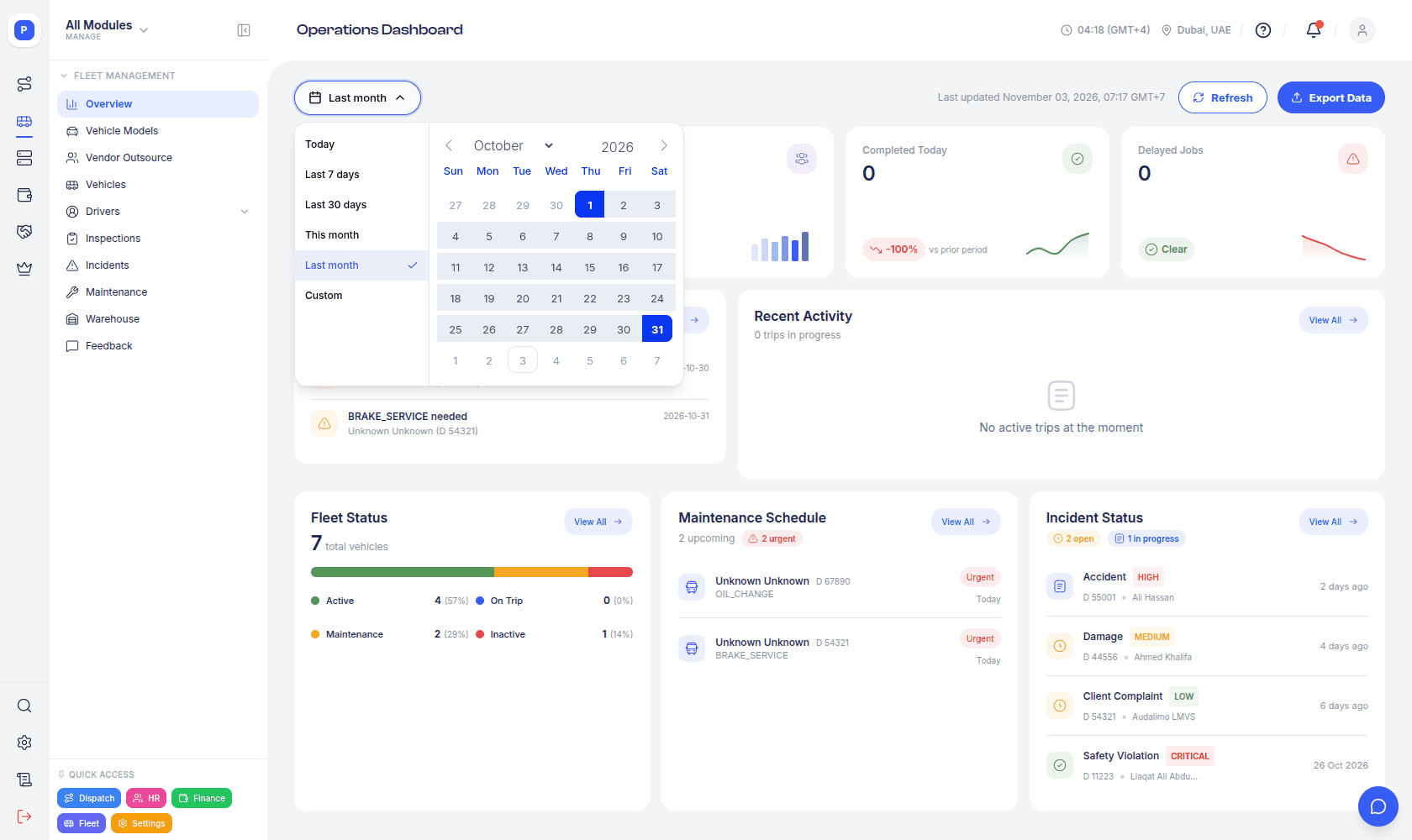
The page opens on Last month, not on today. To see today's numbers pick Today first.
Cards
Operations snapshot
| Card | What it counts | Uses the date range? |
|---|---|---|
| Active Jobs | Trips whose status is In Progress and that were last updated inside the selected period, with a trend against the previous period of the same length. | Yes |
| Drivers on Duty | Employees who clocked in today and have not clocked out. The label underneath (Available) is the share of them that is not on an in‑progress trip. | No — always the current day |
| Completed Today | Trips with status Completed inside the selected period (despite the title, it follows the date range), with a trend against the previous period. | Yes |
| Delayed Jobs | Bookings that are Confirmed or In Progress and whose pickup time has already passed (the first 10 are listed). Shows Clear when there are none and Pending when there are. | Yes |
Alerts & Notifications
Up to four items that need attention, combined from three sources: delayed jobs, vehicle documents that expire within the next 30 days (Mulkiya, insurance, registration) and upcoming maintenance. View All opens Notifications.
Recent Activity
The latest trips that are In Progress, Scheduled or Completed in the selected period, with their status. When nothing is running the card shows "No active trips at the moment". View All opens the Dispatcher.
Fleet Status
The total number of vehicles and a bar split into Active, On Trip, Maintenance and Inactive (vehicles that are Inactive or Out of Commission both count as Inactive). Each line shows the count and its percentage. View All opens Vehicles.
Maintenance Schedule
Upcoming maintenance that is Scheduled or In Progress, with a priority badge: Urgent (due today or overdue), Soon (due within 3 days) or Scheduled (later). The header shows how many are urgent. View All opens Maintenance.
Incident Status
Incidents that are Open or In Progress, each with its type, severity (High, Medium, Low; Critical is shown as High), the vehicle plate, the person involved and how long ago it happened. The header shows how many are open and how many are in progress, or All clear. View All opens Incidents.
The Incident Status card is hidden on tablet-sized screens, and Completed Today and Delayed Jobs are hidden on phones, to keep the page readable.
Export Fleet Data
Export Data exports the data of one Fleet module to an Excel file. It works in two steps.
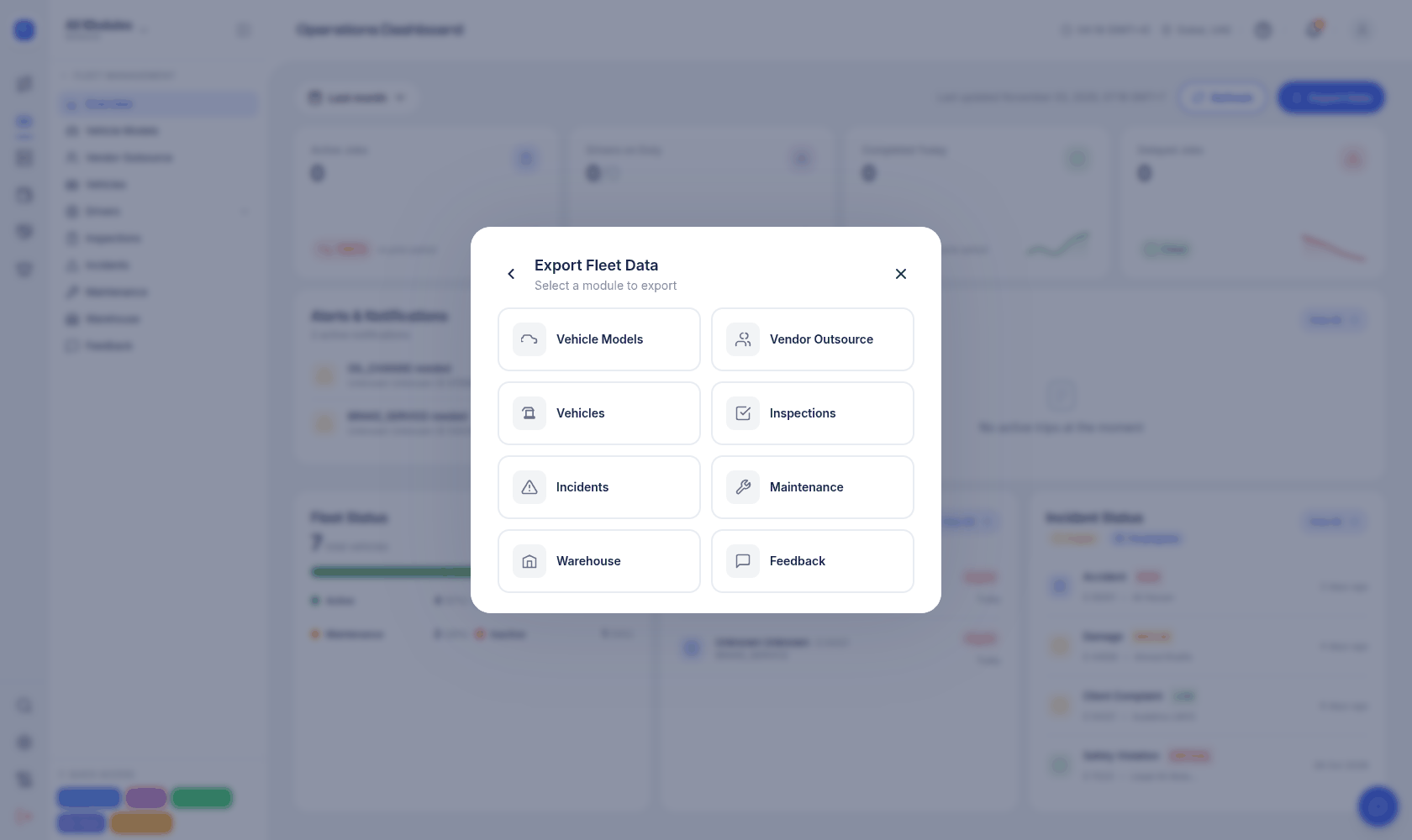
Step 1 – choose a module. Eight modules are offered: Vehicle Models, Vendor Outsource, Vehicles, Inspections, Incidents, Maintenance, Warehouse and Feedback.
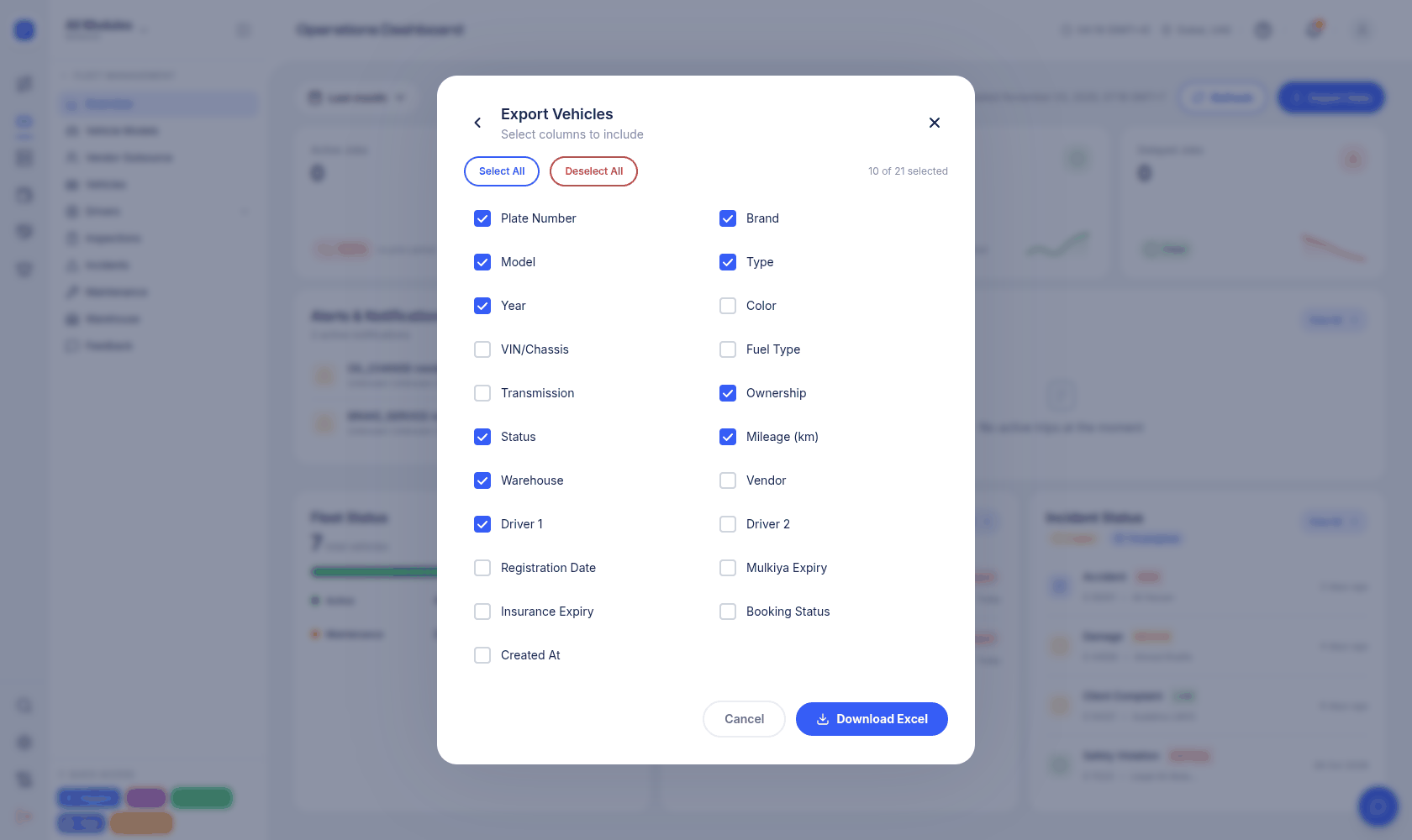
Step 2 – choose the columns. The dialog is titled Export followed by the module name (for example Export Vehicles) and lists the available columns with check boxes. A counter shows how many are selected (for example "10 of 21 selected"), and Select All / Deselect All change every box at once. For Inspections, Incidents and Maintenance there is also an optional Filter by Date Range (From / To, with a Clear button): only records inside the range are exported.
Download Excel generates the file, shows a progress bar (Preparing data…, Downloading…, Complete!) and saves fleet-<module>-<date>.xlsx. The dialog closes and a toast confirms the export. Use the back arrow in the header to return to step 1, or Cancel to close without exporting.
Who can see it
The page is available to users with Fleet access. The cards read data from Dispatch (trips, bookings), HR (attendance) and Fleet (vehicles, maintenance, incidents), so a card stays empty when that area has no data.