Editing an Employee
The Edit Employee form, where all sections are on one page, what it requires, and how saving works.
Edit in the row menu of the Employee list, or in the profile menu of the Employee Detail page, opens the edit form at /employees/edit/:id. You need the employee-management edit permission.
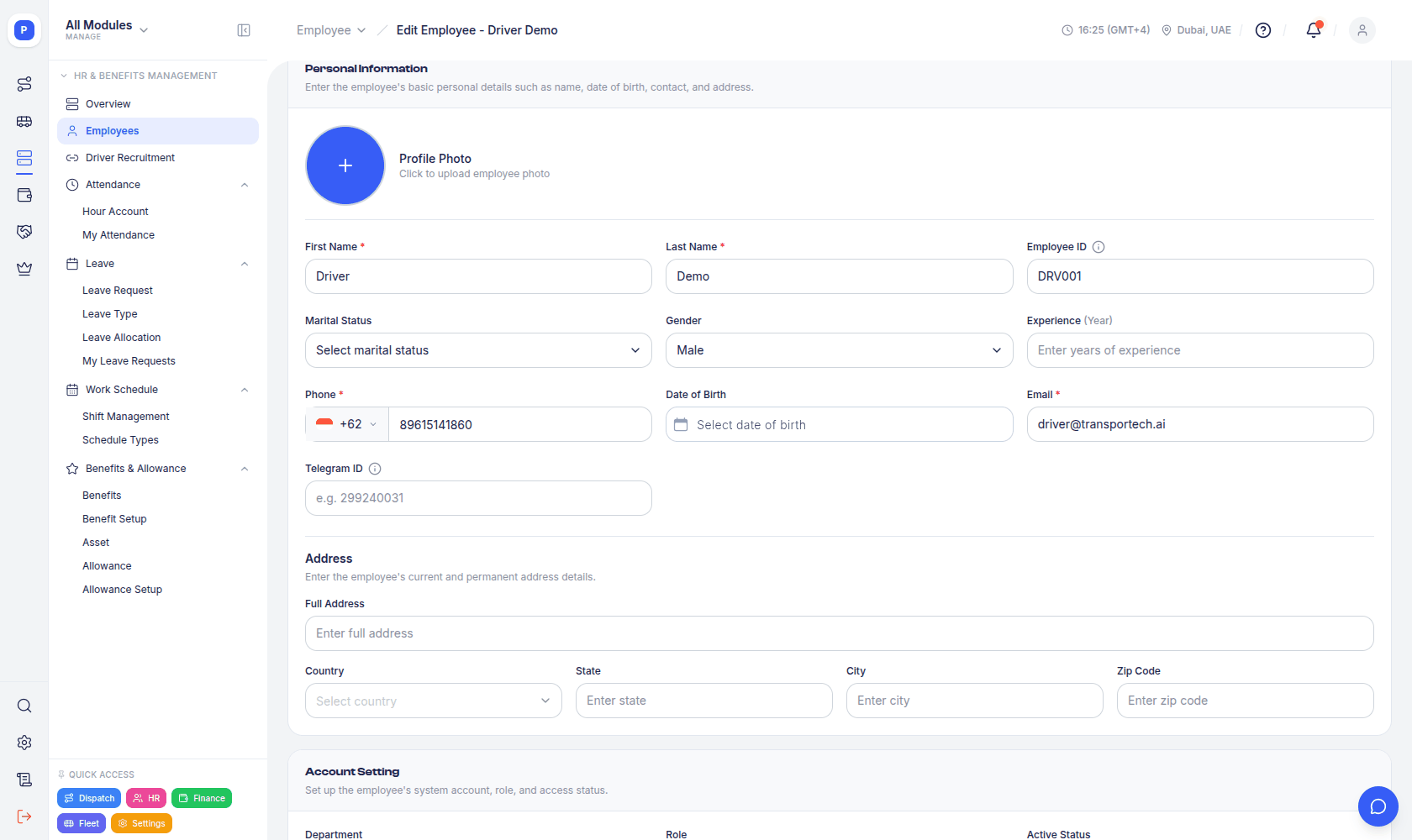
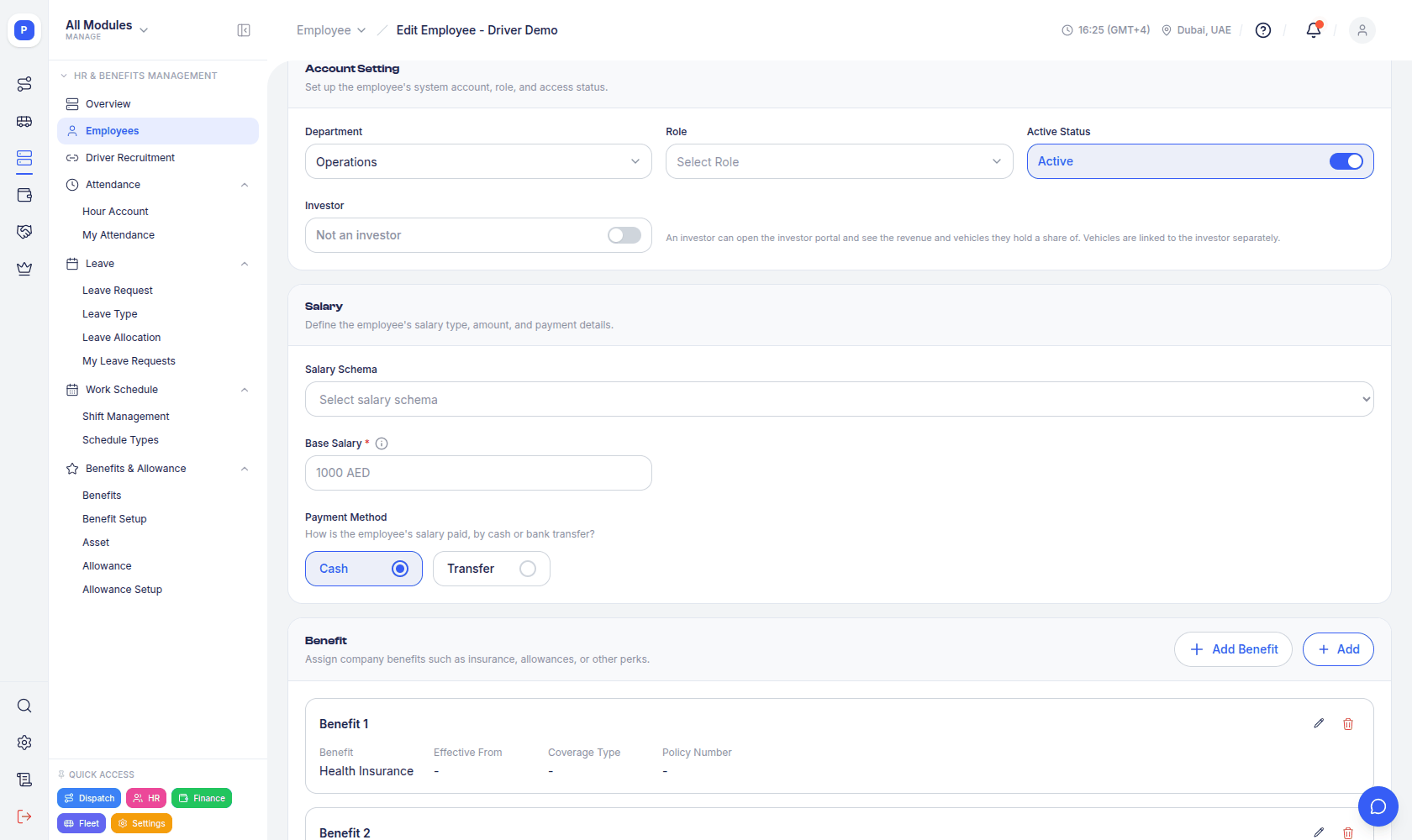
Unlike Add Employee, which goes step by step, the edit form shows all sections on one page, filled with the current data. Save at the bottom saves every section at once; leaving the page without saving drops your changes.
The sections
The nine sections are the same as in the add form, plus the third-party IDs:
| Section | What you change |
|---|---|
| Personal Information | Name, photo, marital status, gender, experience, phone, date of birth, e-mail, Telegram ID, address |
| Account Setting | Department, role, active status, investor |
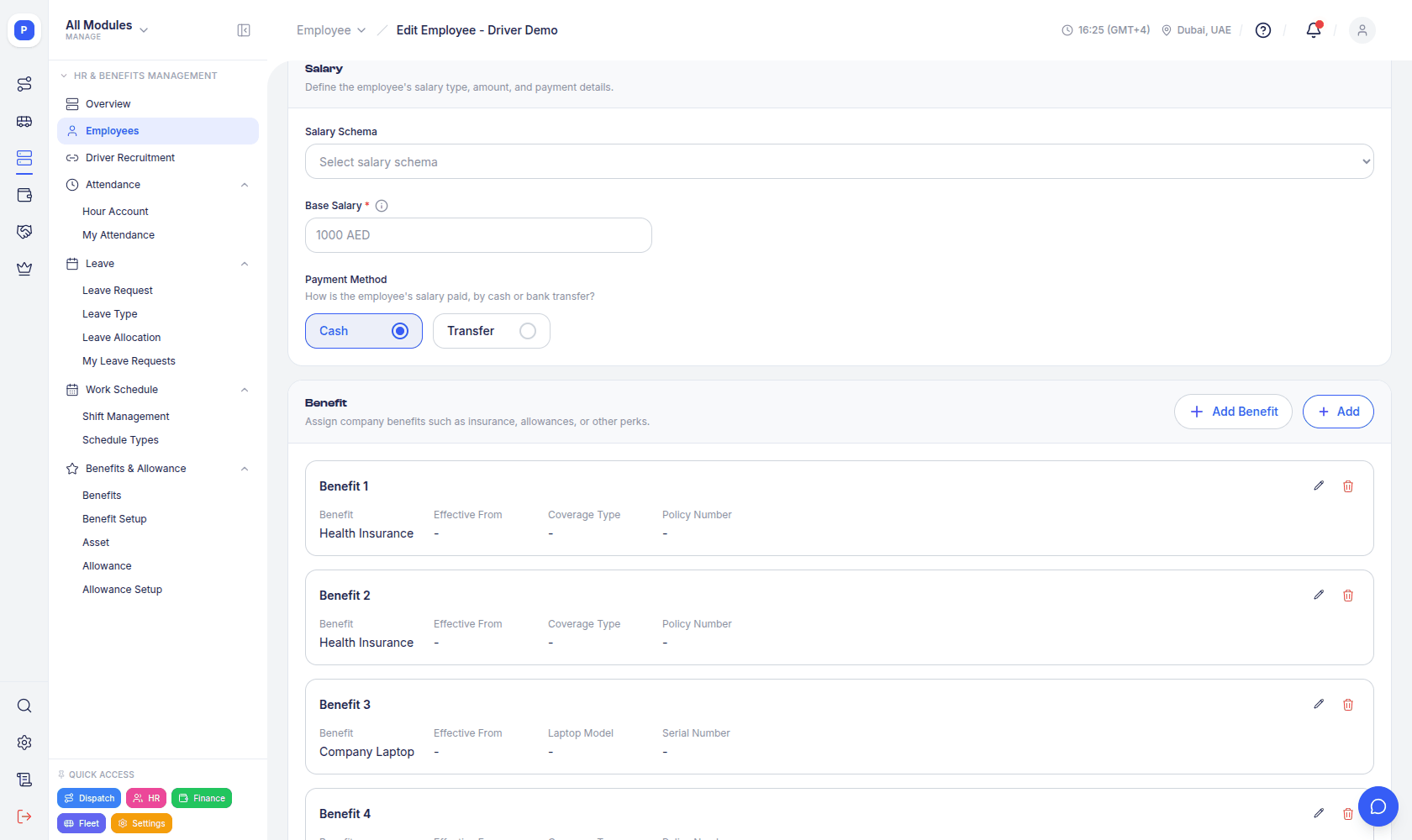
| Salary | Salary schema, base salary, payment method |
| Benefit | The employee's benefits: add, edit and remove |
| Allowance | The employee's allowances: add, edit and remove |
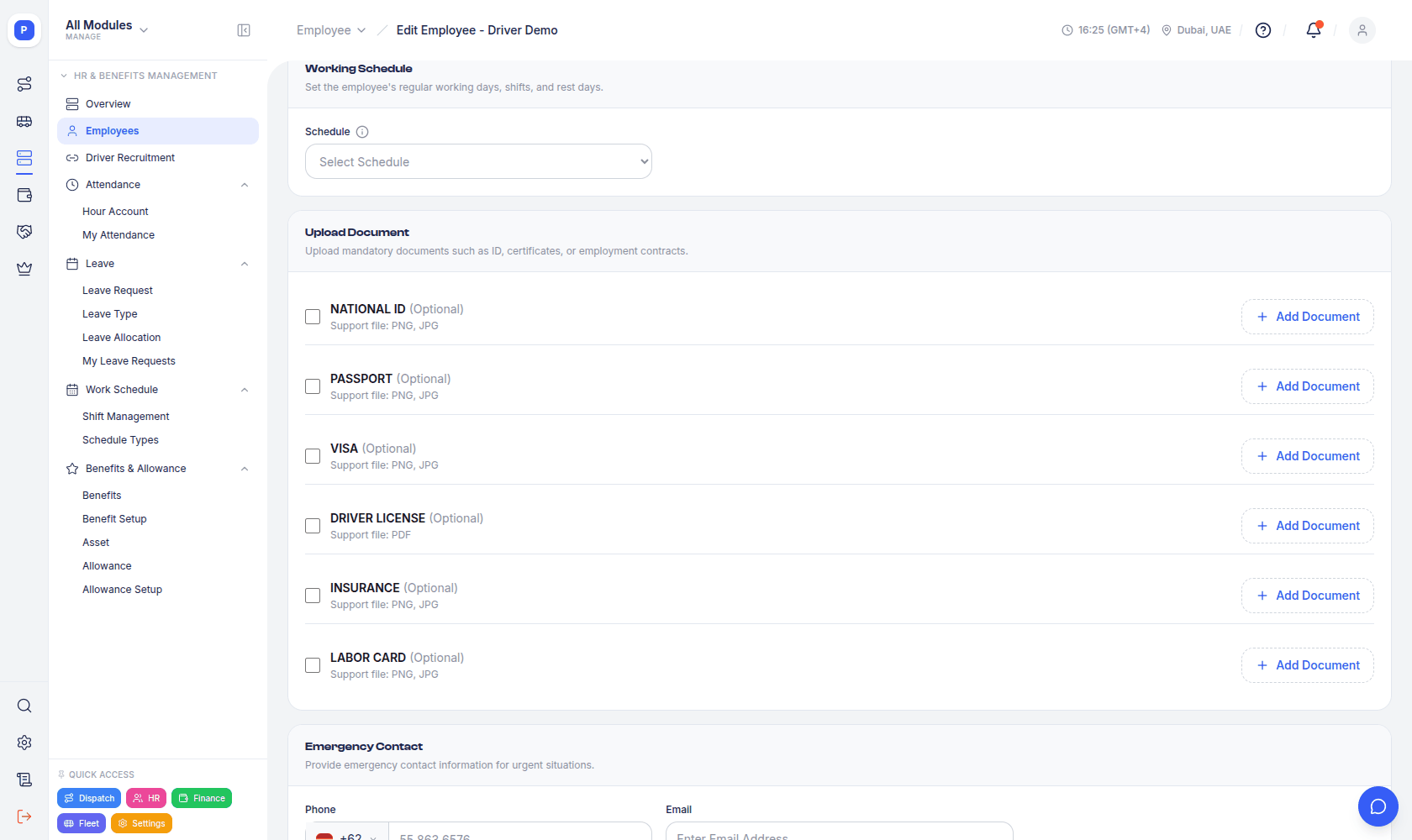
| Working Schedule | The schedule type and period |
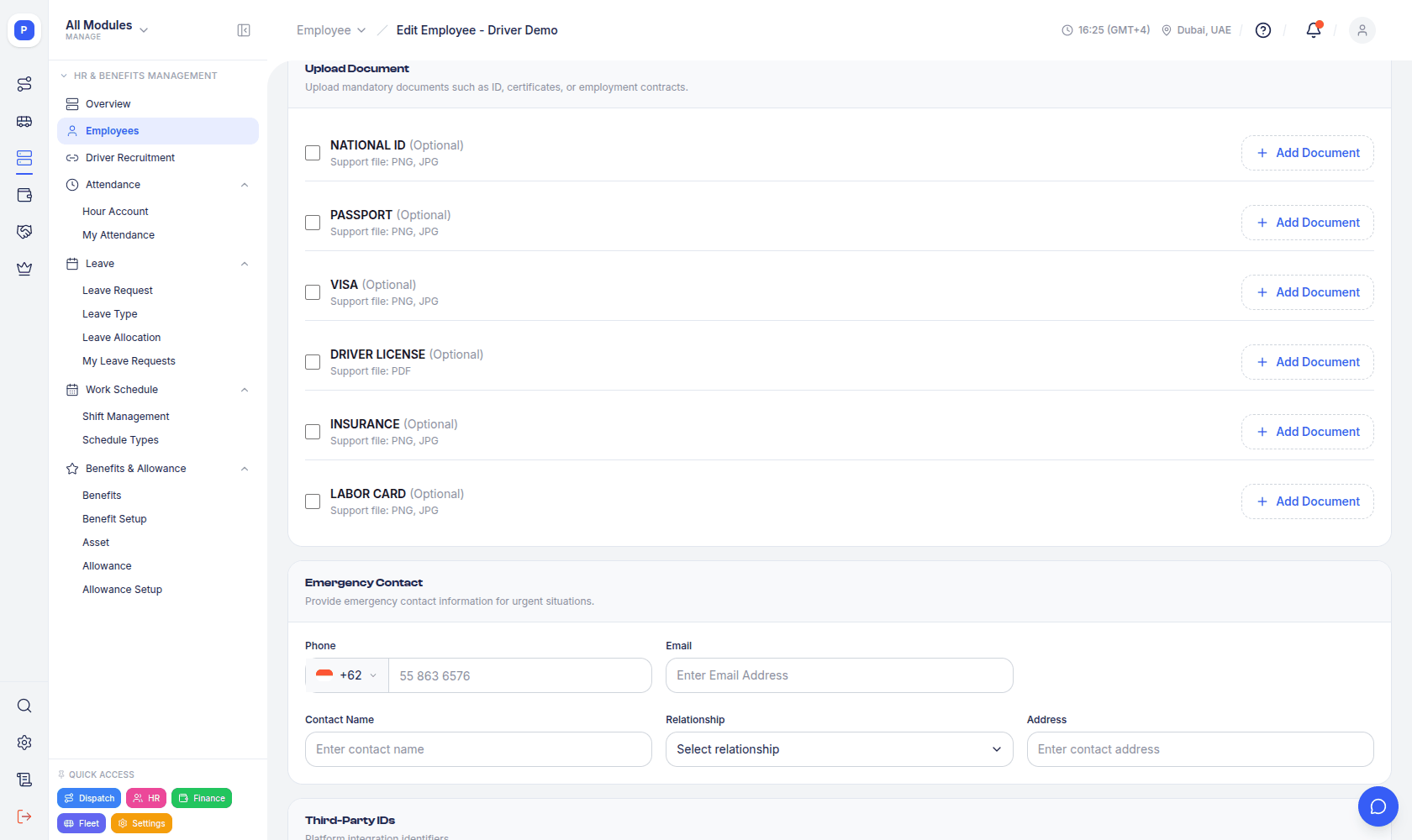
| Upload Document | The employee's documents |
| Emergency Contact | Name, relationship, phone, e-mail, address |
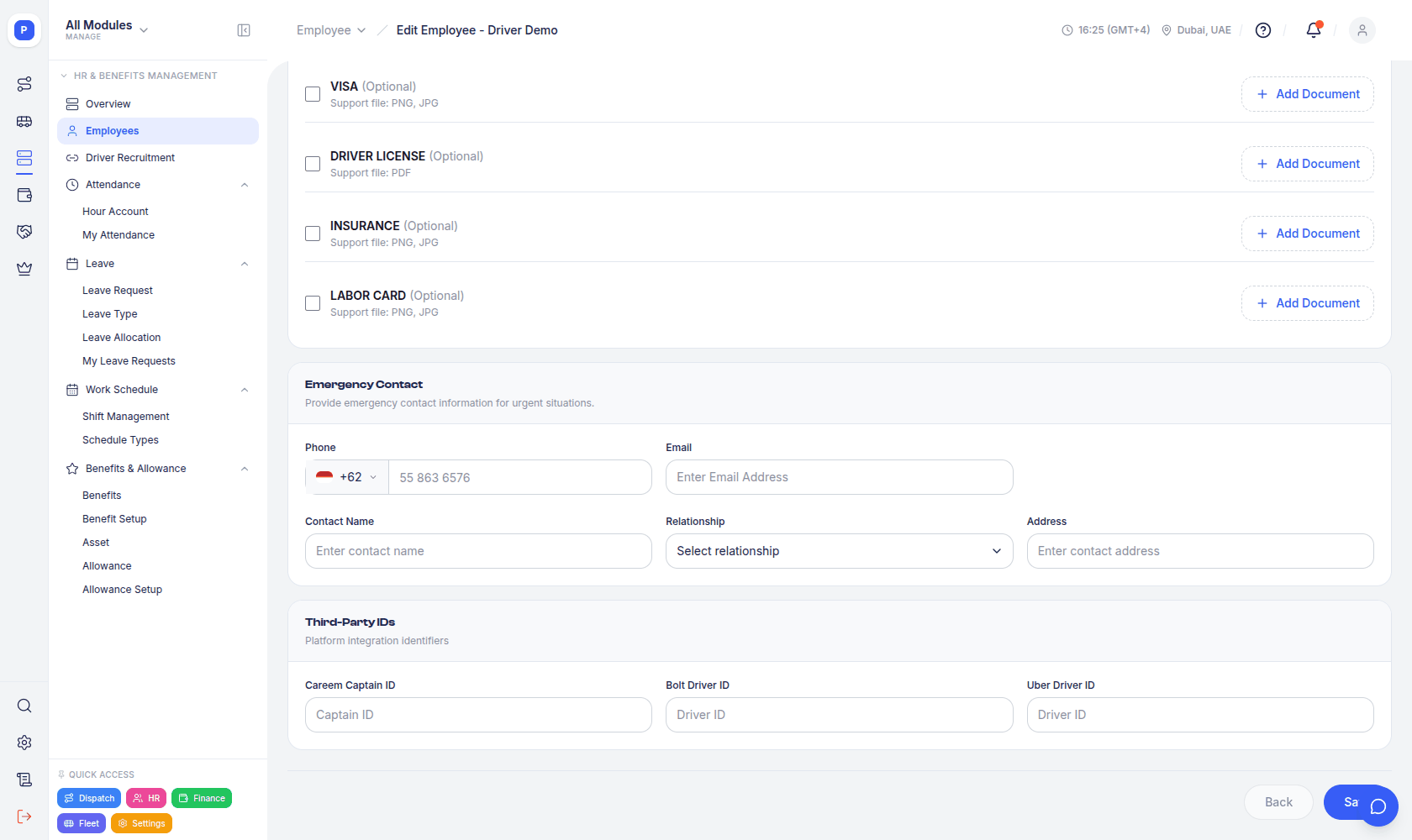
| Third-Party IDs | Careem Captain ID, Bolt Driver ID, Uber Driver ID |
The fields of each section are explained in Adding an Employee.
Benefit and Allowance
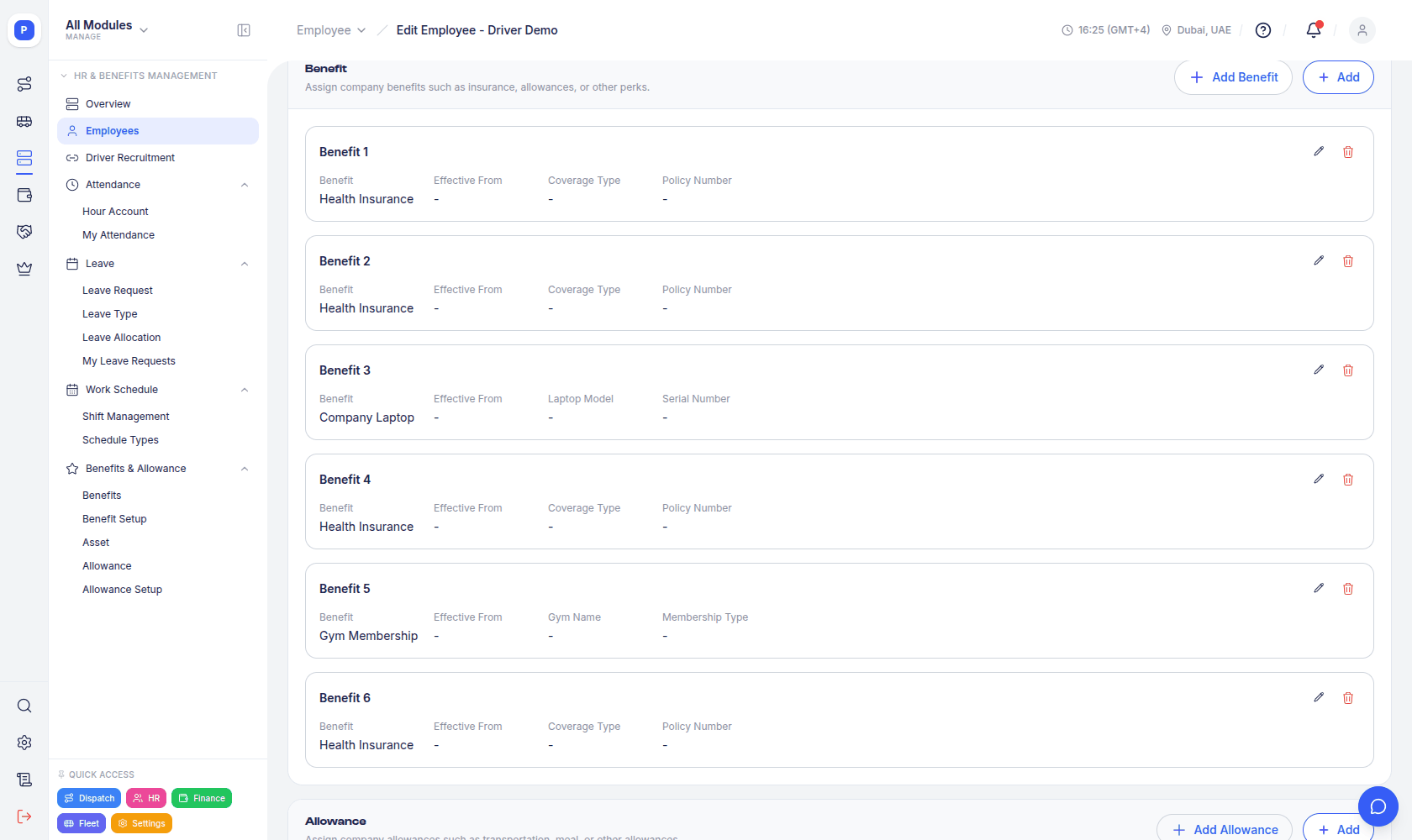
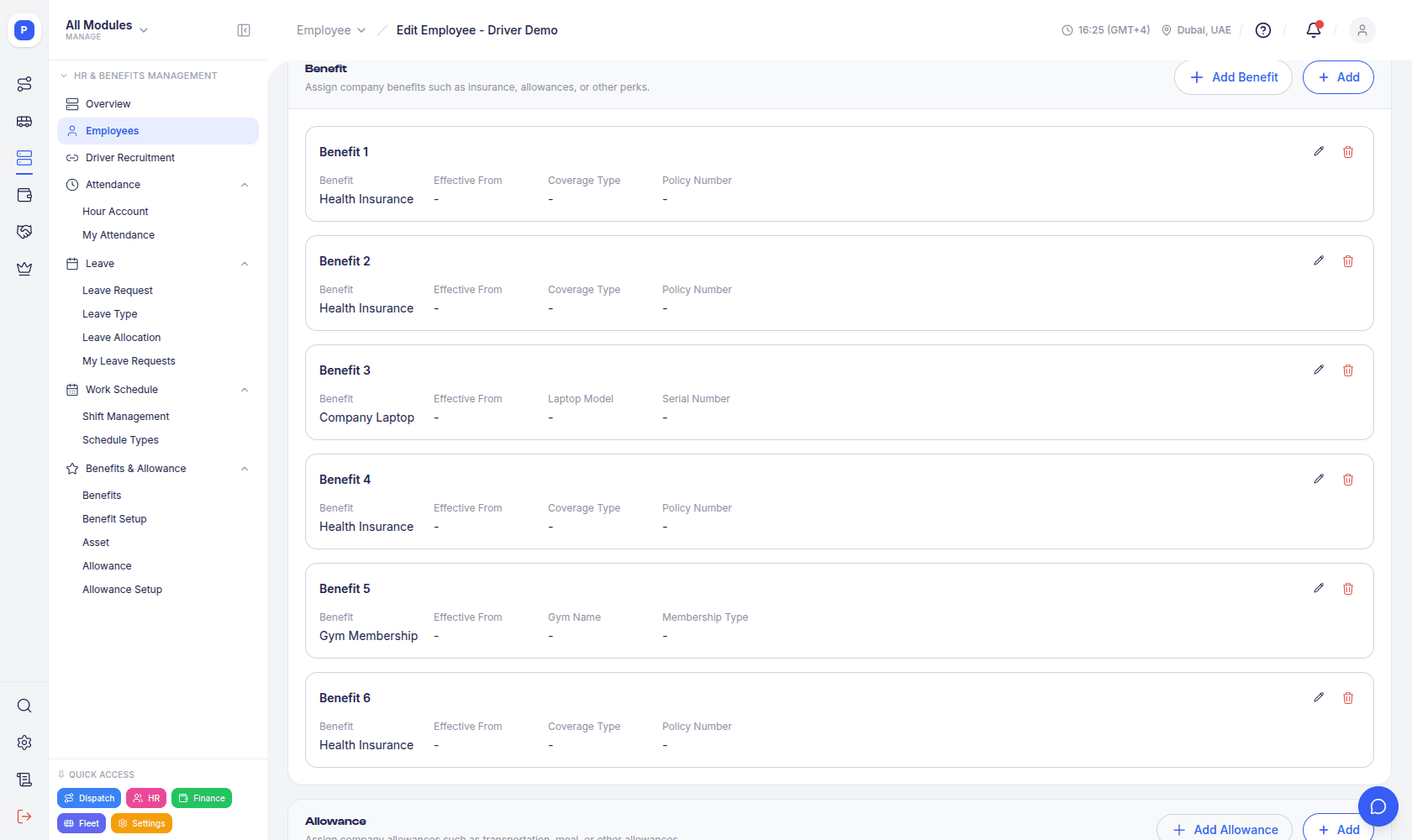
Each entry is picked from the list set up in Benefit Setup or Allowance Setup; once you have saved an entry it is shown as a card you can open again. Only entries that were saved with their own Save button (the tick on the entry) are sent when you save the employee.
Working Schedule, Documents, Emergency Contact
Third-Party IDs
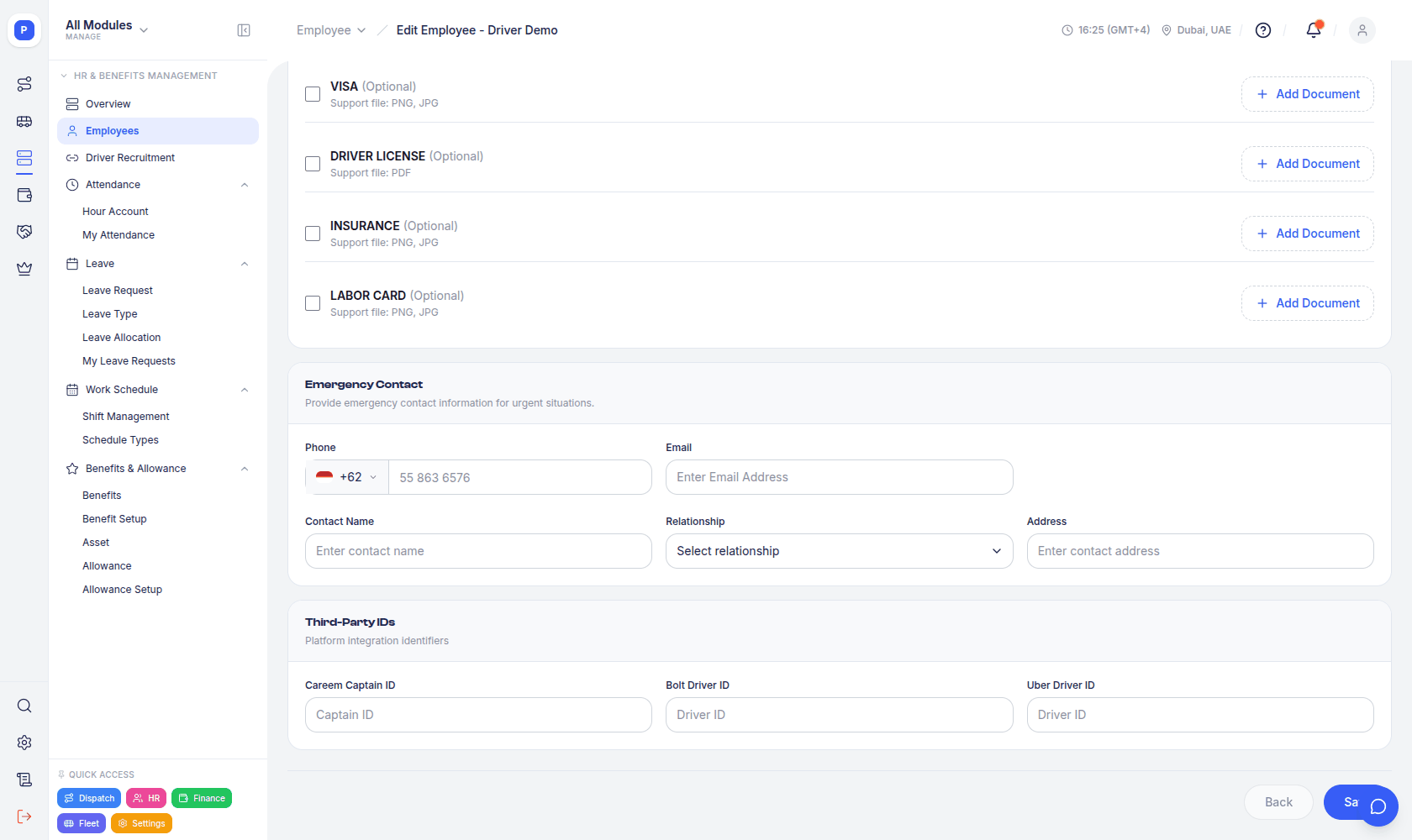
The IDs link the employee to the driver platforms (Careem, Bolt, Uber), so that trips and payments are matched to the right person. They are saved in a second request after the employee itself; if that second request fails the employee is still saved and no message is shown.
What the form requires
Only what the server refuses without:
| Field | Message |
|---|---|
| First name | "First name is required" |
| Last name | "Last name is required" |
| "Email is required" | |
| Phone | "Phone number is required", or "Phone number must be 7-15 digits" |
| Telegram ID | "Telegram ID must contain digits only" (when filled) |
Marital status, experience, date of birth, address, employee ID, department and role are not required when editing, so employees that were imported without them can still be updated.
Saving
Save opens the confirmation Save changes? ("Are you sure you want to save changes to this employee? Please review all information before confirming.").
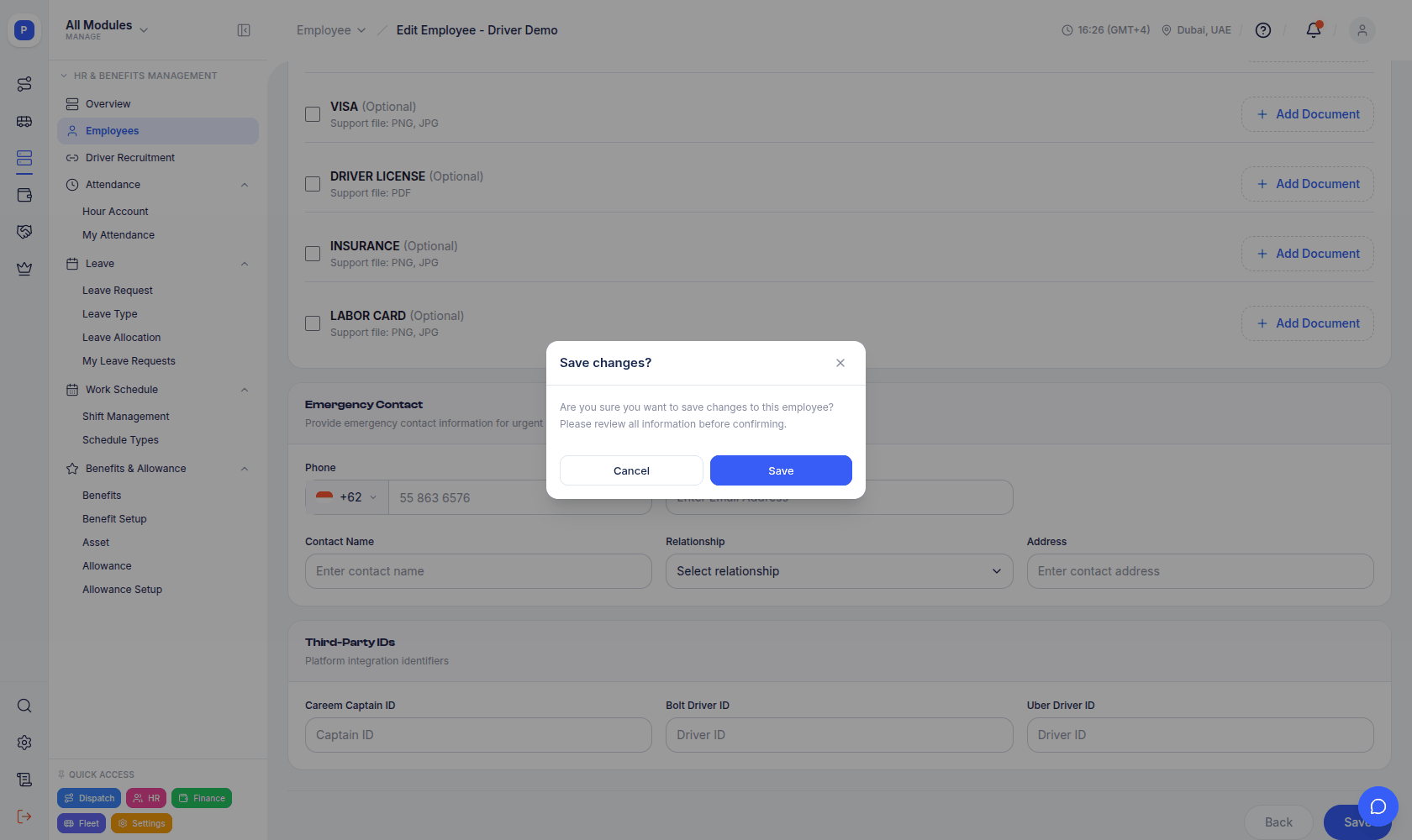
- Confirm: the data is checked. If something is missing the dialog closes, a message Cannot save yet lists what is wrong, and the form goes to the first field in error. Otherwise the employee is updated, "Employee has been updated successfully." appears and you return to the employee list.
- Cancel closes the dialog and keeps the form as it is.
Adding an Employee
The Add Employee form step by step — personal information, account, salary, benefits, allowances, schedule, documents and emergency contact — with the rules each step checks.
Employee Detail Page
The profile header, its settings menu, the tab bar and how to choose which tabs you see.