Benefit Setup
Define the types of benefit your company offers, the fields each one asks for, and which ones are tracked as physical items.
Benefit Setup is the catalogue of benefit types, for example Health Insurance or Company Laptop. A benefit type says which fields are filled in when it is given to an employee, and whether it is a physical item that is tracked as an asset. Giving a benefit to employees is done on the Benefits page.
Navigation: HR > Benefits & Allowance > Benefit Setup
Your role needs the benefits permission to open the page (without it you see Access Denied). The permission actions decide the buttons you get: add shows Create New and the Copy button, edit shows the Edit button and lets you switch a benefit on or off, and delete shows the Delete button.
The Benefit Setup List
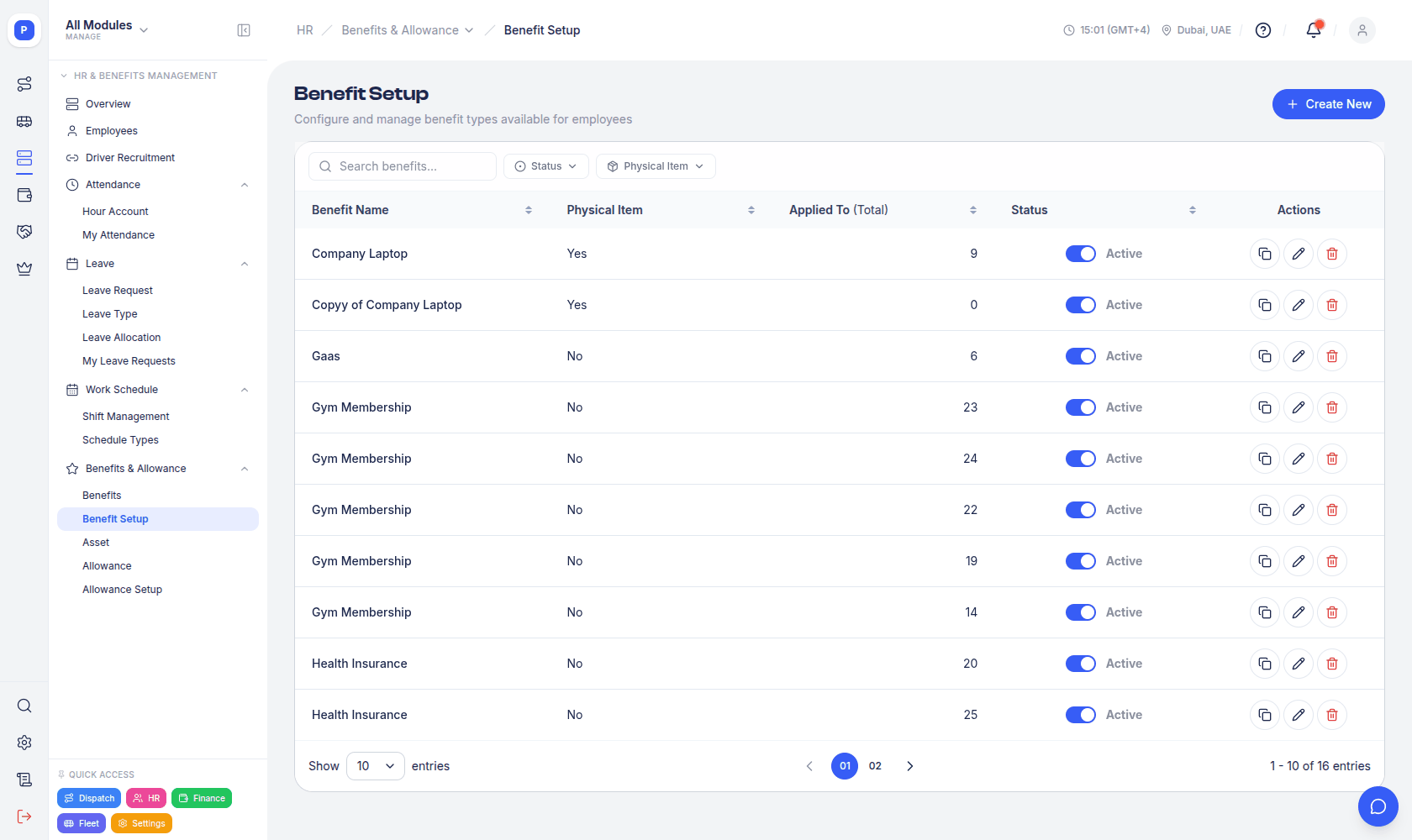
| Column | Description |
|---|---|
| Benefit Name | The name of the benefit type. Click it to open its details |
| Physical Item | Yes when the benefit is a physical item (laptop, phone), otherwise No |
| Applied To (Total) | How many employees have this benefit |
| Status | A switch with Active or Inactive. Clicking it changes the status at once, without a confirmation |
| Actions | Copy, Edit and Delete |
Search and filters
- The search box (Search benefits...) finds a benefit by name.
- Status shows only Active or only Inactive benefits.
- Physical Item shows only the benefits that are, or are not, physical items.
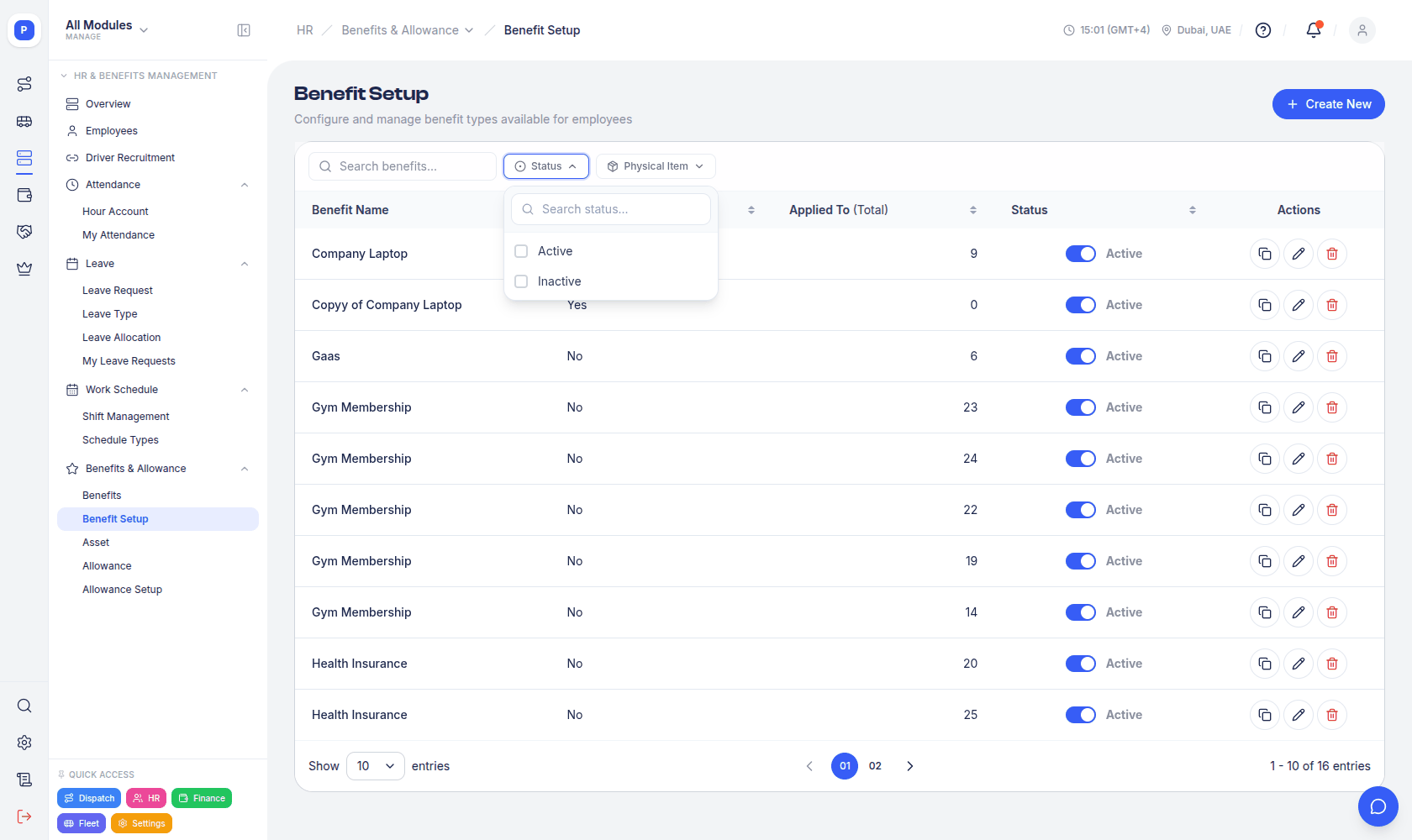
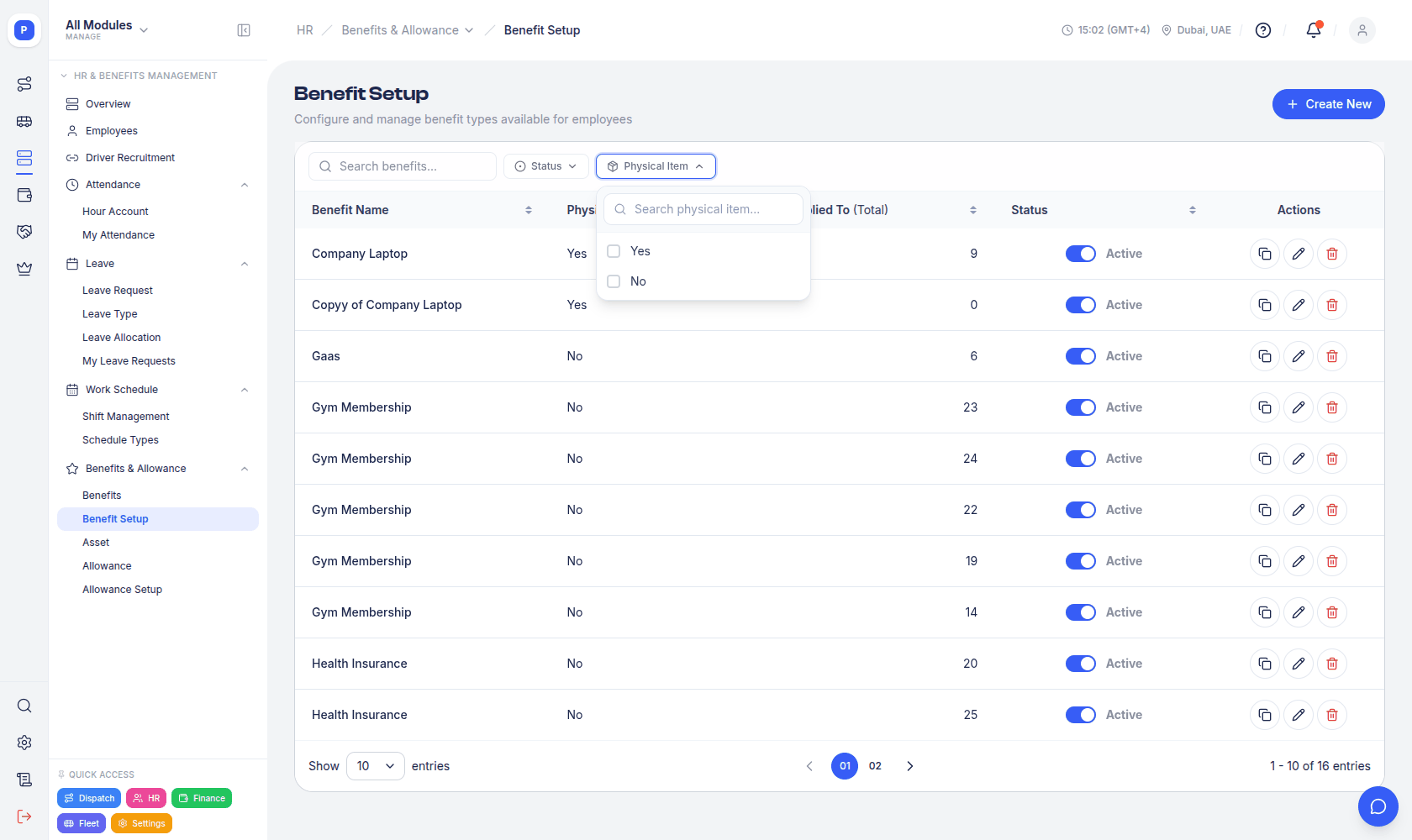
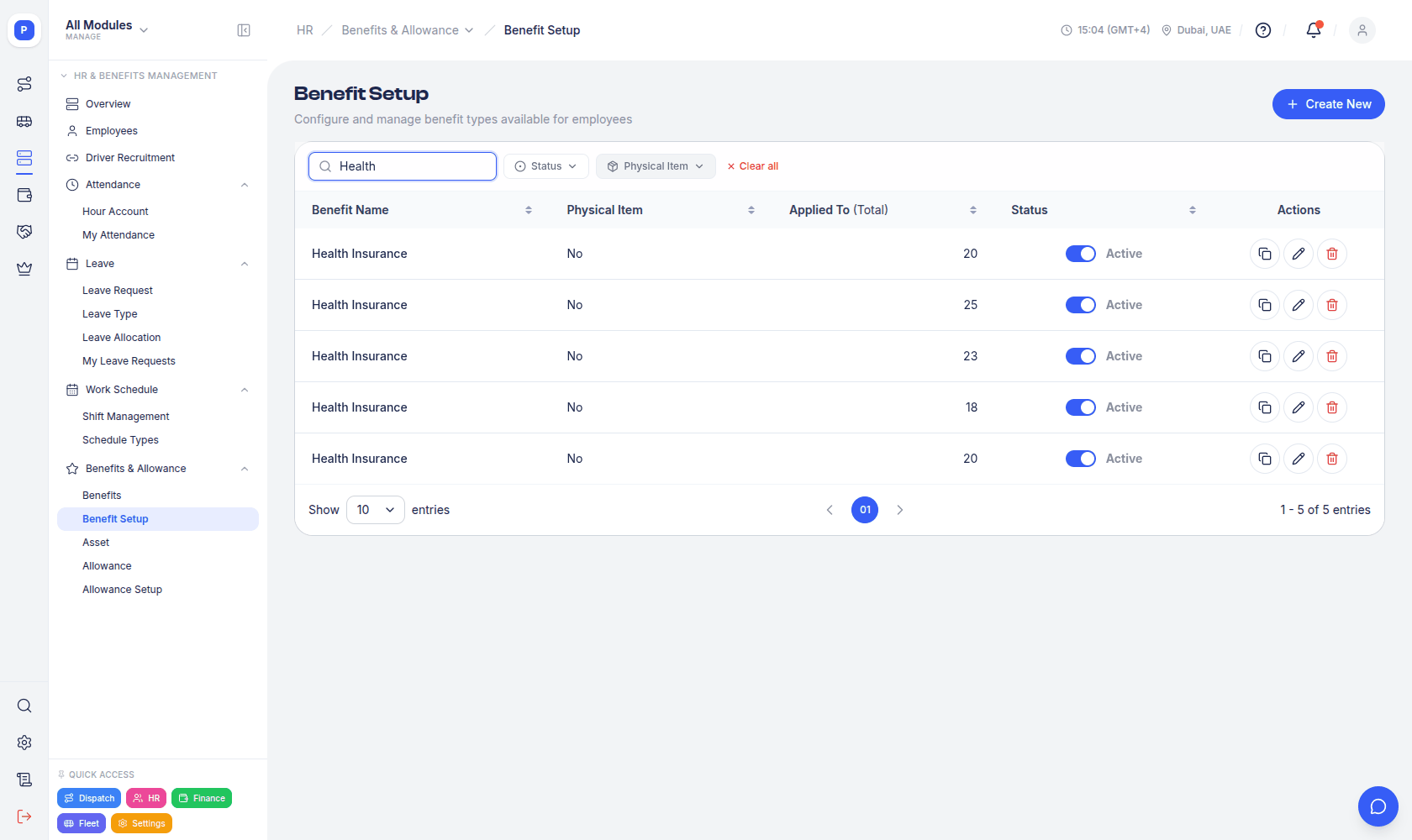
When a filter or a search is active, Clear all appears next to the filters. If you tick both values of a filter, it shows everything.
Viewing a Benefit Type
Click the name of a benefit to open the Benefit Setup Details panel on the right.
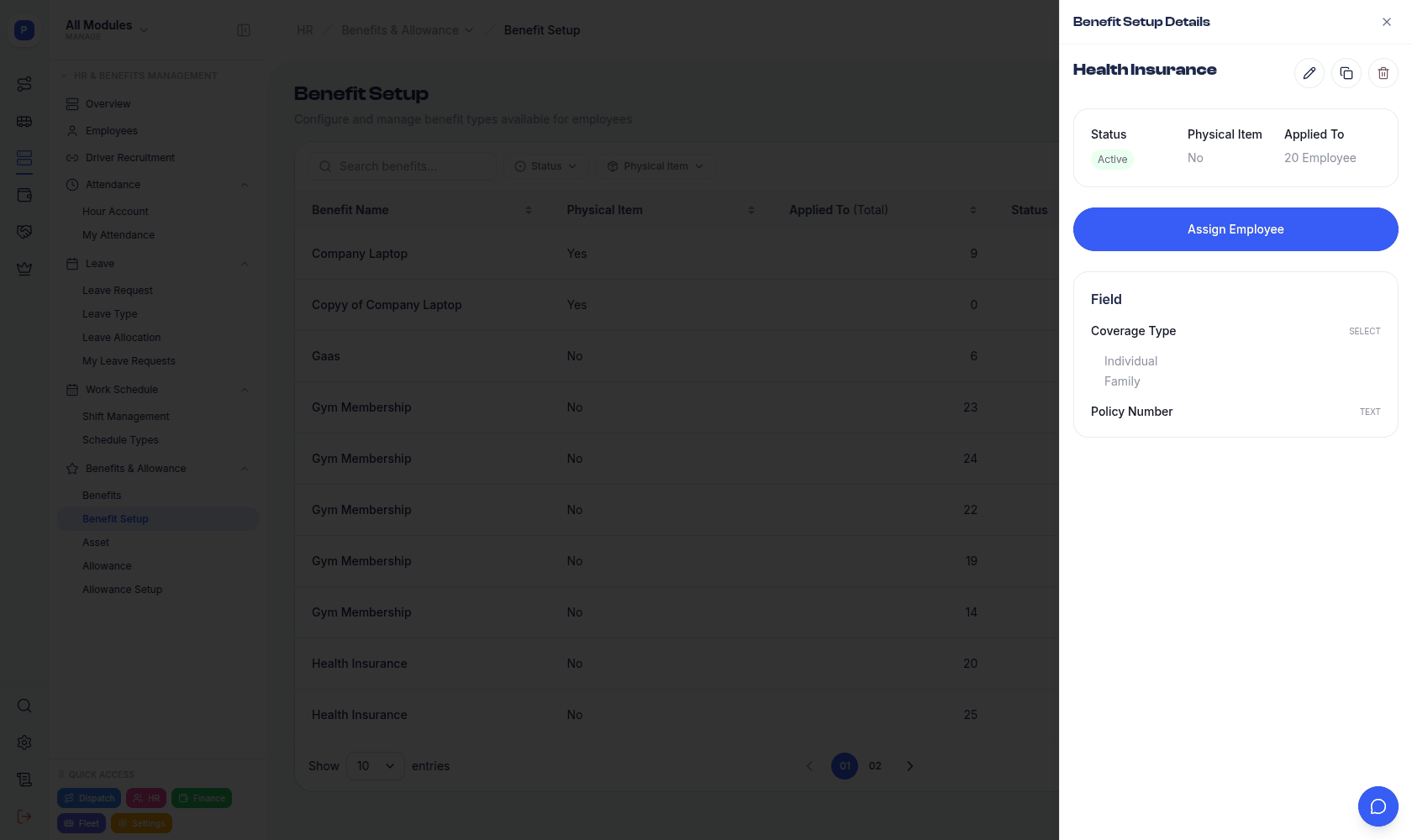
The panel shows the Status, whether it is a Physical Item, how many employees it is Applied To, and the Field list: every field the benefit asks for, with its type (for example SELECT or TEXT) and, for a dropdown, its options. The round buttons at the top are Edit, Copy and Delete.
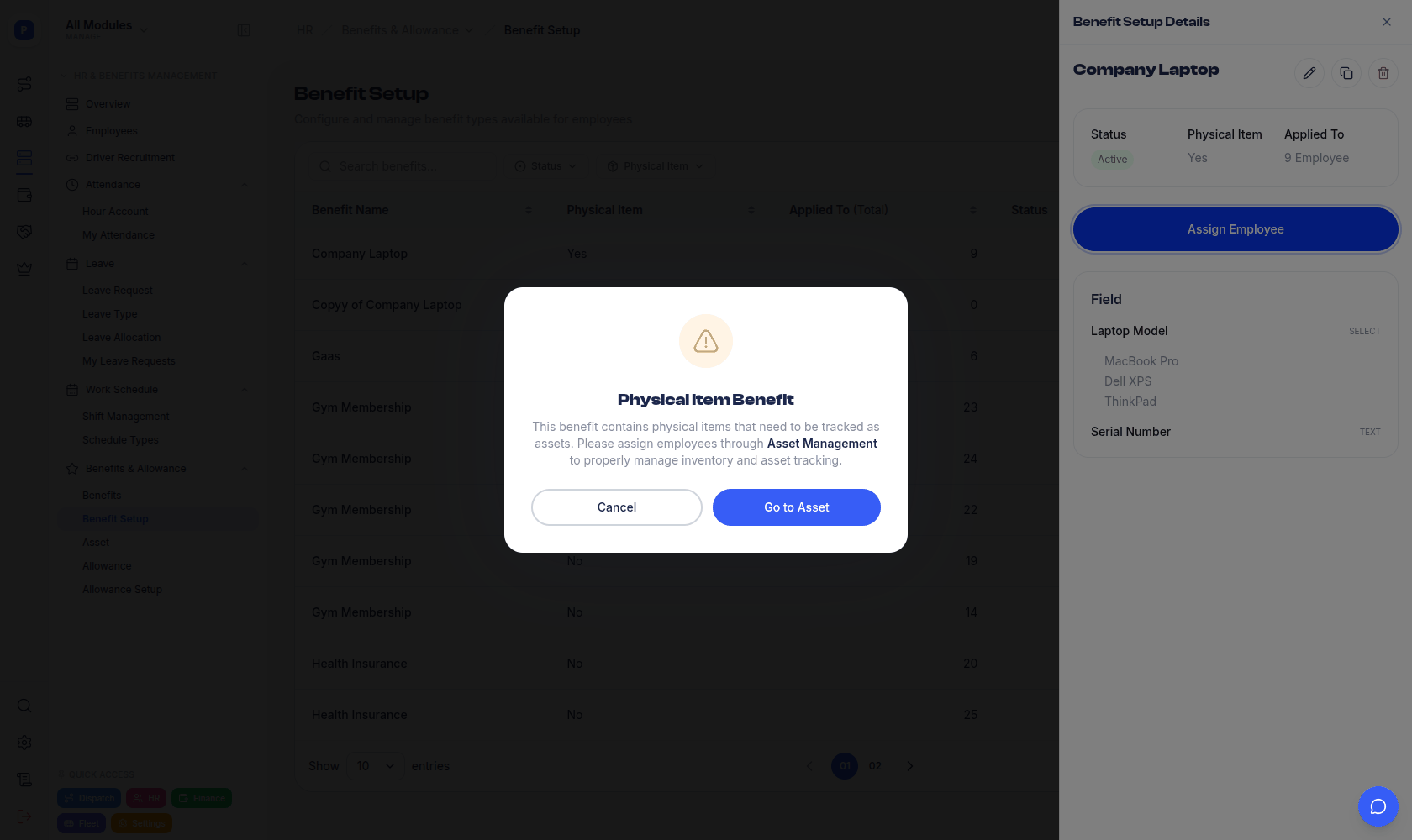
Assign Employee gives the benefit to employees. For a physical item it does not assign anything. It opens a message Physical Item Benefit that explains that physical items are tracked as assets, with Cancel and Go to Asset.
Adding a Benefit Type
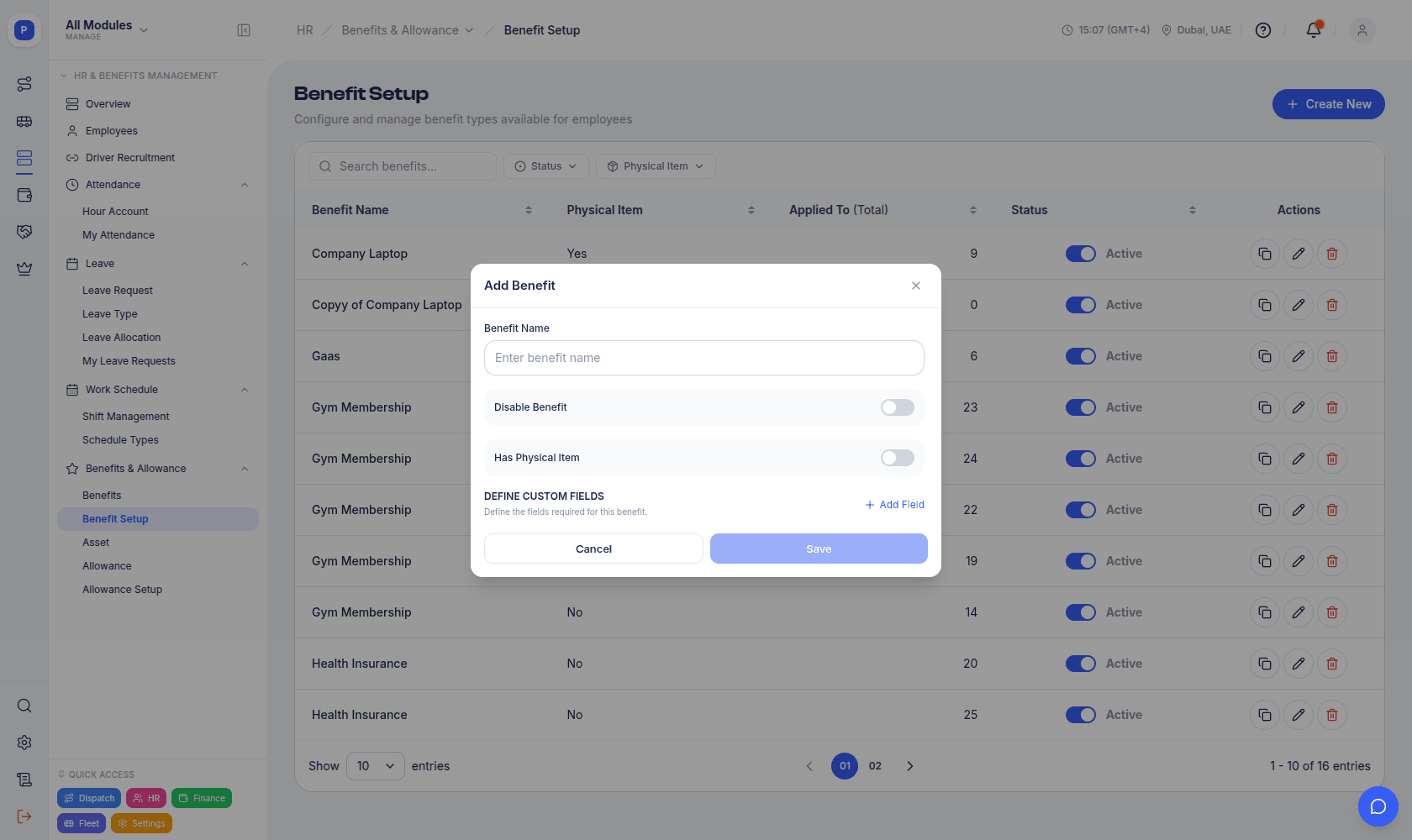
Click Create New. The Add Benefit form opens.
| Field | Description |
|---|---|
| Benefit Name | The name. It must be new: a name that already exists is refused |
| Disable Benefit | When on, the benefit is Inactive |
| Has Physical Item | When on, the benefit is a physical item. Employees receive it through the Asset page |
| Define Custom Fields | The fields asked when the benefit is given. See below |
Save stays disabled until the name is filled in. After saving, the message Benefit has been saved successfully. appears.
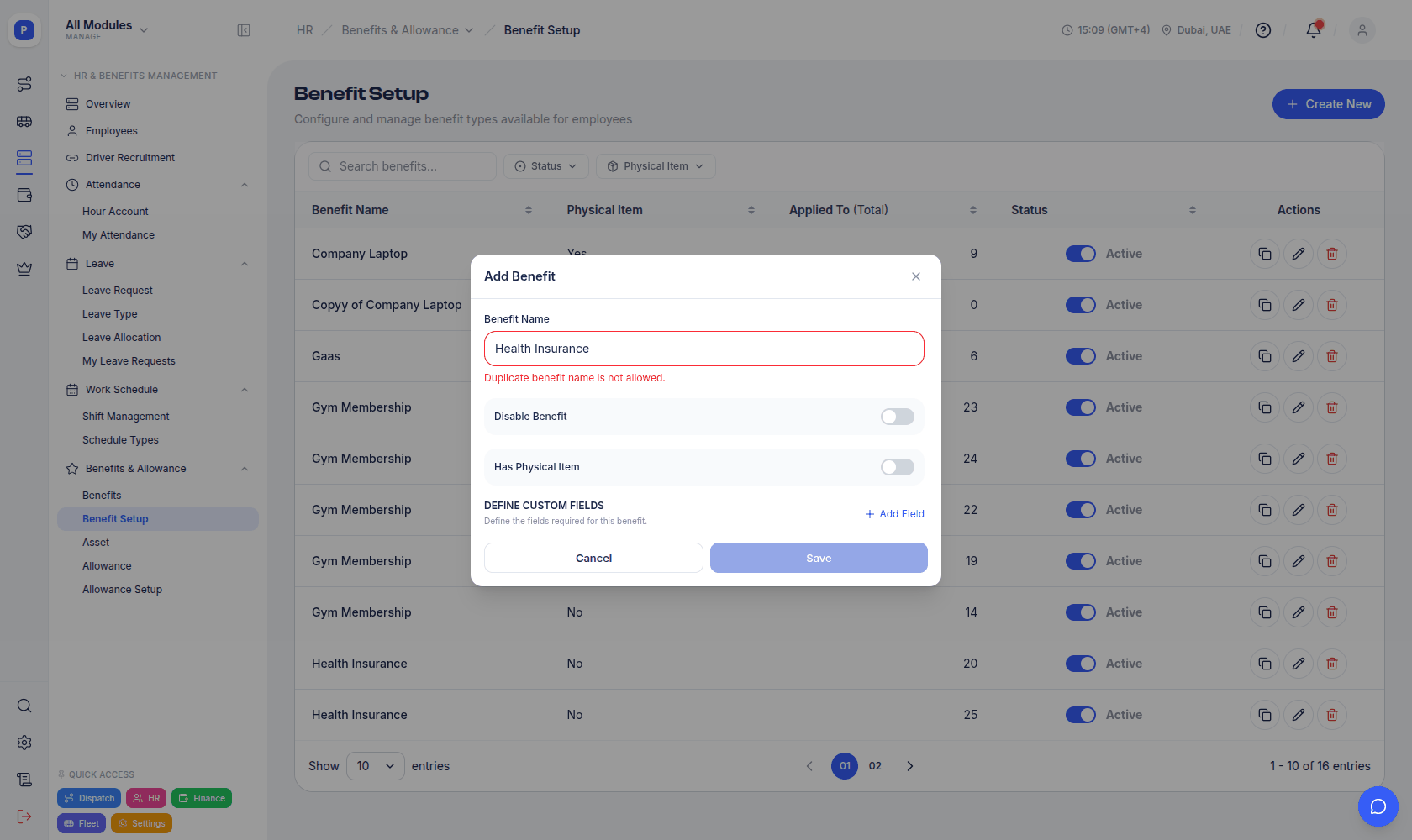
If the name already exists in the list, the field turns red and says Duplicate benefit name is not allowed. The server also refuses a repeated name (Benefit with name "..." already exists).
Custom fields
Add Field adds a block to fill in:
| Setting | Description |
|---|---|
| Input Type | Text, Number, Date, Dropdown or File |
| Field Name | The label shown on the forms. Names must be different inside one benefit |
| Options | Only for Dropdown. Add Option adds a choice; each choice has a delete button |
| This is a conditional field | Shows the field only when another dropdown of the benefit has a chosen value. Pick the Parent Field and type the value in Show when value equals (for example Other). The checkbox is available only when the benefit has a dropdown field |
The bin button of a block removes the field.
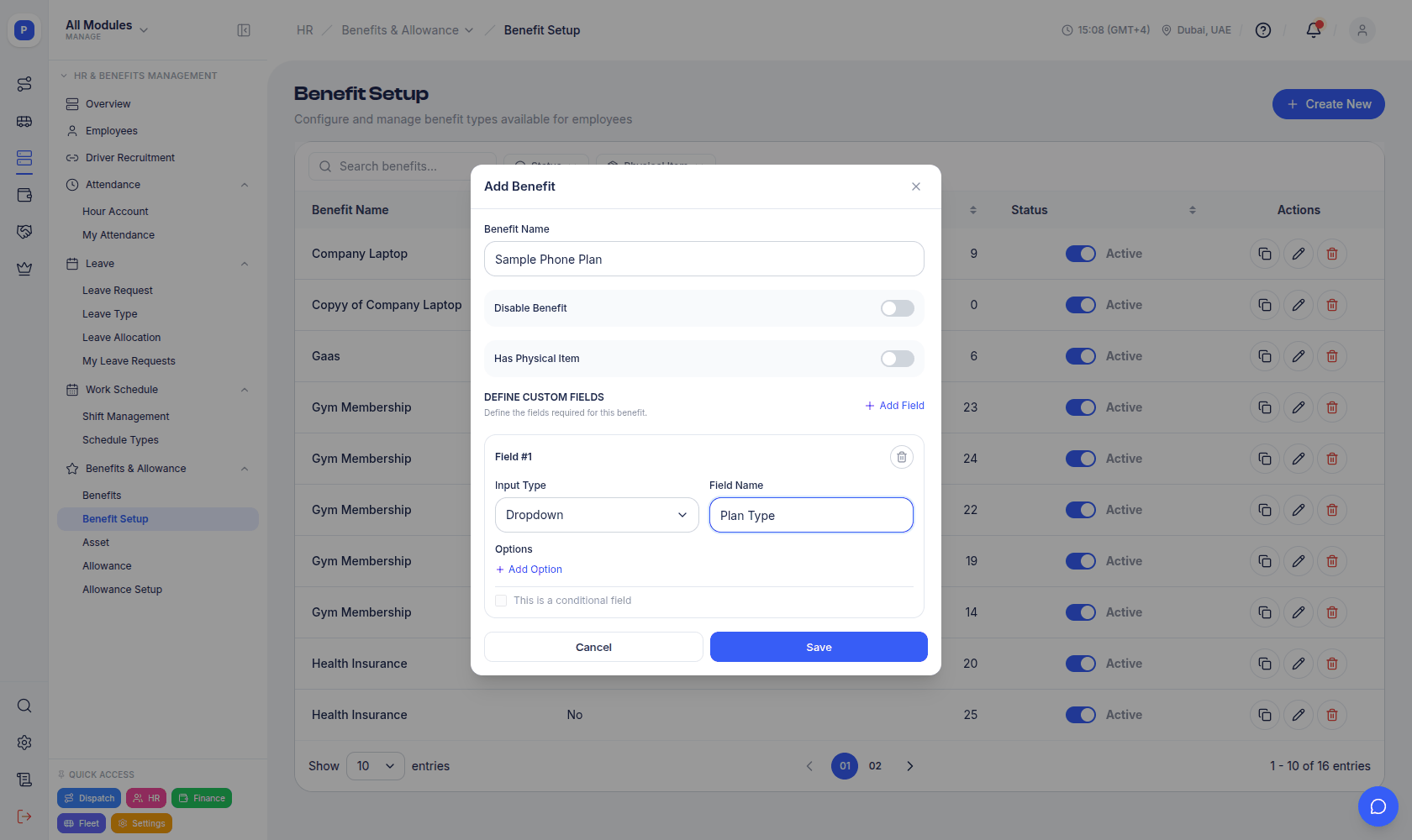
A Dropdown field must have at least one option. The form does not check this: the server refuses the benefit and the form only says Failed to save benefit. Please try again.
Editing a Benefit Type
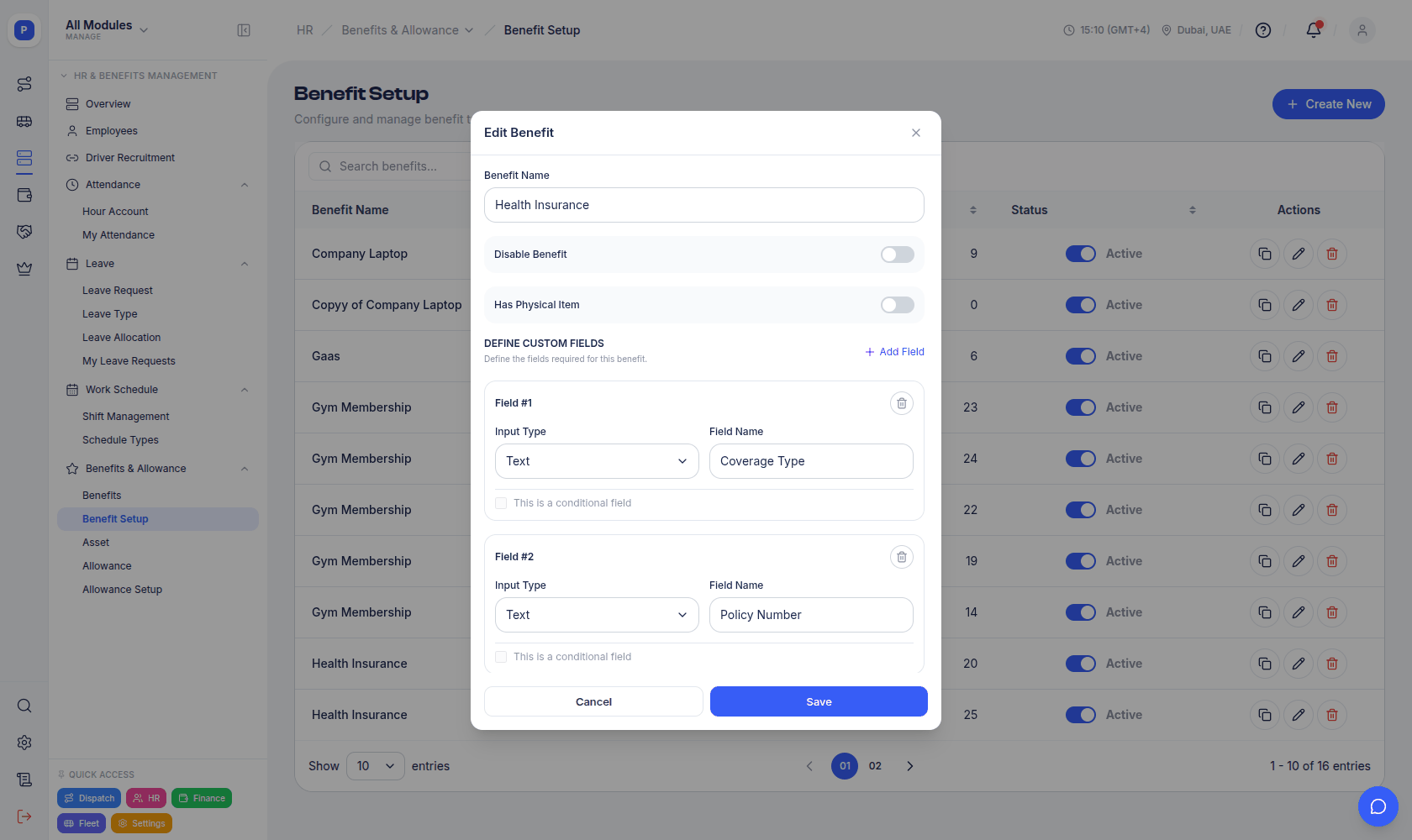
Click the pencil button of a row (or Edit in the details panel). The Edit Benefit form has the same fields, filled in with the current values. Changing the name to a name used by another benefit is refused in the same way.
Copying a Benefit Type
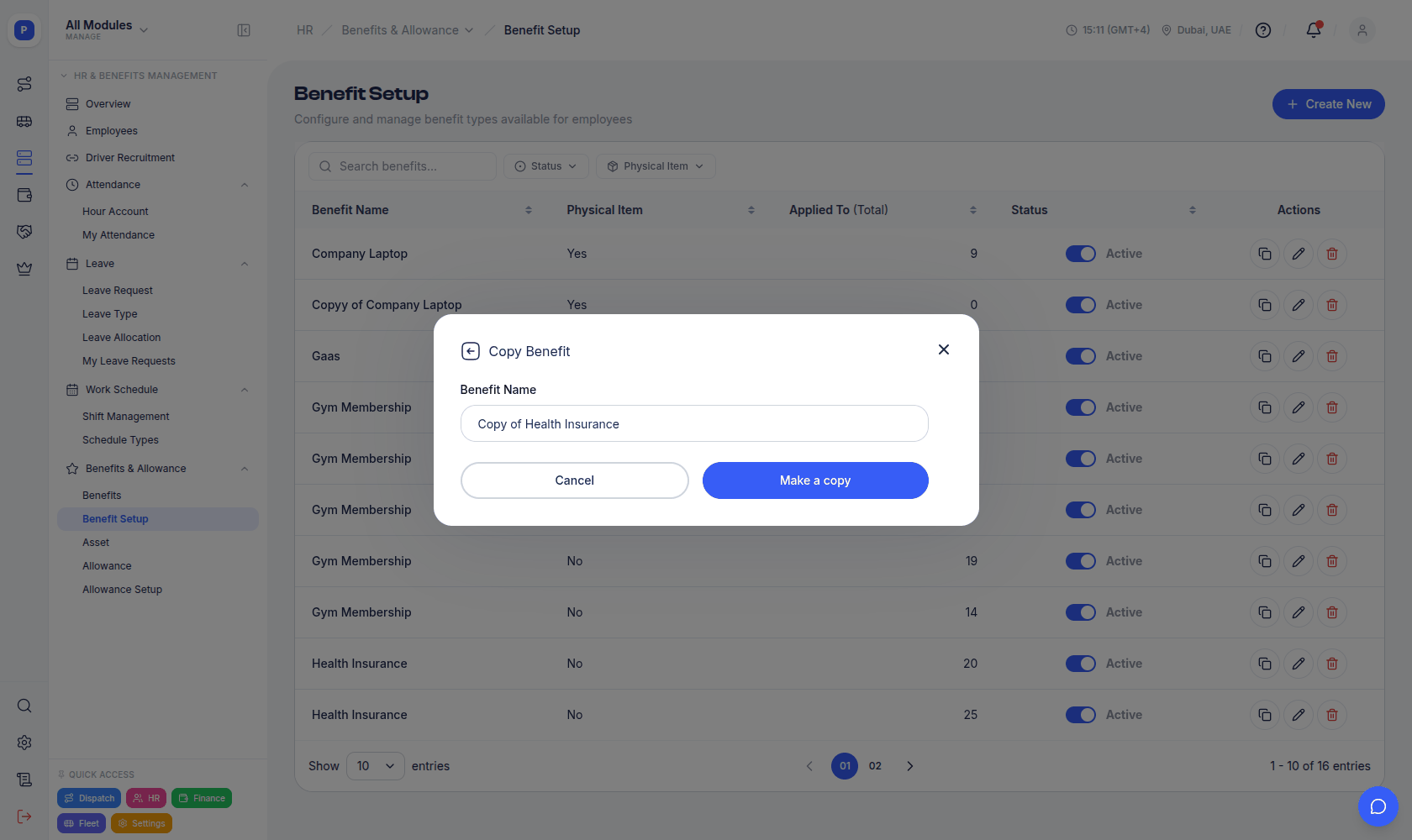
The copy button opens Copy Benefit. The name starts as Copy of ...; change it if you like and click Make a copy. The copy has the same status, physical item setting and fields as the original. A name that already exists is refused. After copying, Benefit has been successfully copied. appears.
Deleting a Benefit Type
The bin button opens Delete this benefit? You must type delete to confirm.
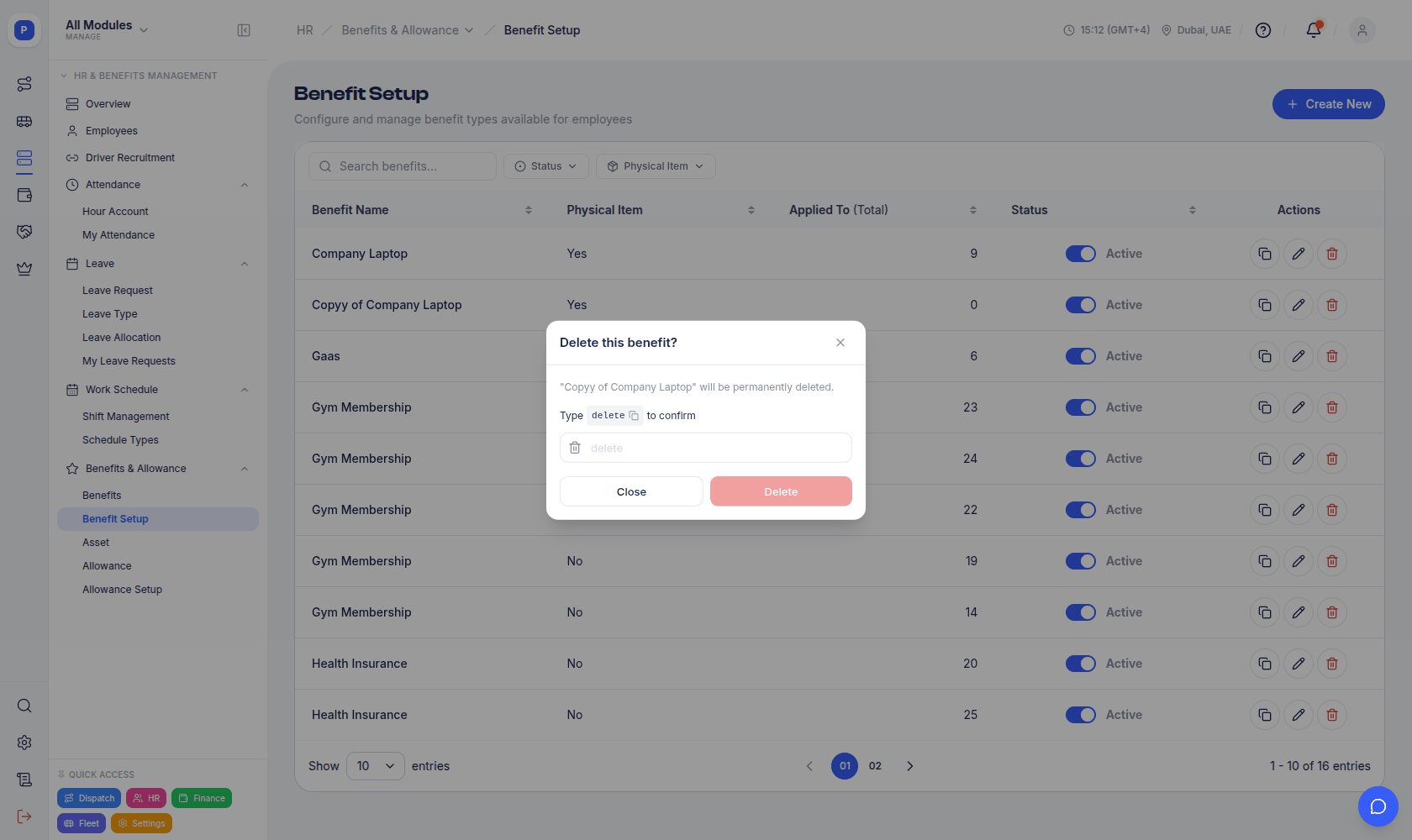
A benefit that is given to at least one employee cannot be deleted: the server answers Cannot delete benefit setup that is assigned to N employee(s). Please remove assignments first. Switch it to Inactive instead if you only want to stop using it. A deleted benefit is hidden from the lists but is kept in the database (the dialog says "permanently" although it is a soft delete).
The list, the search and the filters are applied by the server. The duplicate-name check of the forms only looks at the benefits currently loaded in the list, so a filter or a search can hide the benefit with the same name; the server still refuses it.
Related Pages
- Benefits: give benefits to employees.
- Asset: the physical items.
- Allowance Setup: the same idea for allowances.