Allowance Setup
Define the types of allowance your company pays, with their default amount, and switch them on or off.
Allowance Setup is the catalogue of allowance types, for example Housing Allowance or Mobile Allowance. Each type has a name, a default amount and a status. Giving an allowance to employees is done on the Allowance page, which starts from the default amount set here.
Navigation: HR > Benefits & Allowance > Allowance Setup
The menu entry is shown to roles that have the allowance permission. The permission actions control the buttons: add shows Create New and the Copy button, edit shows the Edit button and lets you switch a type on or off, and delete shows the Delete button.
The Allowance Setup List
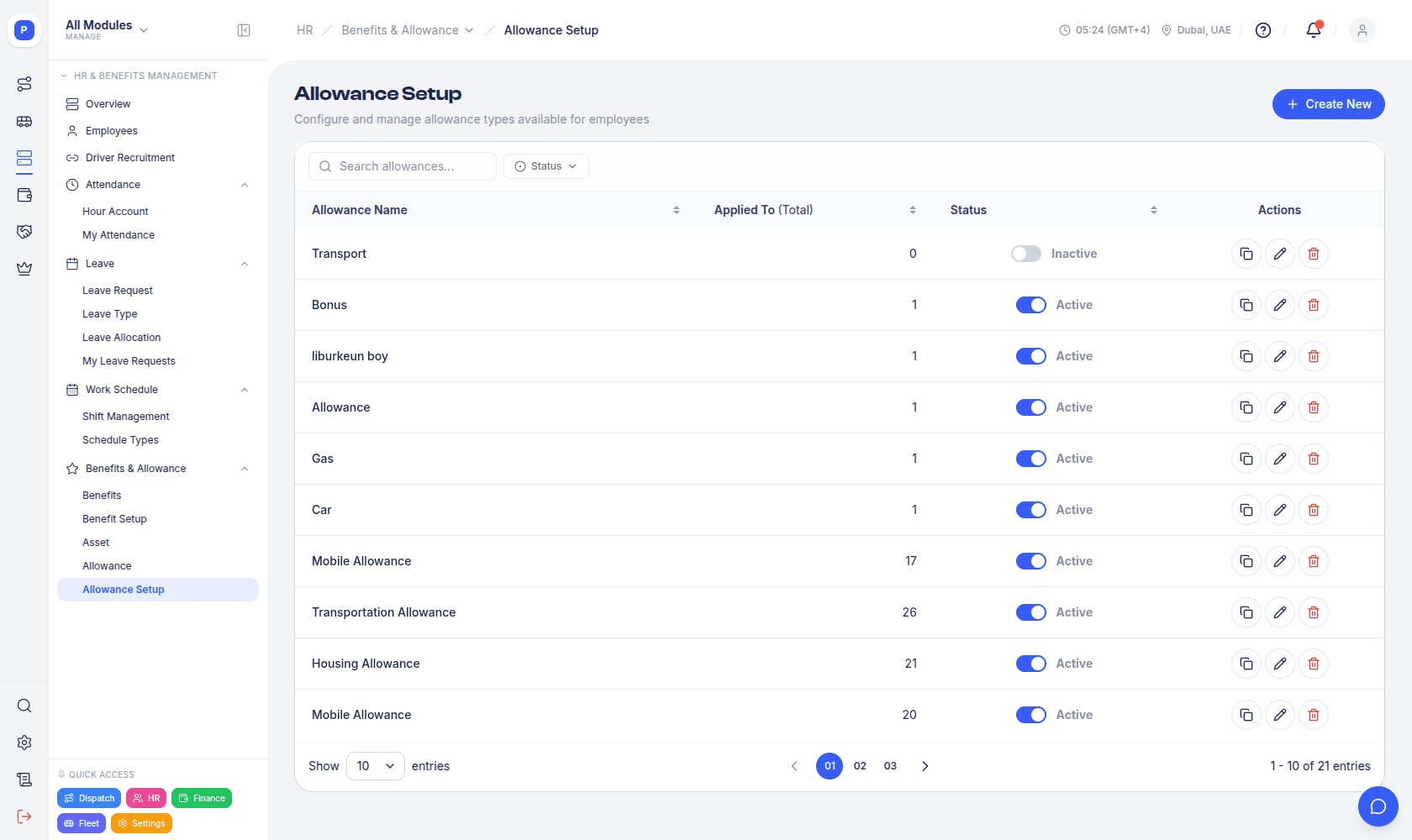
| Column | Description |
|---|---|
| Allowance Name | The name of the allowance type. Click it to open its details |
| Applied To (Total) | How many employees have this allowance |
| Status | A switch with Active or Inactive. Clicking it changes the status at once, without a confirmation |
| Actions | Copy, Edit and Delete |
The amount is not a column of the list: open the details to see it.
Search and filter
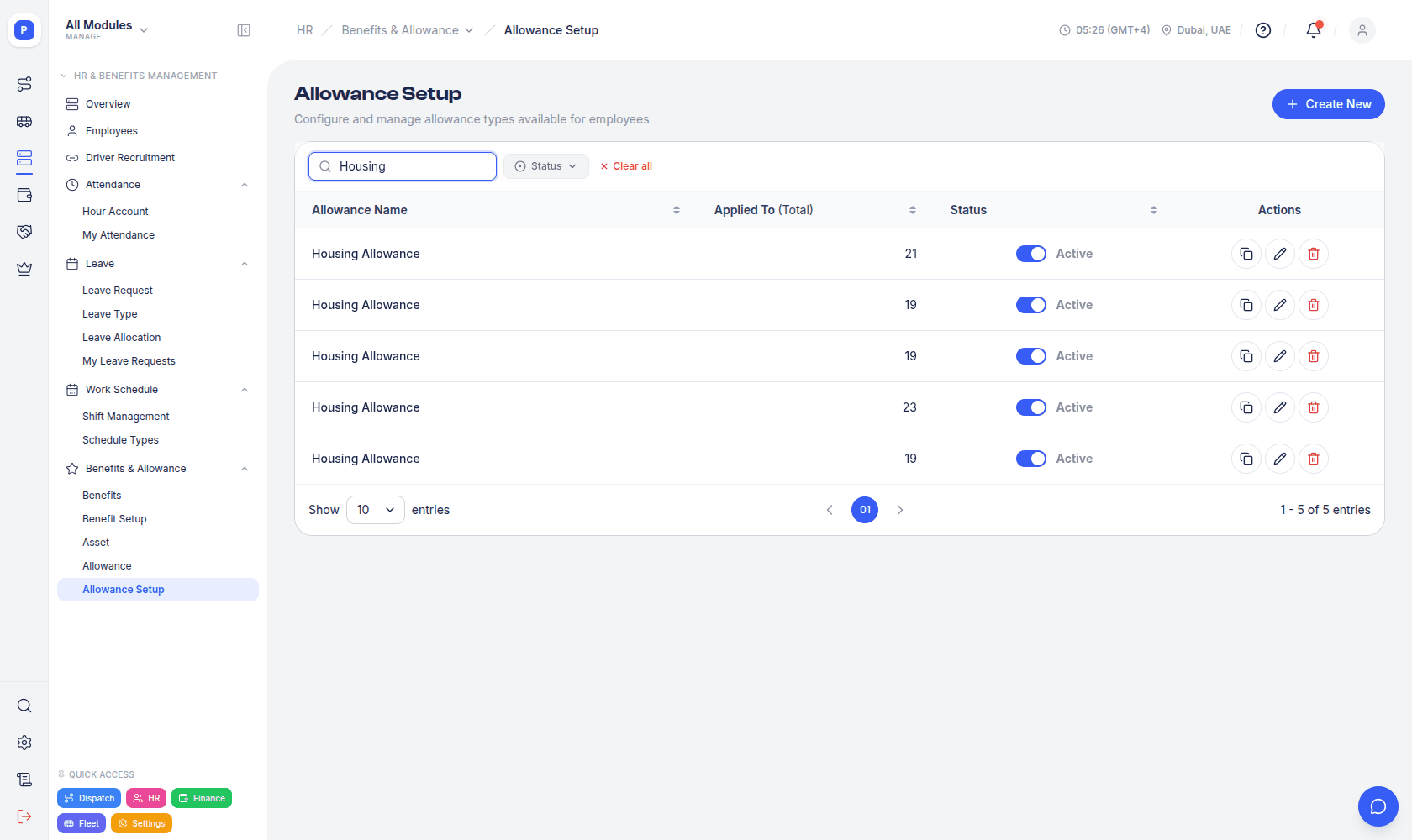
- The search box (Search allowances...) finds an allowance by name.
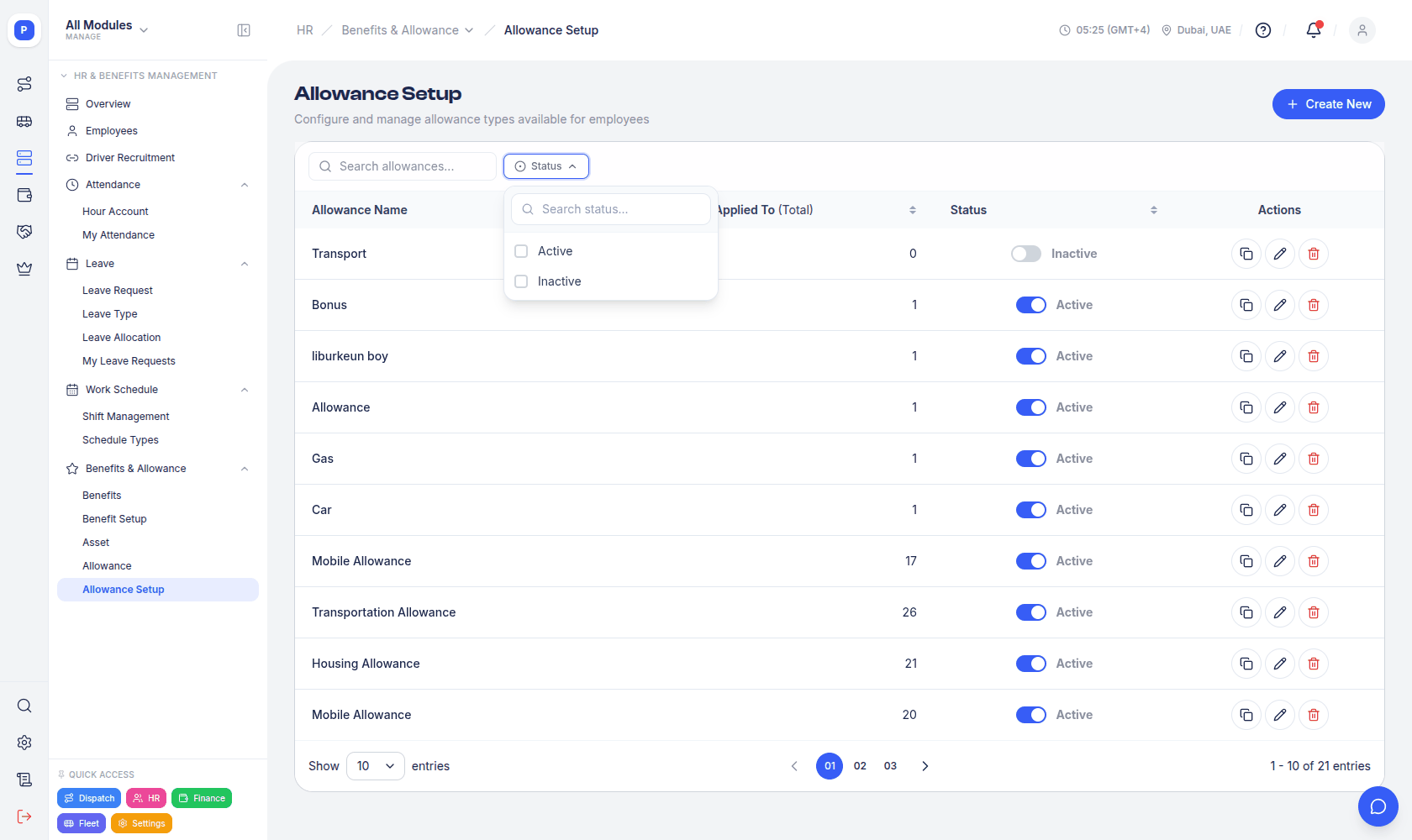
- Status shows only Active or only Inactive allowances. Ticking both shows everything.
- Clear all appears when a search or a filter is on.
Viewing an Allowance Type
Click the name of an allowance to open the Allowance Setup Details panel.
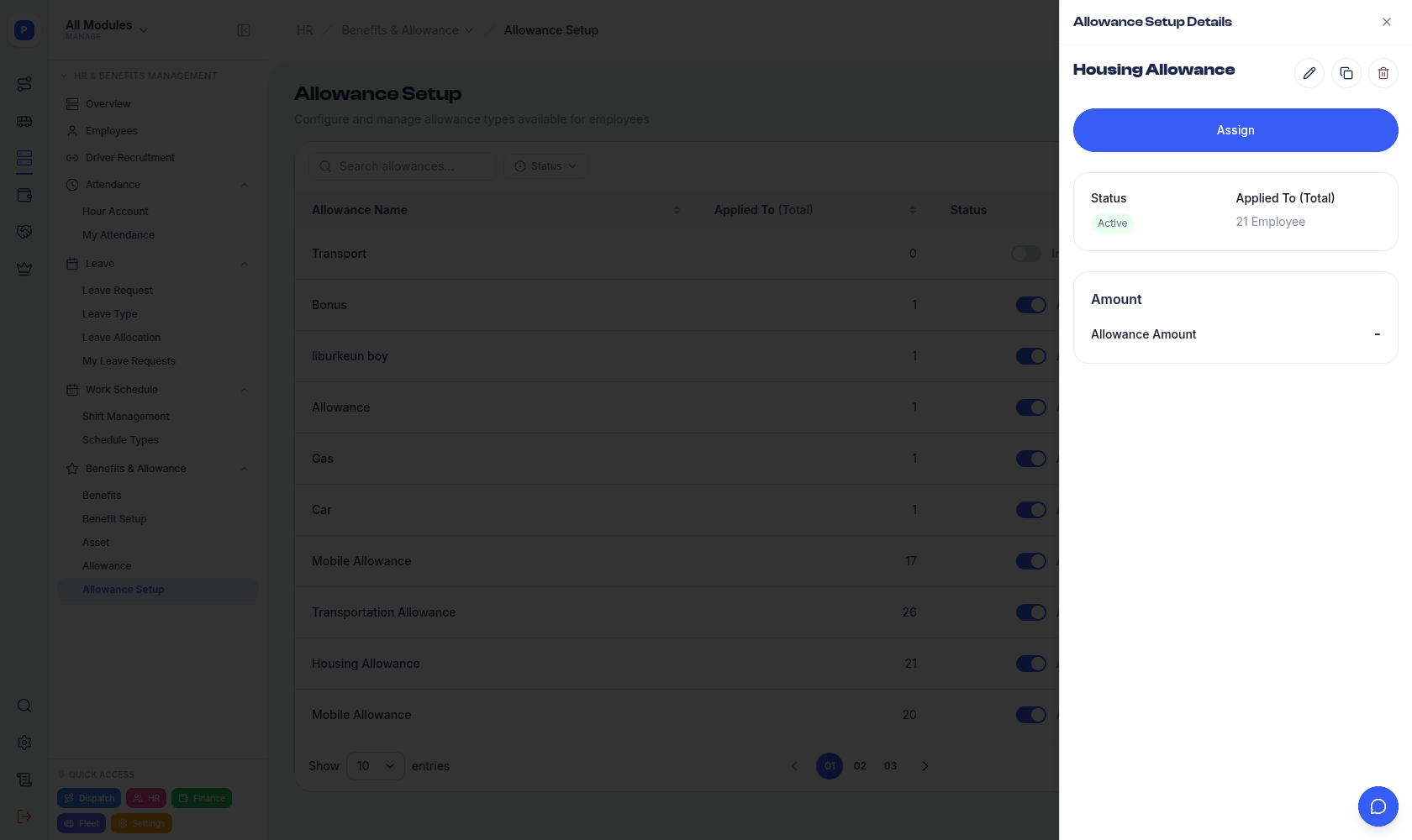
It shows the Status, Applied To (Total) and, in the Amount card, the Allowance Amount in AED (a dash when no amount was set). The round buttons at the top are Edit, Copy and Delete.
Adding an Allowance Type
Click Create New. The Add Allowance form opens.
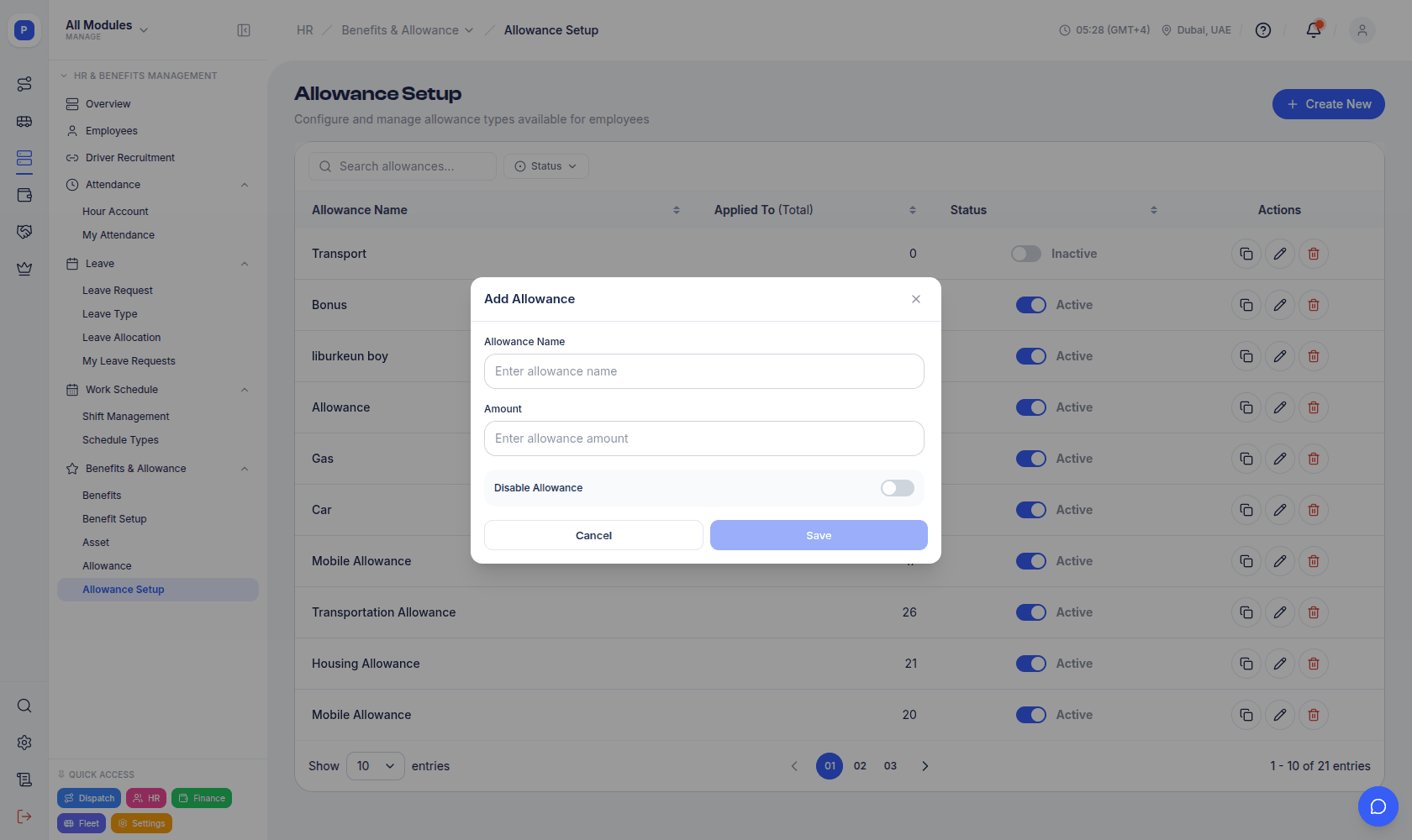
| Field | Description |
|---|---|
| Allowance Name | The name. It must be new |
| Amount | The default amount, in AED (0 or more, two decimals). It is optional. It is proposed when you give the allowance to an employee, and can be changed for each employee |
| Disable Allowance | When on, the allowance is Inactive: it is no longer offered when you assign allowances |
Save stays disabled until the name is filled in. After saving, the message Allowance has been saved successfully. appears. If the saving fails, Failed to save allowance. Please try again. appears.
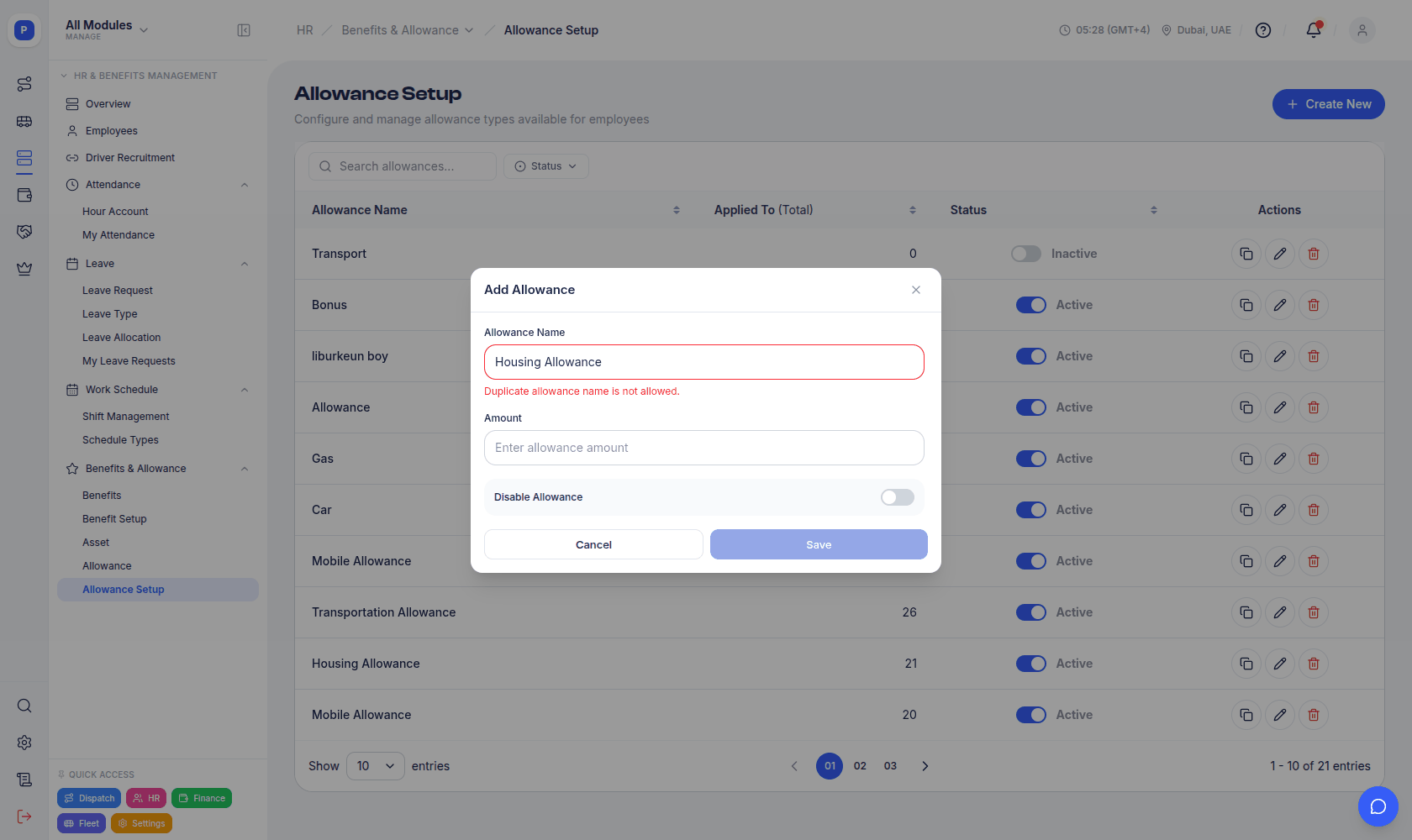
If the name already exists in the list, the field turns red and says Duplicate allowance name is not allowed. (the server also refuses a repeated name).
Editing an Allowance Type
The pencil button opens Edit Allowance with the current values.
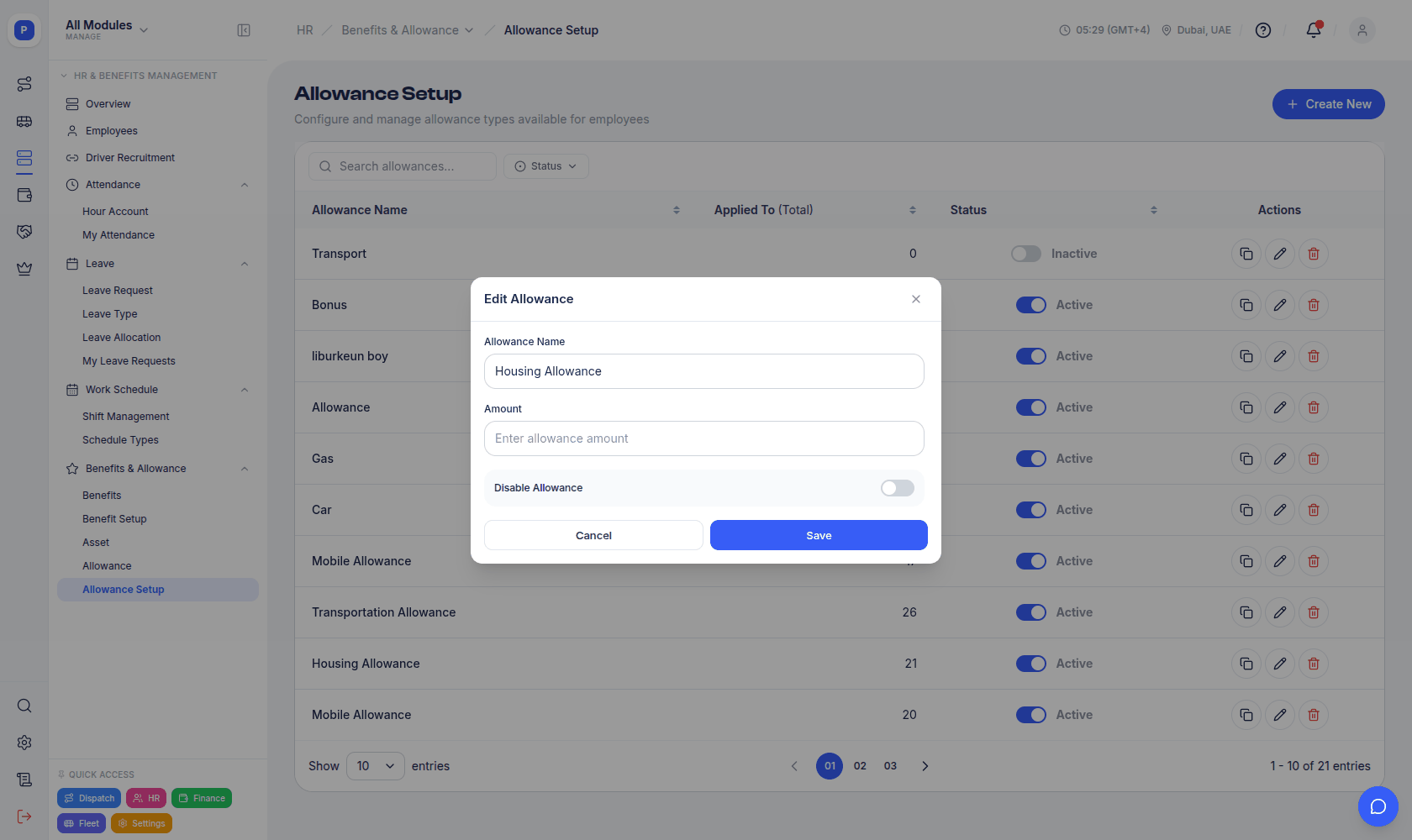
Changing the default amount here does not change the amount of employees who already have the allowance. Their amount is set on the Allowance page.
Copying an Allowance Type
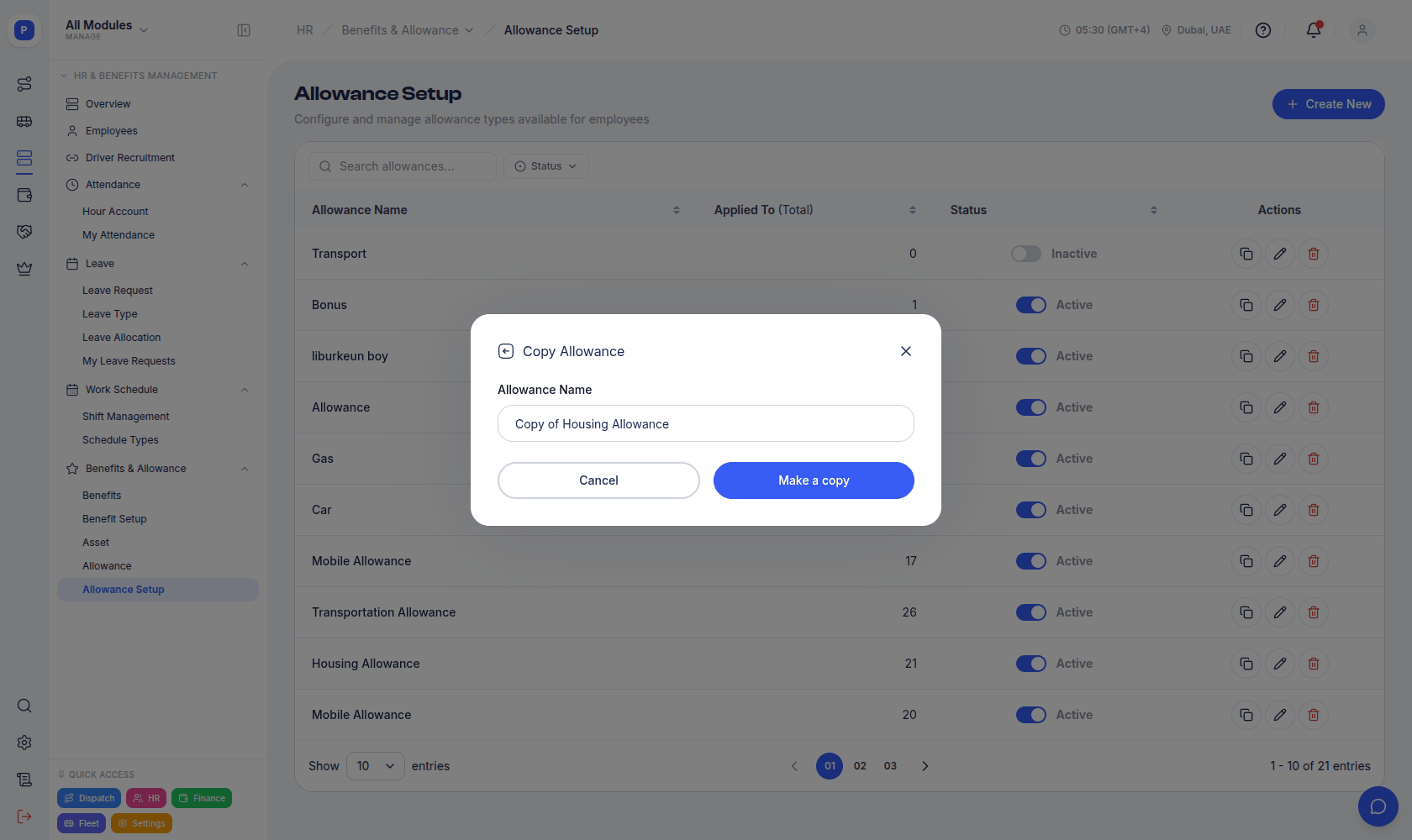
The copy button opens Copy Allowance, where the name starts as Copy of .... Change it if you like and click Make a copy. The message is Allowance has been copied successfully.
Deleting an Allowance Type
The bin button asks Delete this allowance? and you must type delete to confirm.
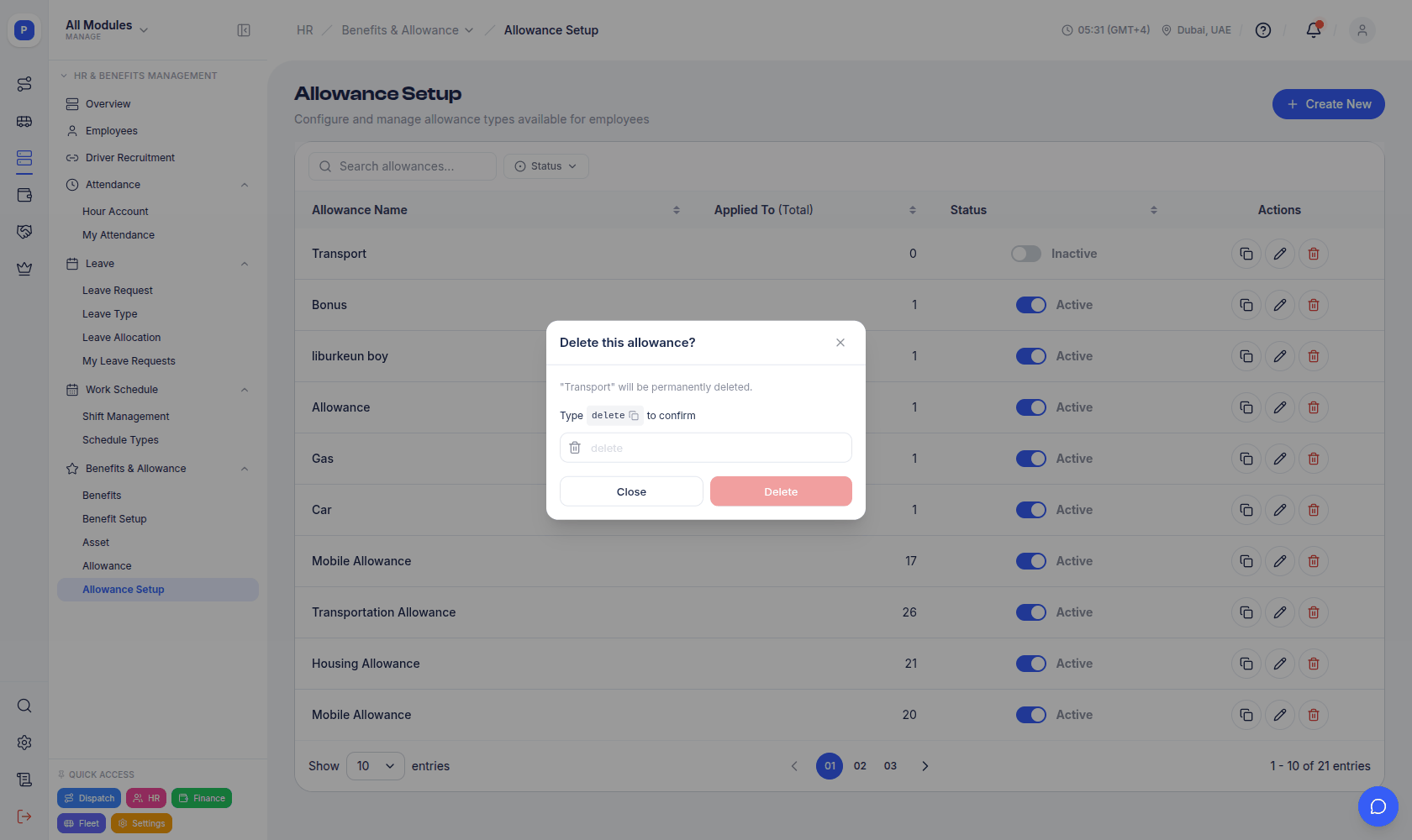
An allowance that is given to at least one employee cannot be deleted. The server answers Cannot delete allowance setup that is assigned to N employee(s). Please remove all employee assignments first or disable the allowance instead. Switch it to Inactive to stop using it. After a successful delete, Allowance has been deleted successfully. appears.
Related Pages
- Allowance: give allowances to employees.
- Benefit Setup: the same idea for benefits.