Seat Prices
Set the extra charge for infant, toddler, child seats and any other seat type, so bookings add the right amount automatically.
When a booking asks for a baby or child seat, the extra charge comes from this page. Each row is a seat type with a price and a currency; the booking form reads the matching row and adds the amount to the trip total. The page is deliberately small -- a seat type and a price -- because that is all the booking form needs.
Navigation: Settings > Booking > Seat Prices
The Seat Price List
The header reads Seat Prices with the subtitle Manage baby seat prices for bookings, and Create New on the right opens the form.
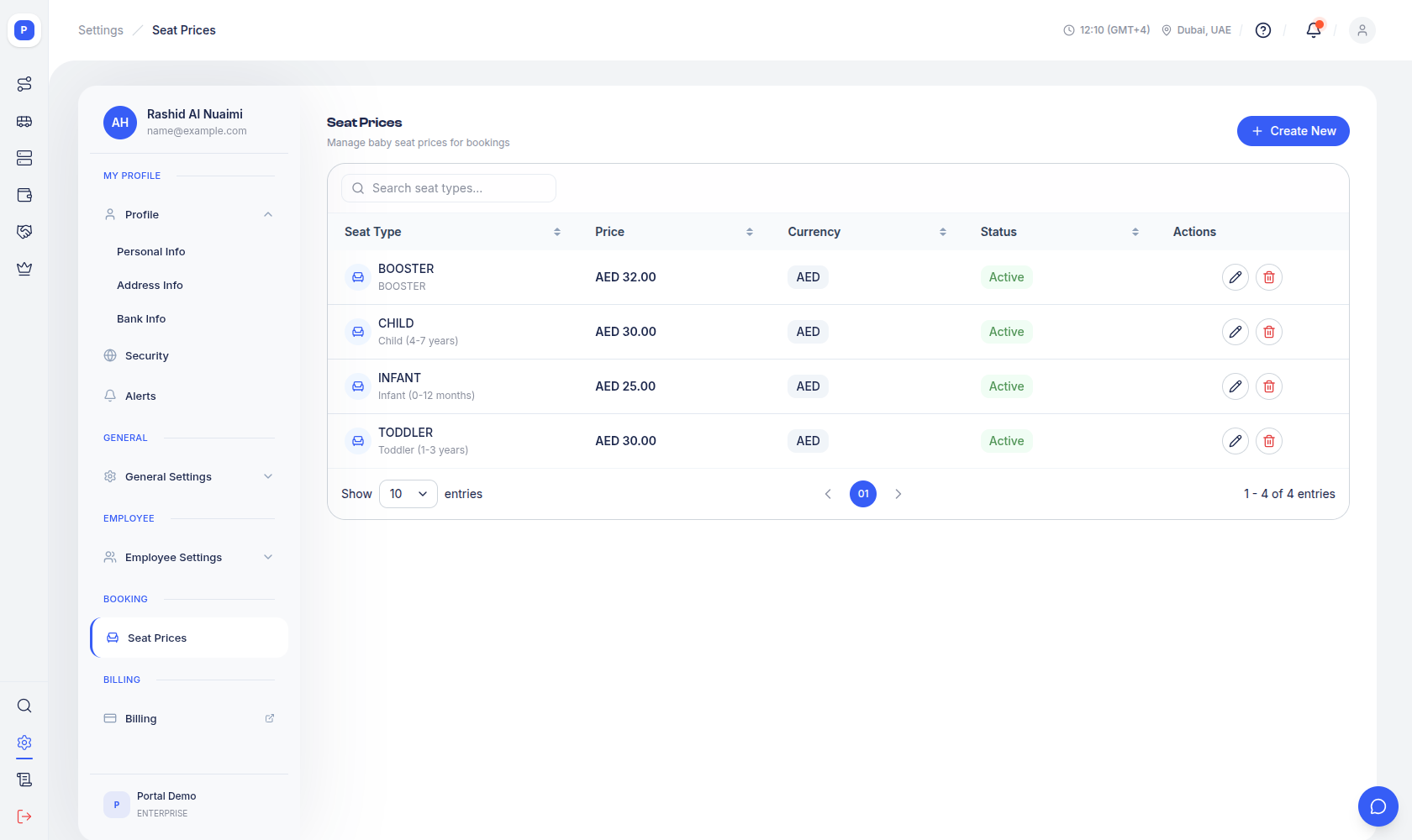
| Column | Description |
|---|---|
| Seat Type | A chip with the type name and a subtitle. Known types get a readable label -- Infant (0-12 months), Toddler (1-3 years), Child (4-7 years) -- and any other type simply repeats its name, for example BOOSTER over Booster |
| Price | The amount rendered with its currency, for example AED 32.00 |
| Currency | The currency code in a grey chip |
| Status | Active (green) or Inactive (grey) |
| Actions | The pencil (edit) and trash (delete) buttons |
Sorting is available on the data columns and the table pages through the list ten rows at a time.
Searching
The search box is labelled Search seat types... and matches both the stored type code and the readable label, so searching infant finds a row stored as INFANT. A red Clear link appears while a search is active.
If nothing matches you see No Seat Prices Found, with Try adjusting your search when a search is active or Add your first seat price configuration otherwise; the empty state also offers an Add Seat Price button when you have permission.
Row Actions
Each row has an edit (pencil) and delete (trash) button, and right-clicking a row offers Edit Seat Price and Delete. Both are permission-gated: without the edit right the pencil and its menu item disappear, and without the delete right the trash and its menu item disappear.
Creating a Seat Price
- Click Create New.
- Type the Seat Type.
- Enter the Price.
- Choose the Currency.
- Click Save.
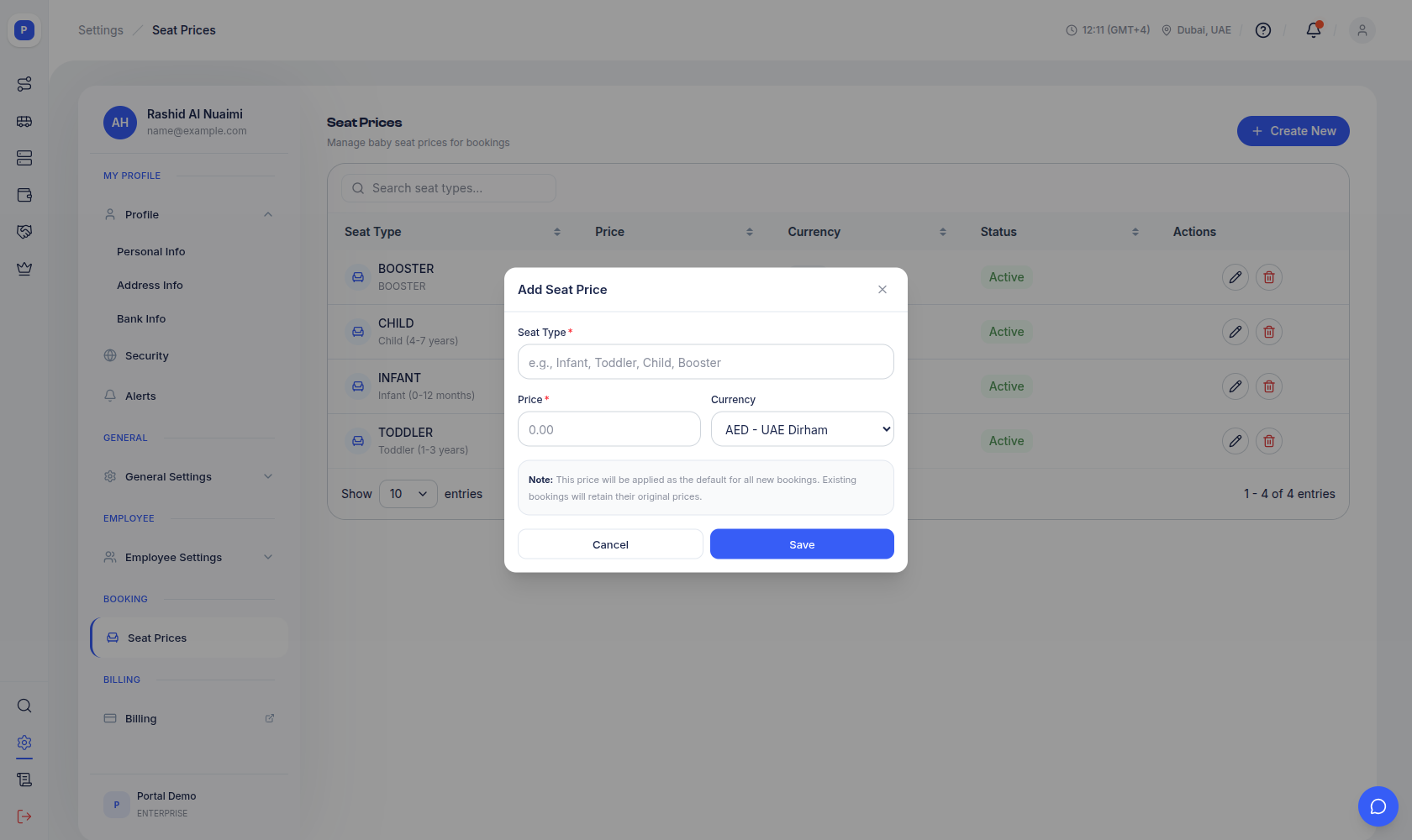
Fields
| Field | Required | Notes |
|---|---|---|
| Seat Type | Yes | Free text, placeholder e.g., Infant, Toddler, Child, Booster. Saved in upper case |
| Price | Yes | Number input, placeholder 0.00, accepts decimals. Must be a valid number and not negative |
| Currency | No | Select with AED - UAE Dirham, USD - US Dollar, EUR - Euro, GBP - British Pound, and SAR - Saudi Riyal. AED is preselected |
The stored type is normalised to upper case, so booster and BOOSTER are the same seat type -- which matters for the behaviour described below.
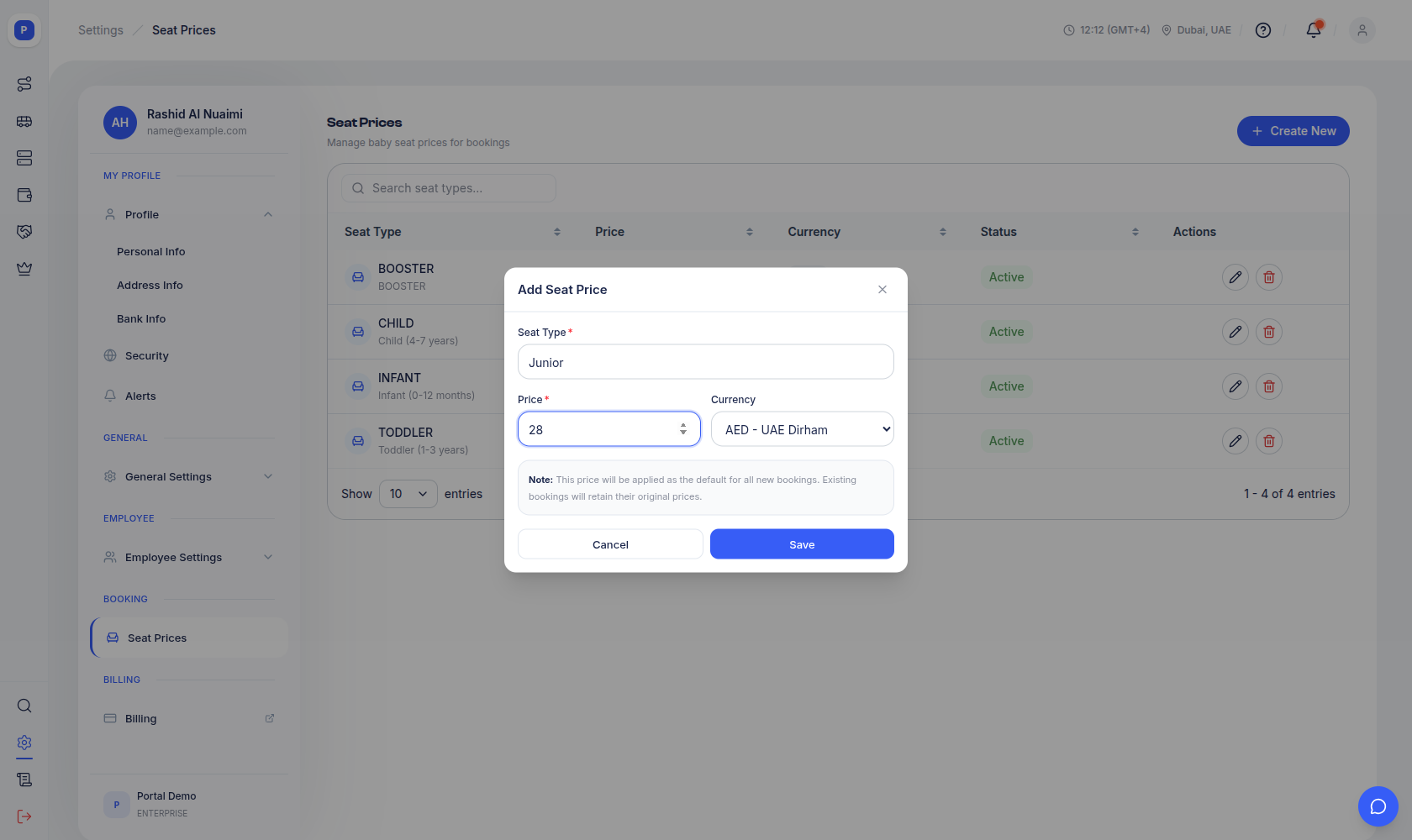
An information box inside the dialog states the scope of the change:
Note: This price will be applied as the default for all new bookings. Existing bookings will retain their original prices.
Validation messages appear in red under the field: Seat type is required, Price is required, and Price must be a valid positive number. The footer is Cancel and Save; Save is disabled during the request and the list refreshes on success with the toast Seat price created successfully.
Saving an existing seat type overwrites it instead of adding a duplicate. The page always saves through a create-or-update-by-seat-type request, so entering BOOSTER when a booster price already exists replaces that price with the new one. Editing through Create New is therefore a legitimate way to change a price -- you just do not get a confirmation that you are about to replace an existing row.
Editing a Seat Price
The pencil button, or Edit Seat Price in the context menu, opens the dialog titled Edit Seat Price. The Seat Type field is shown but disabled -- the type identifies the row and cannot be changed -- while Price and Currency remain editable.
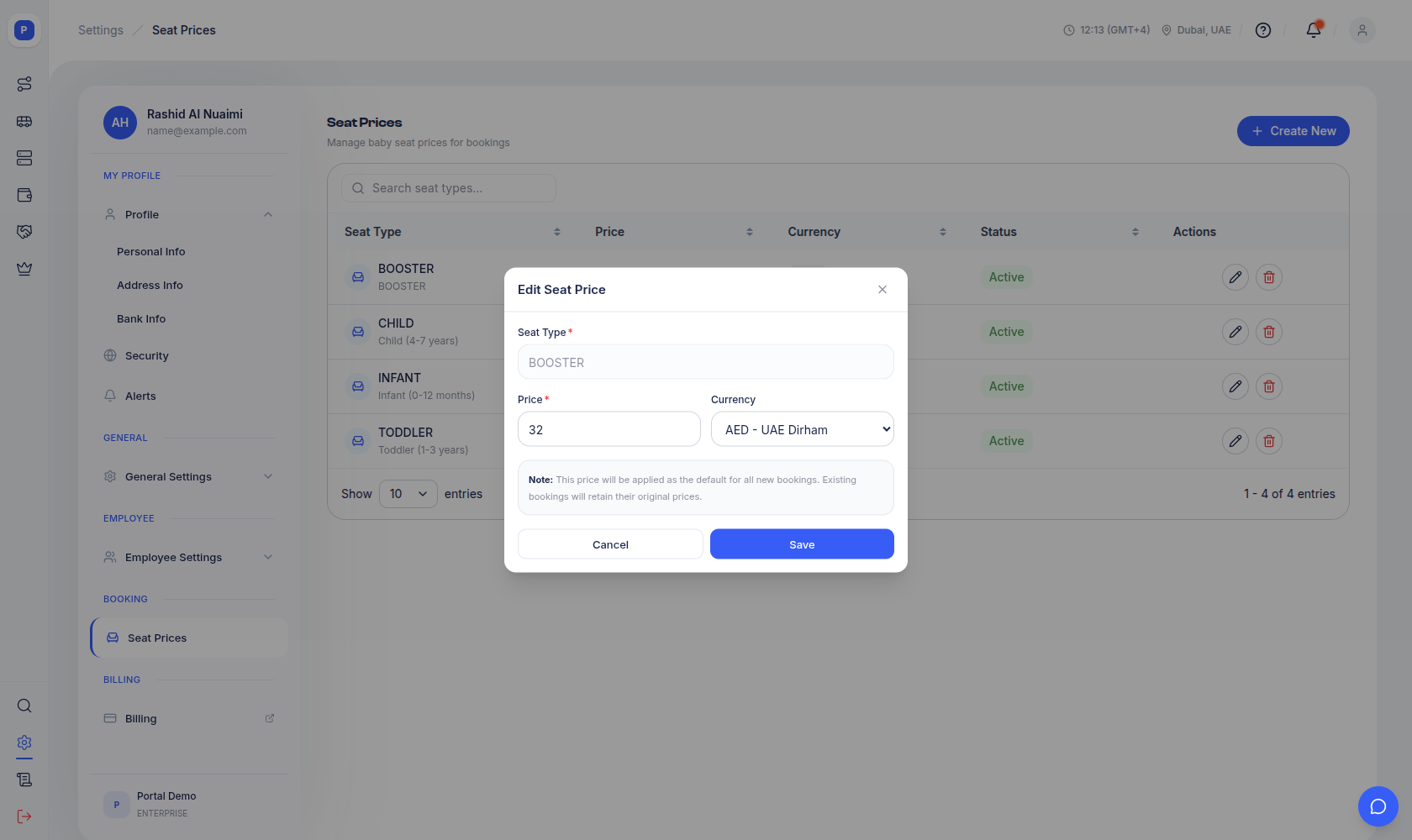
Saving shows the toast Seat price updated successfully. New bookings pick up the new amount; bookings already created keep the price they were made with, as the note in the dialog says.
Deleting a Seat Price
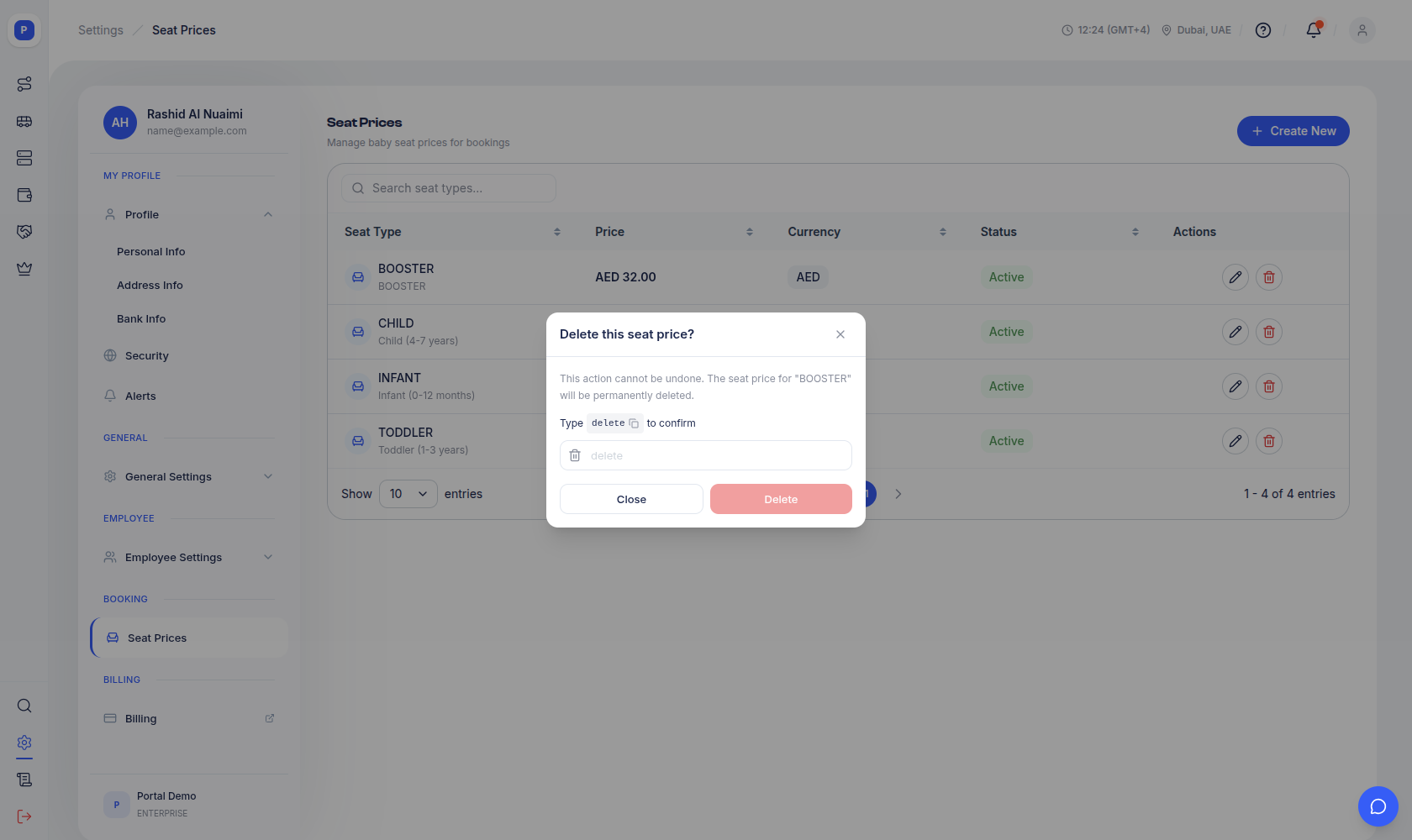
Deleting is not supported in the current build. The trash button and the Delete menu item open a confirmation titled Delete this seat price?, naming the type and warning that the action cannot be undone. As on the other settings pages, the red Delete button stays disabled until you type delete.
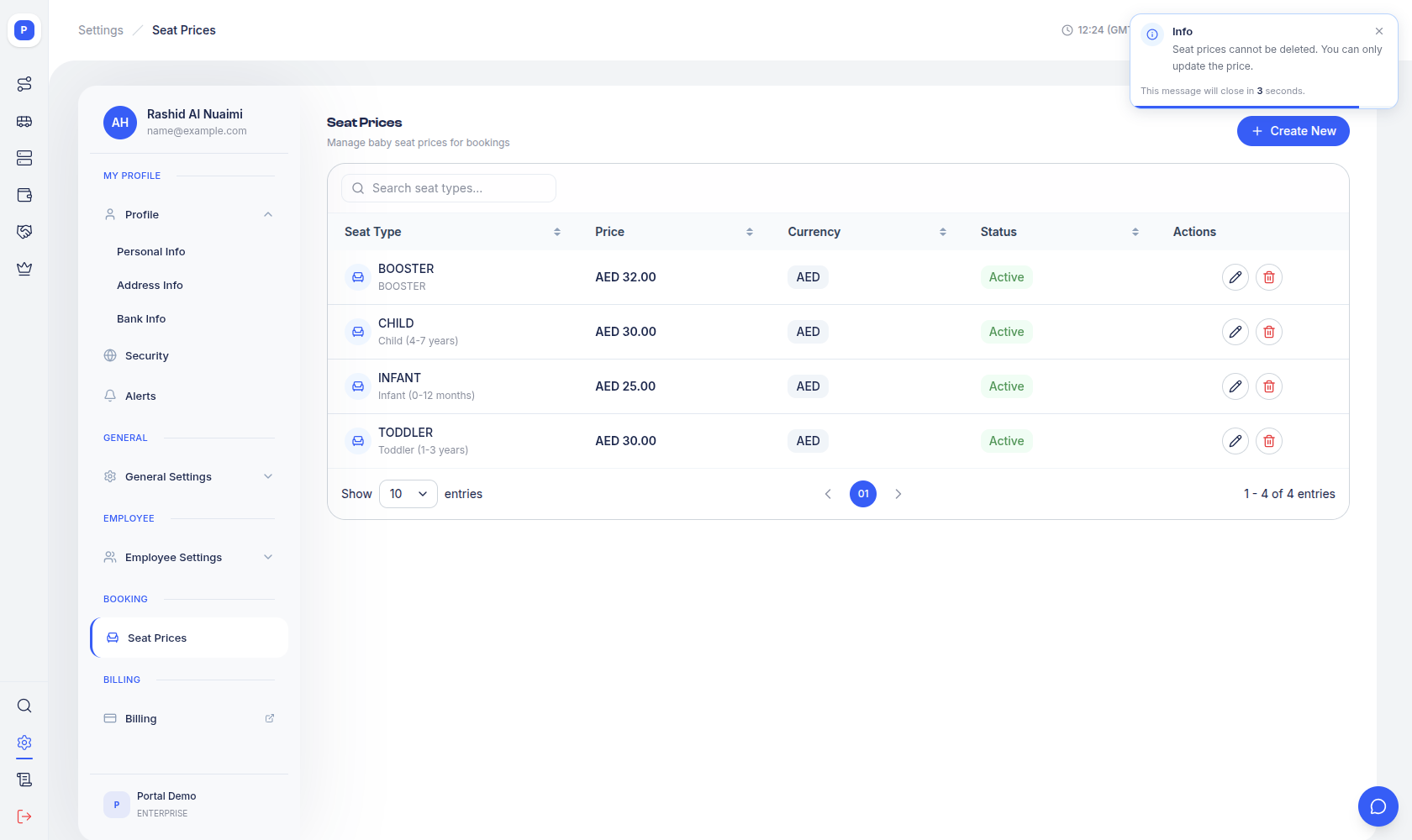
After you type delete and confirm, the dialog closes, the row stays in the list, and an info toast explains why:
Deletion is unavailable in this build
Confirming a seat price deletion does nothing to the data. No request is made, the row is not removed, and the only feedback is the info toast Seat prices cannot be deleted. You can only update the price.
There is no button on this page that removes a seat type from the list. If a type should no longer be offered, take it up as a change to the booking rules rather than expecting this page to retire it -- the only operation available here is editing the price of an existing type.
Related Pages
- Settings Overview -- how every settings area is organised and who manages it
- Role Settings -- who may change seat prices
- Department Settings -- the organisational grouping used across reporting
- Holidays -- non-working days used in attendance and payroll calculations