Alerts
Choose which notification channels and which HR, payroll and finance events produce an alert.
The Alerts page is where you decide how the platform reaches you and which events are worth interrupting for. It combines the browser notification permission banner, the delivery channels (e-mail, in-app bell, browser push, in-app pop-up), and a fine-grained list of every event category the platform can notify you about -- from leave requests and payroll approvals to fines, maintenance and driver performance.
Navigation: My Profile > Alerts
The page lives at /settings/general/alert-notifications. The tour shown on first visit is labelled Alert Preferences.
What You Will See
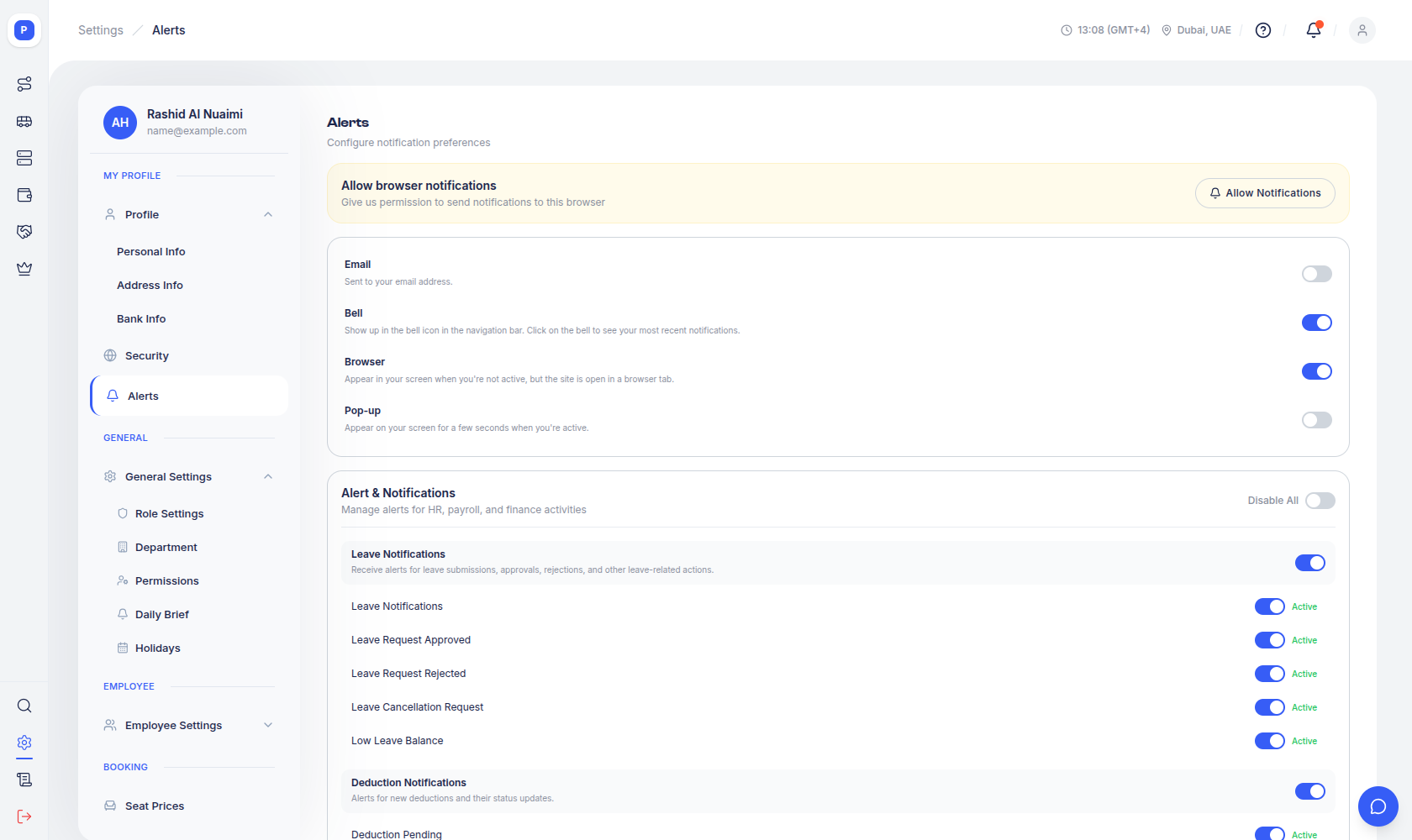
The page is a single scroll with three blocks: the browser permission banner, a Delivery channels card, and the Alert & Notifications card with all event categories.
Browser Notification Permission
The banner at the top reports whether this browser may show push notifications. It has three states:
| Banner | Colour | Meaning | Action |
|---|---|---|---|
| Notifications enabled | Green | This browser is subscribed and will receive push notifications | Disable -- only shown when the push service is initialised |
| Notifications blocked | Red | Permission was denied for the site. Nothing can be delivered to this browser | Click the lock icon in the address bar, allow notifications, then reload |
| Allow browser notifications | Amber | Permission has not been requested yet | Allow Notifications asks the browser for permission |
This banner controls the browser permission only. Even with permission granted, an event still needs its category switched on below and a channel that supports it. For the surrounding security settings, see Account and Security.
Delivery Channels
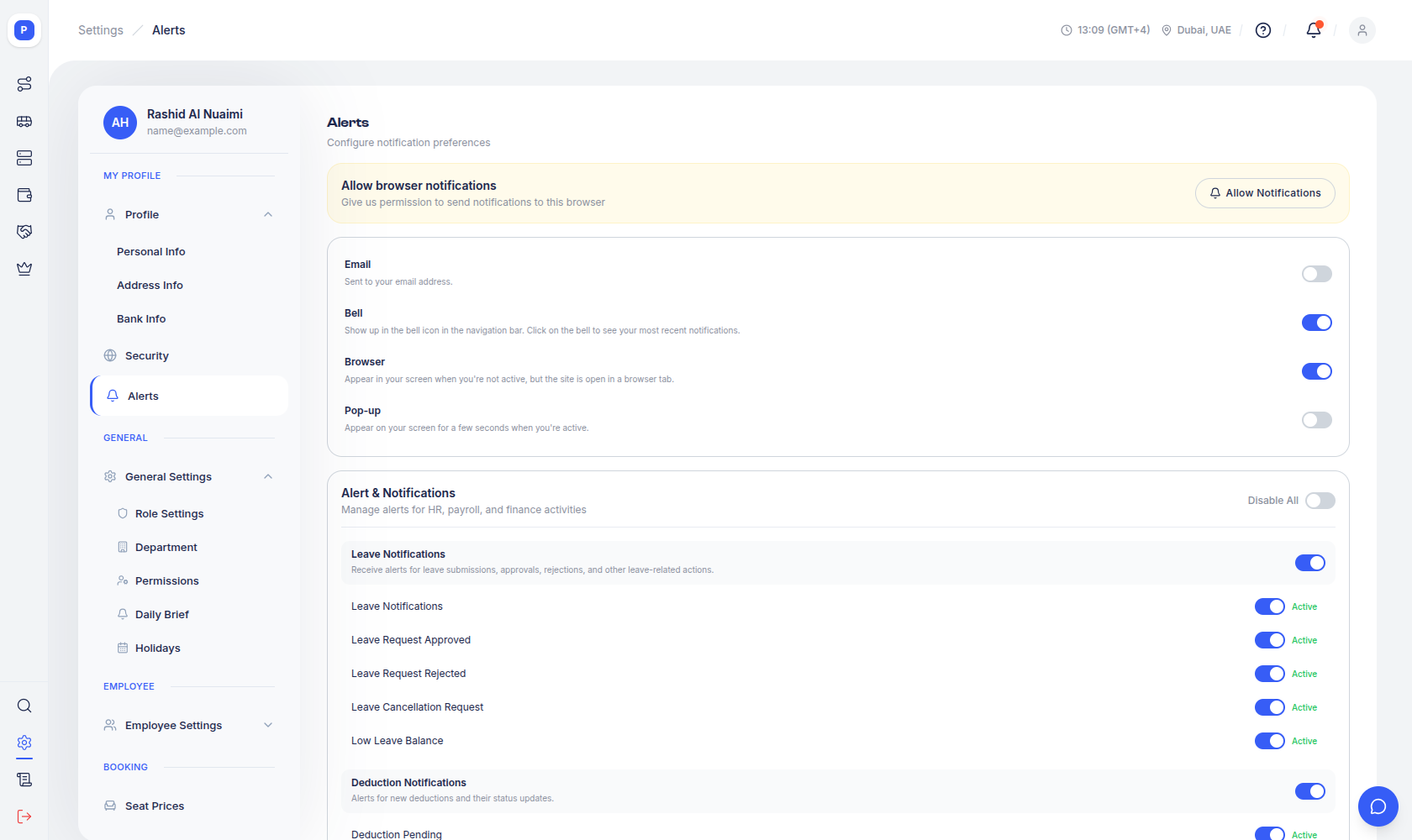
A channel is how a notification leaves the platform. Each of the four channels has its own toggle, and all of them apply to every category underneath.
| Channel | What it does | Default |
|---|---|---|
| Sent to your e-mail address | Off | |
| Bell | Added to the bell icon in the navigation bar, where the most recent notifications are listed | On |
| Browser | Shown by the browser while the site is open in a tab but you are not active in it | On |
| Pop-up | A toast on screen for a few seconds while you are actively using the app | Off |
The defaults come from the company's saved preference record. The first time anybody opens this page, that record is created with the values in the table above.
Bell and Browser are on by default because they are the quiet, in-product channels. Browser still depends on the permission banner above: switching the channel on does not bypass a blocked permission. Email and Pop-up are opt-in, so enabling e-mail here is a deliberate act -- see Email Reports for how e-mail delivery fits into the rest of the platform.
Alert Categories
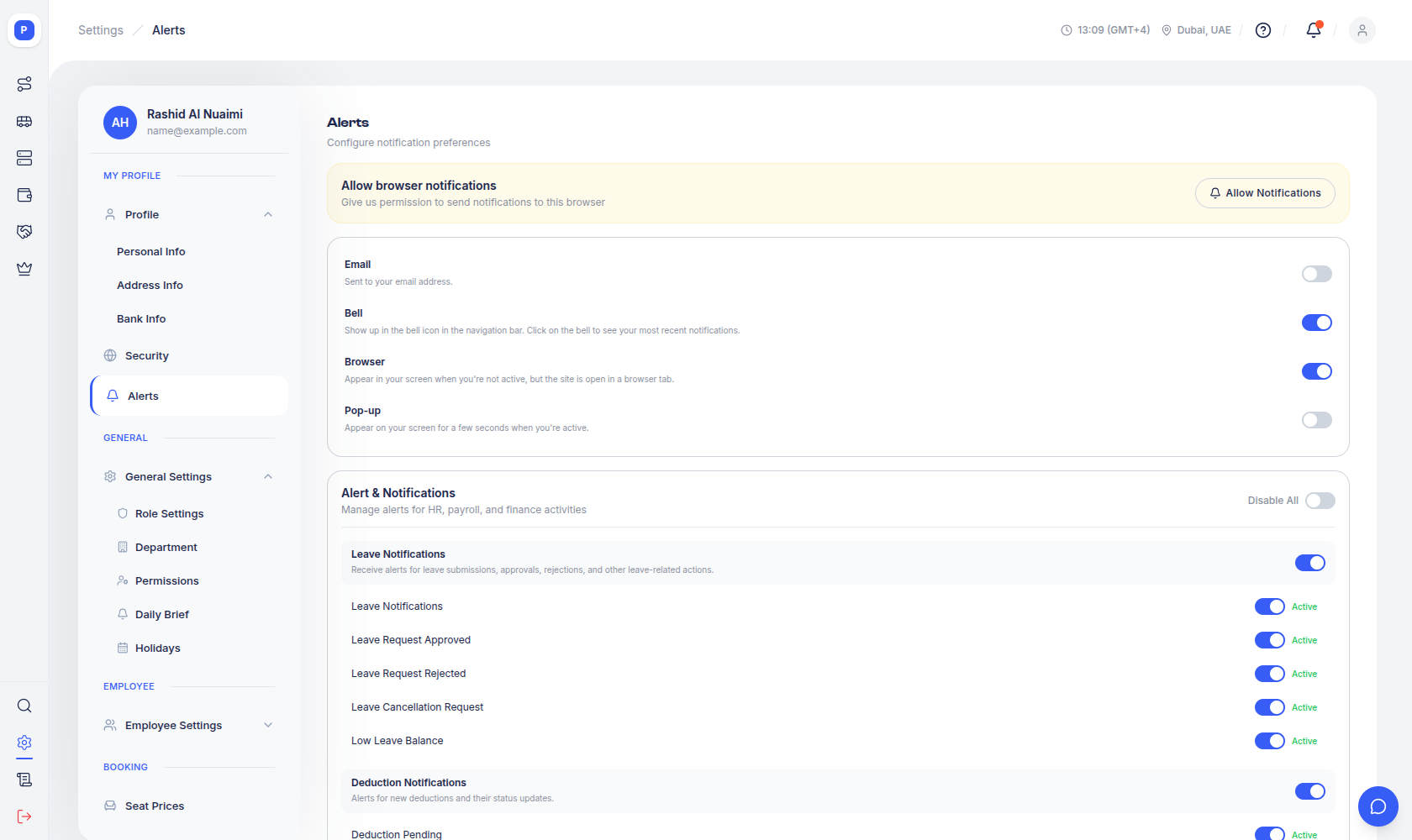
The Alert & Notifications card groups every notifiable event into 15 categories containing 64 individual toggles. Use the header description as a reminder of the scope: Manage alerts for HR, payroll, and finance activities.
Each category row has its own master switch that turns the whole group on or off at once. Below the row, every individual event has a toggle followed by a Active or Off label, so the effective state is readable without inspecting the switch colour.
| Category | Events | Covers |
|---|---|---|
| Leave Notifications | 5 | Leave submissions, approvals, rejections, cancellations and low balances |
| Deduction Notifications | 2 | New deductions and their status updates |
| Payroll Notifications | 9 | Payroll draft, generation, review, approval, rejection, payment and high deductions |
| Vehicle Management Notifications | 4 | Vehicle costs, fines and financial risks |
| Maintenance Notifications | 5 | Scheduled and completed maintenance, service reminders, repair cost decisions |
| Inspection Notifications | 2 | Submitted inspections, especially failed ones |
| Incident Notifications | 3 | Incident reports, status updates and critical severity |
| Loan Notifications | 5 | New, processed, overdue, repaid and cancelled loans |
| Fines Notifications | 4 | New fines, conversion to loan, payroll deduction and unresolved fines |
| Expenses Notifications | 5 | Expense submissions, approvals, rejections, approvals required and over-budget expenses |
| Reimbursement Notifications | 5 | Reimbursement requests, approvals, rejections, payments and over-limit claims |
| Cash Deposit Notifications | 4 | Cash held by drivers or staff: required, received, shortages and pending settlement |
| Allowance Notifications | 4 | New, updated, expired and over-limit allowances |
| Liability Notifications | 6 | Liabilities from recording through settlement, disputes and cancellation |
| Driver Performance Notifications | 1 | Drivers whose daily revenue falls below the fleet average |
Switching a category off greys out its individual toggles -- the events keep their stored state but cannot fire until the category is back on.
Disabling Everything
The Disable All switch sits on the right of the card header. Turning it on switches every category and every event off in one action and greys out the whole list. Turning it off re-enables everything.
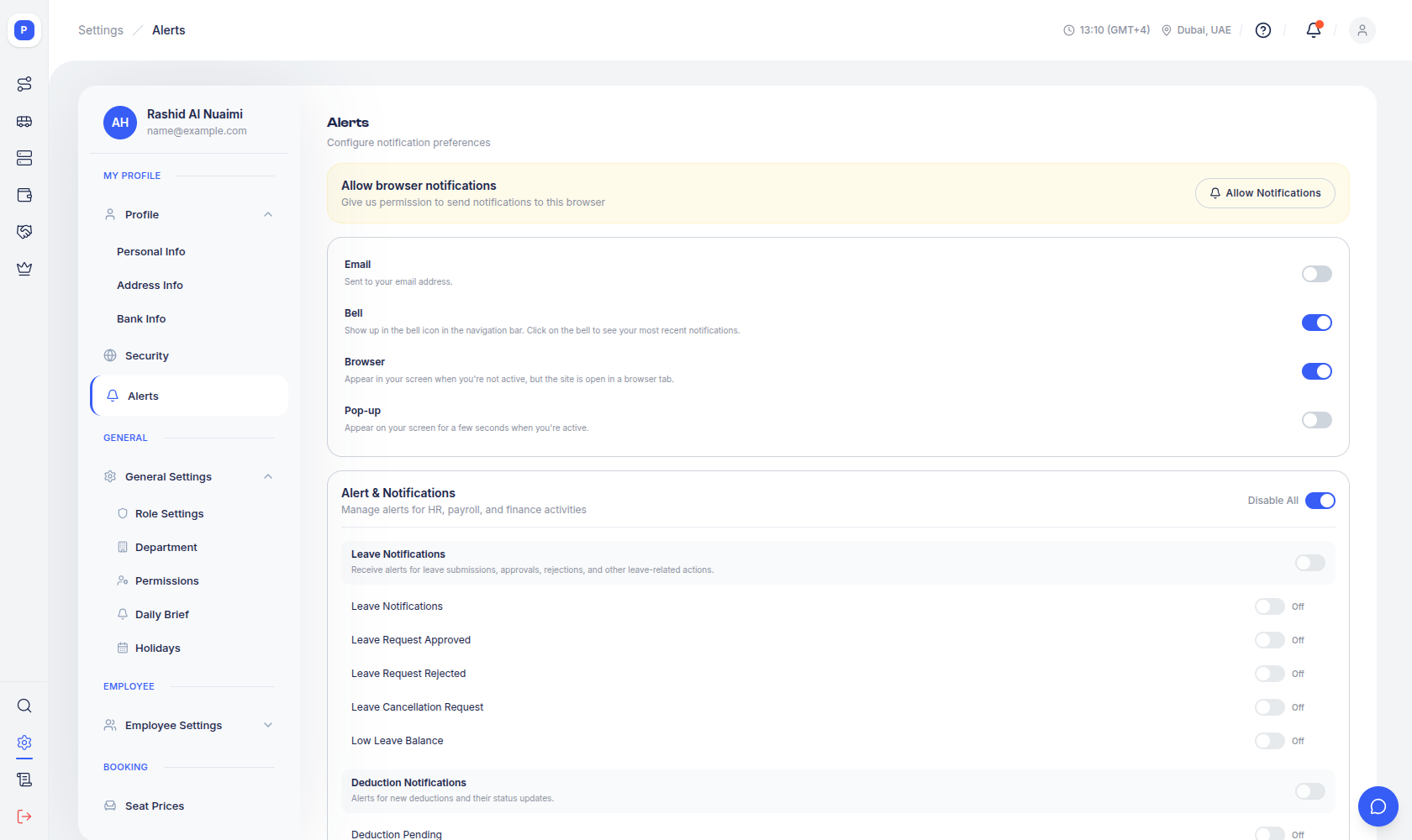
Use it for a holiday shutdown or a quiet period. Be aware that it overwrites the individual choices: switching it off re-enables every category and every event, not just the ones that happened to be on before. If you had deliberately muted a handful of noisy events, note them down first.
Disable All is not a per-user switch. See the shared-settings warning below before using it to silence your own account.
Saving
There is no Save button on this page, and you should not look for one. Each change is saved automatically a fraction of a second (about 300 ms) after you touch it, and a small spinner appears next to the Alert & Notifications title while the request is in flight. If a save fails, a toast appears with the error message and the affected change may need to be repeated.
These Settings Are Shared Across the Company
Although the page sits under My Profile and the copy reads like personal preferences, these alert preferences are stored once per company, not per user. Every person in the company sees and edits the same record. Turning a category off because it is noisy for you also silences it for your colleagues -- and because Disable All is part of that record, it silences the whole company until somebody turns it back on.
Practical consequences:
- Coordinate with the people who rely on particular alerts before switching a category off.
- If you only want less noise for yourself, turn off Bell or Pop-up for the channels instead -- but be aware that those are shared too.
- There is no way to have different preferences per person from this page in the current build.
Recommended Setup
A reasonable starting point, given that everything is shared:
| Role | Keep on | Turn off |
|---|---|---|
| Approvers (Owner, Full access, General manager, Finance) | Payroll, Deduction, Fines, Loan, Expenses, Reimbursement, Liability, Cash Deposit | Driver Performance, and any category your team does not use |
| HR | Leave, Allowance, Incident | Vehicle Management, Maintenance, Inspection |
| Operations / Dispatch | Vehicle Management, Maintenance, Inspection, Incident, Driver Performance | Payroll, Reimbursement, Allowance |
| Everyone | Bell and Browser channels | Email unless people work outside the app, Pop-up for anyone who finds toasts distracting |
If approvers work mostly from their inbox, switch Email on -- it is the only channel that reaches somebody who is not sitting in the app. It is off by default.
Related Pages
- Settings -- the overview of every settings area
- Daily Brief -- the scheduled Telegram morning summary
- Email Reports -- where e-mail delivery actually lives today
- Employee Permissions -- what each person is allowed to act on