Daily Brief
Schedule the Telegram morning brief, choose who receives it, and preview the recipient list before it goes out.
The Daily Brief is a short operational summary that the Telegram bot sends each morning to the people you select. Each recipient only sees the sections they are permitted to see -- a driver does not get payroll totals, an HR user does not get fleet revenue -- so the same brief looks different depending on who opens it. The settings page controls whether it is sent, when, on which days, and to whom.
Navigation: Settings > General > Daily Brief
The page lives at /settings/general/daily-brief. It sits in the General group of the settings sidebar, which is only shown to users with full access, so treat it as an administrator page.
What You Will See
The page is three cards -- schedule, recipients and a preview -- followed by a footer with the last run summary and the Save button.
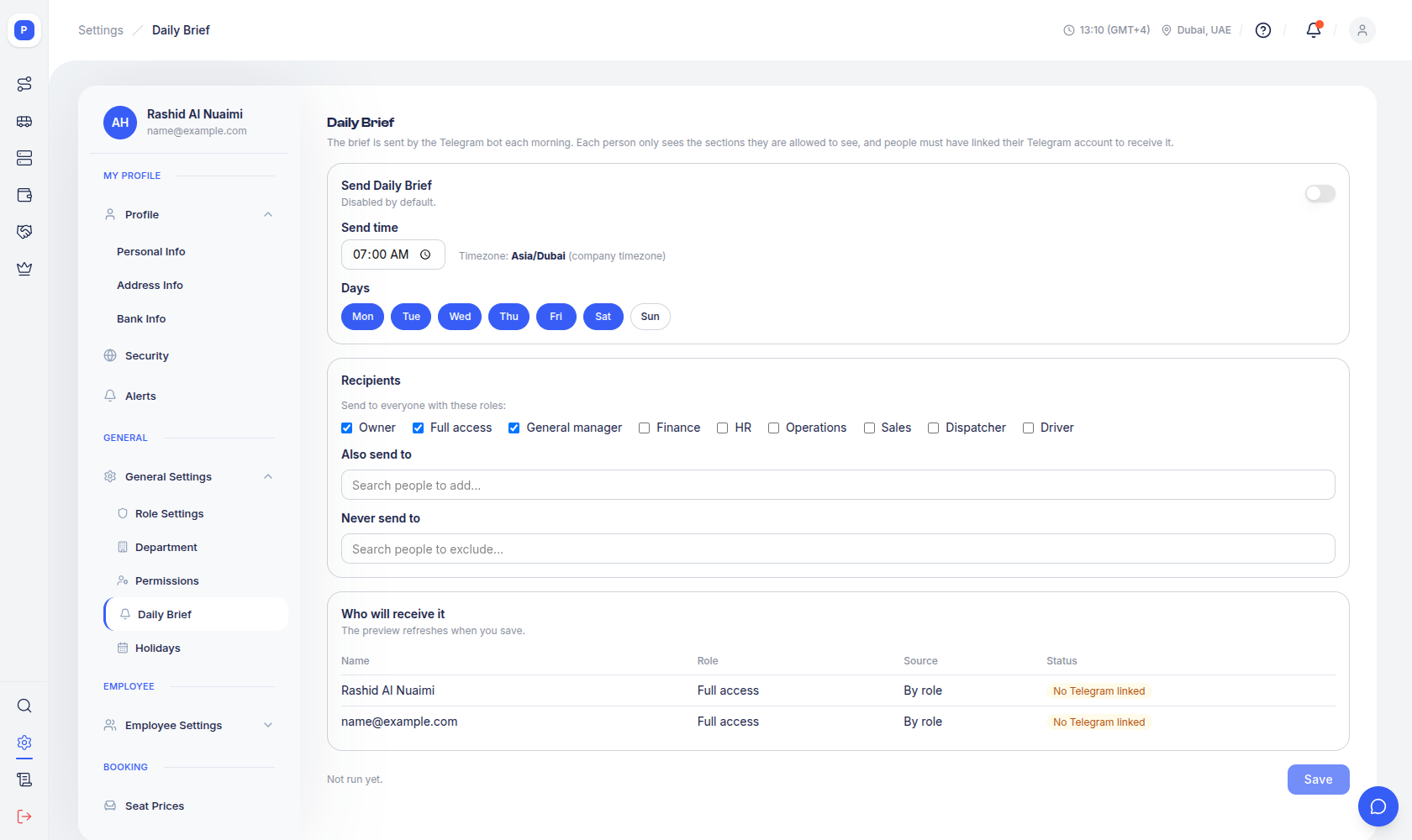
The header says it plainly: recipients must have linked their Telegram account to receive the brief. Anyone without a linked account appears in the preview as No Telegram linked and is skipped.
Send Daily Brief
The first card holds the switch and the schedule.
| Field | Behaviour |
|---|---|
| Send Daily Brief | Master switch. Disabled by default -- the hint under the label says so. Nothing is sent until you turn it on and save |
| Send time | Time input, default 07:00. Must be a valid 24-hour time; otherwise Enter a valid 24-hour time. is shown and saving is blocked |
| Timezone | Read-only. Shows the company timezone next to the time, for example Asia/Dubai (company timezone). The send time is interpreted in this timezone, not in your browser's |
| Days | Mon-Sun pill buttons. Mon-Sat is selected by default. Selecting none shows Select at least one day. and blocks saving |
The schedule is per company, not per person: one send time and one set of days, shared by everybody in the recipient list.
Recipients
The second card decides who is in the brief.
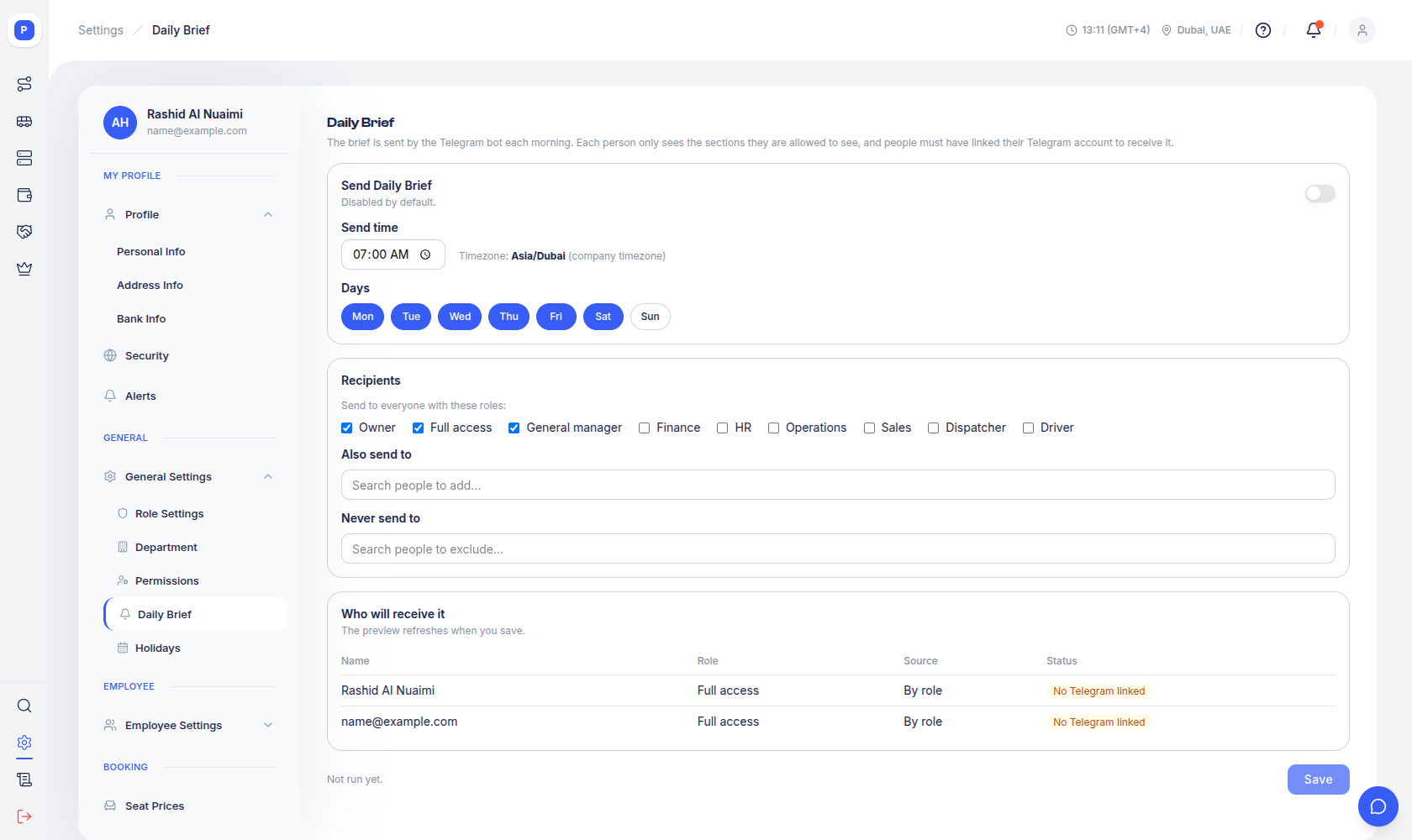
By role -- tick any of the nine roles and everybody currently holding that role is included automatically. New hires inherit the brief without any further setup:
| Role | Role | Role |
|---|---|---|
| Owner | Full access | General manager |
| Finance | HR | Operations |
| Sales | Dispatcher | Driver |
By default the first three -- Owner, Full access and General manager -- are ticked.
By person -- two searchable pickers handle the exceptions:
| Picker | Placeholder | Effect |
|---|---|---|
| Also send to | Search people to add... | Adds one person even if their role is not ticked |
| Never send to | Search people to exclude... | Removes one person even if their role is ticked |
Selected people appear as removable chips. The two lists are mutually exclusive: adding somebody to Also send to removes them from Never send to, and vice versa, so a person can never be both included and excluded. Never send to always wins for a role-matched person.
Who Will Receive It
The third card previews the outcome of the saved settings.
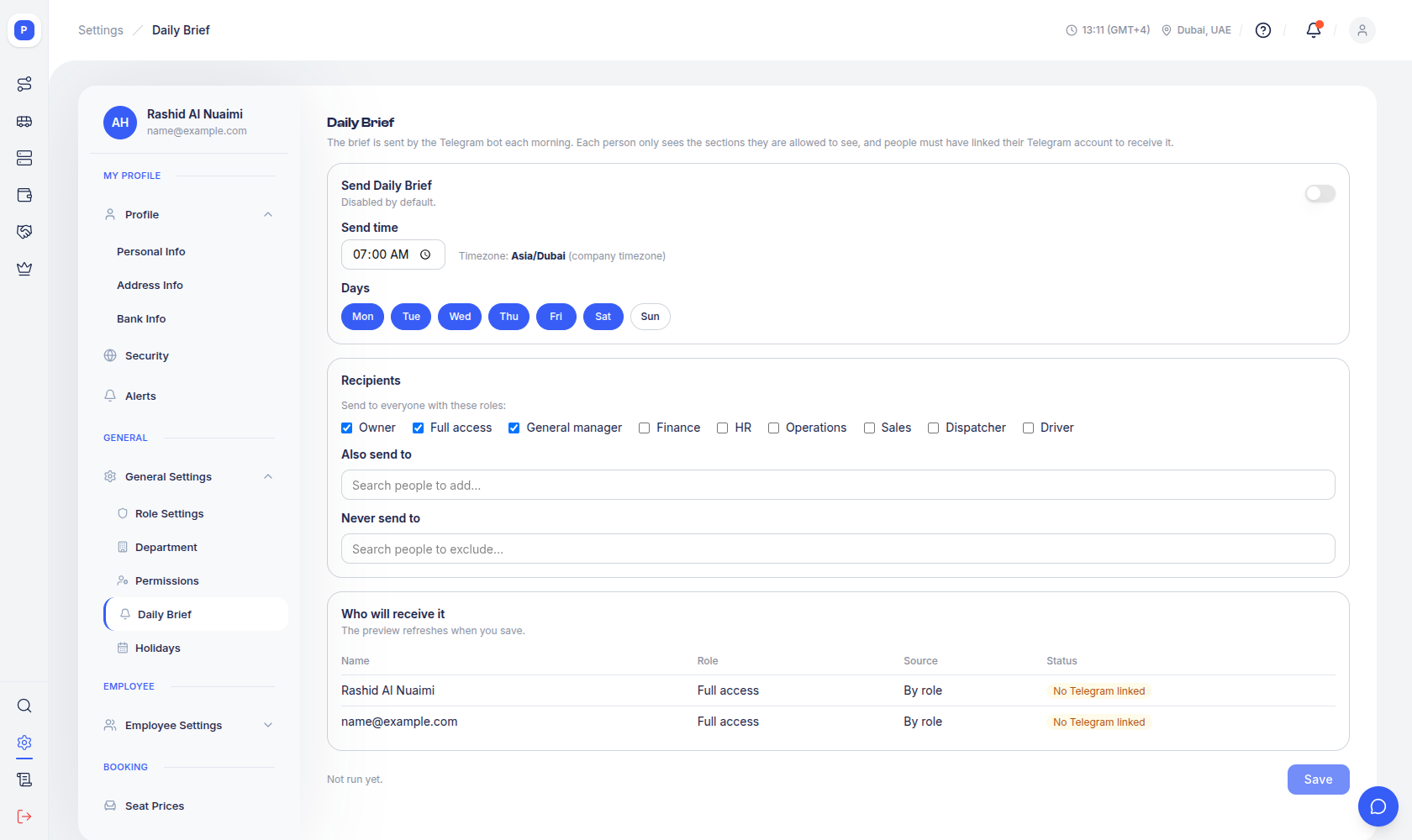
| Column | Meaning |
|---|---|
| Name | The person's display name |
| Role | Their current role label |
| Source | By role if they were picked up by a role checkbox, Added if they were added by hand with Also send to |
| Status | Will receive (green), No Telegram linked (amber), Excluded (grey) |
Status meanings:
- Will receive -- matched and reachable on Telegram.
- No Telegram linked -- matched, but they have no Telegram account linked, so the bot cannot message them. They will not get the brief until they link it.
- Excluded -- they match a role or were added, but they are also in Never send to. Excluded people are listed only so that every name in your lists is visible; they are never sent the brief.
The preview describes the saved settings. The hint under the heading says it: The preview refreshes when you save. Editing the cards does not change the table until the save completes. If nobody matches, the card shows No one matches the saved recipient settings.
Saving
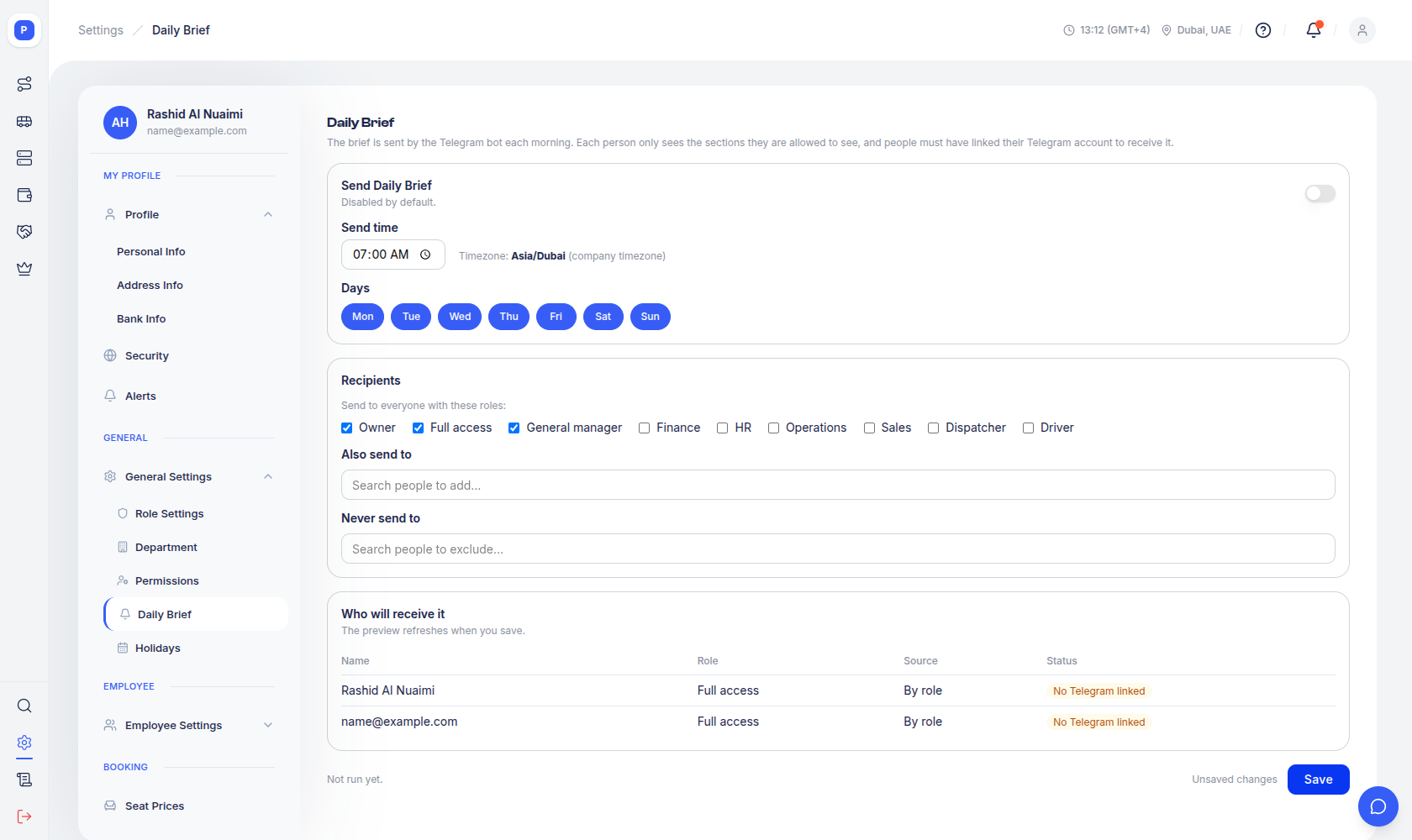
Unlike the Alerts page, this one has an explicit Save button. It stays disabled until something actually changed, the send time is valid and at least one day is selected.
- An Unsaved changes hint appears next to the button while the form differs from what is stored.
- Clicking Save shows Saving... on the button. On success the toast reads Saved -- Daily Brief settings updated, and the preview and last-run line reload from the server.
- If validation fails on the server or the request errors, a red banner above the footer shows the message. Common cases are a malformed time, an empty day list, or a person listed in both the include and exclude lists.
- Leaving the page with unsaved changes discards them -- there is no draft and no warning dialog.
The footer also carries the delivery summary: Last run: 2026-06-02 -- 12 sent, 0 failed, 1 skipped, or Not run yet. until the first send. Skipped counts recipients the bot deliberately did not send to -- for example somebody whose Telegram account is not linked to an active user, or a person whose role has no access to the brief. A skipped recipient is not retried that day.
Delivery Notes
These are operational details of the bot, not controls on this page:
- Telegram is mandatory. A recipient needs a linked Telegram account. The platform does not e-mail the brief and has no fallback channel.
- Sections are permission-filtered. The header states it: each person only sees the sections they are allowed to see. If a recipient's brief looks short, check their permissions on Employee Permissions rather than the brief settings.
- Feature flag. The send side is gated on the bot's
DAILY_BRIEF_ENABLEDflag, which is off by default. A configured and saved brief does nothing until operations enable the flag and the bot process is running. - Send window. The backend treats a brief as due for 180 minutes after the configured send time. A delayed bot start inside that window still delivers the brief; a brief that misses the window is skipped for that day rather than sent hours late.
- No duplicates. Each recipient is recorded per local date, so a restart or a retry inside the window does not send the same person the brief twice. The record also feeds the sent / failed / skipped counts in the footer.
Enabling the switch is not enough on its own. The bot must be running with DAILY_BRIEF_ENABLED on, and each recipient must have linked Telegram. Verify the preview shows Will receive before telling the team the brief is live.
Related Pages
- Settings -- the overview of every settings area
- Alerts -- per-event notifications, including the Telegram-independent ones
- Email Reports -- where e-mail delivery lives today
- Employee Permissions -- which sections each recipient can see