Feedback
Record complaints about your drivers and vehicles, see which kinds come up most, and follow them up.
Feedback is the log of complaints about your drivers and service: late pickups, a dirty or faulty vehicle, rude or dangerous driving. Each entry is tied to a driver and to a category, so you can see at a glance which problems come back most often.
Navigation: Fleet > Feedback
The Feedback Page
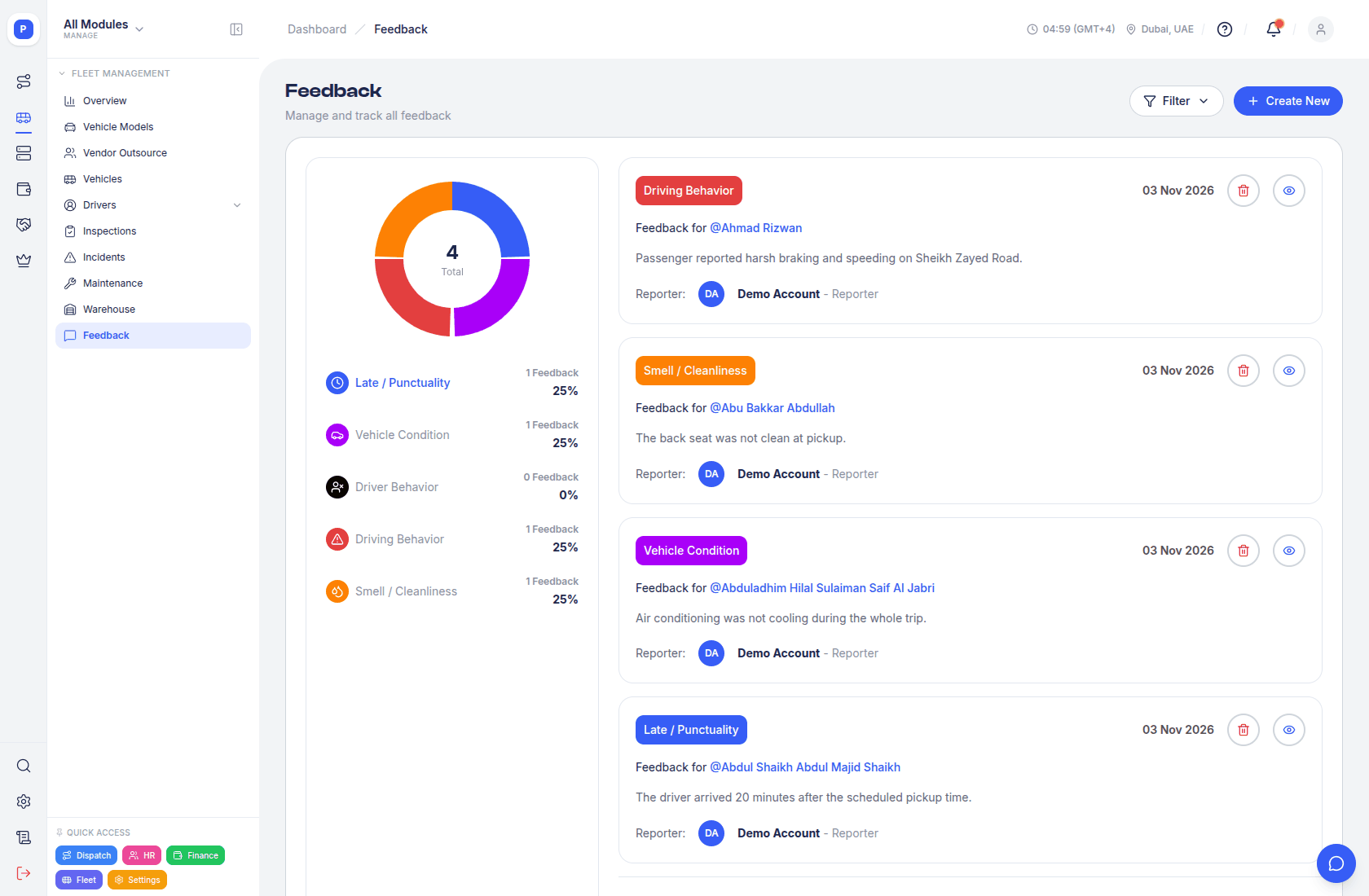
The page has two parts.
Category chart
The panel on the left shows a donut chart of all feedback, with the Total in the middle. Below it, one line per category shows its colour, the number of feedback entries and the share of the total.
| Category | Meaning |
|---|---|
| Late / Punctuality | The driver was late |
| Vehicle Condition | The vehicle was faulty or in poor condition |
| Driver Behavior | The driver's attitude or conduct |
| Driving Behavior | How the vehicle was driven (speed, braking) |
| Smell / Cleanliness | The vehicle was dirty or smelled bad |
Feedback cards
The list on the right shows one card per feedback entry, newest first, 5 cards per page. Page buttons and an entries counter are at the bottom. A card shows:
- the category badge and the date
- Feedback for @name: the driver the feedback is about
- the description
- the Reporter: the user who recorded the feedback, with their role
The red bin button on a card deletes the entry and the blue eye button opens its details.
Filtering by Category
Filter (top right) opens Filter by Category with one choice: All Categories or one of the five categories. Apply shows only that category and Reset goes back to all of them. While a filter is on, the button shows a small "1" badge.
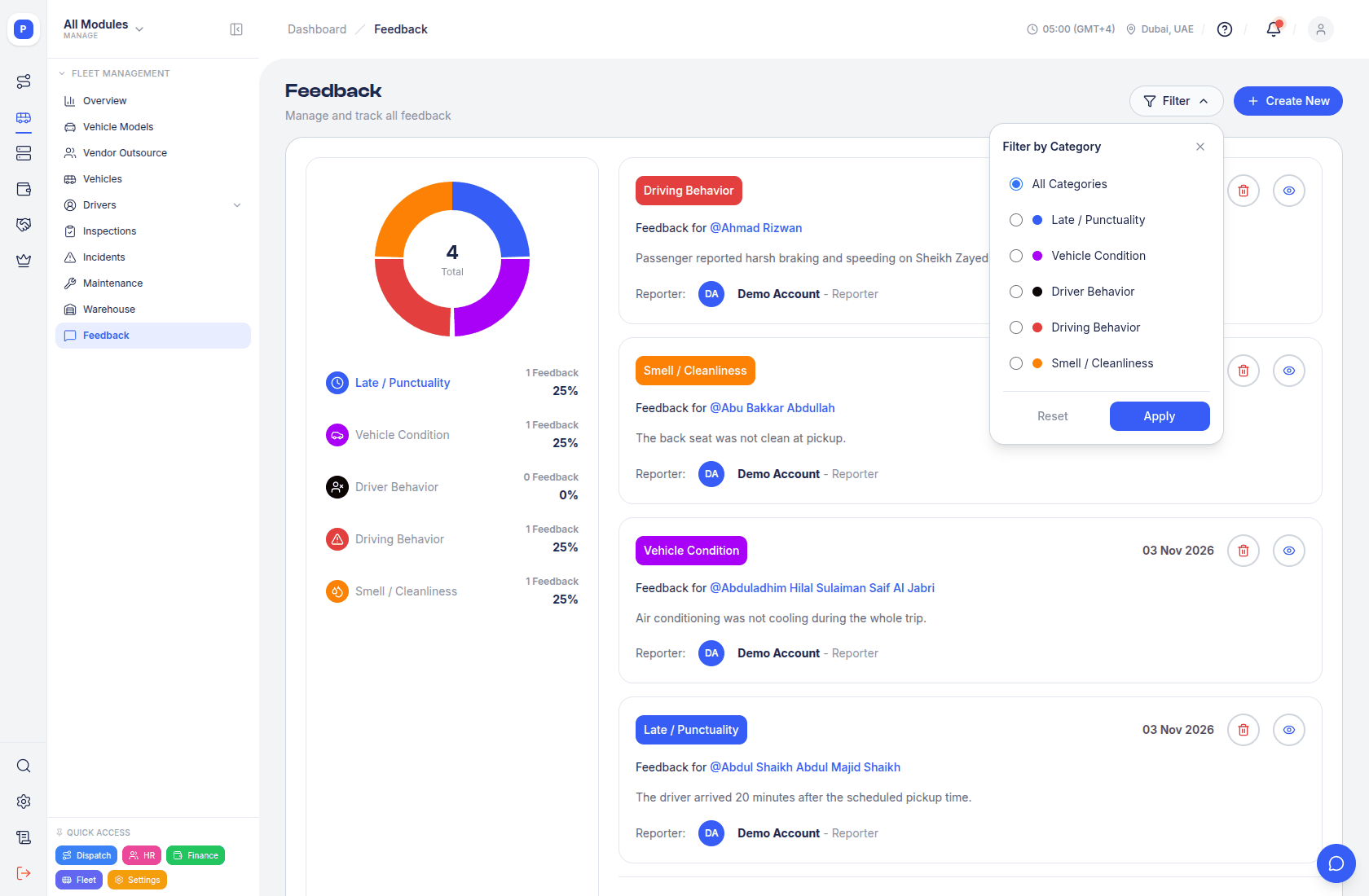
The chart always shows the totals of all feedback. Only the cards on the right follow the filter.
Adding Feedback
Click Create New. The Add Feedback dialog opens.
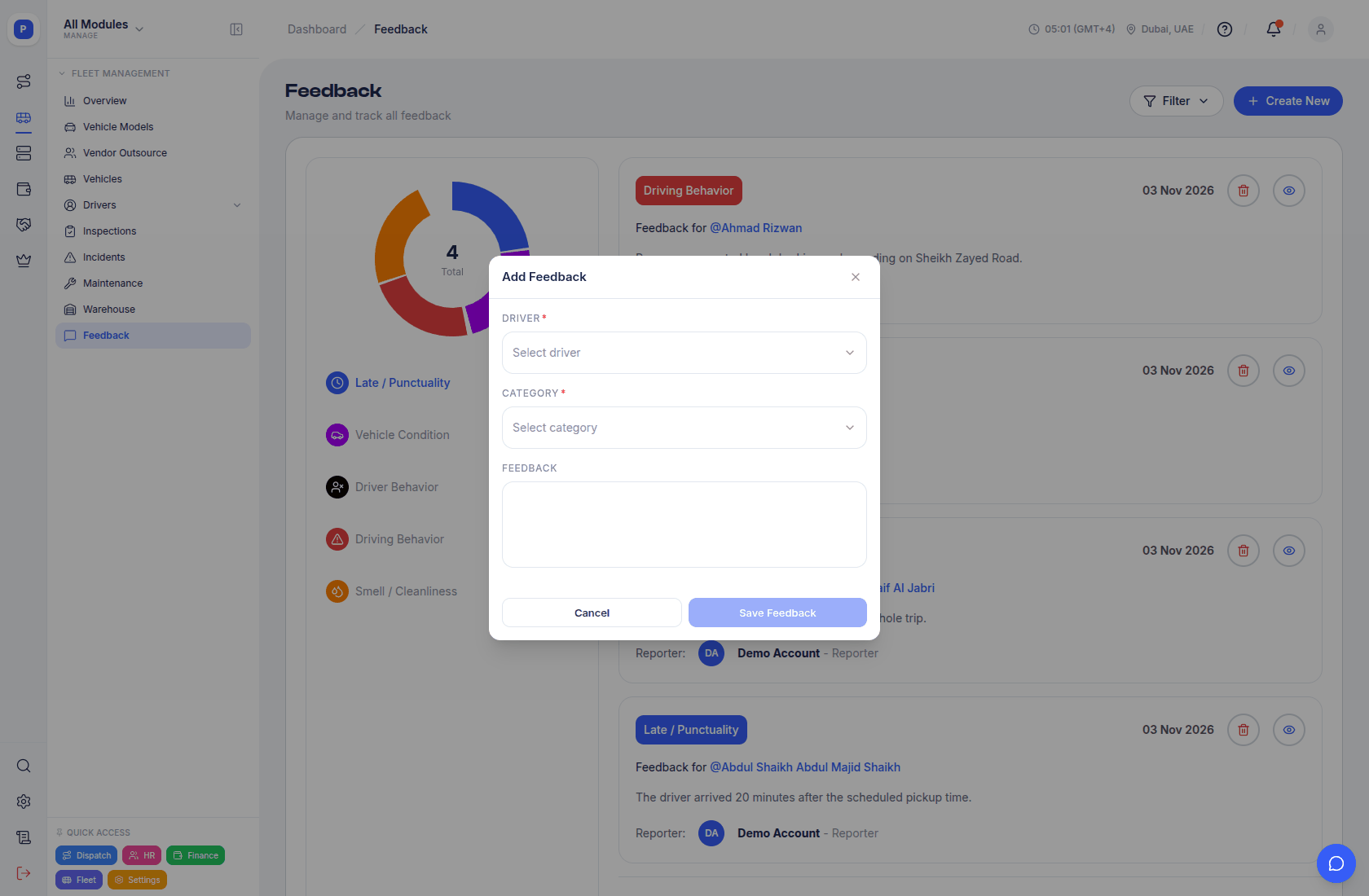
| Field | Required | Notes |
|---|---|---|
| Driver | Yes | Open the list and click a driver, or type in Search driver... to find one. Each driver shows the employee number under the name |
| Category | Yes | Late/Punctuality, Vehicle Condition, Driver Behavior, Driving Behavior or Smell/Cleanliness |
| Feedback | No | A free text describing what happened |
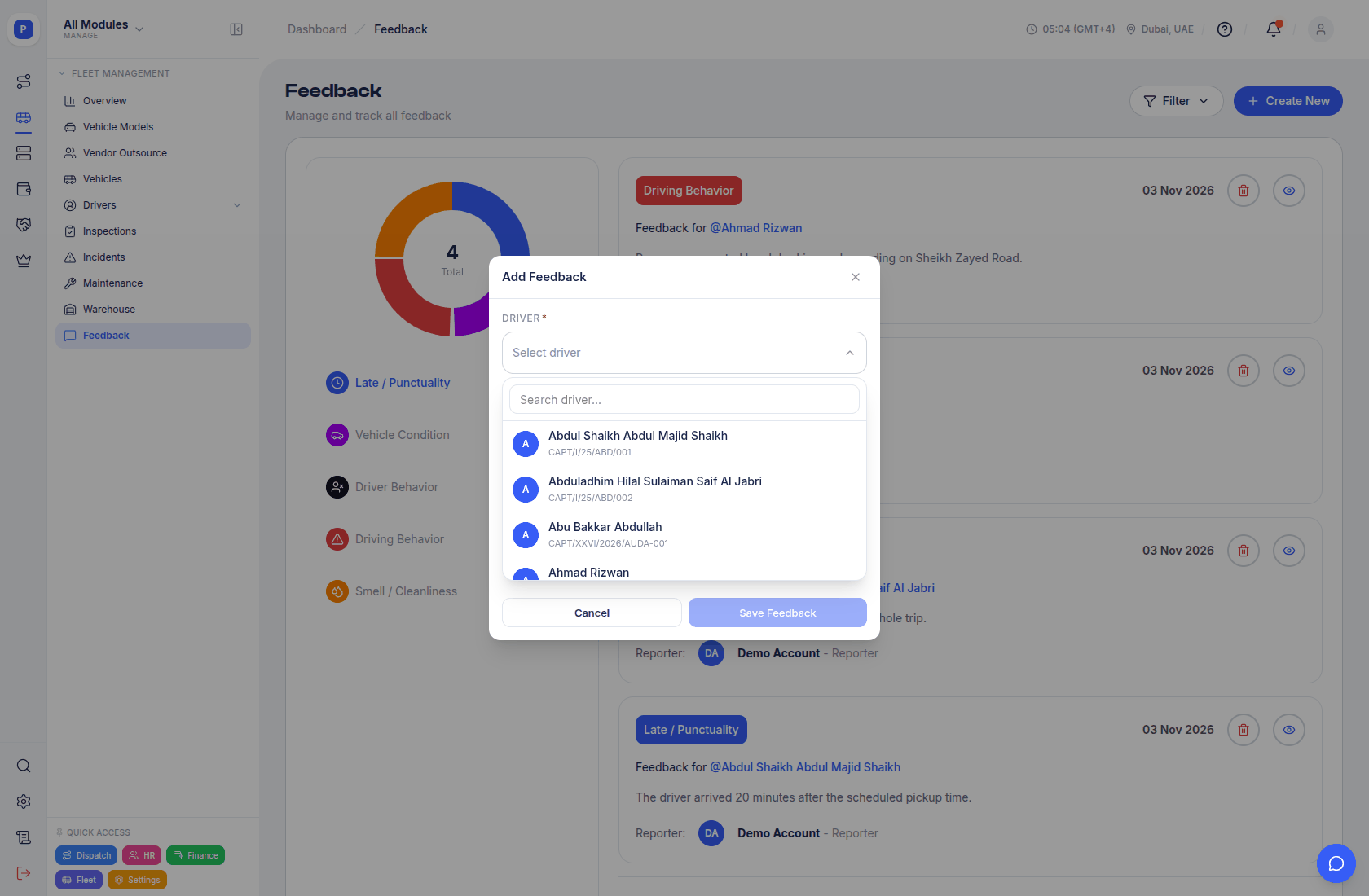
Save Feedback stays disabled until a driver and a category are chosen.
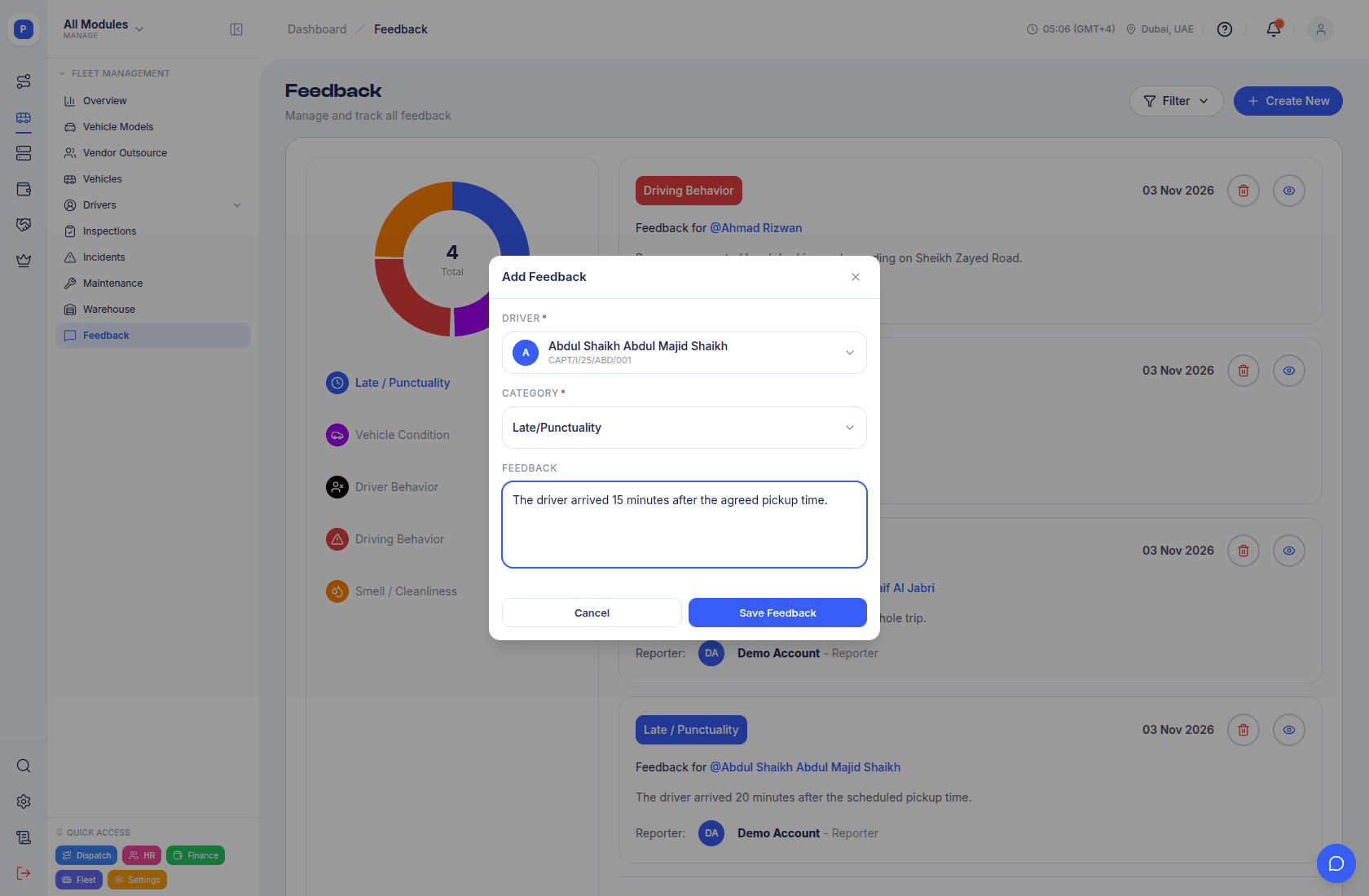
After saving, the list and the chart refresh. Cancel closes the dialog without saving.
A new feedback entry starts with the status Open and the issue level Low. The dialog does not ask for either. The reporter is the user who is logged in.
Viewing Feedback
Click the eye button of a card. The Feedback Details dialog opens.
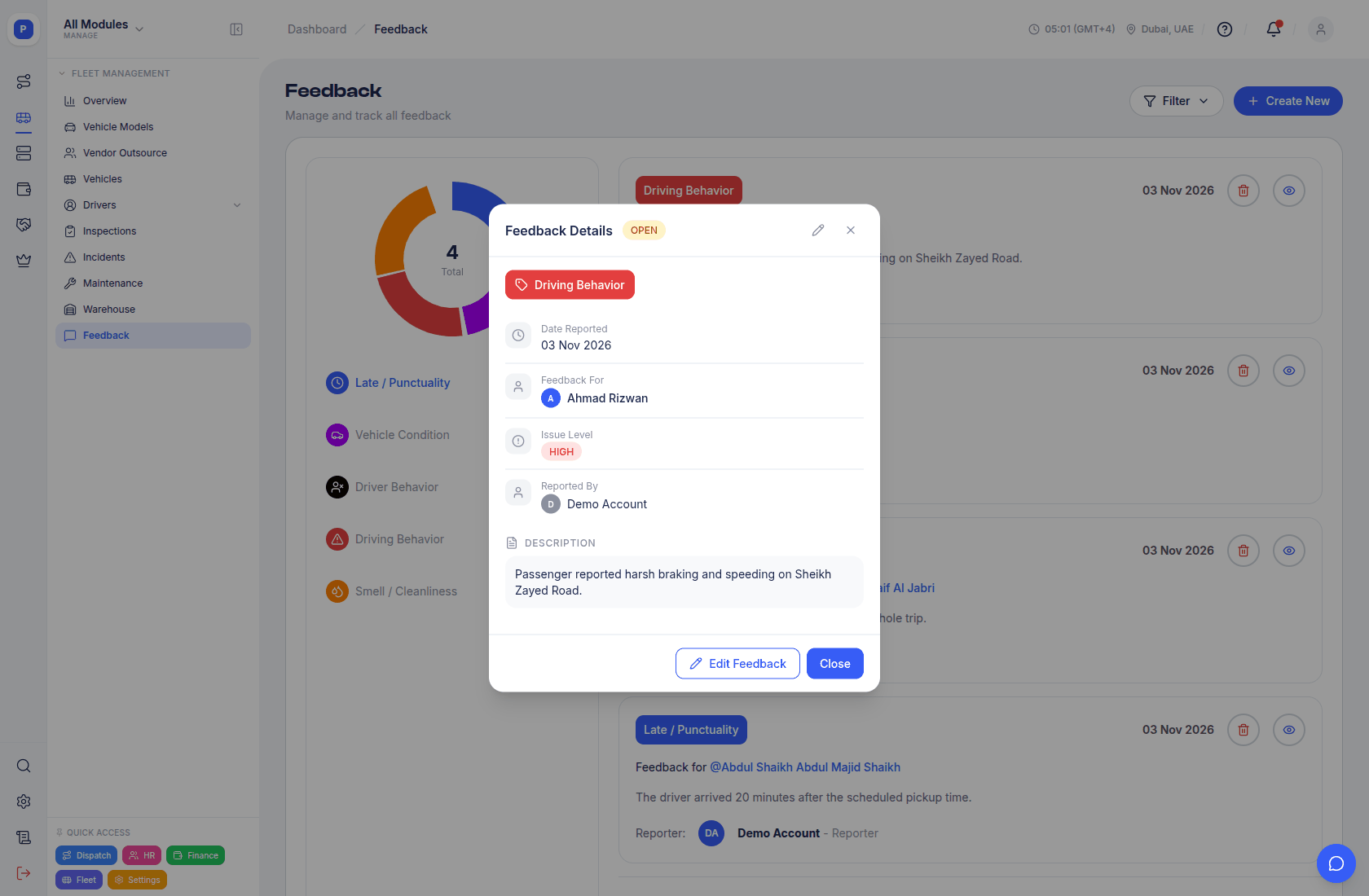
| Item | Description |
|---|---|
| Badge next to the title | The status of the feedback: Open, In Progress, Resolved or Closed |
| Category badge | The category |
| Date Reported | When the feedback was recorded |
| Feedback For | The driver |
| Vehicle | The vehicle, when the feedback is linked to one |
| Issue Level | Low, Medium, High or Critical |
| Reported By | The user who recorded it |
| Description | The text |
| Resolution Notes | Shown only when the feedback has resolution notes |
Edit Feedback (or the pencil at the top) opens the edit dialog, and Close closes the details.
The page shows the status, the issue level and the resolution notes, but it has no button to change them. Status and resolution notes can only be changed through the API (PATCH /feedback/{id}/status).
Editing Feedback
The Edit Feedback dialog has the Driver, the Category and the Notes of the entry.
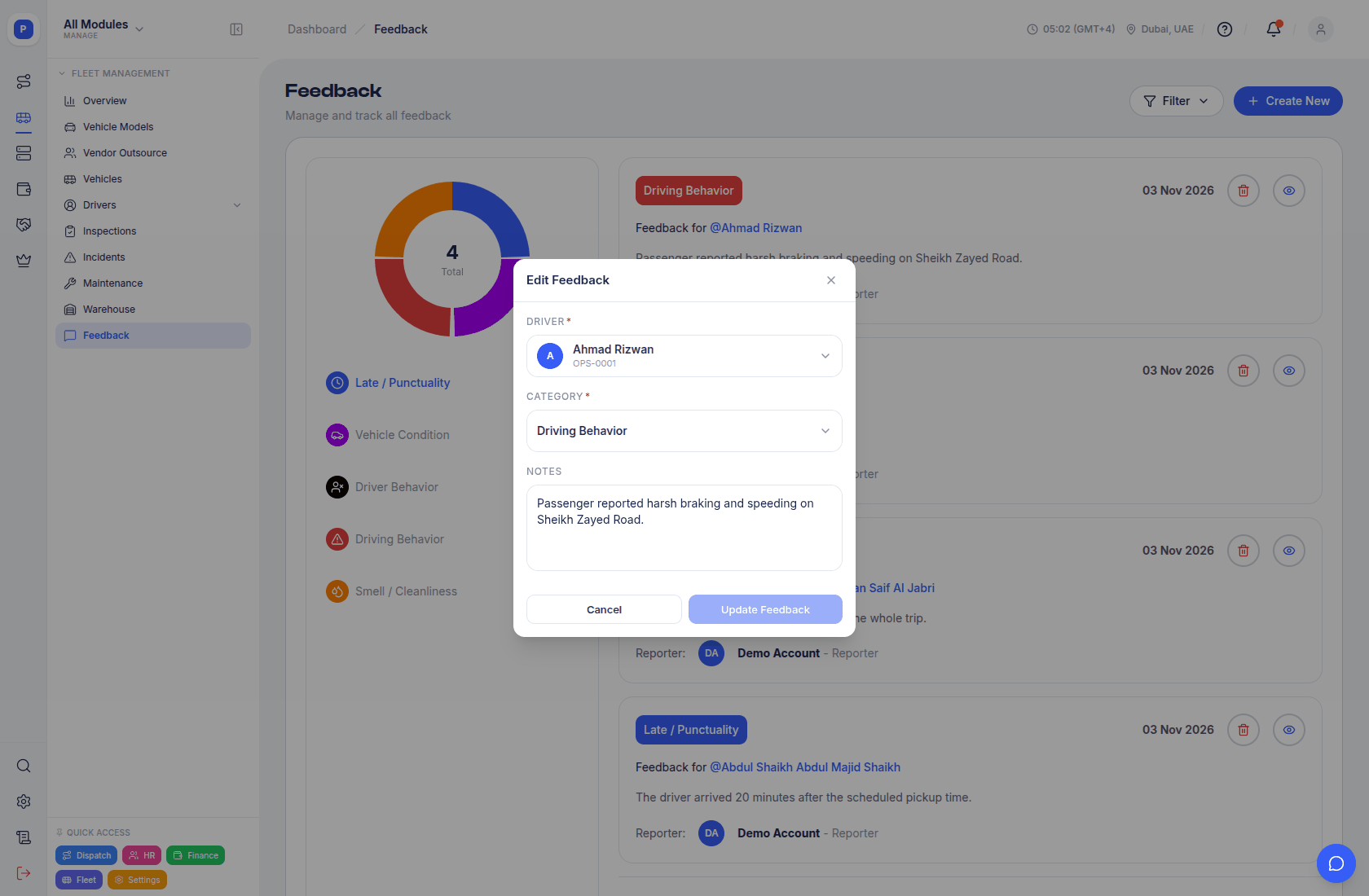
Update Feedback is enabled only after you change something. Cancel closes the dialog. A message Complaint updated successfully confirms the change.
Deleting Feedback
Click the red bin button of a card. The dialog Delete this feedback? names the driver. Type delete in the box to enable Delete, then click it. A message Complaint deleted successfully confirms it.
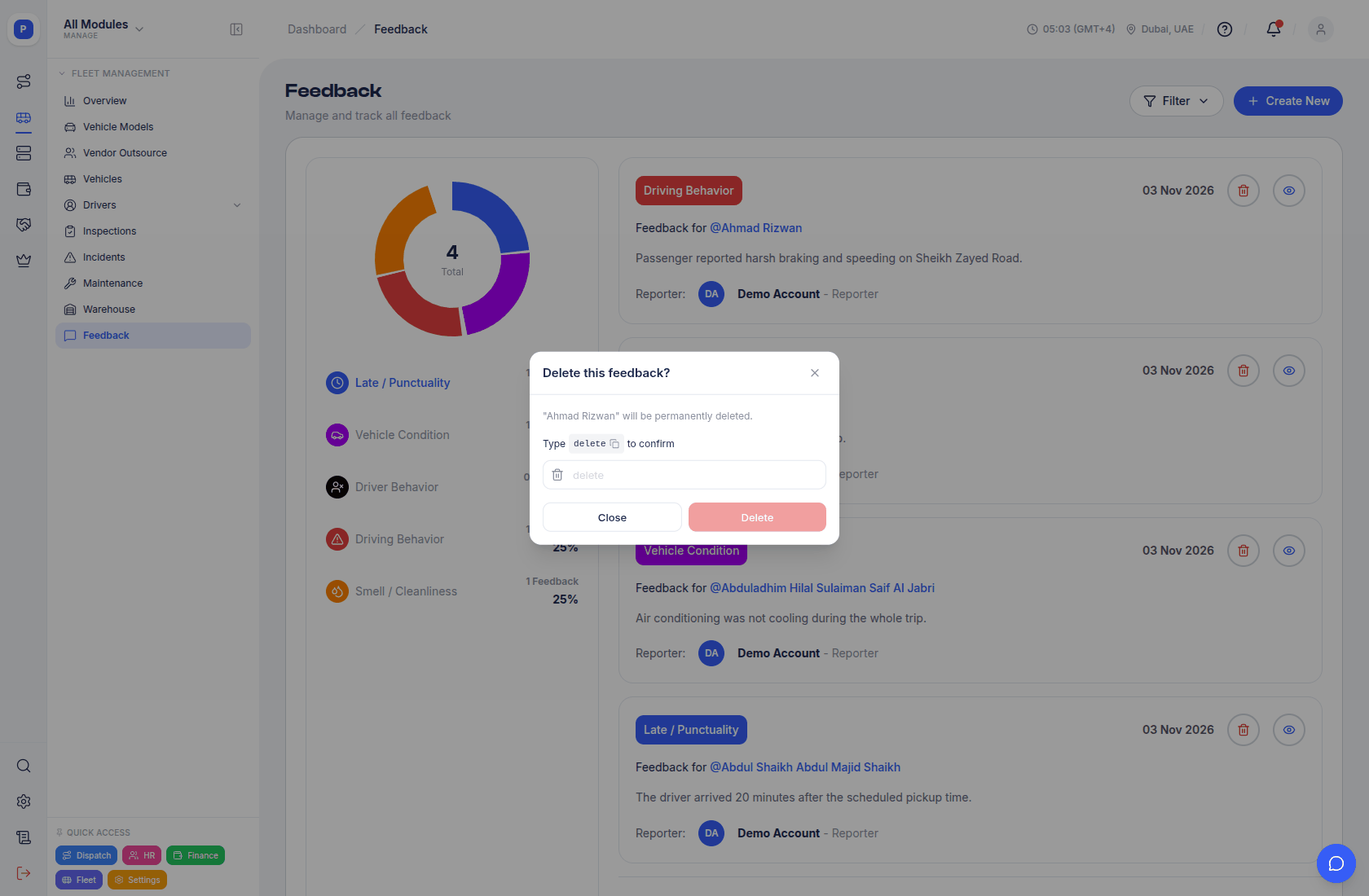
The dialog says the feedback "will be permanently deleted". In the system the entry is only marked as deleted: it disappears from the page and from the chart.
Tips
- Record feedback for the right driver. The chart and the filter only group by category, so the driver on each card is how you spot a person who comes up again and again.
- Use a clear sentence in Feedback: what happened, when and where.