Uber Integration
Monitor the revenue Uber brought in, follow the synchronisation logs and start a manual sync.
The Uber Integration page shows what Uber has brought into Transportech: how much your drivers earned, and the history of every synchronisation.
Navigation: Dispatch > Platform Integration > Uber
Revenue
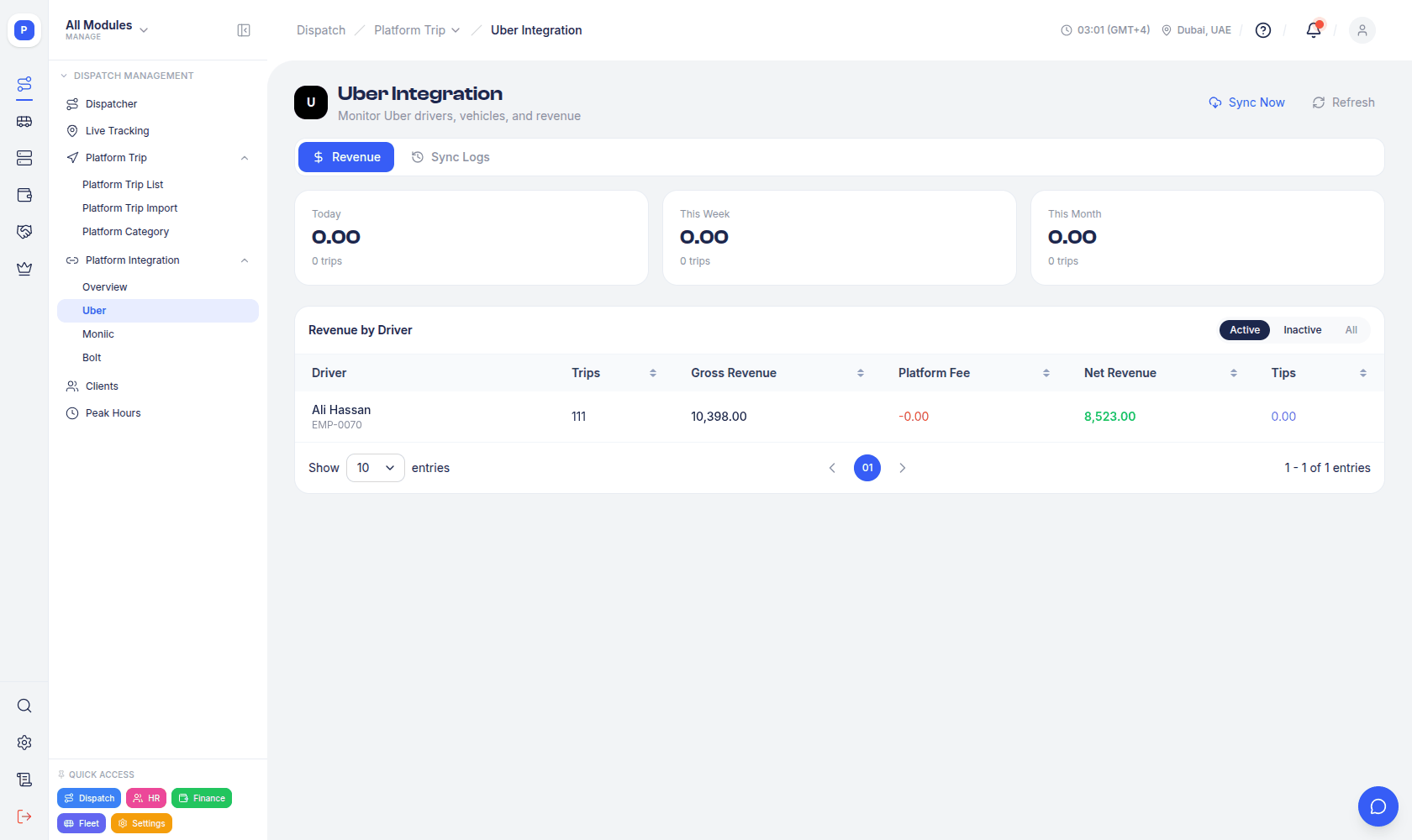
- Today, This Week and This Month show the revenue and the number of trips for each period.
- Revenue by Driver lists the drivers with their Trips, Gross Revenue, Platform Fee (Uber's commission), Net Revenue and Tips.
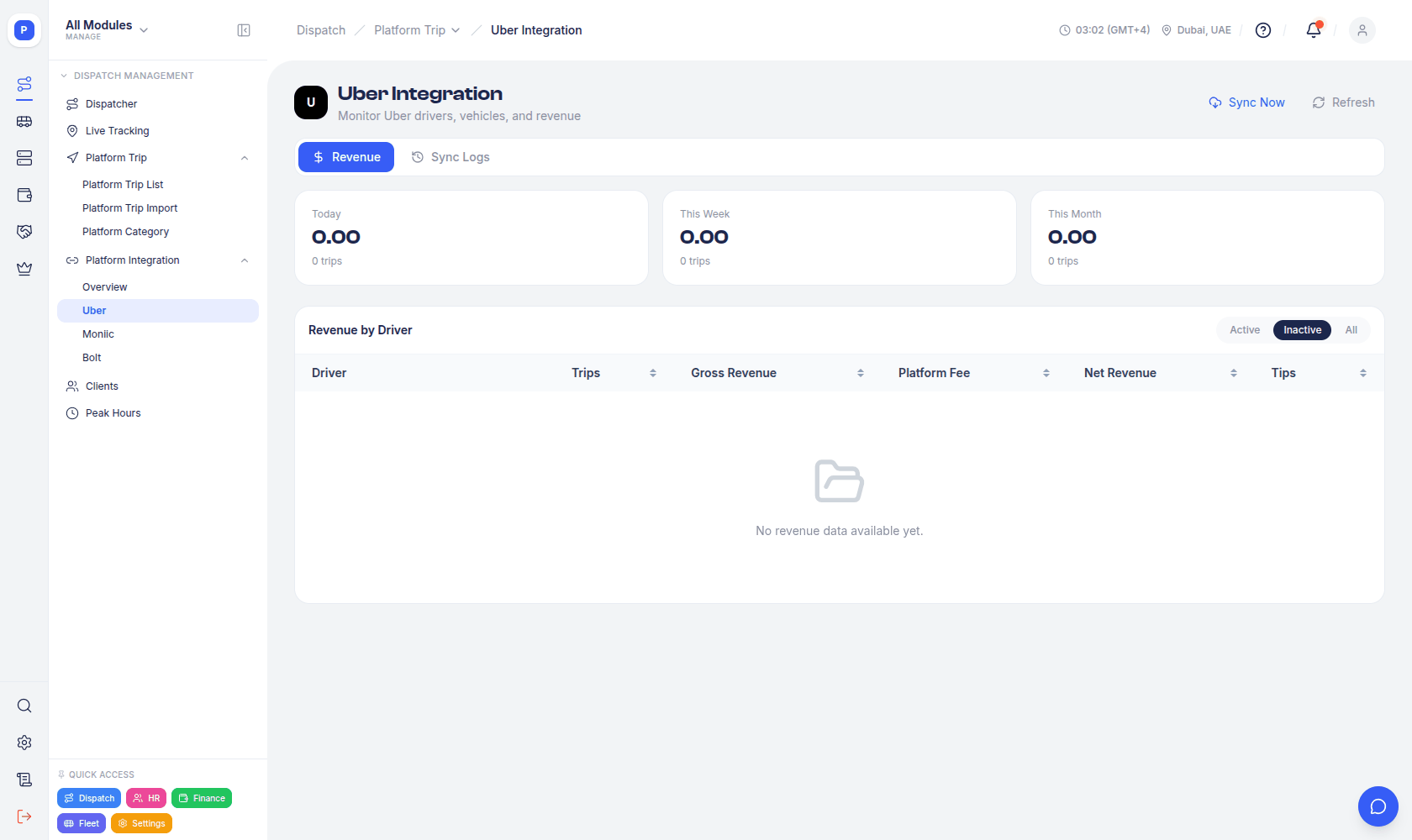
- The buttons Active, Inactive and All above the table choose which drivers are listed.
Sync Logs
The Sync Logs tab is the history of the synchronisations with Uber.
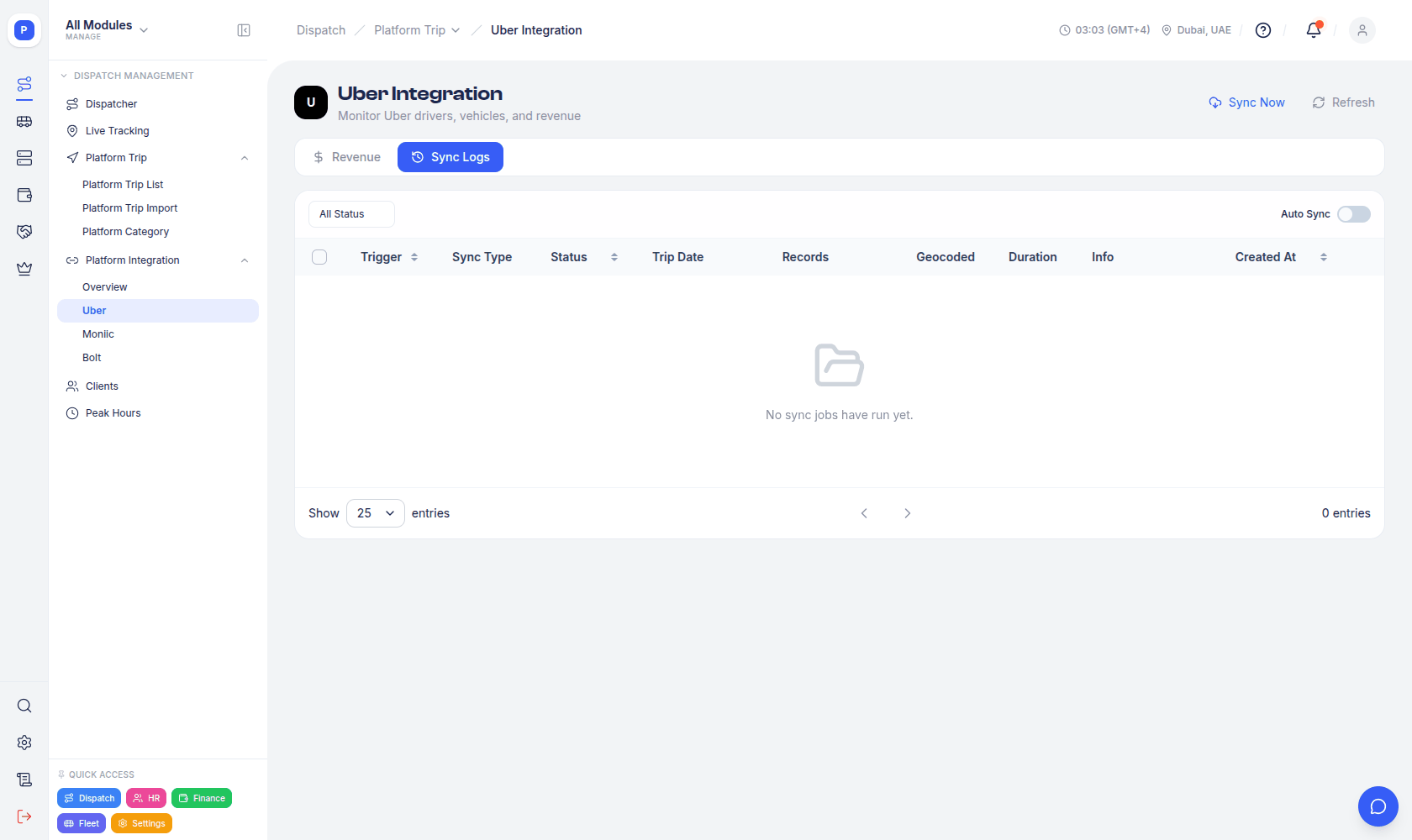
| Column | Description |
|---|---|
| Trigger | What started it: a schedule or a person |
| Sync Type | What was synchronised |
| Status | Pending, Running, Completed, Failed, Partial or Cancelled |
| Trip Date | The day the data is for |
| Records | How many records it processed |
| Geocoded | Always shown as -: the Uber synchronisation does not geocode records |
| Duration | How long it took |
| Info | A short message, for example the reason of a failure |
| Created At | When the run was created |
All Status filters the table by status. When no synchronisation has run yet, the table says No sync jobs have run yet.
Auto Sync
The Auto Sync switch turns the automatic synchronisation on or off. A message confirms Auto sync enabled or Auto sync disabled.
Actions on a Log
The menu at the end of a log row offers:
| Action | What it does |
|---|---|
| View Details | Shows the details of the run |
| View Records | Shows the trips that the run synchronised |
| Retry | Asks Retry this sync job? and, once you confirm, queues the run again (Retry job queued successfully) |
| Delete | Asks Delete this sync log? and, once you confirm, removes the log (Sync log deleted successfully) |
Starting a Sync by Hand
Click Sync Now (top right) to bring in the data of some days without waiting for the schedule.
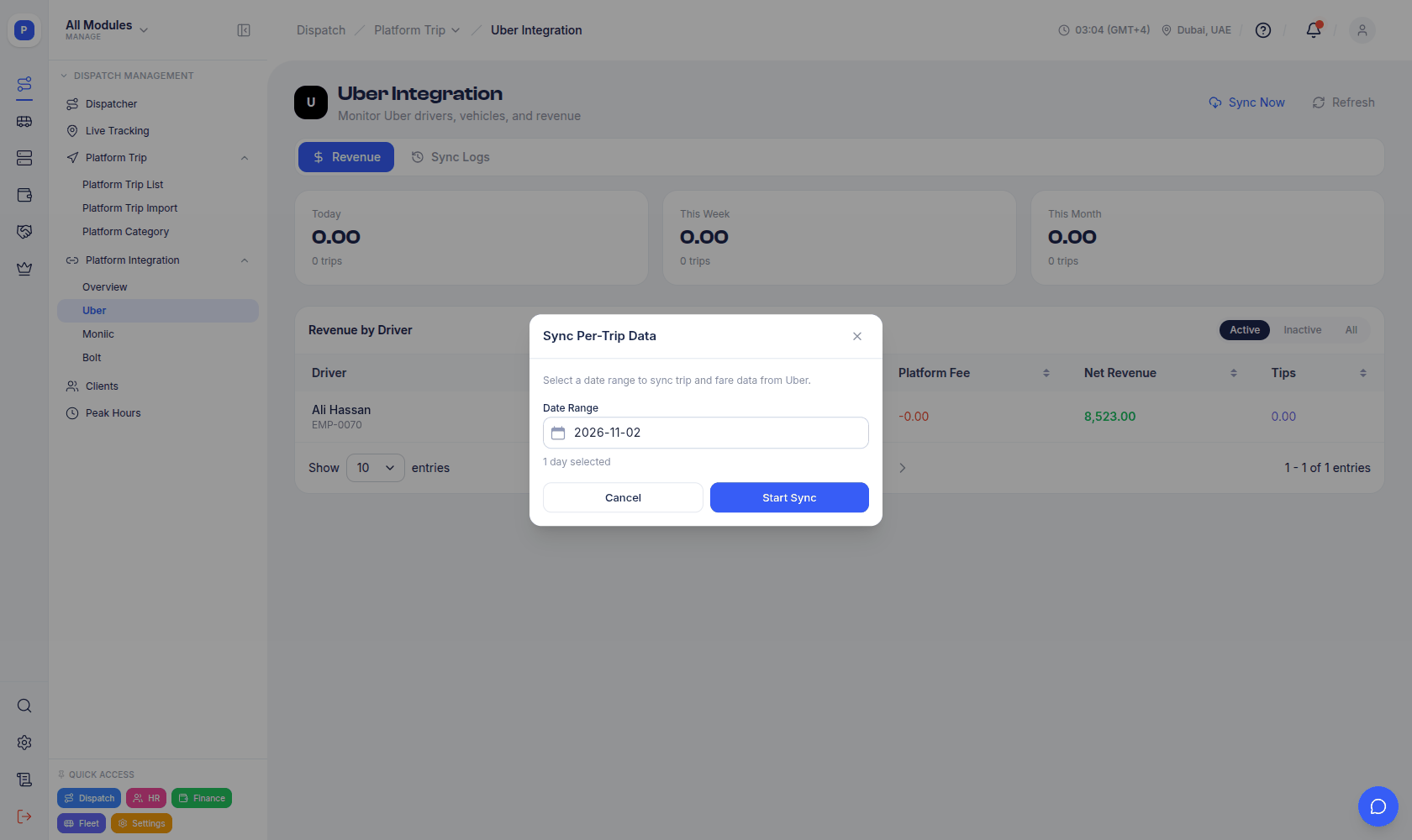
- Choose the Date Range on the calendar. The dialog tells you how many days are selected.
- Click Start Sync. The button changes to Syncing... until the job has started.
- A message says Sync job started (trips + payments). Data will update shortly - refresh to see progress. Click Refresh after a moment, and follow the run in Sync Logs.
Click Cancel to close the dialog without syncing.
Related Pages
- Platform Integration -- the overview of all integrations
- Platform Trips -- the trips that Uber brings in