Driver Recruitment
Track a new driver from the first visa step to a live binding with your company, in one pipeline of four views.
Driver Recruitment is where HR follows a new driver from the day they are hired until they are working for the company in the driver app. The page has four views, picked with the switch at the top right: Documentation, Visa Process, RTA Permit Process and Driver Binding.
Navigation: HR & Benefits > Driver Recruitment (/hr/driver-binding)
The menu item has no permission of its own: anyone who can open the HR & Benefits menu can open this page and use every view.
The pipeline
A driver goes through three stages, one after the other. Each stage has to be finished before the next one shows the driver.
| Stage | View | What it tracks | When it is finished |
|---|---|---|---|
| 1 | Visa Process | 13 administrative steps to get the candidate a UAE work visa | All 13 steps are Done or N/A: the candidate becomes an Active employee |
| 2 | RTA Permit Process | 9 steps to make the driver road-ready (tests, RTA training, Uber registration) | All 9 steps are finished: a binding request is sent to the driver |
| 3 | Driver Binding | The driver's consent to work for your company in the driver app | The driver accepts the Terms & Conditions: the binding is Active |
The view opens on Visa Process. The Documentation view is a short guide to the same pipeline, written inside the app.
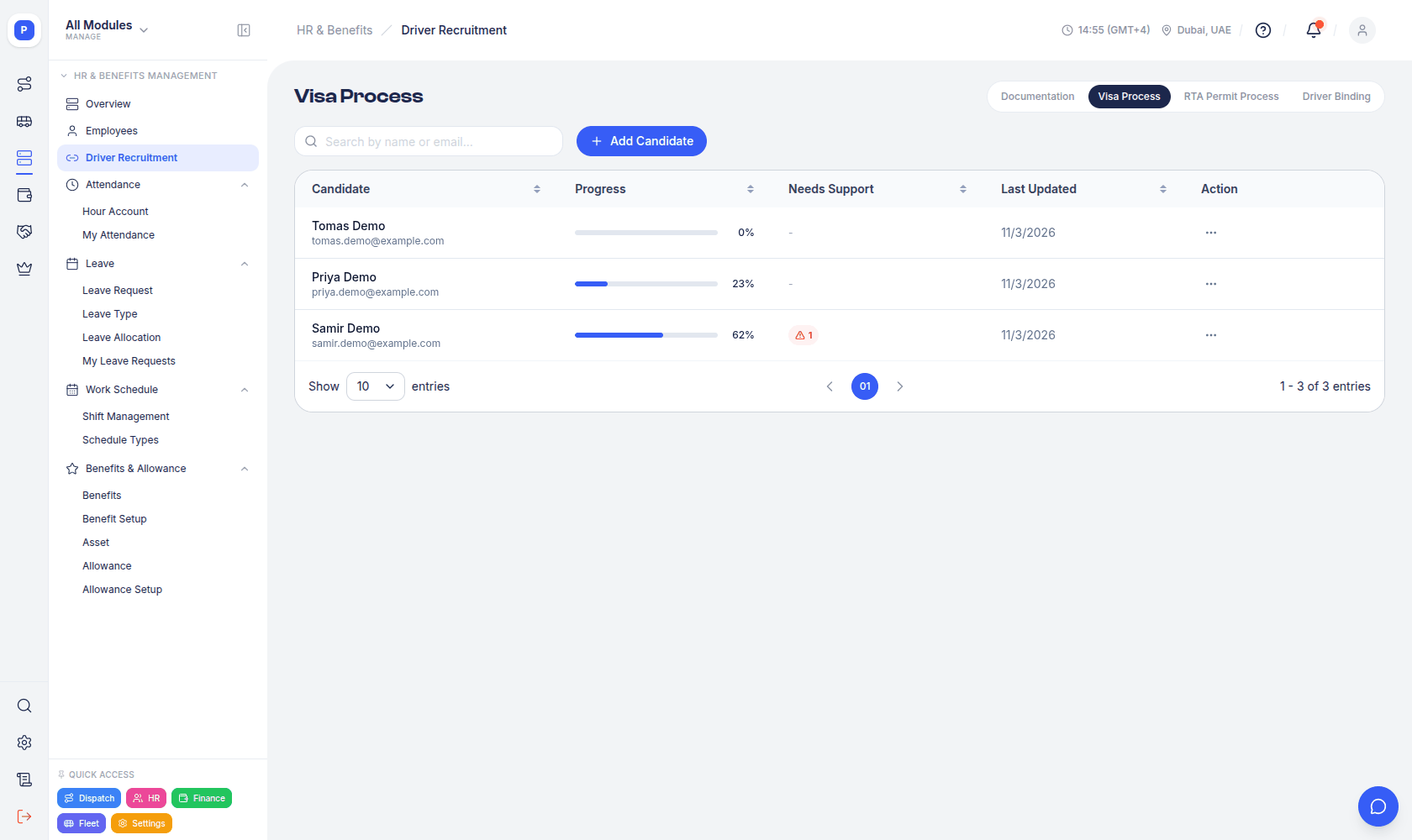
Visa Process
The list shows every candidate whose employee status is Candidate (hired, but the visa is not finished yet).
| Column | Meaning |
|---|---|
| Candidate | Name and e-mail |
| Progress | Share of the applicable steps that are Done. Steps marked N/A are left out of the count |
| Needs Support | A red badge with the number of steps flagged Needs Support. A dash means none |
| Last Updated | When a step of this candidate was last changed |
| Action | The ... menu (see Deleting a candidate) |
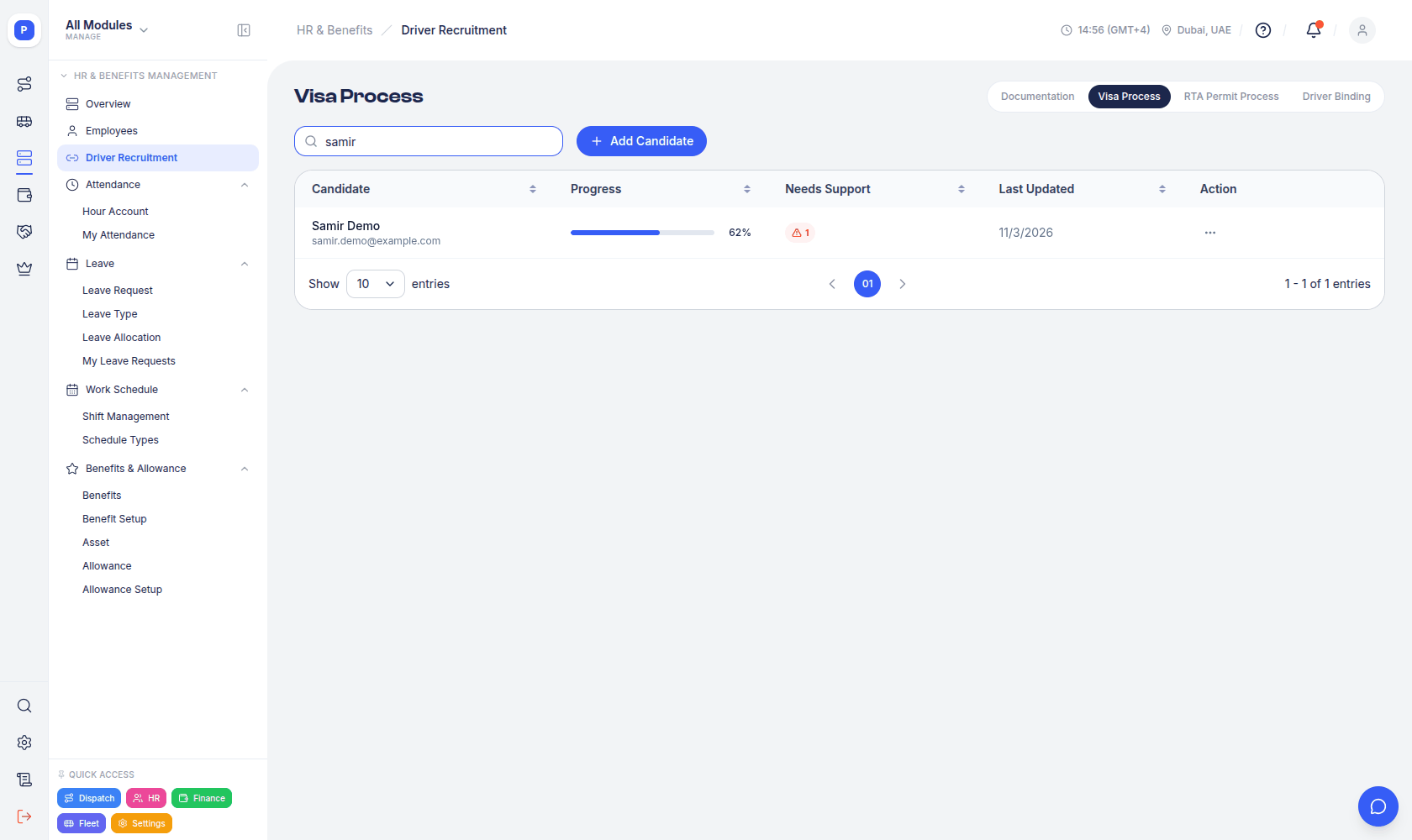
Use the search box to find a candidate by name or e-mail. Click a row to open the candidate's steps.
Adding a candidate
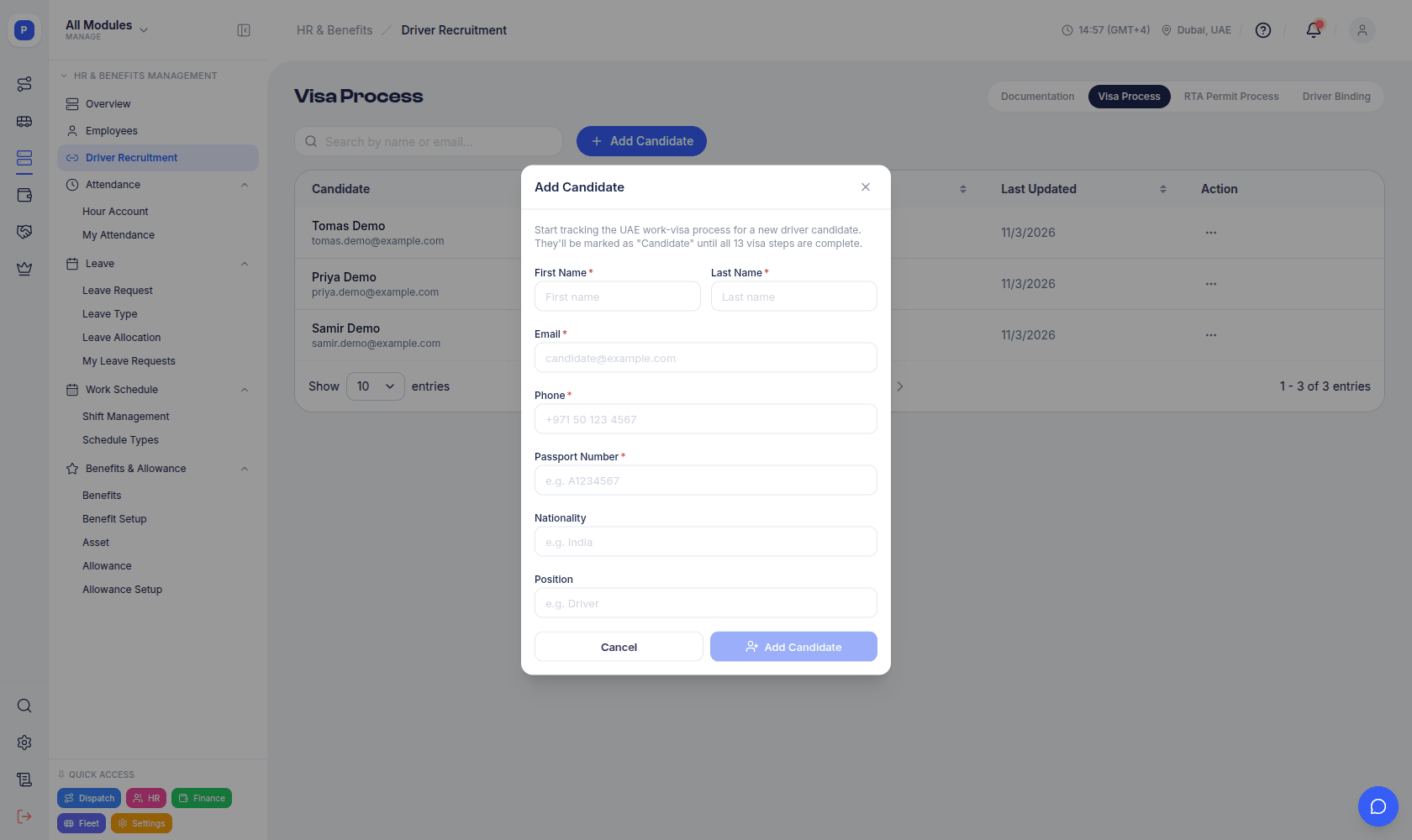
Click Add Candidate. The button stays disabled until the five required fields are filled.
| Field | Required | Notes |
|---|---|---|
| First Name | Yes | |
| Last Name | Yes | |
| Yes | Must be a valid address and not used by another employee of the company | |
| Phone | Yes | |
| Passport Number | Yes | Must not belong to another employee of the company. It is the key that later links the driver to the binding request |
| Nationality | No | |
| Position | No | For example Driver |
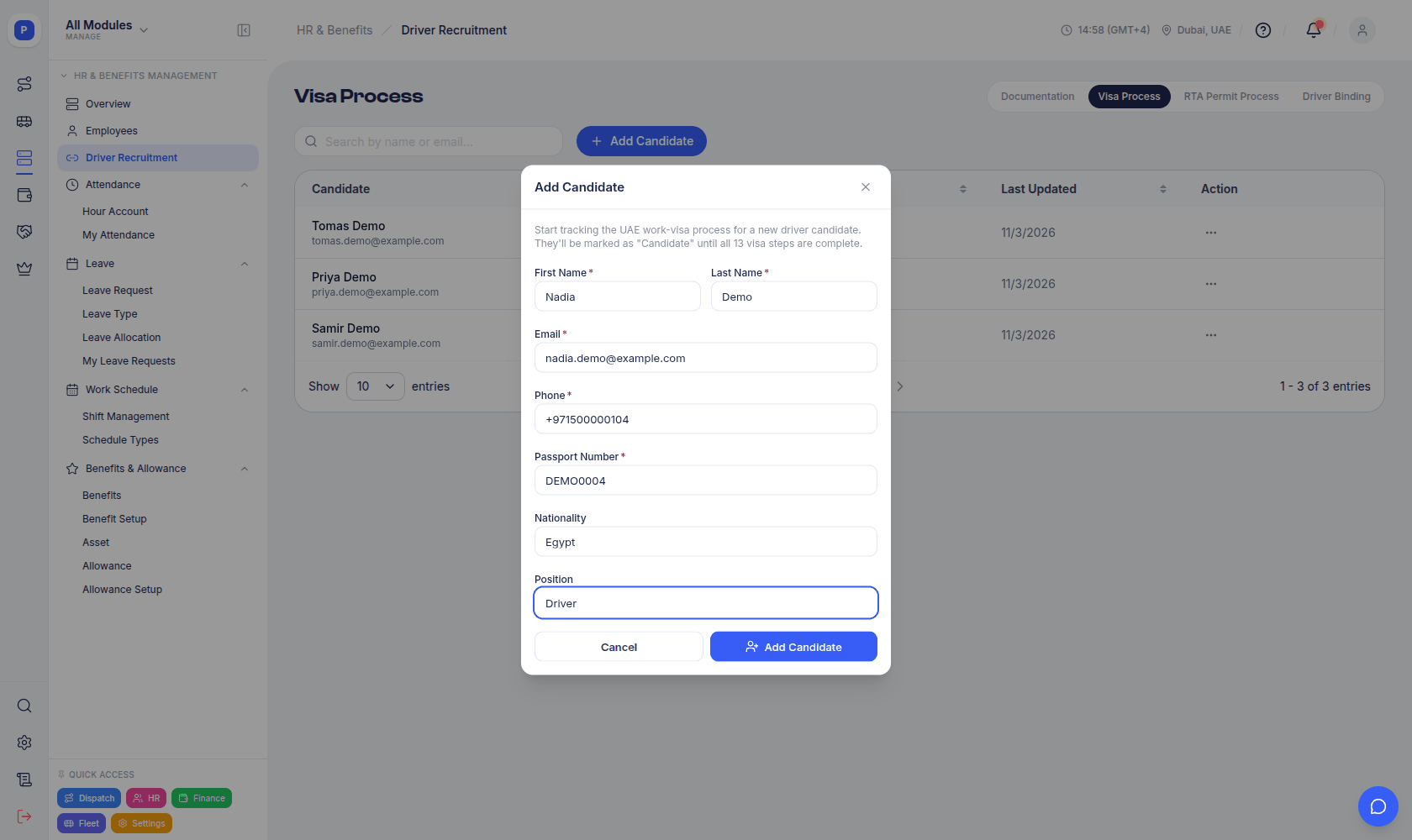
Saving creates an employee record with status Candidate, marked as a driver, hired today, with an employee number generated by the system, and the 13 visa steps ready to be filled in. If the e-mail or the passport number already exists the message Employee with email … already exists or Employee with passport number … already exists appears and nothing is saved.
Following the 13 steps
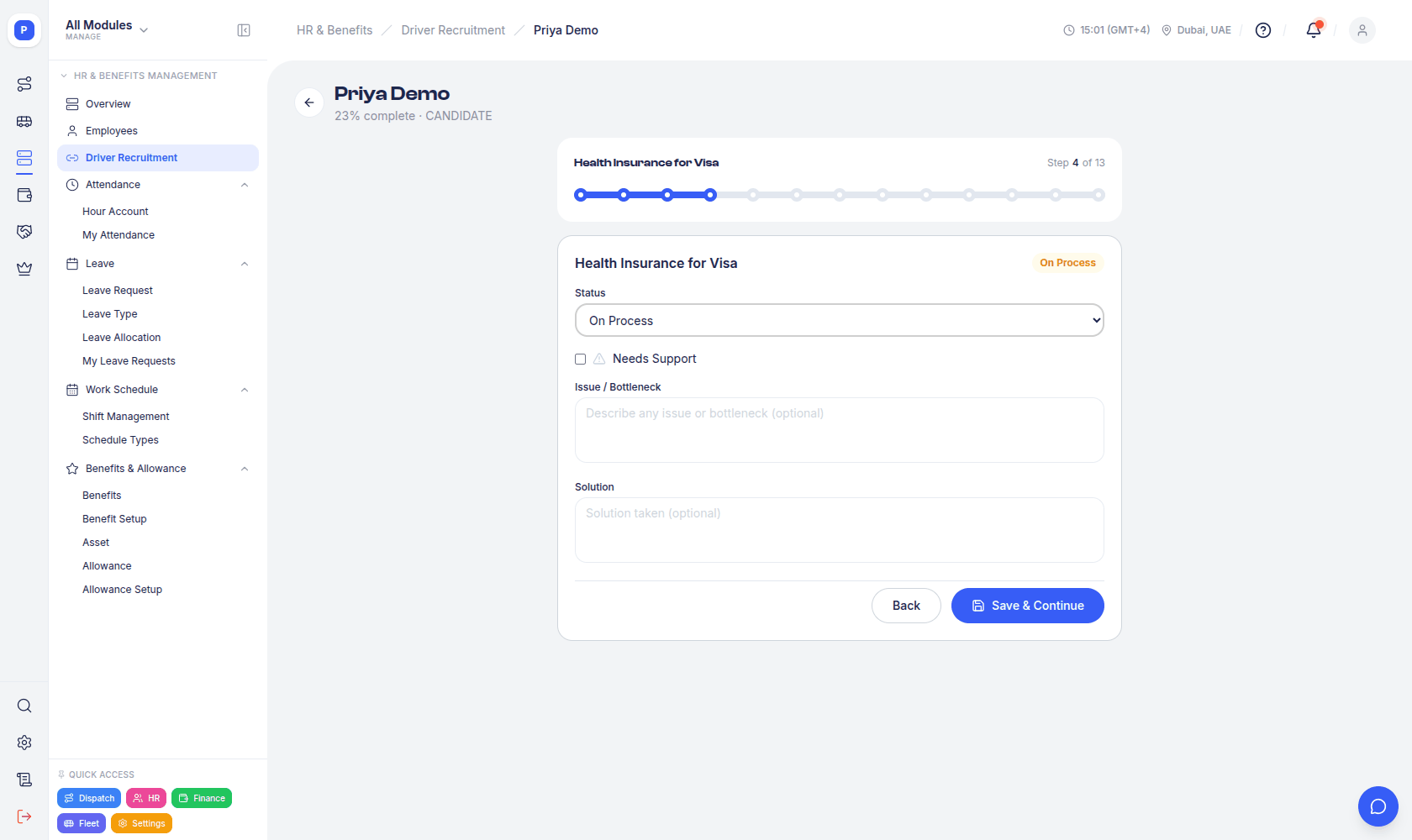
Click a candidate to open the step page. The dots at the top show the progress; the page opens on the first step that is not finished. Click any dot to jump to that step.
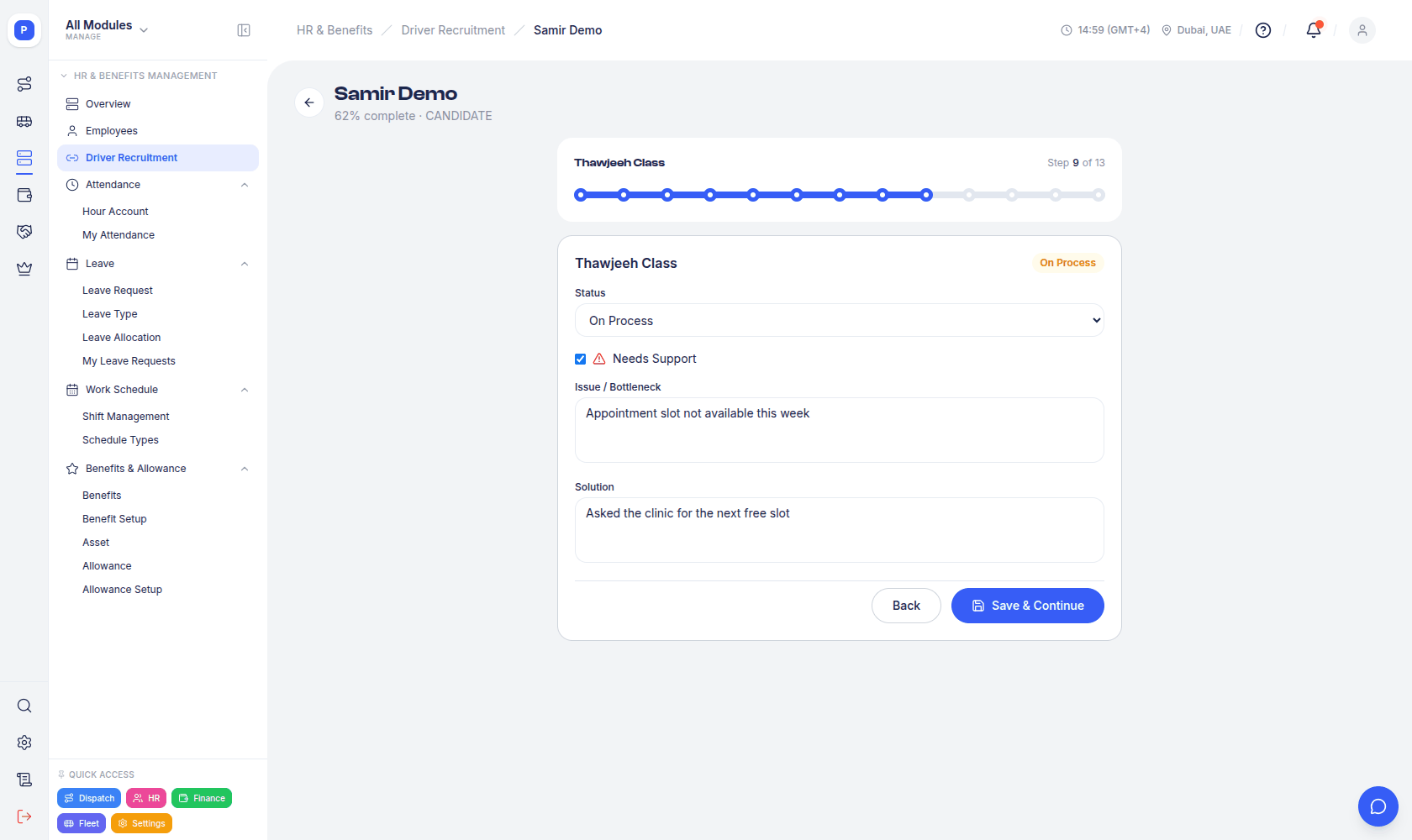
The 13 steps, in order:
| # | Step |
|---|---|
| 1 | Company Offer Letter |
| 2 | MOHRE Work Permit – Application & Approval |
| 3 | MOHRE Labour Contract |
| 4 | Health Insurance for Visa |
| 5 | Entry Permit |
| 6 | Status Change |
| 7 | Medical Fitness Test |
| 8 | Emirates ID – Application & Biometrics |
| 9 | Thawjeeh Class |
| 10 | Thawjeeh Submission |
| 11 | Residence Visa Stamping |
| 12 | ILOE Insurance |
| 13 | Releasing / Receiving Emirates ID |
For each step you can set:
| Field | What it does |
|---|---|
| Status | Not Started, On Process, Done or N/A (not applicable). Done records the completion date |
| Needs Support | A tick that flags the step as blocked. It appears as a red badge in the list |
| Issue / Bottleneck | Free text: what is holding the step |
| Solution | Free text: what was done about it |
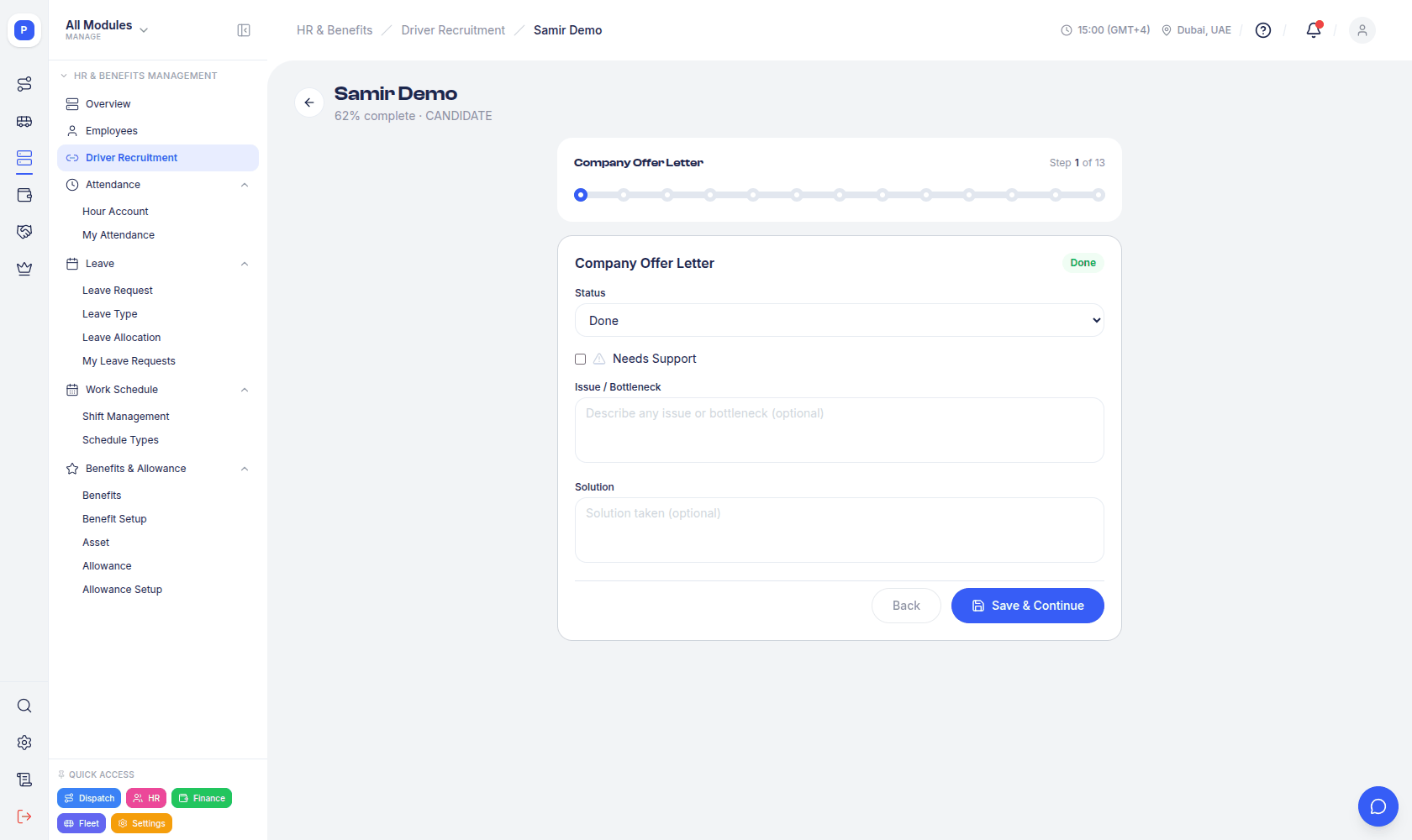
Save & Continue saves the step you are on and moves to the next one; on the last step the button reads Save. Back goes to the previous step without saving. Each step is saved on its own, so nothing is lost if you leave the page.
When every step is Done or N/A, saving the last one switches the employee from Candidate to Active and the message Candidate is now an Active driver! appears. From then on the driver leaves this list and can appear in the next view.
A step left on Not Started or On Process keeps the candidate in the list, even if the progress bar shows 100% of the applicable steps. Mark steps that do not apply as N/A.
Deleting a candidate
Open the ... menu of a row and choose Delete Candidate.
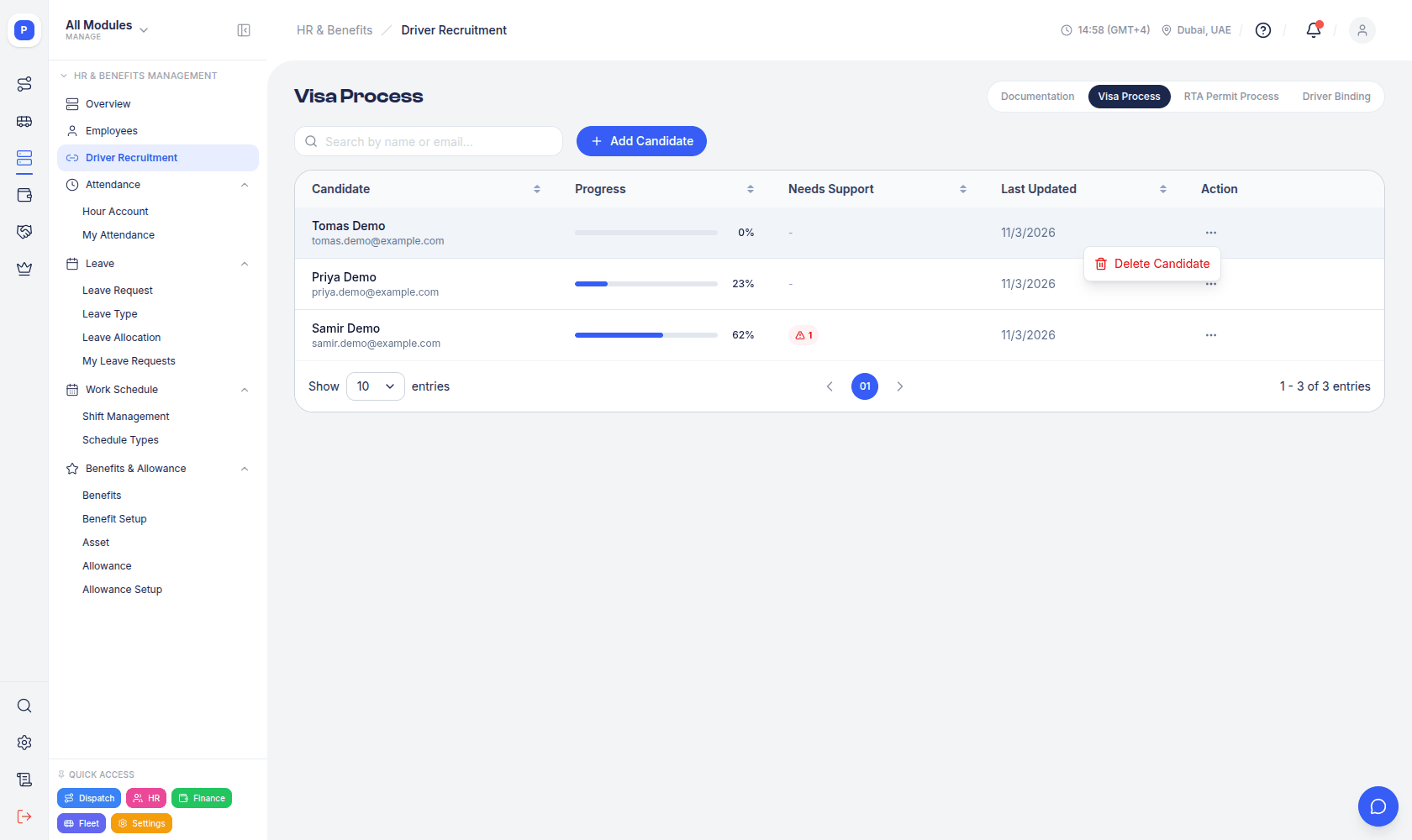
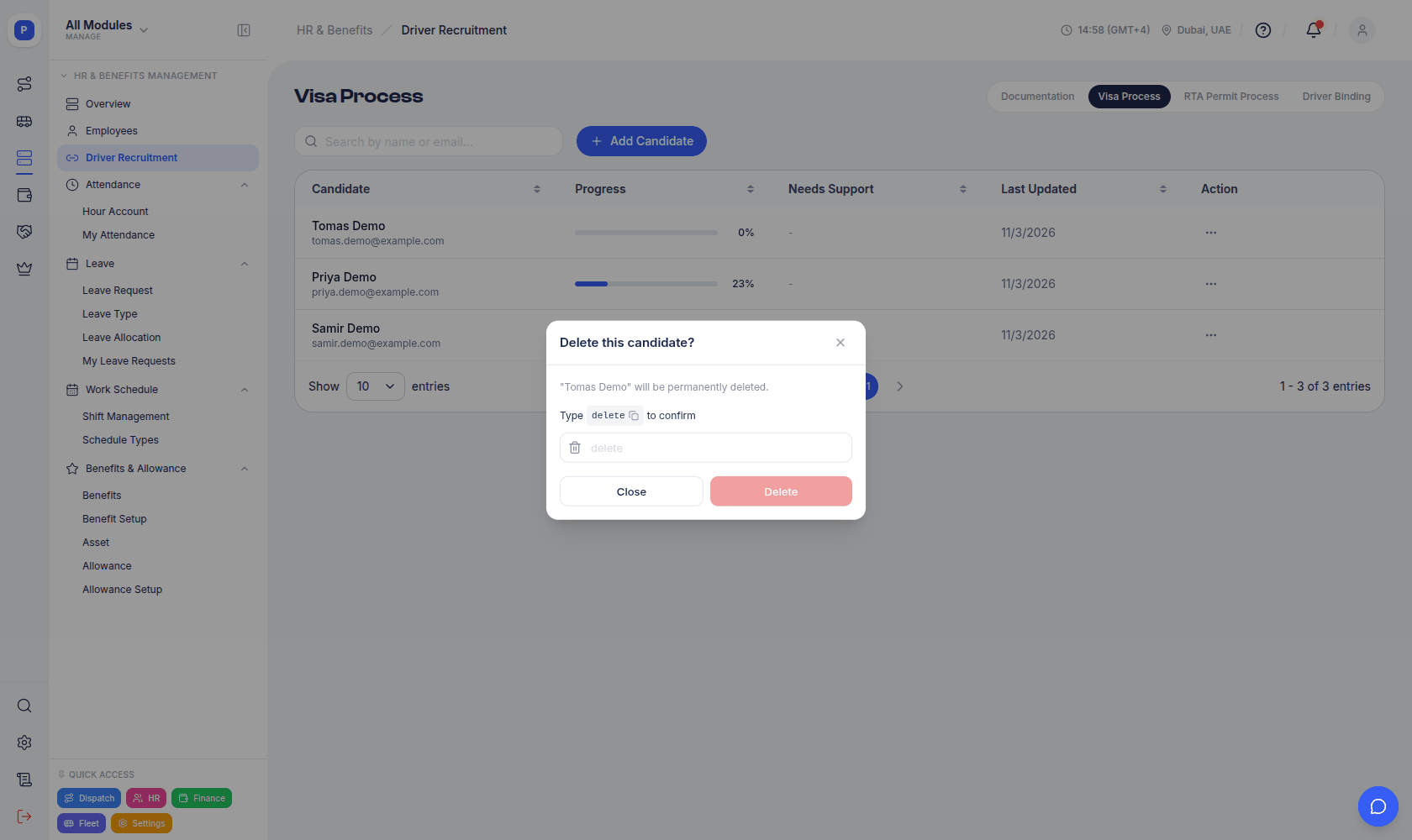
The candidate and the 13 steps are removed for good. Only people who are still Candidate can be deleted here; once the visa process is finished the driver is a normal employee.
RTA Permit Process
This view lists the drivers who have finished the visa process. A person appears here only when all of these are true: the employee is Active, is marked as a driver, and the position contains the word driver (for example Driver or Senior Driver). Candidates still in the Visa Process never show up here.
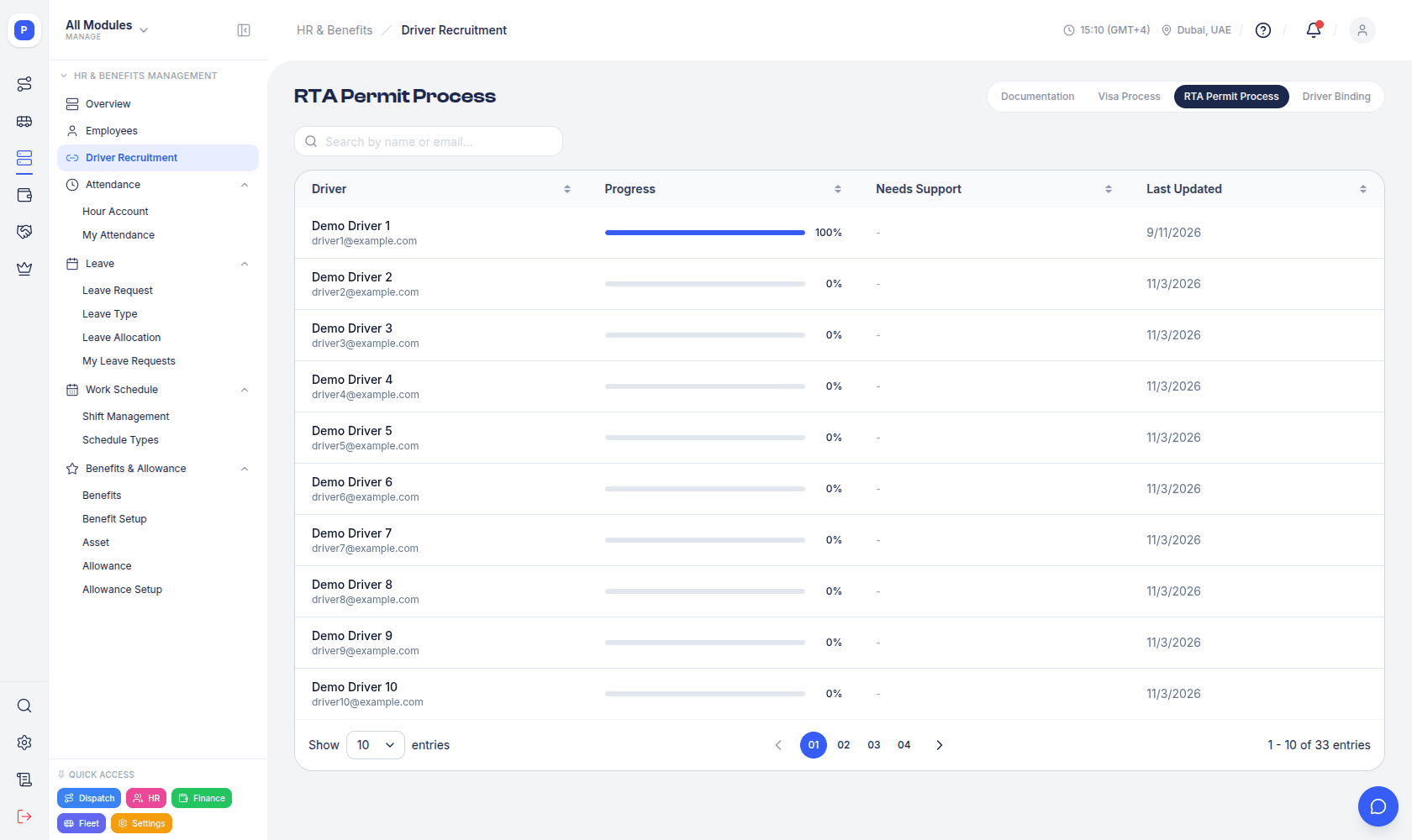
The columns are the same as in the visa list (Driver, Progress, Needs Support, Last Updated). There is no Add button and no Delete: the drivers appear by themselves. Search works by name or e-mail.
Click a driver to open the 9 steps. The page works exactly like the visa step page (Status, Needs Support, Issue / Bottleneck, Solution, Back, Save & Continue).
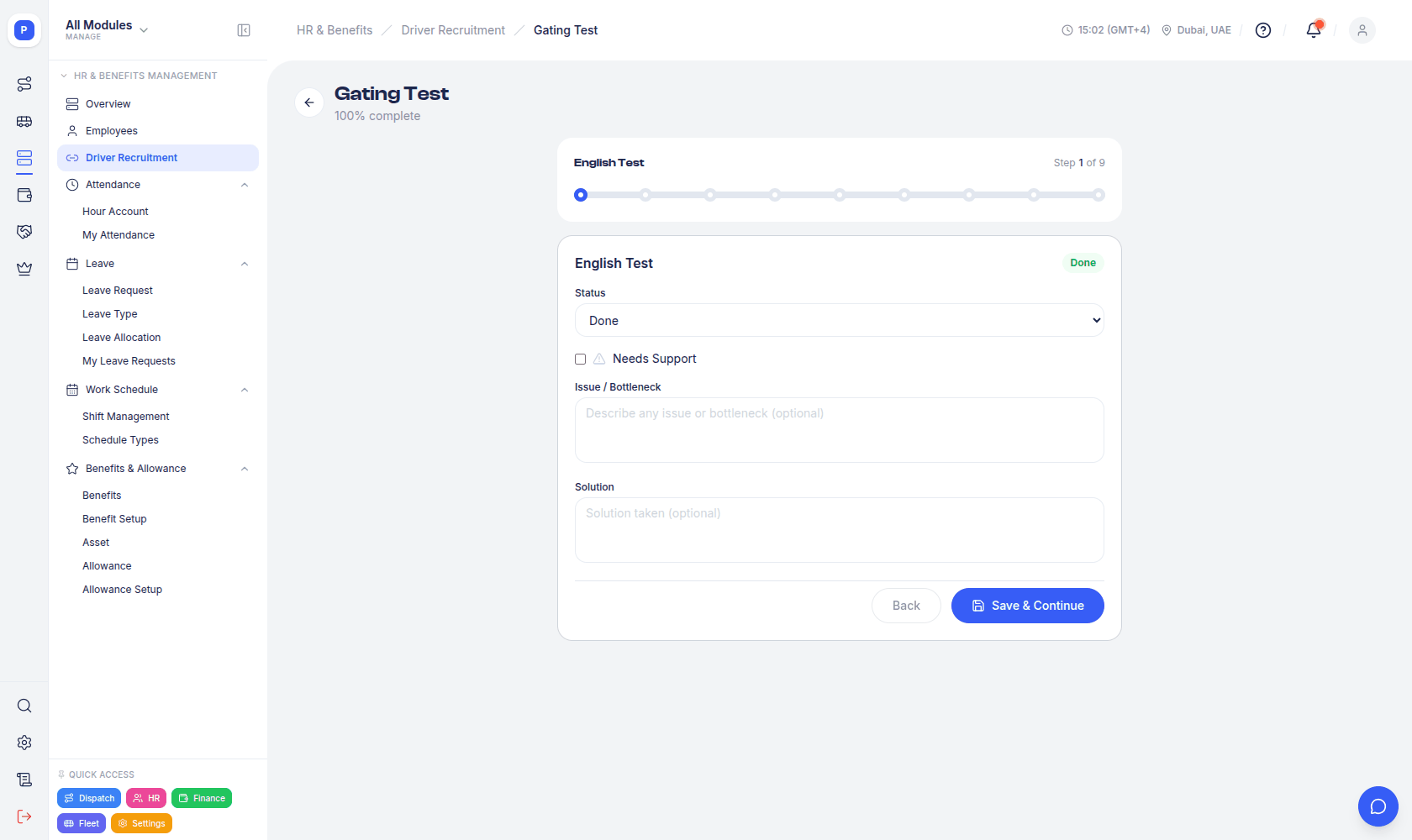
| # | Step |
|---|---|
| 1 | English Test |
| 2 | Police Clearance |
| 3 | RTA Training – Week 1 |
| 4 | RTA Training – Week 2 |
| 5 | RTA Training – Week 3 |
| 6 | RTA Medical |
| 7 | RTA Final Test |
| 8 | RTA Practice Permit |
| 9 | Uber Registration |
Unlike the visa page, this page always opens on step 1, whatever the progress is. Use the dots to go to the step you want.
When the progress reaches 100% and the driver has a passport number on file, the system sends a binding request to the driver by itself. The message Driver Onboarding complete! Binding request sent - waiting for the driver to accept in the app. appears. A driver without a passport number gets no automatic request: use Binding Driver (below) instead.
Driver Binding
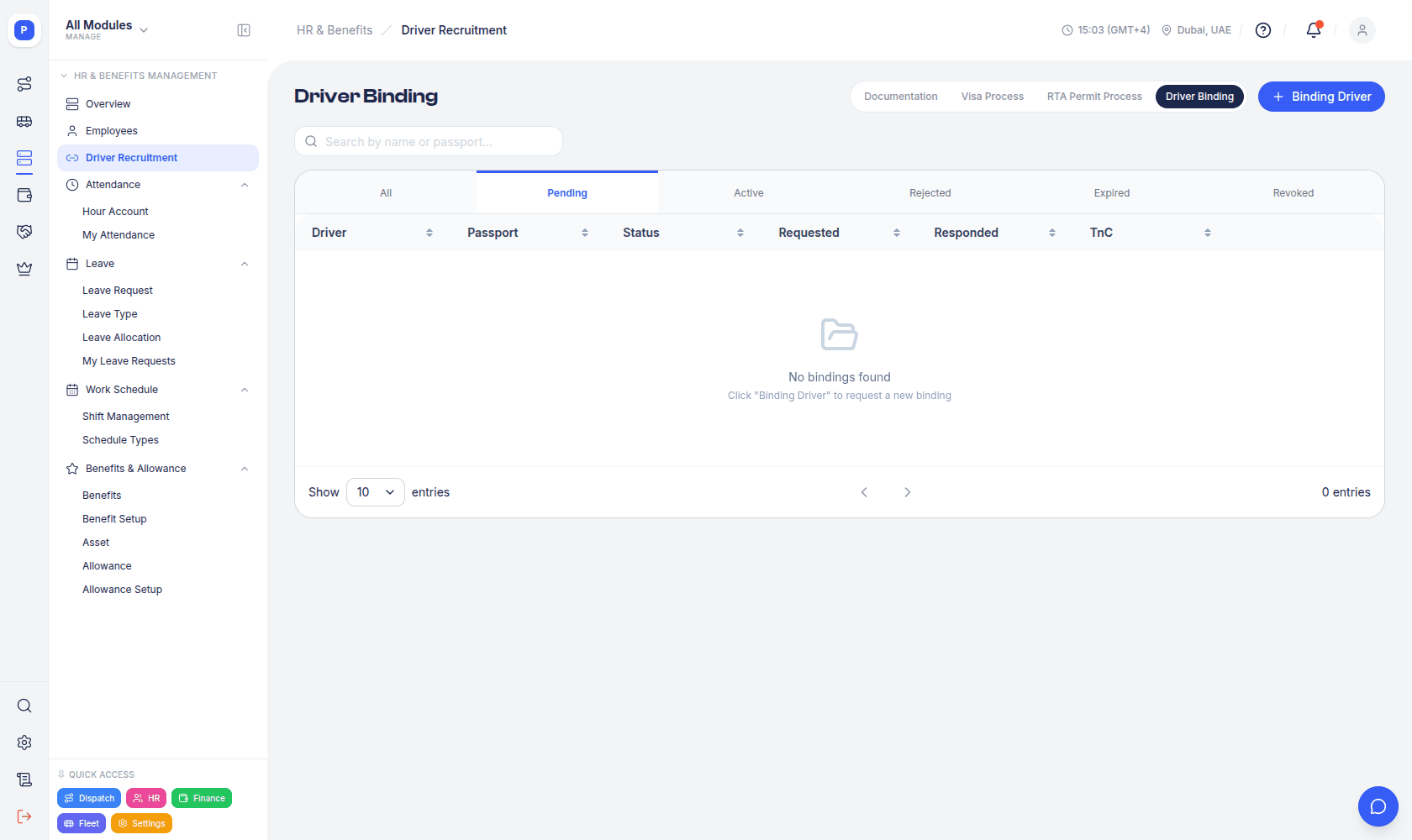
A binding is the driver's consent to work for your company. The driver accepts the Terms & Conditions in the driver app, and the binding becomes Active. Accepting is always done by the driver: HR can only send the request.
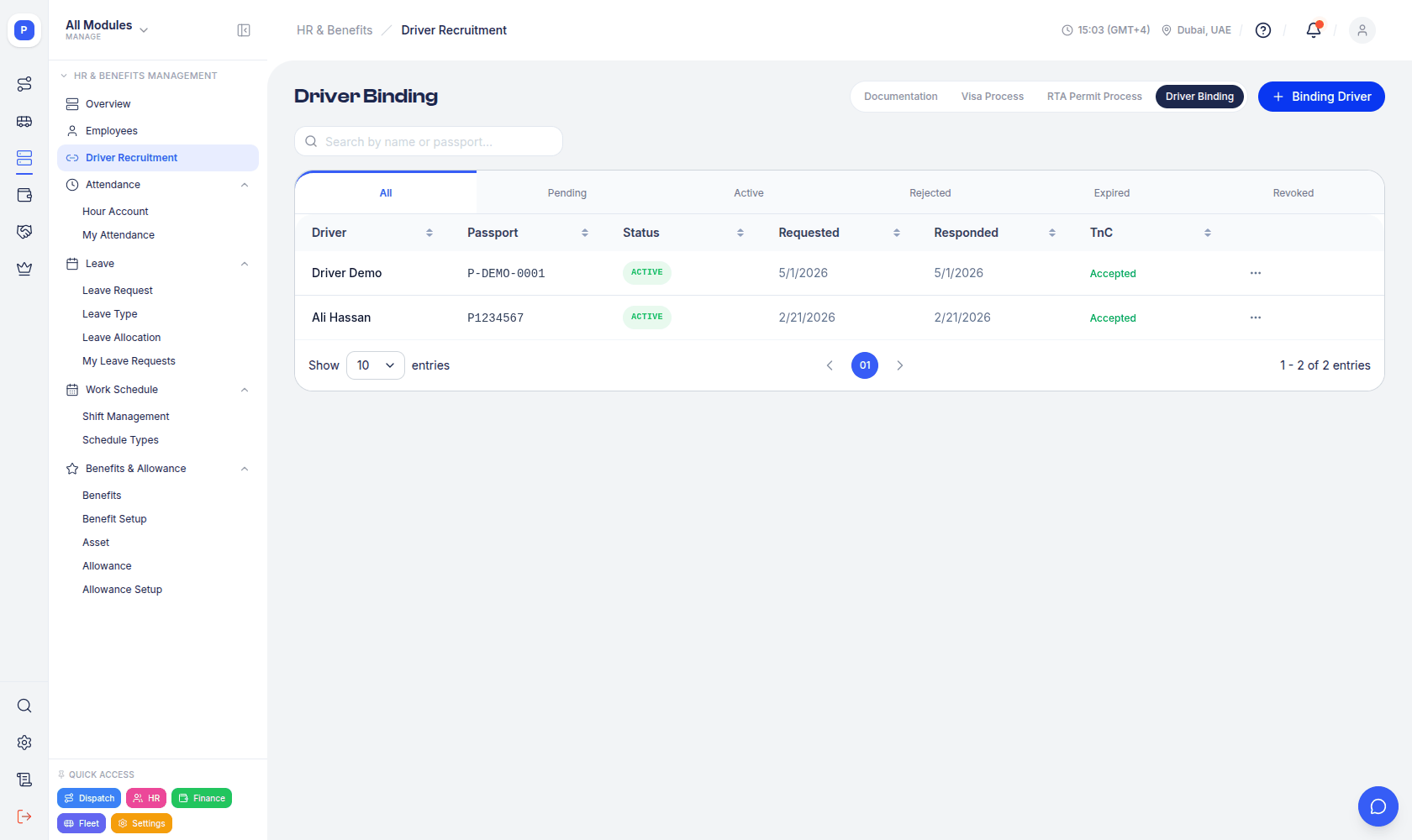
| Column | Meaning |
|---|---|
| Driver | Name of the driver |
| Passport | The passport number the request was sent with |
| Status | See the table below |
| Requested | Date the request was sent |
| Responded | Date the driver answered (a dash while waiting) |
| TnC | Accepted once the driver has accepted the Terms & Conditions |
| Status | Meaning |
|---|---|
| Pending | The request was sent and the driver has not answered yet |
| Active | The driver accepted: the binding is live |
| Rejected | The driver declined |
| Expired | Nobody answered in time (a request is open for 7 days by default) |
| Revoked | The binding was ended: cancelled by HR while pending, or revoked later |
The tabs above the table (All, Pending, Active, Rejected, Expired, Revoked) filter by status, and the search box looks for a name or a passport number.
Cancelling or revoking a binding
The ... menu of a row appears only for bindings that can still be ended:
- Cancel Request for a Pending binding.
- Revoke Binding for an Active binding. An optional reason (up to 500 characters) is kept for the record.
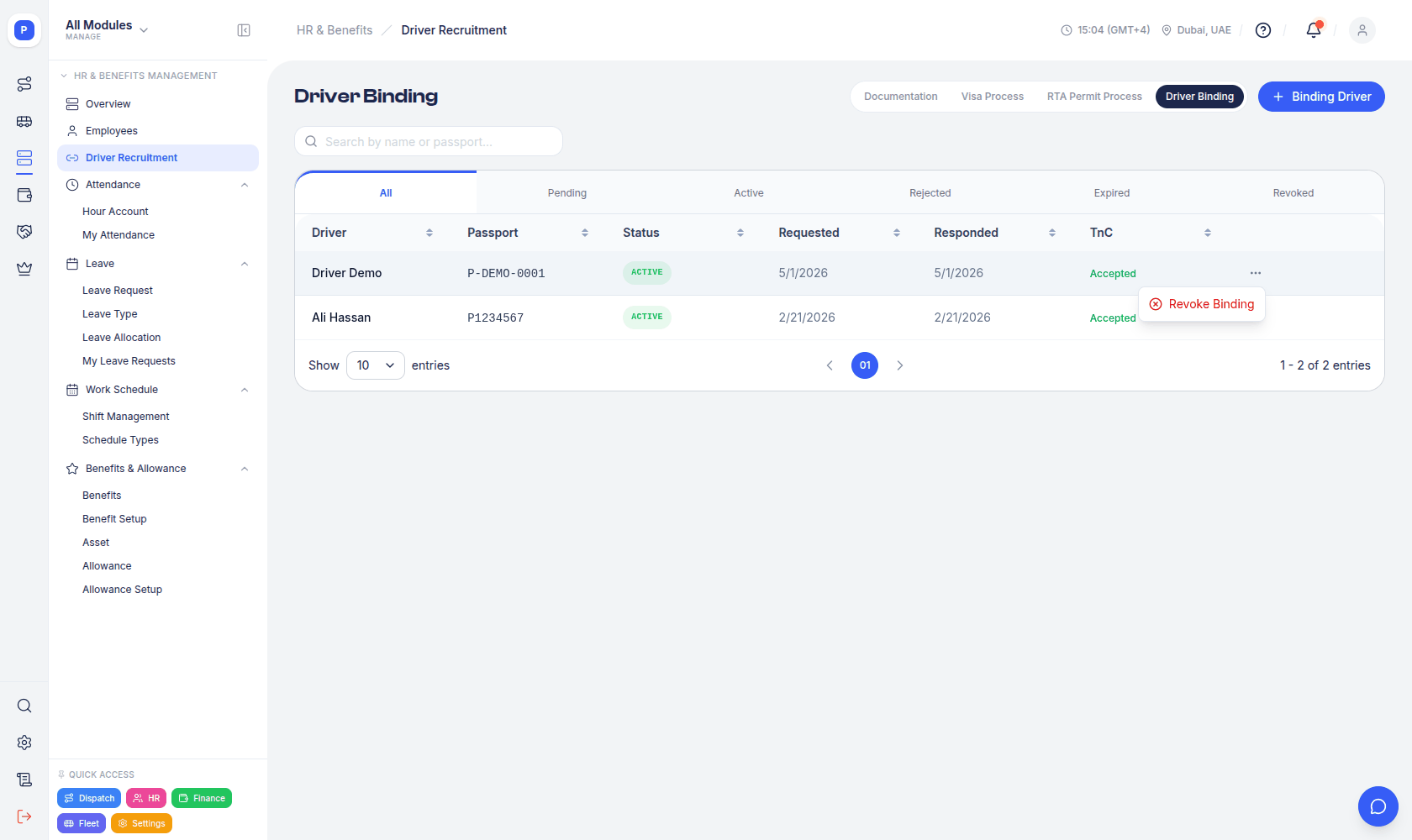
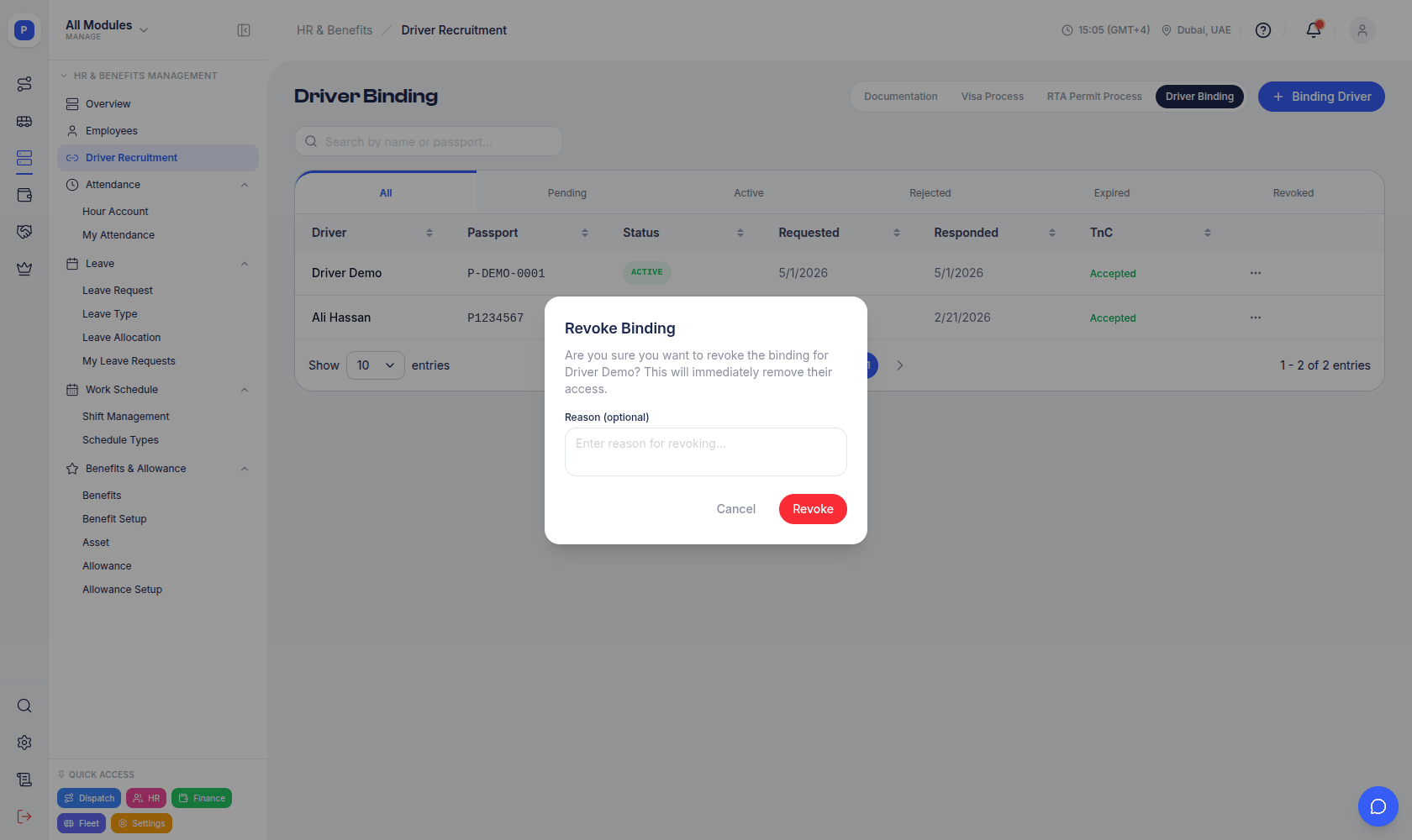
Revoking removes the driver's access to your company right away, and the driver is notified.
Binding a driver by hand
Use Binding Driver for a driver who did not come through the pipeline, for example a driver who was already working before this page existed.
- Click Binding Driver. The dialog Add Driver asks for the Passport Number (5 to 20 letters and digits, no spaces or dashes).
- Click Search. The system looks for a driver with that passport.
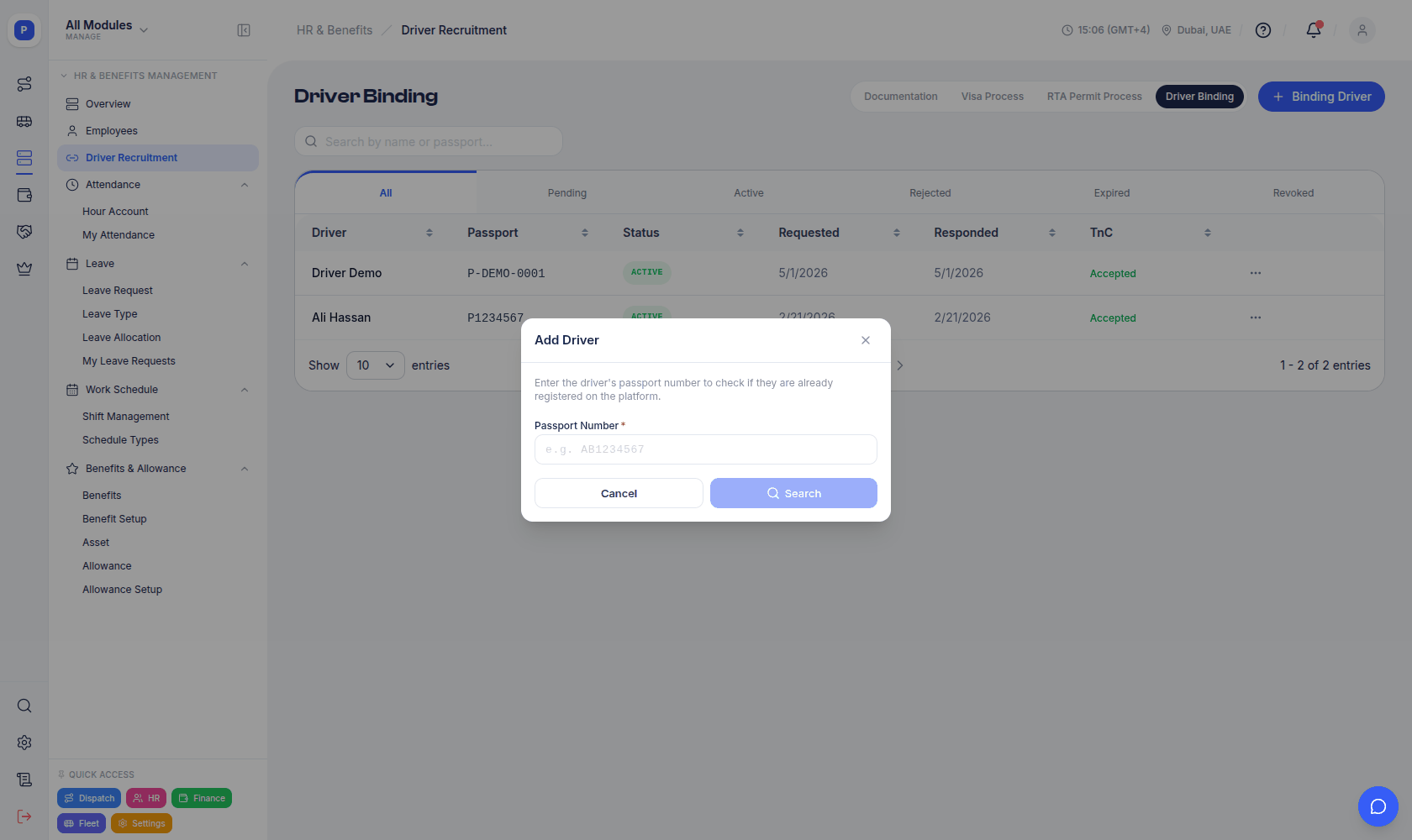
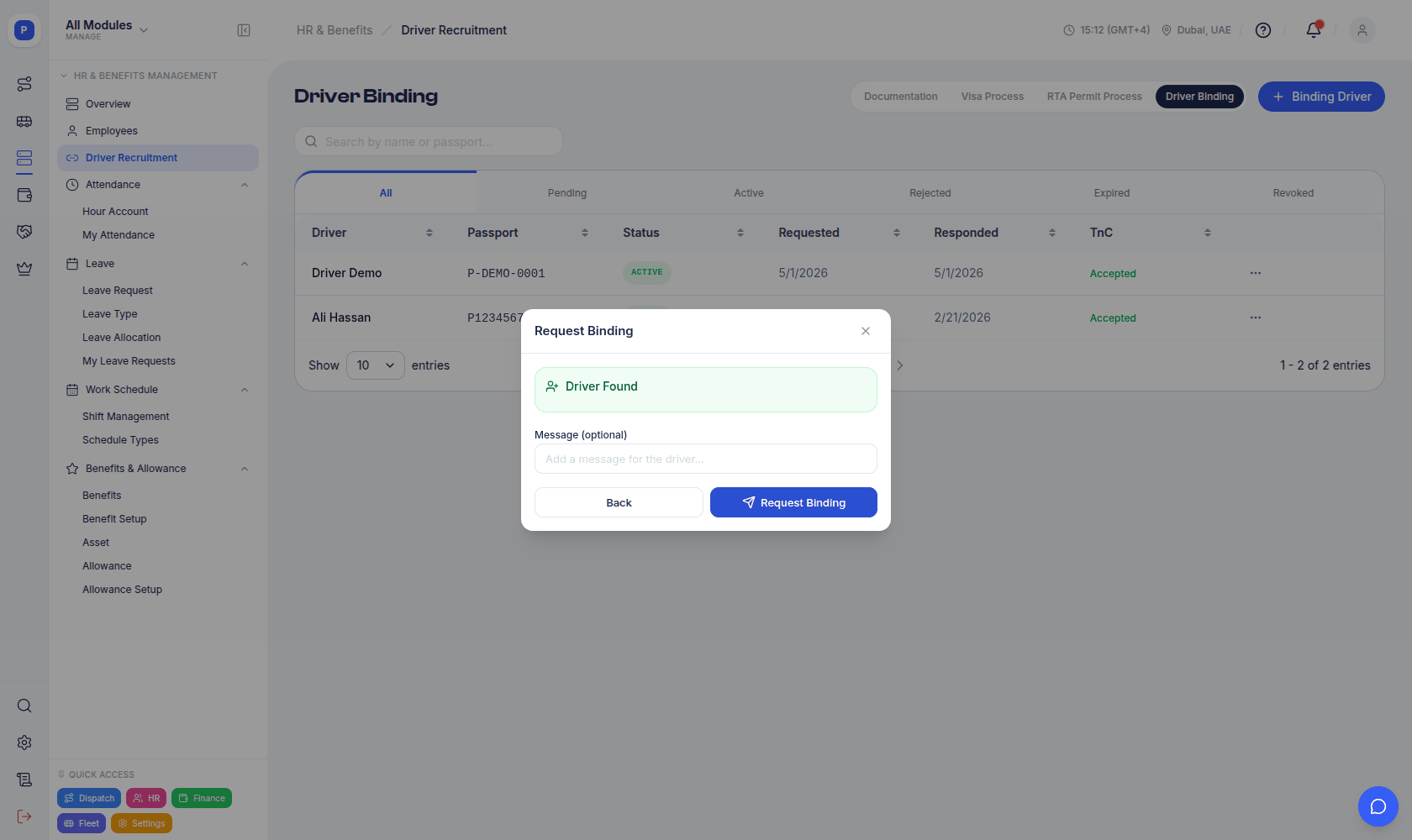
If a driver is found, the dialog Request Binding shows Driver Found. Add an optional message and click Request Binding: the driver gets a notification and has 7 days to answer. If a pending or active binding already exists for that driver, a warning says so; an active one blocks the button.
If no driver is found, the dialog Invite Driver opens. Enter at least a Phone or an Email (names and a message are optional) and click Send Invitation. The system creates an invitation with a link that is valid for 30 days and shows it in a Share Invitation step with a Copy button and Share via WhatsApp. The system does not send the link by itself: you pass it to the driver.
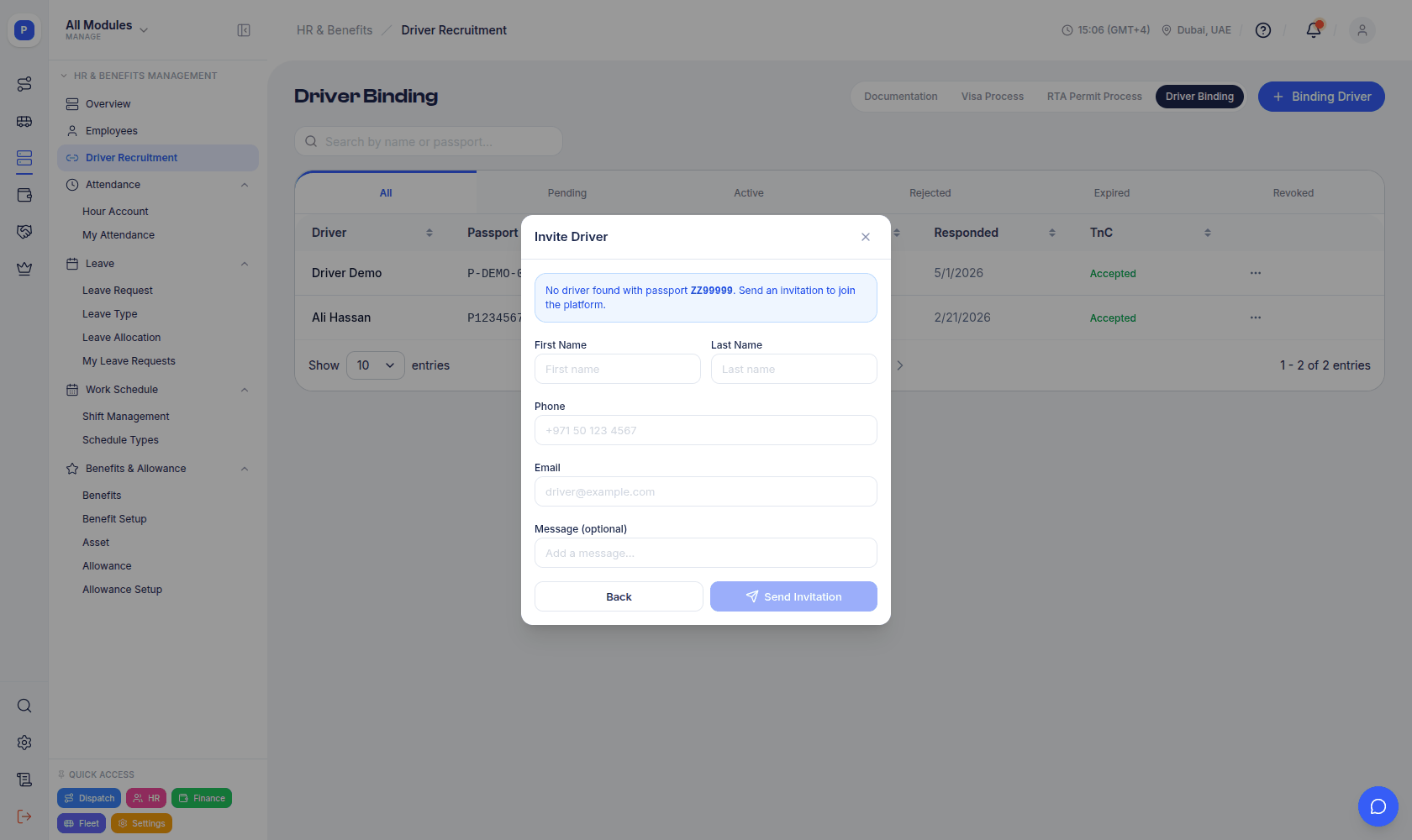
The search looks for the passport number among all drivers on the platform, not only your own. Only a masked preview is meant to be shown (last four digits of the phone, part of the e-mail), so that no personal data of another company's driver is revealed.
Documentation view
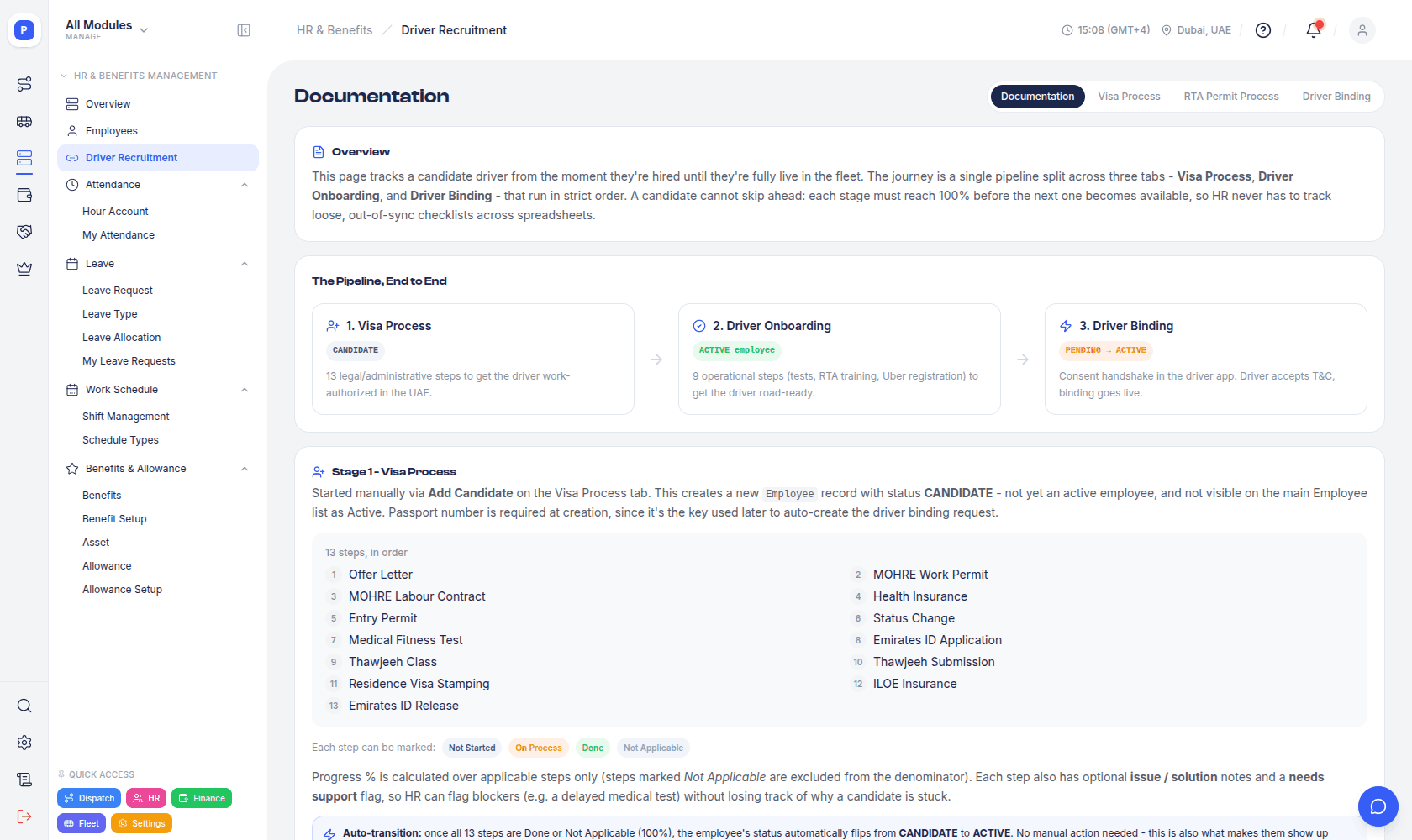
The fourth view is a read-only guide that explains the three stages, lists the 13 and 9 steps, the step statuses and the binding statuses, and ends with a Good to Know list. It does not show any data.
Good to know
- A driver moves forward only when the previous stage is complete: a candidate is never listed in the RTA view, and a driver never gets a binding request from the pipeline before the nine RTA steps are done.
- The passport number must be unique inside the company. It links the employee to the binding request.
- Deleting is possible only while the person is a Candidate.
- The Documentation view calls the second tab Driver Onboarding, while the switch is labelled RTA Permit Process. They are the same view.