Platform Categories
The list of ride-hailing platforms your trips are attached to: add, edit, switch off and delete.
A platform category is one ride-hailing platform (Uber, Careem, Bolt and so on) in your company. Every platform trip and every trip import belongs to a platform category, so this list is what the Platform choice in those pages offers.
Navigation: Dispatch > Platform Trip > Platform Category
The List
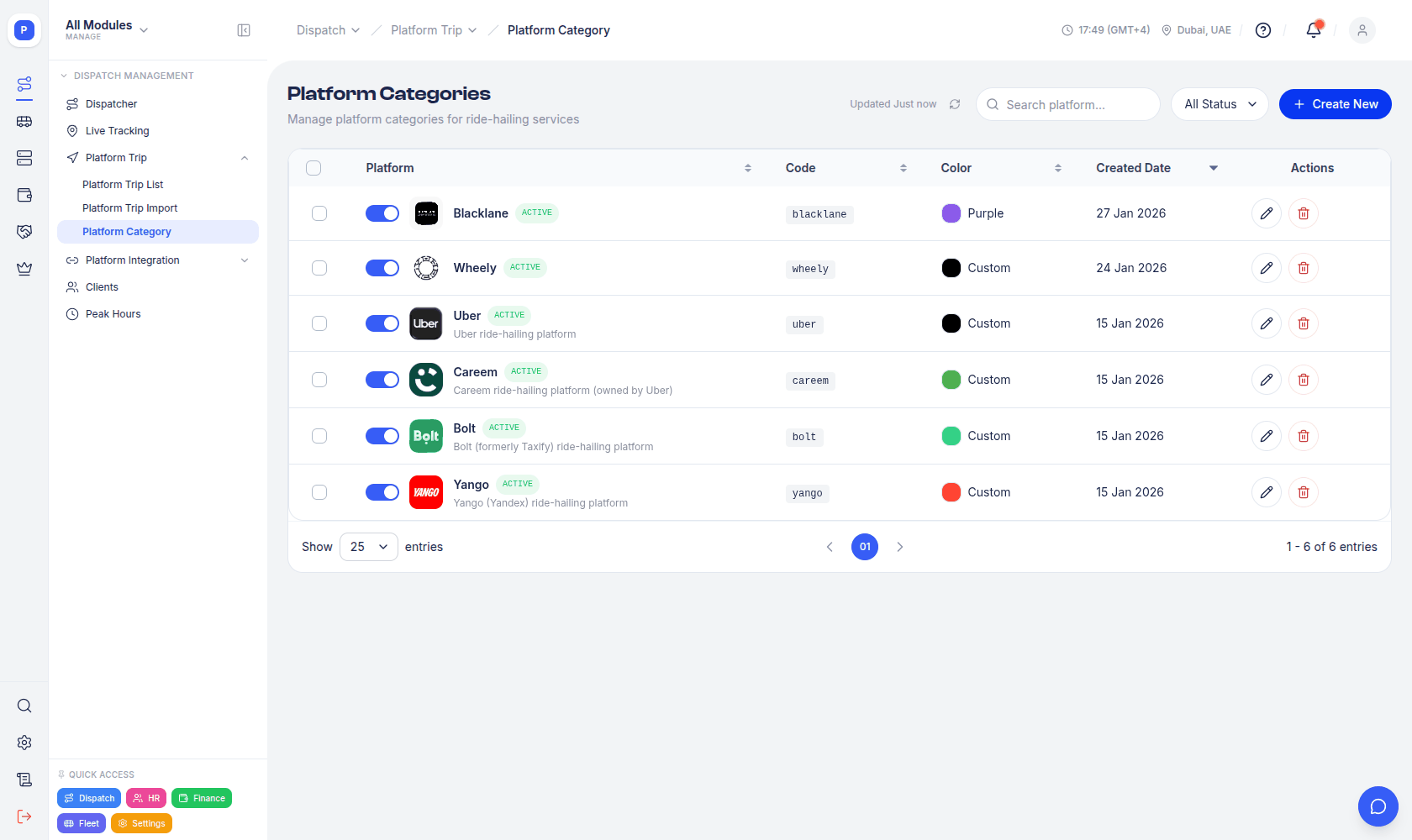
| Column | Description |
|---|---|
| Platform | The platform name with its logo, an Active switch on its left and an ACTIVE tag beside the name |
| Code | The short identifier of the platform, shown as a grey chip (for example uber) |
| Color | The colour used for the platform's badge |
| Created Date | When the platform was added |
| Actions | The pencil edits the platform and the bin deletes it |
Above the table, the search box finds a platform by name, All Status filters active and inactive platforms, and Create New adds one. The small text Updated just now shows when the list was last loaded.
Adding a Platform
Click Create New.
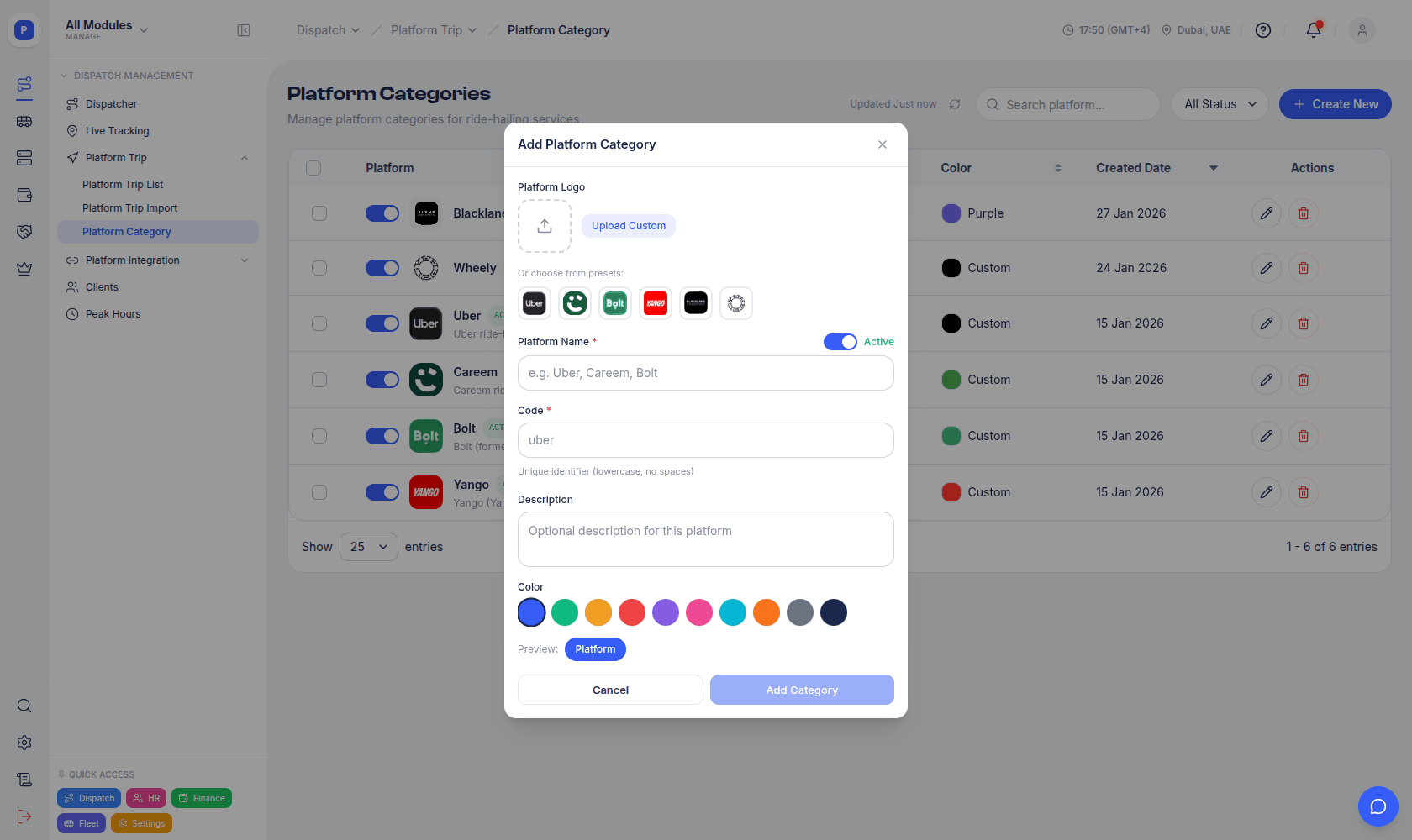
| Field | Required | Description |
|---|---|---|
| Platform Logo | No | Upload Custom to use your own image, or Choose from presets to pick one of the ready-made logos |
| Platform Name | Yes | The name people see, for example Uber or Careem |
| Active switch | -- | On by default. An inactive platform is kept in the list |
| Code | Yes | A unique identifier in lowercase without spaces, for example careem |
| Description | No | A short note about the platform |
| Color | -- | The colour of the badge; Preview shows how it looks |
Click Add Category to save, or Cancel to close the dialog. The button stays disabled until the required fields are filled.
Editing a Platform
Click the pencil at the end of the row.
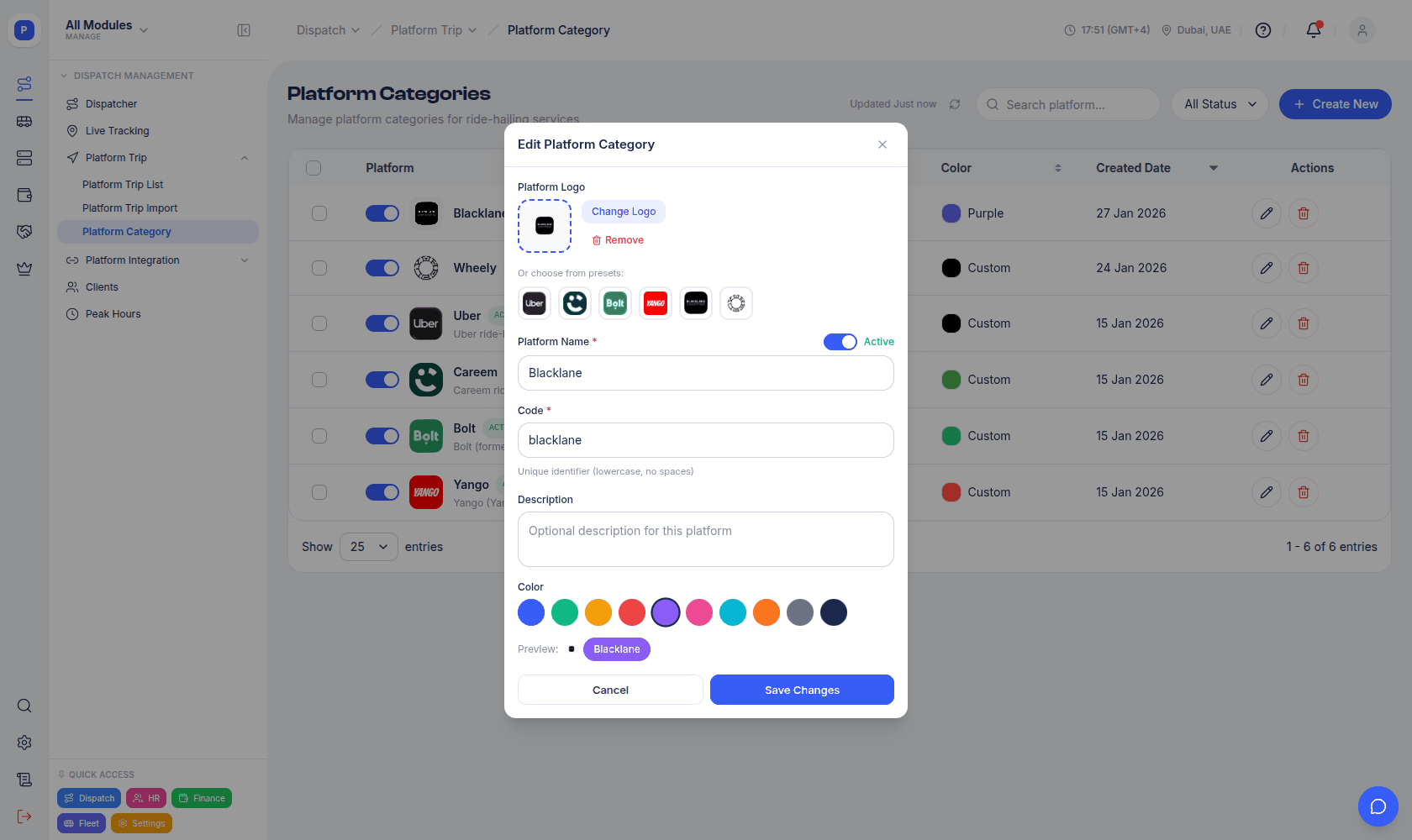
The dialog holds the same fields as the one for adding a platform. Change Logo replaces the logo and Remove deletes it. Click Save Changes to keep your changes.
Switching a Platform On or Off
Use the Active switch at the start of the row. The platform stays in the list and the trips it already has stay as they are.
Deleting a Platform
Click the bin at the end of the row.
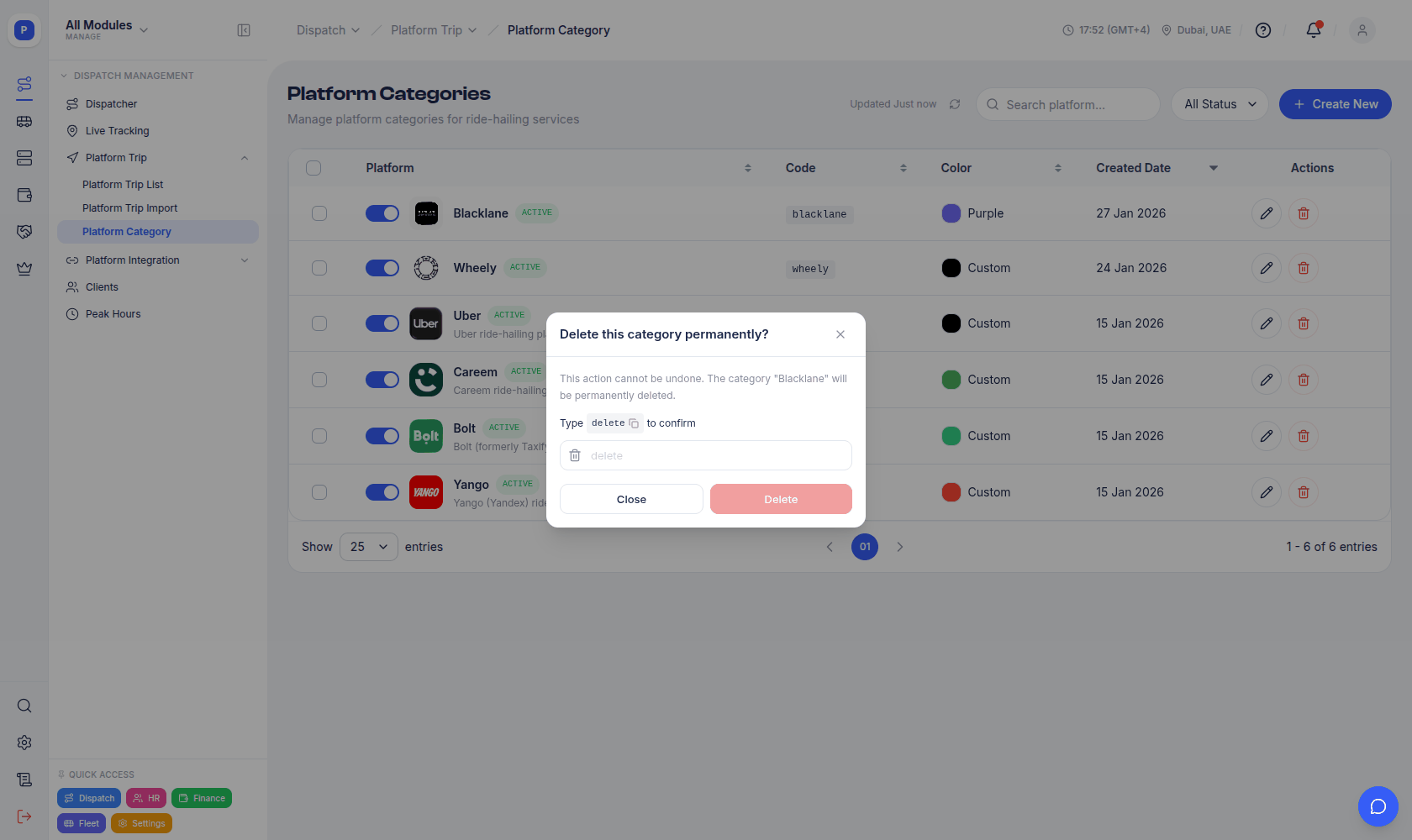
The dialog warns that the category will be permanently deleted. Type the word delete to confirm; the Delete button stays disabled until you do. Close leaves without deleting.
Deleting cannot be undone. If you only want to stop using a platform, switch it off with the Active switch instead of deleting it.