Fines Type
Define the categories of employee fines, their colour, and whether they are active, so HR can issue a fine without retyping the reason every time.
Fines Type is the catalogue behind the fines module. Each entry is a reason an employee can be fined -- Late Arrival, Uniform Violation, Vehicle Damage -- with a name, a description, and a colour used when the fine is displayed. Instead of typing the cause again for every case, whoever issues a fine picks a type from this list.
Navigation: Settings > Employee > Fines Type
The Fines Type List
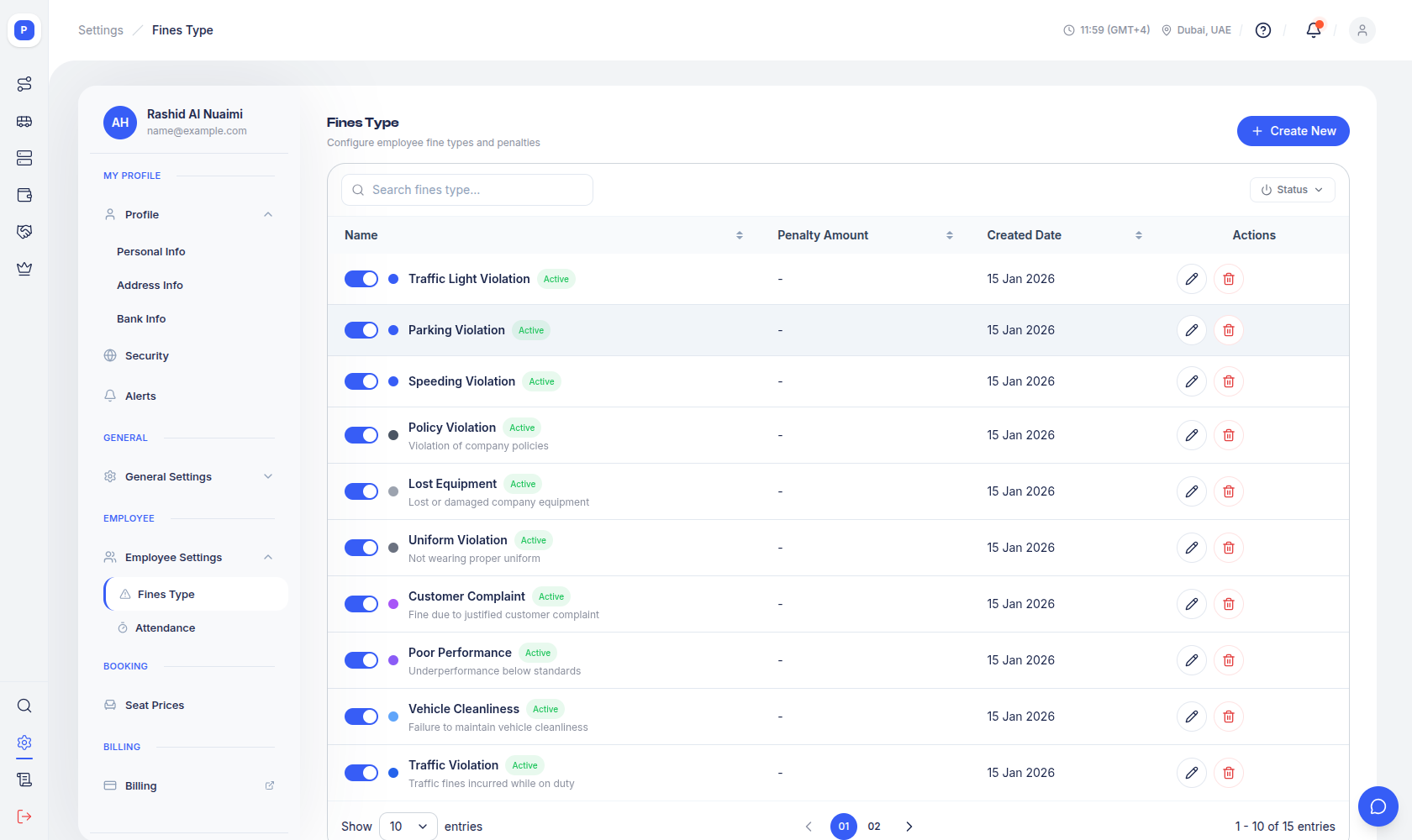
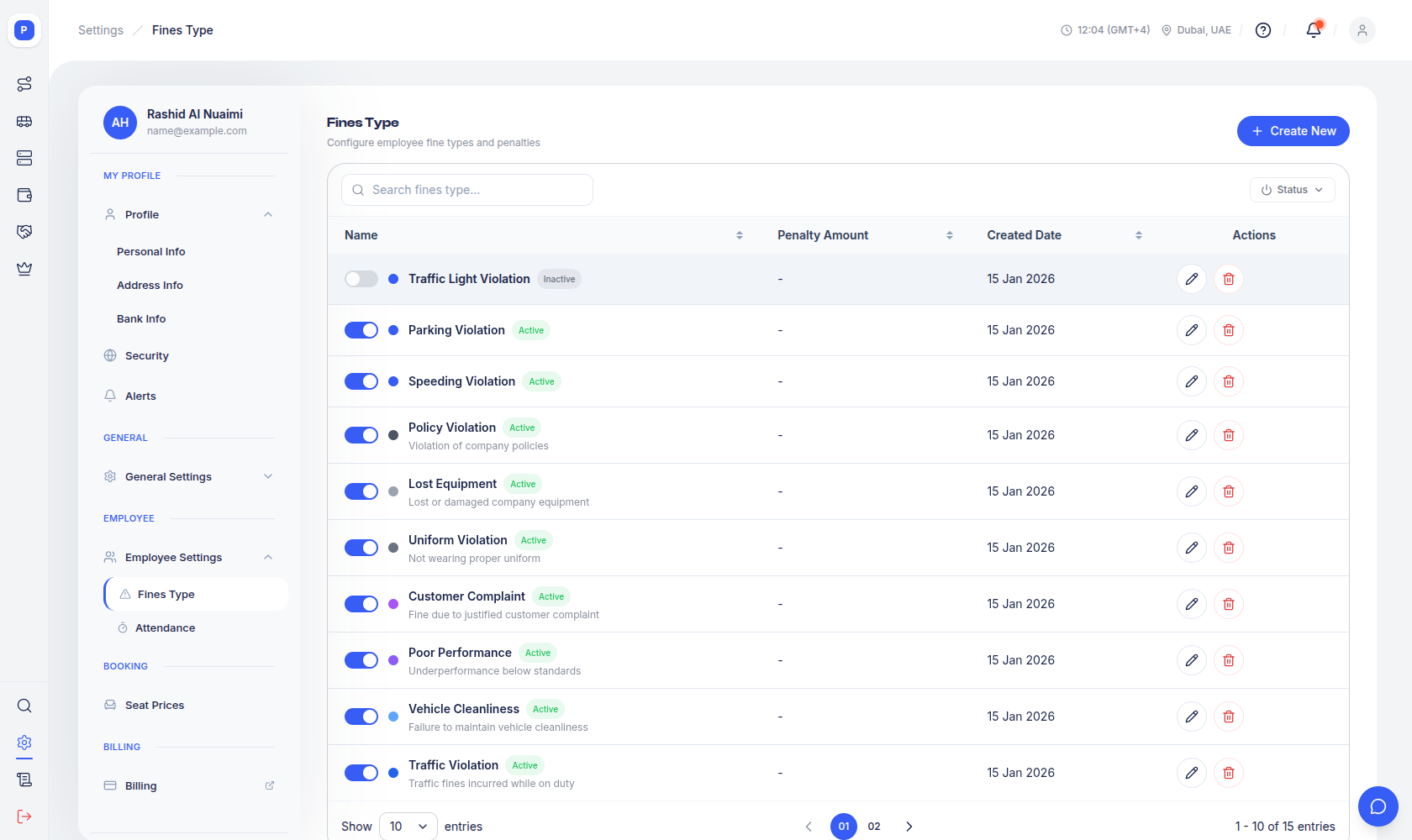
The header reads Fines Type with the subtitle Configure employee fine types and penalties, and Create New on the right opens the form.
| Column | Description |
|---|---|
| Name | An active/inactive switch, a coloured dot taken from the type's colour, the type name, an Active or Inactive pill, and the description underneath |
| Penalty Amount | The configured amount, shown with a dirham icon, or - when no amount is set |
| Created Date | When the type was created |
| Actions | The pencil (edit) and trash (delete) buttons |
Sorting works on the data columns and the table pages through the list ten rows at a time. The whole list is fetched at once (up to 100 types) and then filtered in the browser, so search and the status filter are instant.
Searching and Filtering
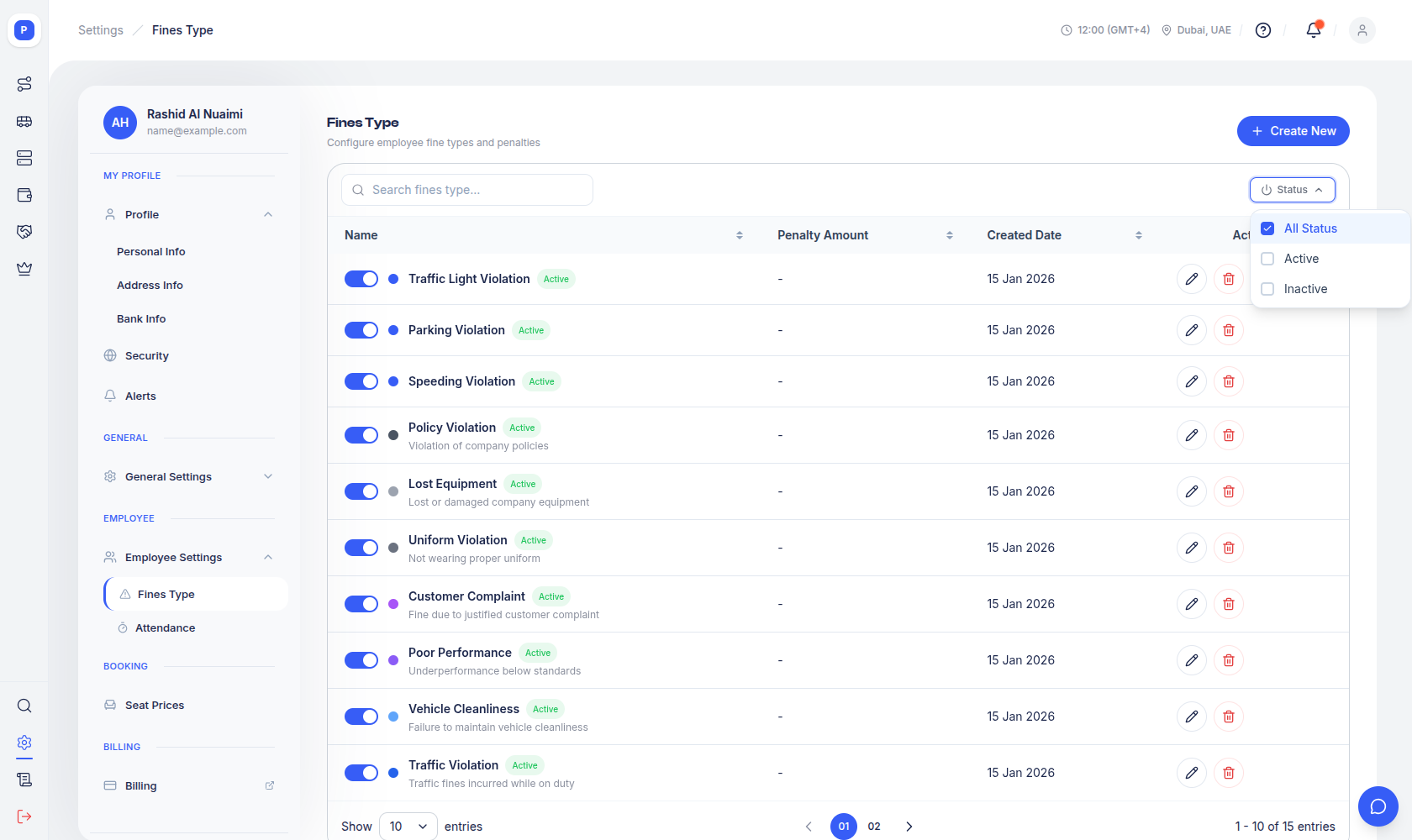
- Search fines type... matches the type name.
- The Status button filters by All Status, Active, or Inactive. When a filter other than All Status is applied, the button turns blue and shows the chosen value.
- Both filters combine, so Active plus a search term narrows to active types matching the term.
Turning a Type On or Off
The switch at the start of each row toggles the type between Active and Inactive. It saves immediately -- there is no confirmation step and no form to open -- and the pill next to the name updates with it. Right-clicking a row offers the same action as Deactivate or Activate, depending on the current state.
Creating a Fine Type
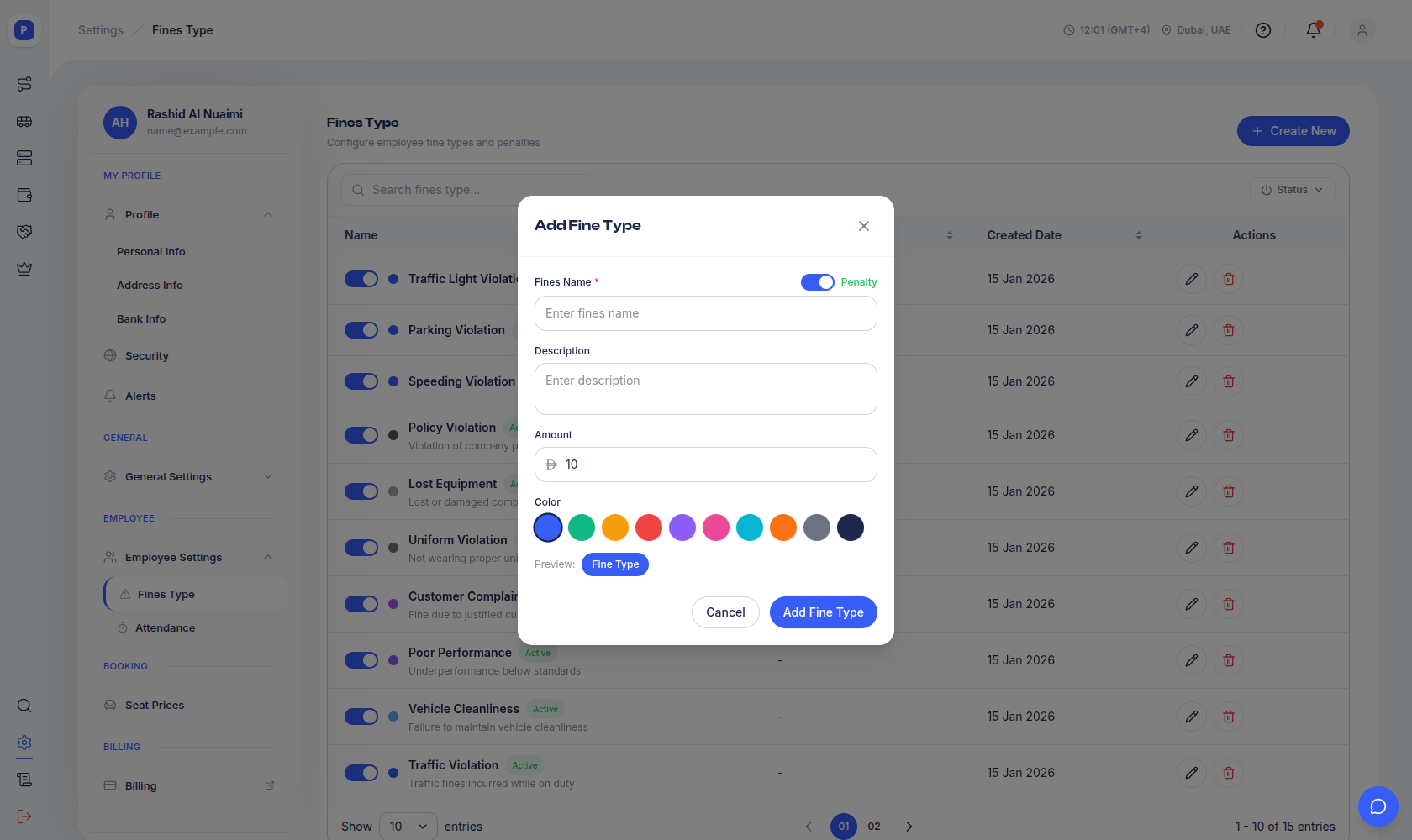
- Click Create New.
- Type a Fines Name -- this is the label shown wherever the type is used.
- Optionally add a Description.
- Pick a Color, watching the Preview badge next to the swatches.
- Click Add Fine Type.
Fields
| Field | Required | Notes |
|---|---|---|
| Fines Name | Yes | Free text, placeholder Enter fines name |
| Description | No | Two-line text area, placeholder Enter description. Shown under the name in the list |
| Penalty | -- | Toggle sitting inline with the Fines Name label. On by default, and only controls whether the amount field is visible |
| Amount | No | Shown while Penalty is on. Dirham icon on the left, default value 10 |
| Color | No | Ten swatches: Blue, Green, Amber, Red, Purple, Pink, Cyan, Orange, Gray, Dark Blue. Blue is preselected |
The Preview: badge under the swatches renders the text you typed in Fines Name (or the placeholder Fine Type when the name is empty) in the selected colour, so you can judge the readability of the label before saving.
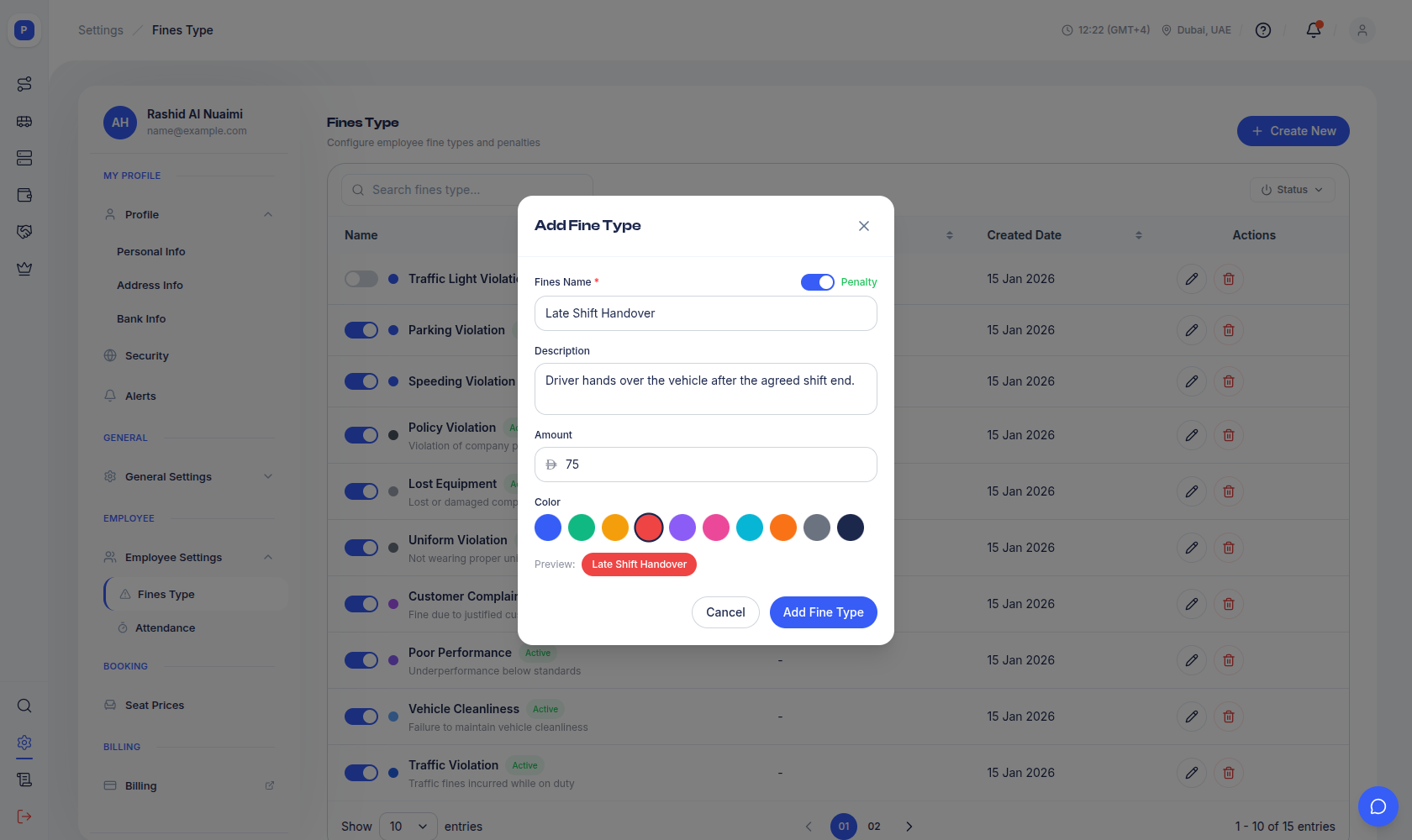
The footer is Cancel and Add Fine Type; while saving, the button is disabled and shows a spinner. The name is required -- submitting with it empty produces the error toast Fines name is required -- and success shows Fine type created successfully.
Editing a Fine Type
The pencil button and the Edit Fine Type context-menu item open the same dialog with the title Edit Fine Type. The form re-reads the type from the server so the values are current, then fills in the name, description, the selected colour, and the penalty amount if the type has a fixed one.
The submit button reads Save Changes instead of Add Fine Type. Success shows Fine type updated successfully and the list refreshes.
Deleting a Fine Type
The trash button and the Delete Fine Type context-menu item open a confirmation titled Delete this fine type?, naming the type and warning that the action cannot be undone.
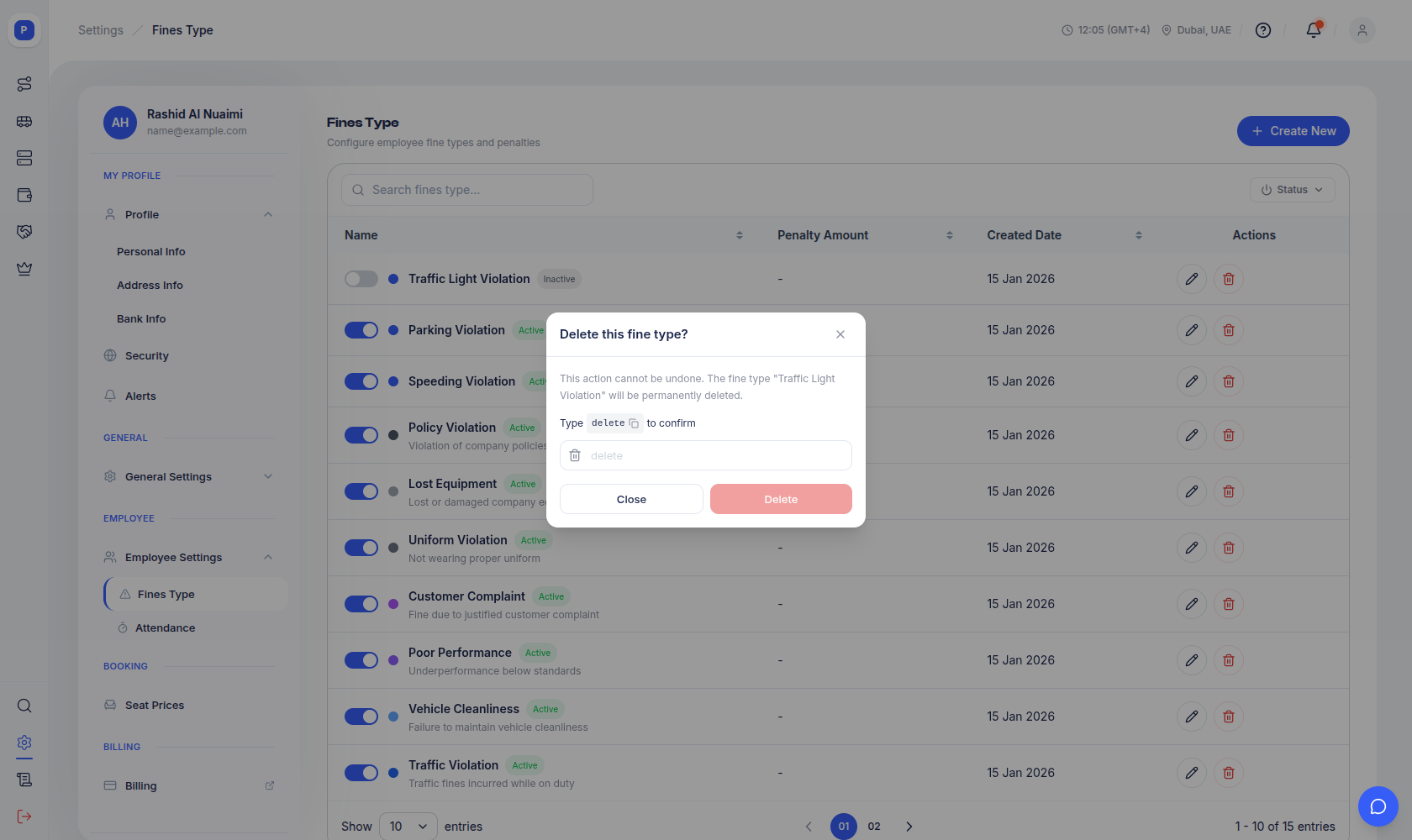
The red Delete button is disabled until you type delete into the field. Close cancels. After a successful delete the row disappears from the list, with no further toast.
Prefer deactivating a type to deleting it. Switching a type to Inactive keeps it in the list for historical reference while stopping new fines from using it, whereas deleting removes the entry from this catalogue entirely.
Current limitations
Two behaviours in the current build are worth knowing before you configure this page.
- The penalty amount is not saved. The form always sends only the name, description, and colour. The Penalty toggle and the Amount field are accepted by the UI but dropped before the request, so a type keeps - in the Penalty Amount column even after you type an amount. Use the fines module itself to record what is actually charged.
- A failed load shows sample data instead of an error. If the list cannot be fetched, the page falls back to three example rows -- Property Damage, Late Arrival, and Absence Without Notice, all dated 18 Feb, 2025 -- with no error message on screen. If you see those exact rows, the data was not loaded rather than genuinely entered; reload the page before acting on them.
Related Pages
- Fines -- issuing a fine, its approval workflow, and how the type is chosen
- Settings Overview -- how every settings area is organised and who manages it
- Role Settings -- who may add, edit, or delete fine types
- Department Settings -- the grouping used when fines are reported by team