Expense List
Find the expenses of drivers, vehicles, staff and the company, open the details, approve or reject them, edit, delete and export.
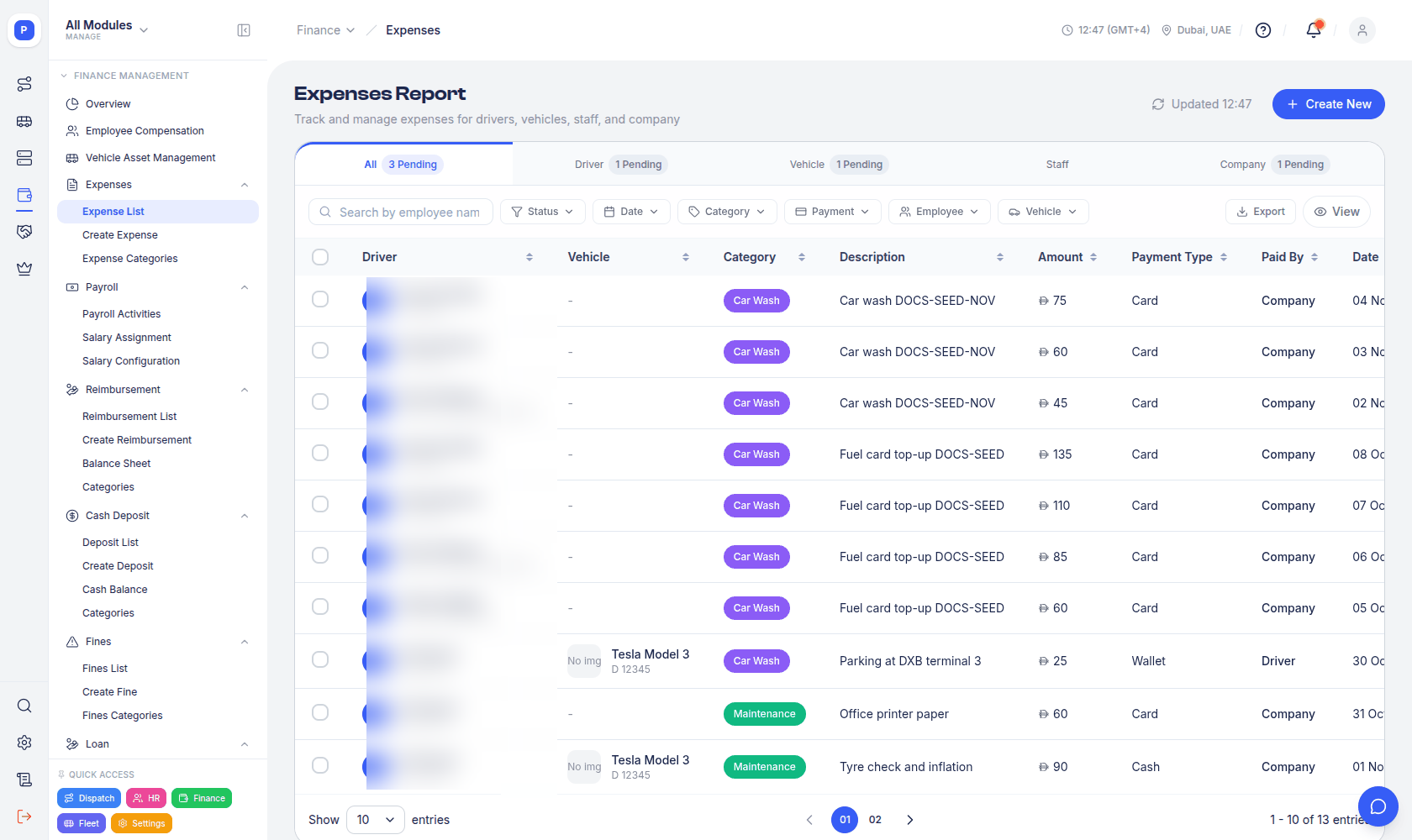
Finance > Expenses > Expense List (/finance/expense-list, page title Expenses Report) lists every expense the company has recorded. An expense is a cost of a driver, a vehicle, a staff member or the company, with a category, an amount, who paid and how.
Permissions
The page needs the Expense List permission. The actions you see depend on what the role may do:
| Permission on Expense List | What it gives you |
|---|---|
| View | The page. Without the approve permission you only see your own expenses (the ones recorded for your employee record or created by you) |
| Add | The Create New button |
| Edit | Edit in the row menu and in the details window |
| Delete | Delete in the row menu and in the details window |
| Approve | Approve and Reject (for Pending expenses), the Employee filter, and the Delete button of the selection bar. It also lets you see the expenses of everyone |
Tabs and counts
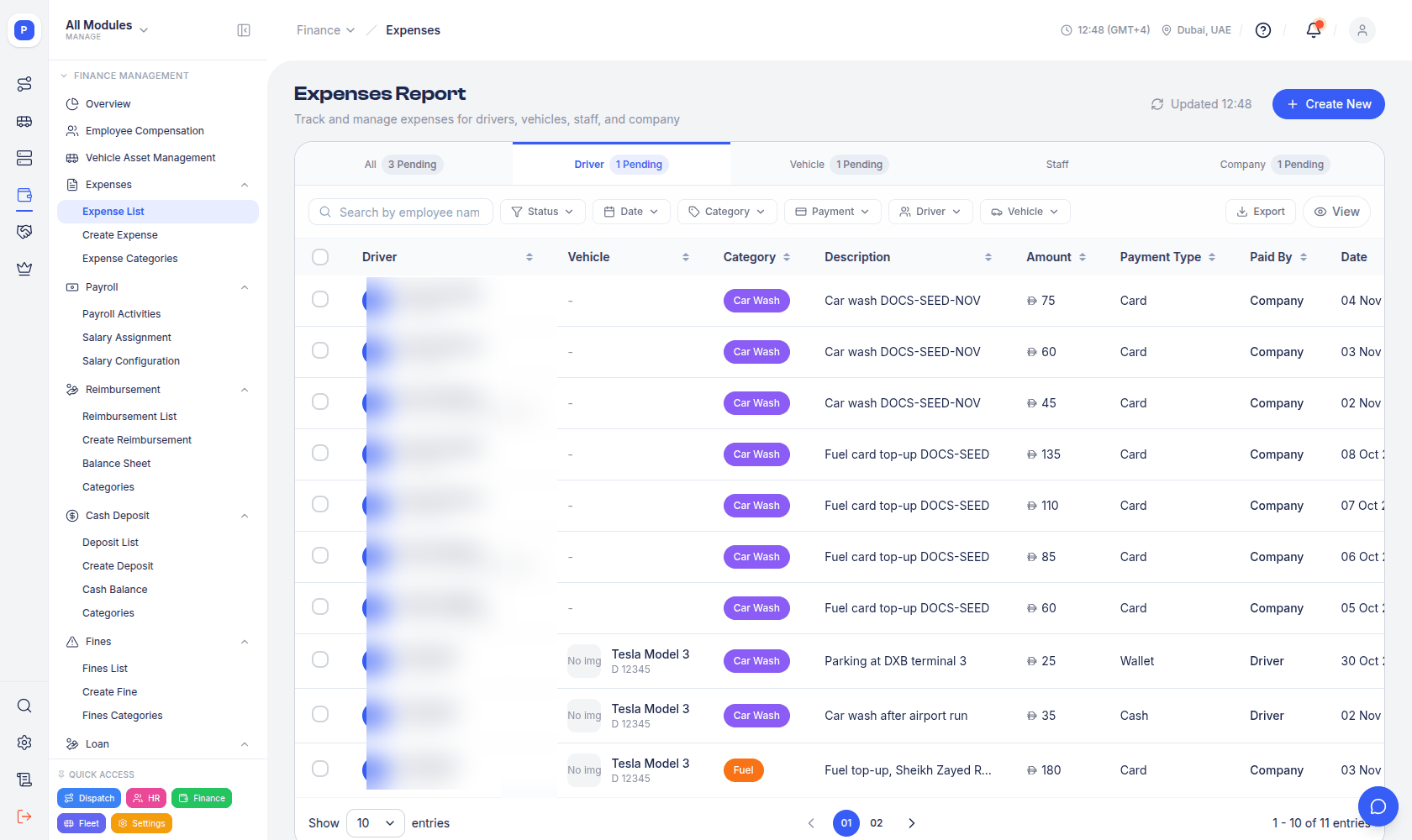
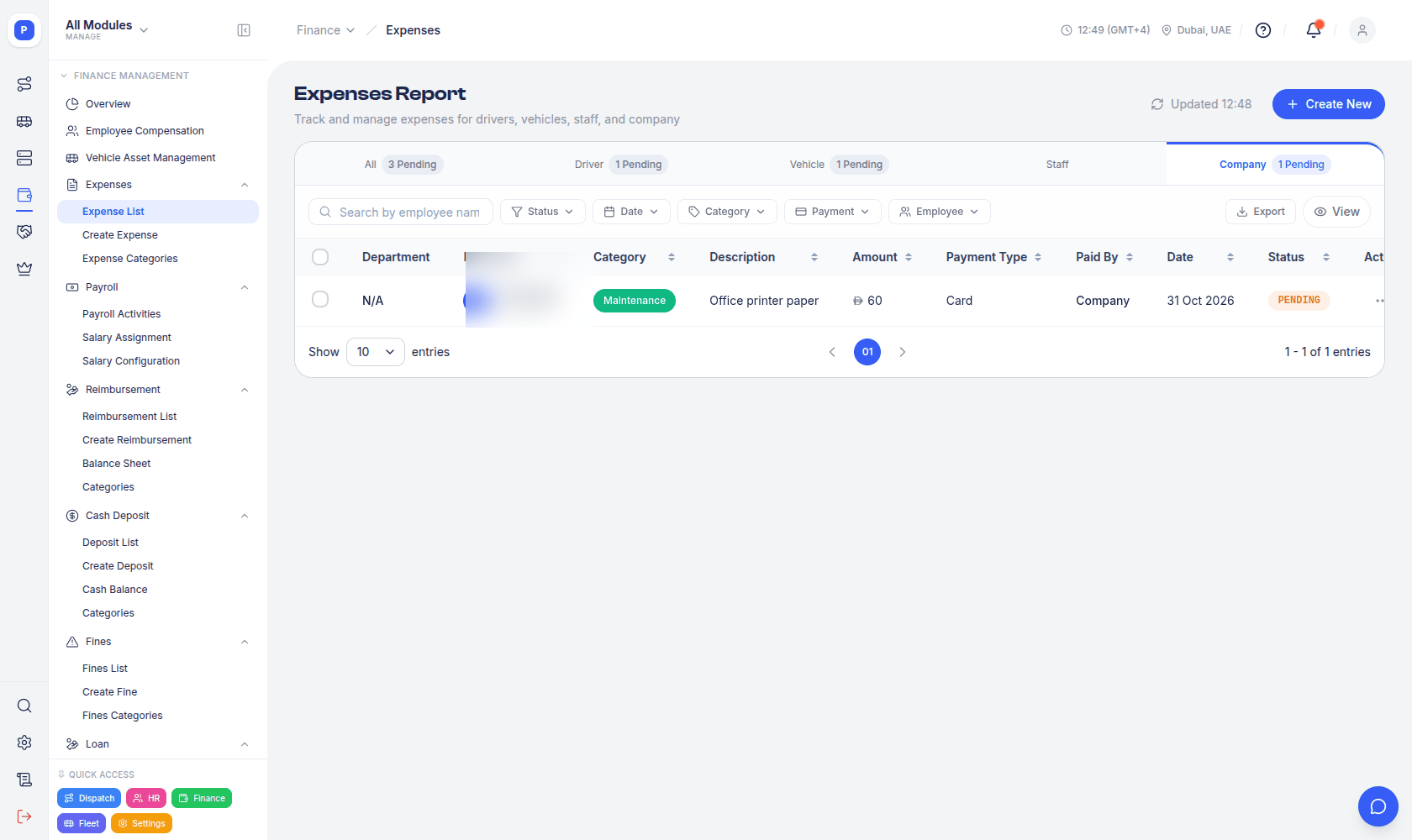
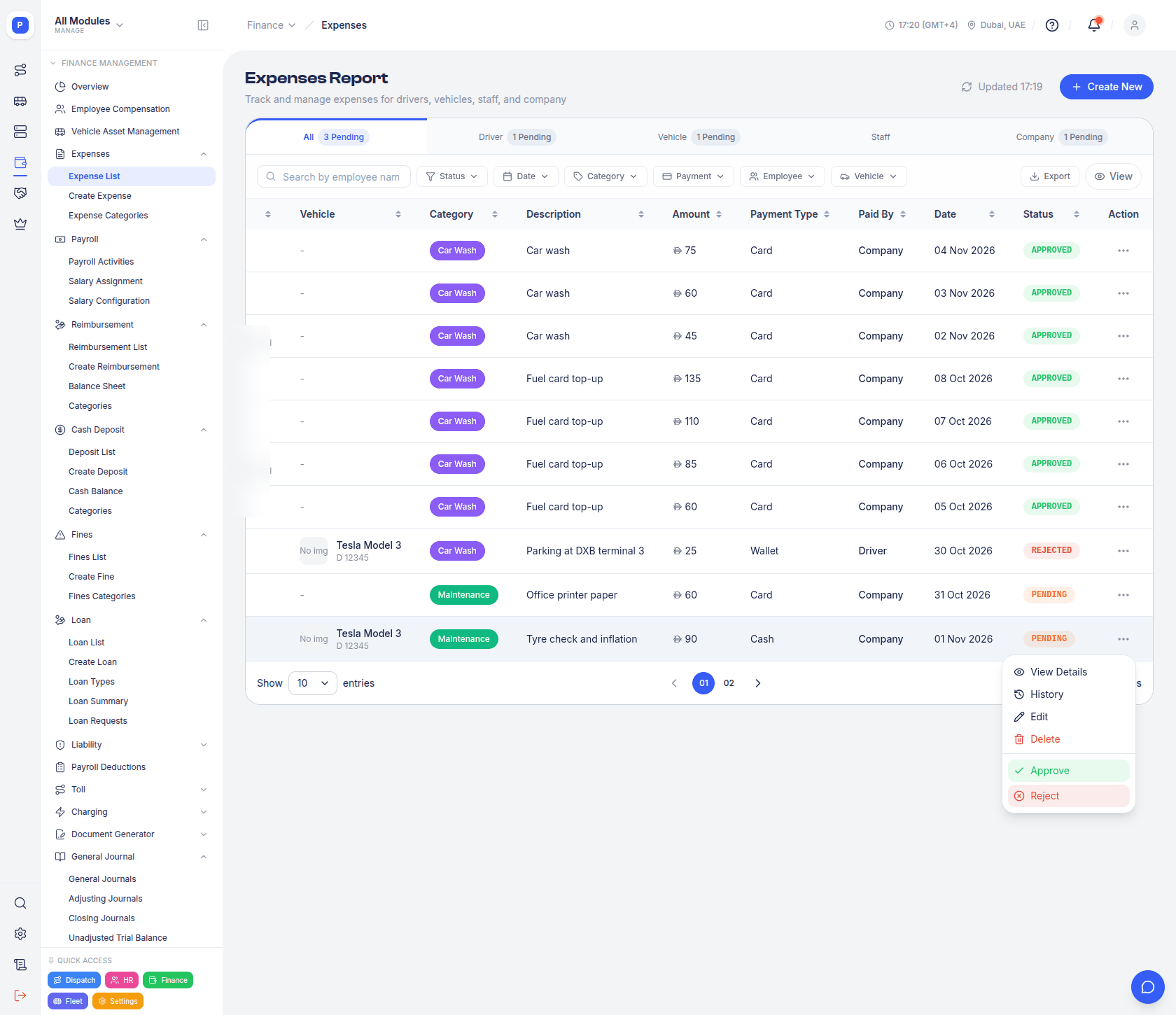
The tabs at the top filter by the owner of the expense: All, Driver, Vehicle, Staff and Company. Each tab shows how many of its expenses are Pending. The columns change with the tab (a Driver tab shows the driver and the vehicle, a Company tab shows the department).
Search and filters
| Control | What it does |
|---|---|
| Search | Finds an expense by the name of the employee |
| Status | All Status, Pending, Approved, Rejected, Draft or Paid |
| Date | A date range |
| Category | One or several categories (tick them in the list) |
| Payment | All Payment Types, Cash, Card or Wallet |
| Employee | Only for roles with the approve permission: the driver, staff member or employee |
| Vehicle | On the All, Driver and Vehicle tabs |
| Clear all | Appears when a filter is active and removes all of them |
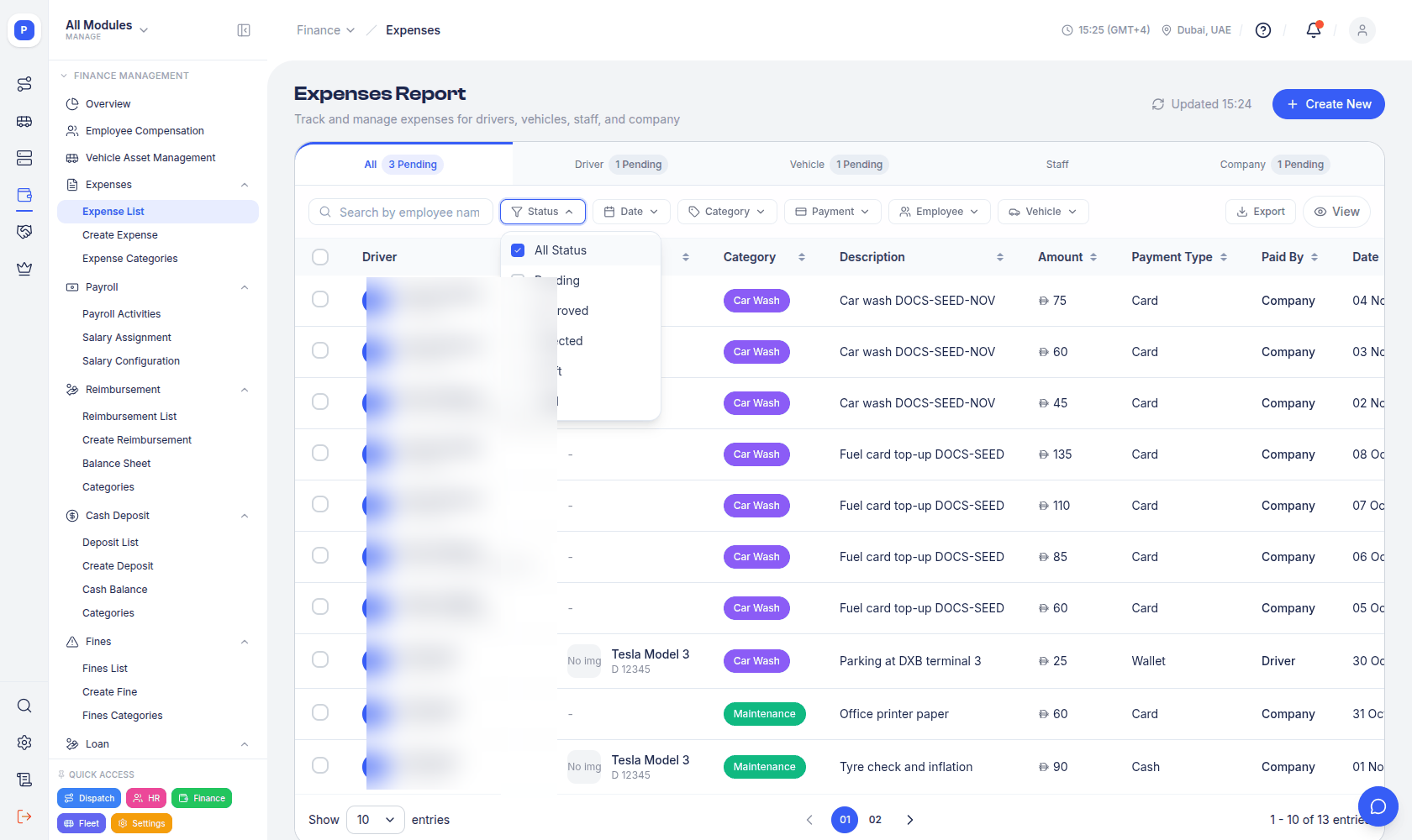
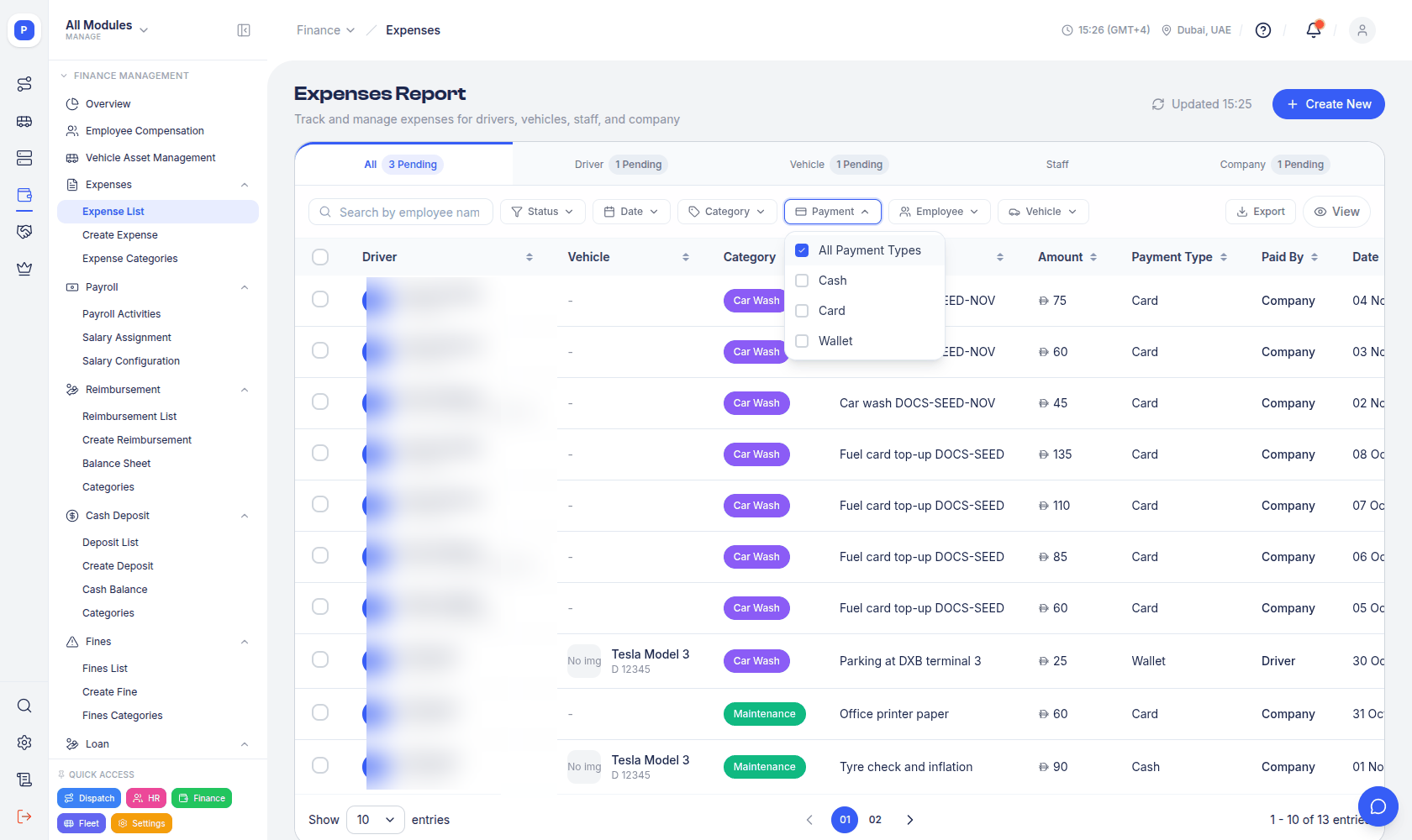
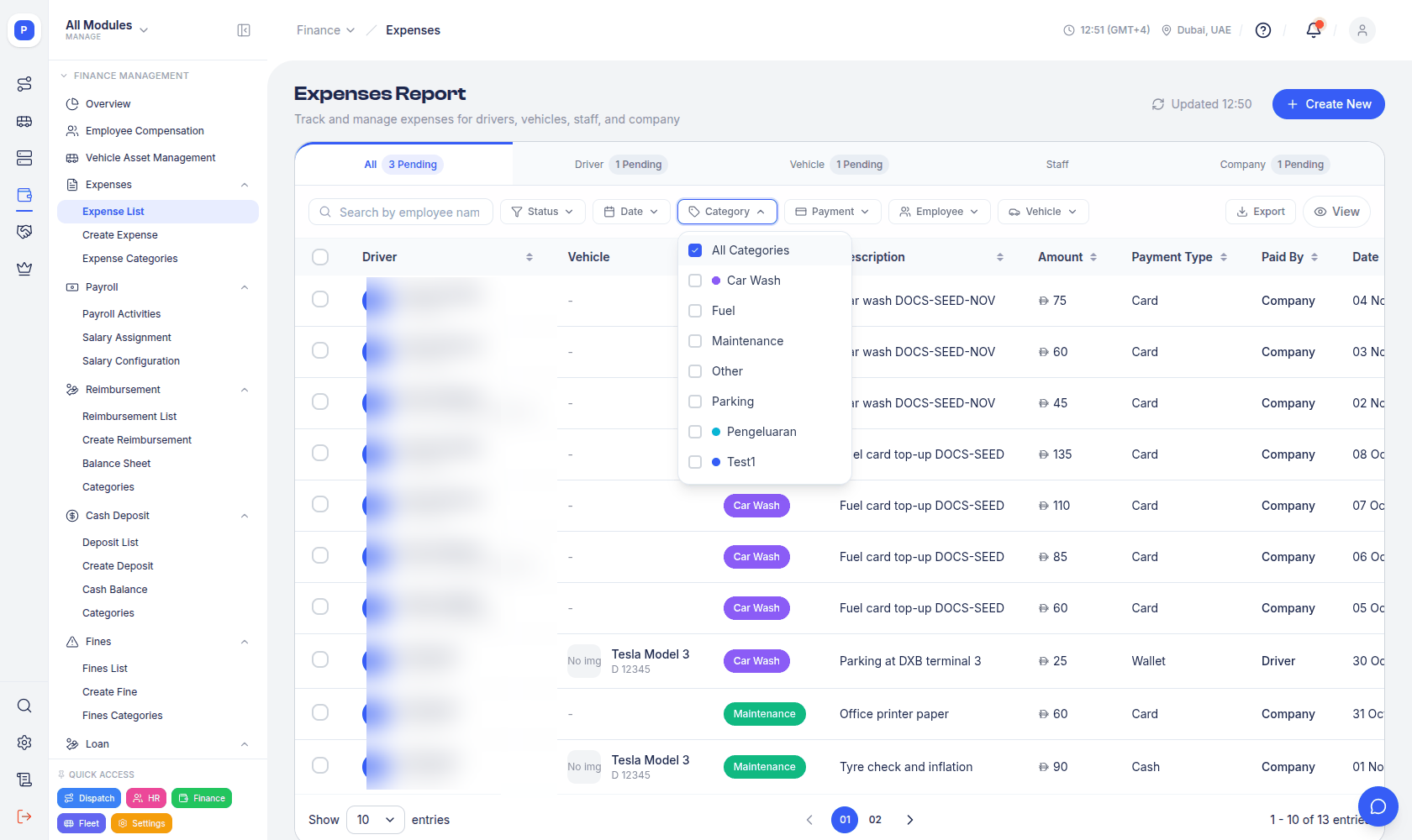
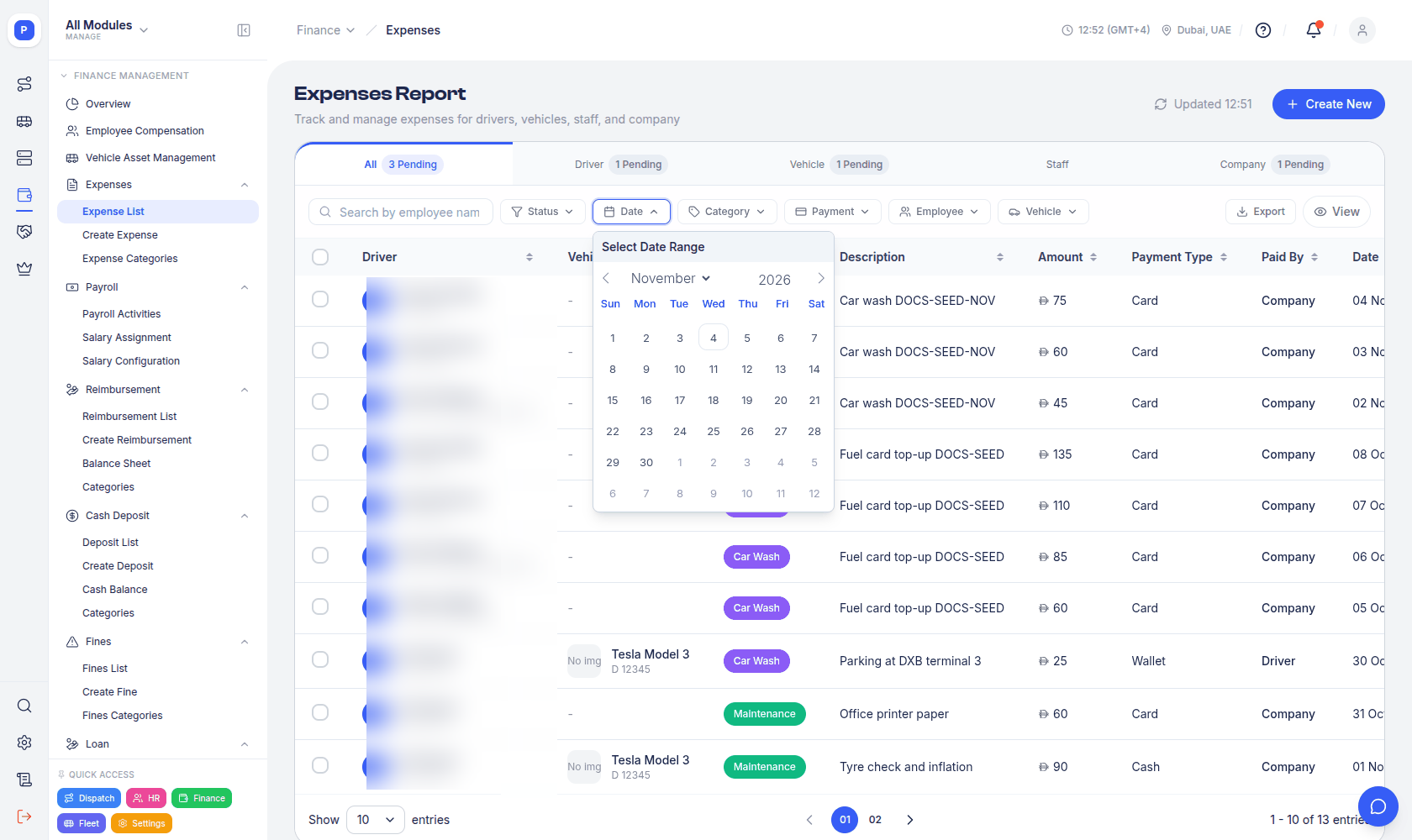
The filters and the sorting are applied by the server, so the page count and the total always match what you see. Click a column title to sort.
Columns
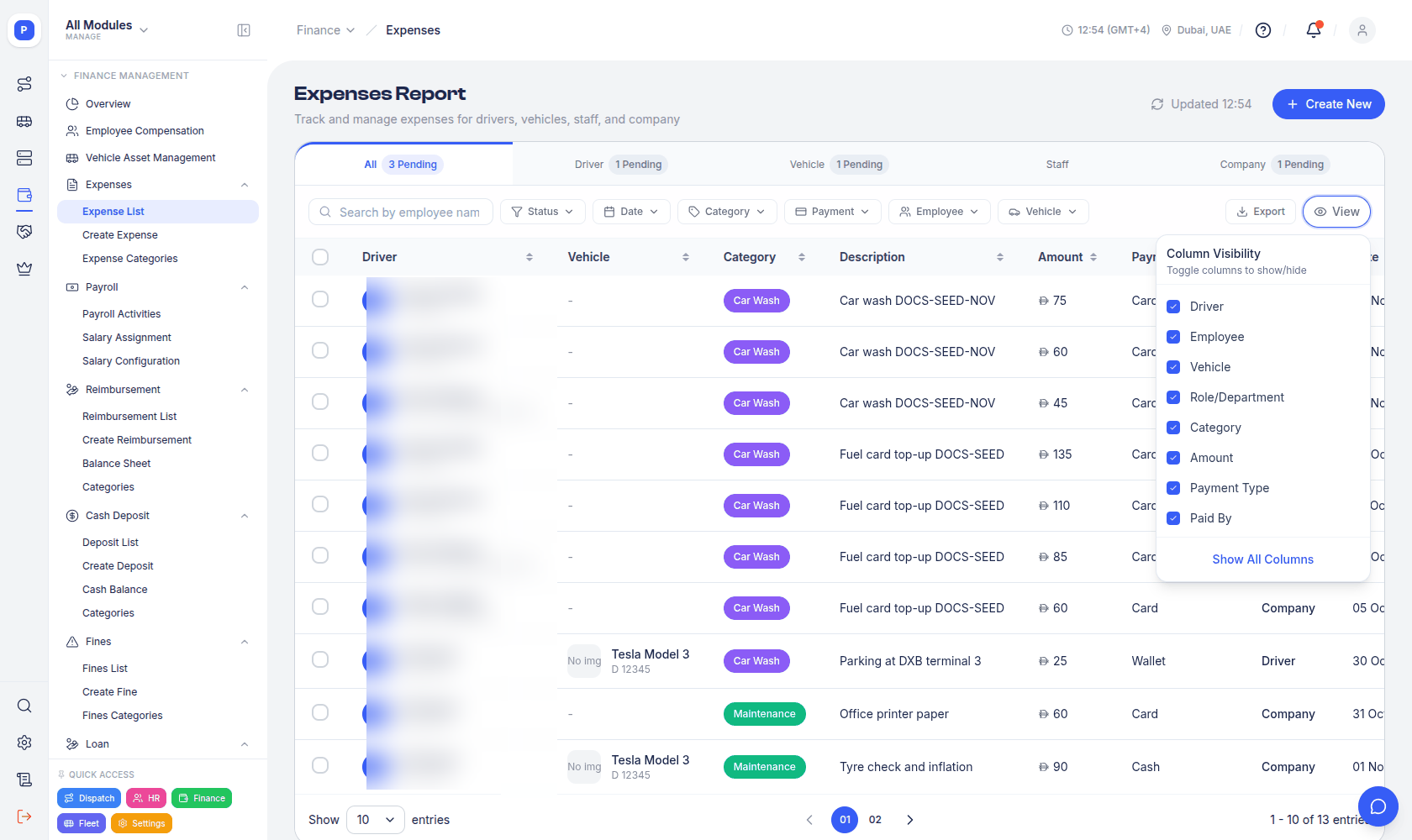
The View button (eye) lets you show or hide columns: Driver, Employee, Vehicle, Role/Department, Category, Amount, Payment Type, Paid By, Date and Status. The table also shows the Description and the Action menu.
Status of an expense
| Status | Meaning |
|---|---|
| Pending | Recorded and waiting for approval. This is the status every new expense gets |
| Approved | Accepted. It can now be deducted from the payroll of the employee |
| Rejected | Refused. The page does not ask for a reason, so none is recorded |
| Draft | Not submitted yet. The create form never makes a draft (a new expense starts as Pending), so a draft can only come from other sources. A draft can still be edited |
| Paid | Settled |
The row menu
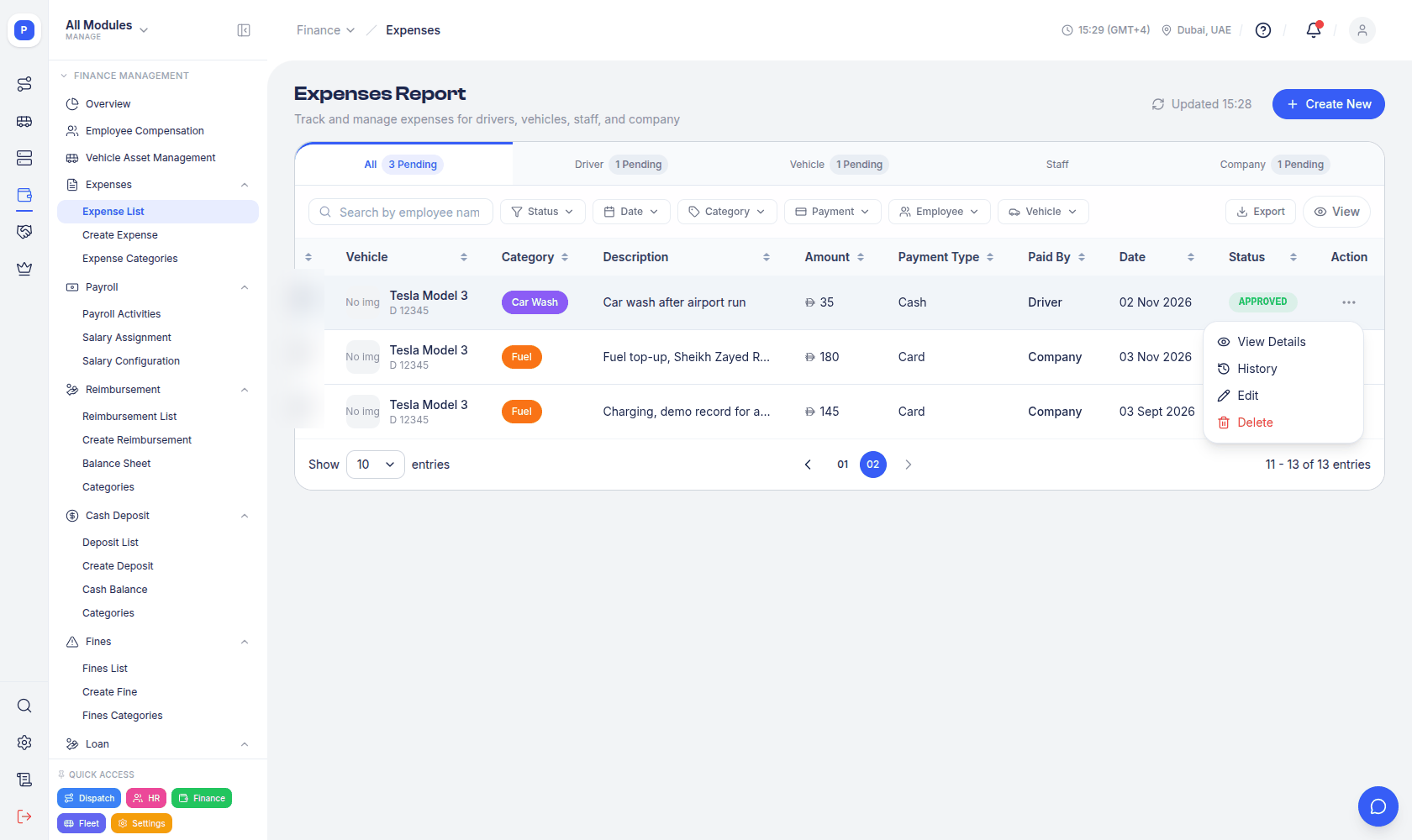
The ⋯ button of a row, or a right click on the row, opens the menu:
| Item | Shown when | What it does |
|---|---|---|
| View Details | Always | Opens the details window |
| History | The row has a driver | Opens the expense history of that employee |
| Edit | You may edit | Opens the edit form |
| Delete | You may delete | Asks for a confirmation |
| Approve / Reject | The expense is Pending and you may approve | Asks for a confirmation |
Expense details
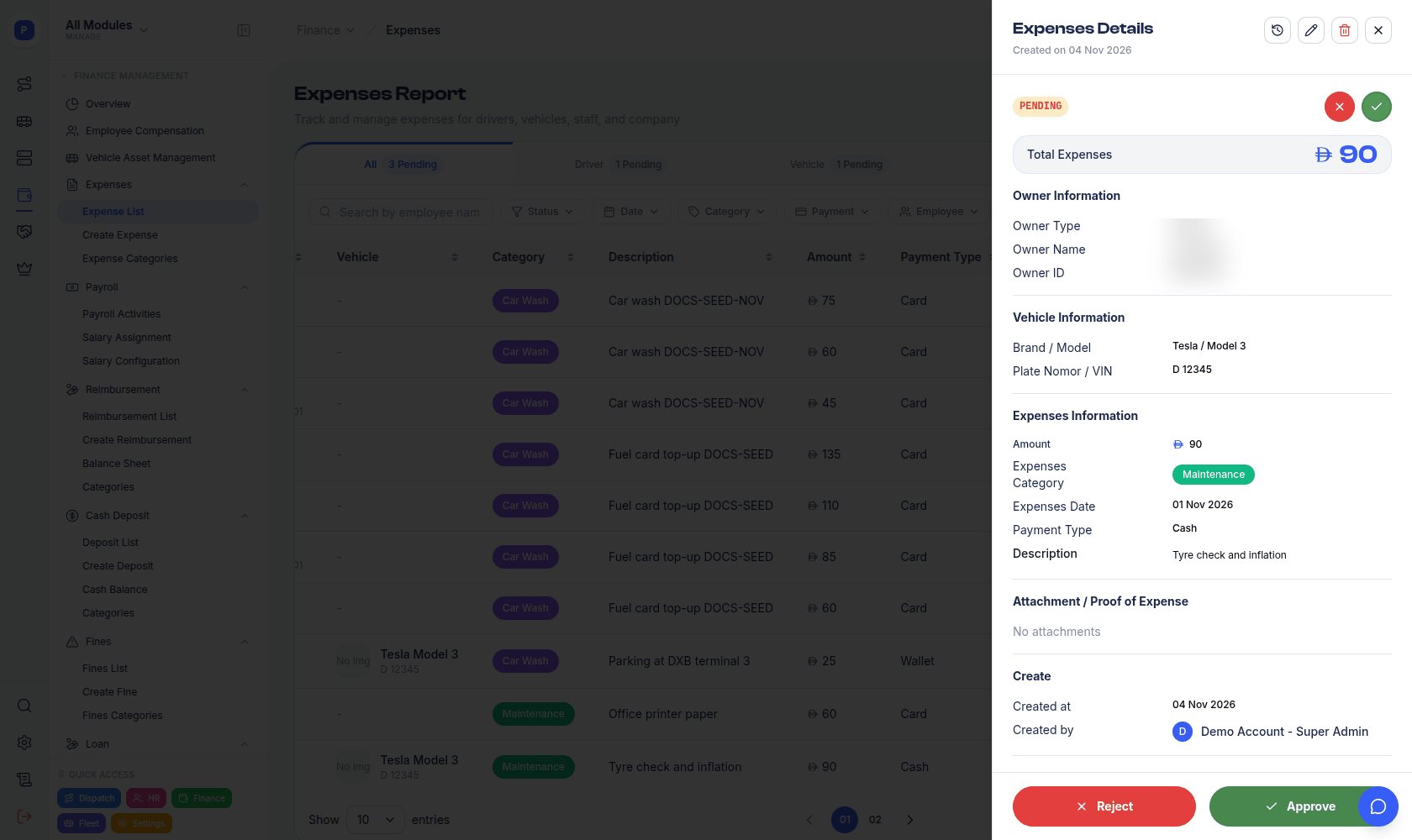
View Details opens the Expenses Details panel on the right, headed Created on <date>. At the top are four round buttons: View History, Edit, Delete and Close. Below them you see the status badge and the Total Expenses amount, then these sections:
| Section | Content |
|---|---|
| Owner Information | Owner Type, Owner Name and Owner ID |
| Vehicle Information | Brand / Model and Plate Number / VIN, when the expense has a vehicle |
| Expenses Information | Amount, Expenses Category, Expenses Date, Payment Type and Description |
| Attachment / Proof of Expense | Each file with View and Download, or No attachments |
| Create | Created at and Created by |
| Review Status | Who reviewed the expense and when |
A Pending expense also has a red cross and a green check at the top, and Reject and Approve buttons at the bottom of the panel, for roles with the approve permission.
History
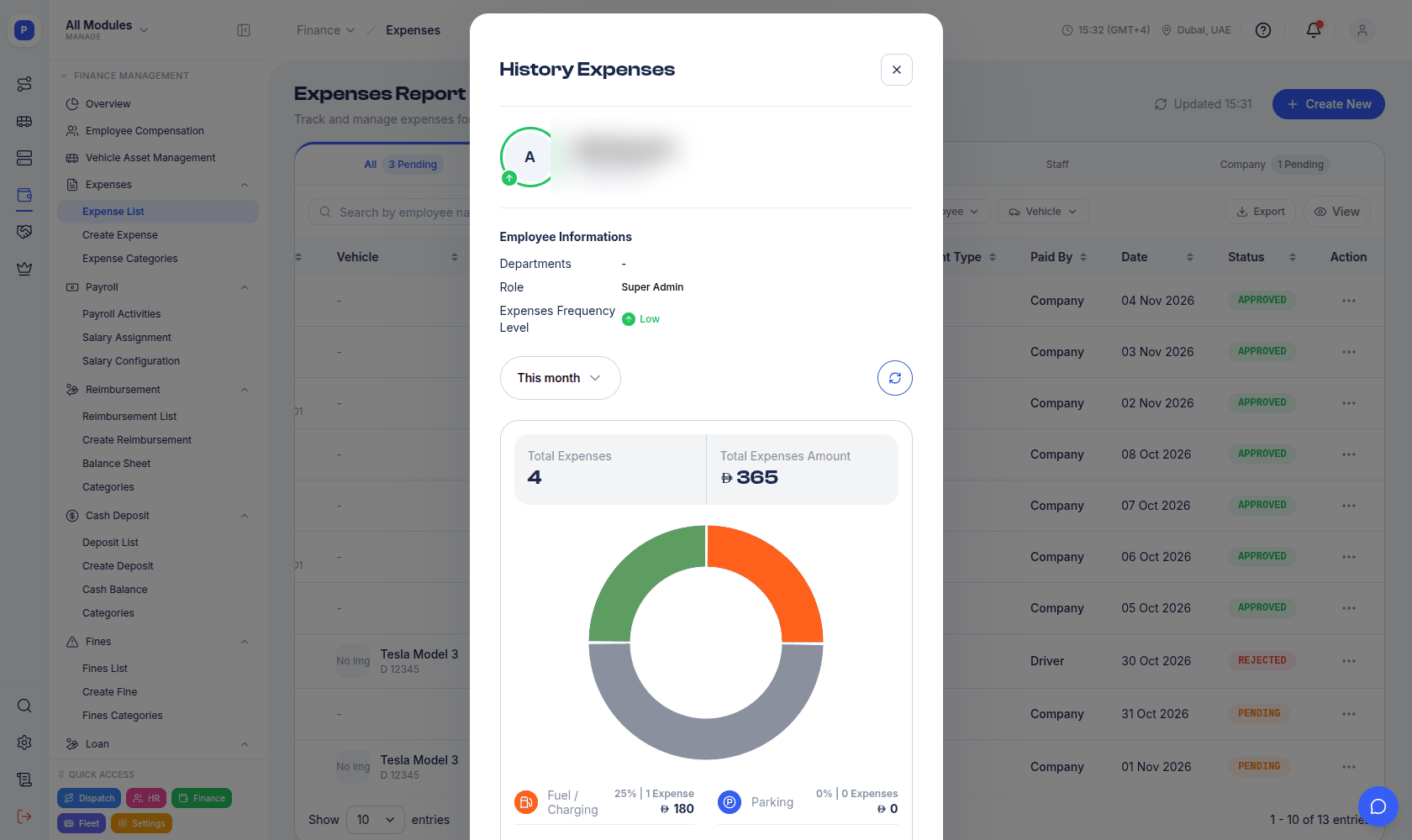
History opens History Expenses for the employee of the row: name and ID, Employee Informations (Departments, Role and an Expenses Frequency Level), a period list (This month by default) with a refresh button, the Total Expenses and Total Expenses Amount of that period, and a donut chart with the share, the number and the amount of each category.
Approve and reject
Only an expense that is Pending can be approved or rejected from the menu, and only with the approve permission. Both dialogs name the expense (by the employee) and ask you to type the word approve or reject before the button is enabled; Close cancels. The rejection has no field for a reason: the expense is simply set to Rejected.
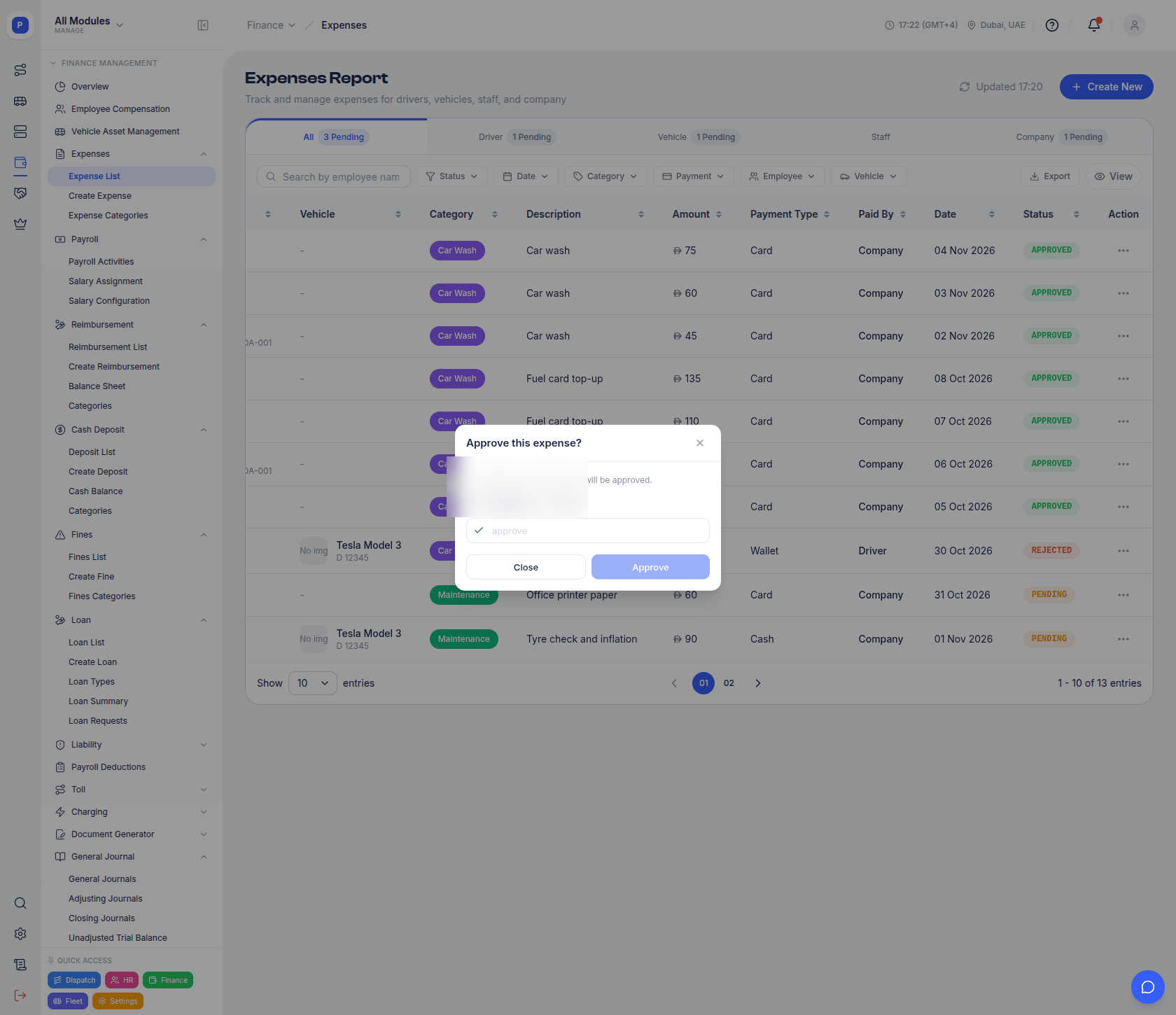
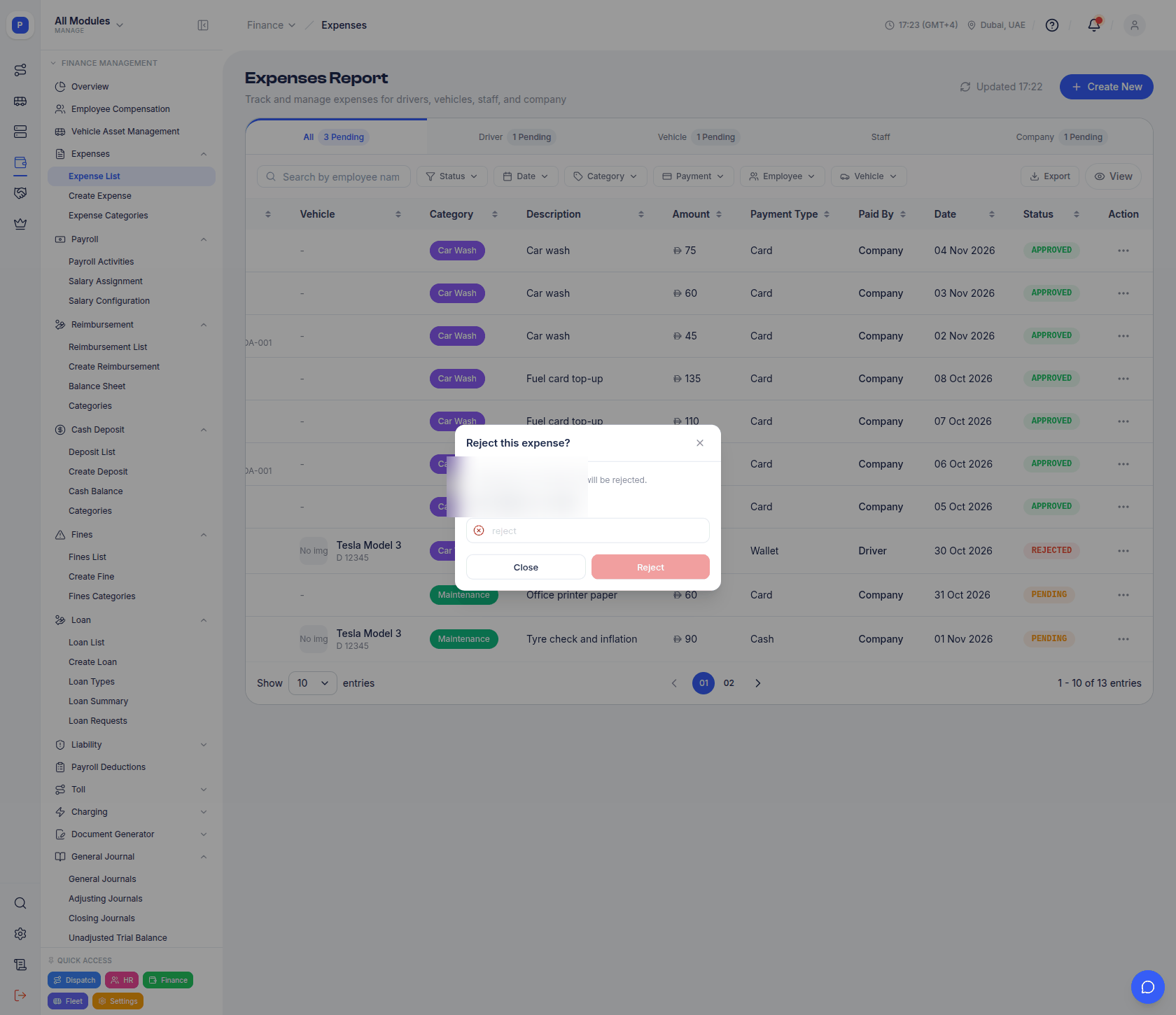
The server records who reviewed the expense and when. It refuses to approve an expense that is already approved or paid, and to reject one that is paid.
Approved expenses of an employee whose date falls in a period are taken into the Payroll Deductions batch of that period, except the ones paid by the driver. Charging expenses that come from a charging session are deducted through the session instead.
Edit an expense
Edit opens the form at /finance/expense/edit/<id>. The server only accepts changes to an expense that is Draft or Pending: for any other status it answers Cannot update expense with status … Only DRAFT or PENDING expenses can be updated. See Create Expense for what can be changed.
Delete
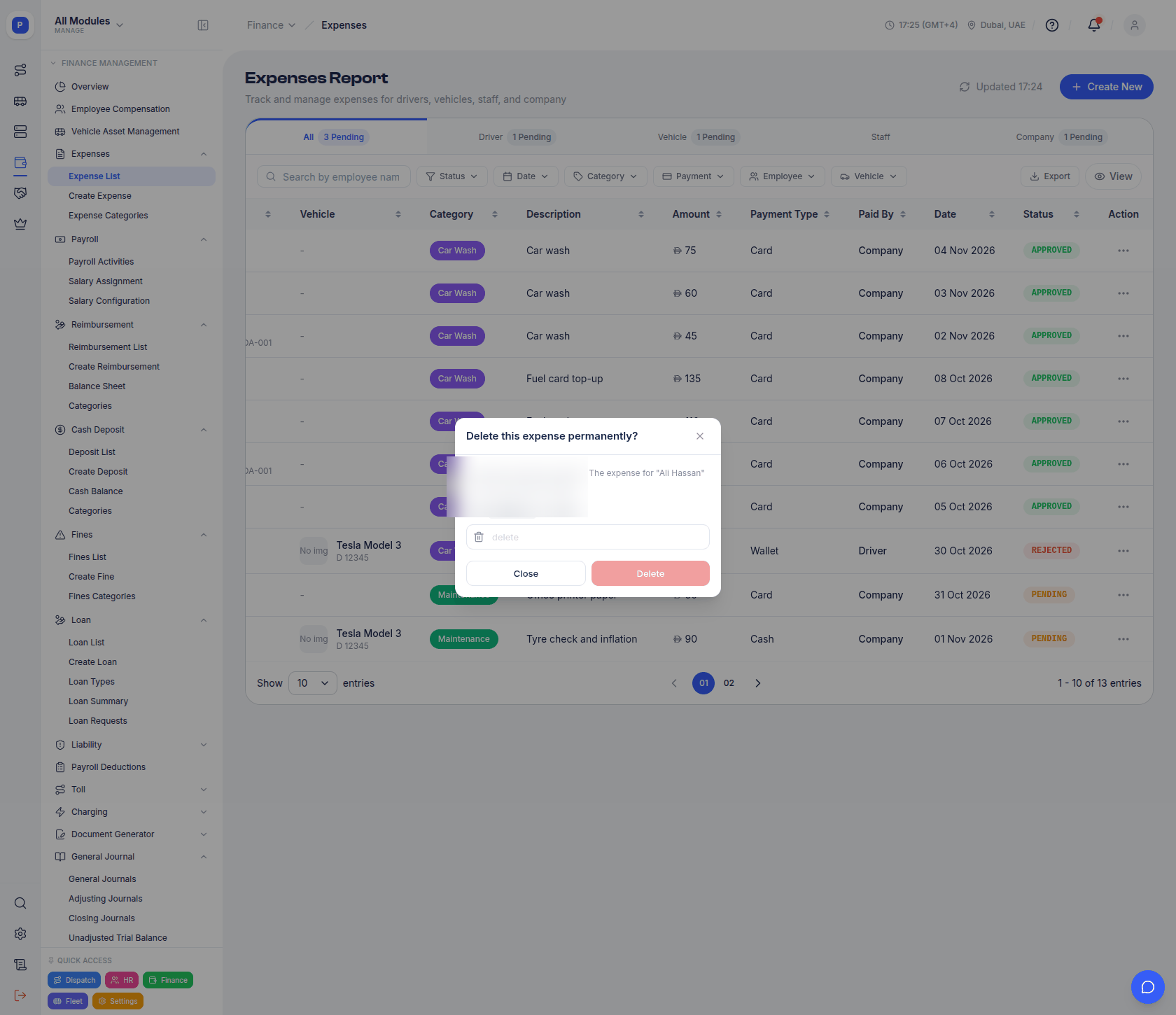
Delete asks Delete this expense permanently? and wants you to type delete. The expense is removed from every list and report, but the server only marks it as deleted (deleted_at): the record is not erased from the database. There is no check on the status, so an approved expense can be deleted too.
Select several expenses
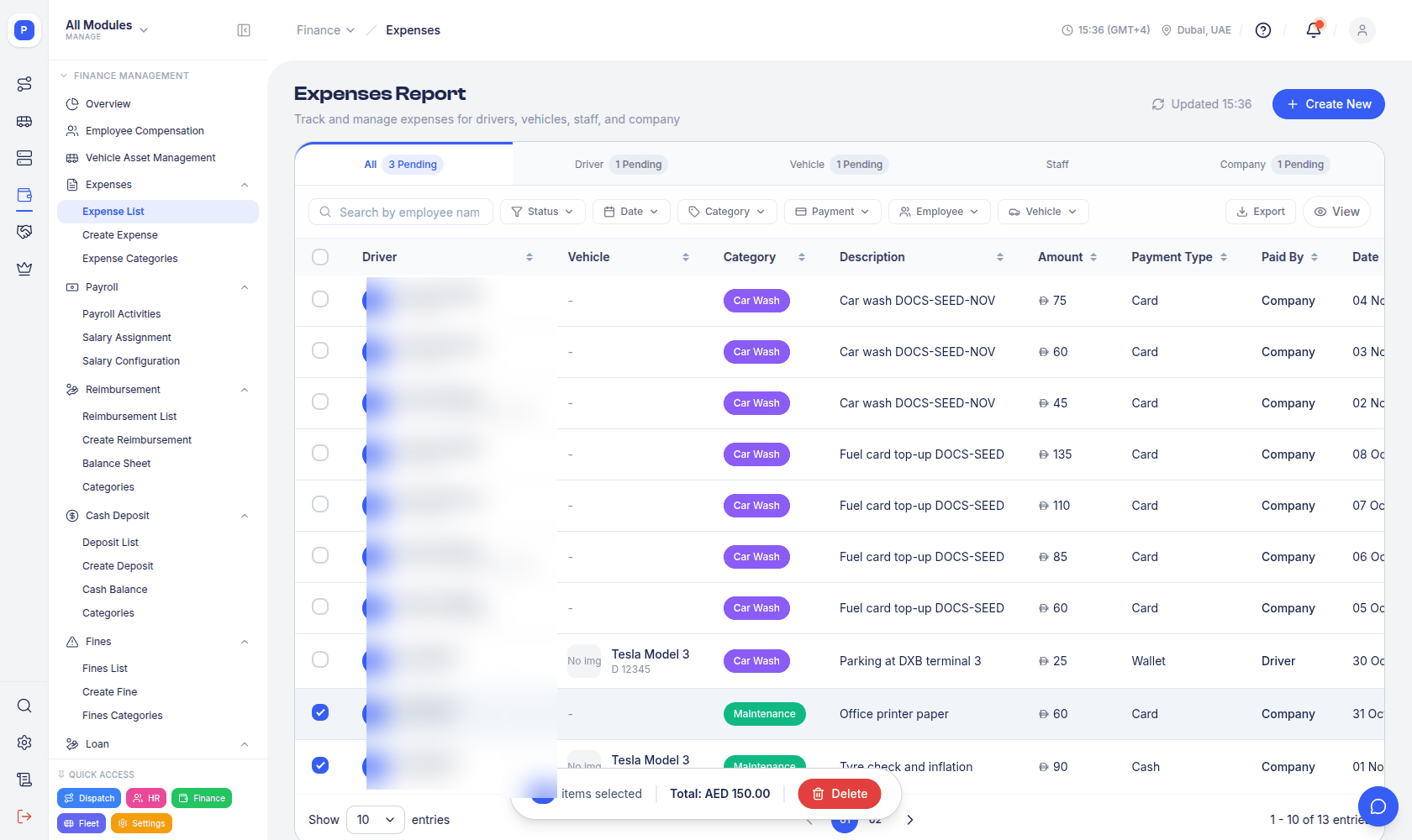
Tick the boxes at the left of the rows. A bar appears at the bottom with the number of selected expenses and their total in AED. For roles with the approve permission it has a Delete button that removes all the selected expenses after a confirmation (a soft delete, like the single one). The page has no bulk approve or bulk reject button.
Export
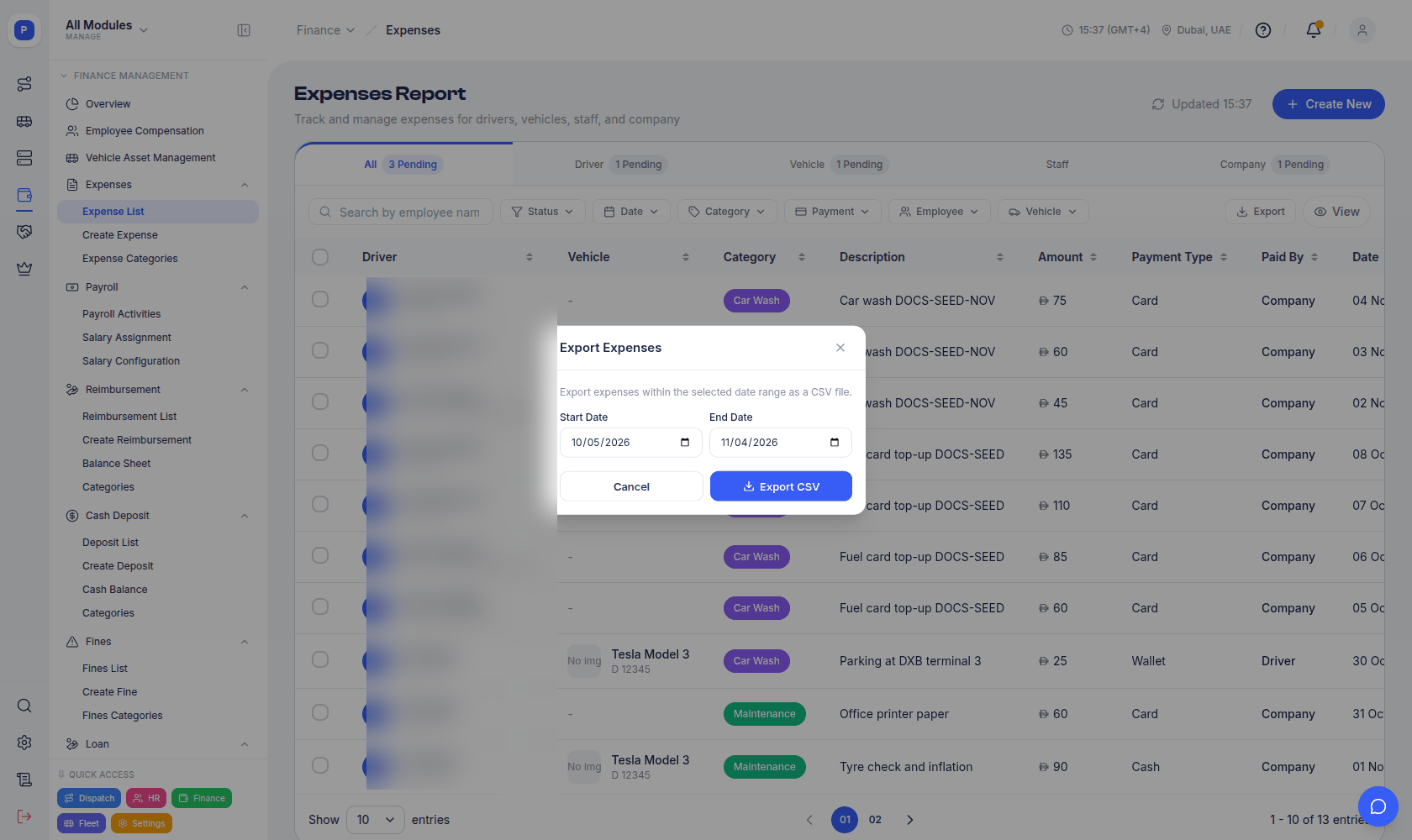
Export opens Export Expenses (Export expenses within the selected date range as a CSV file): the Start Date is one month ago and the End Date is today by default; change them and click Export CSV. The file expenses.csv has the columns Employee, Department, Category, Amount, Payment Type, Paid By, Date and Status. It holds every expense of the date range: the tab, the search and the other filters of the page are not applied.
When nothing matches
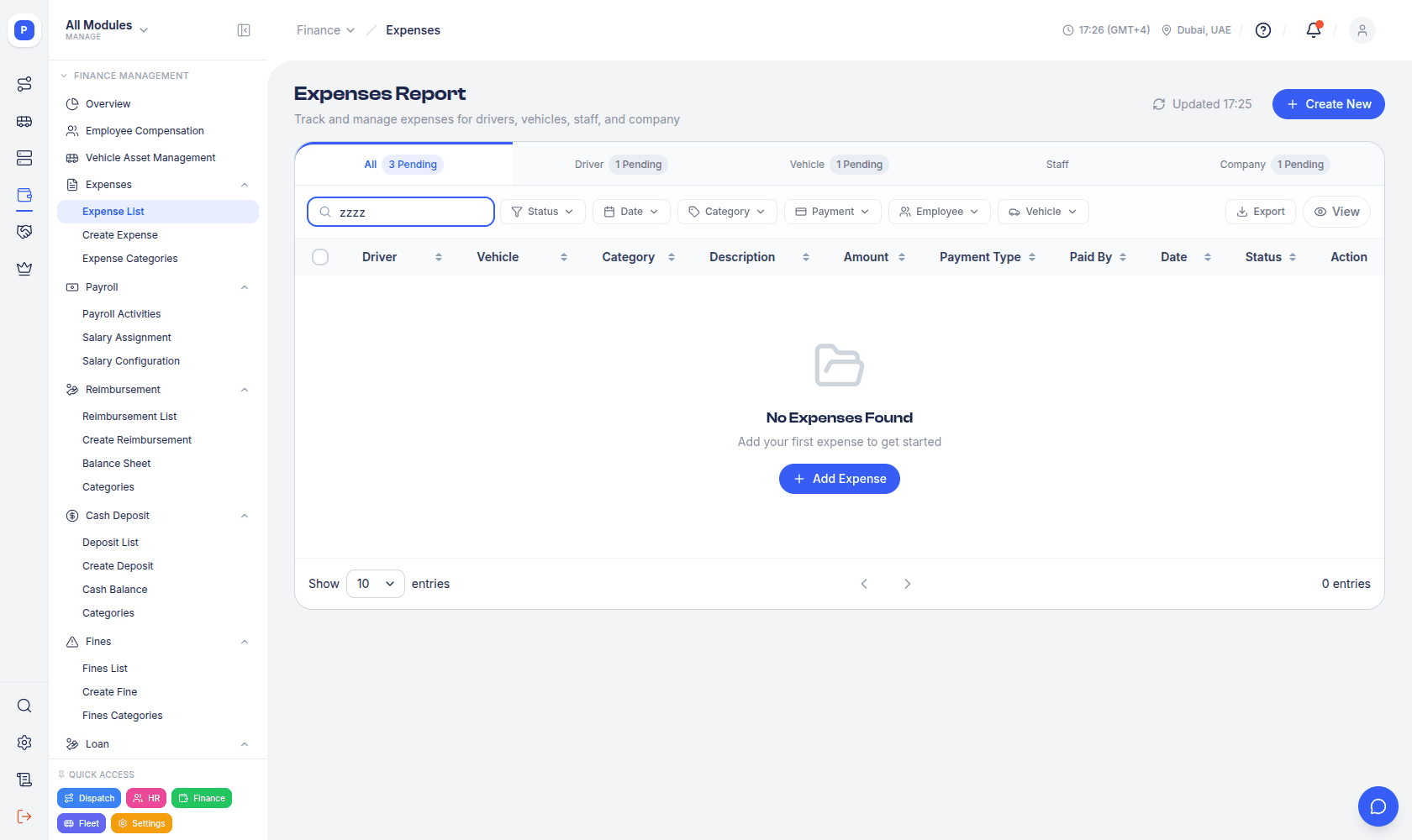
The table says No Expenses Found and, with the add permission, offers Add Expense.