My Leave Requests
Ask for leave for yourself, see your own balance per leave type, follow the status of each request, and edit or withdraw a request that is still waiting.
HR & Benefits > Leave > My Leave Requests is the personal page of the signed-in employee. It shows only your own requests and your own balances. To work with the requests of other people (approve, reject), use Leave Request.
The page needs an employee record linked to your user. A user without one sees an empty page, as in the screenshots below.
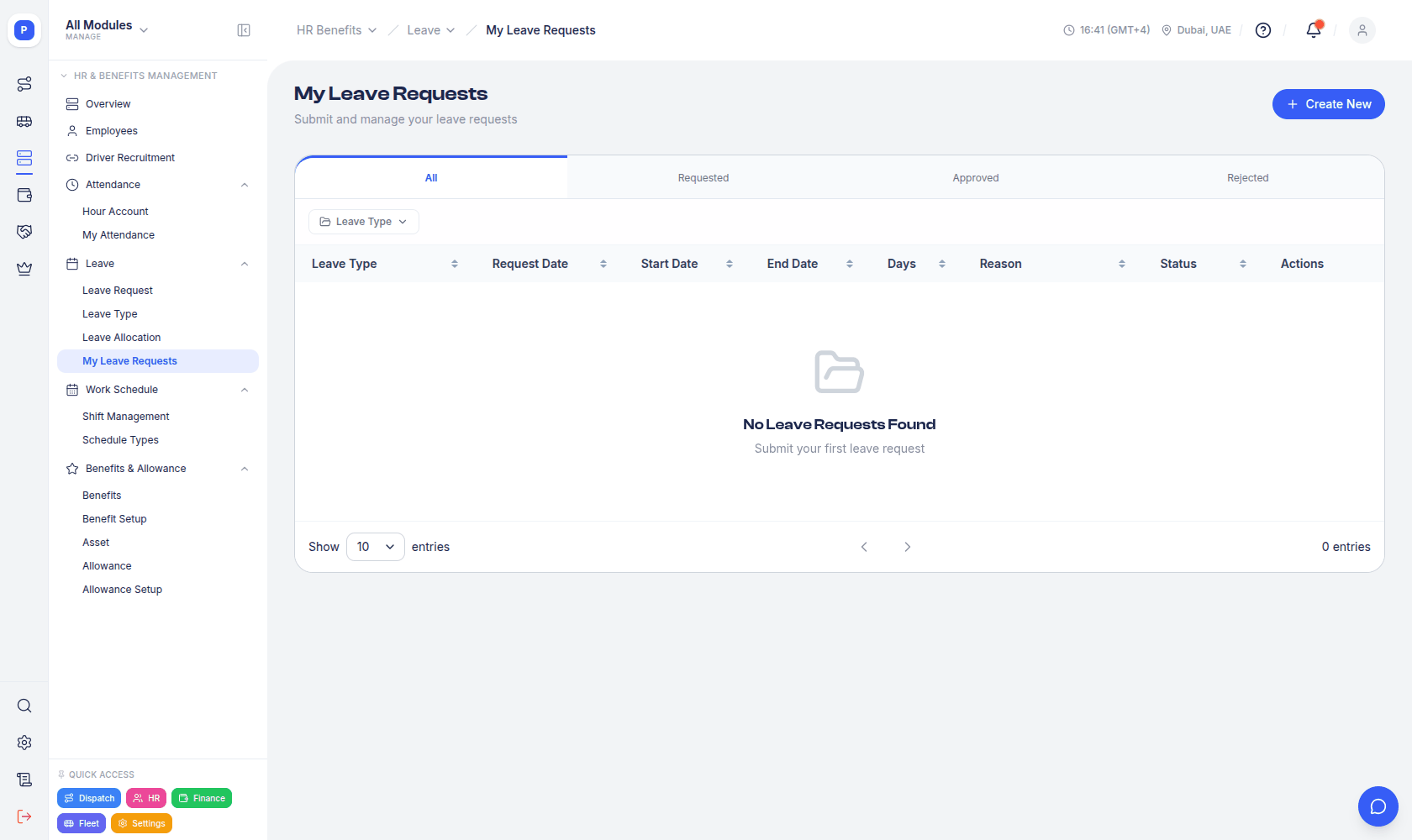
Leave Balances
Above the table there is one card for every leave type that has been assigned to you in Leave Allocation. Each card shows the leave type (its code in a coloured circle and its name) and four figures:
| Figure | Meaning |
|---|---|
| Available Leave Days | The days you can still ask for |
| Carryforward Leave Days | Days carried over from the previous period |
| Total Leave Taken | Days already used |
| Total Leave Days | The days the allocation gives |
When no leave type is assigned to you, there are no cards and you cannot ask for leave: ask HR to assign one.
Finding a Request
The tabs above the table filter by status: All, Requested (waiting for a decision), Approved and Rejected. The tabs do not show counts.
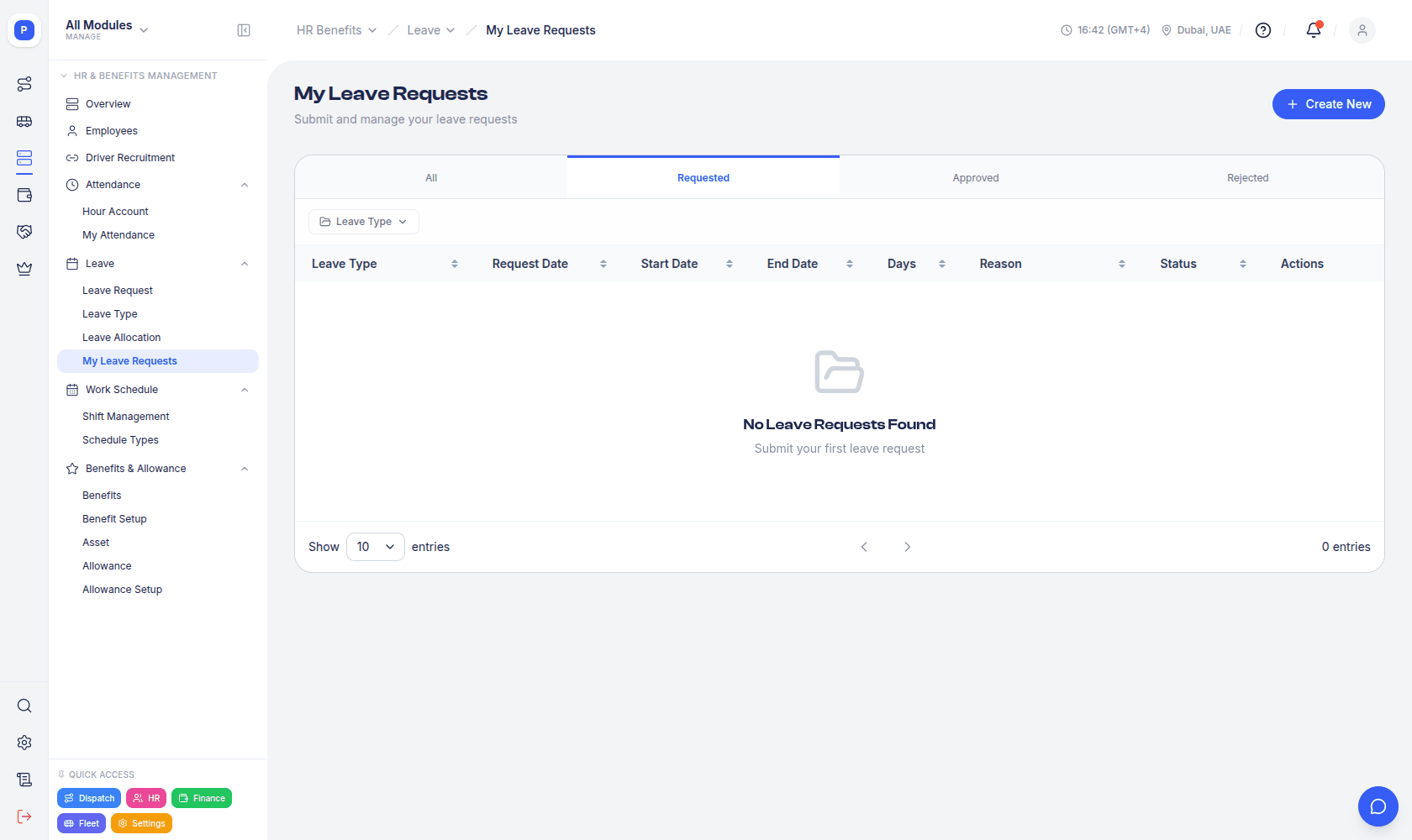
The Leave Type filter lists the leave types of your balance cards, with a search box. Pick one to see only its requests, or All to remove the filter.
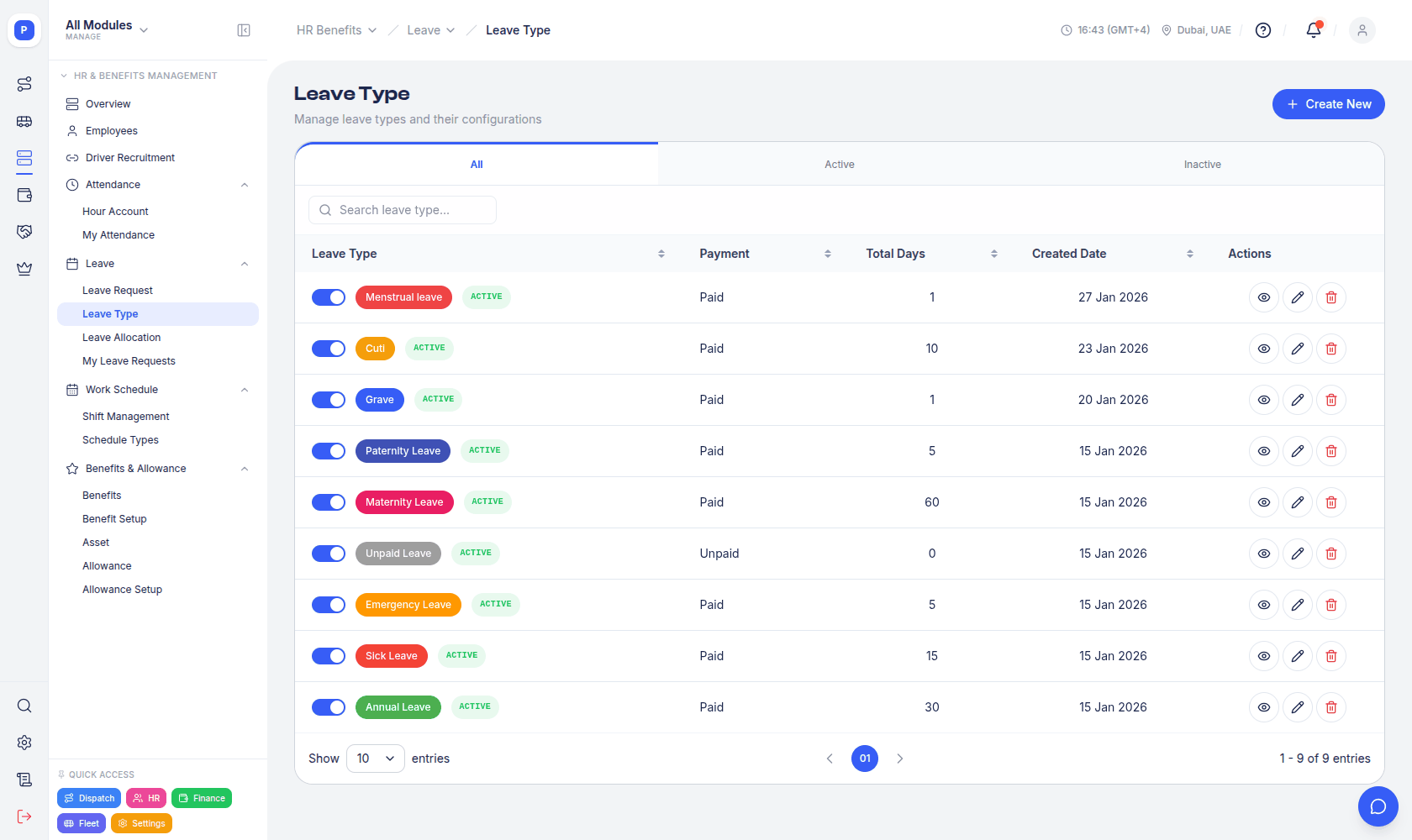
The Table
| Column | Description |
|---|---|
| Leave Type | The leave type of the request |
| Request Date | The day you sent the request |
| Start Date / End Date | The first and the last day of the leave |
| Days | The number of leave days counted (see the note below) |
| Reason | The reason you gave |
| Status | Requested, Approved or Rejected |
| Actions | View Details, Edit and Delete |
Right-clicking a row opens the same actions.
Days counts working days only. The days that are off days in your work schedule (see Shift Management) inside the period are not counted, and a request whose dates are all off days is refused.
Requesting Leave
Click Create New. The Request Leave window opens.
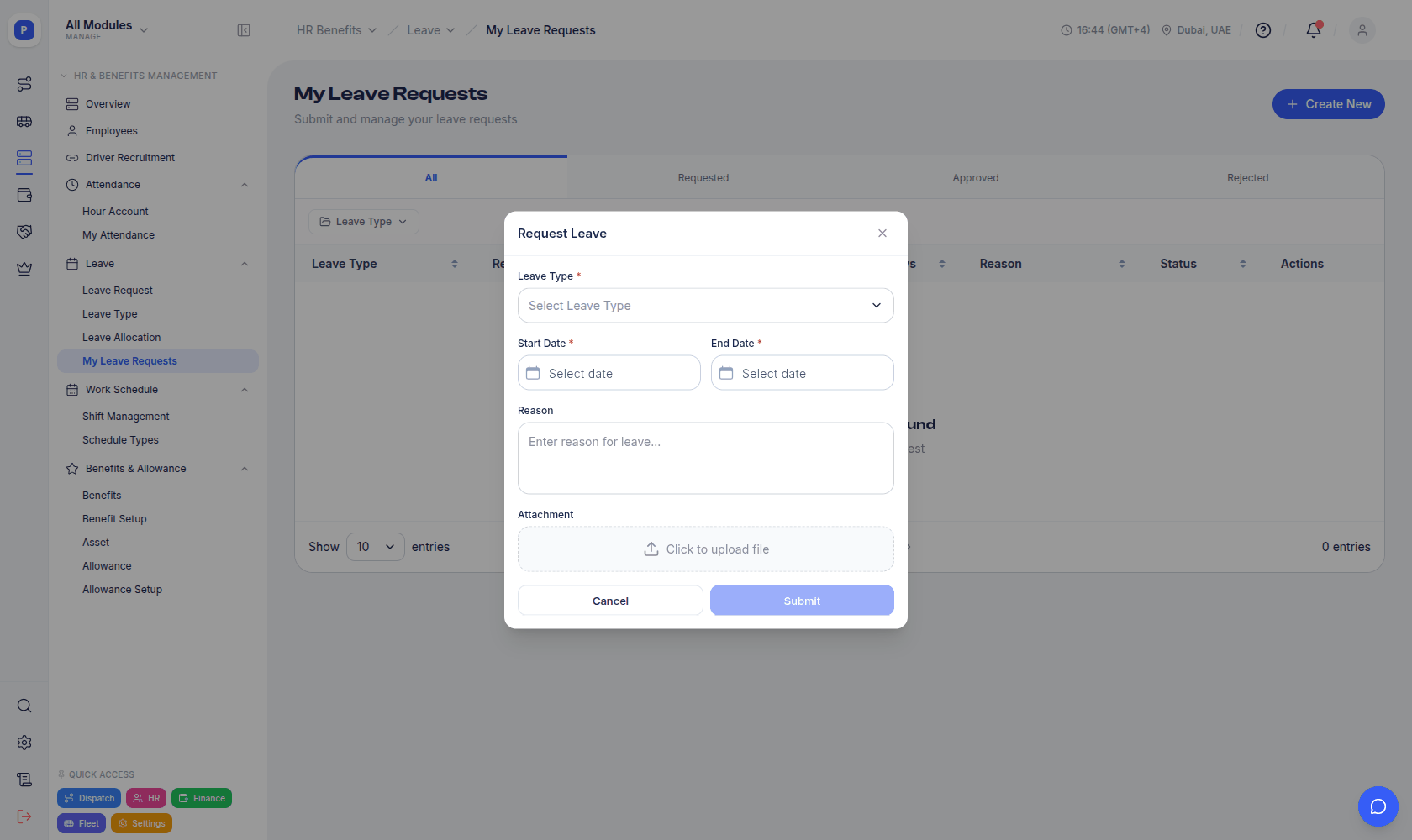
| Field | Required | Description |
|---|---|---|
| Leave Type | Yes | One of the leave types assigned to you. The list says No leave types available when you have none |
| Start Date | Yes | First day of the leave |
| End Date | Yes | Last day of the leave |
| Reason | No | Free text |
| Attachment | No, unless the leave type asks for it | Click the box to upload one file: .png, .jpg, .jpeg, .pdf, .doc or .docx. The file is uploaded at once; uploading another replaces it |
Submit stays disabled until the leave type and both dates are filled. If it is clicked with something missing, the message Please fill in all required fields appears. After a successful submit the message Your leave request has been successfully submitted. appears and the table is refreshed.
What the System Checks
The request is checked when you submit. The message shown comes from the server:
| Check | Message |
|---|---|
| The start date is before today | Cannot request leave for past dates |
| The leave type is not assigned to you | You do not have this leave type assigned. Please contact HR. |
| The leave type needs an attachment and there is none | <Leave type> requires an attachment. Please upload a supporting document. |
| Every selected day is an off day | All selected dates are off days. Please select working days. |
| The leave type is limited and the balance (plus carryforward) is smaller than the days | Insufficient leave balance. Available: X days, Requested: Y days |
| Another Requested or Approved leave overlaps the dates | You already have a leave request for overlapping dates |
| You do not meet the eligibility rule of the leave type (for example the months since your hire date) | The message of that rule |
The status depends on the leave type: when it requires approval, the request starts as Requested and the managers and HR are notified; when it does not, the request is approved at once and the days are taken from your balance.
Viewing a Request
View Details (the eye) opens Leave Request Details: the status badge, then a Request Details card (Request Date, Total Days, Start Date, End Date, Reason, and the Attachment when there is one) and a Review Information card with the Review Date, Reviewed By and the Approval Status once someone has decided. The window also has Edit and Delete buttons.
Editing a Request
Only a request with the status Requested can be edited: for the other statuses the pencil is greyed out with the tooltip Cannot edit. In the edit window the Leave Type cannot be changed. You can change the dates, the reason and the attachment, and the new dates are checked again (not in the past, working days, enough balance when the number of days grows). The message Your leave request has been successfully updated. confirms the change. To change the leave type, delete the request and make a new one.
Deleting a Request
Delete (the bin) asks Delete this leave request?. Confirm to remove it from your list; the leave is cancelled.
Only a request that is still Requested can be deleted: for the other statuses the bin is greyed out, in the table and in the detail panel, with the tooltip Only a request that is still Requested can be deleted.
Notes
- Nothing on this page reaches other people's data: the balances and the list always belong to the user who is signed in (the page asks the server for
/leave-request/meand/leave-request/me/balances).