Charging Expense
Review the EV charging sessions of your drivers, import DEWA and Voltup files, add a charge by hand, correct a driver and export the list.
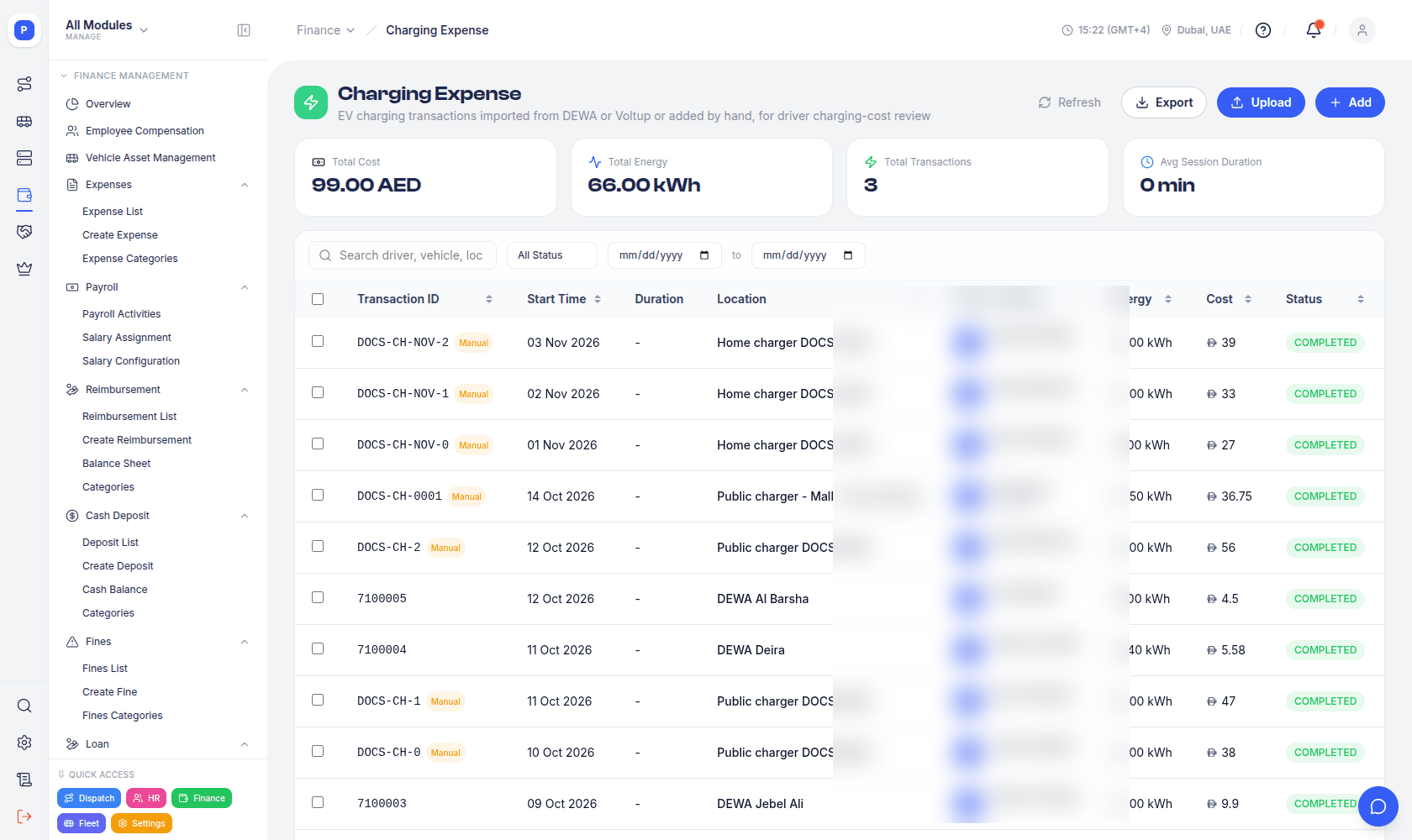
Finance > Charging > Charging Expense lists the EV charging sessions that are charged to drivers. A session comes from a DEWA or Voltup file (Upload) or is typed in by hand (Add), and it carries a driver, a vehicle, the energy and the cost. The cost of a Completed session goes into the driver's next payroll deduction.
Permissions
| You need | To |
|---|---|
| Charging Management (view) | Open the page, filter, open Detail, Export |
| Charging Management (add) | Add a session, and to import a file the server asks for it too |
| Charging Management (edit) | Edit, and the bulk Sync Driver and Set Driver |
| Charging Management (delete) | Delete a session |
The page
The four cards at the top add up the sessions of a period: Total Cost, Total Energy, Total Transactions and Avg Session Duration. Without a date filter the period is the current month; with the date filters it is the period you picked.
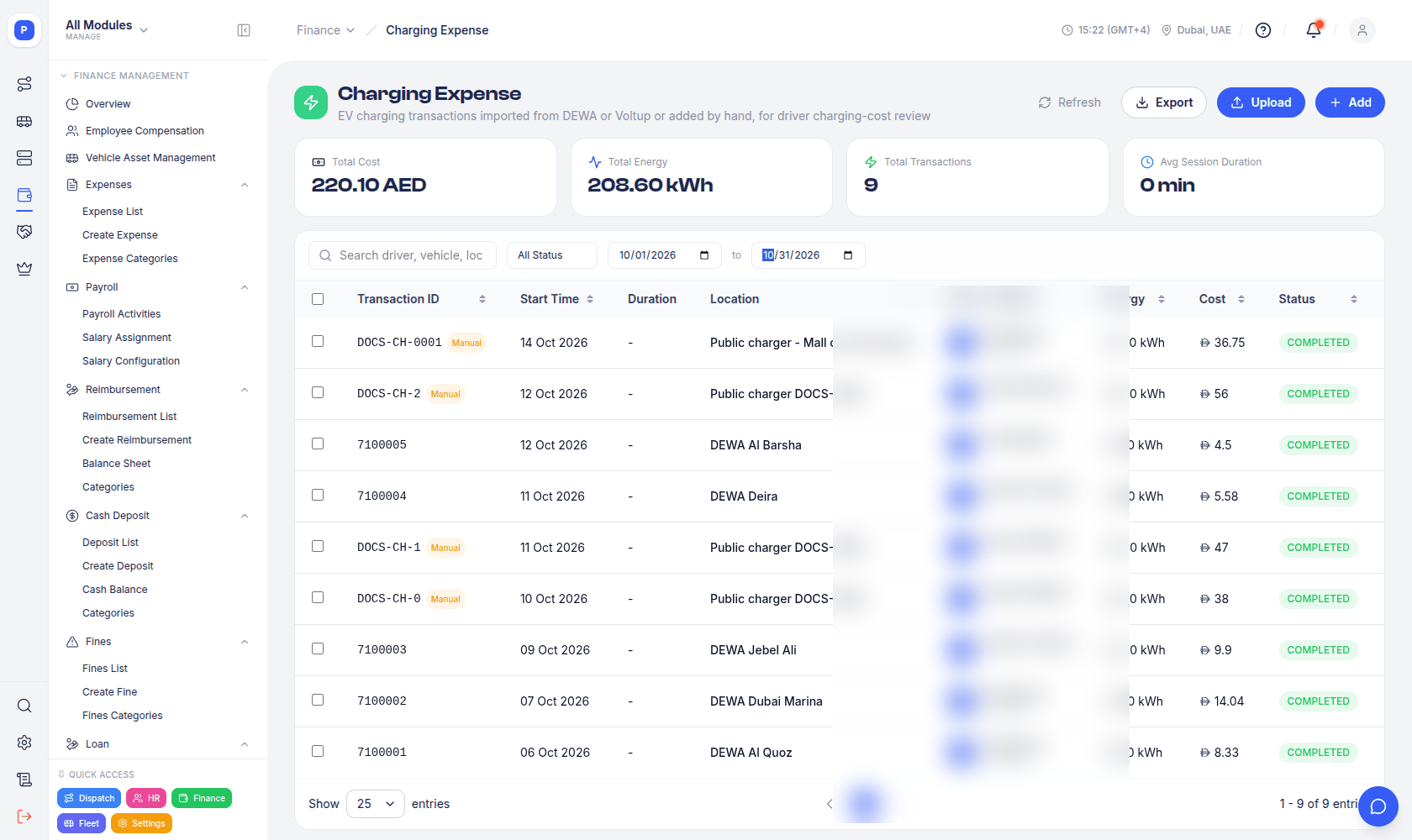
Under the cards the table has these filters:
| Filter | Does |
|---|---|
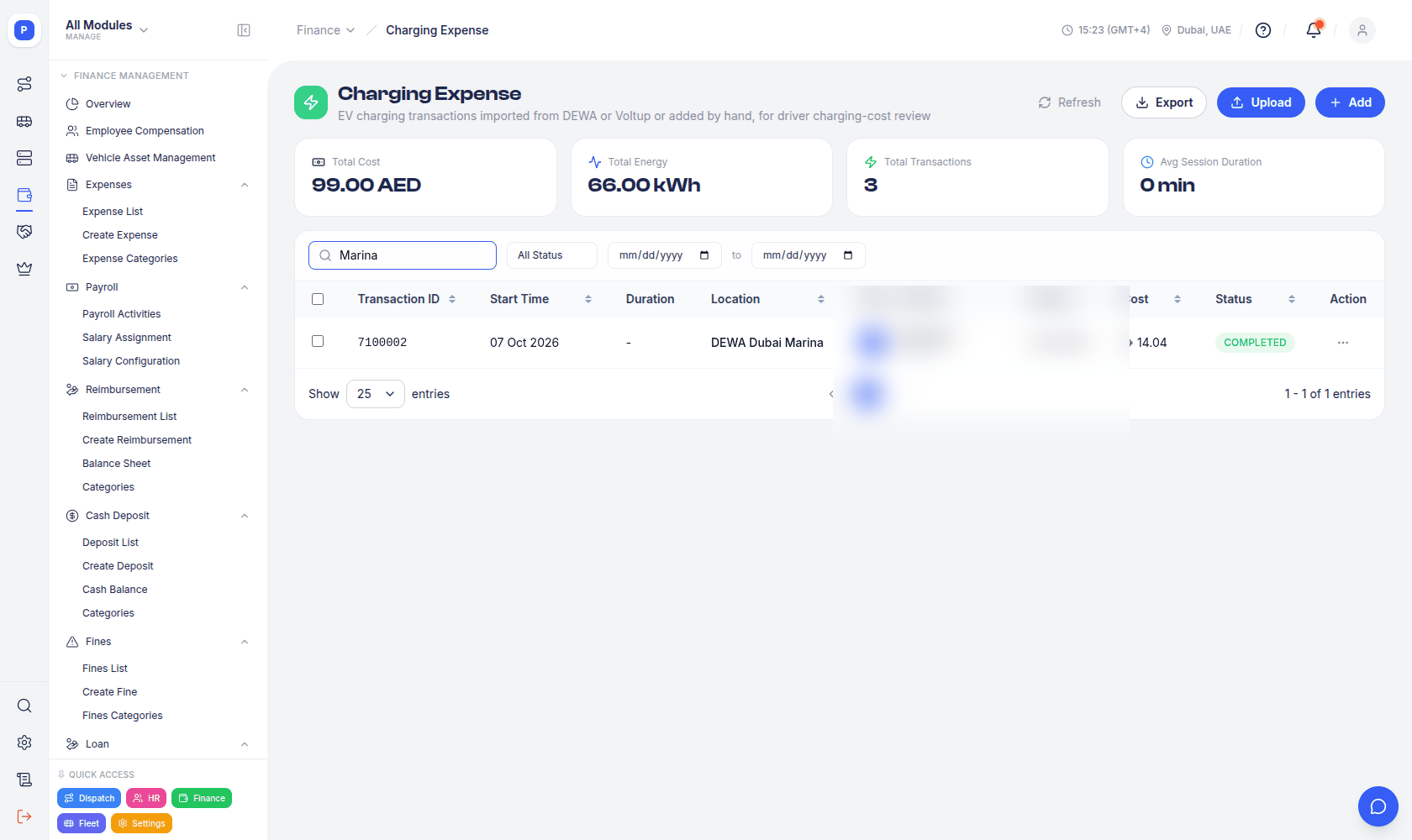
| Search box | Finds sessions by driver name, vehicle plate or location. The search is made by the server, so the number of rows and the pages stay correct |
| Status list | Started, Charging, Completed, Failed or Cancelled |
| Two dates | The first and the last day of the period (the last day is included, in the company timezone) |
| Column | What it shows |
|---|---|
| Tick box | Selects the session (users who may edit) |
| Transaction ID | The number of the file or the receipt. A Manual tag marks a session added by hand |
| Start Time | Day and time |
| Duration | Hours and minutes. Empty (-) for a session added by hand |
| Location | The charger or station |
| Driver / Vehicle | The driver (or Unassigned) and the vehicle plate |
| Energy | kWh |
| Cost | AED |
| Status | A session from a file or from Add is Completed |
| Action | The menu of the row |
Add a charge by hand
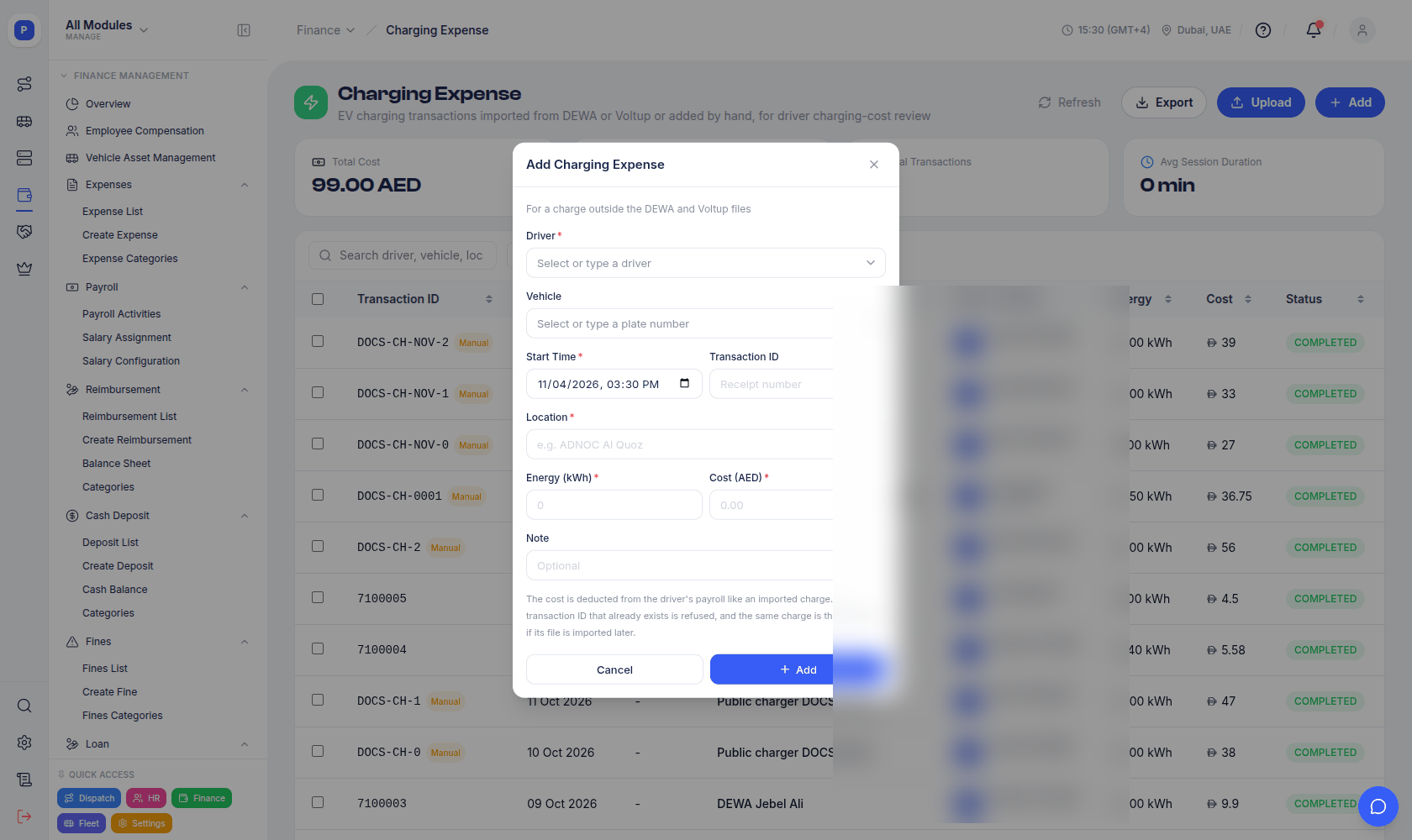
Use Add for a driver who charged outside the DEWA and Voltup files, for example at a public charger or at home.
| Field | Required | Notes |
|---|---|---|
| Driver | Yes | A list you can also type in: type a part of the name and click the driver |
| Vehicle | No | Also searchable. When left empty the vehicle is the one the driver had at the start time |
| Start Time | Yes | Date and time in the company timezone, not in the future |
| Transaction ID | No | The receipt number. It must be new: a number that exists already is refused, and the same charge is skipped if its file is imported later |
| Location | Yes | For example ADNOC Al Quoz |
| Energy (kWh) | Yes | 0 or more |
| Cost (AED) | Yes | More than 0. This is the amount charged to the driver |
| Note | No | Kept with the session |
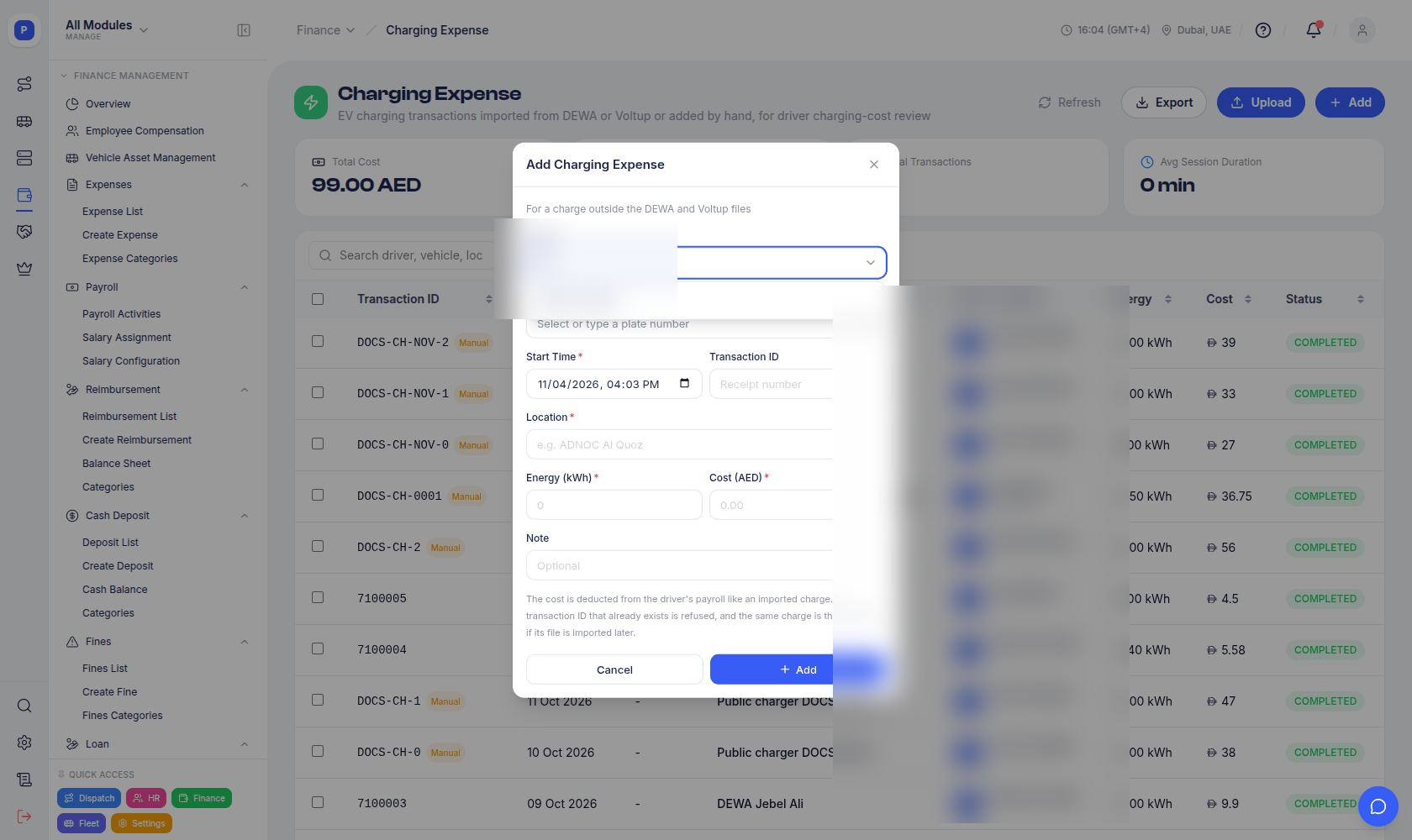
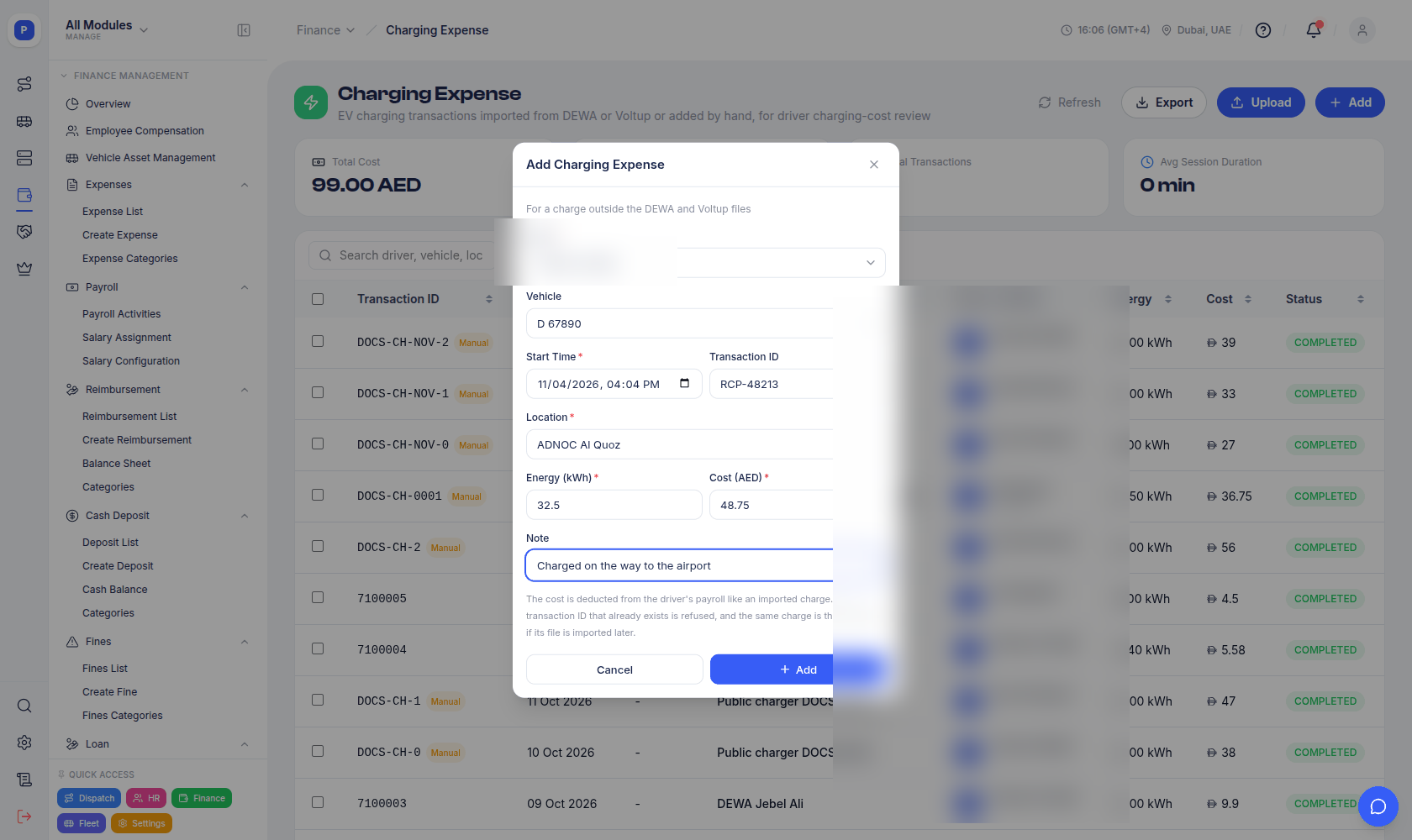
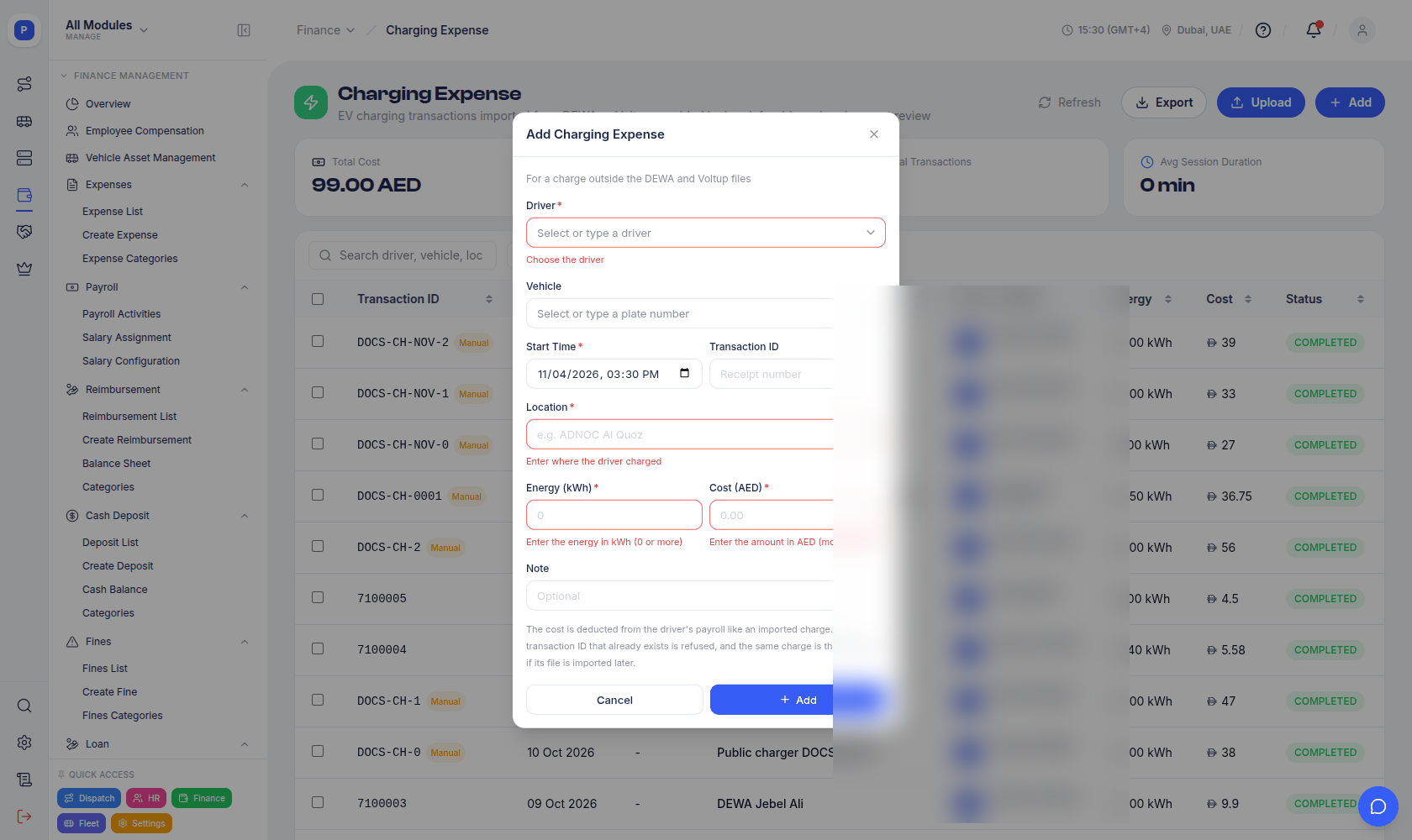
Add checks the fields and shows what is missing under each one:
When it is saved the session is Completed, tagged Manual, and counted in the cards of its period. The message The charging session was added appears.
The Action menu
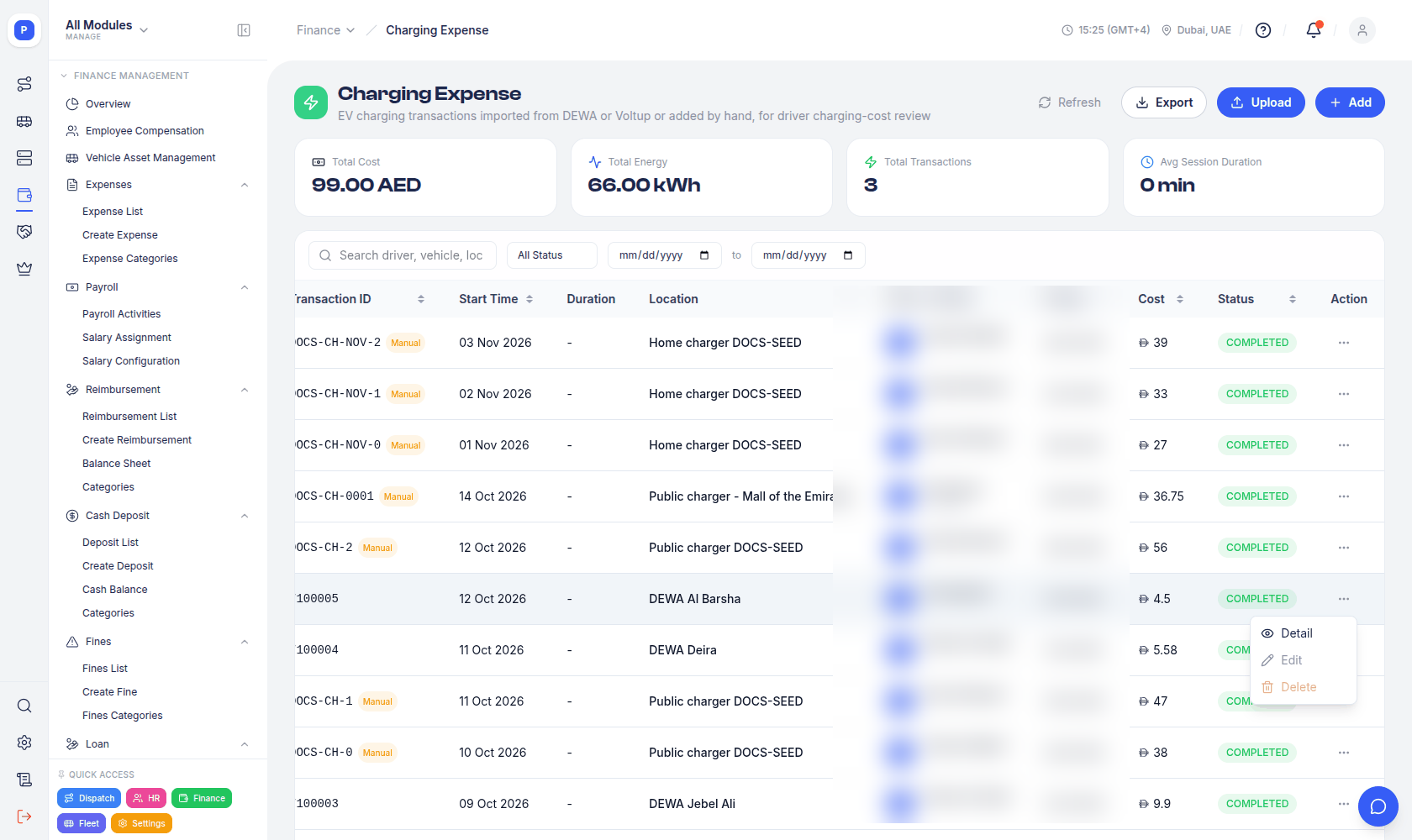
The three dots of a row open Detail, Edit and Delete.
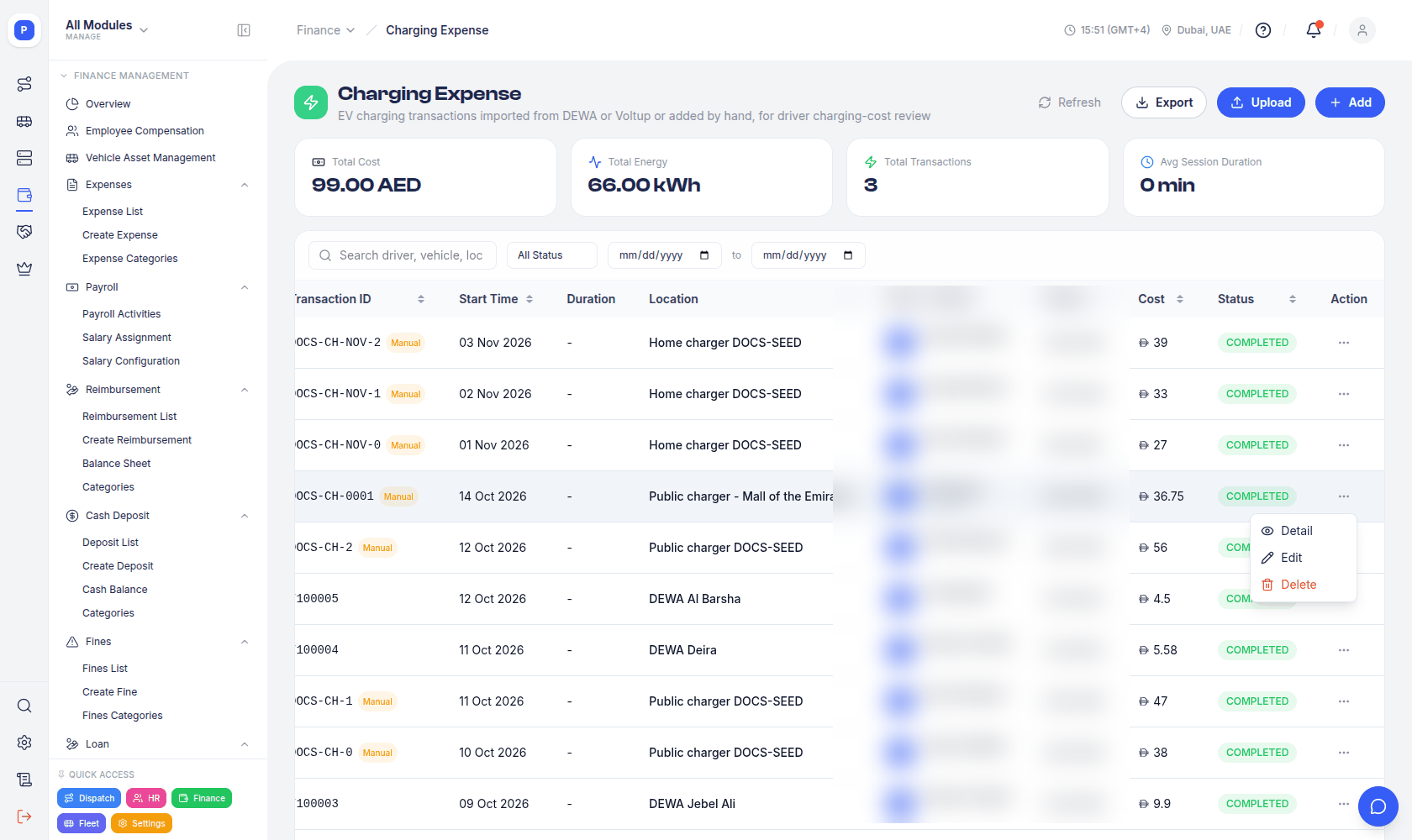
Edit and Delete work only for sessions added by hand that are not yet in a payroll deduction batch. For all other rows they are greyed out, with a tooltip that says why: Only sessions added by hand can be changed (the session comes from a file, whose data belongs to its import; to correct the driver use Set Driver) or It is part of a payroll deduction batch.
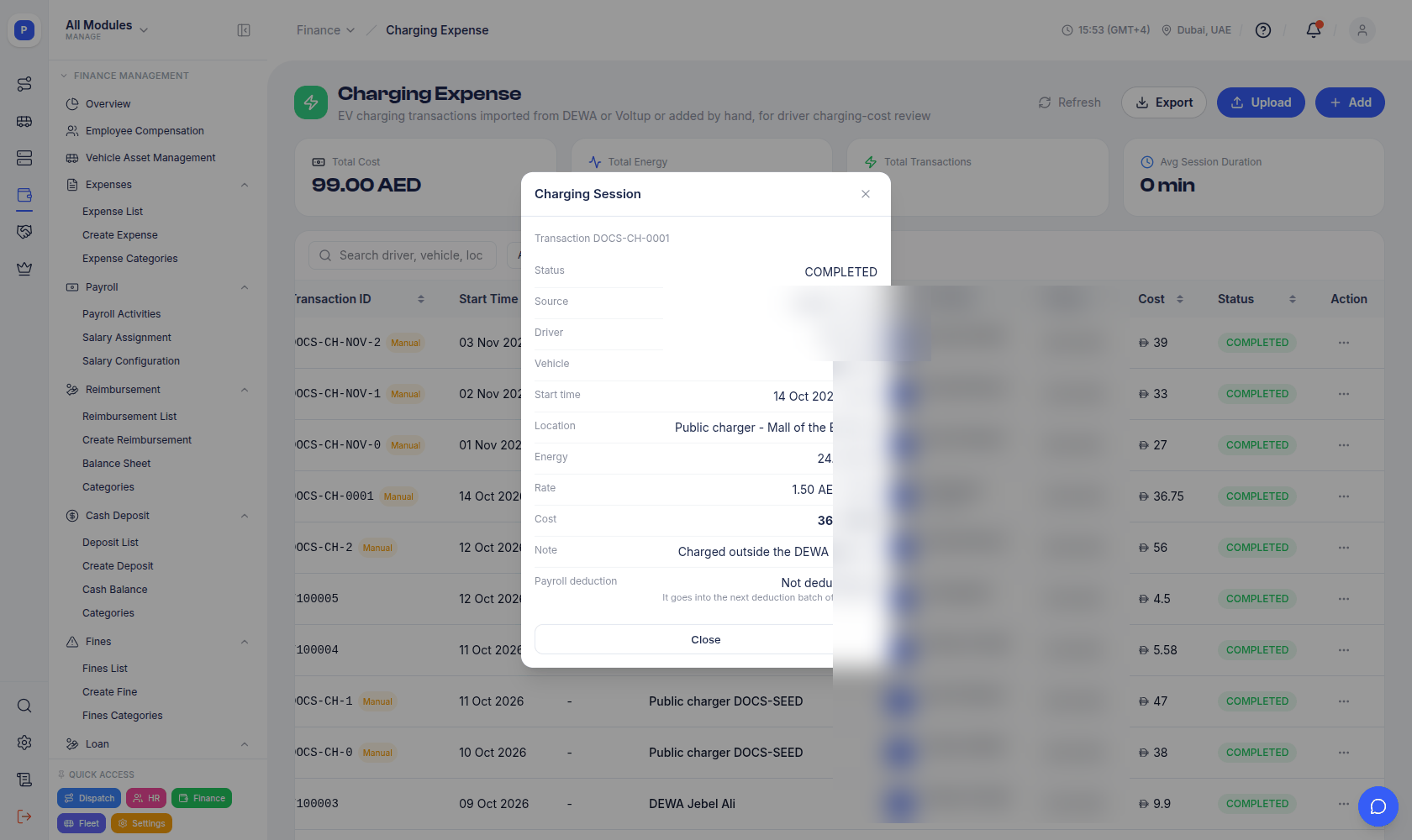
Detail
Detail shows the status, the source (DEWA file, Voltup file or Added by hand), the driver, the vehicle, the start time, the location, the energy, the rate per kWh, the cost and the note, and Payroll deduction: Not deducted yet, or the batch that holds the session.
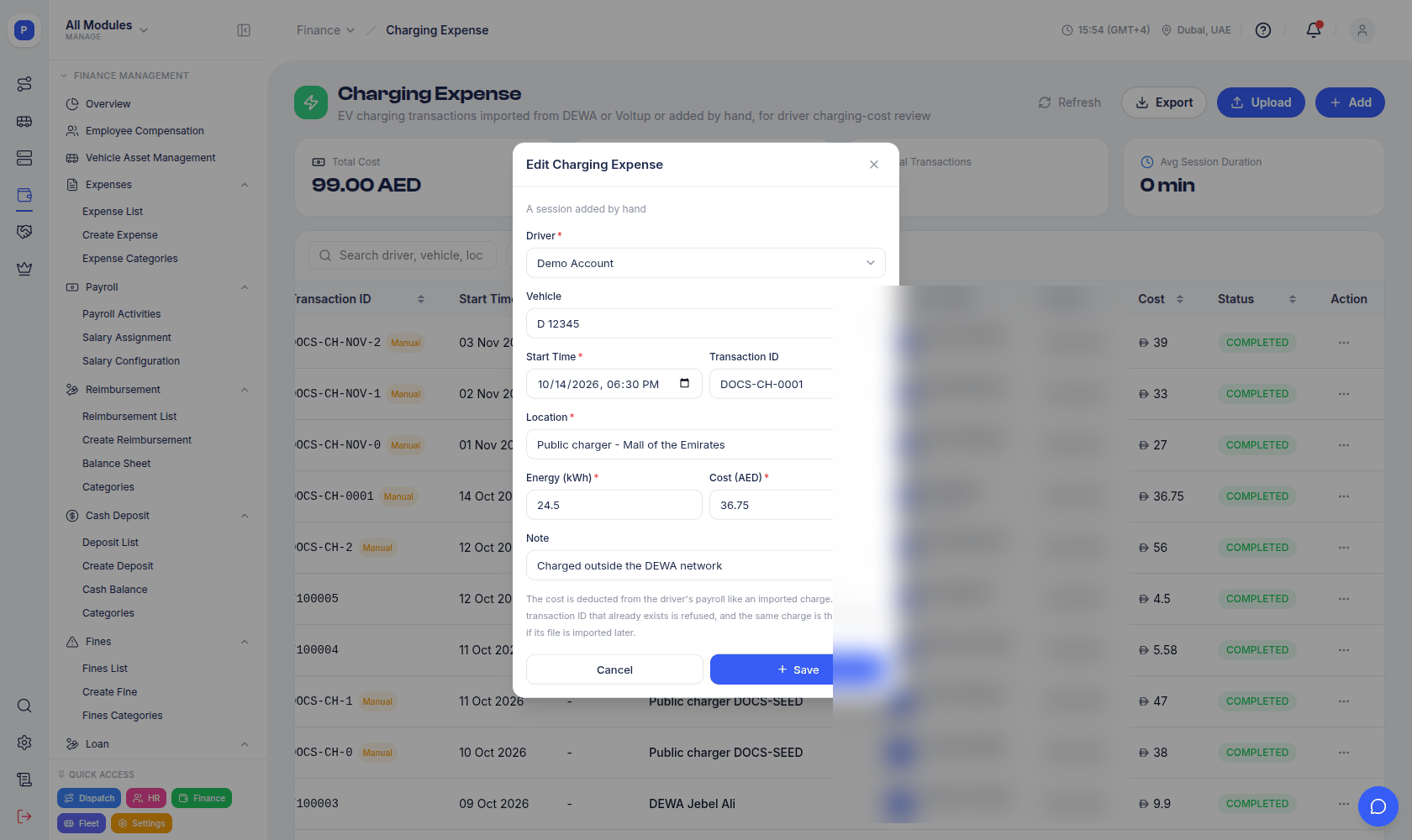
Edit
Edit opens the same form as Add, filled in. Changing the driver or the start time makes the vehicle follow the new driver, unless you pick a vehicle yourself.
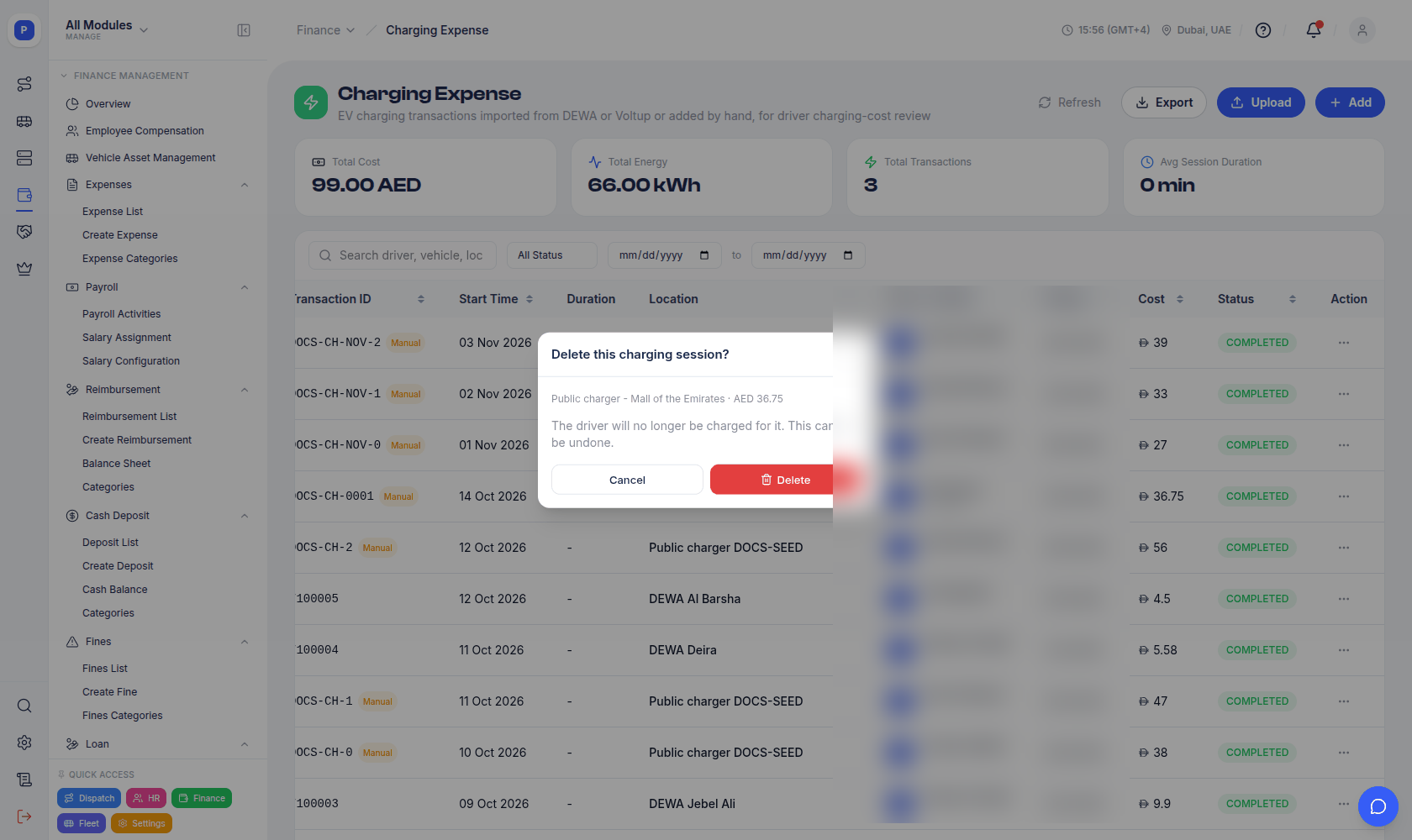
Delete
Delete asks Delete this charging session? and then removes it: the driver is no longer charged for it.
What the payroll deduction does with a session
When a payroll deduction batch is made for a month, every Completed session of a driver in that month that is not yet in a batch is put into it, and the session is locked. A locked session cannot be edited or deleted: the server answers Cannot edit the session: this charging session is part of the approved (or pending) payroll deduction batch for ... Reopen that batch first, then regenerate it after the change (for a pending batch: Defer the session in that batch first (this unlocks it), or regenerate the batch after the change).
Select several sessions
Tick sessions (users who may edit). A bar at the bottom shows how many are selected and their Total cost:
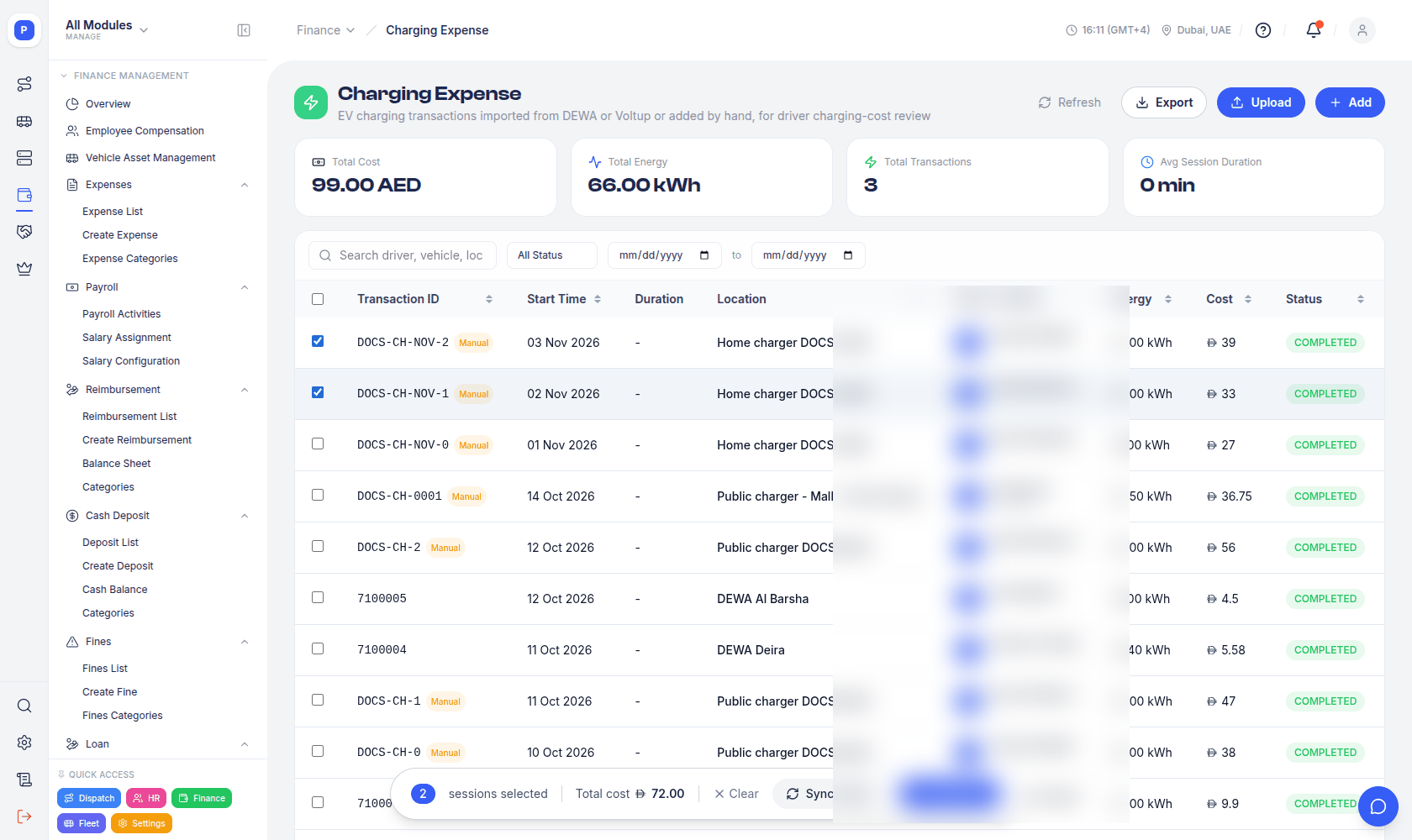
- Sync Driver checks each selected session again against the current shift assignments (the vehicle of the session and its start time). The message tells how many were updated.
- Set Driver opens a list of active drivers: click one to give the driver to every selected session.
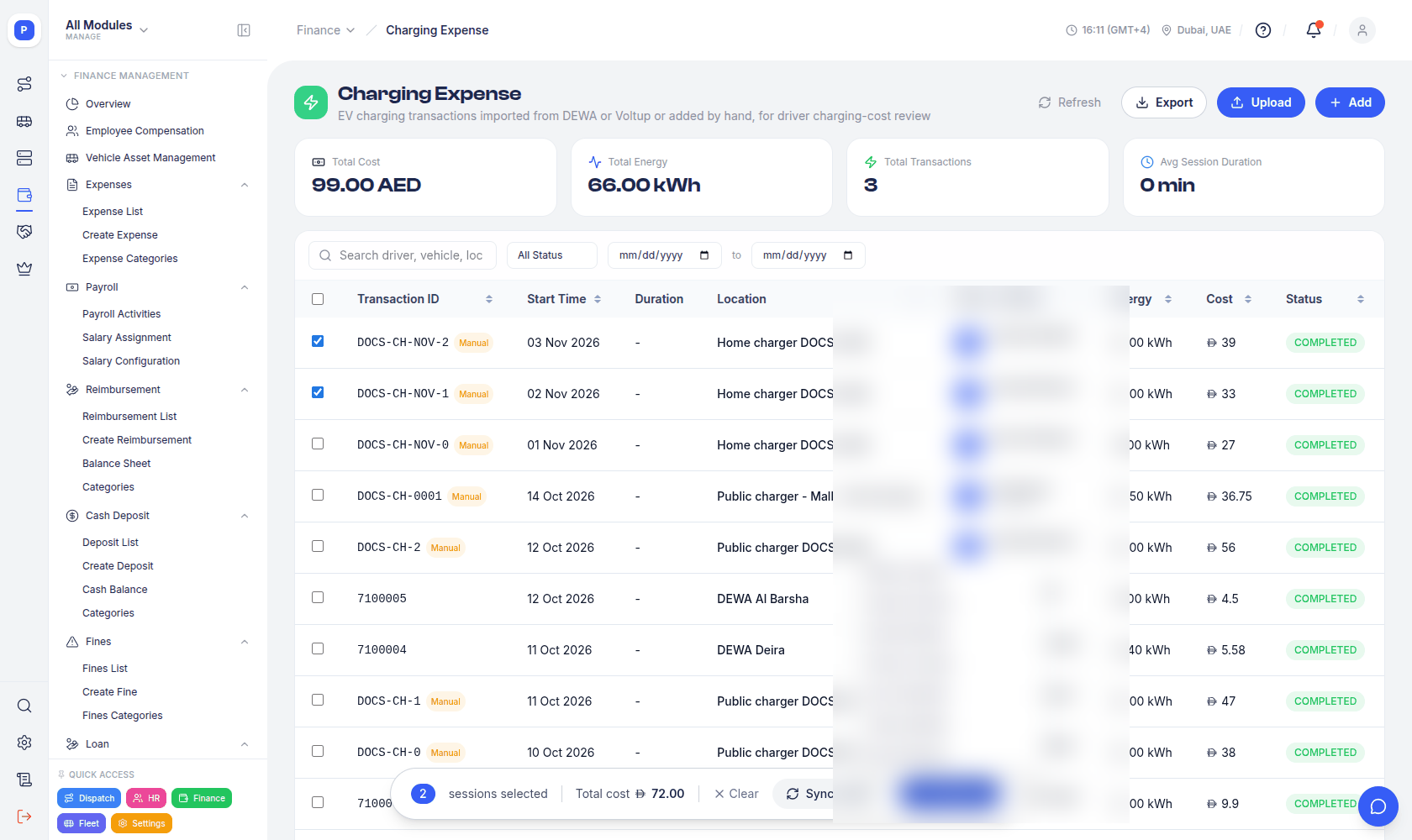
- Clear unticks everything. A selection is kept while you change pages or filters.
Export
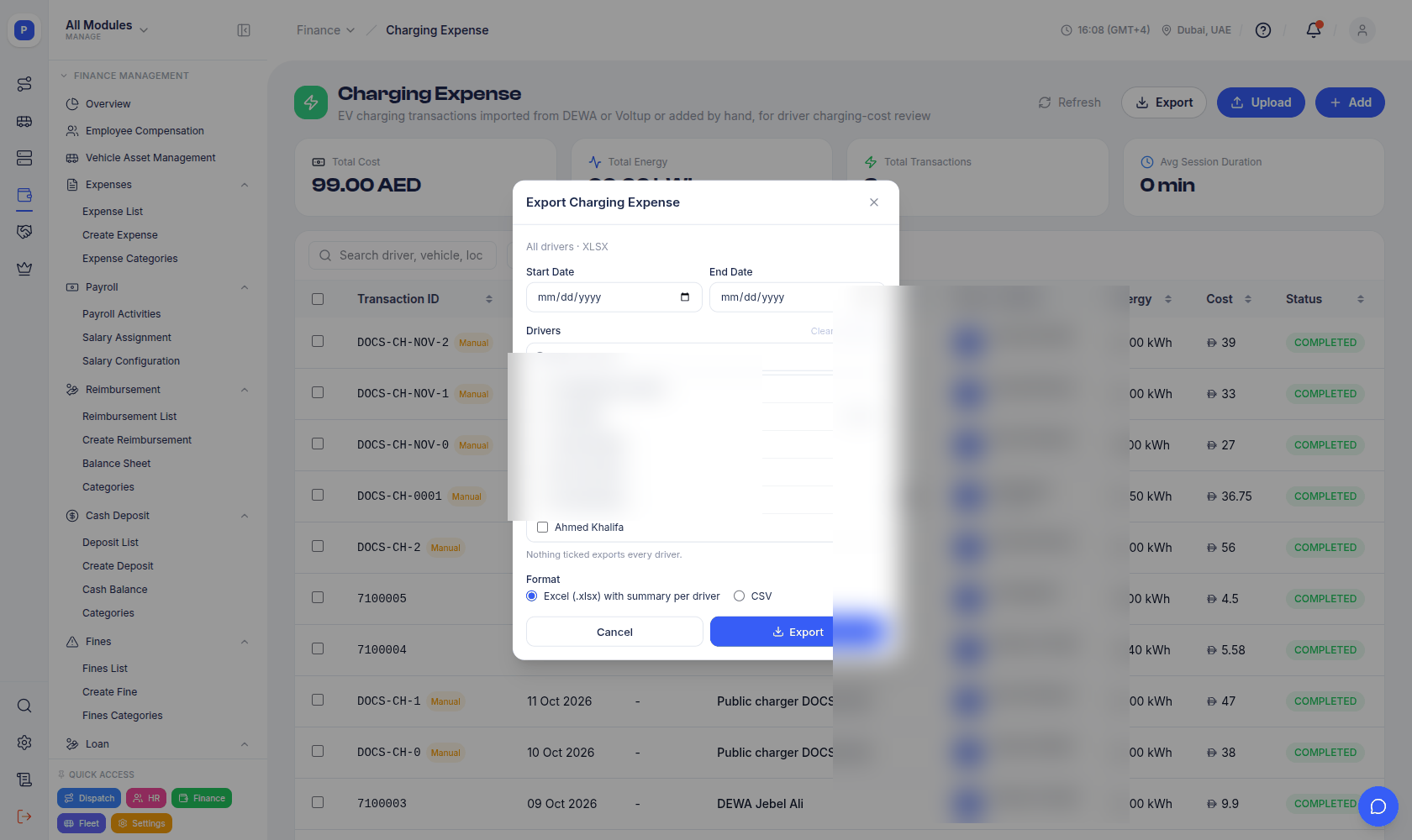
Export downloads the sessions as an Excel file (with a summary per driver) or as CSV.
| Choice | Does |
|---|---|
| Only the selected sessions / Everything that matches the filters below | Shown when rows are ticked. A selection can hold up to 1,000 sessions |
| Start Date and End Date | The period; they start from the dates of the page |
| Drivers | Tick one or more drivers, or Unassigned (no driver). Nothing ticked exports every driver. Inactive and terminated drivers are in the list too |
| Format | Excel (.xlsx) with summary per driver or CSV |
The status and the search of the page are applied too (a note under the drivers says so).
Upload a DEWA or Voltup file
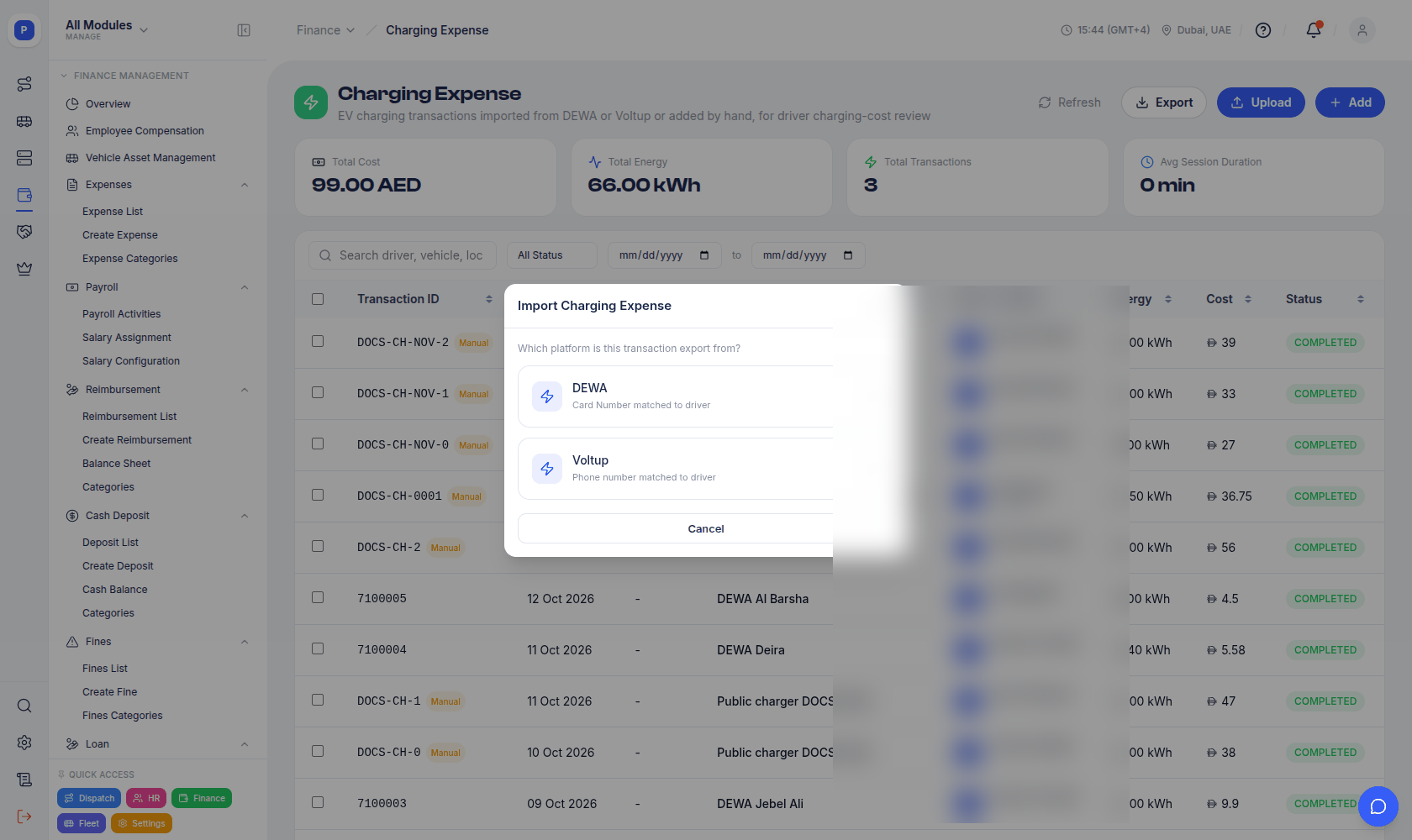
Upload opens Import Charging Expense. First choose the platform the export comes from (Which platform is this transaction export from?): DEWA (Card Number matched to driver) or Voltup (Phone number matched to driver).
| Source | How the driver is found |
|---|---|
| DEWA | The file has no driver, only a Card Number. The driver is the holder of that card on that day, taken from Charging Cards. The vehicle is the one of that driver at that time |
| Voltup | The file has the driver's User Phone Number. It is matched to the phone of a driver (the last 9 digits count). The vehicle is found as for DEWA |
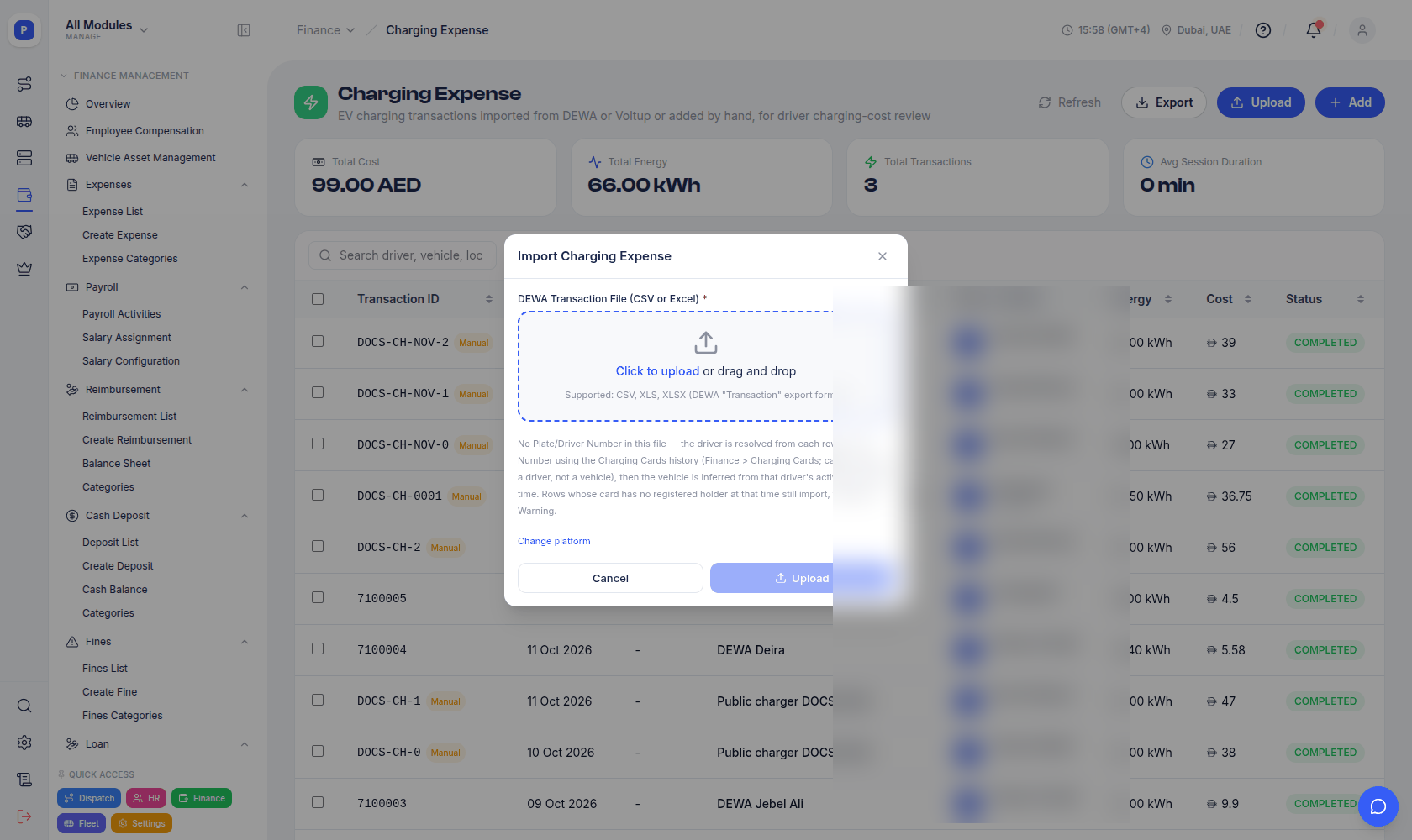
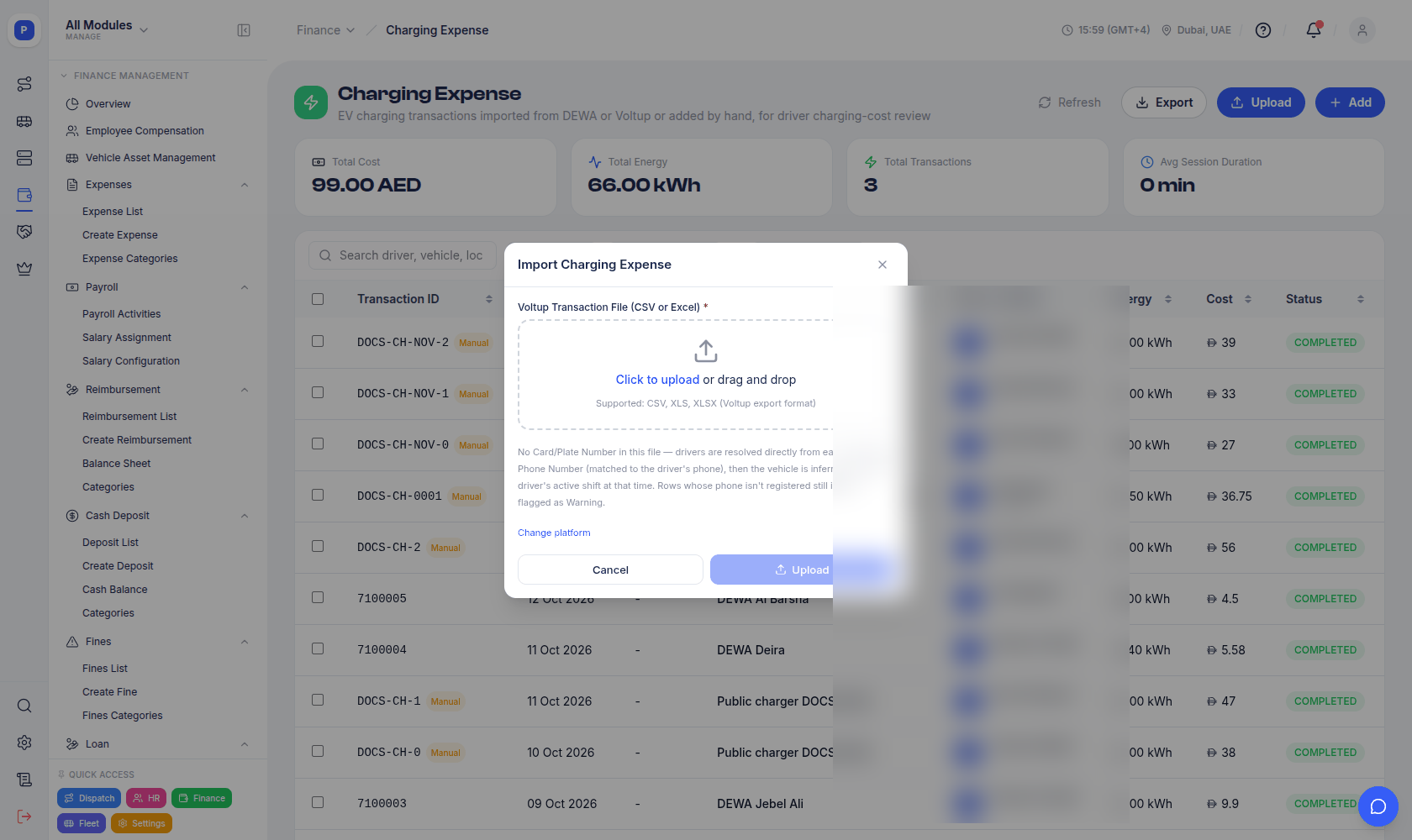
A DEWA file is read by position: Transaction no., Date & Time (like 24 Aug 2026 06:37:10), Location, Charging Speed, Card Number, Energy (kWh), Duration, Rate (D/kWh), Total (D). A Voltup file needs its header row, with at least Transaction ID, User Phone Number, Start Date Time, Stop Date Time, Charger Name, Total Units Consumed and Amount. Only CSV, XLS and XLSX files are accepted.
After you pick a source the window shows the file box, a text that explains how the driver is found, Change platform (to go back) and the Upload button, which stays disabled until a file is chosen. Choose the file; Upload reads and checks it:
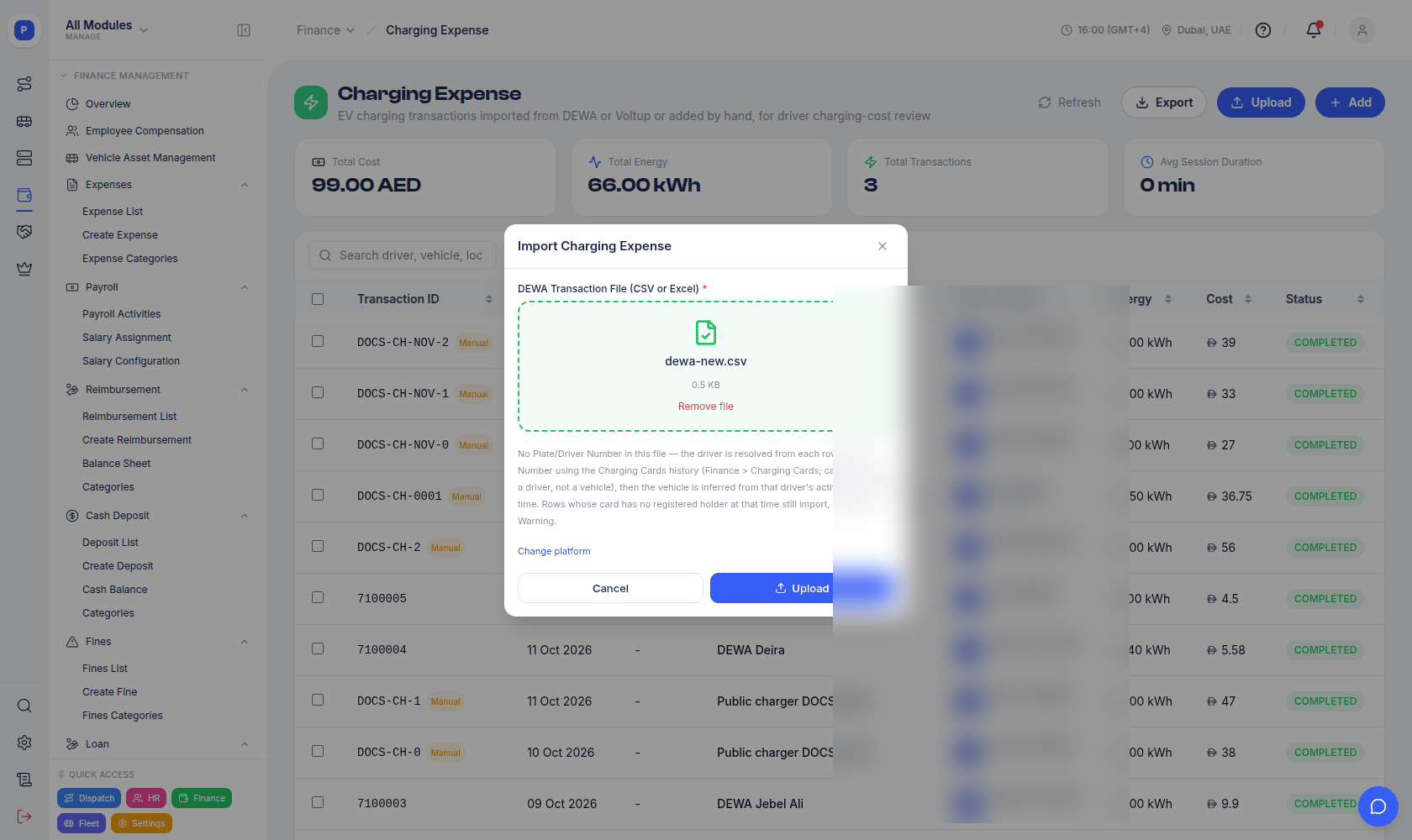
Nothing is saved yet. The window shows a preview with one row per transaction. At the top it says how many rows are checked (3 of 5 selectable rows checked), with Sync all drivers and Select all / Deselect all on the right.
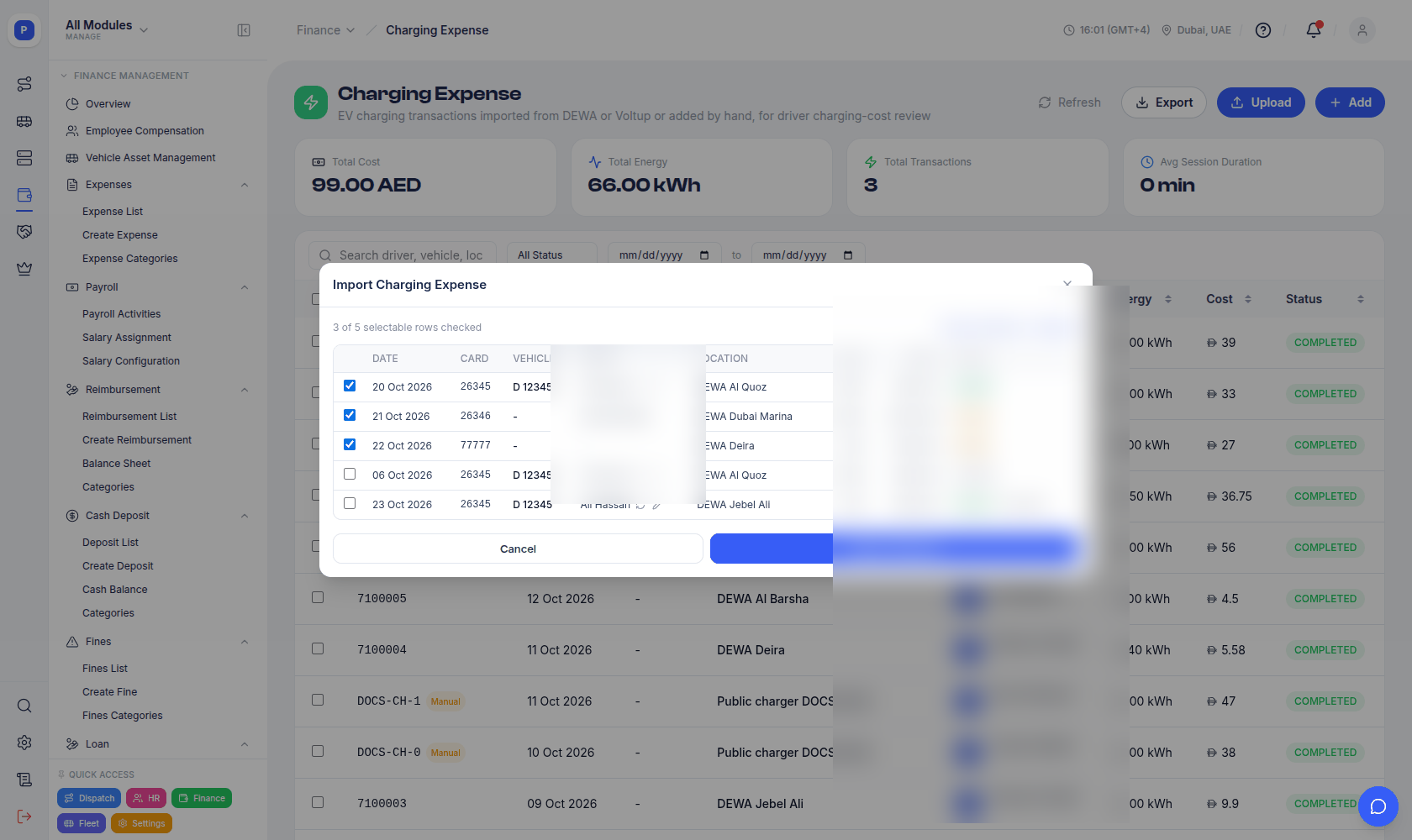
| Column | What it shows |
|---|---|
| Tick box | Whether the row will be imported |
| Date, Card (or Phone for Voltup), Location, kWh, Total | The data of the file |
| Vehicle and Driver | What was found. Next to a driver two small icons: Sync driver (look again at the current shift assignments) and Set driver manually |
| Status | See the table below |
| Status | Meaning |
|---|---|
| Matched | Driver and vehicle found. Ticked |
| Warning | The card or phone has no holder at that time, or the driver had no vehicle then. Ticked, and saved without a driver or a vehicle: fix it later with Set Driver |
| Duplicate | The transaction is already in the system. Not ticked |
| Failed | The row could not be read (for example an invalid date). It cannot be selected |
A row without cost (a failed or cancelled attempt) gets a Zero Cost tag and is not ticked automatically. The reason of a Warning or Failed row is shown when you hold the mouse over its status.
Sync all drivers checks every row with a vehicle again. The button at the bottom counts what will be imported (Import 3 Records); Cancel throws the preview away and nothing is saved. When the import is confirmed the result shows Completed (driver and vehicle found), Warning (saved without one of them), Failed and Skipped, and the sessions appear in the list as Completed.