Toll Import
Import Salik (Dubai) and DARB (Abu Dhabi) toll files, follow the result of each import, look at the records it created and delete an import.
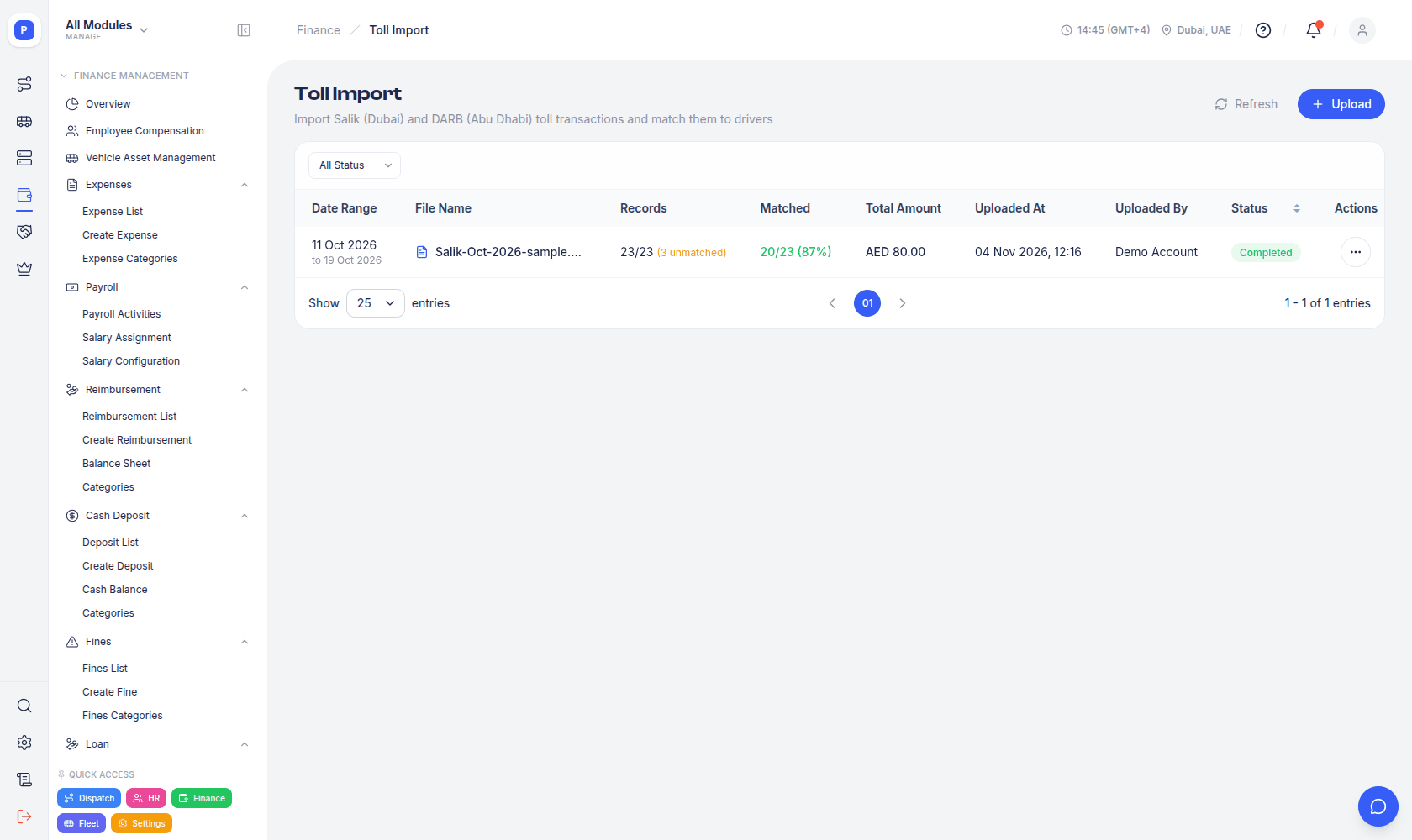
Finance > Toll > Toll Import brings the toll transactions of a Salik file (CSV or Excel) or a DARB Financial Report (PDF) into the system. Every toll is matched to a vehicle by its plate and to the driver who had that vehicle at the time of the gate. The page keeps the history of the imports; the tolls themselves are listed in Toll Records.
Permissions
| You need | To |
|---|---|
| Toll (view) | Open the page, see the history, the details and the records of an import |
| Toll (add) | Upload |
| Toll (delete) | Delete an import |
The history
The newest import comes first, 25 per page. Refresh reloads the list.
| Column | What it shows |
|---|---|
| Date Range | The first and the last toll date found in the file |
| File Name | The name of the file. A DARB tag marks a DARB report |
| Records | Rows processed out of the rows in the file; the number of unmatched rows in orange |
| Matched | Rows whose plate was found, out of all rows, with the percentage |
| Total Amount | The amount of the tolls that were saved, in AED |
| Uploaded At and Uploaded By | When and by whom |
| Status | Pending, Processing, Completed or Failed |
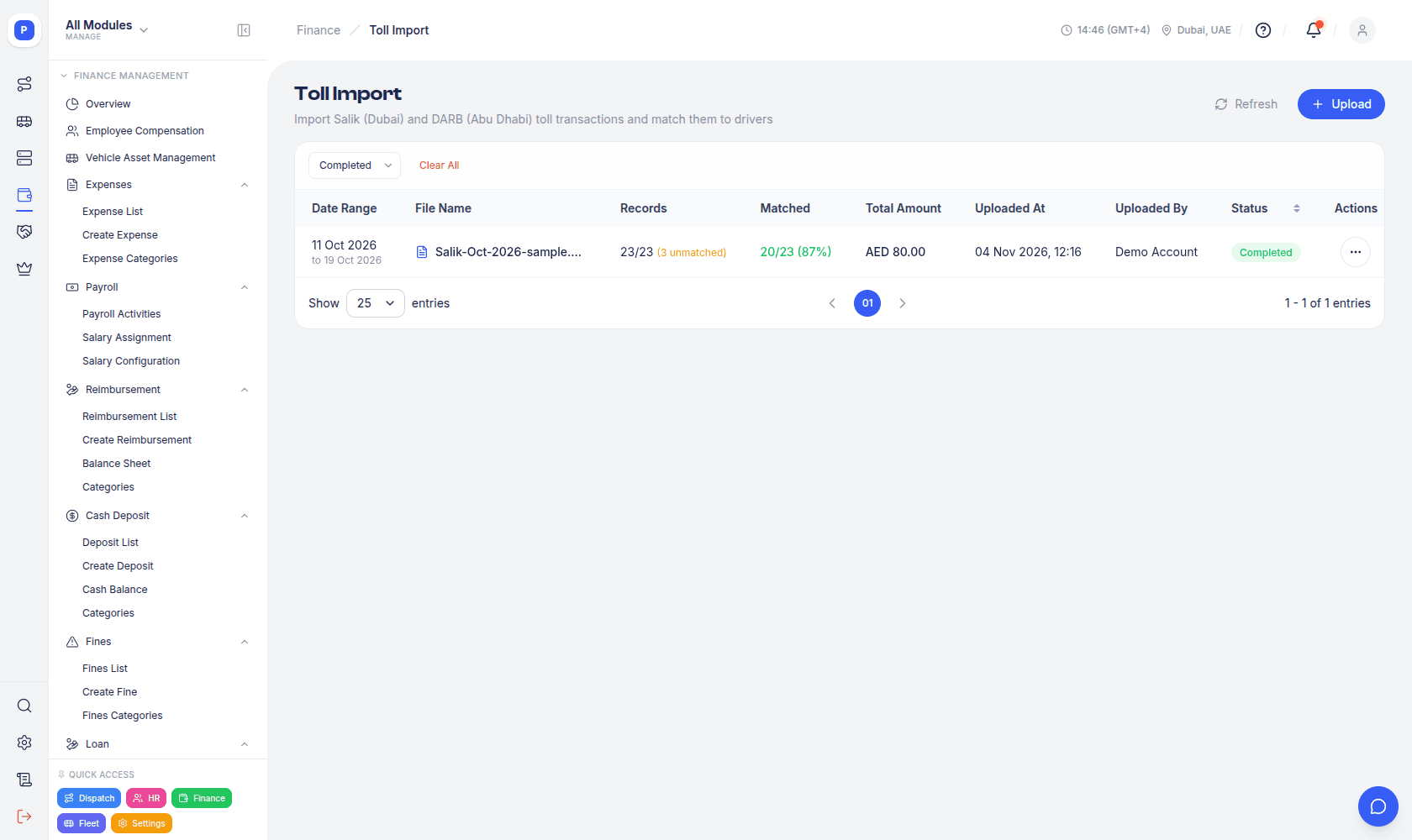
The status list above the table narrows the history to one status (Partial is in the list too, but an import ends as Completed or Failed); Clear All removes the filter.
Upload a file
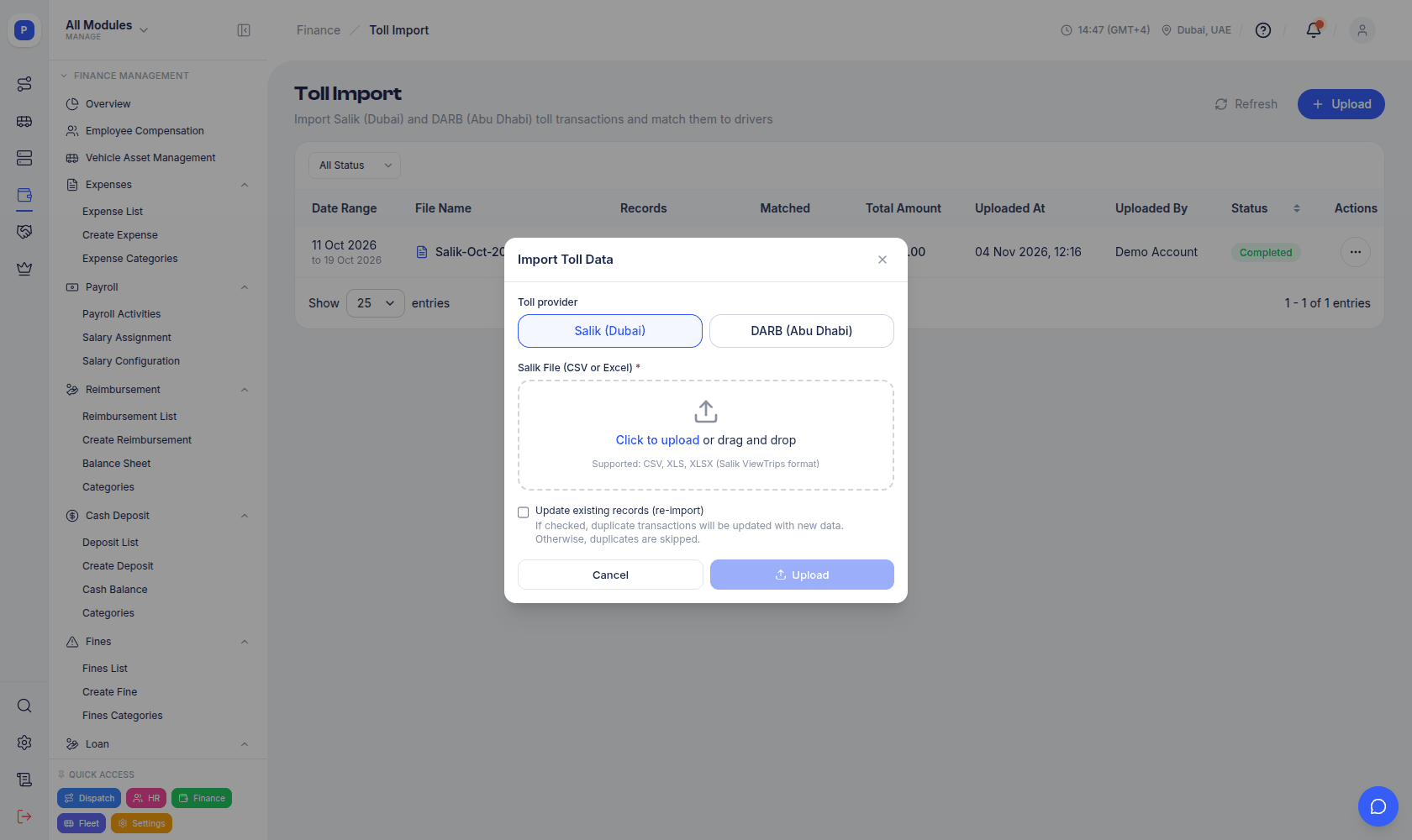
Upload (top right, or Upload File when the history is empty) opens Import Toll Data. The file stays on your computer until you press Upload.
1. Choose the provider
| Provider | File | Notes |
|---|---|---|
| Salik (Dubai) | CSV, XLS or XLSX in the Salik ViewTrips format | Up to 10 MB. The file is read by column position, see below |
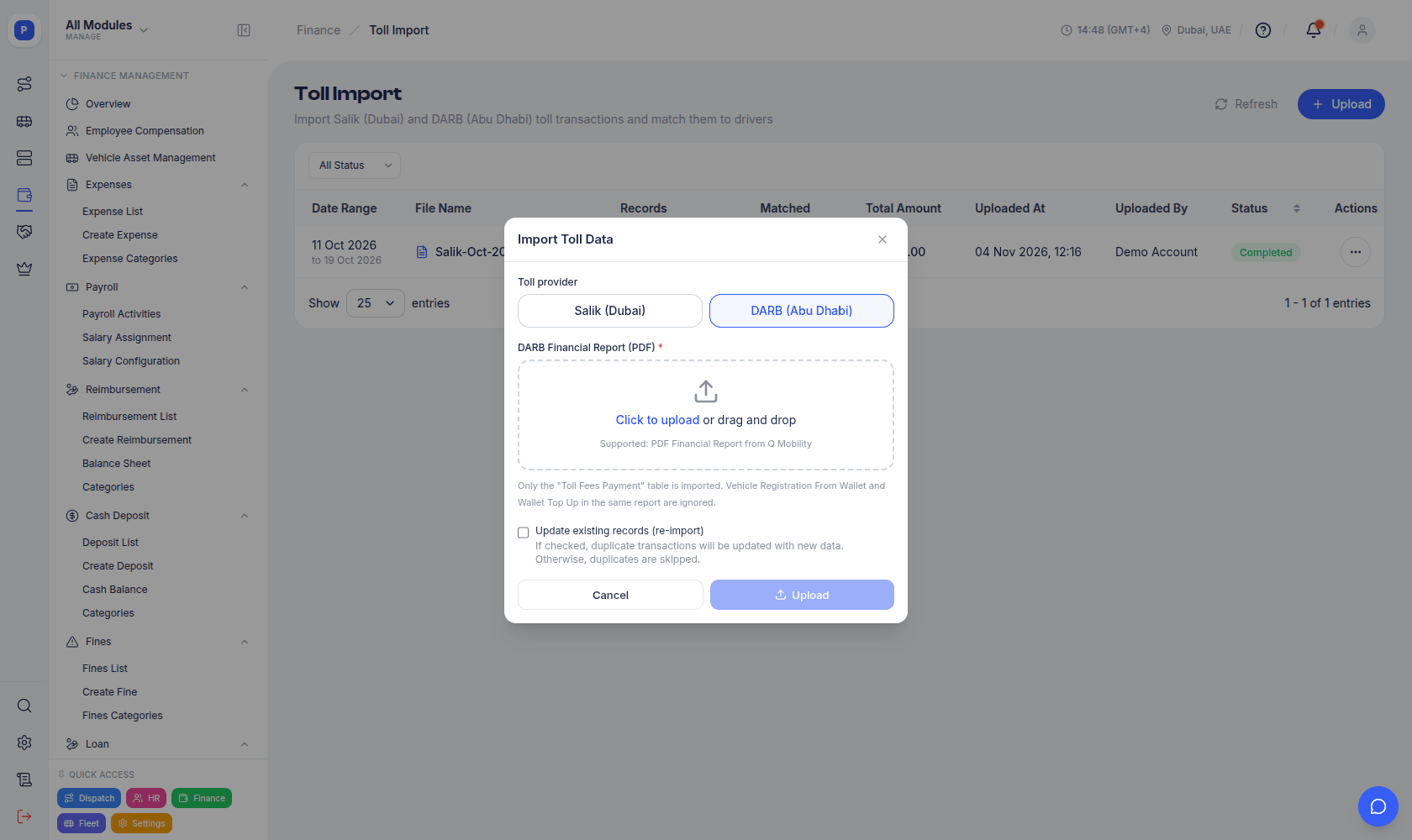
| DARB (Abu Dhabi) | The Financial Report PDF of Q Mobility | Only the Toll Fees Payment table is imported; Vehicle Registration From Wallet and Wallet Top Up in the same report are ignored |
Changing the provider clears the chosen file, because a file of the other provider is not valid.
2. Choose the file
Click the dashed box, or drop the file on it. A file with the wrong extension is refused at once (Please select a CSV or Excel file / Please select the DARB Financial Report PDF). The box then shows the name and the size, with Remove file.
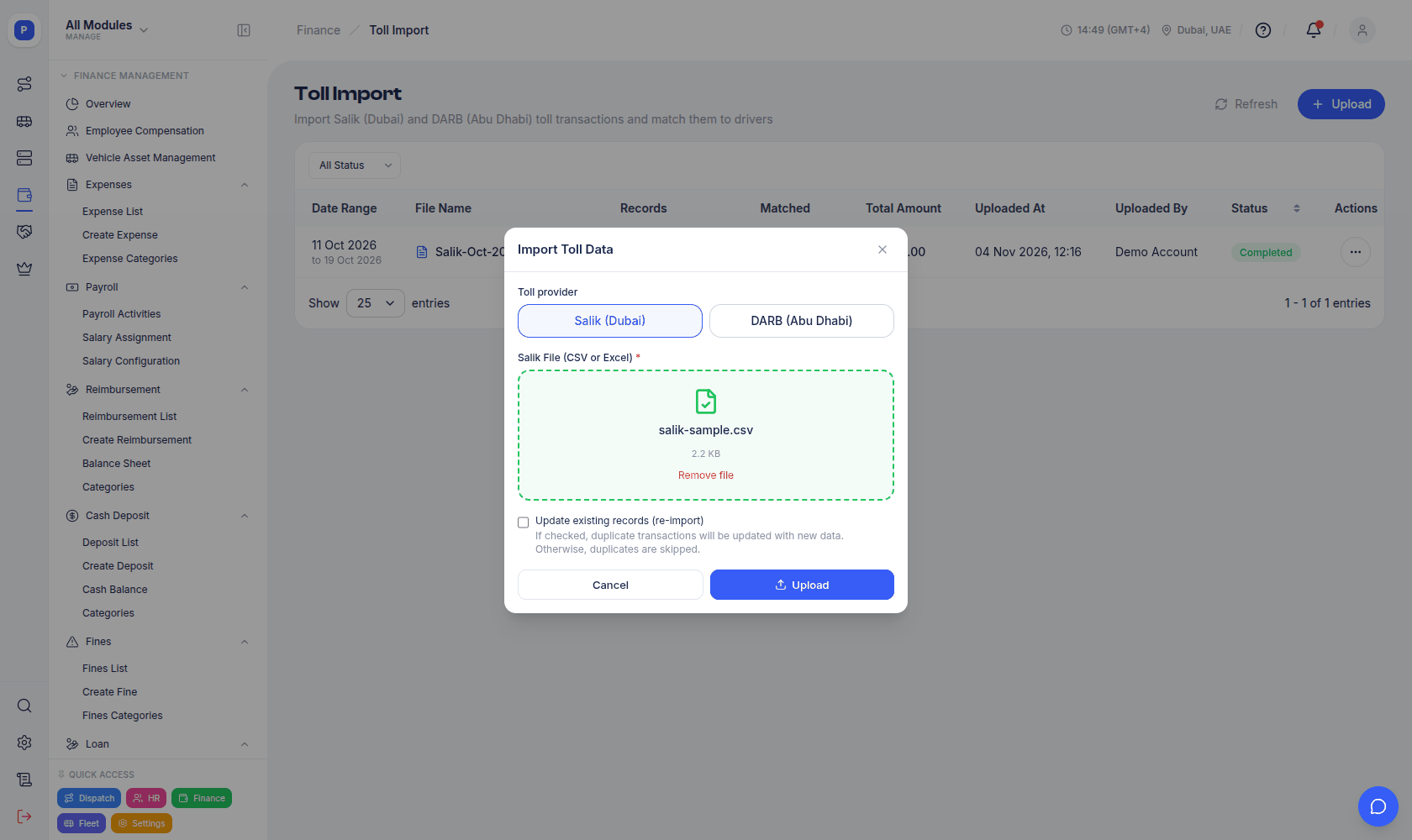
The check box Update existing records (re-import) decides what happens to a transaction that is already in the system: left off, it is skipped and counted as a duplicate; on, the saved toll is overwritten with the data of the file.
3. Upload
Upload sends the file. The window shows Uploading file..., then Processing toll data... with a progress bar that follows the job (it is checked every 2 seconds). The window cannot be closed while it works. At the end it shows the result:
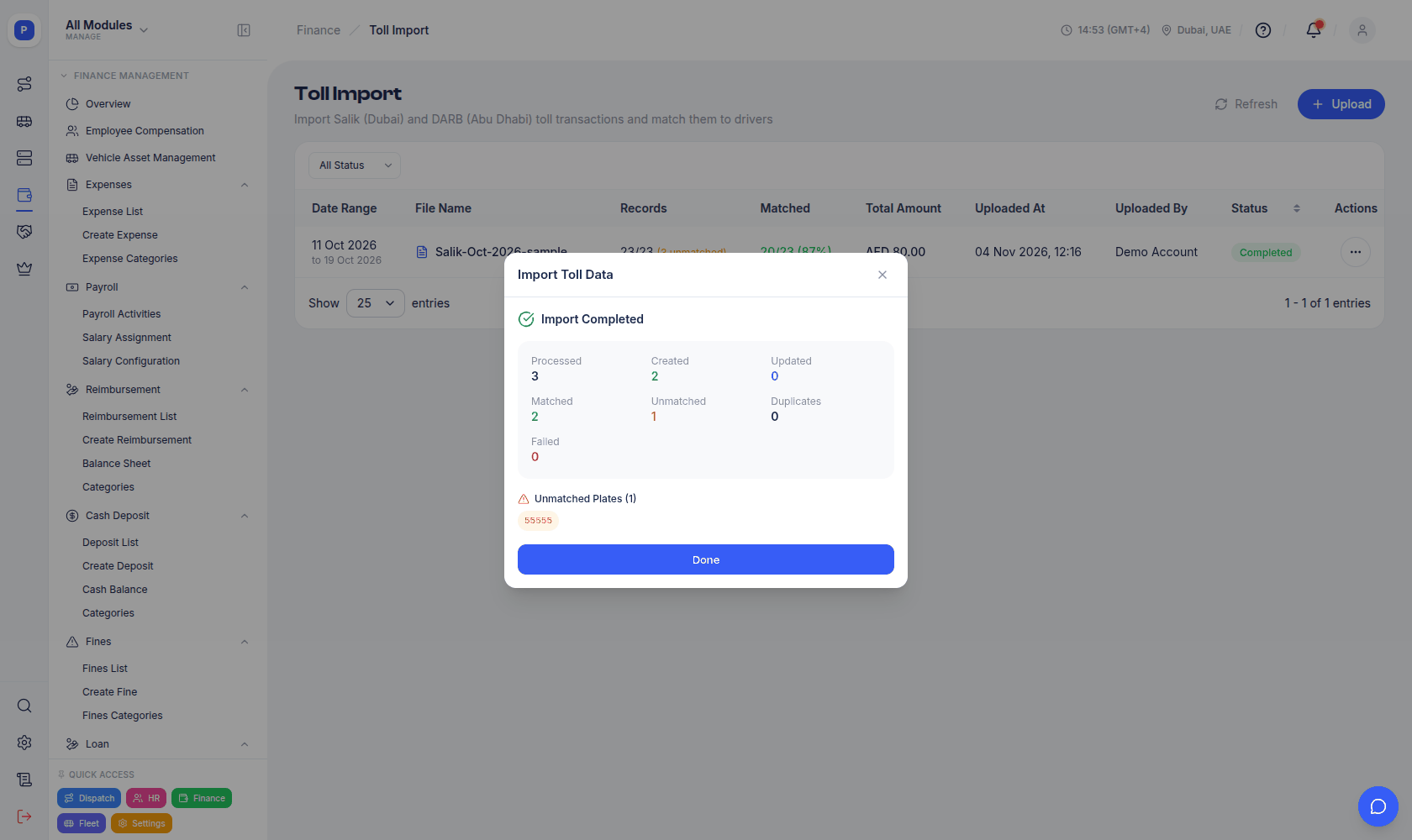
| Figure | Meaning |
|---|---|
| Processed | Rows handled |
| Created and Updated | New tolls saved, and existing tolls overwritten (only with the re-import box) |
| Matched | Rows whose plate matched a vehicle of your company |
| Unmatched | Rows with a plate that matches no vehicle. They are not saved; the plates are listed under Unmatched Plates (ten at most, then +n more) |
| Duplicates | Rows whose transaction id was already in the system |
| Failed | Rows that could not be saved, with the first three error messages under Errors |
Done closes the window and refreshes the history. A message Toll import completed appears. If every row failed the import ends as Import Failed with the reason.
An unmatched row is never saved, so the tolls of a vehicle that is not in Fleet do not appear in Toll Records. Add the vehicle (or correct its plate) and import the file again.
How the file is read
Salik files are read by position, not by title: transaction number (column 3, digits only), date (column 4, like 20 Oct 2026), time (column 6, like 07:05:10 AM), gate (column 8), direction (column 10), tag number (column 11 or 15), plate (column 16) and amount (column 17 or 19). A row needs at least 17 columns and a plate; header and empty rows are skipped. A file without a single valid row is refused (No valid toll rows found in the uploaded file).
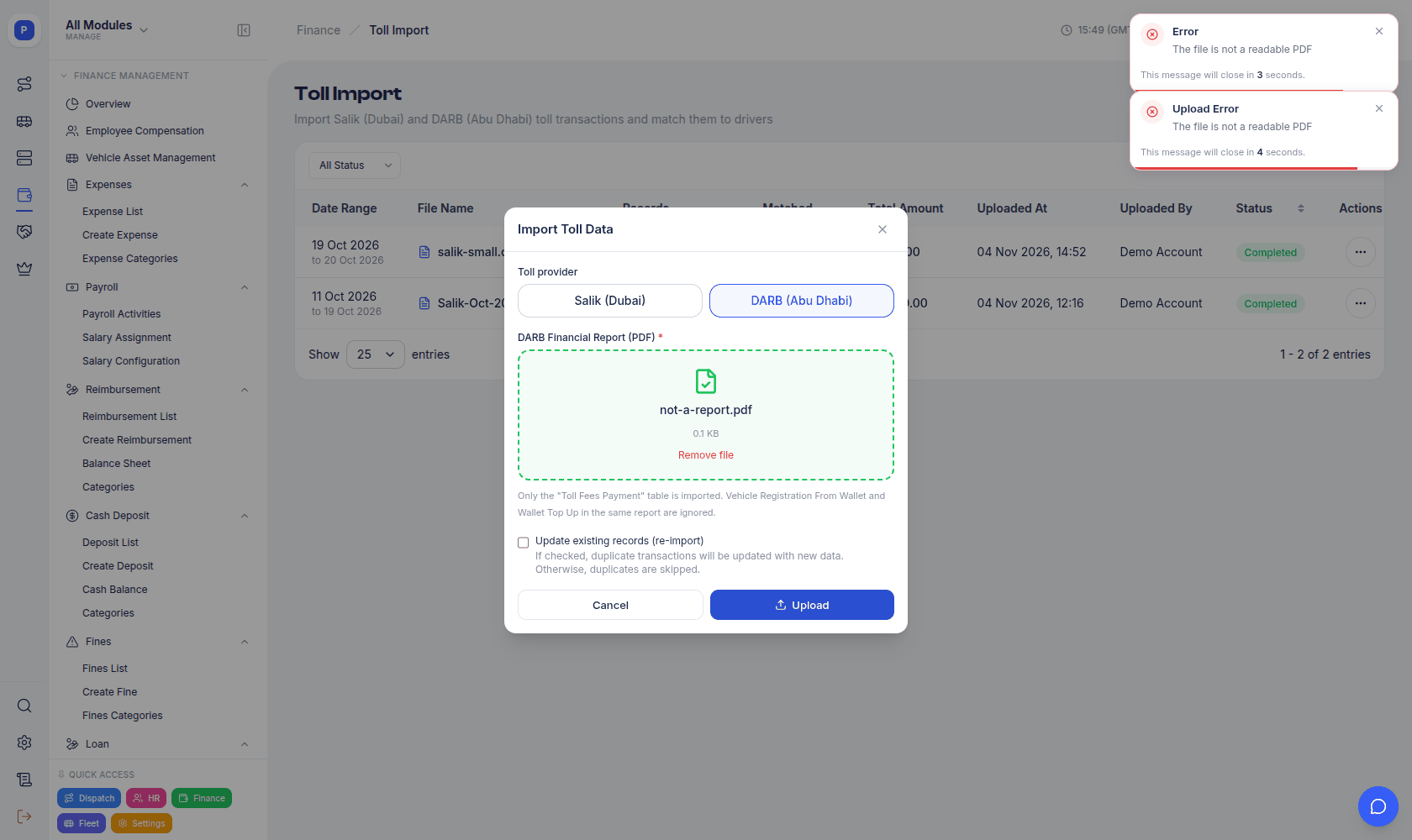
DARB reports are rebuilt from the position of the text in the PDF. The reference number is the toll's transaction id, the date and time are the Transaction Date (the moment of the gate), not the Financial Date (when the wallet was charged). The import checks that the rows add up to the Total printed under the table, and if one row cannot be read nothing is imported and the message names the rows. A file that is refused when it is uploaded keeps the window as it is and shows the reason in a message at the top right: The file is not a readable PDF for a damaged file, This is not a DARB Financial Report: the "Toll Fees Payment" table header was not found for a PDF of another kind. (The message appears twice in the current version: once as Error and once as Upload Error.)
How the vehicle and the driver are found
- Vehicle: the plate is compared with the plates of your vehicles. The emirate letter may be missing in the file (
12345findsD 12345): the number is matched against the end of the vehicle's plate. - Driver: for the vehicle and the exact time of the toll, the system takes the assignment in Shift Management, then the active vehicle assignment, then the shift history. A toll between two assignments goes to the nearest one when it is at most 8 hours away. A toll with no driver stays Unassigned; use Sync Drivers in Toll Records once the assignment exists.
Row actions
The three dots of a row open the actions.
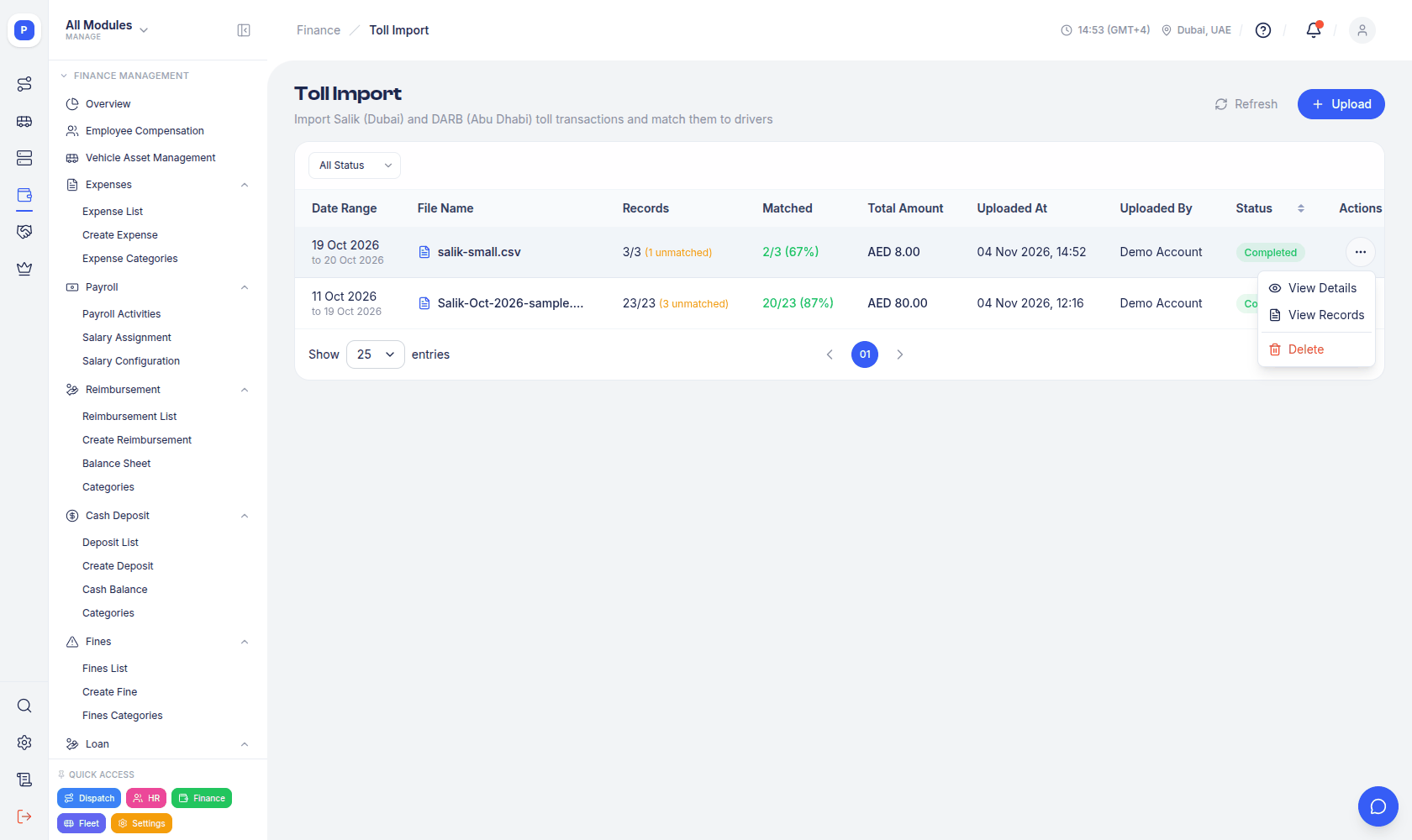
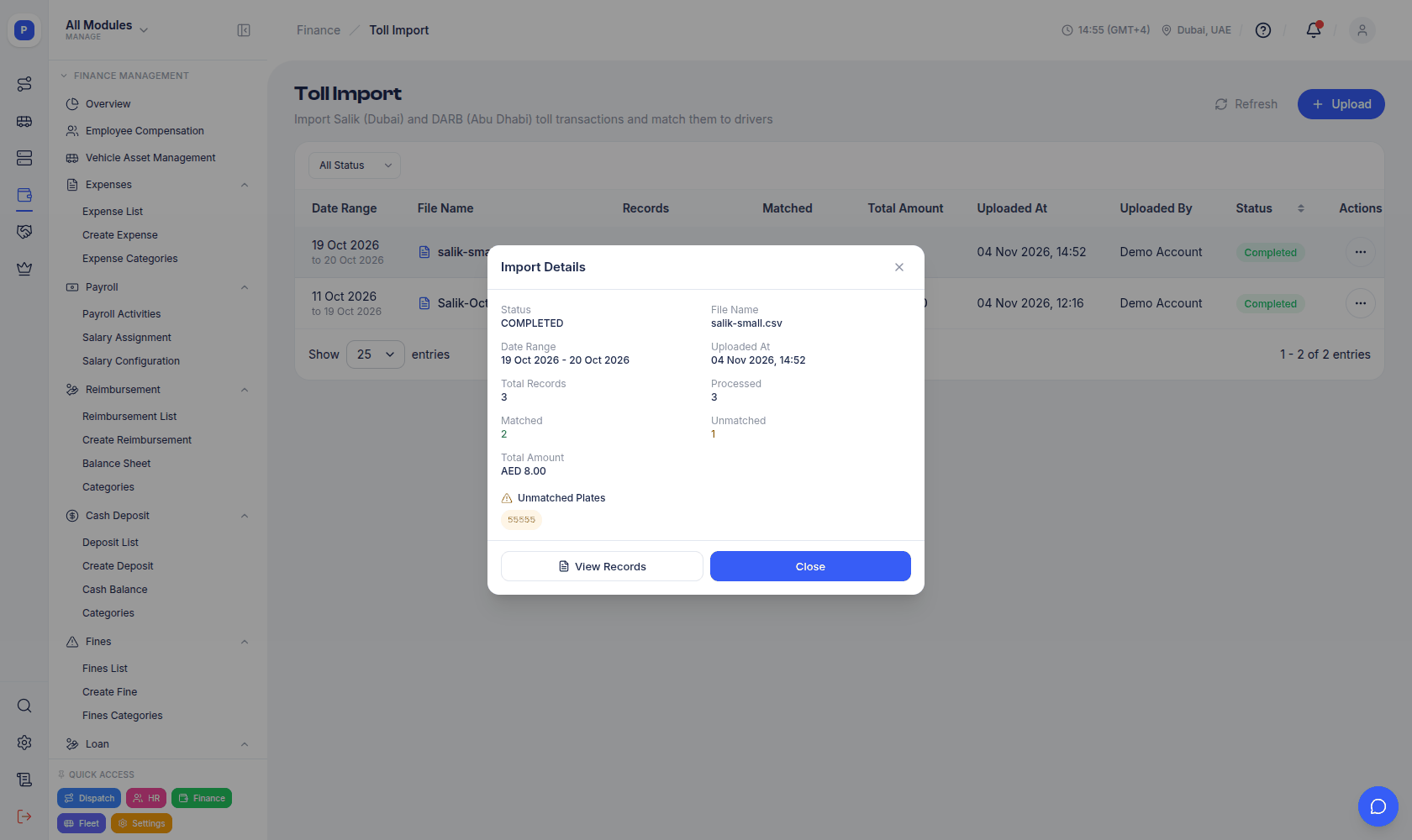
- View Details shows the status, the file name, the date range, when it was uploaded, the number of records, processed, matched and unmatched, the total amount, the unmatched plates and the error message, if any.
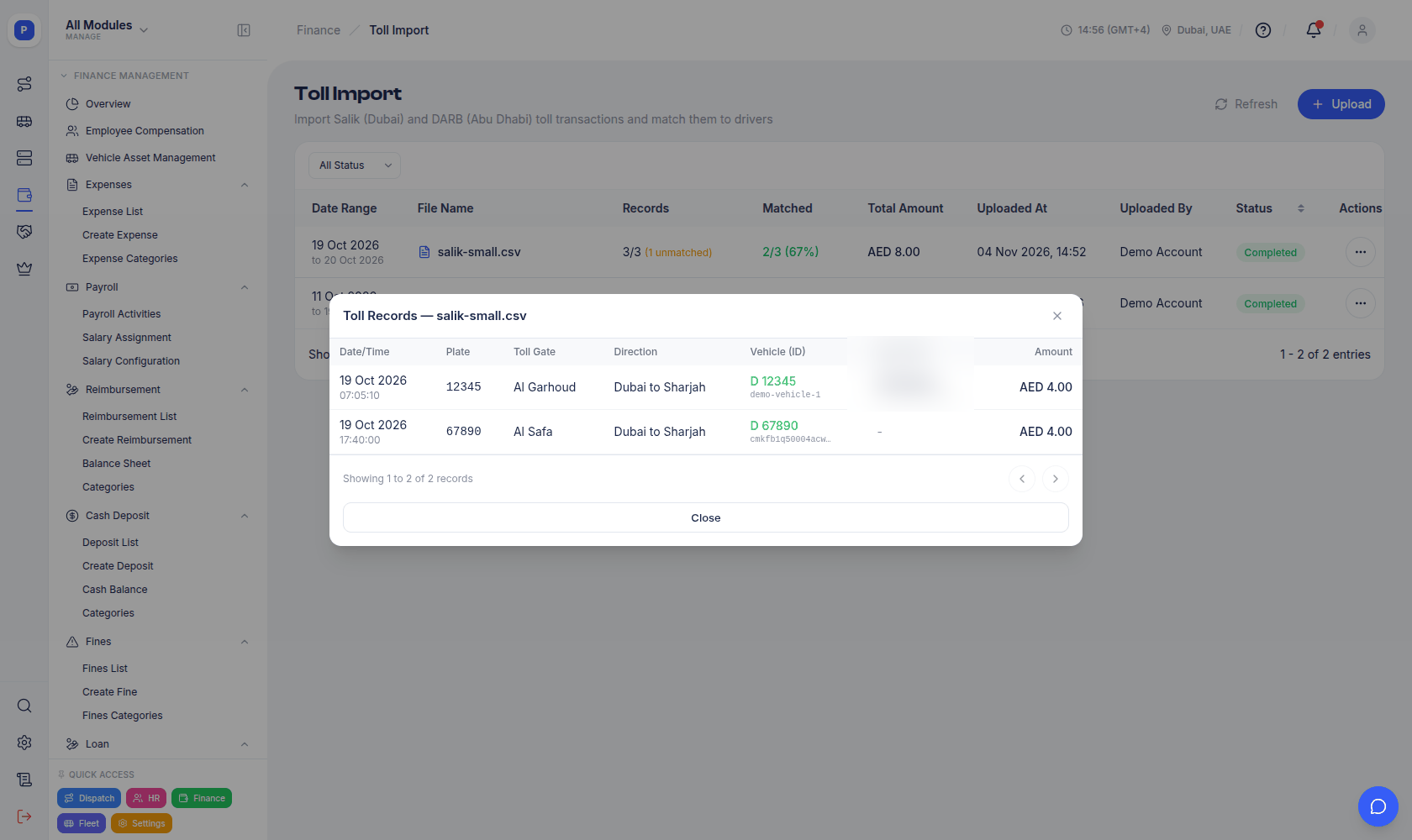
- View Records lists the tolls that this import created or updated (20 per page): date and time, plate, gate, direction, the vehicle and the driver with their ids, and the amount.
- Download File (only when the original file was stored) downloads the file you uploaded.
- Delete (with the delete permission) asks Are you sure you want to delete "file"? All associated toll records will also be deleted.
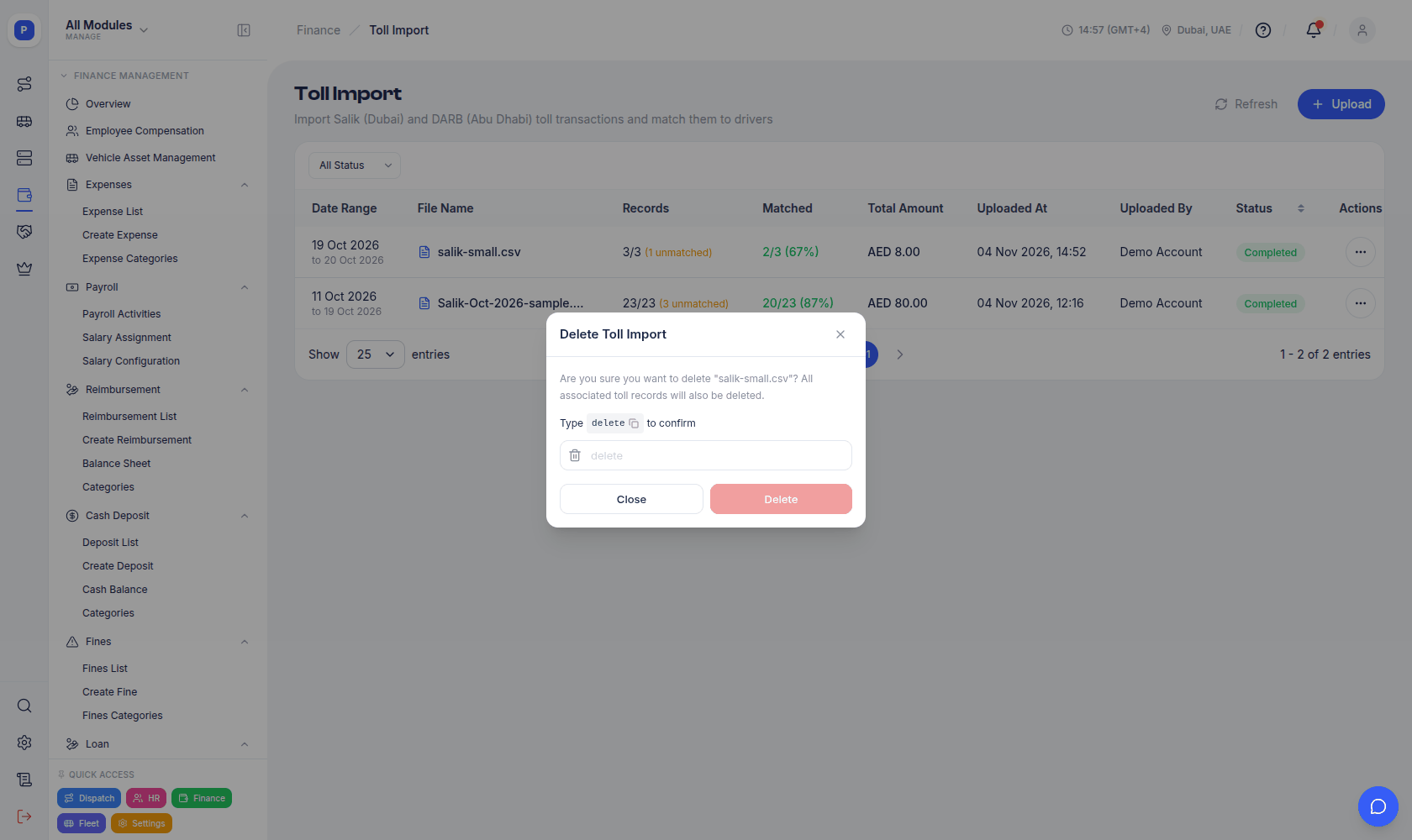
Deleting an import marks the import and every toll it created as deleted, including tolls that you edited or reassigned afterwards.
Delete does not check whether those tolls are already part of a payroll deduction batch. Delete an import only before its period is deducted.