Toll Records
See every toll transaction with its vehicle and driver, fix a driver, add a toll by hand, sync unassigned drivers and export the list to CSV.
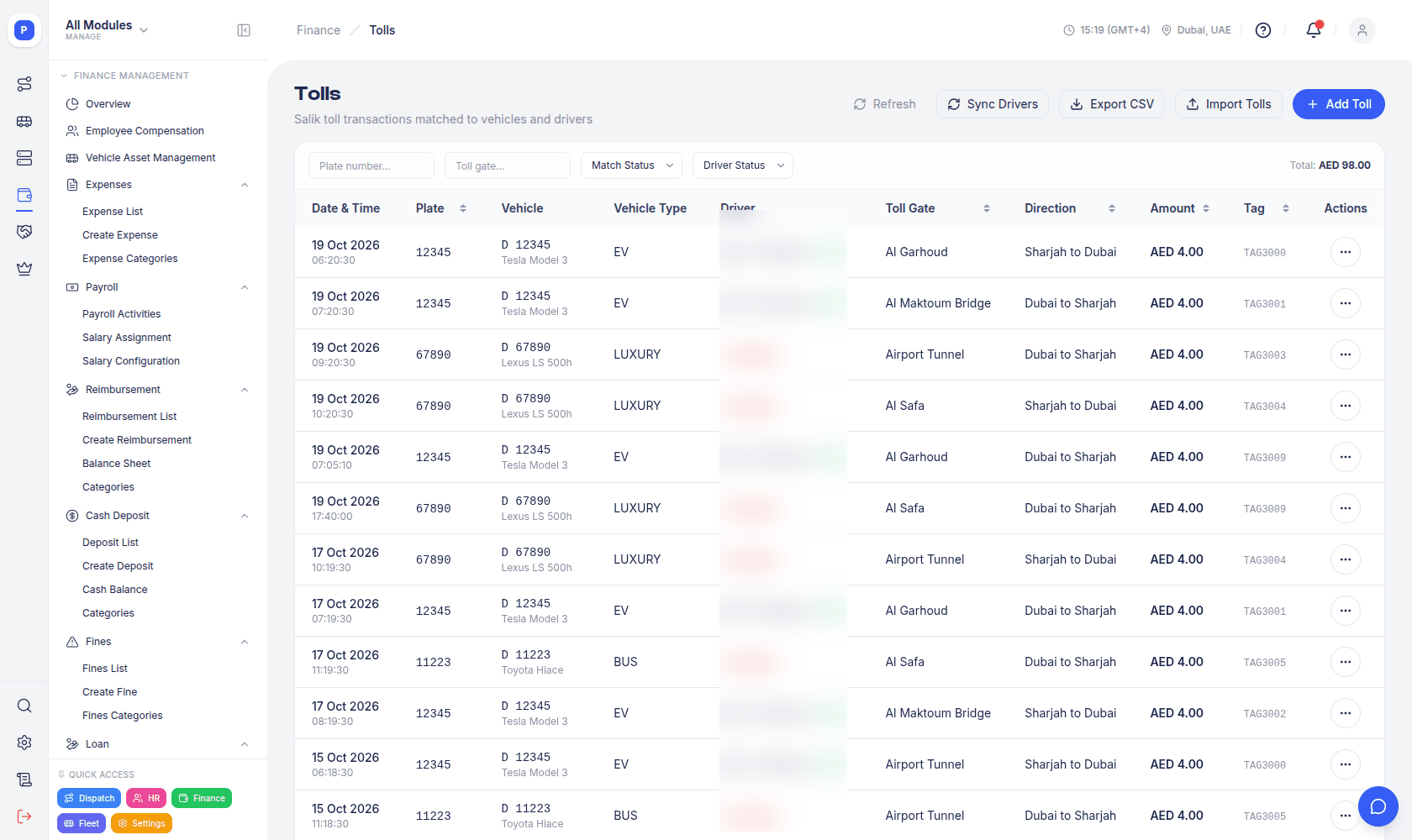
Finance > Toll > Toll Records lists the toll transactions of the company (Salik in Dubai, DARB in Abu Dhabi), each one matched to a vehicle and, when possible, to the driver who had the vehicle at that moment. Most records arrive through Toll Import; here you check them, correct a driver or a vehicle, and add a toll that is not in any file.
Permissions
| You need | To |
|---|---|
| Toll (view) | See all records, Export CSV and Import Tolls |
| Toll (add) | Add Toll and Import Tolls |
| Toll (edit) | Sync Drivers, Apply Latest, edit a record |
| Toll (delete) | Delete one record or several |
A user without the view permission still opens the page, but sees only the tolls of their own driver profile, read only: no Export, no Import and no row actions.
The list
The top right of the page has Refresh, Sync Drivers, Export CSV, Import Tolls (opens Toll Import) and Add Toll. Each button is shown only to roles that may use it. The newest toll comes first, 25 rows per page by default.
| Column | What it shows |
|---|---|
| Date & Time | The day and the time of the gate |
| Plate | The plate as it was written in the file or typed in the form |
| Vehicle | The vehicle the plate was matched to (plate and model). Unmatched in orange when no vehicle was found |
| Vehicle Type | The type of the vehicle's model |
| Driver | The driver, with a small badge for how the driver was found (below). Unassigned in red when the toll has a vehicle but no driver; - when the toll has no vehicle |
| Toll Gate and Direction | Where and which way |
| Amount | The toll in AED |
| Tag | The Salik tag number |
The badge next to the driver tells you how much to trust the match:
| Badge | Meaning |
|---|---|
| Shift (green) | The driver was assigned to the vehicle in Shift Management or by an active assignment at that time: high confidence |
| History (orange) | Taken from the shift history, because the assignment has since ended or changed: lower confidence |
| Nearest (orange) | The toll fell between two assignments, so it was given to the nearest one when it is at most 8 hours away. Please check it |
A driver typed in the Add or Edit form has no badge. A driver set by a bulk reassignment is saved as Shift.
The line Total: AED ... above the table adds up the amount of everything that matches the filters, not only the page you see.
Filters
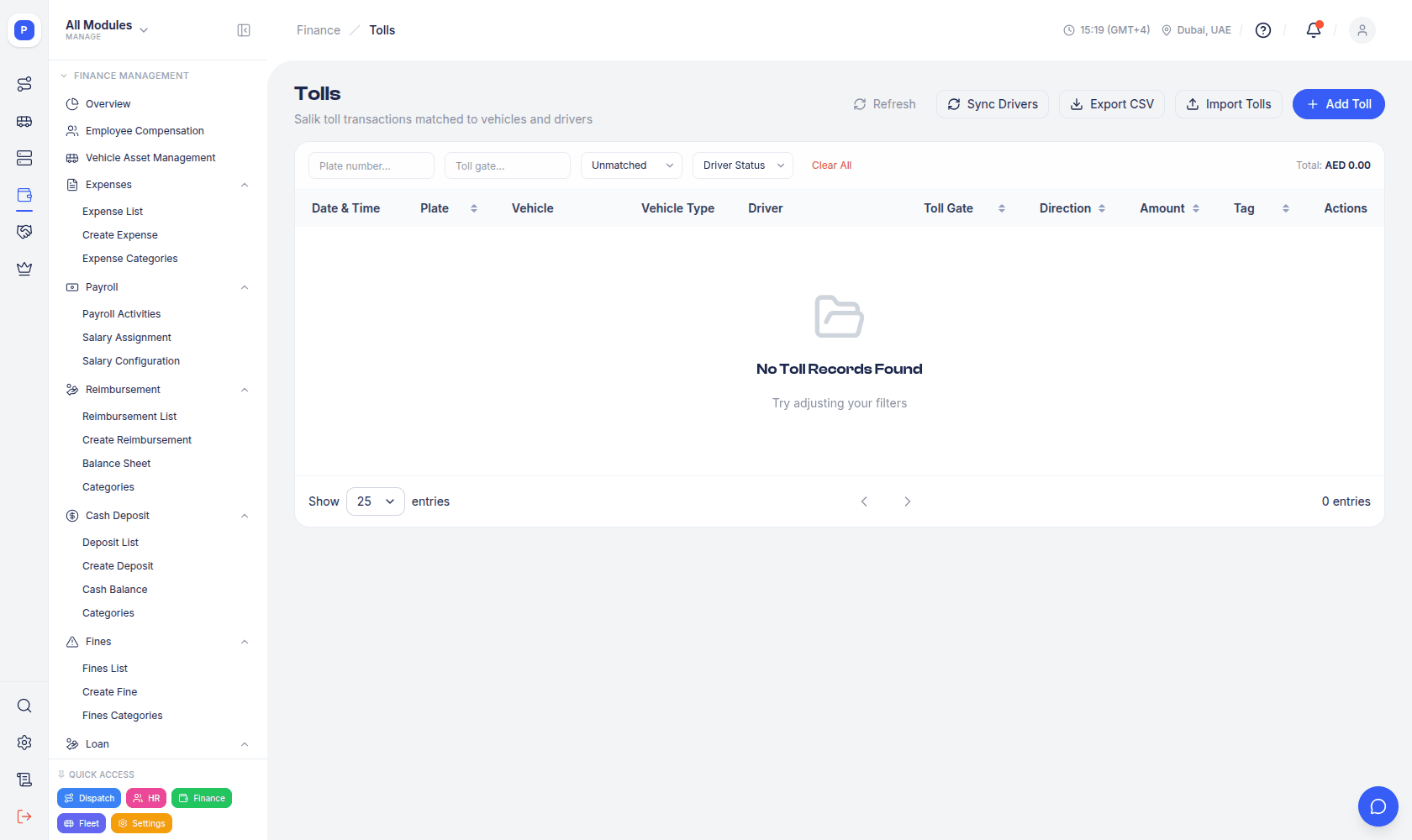
A toll is saved only when its plate matches a vehicle: the rows of an import that match nothing are counted and listed in Toll Import but not saved, and a toll added by hand needs a vehicle. That is why the Unmatched label of the Vehicle column and the Unmatched filter never show a record.
| Filter | Does |
|---|---|
| Plate number... | Finds records whose plate contains the text |
| Toll gate... | Finds records by gate name |
| Match Status | Matched (a vehicle was found) or Unmatched. A toll without a vehicle is never saved (see the note below), so Unmatched finds nothing in the current version |
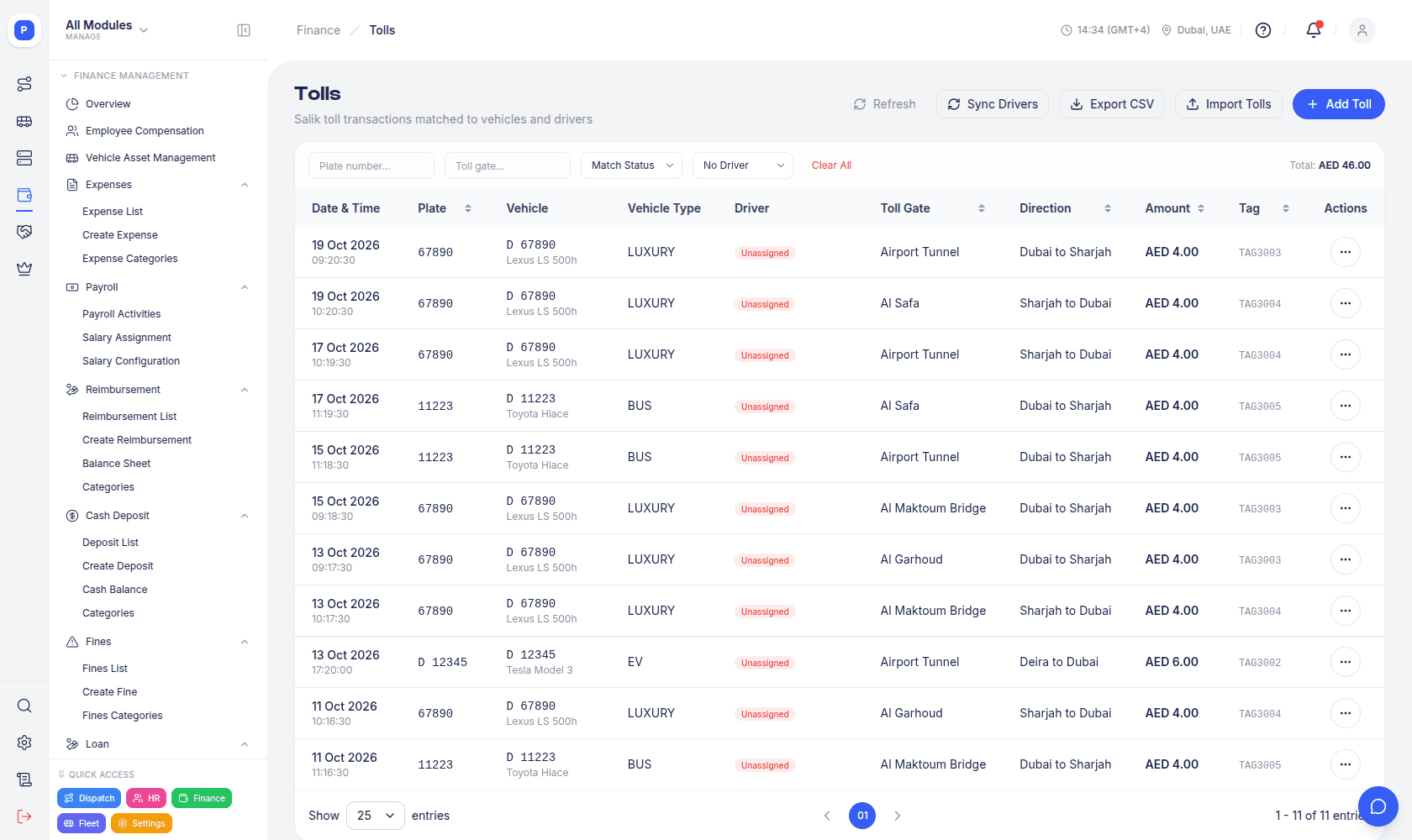
| Driver Status | With Driver or No Driver |
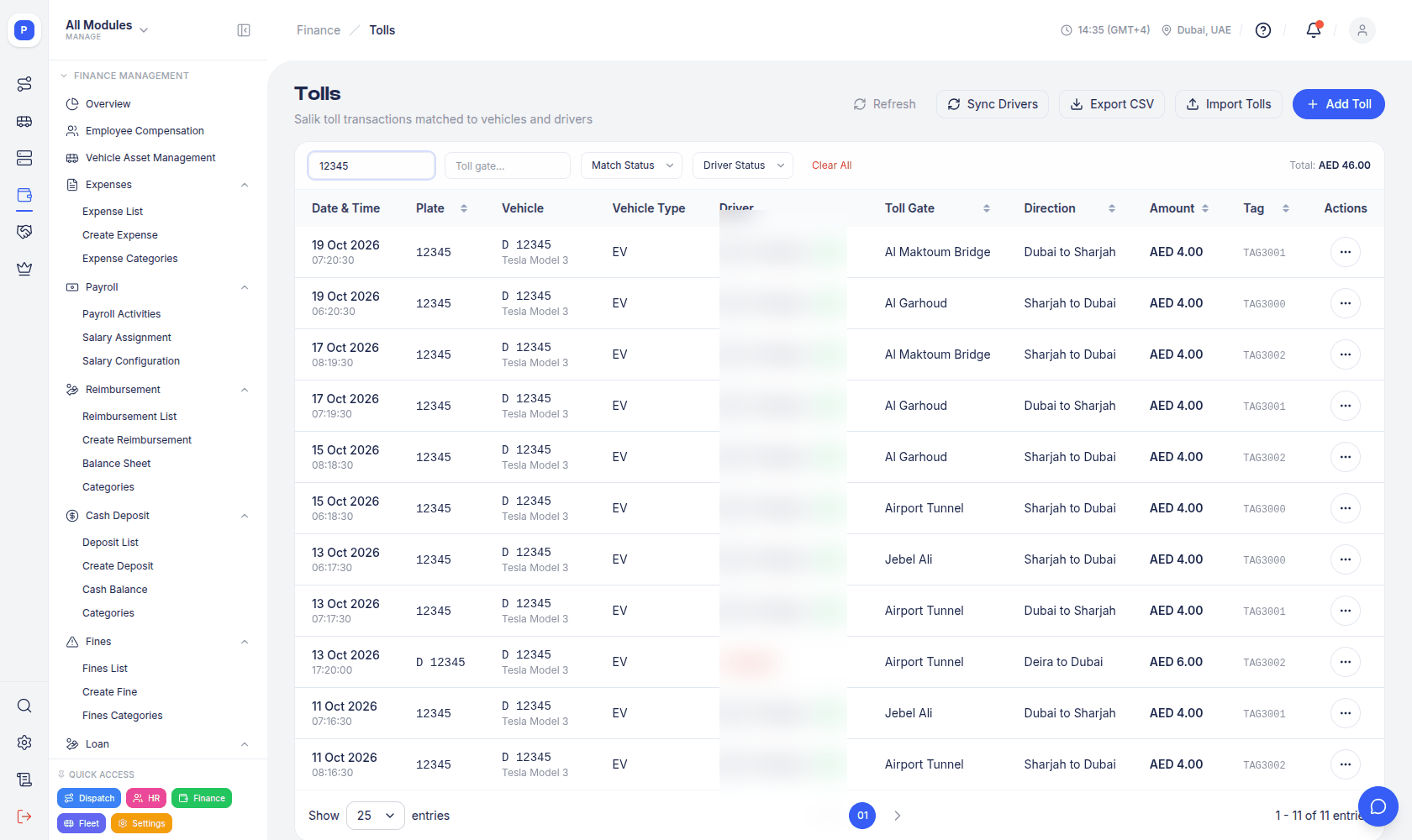
Clear All appears as soon as one filter is on. The filters are part of the address of the page, so a filtered list can be shared as a link.
Add a toll by hand
Add Toll opens the Add Toll Record form.
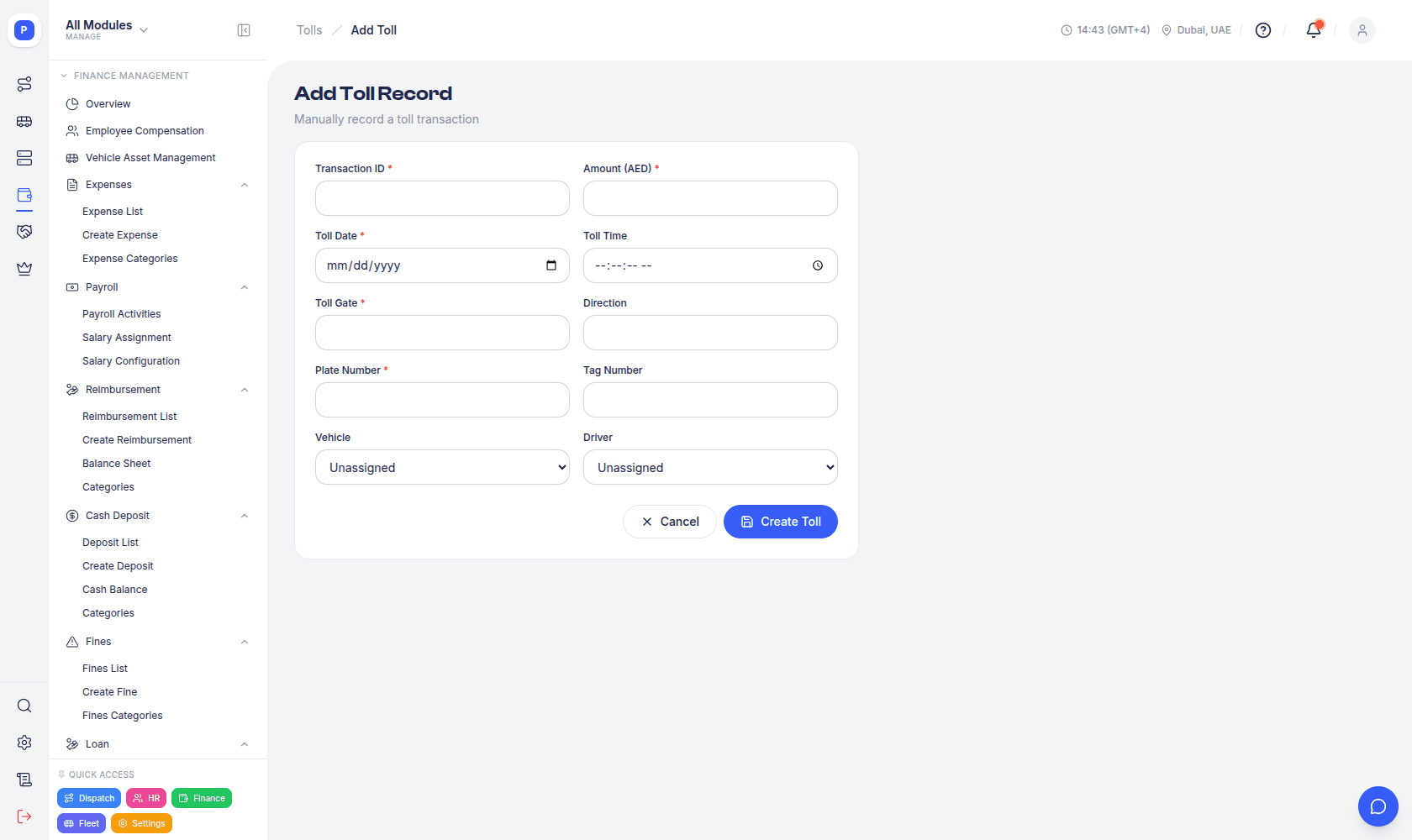
| Field | Required | Notes |
|---|---|---|
| Transaction ID | Yes | Must be new: a transaction id is unique across the whole system, also over records that were deleted |
| Amount (AED) | Yes | |
| Toll Date | Yes | |
| Toll Time | No | Hours, minutes and seconds. The time decides which driver had the vehicle, so fill it in |
| Toll Gate | Yes | |
| Direction | No | |
| Plate Number | Yes | |
| Tag Number | No | |
| Vehicle | Yes for the server | The list holds your vehicles; Unassigned is the first entry, but a toll cannot be saved without a vehicle |
| Driver | No | A driver of your company. Leave it empty to let Sync Drivers find the driver |
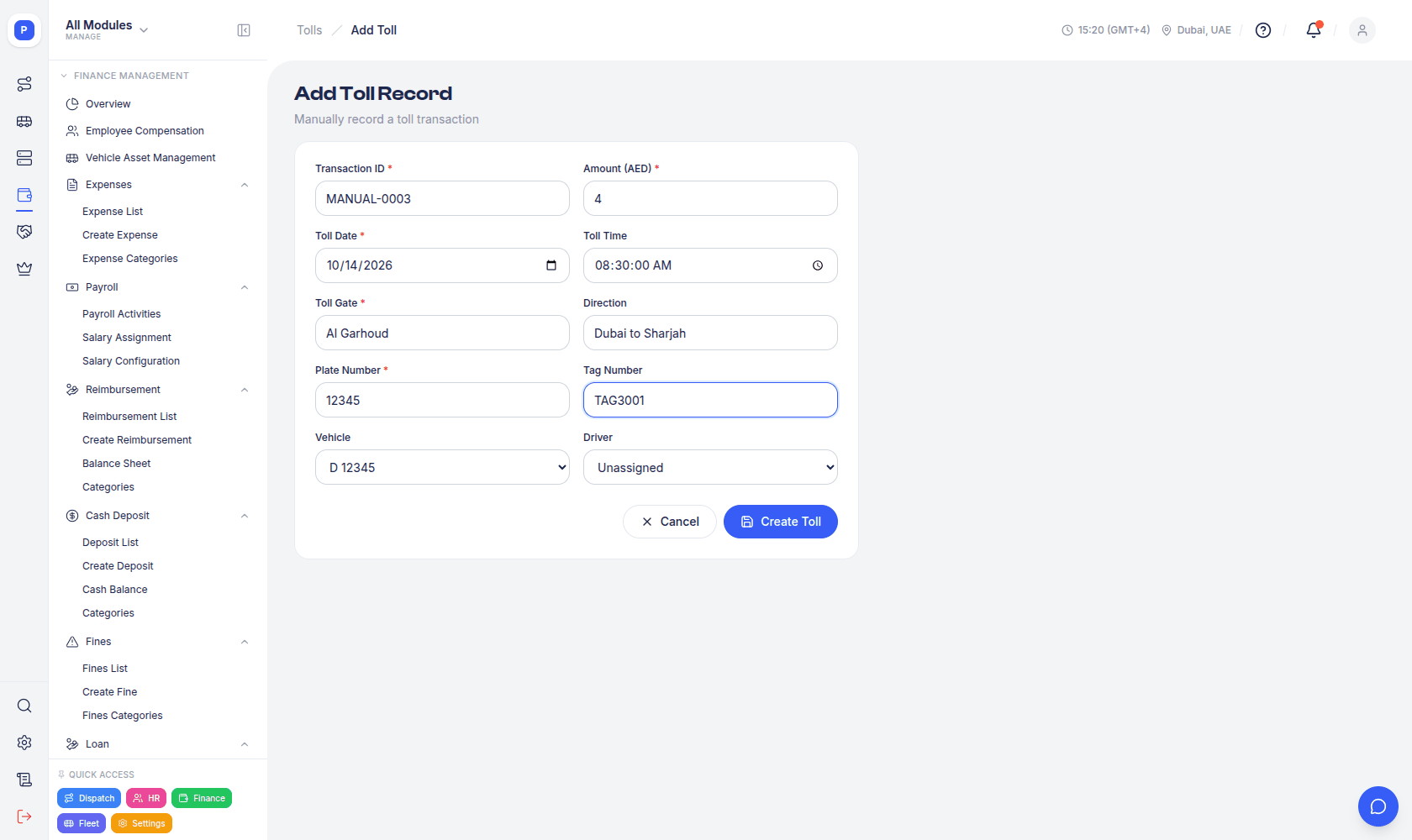
Create Toll checks the required fields first (Please fill in all required fields), then the server. The server answers:
- A vehicle is required when no vehicle is chosen.
- A toll with transaction ID ... already exists (409) for a repeated id.
- Driver not found or does not belong to your company for a driver of another company.
On success Toll record created successfully appears and you return to the list.
Edit a toll
Open the row actions (the three dots) or right-click the row and choose Edit. The form is the same, filled in; the Transaction ID cannot be changed.
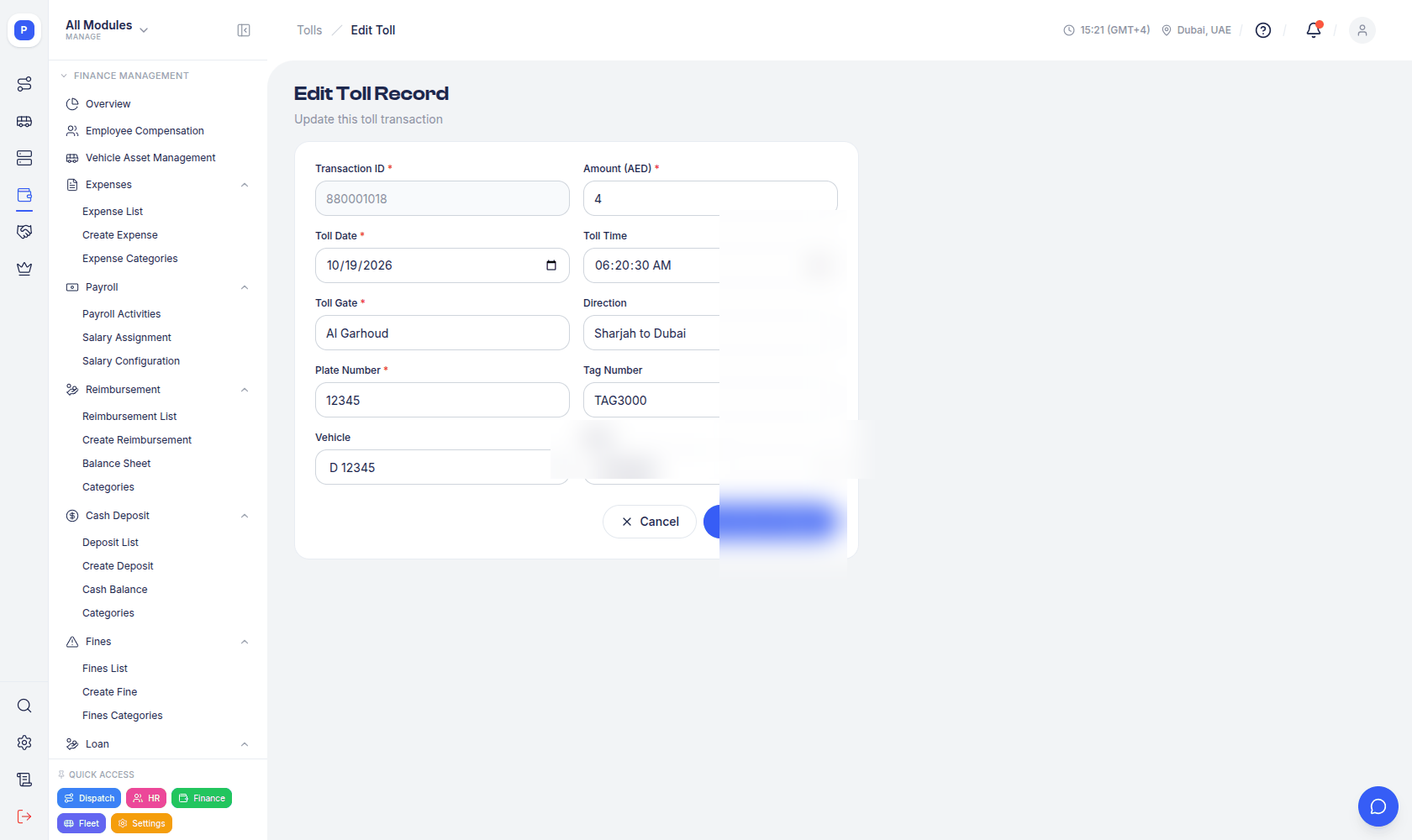
- Choosing Unassigned in Driver or in Vehicle does not clear it: the form sends nothing for an empty choice, so the saved driver or vehicle stays. To change them, pick another one.
- The vehicle of a toll can be replaced but never removed (the server refuses an empty vehicle).
- When the driver pays the whole toll, changing the Amount also changes the driver's share, because payroll reads the driver's share.
Neither edit nor delete checks whether the toll is already part of a payroll deduction batch. A toll that is in an approved batch can still be changed or deleted here, and the batch keeps the old amount. Change a toll only before its month is deducted, or reopen the batch first.
Row actions and the right-click menu
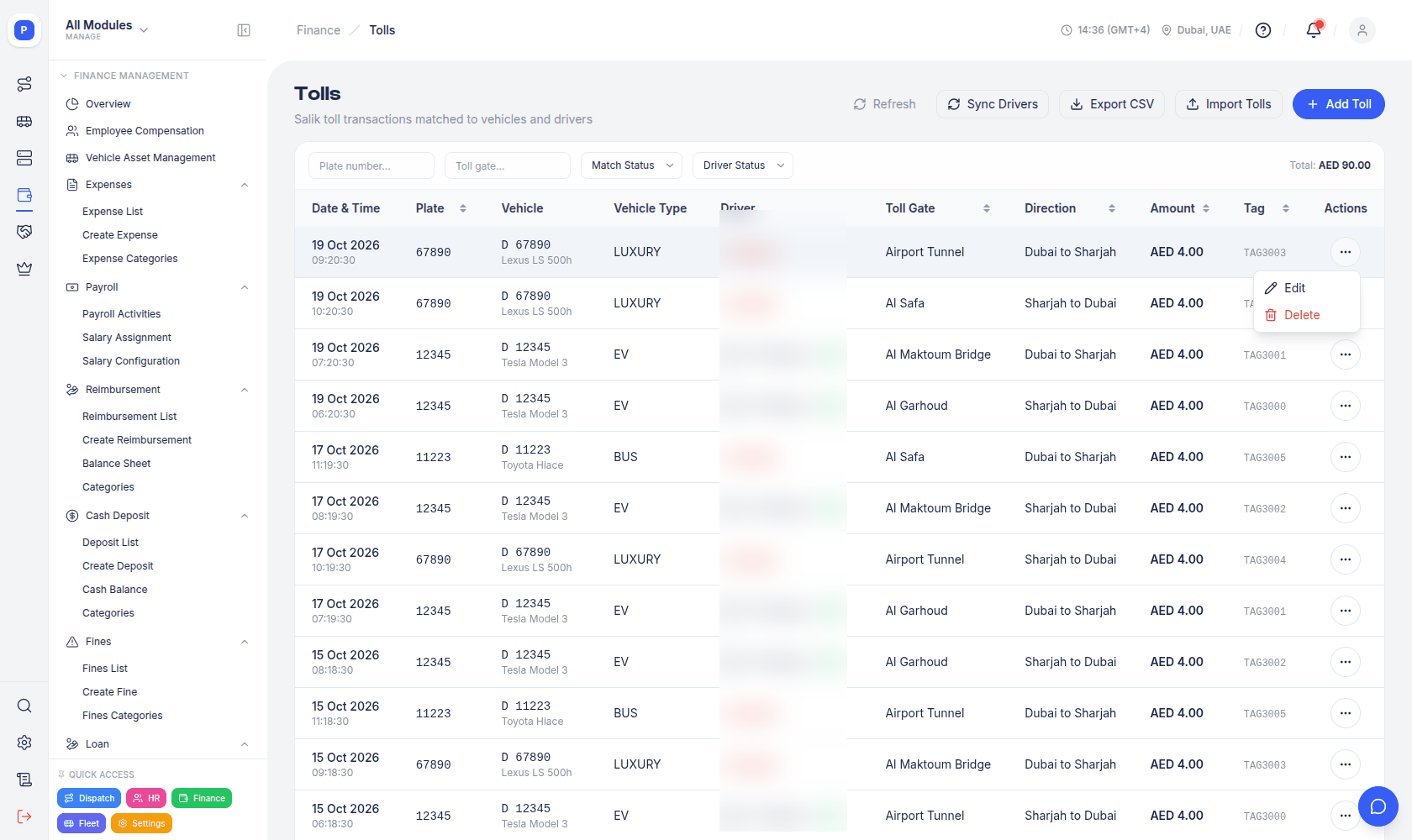
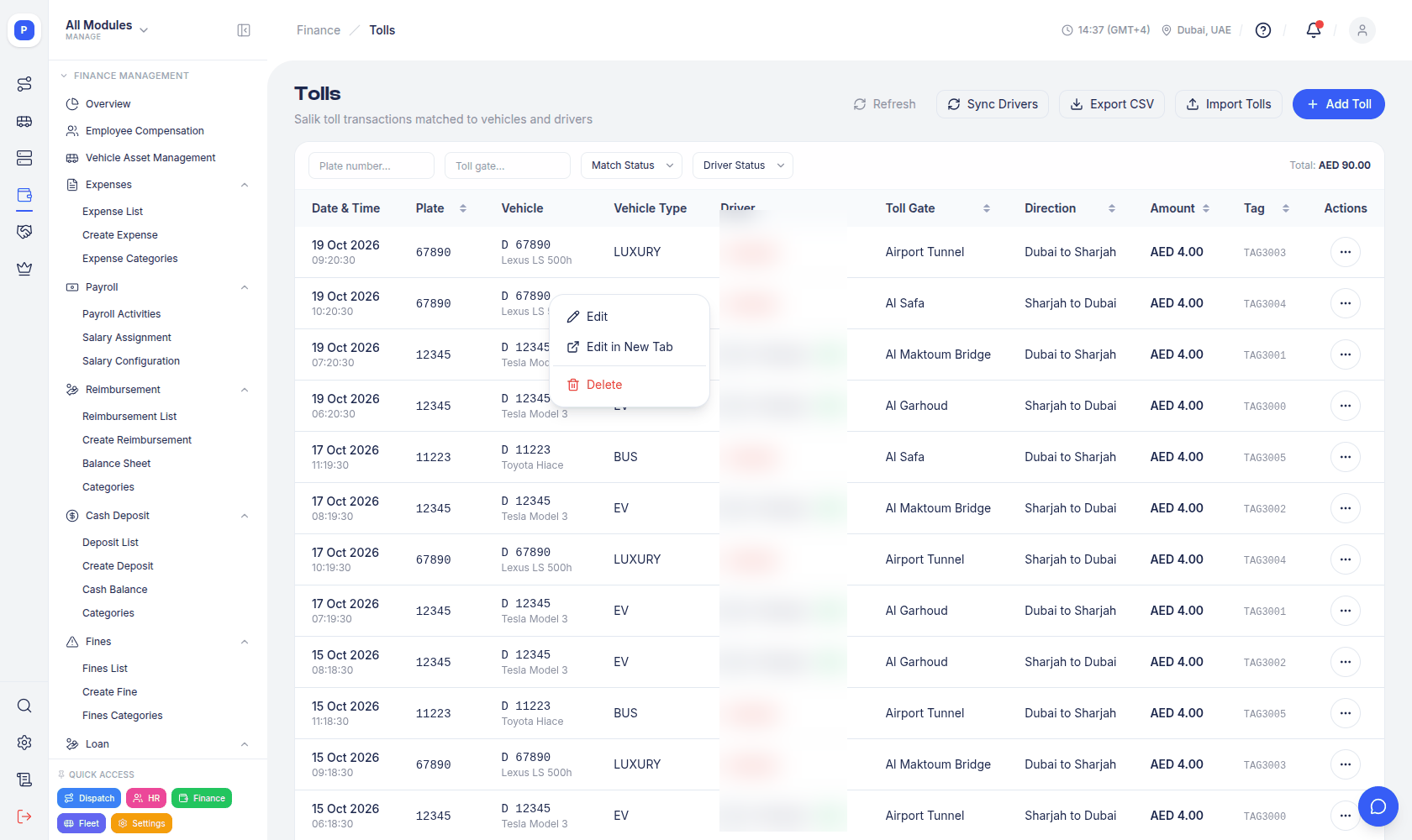
The three dots on a row offer Edit and Delete. The right-click menu adds Edit in New Tab.
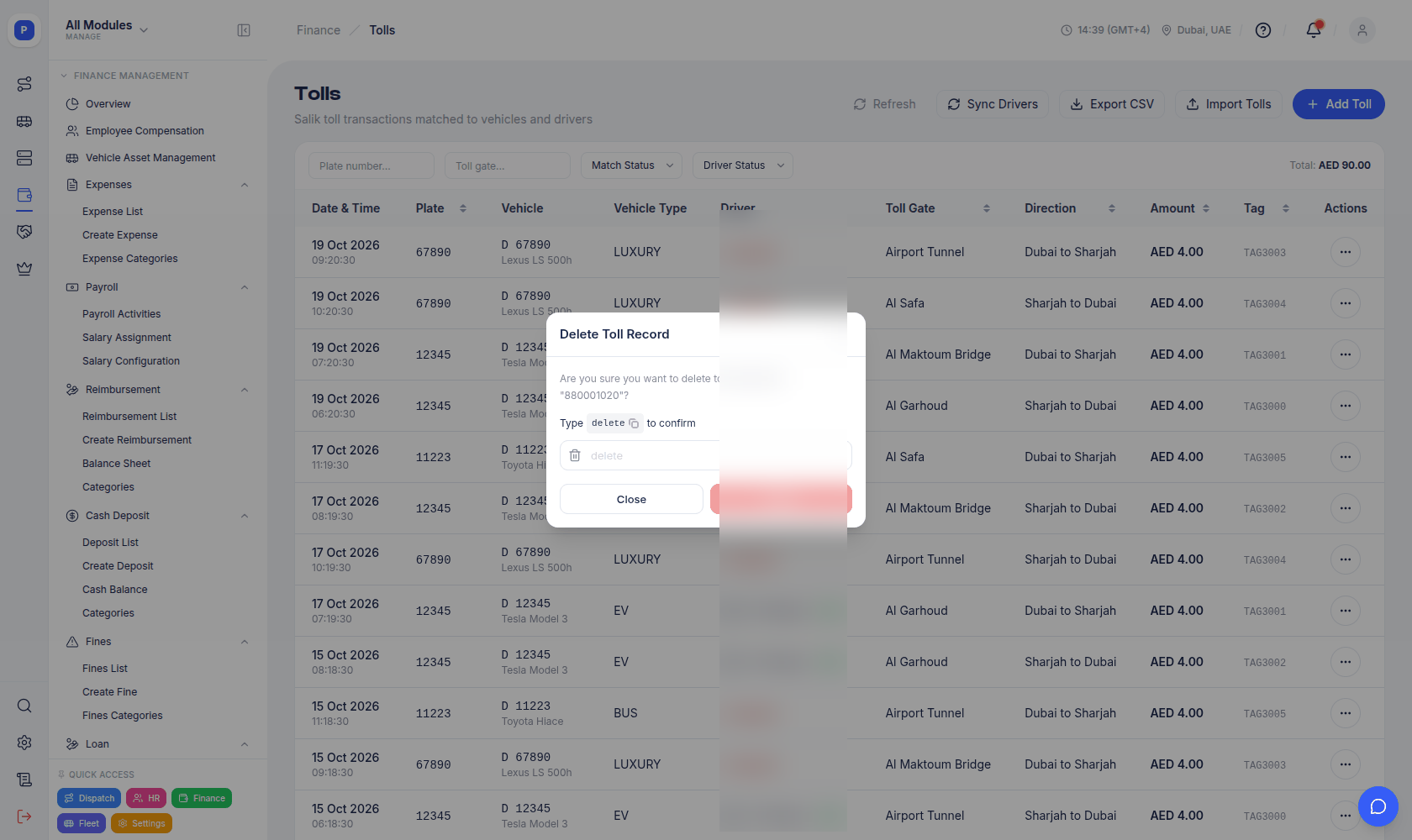
Delete asks for confirmation (Are you sure you want to delete toll transaction "..."?) and then removes the record from the list. The record is marked as deleted, not erased.
Several tolls at once
The page has a bar for selected tolls with Apply Latest (give each selected toll to the current driver of its vehicle) and Delete (remove them all), but in the current version the table shows no selection boxes, so no toll can be selected and the bar never appears. To change many tolls use Sync Drivers (below) for the missing drivers, or delete a whole file from Toll Import.
Sync Drivers
Sync Drivers looks for the driver of every toll that has a vehicle but no driver.
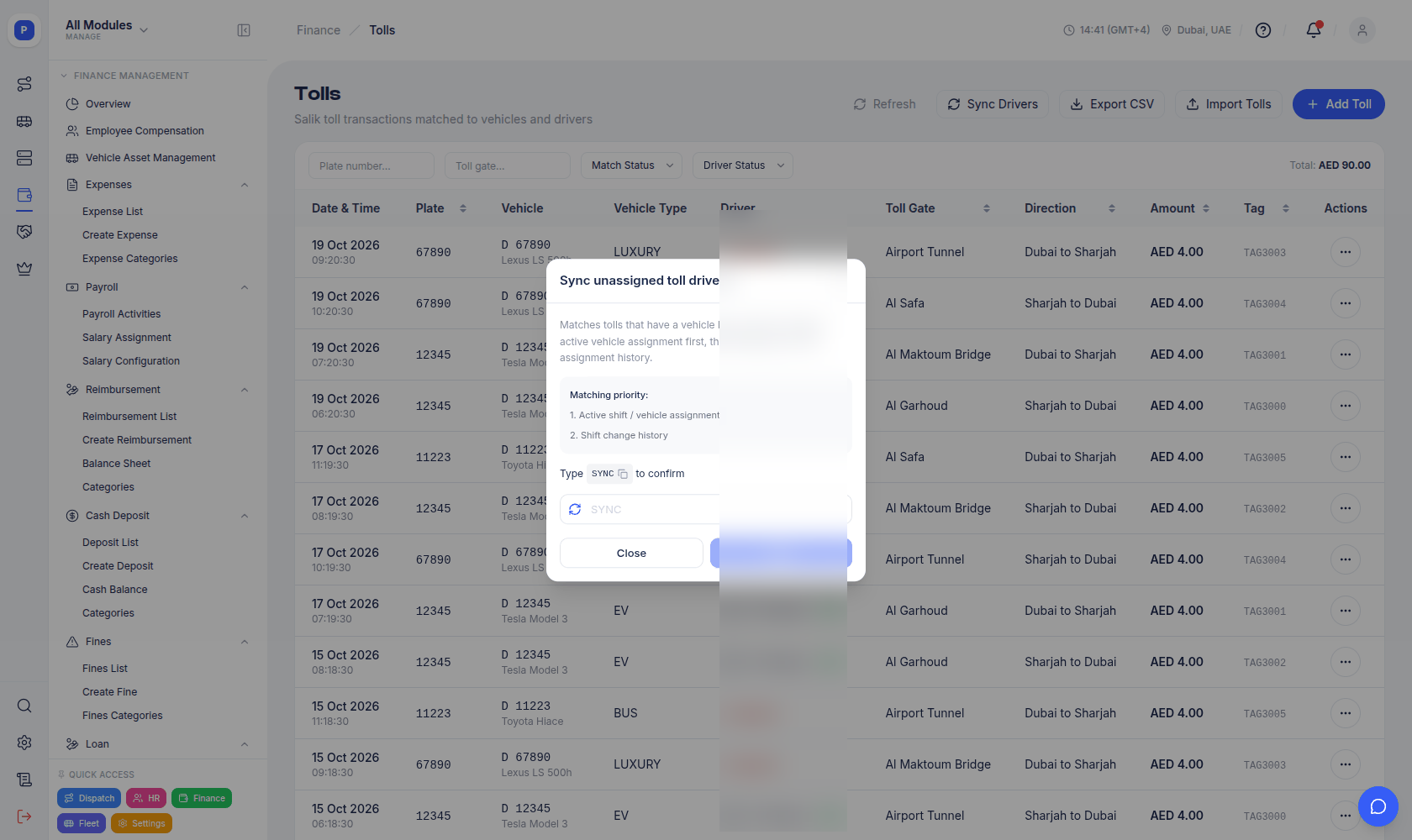
Type SYNC in the box (the word can be copied with the small button) to enable Sync. For each toll the system looks at the vehicle at the time of the toll, in this order:
- The Shift Management assignment, or the active vehicle assignment, that covers that moment.
- The shift change history.
- The nearest assignment when the toll is between two of them and at most 8 hours away (shown as Nearest).
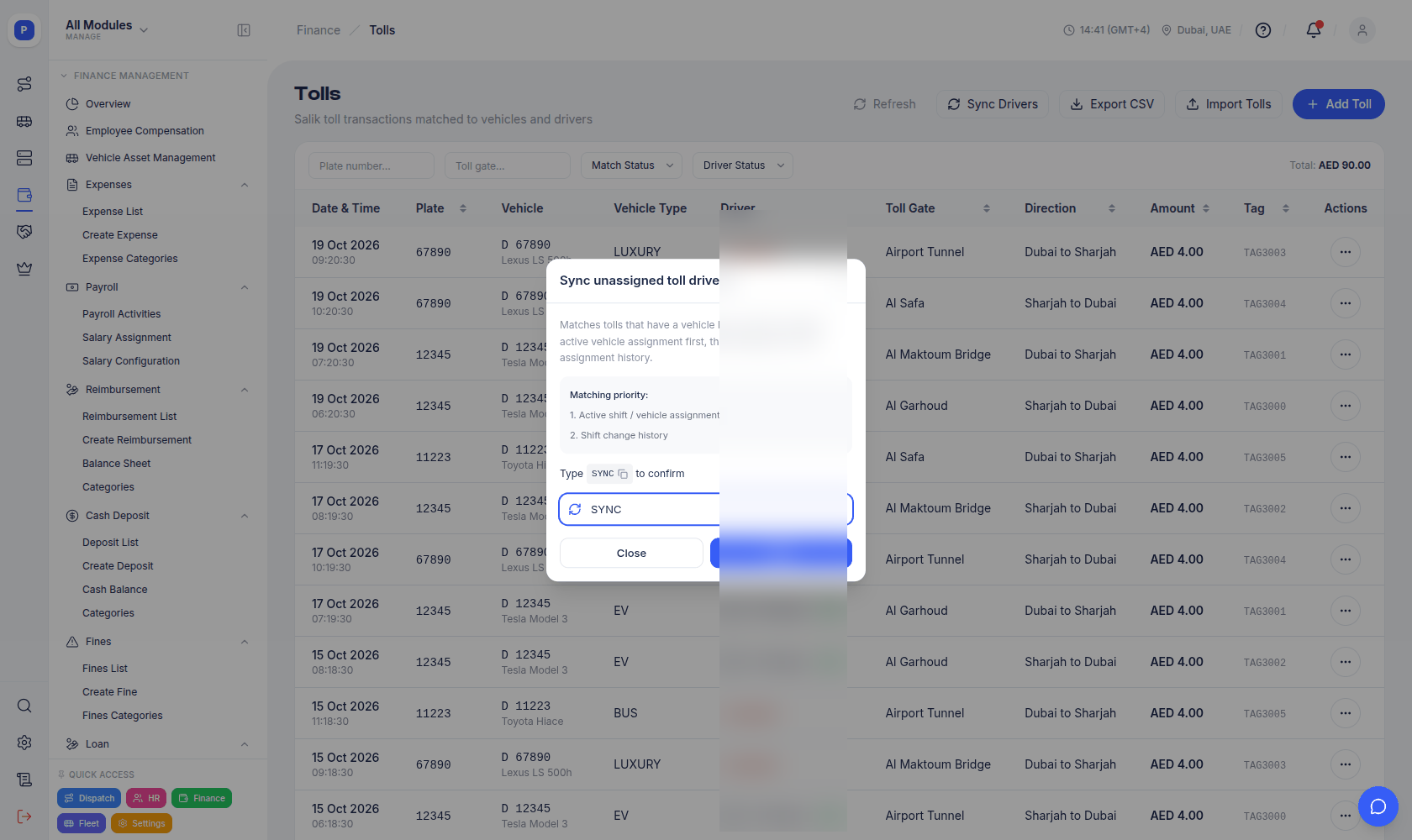
The result lists Processed, Updated (and how many came from the active shift, the history or the nearest assignment), Still Unassigned and Skipped / Errors. A toll that nobody can be found for stays unassigned: add the missing assignment in Shift Management and run the sync again. Only tolls without a driver are touched; a driver that was chosen before is never replaced.
Export CSV
Export CSV downloads the tolls as a CSV file named toll-records.
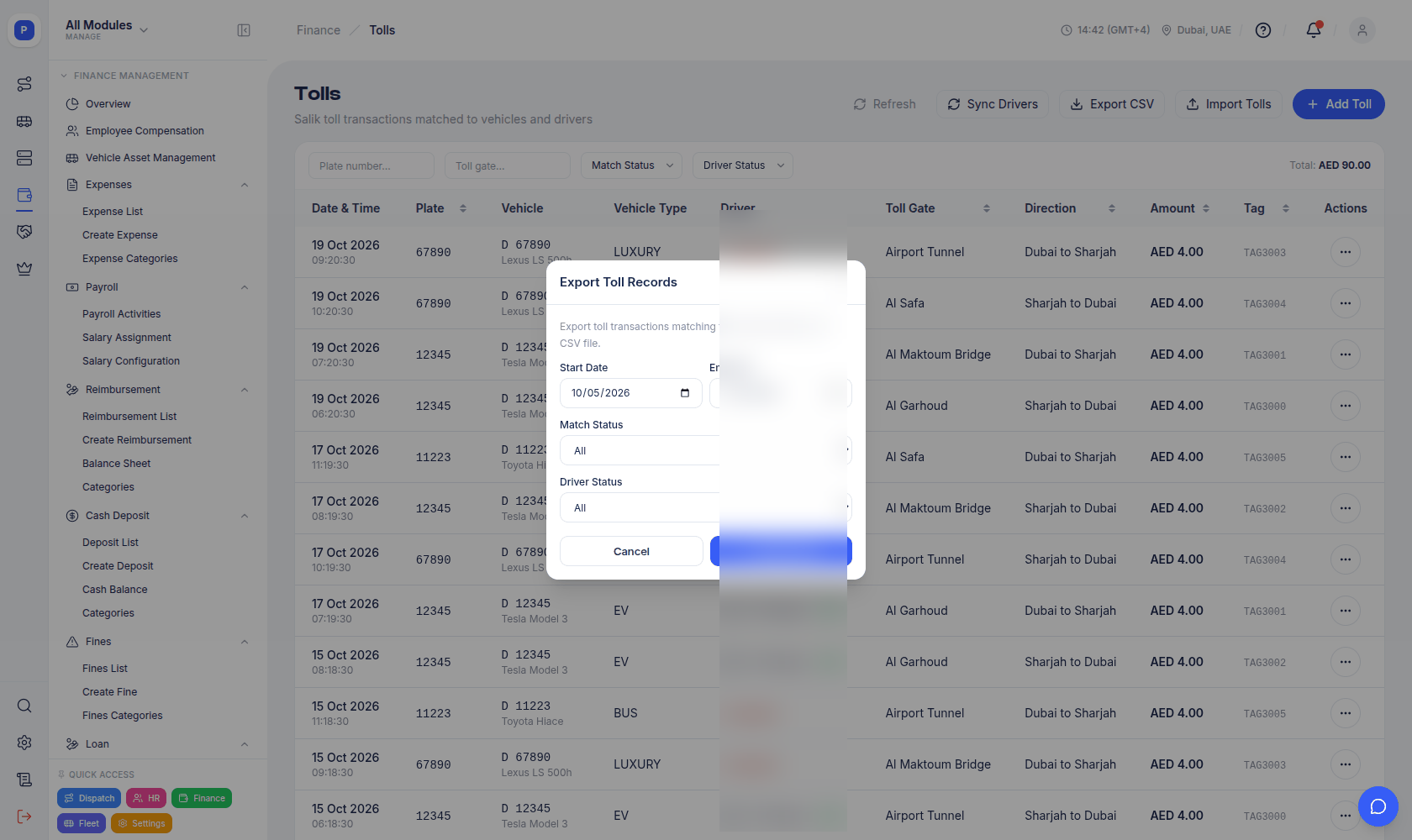
| Field | Does |
|---|---|
| Start Date and End Date | The period. The window opens with the last 30 days |
| Match Status and Driver Status | Narrow the export like the list filters. The filters of the page itself are not used |
The file has the columns Date, Time, Plate, Vehicle, Driver, Toll Gate, Direction, Amount (AED), Tag Number, Matched and holds at most 5,000 rows.