Approving a Batch
Approve a deduction batch so payroll can use it, and reopen it when something has to change.
Approve
When the batch is right, click Approve on the batch page. The window asks Approve this batch? and says it locks all the included loans, fines, liabilities, expenses, tolls and charging sessions so they can be pulled into payroll. Click Confirm.
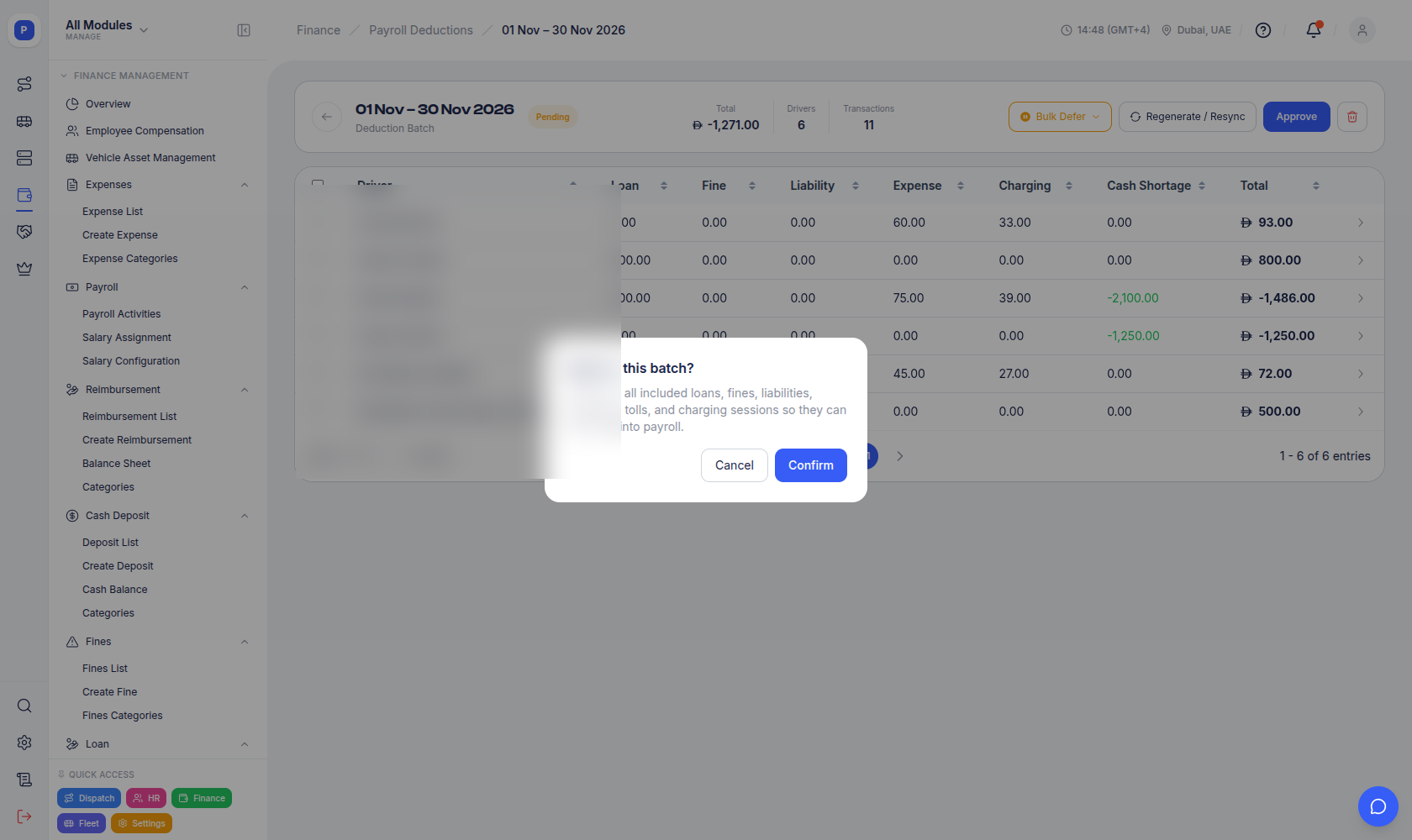
Before it approves, the system checks every included row against its source. If a fine was deleted, cancelled or given to another driver, an expense was rejected, a charging session was removed or moved, or a loan is no longer active, the approval is refused with a message such as Cannot approve: 1 deduction row(s) no longer match their source - Ahmad: fine 140.00 (the fine was deleted or cancelled). Regenerate the batch (or leave that item out) and approve again.
An approved batch shows the green Approved badge and a Reopen button; nothing in it can be changed.
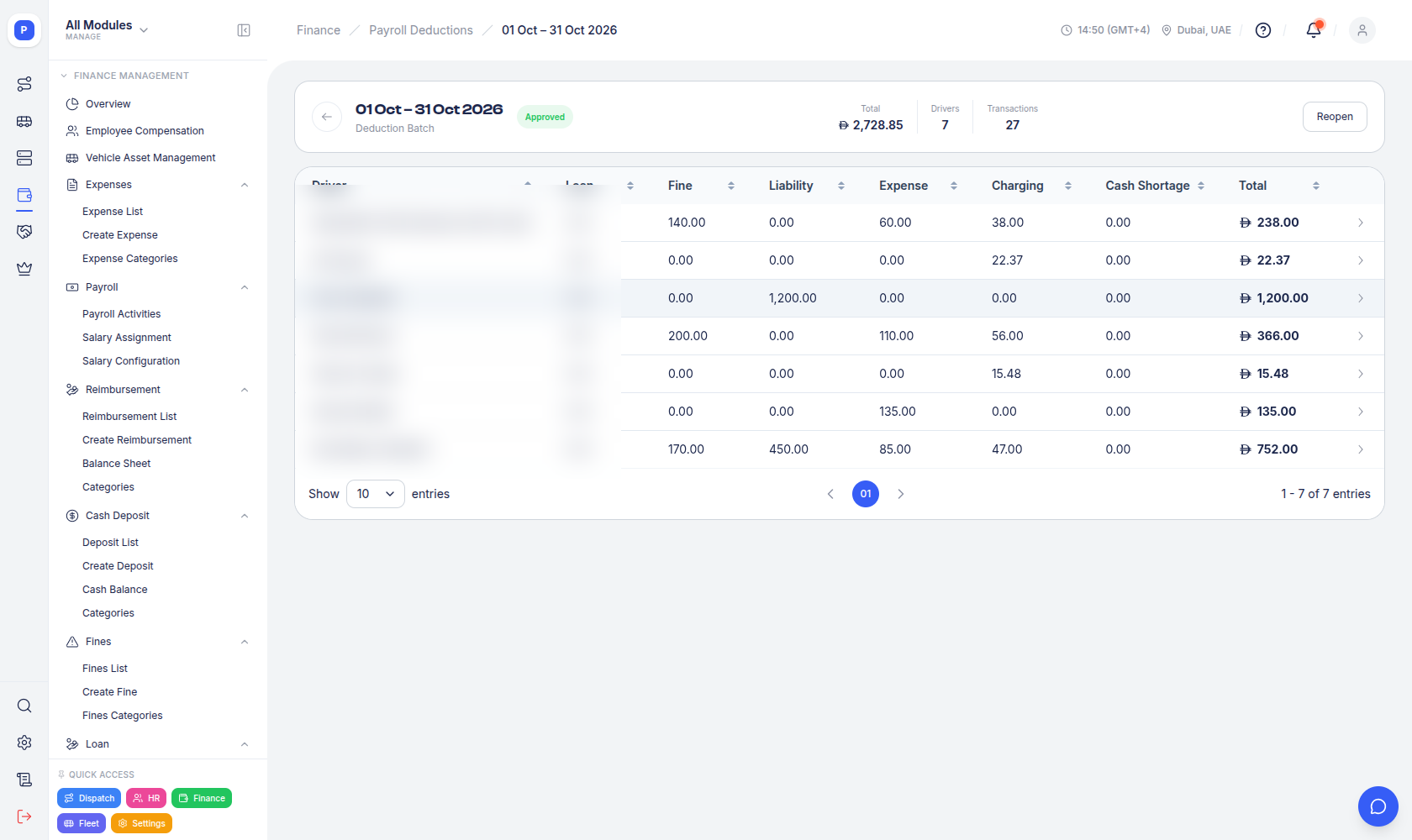
Payroll uses the figures of the approved batch: the month's payroll cannot generate its items until the batch of the same month is approved (No approved deduction batch found for this period. Please approve the deduction batch before generating payroll.).
Reopen
Reopen brings an approved batch back to Pending, so you can edit, regenerate or delete it. The window says it unlocks the batch and unlinks its source transactions.
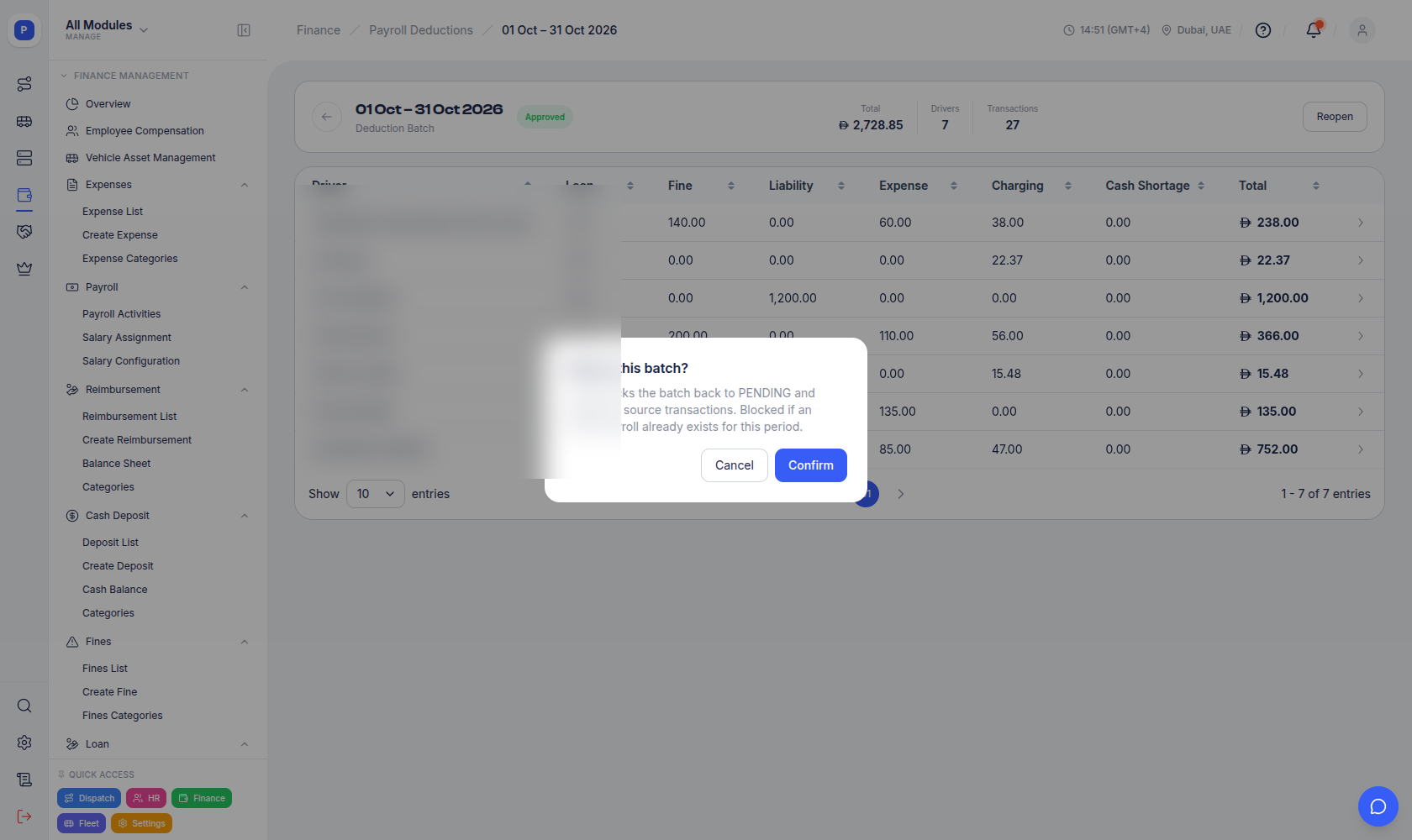
A batch cannot be reopened while a payroll of the same month exists that is neither Draft nor Cancelled: Cannot reopen batch - a payroll (status: ...) already exists for this period. Reopen or cancel the payroll first. This protects the amounts payroll has already taken.
The life of a batch
| Status | You can | Next |
|---|---|---|
| (none) | Generate Deduction for a month | Pending |
| Pending | Exclude items, Bulk Defer, Regenerate, Resync Charging, delete | Approve |
| Approved | Read it; payroll takes its figures | Reopen (back to Pending) |