Payroll Deductions
Collect what each employee owes the company in one month - loans, fines, liabilities, expenses, charging and cash - into a batch you review and approve before payroll runs.
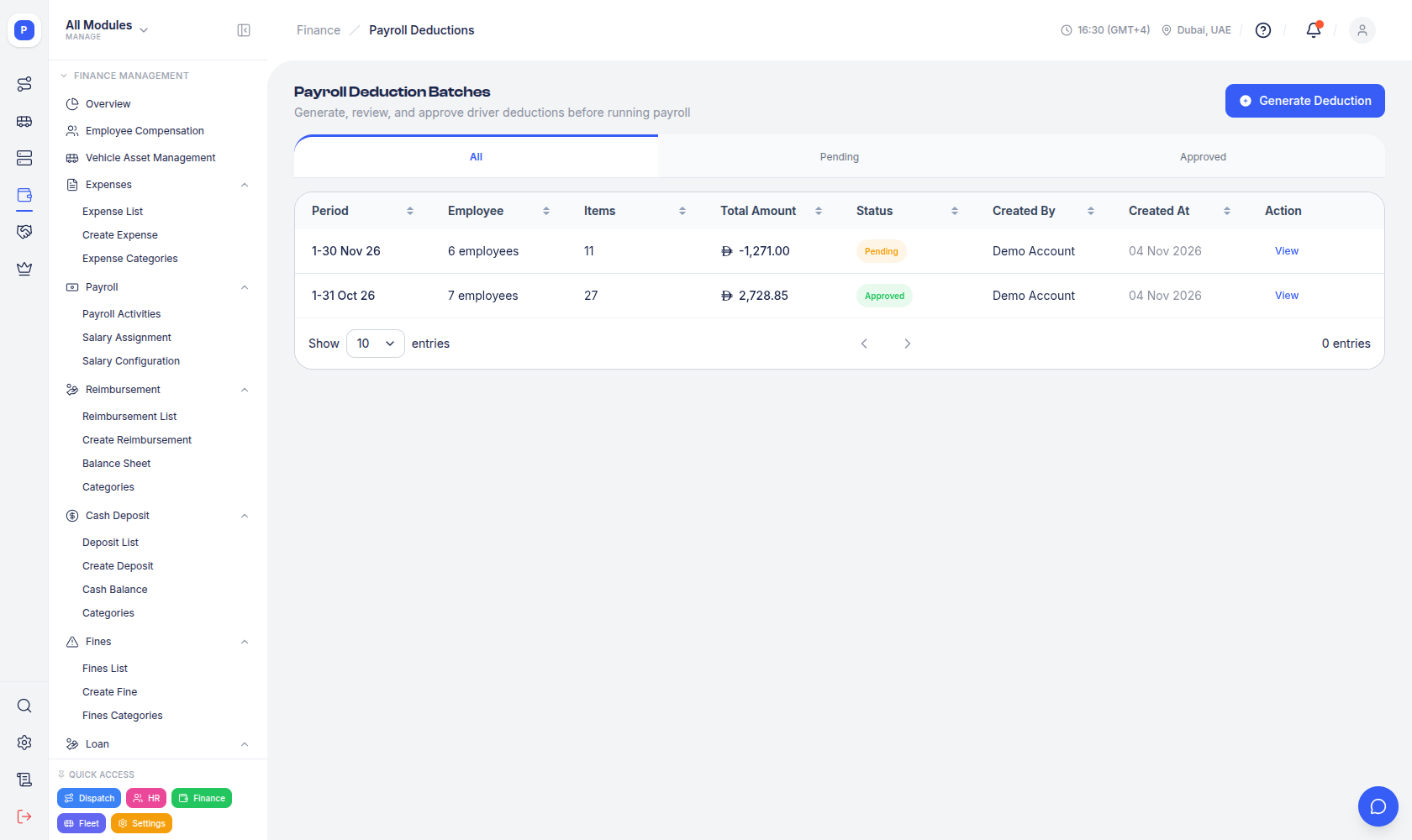
Finance > Payroll Deductions (/finance/payroll-deductions) is where the amounts that payroll takes off an employee's pay are gathered before payroll runs. For one calendar month the system builds a deduction batch: one row per employee with everything that employee owes for that month. You check it, defer what should not be taken yet, and approve it. Payroll can only generate its items from an approved batch of the same month.
Permissions
The page uses the Deductions permission: view to open it, add to Generate Deduction and to Regenerate Batch, edit for Bulk Defer, Resync Charging, Approve, Reopen and the Include switches, and delete to delete a batch.
What a batch contains
| Part | Where it comes from | Counts in the total |
|---|---|---|
| Loan | The monthly installment of each Active loan (or what is left if less). Skipped when a salary deduction was already booked on the loan for that month | Yes |
| Fine | Approved fines that are unpaid, partly paid or overdue, for the part still owed, with an incident date up to the end of the month | Yes |
| Liability | Confirmed or in-payment liabilities without their own percentage or fixed monthly deduction, for what remains | Yes |
| Expense | Approved expenses of the month that the company paid and that belong to the employee (a driver's own cash expense is not charged to the driver) | Yes |
| Charging | Completed charging sessions of the month | Yes |
| Cash Shortage | The cash balance carried forward: cash collected minus cash deposited. A negative figure (shown in green) means the employee deposited more than collected | Yes |
| Toll | Toll records of the month | No: it is a revenue adjustment, not a deduction. It is listed in the batch but left out of the total |
Each item belongs to one batch only: once a fine, expense, liability, toll or charging session is in a batch it is marked and cannot appear in a second batch. A loan is the exception, because the same loan has an installment every month.
An employee with nothing to deduct has no row. Only employees with the status Active are looked at.
The list
Payroll Deduction Batches has the tabs All, Pending and Approved.
| Column | Meaning |
|---|---|
| Period | The month, for example 1-30 Nov 26 |
| Employee | How many employees have a row |
| Items | How many individual amounts the batch holds |
| Total Amount | The sum that will be deducted (without tolls) |
| Status | Pending (still editable) or Approved (locked for payroll) |
| Created By, Created At | Who generated it and when |
| Action | View opens the batch. Clicking the row does the same |
Generating a batch
- Click Generate Deduction.
- Choose the month and the year (the current month is preselected; the year list goes back five years).
- Click Generate.
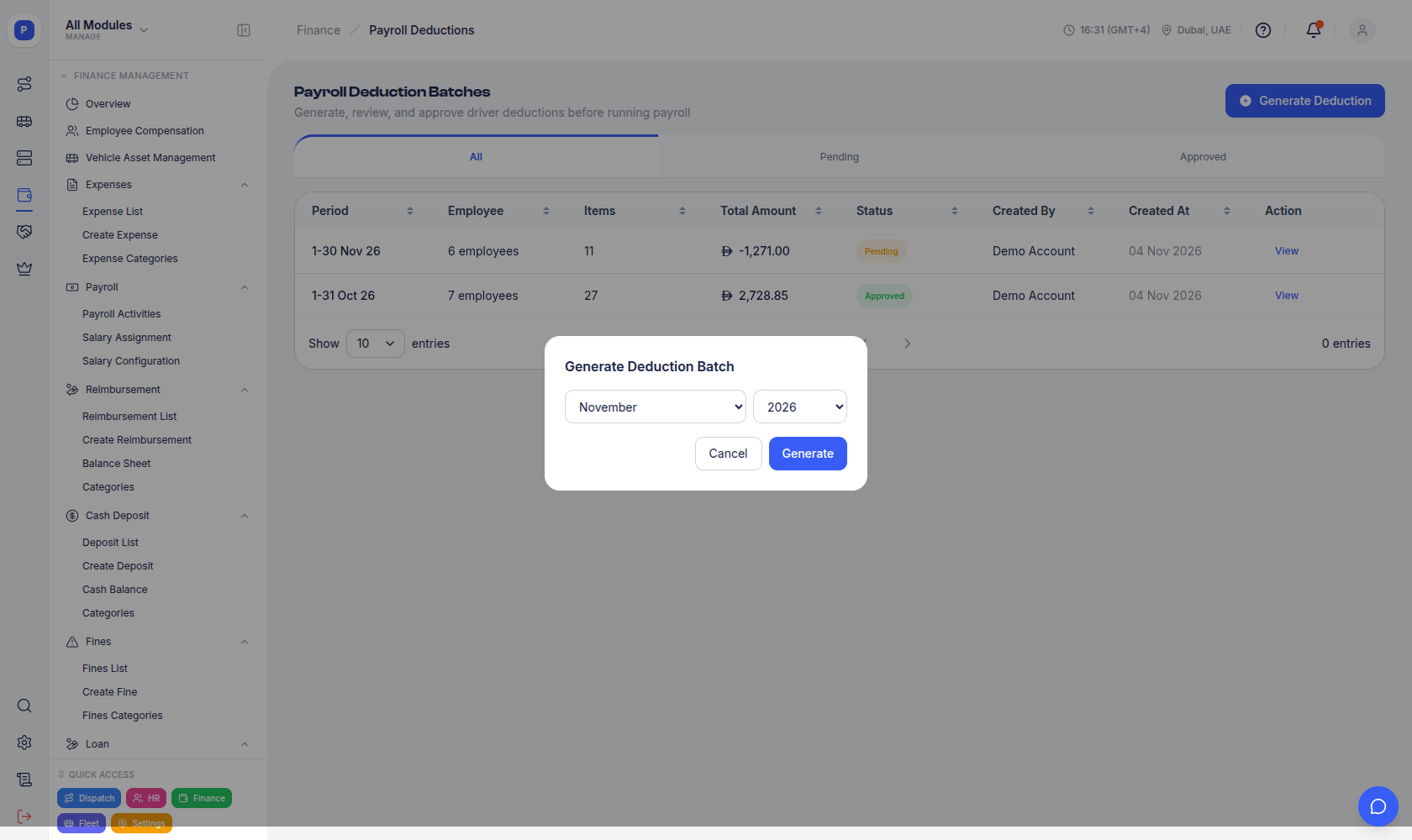
The batch is built in the background; the dialog shows a spinning icon and, when it is ready, opens the new batch. If something goes wrong the reason is shown in red in the dialog. Every employee who gets a row receives a Deduction Pending notification (when that notification type is switched on in the company's notification settings).
| If the month already has... | What happens |
|---|---|
| No batch | A new Pending batch is created |
| A Pending batch | It is rebuilt from the current data. Manual choices such as deferred items are lost |
| An Approved batch | This period already has an APPROVED batch. Reopen it first to regenerate. |
Continue with reviewing a batch.
Salary Configuration
Create and manage salary schemas - the formula, the commission levels and the allowances that payroll uses to calculate pay.
Reviewing a Batch
Read a deduction batch, open one employee's items, leave an item out for this month, defer loans or fines for all or for selected employees, and rebuild the batch.