Reviewing a Batch
Read a deduction batch, open one employee's items, leave an item out for this month, defer loans or fines for all or for selected employees, and rebuild the batch.
Open a batch from the list with View or by clicking its row. Everything on this page can be changed only while the batch is Pending; an Approved batch is read-only (see approving a batch).
The batch page
The header shows the period, the status badge, and three figures: Total (what will be deducted), Drivers (how many employees have a row) and Transactions (the number of individual amounts). On a Pending batch the buttons are Bulk Defer, Regenerate / Resync, Approve and a bin button that deletes the batch.
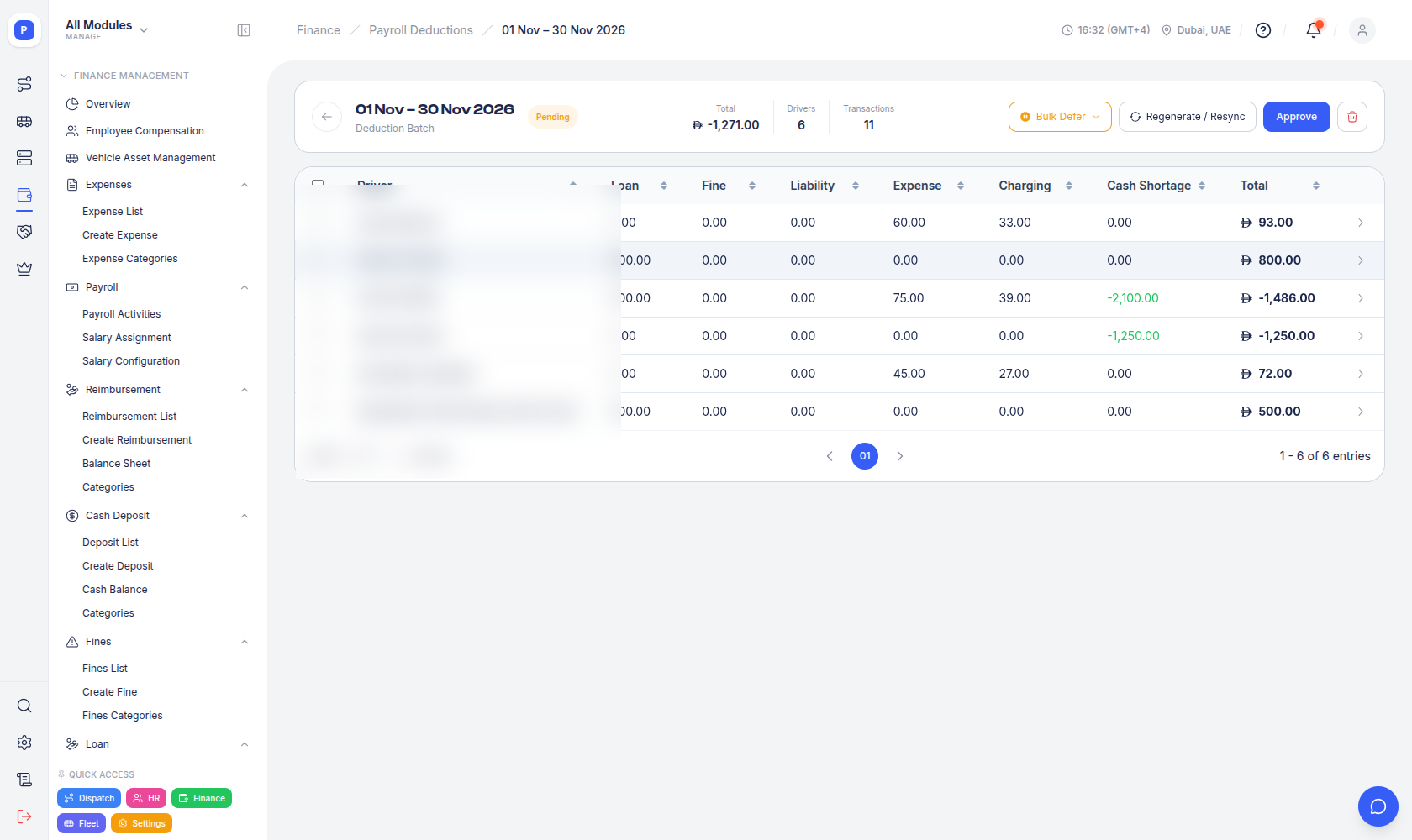
The table has one row per employee, with the amount of each kind (Loan, Fine, Liability, Expense, Charging, Cash Shortage) and the Total. A green negative Cash Shortage means the employee deposited more cash than collected, which lowers the total. Tolls are not a column: they are not part of the total. Click a row to open that employee's items.
One employee's items
The page shows the employee's name, the period, a line with the Total and every kind that has an amount, and a Cash Deposit Summary with Trip Cash, Booking Cash, Total Collected, Deposited (POS) and Shortage, the figures behind the cash shortage.
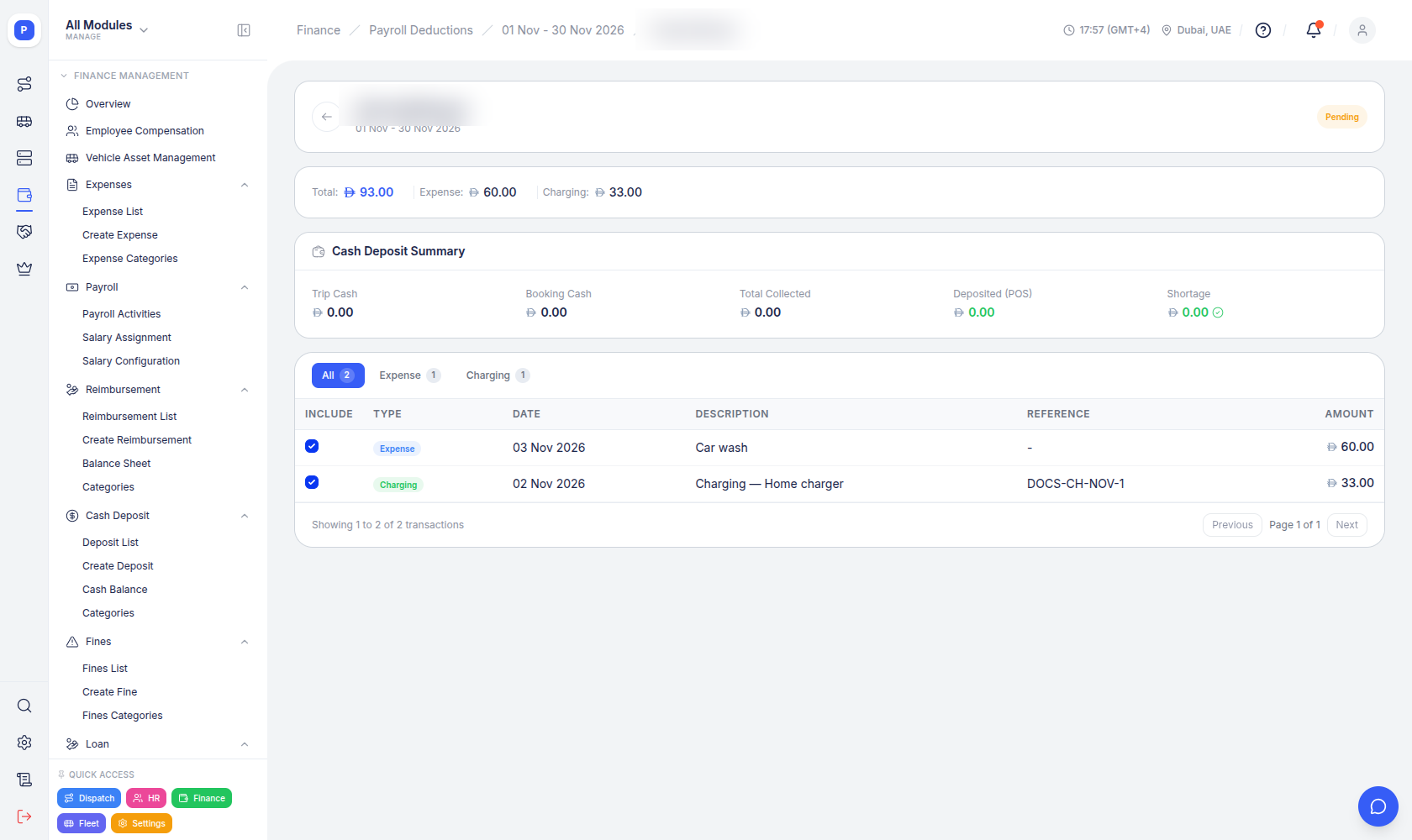
Below it, the tabs All, Expense, Charging and so on (one per kind the employee has, each with a count) filter the table of items. Each item shows its Type, Date, Description, Reference (for example the charging transaction number) and Amount.
Leaving an item out
On a Pending batch the first column, Include, has a check box for each item. Untick it to exclude the item: the row turns grey with a strike-through, the total of the employee and of the batch goes down, and the message Item excluded appears. Tick it again to include it (Item included). A new Excluded (N) check box above the table shows only the excluded items.
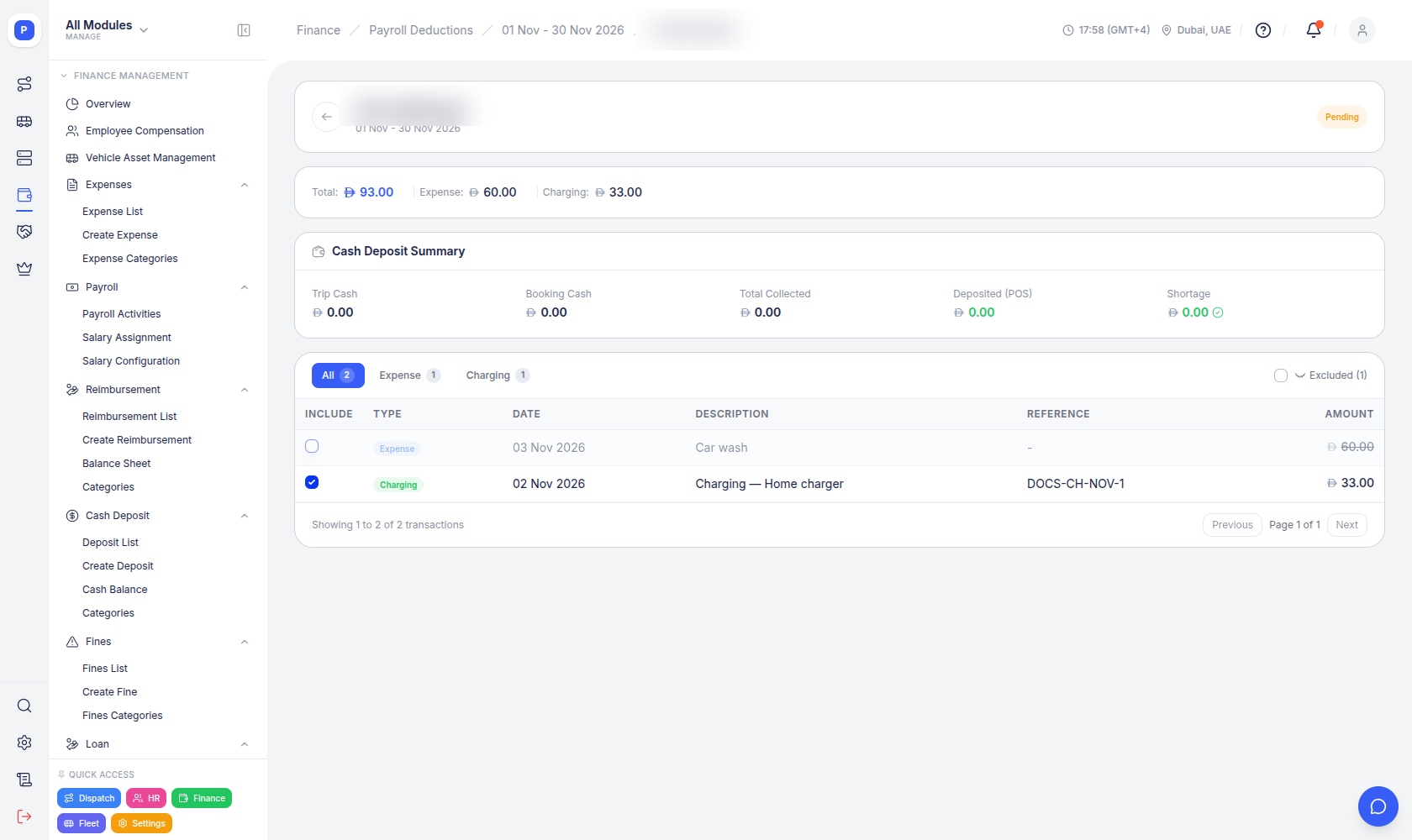
An excluded item is not deducted this month. It stays with the employee and is picked up by the next batch you generate. Use this when one amount should wait, or is wrong.
Bulk Defer
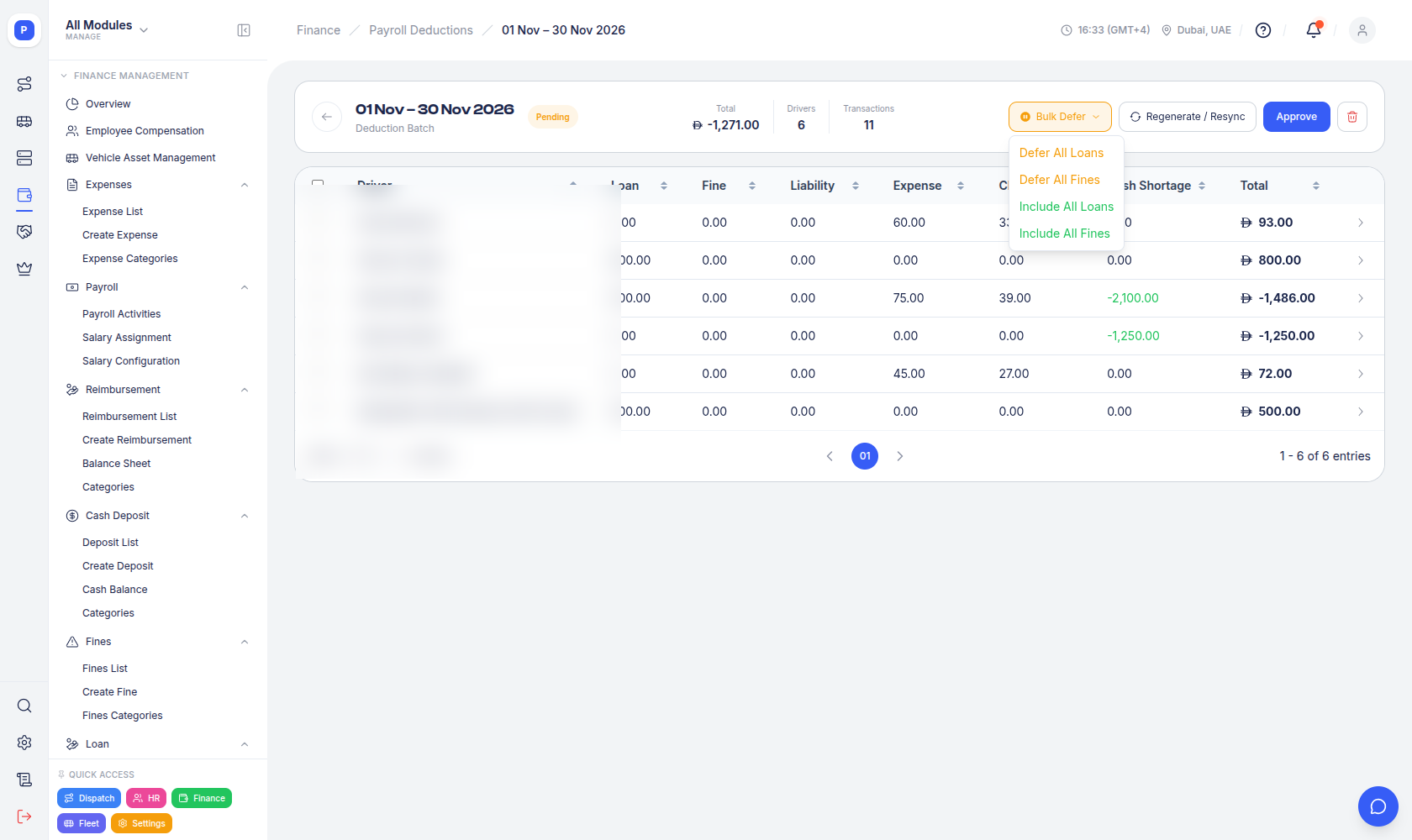
Bulk Defer leaves out, or brings back, all the loans or all the fines of the batch in one go.
| Entry | Effect |
|---|---|
| Defer All Loans, Defer All Fines | Excludes every loan (or fine) item of every employee, with the reason Bulk deferred (LOAN) or (FINE) |
| Include All Loans, Include All Fines | Brings them all back |
To do it for only some employees, tick them first in the table (the box in the header ticks the page). A line above the table says N drivers selected. Use Bulk Defer to defer or include their loans or fines only. with a Clear link, and the menu gets four extra entries on top, above a divider:
| Entry | Effect |
|---|---|
| Defer Loans of N selected, Defer Fines of N selected | Excludes the loans (or fines) of the selected employees only |
| Include Loans of N selected, Include Fines of N selected | Brings them back for the selected employees |
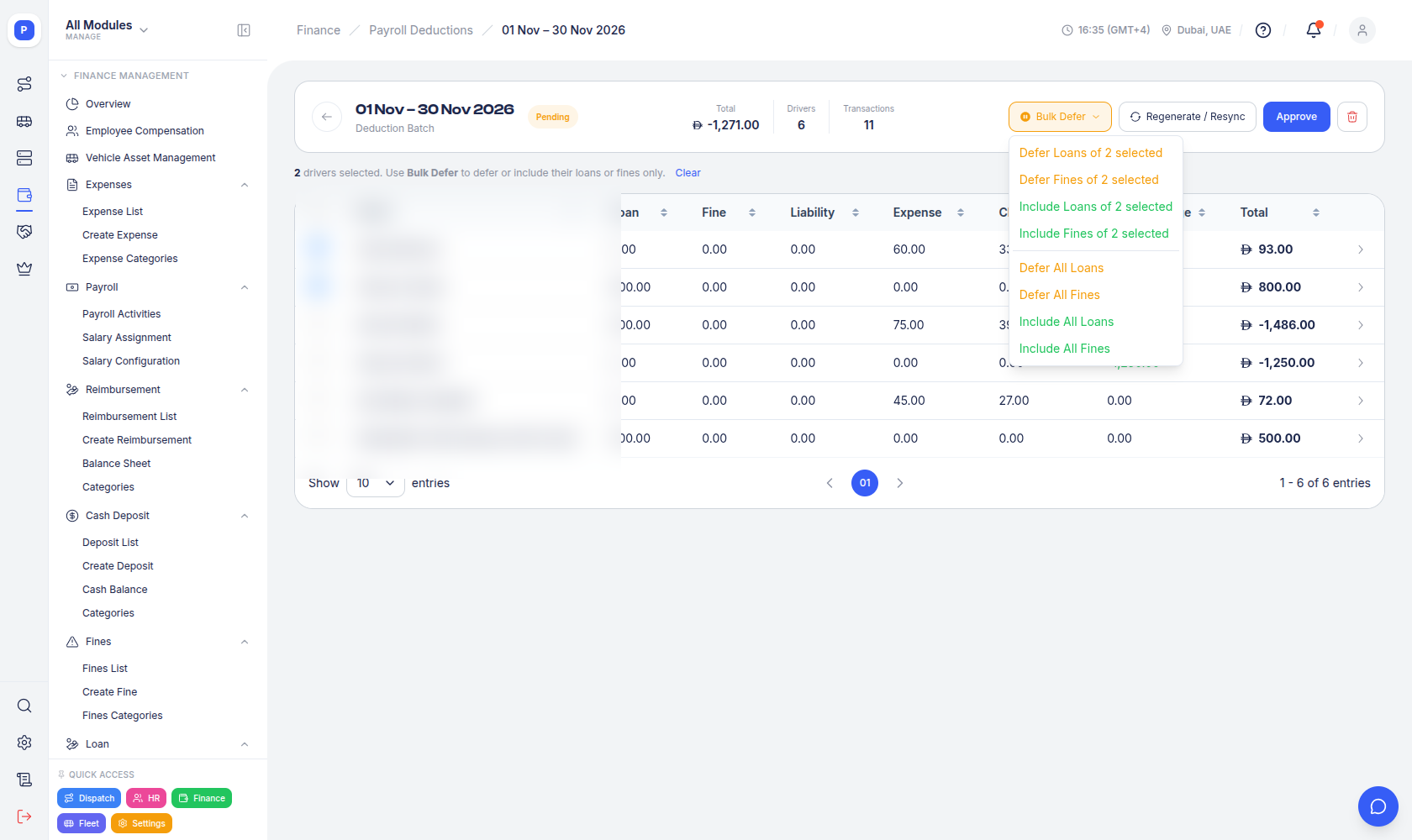
The message says how many items changed, for example Deferred 2 loan items of 2 selected drivers or ... across all drivers. When there is nothing to change it says No loan items to defer. After a selective change the selection is cleared.
Regenerate / Resync
| Entry | Who can use it | What it does |
|---|---|---|
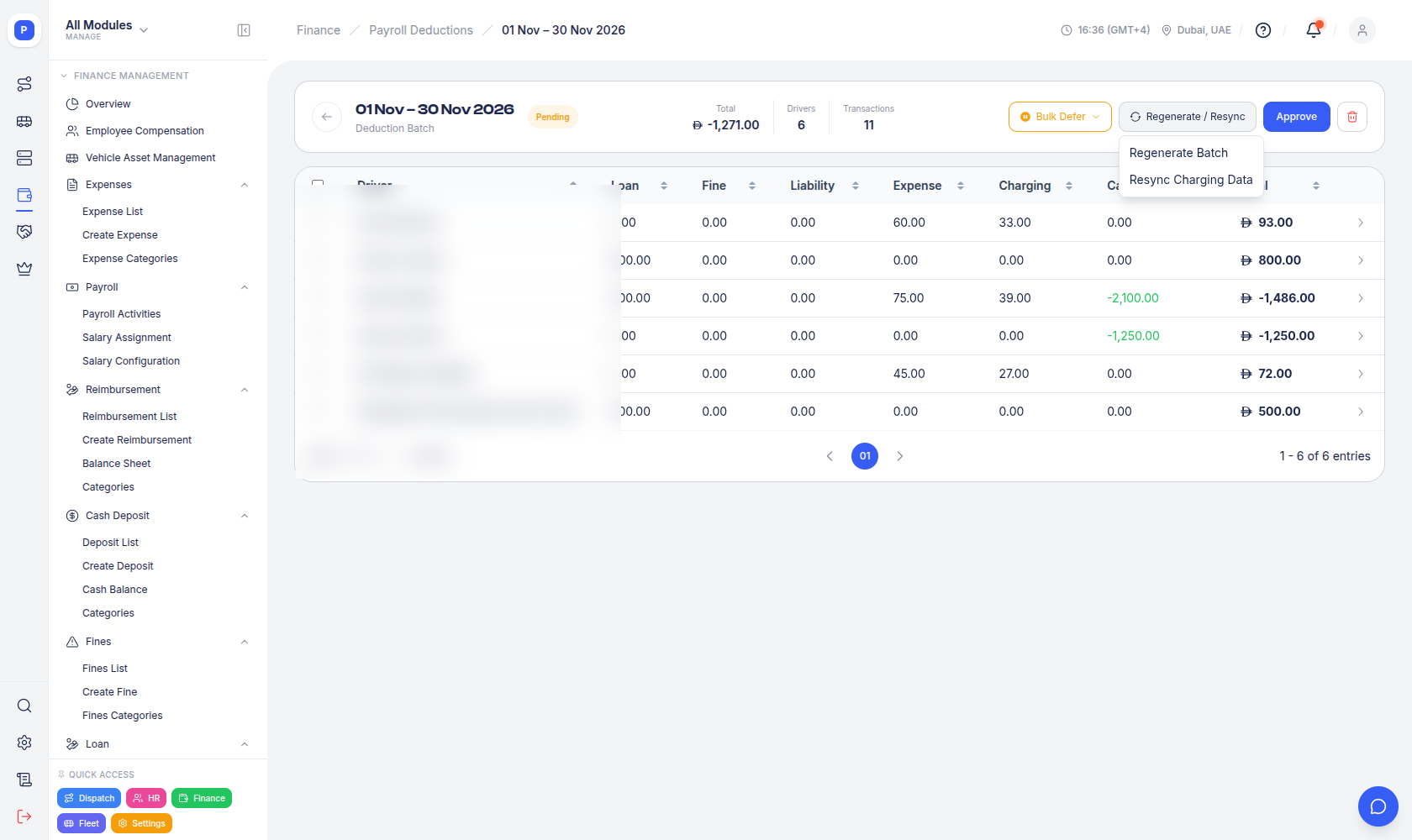
| Regenerate Batch | Deductions add | Rebuilds the whole batch from the current data, as if you had generated it again. Every exclusion you made is lost, and employees get the Deduction Pending notification again. There is no confirmation: it starts at once |
| Resync Charging Data | Deductions edit | Pulls the charging sessions of the month again into the batch, without touching the other kinds. Use it after charging sessions were added or changed |
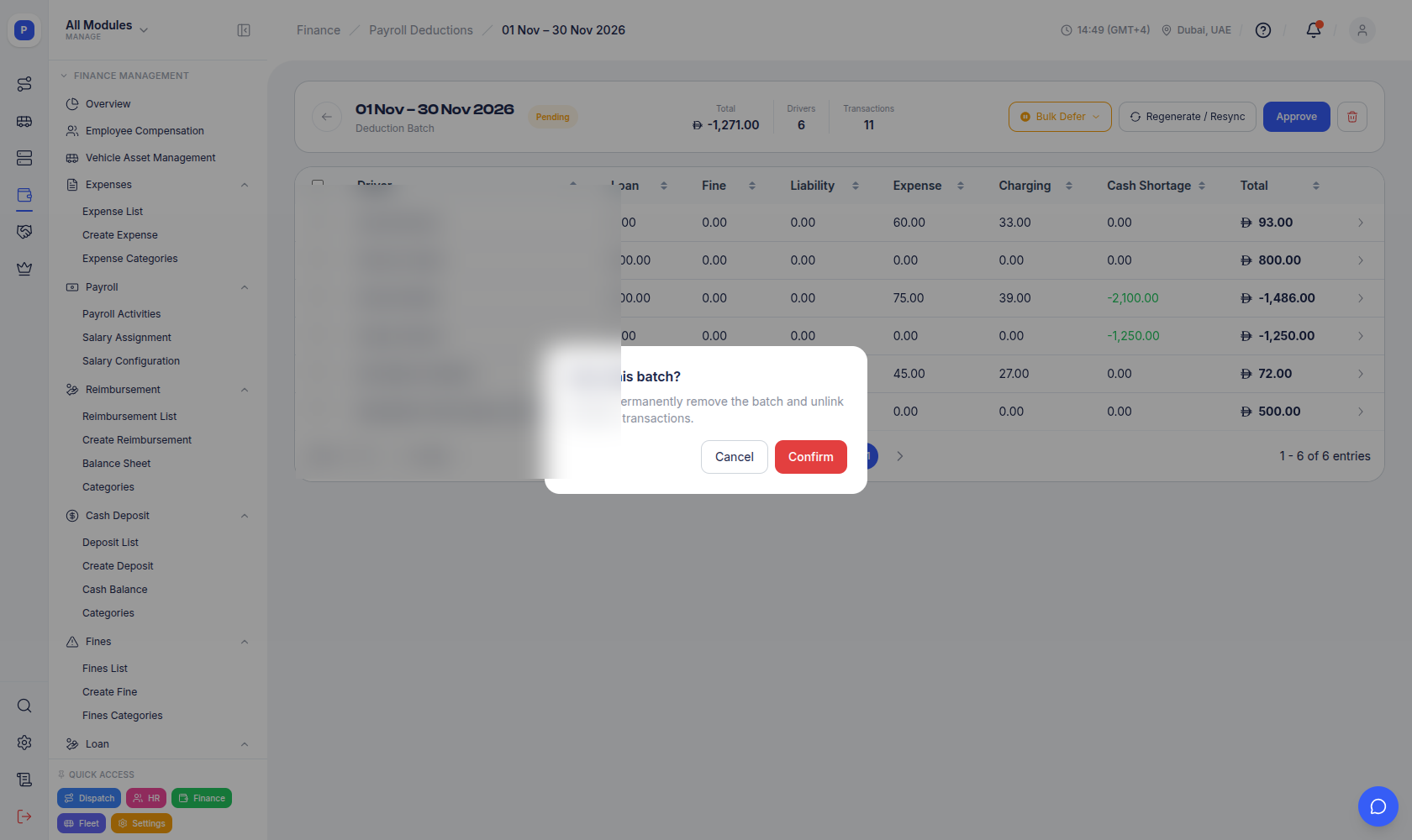
Deleting a batch
The bin button asks Delete this batch? and, after Confirm, removes the batch and releases everything it held, so that those items are free for another batch. Only a Pending batch can be deleted; an Approved one must be reopened first.