Edit Reimbursement
Change a claim before it is approved, and move it between Draft and Pending.
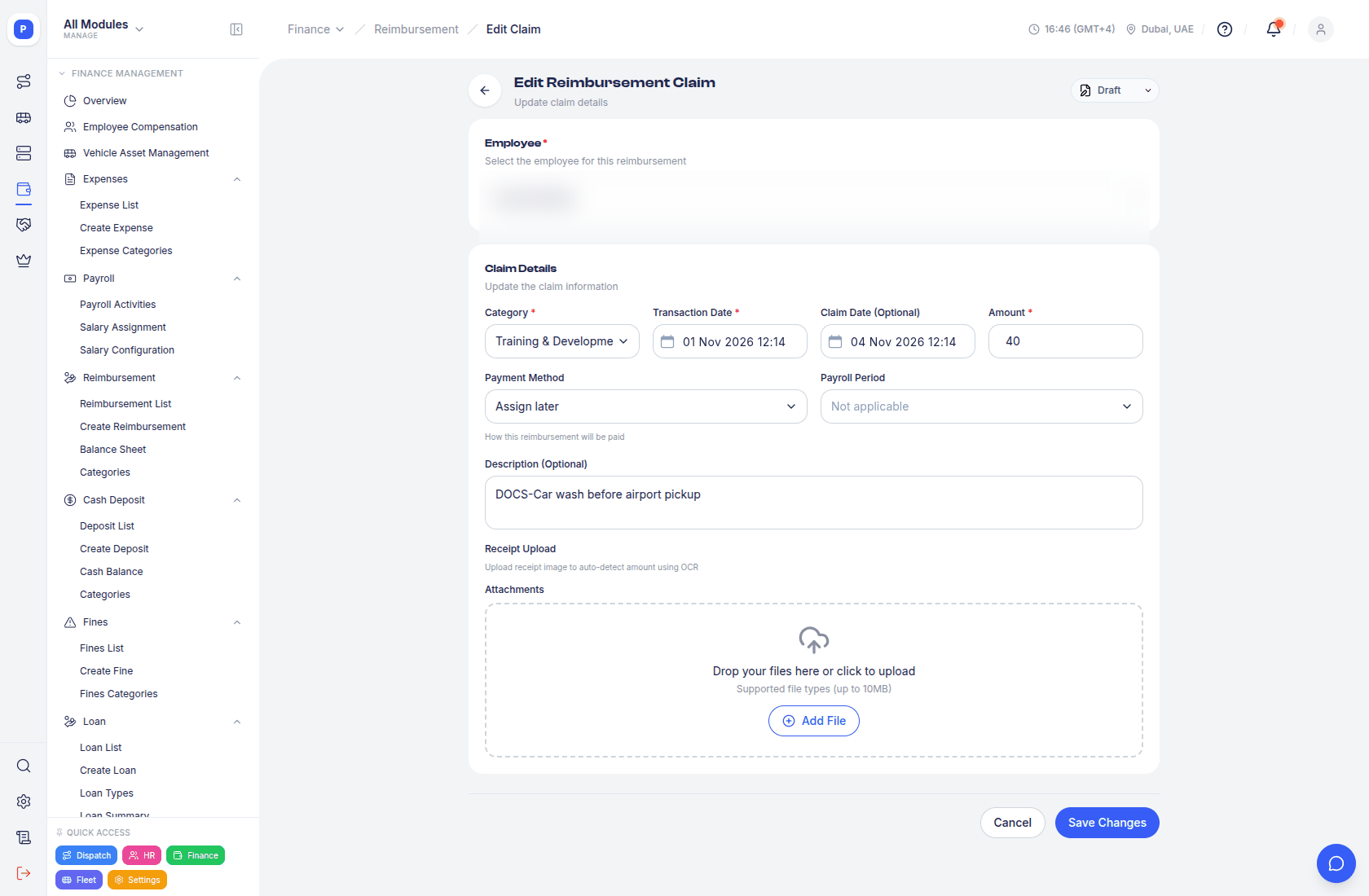
Edit in the row Actions of the Reimbursement List (or Edit in New Tab) opens Edit Reimbursement Claim for one claim. It needs the edit action of the Reimbursement permission.
What you can change
The form is filled in with the claim:
| Field | Notes |
|---|---|
| Employee | The employee of the claim |
| Category | Required |
| Transaction Date | Required: date and time of the expense |
| Claim Date (Optional) | The date of the claim. Emptying it clears the date |
| Amount | Required, more than 0 |
| Payment Method and Payroll Period | As in Create Reimbursement: the payroll list shows the payrolls that are still in draft |
| Description (Optional) | Free text |
| Receipt Upload / Attachments | Add or remove receipts |
Save Changes saves them (Claim updated successfully) and returns to the list. Cancel leaves the form.
Only a claim that is Draft, Pending or Rejected can be edited. For an Approved, Partially Paid or Paid claim the server refuses with Cannot update claim with status ….
The status chip
The chip at the top right shows the status of the claim. Here it does something: choosing another status and saving changes the status. It only offers Draft and Pending (besides the status the claim already has):
- A Draft claim becomes Pending when you choose Pending and save: it is then waiting to be approved or rejected.
- A Rejected claim can go back to Pending (or Draft) after you corrected it.
- A claim can go back from Pending to Draft.
Approved, Rejected and Paid are not offered: a claim is approved or rejected from the row Actions of the list (Approve / Reject), and it is paid on the Balance Sheet. If a request tries to set one of those statuses here, the server answers The status cannot be set to … by editing a claim. Approve or reject it from the list (Actions > Approve / Reject), and pay it with Pay.