Reimbursement List
Find reimbursement claims, review them, approve or reject a claim from the row Actions, edit or delete claims and export them.
Finance > Reimbursement > Reimbursement List shows every claim an employee made for money they spent on the company's behalf: parking, fuel, a repair paid out of pocket. From here you review claims, approve or reject them, and open them for editing.
The page opens for roles that have the Reimbursement permission. What you can do on it depends on the actions of that permission:
| You need | To |
|---|---|
| view | Open the page and the claim details |
| add | Use Create New |
| edit | Edit and Edit in New Tab |
| approve | Approve a pending claim |
| reject | Reject a pending claim |
| delete | Delete one or several claims |
Status tabs
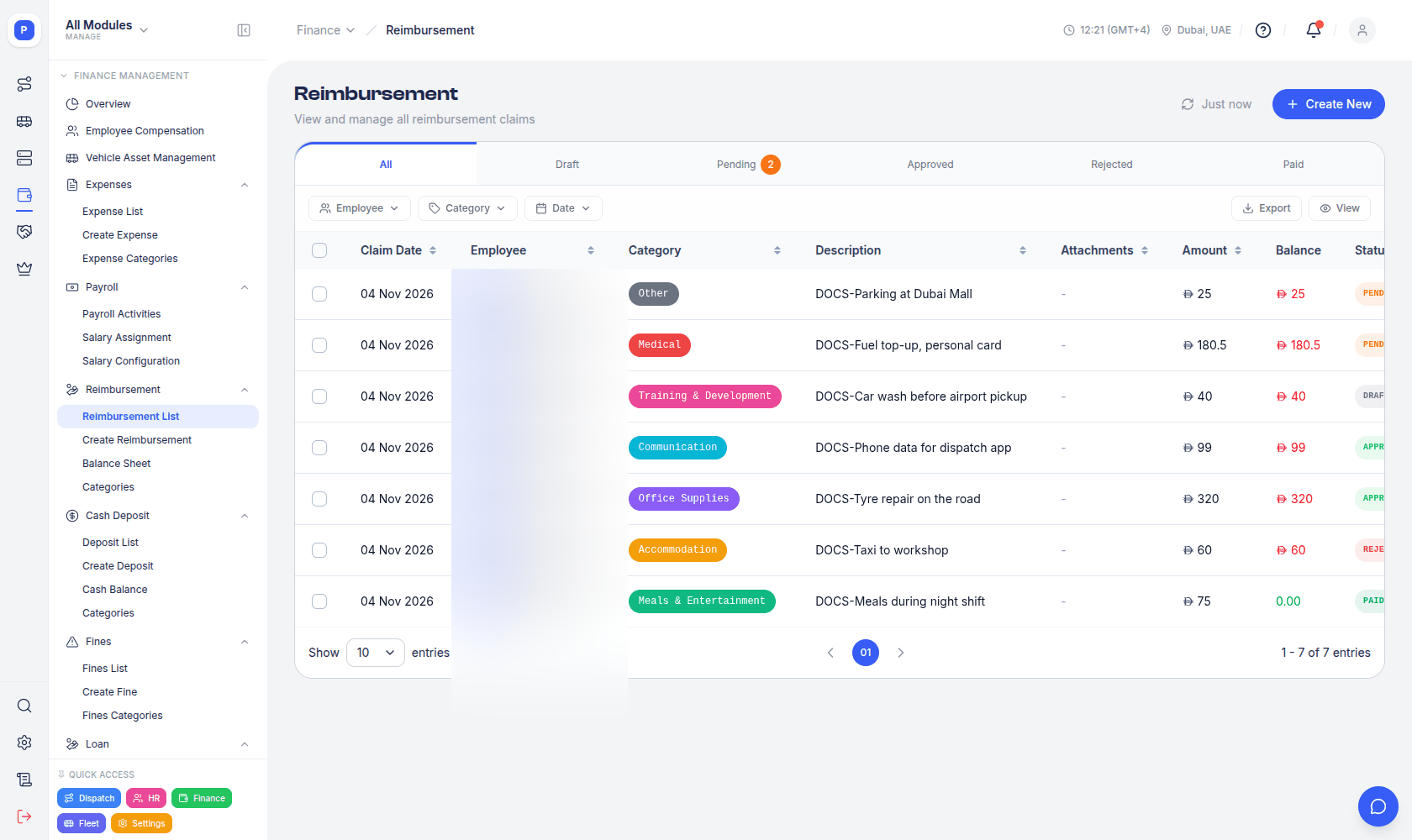
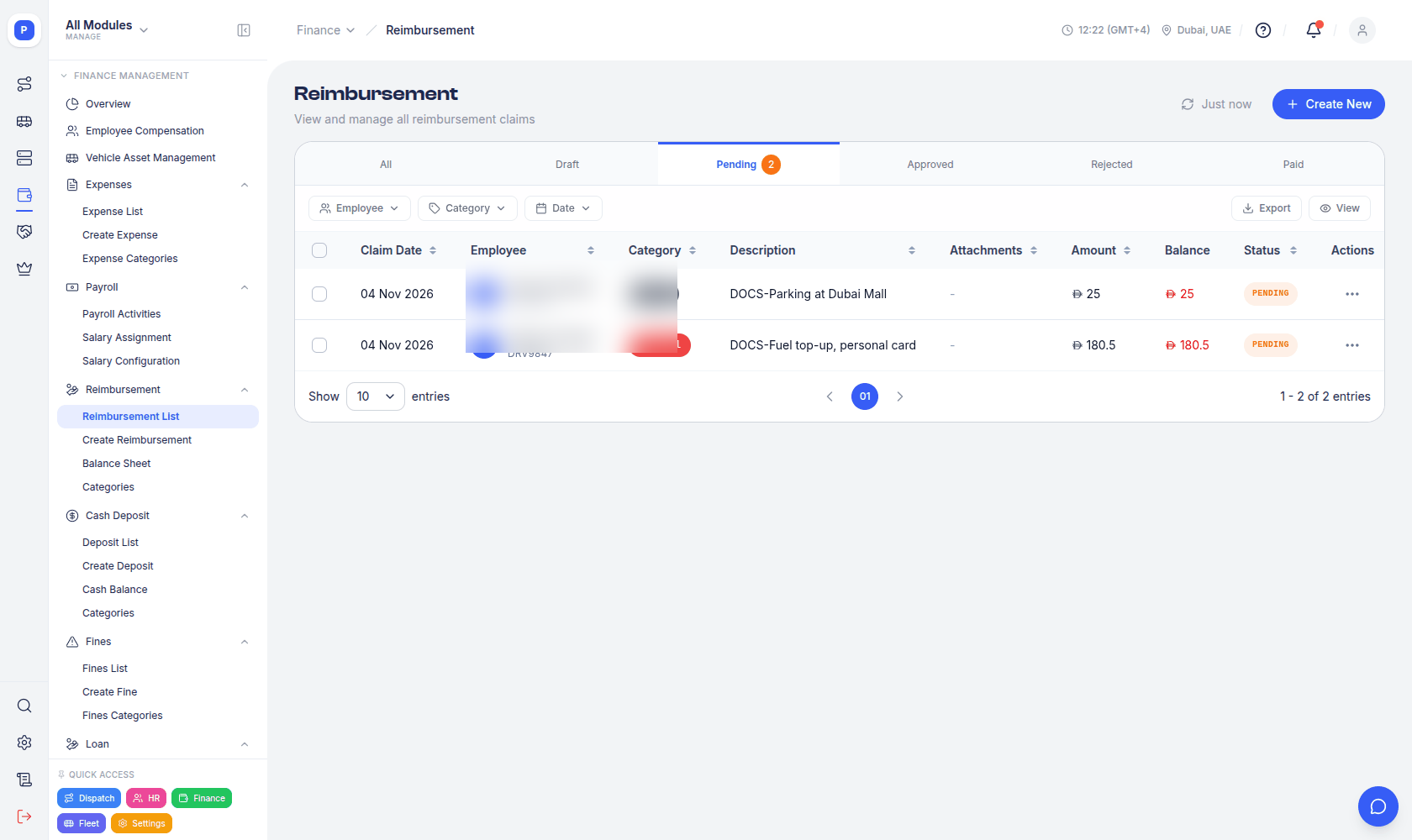
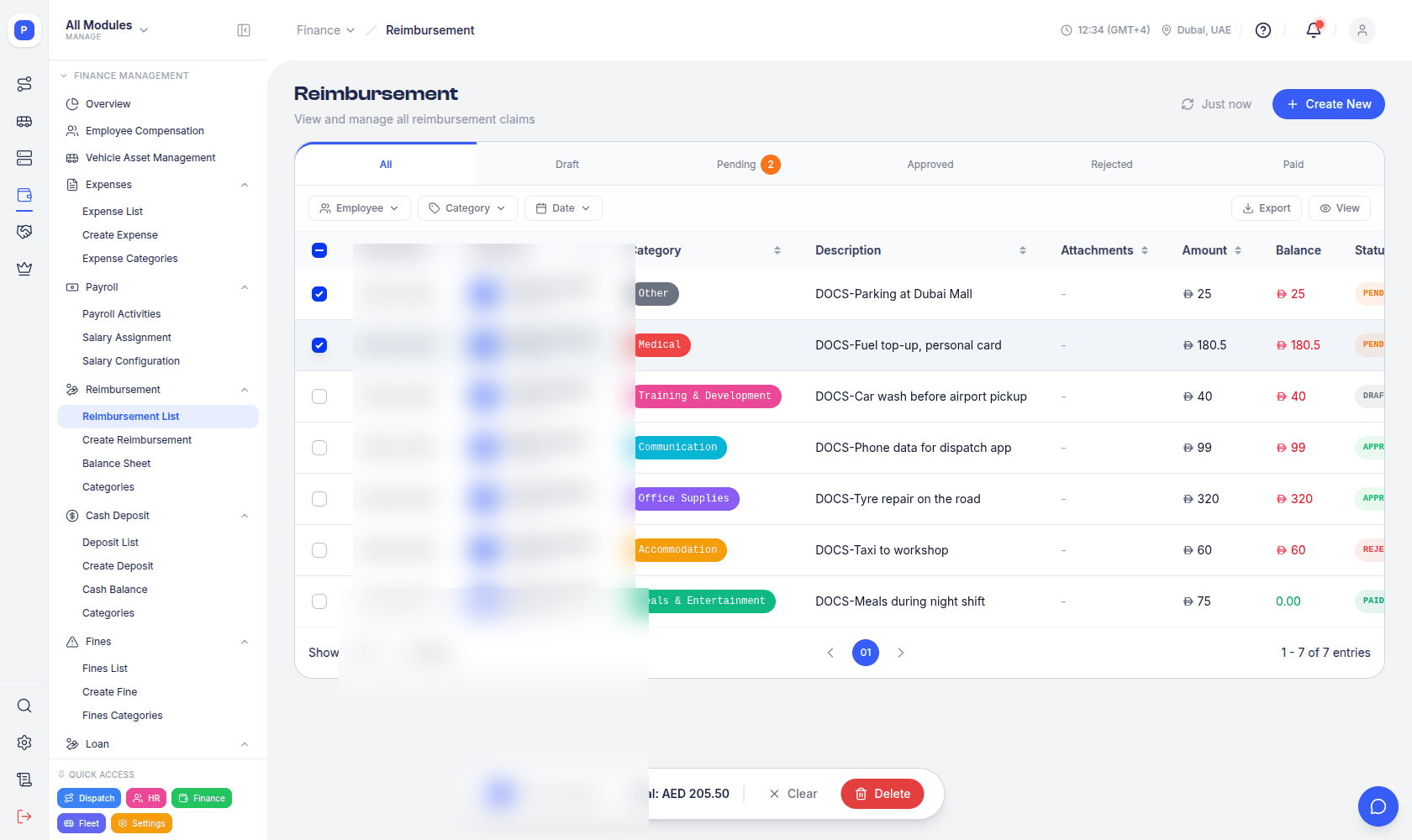
The tabs above the table filter the list by status: All, Draft, Pending, Approved, Rejected and Paid. The Pending tab carries a number: the claims that wait for your decision.
| Status | Meaning |
|---|---|
| Draft | Created but not sent for review yet |
| Pending | Submitted and waiting to be approved or rejected |
| Approved | Accepted: it can now be paid (see Balance Sheet) |
| Rejected | Declined, with a reason |
| Paid | Paid in full |
A claim that was approved and paid only in part has the status Partially Paid. No tab is limited to that status: find it under All.
Filters
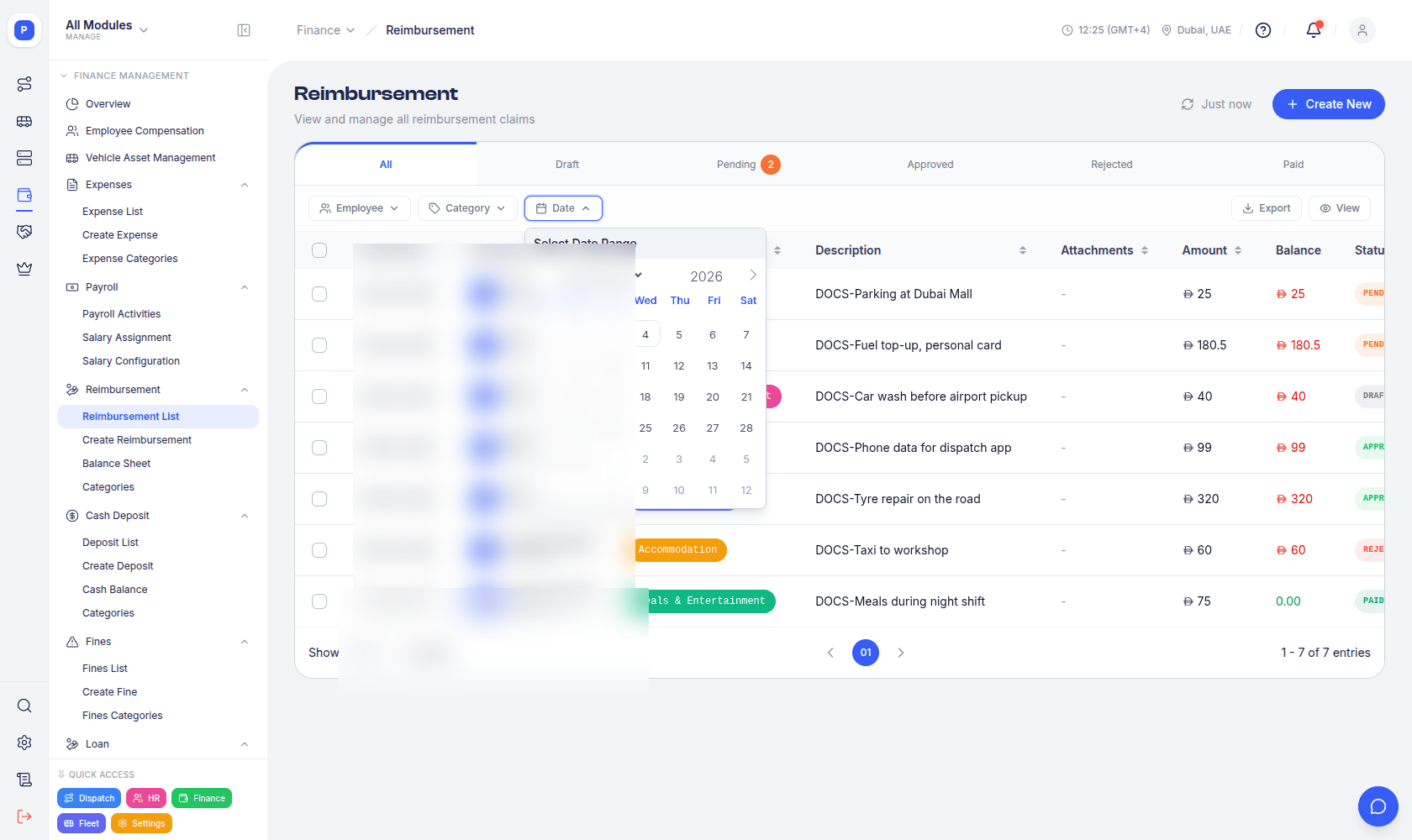
Employee, Category and Date narrow the list. The Employee and Category lists have a search box and let you tick several values. Date opens a calendar to pick a range. When a filter is on, Clear all appears to switch every filter off.
Columns
| Column | Shows |
|---|---|
| Claim Date | The date of the claim |
| Employee | Name and employee number |
| Category | The reimbursement category, as a coloured tag |
| Description | What the money was spent on |
| Attachments | The receipts that were uploaded, if any |
| Amount | The claimed amount in AED |
| Balance | What is still to be paid: the amount minus what was paid. It is red while money is owed and green 0.00 once paid |
| Status | The status chip |
| Actions | The ... menu of the row |
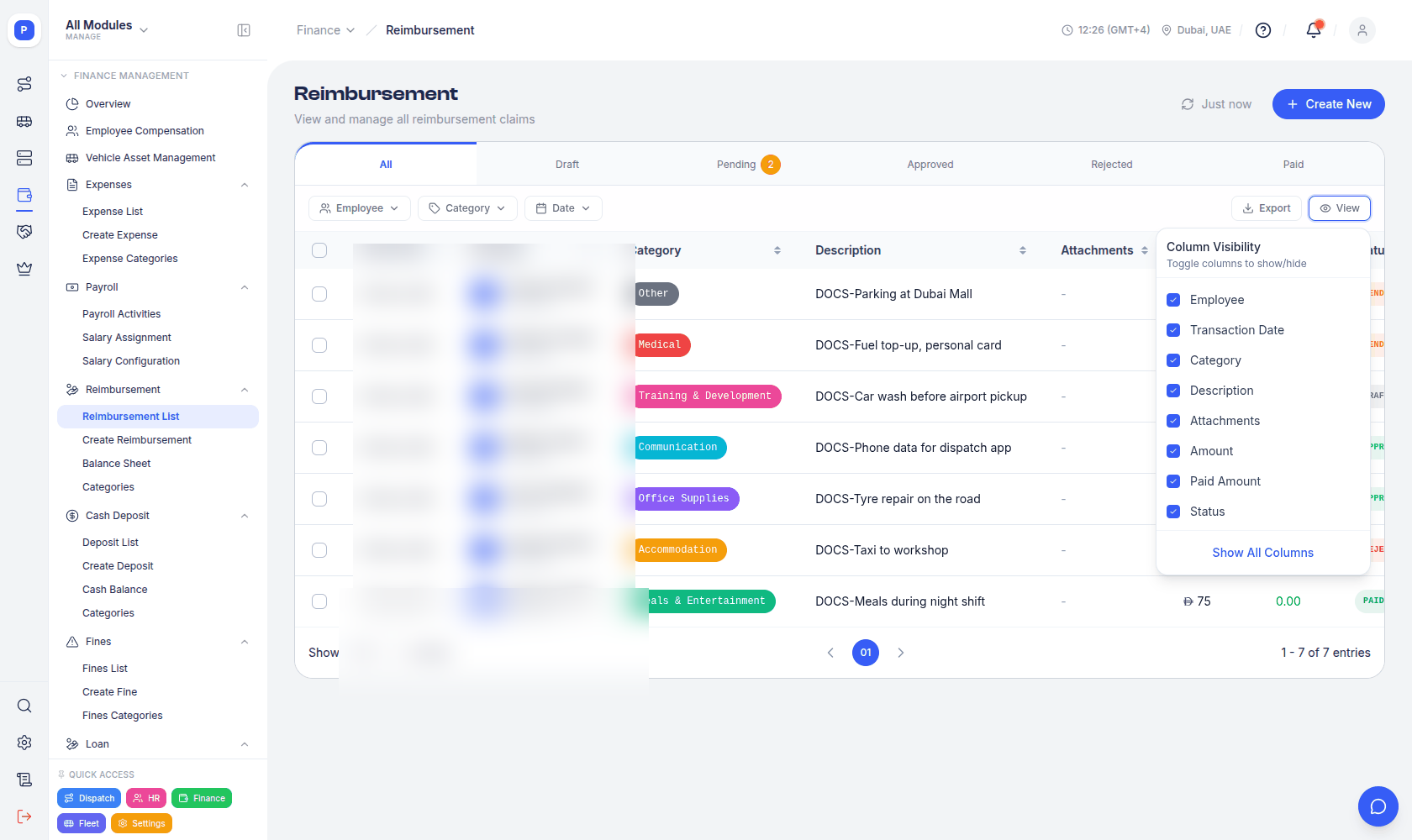
View (top right) lists the columns that can be hidden: Employee, Transaction Date, Category, Description, Attachments, Amount, Paid Amount and Status. Show All Columns brings them all back.
Row Actions
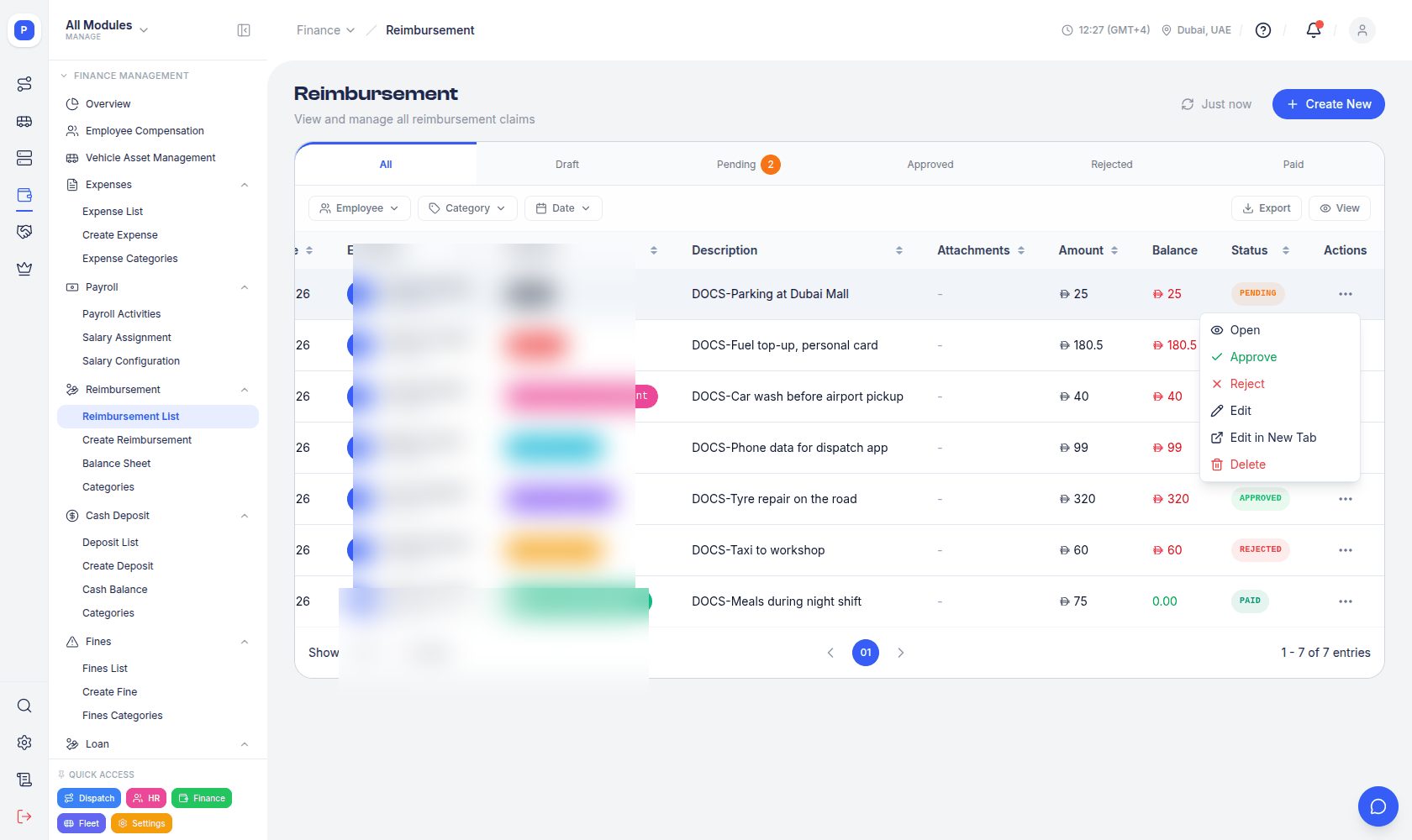
The ... button at the end of a row (and a right-click on the row) opens the menu of that claim.
| Item | Shown for | What it does |
|---|---|---|
| Open | Every claim | Opens the claim in a side panel |
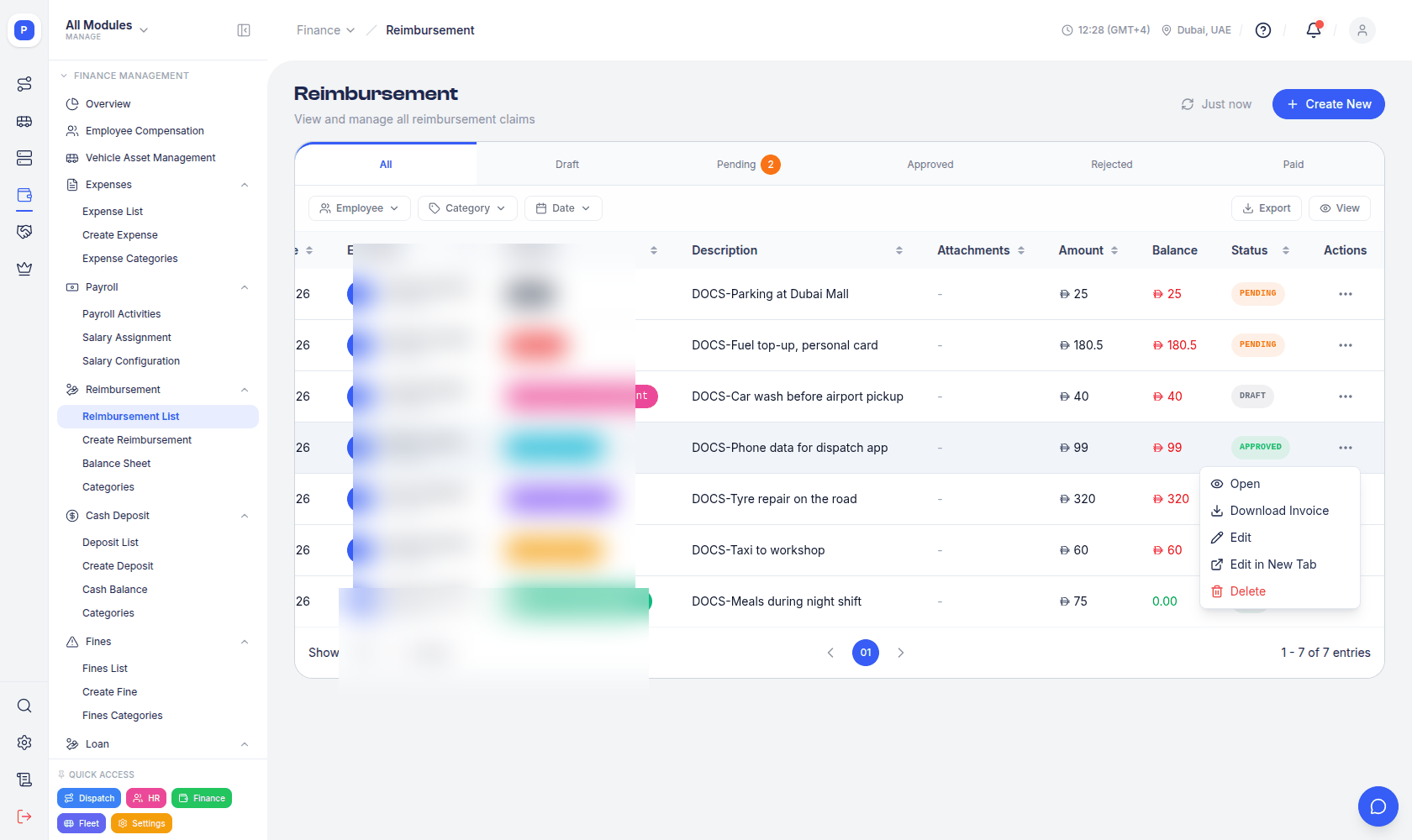
| Download Invoice | Approved, Paid and Partially Paid claims | Creates a PDF invoice of the claim |
| Approve | Pending claims, with the approve permission | Asks for confirmation, then approves the claim |
| Reject | Pending claims, with the reject permission | Asks for a reason, then rejects the claim |
| Edit | Every claim, with the edit permission | Opens the edit form |
| Edit in New Tab | Every claim, with the edit permission | Opens the edit form in a new browser tab |
| Delete | Every claim, with the delete permission | Asks for confirmation, then deletes the claim |
For a claim that is not pending, Approve and Reject are not in the menu:
The side panel
Open shows Reimbursement Detail on the right: the category and status at the top, then Employee Information (name and employee number), Claim Details (category, description, transaction date, claim date and the reviewer's note when there is one), the receipts when the claim has attachments, and Payment Details with the Claim Amount, Paid Amount, Balance and Total.
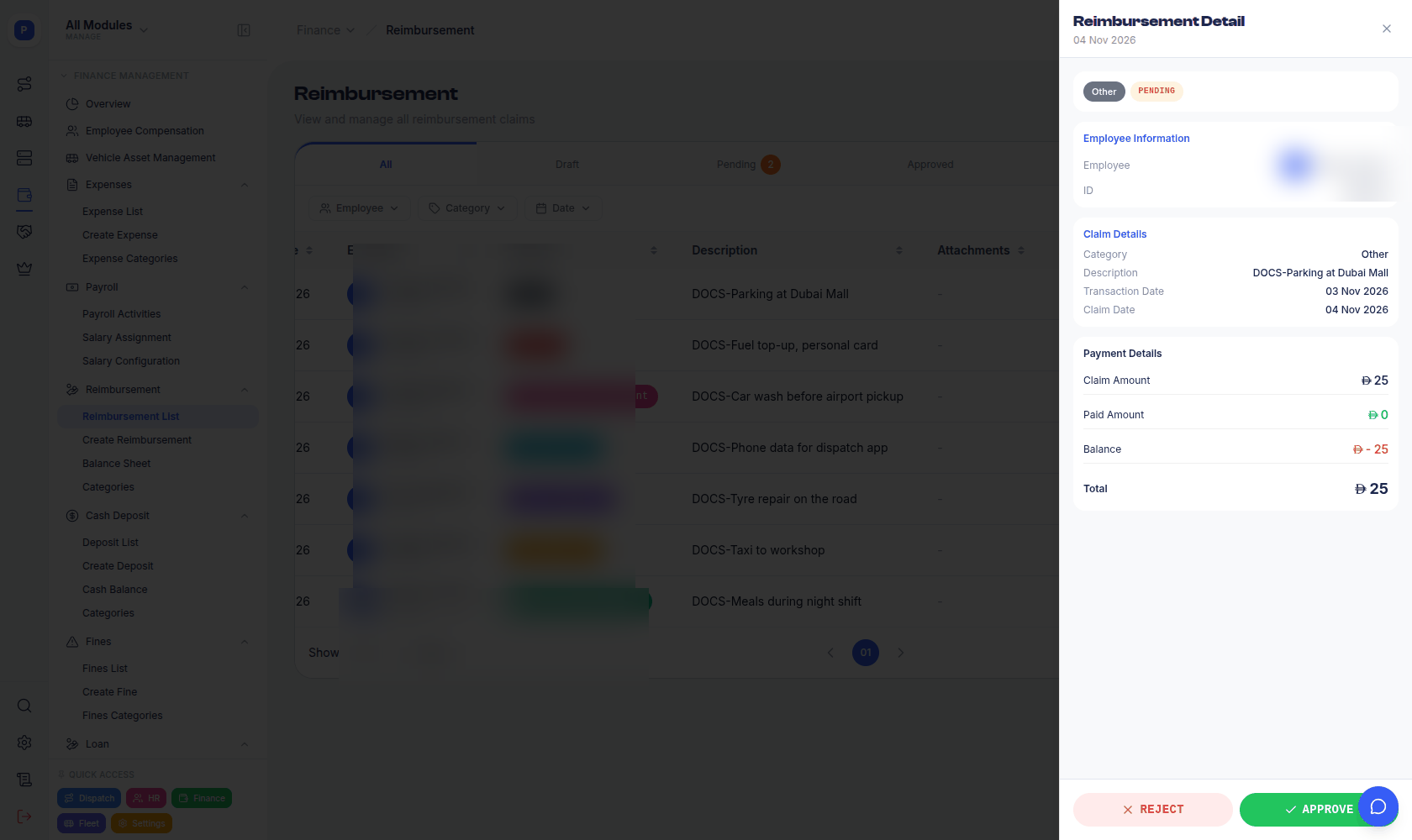
For a Pending claim the panel ends with Reject and Approve buttons (with the same permissions and the same confirmations as the row menu). For the other statuses there are no buttons:
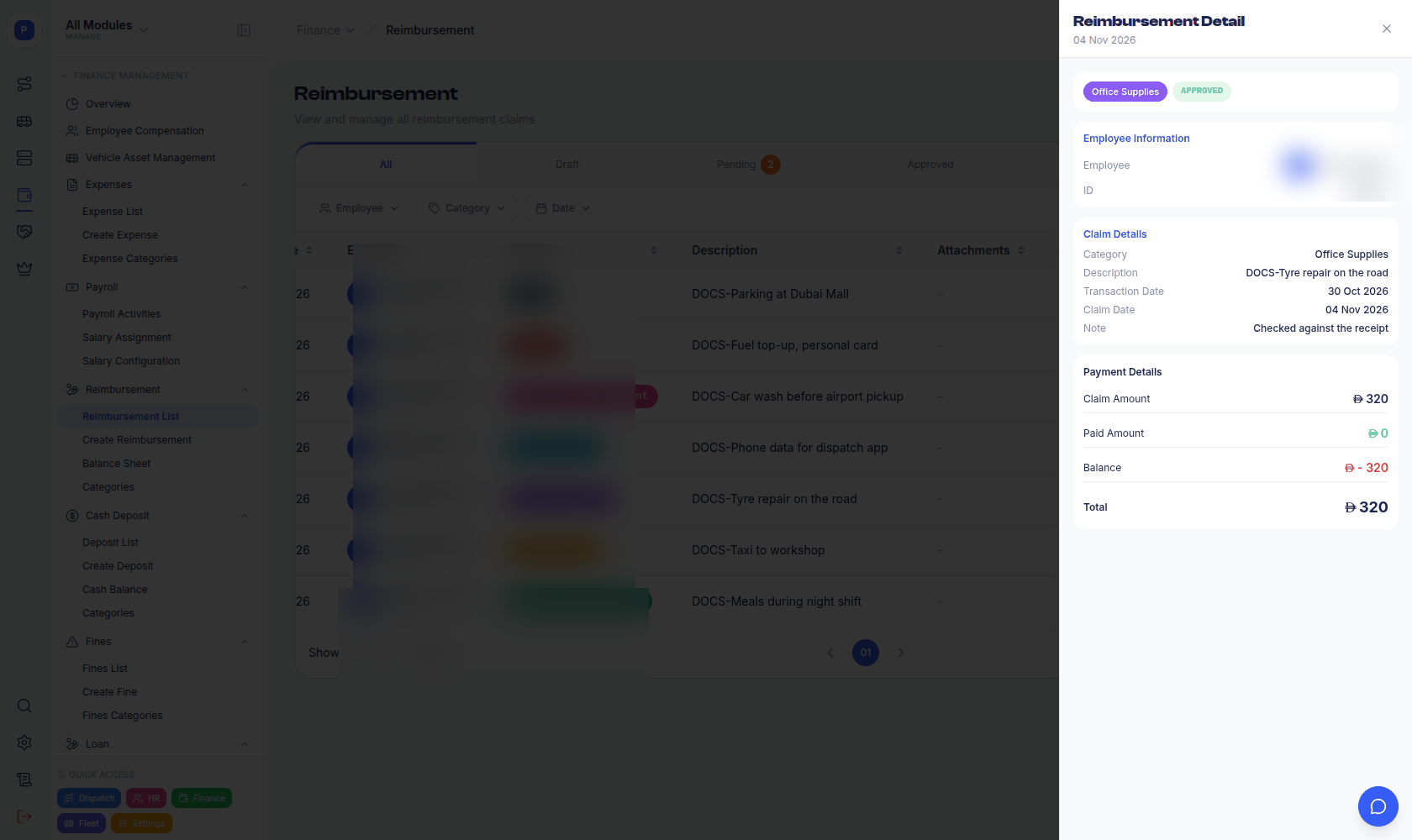
In the panel the Balance is written as a negative number (for example - 320 for a claim of 320 that is not paid yet), while the list shows it as a positive amount to pay. Both mean the same: 320 AED is still owed.
Approving a claim
Approve opens Approve this claim? with the employee and the amount. Confirm with Approve. The claim becomes Approved, the employee is notified, and your name and the time are kept as the reviewer.
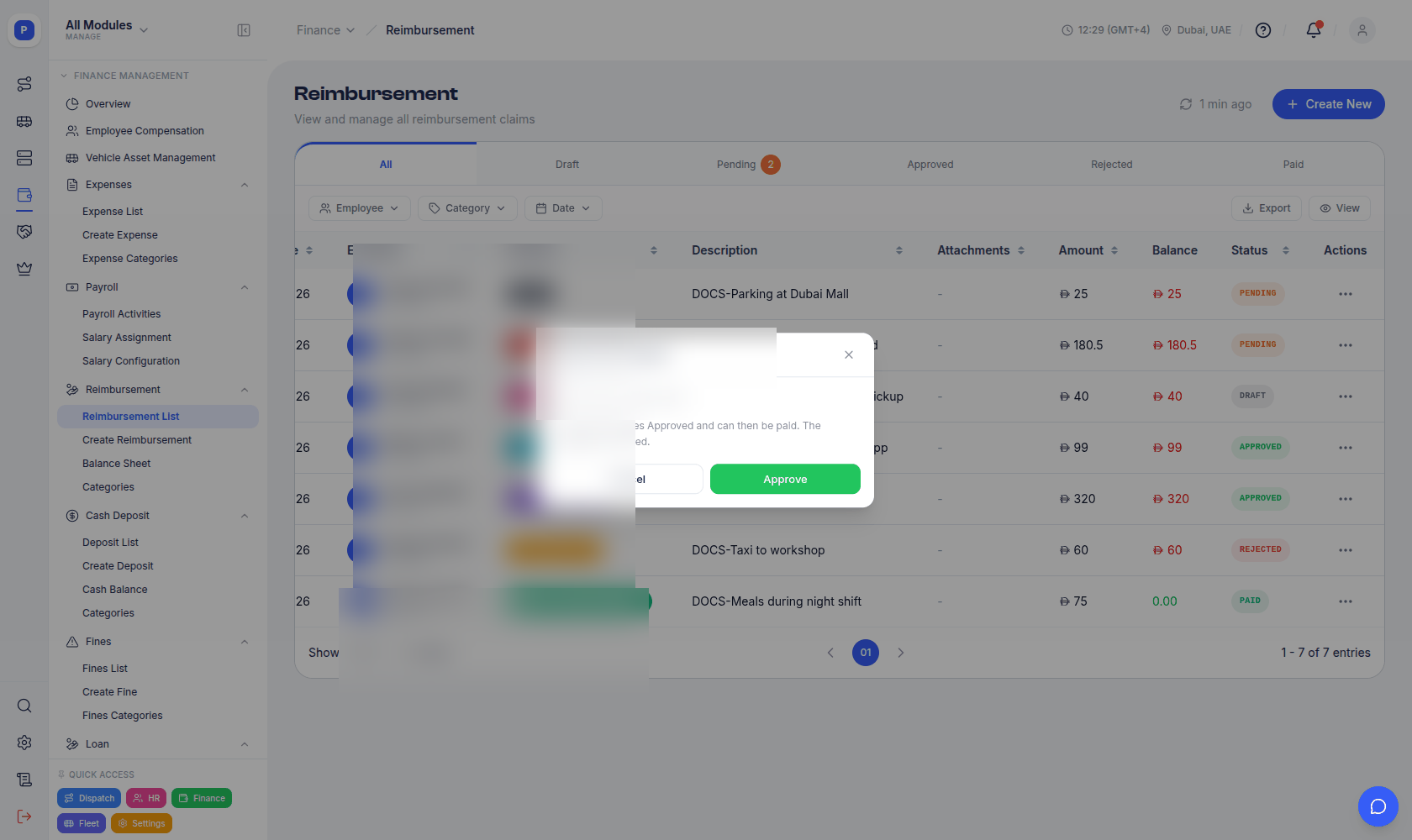
Only a Pending claim can be approved. If the claim changed in the meantime, the message from the server (for example Cannot approve claim with status APPROVED) appears instead.
Rejecting a claim
Reject opens Reject this claim? with a Reason box. Type why the claim is declined and confirm with Reject. Without a reason the claim is stored with the text Rejected by admin.
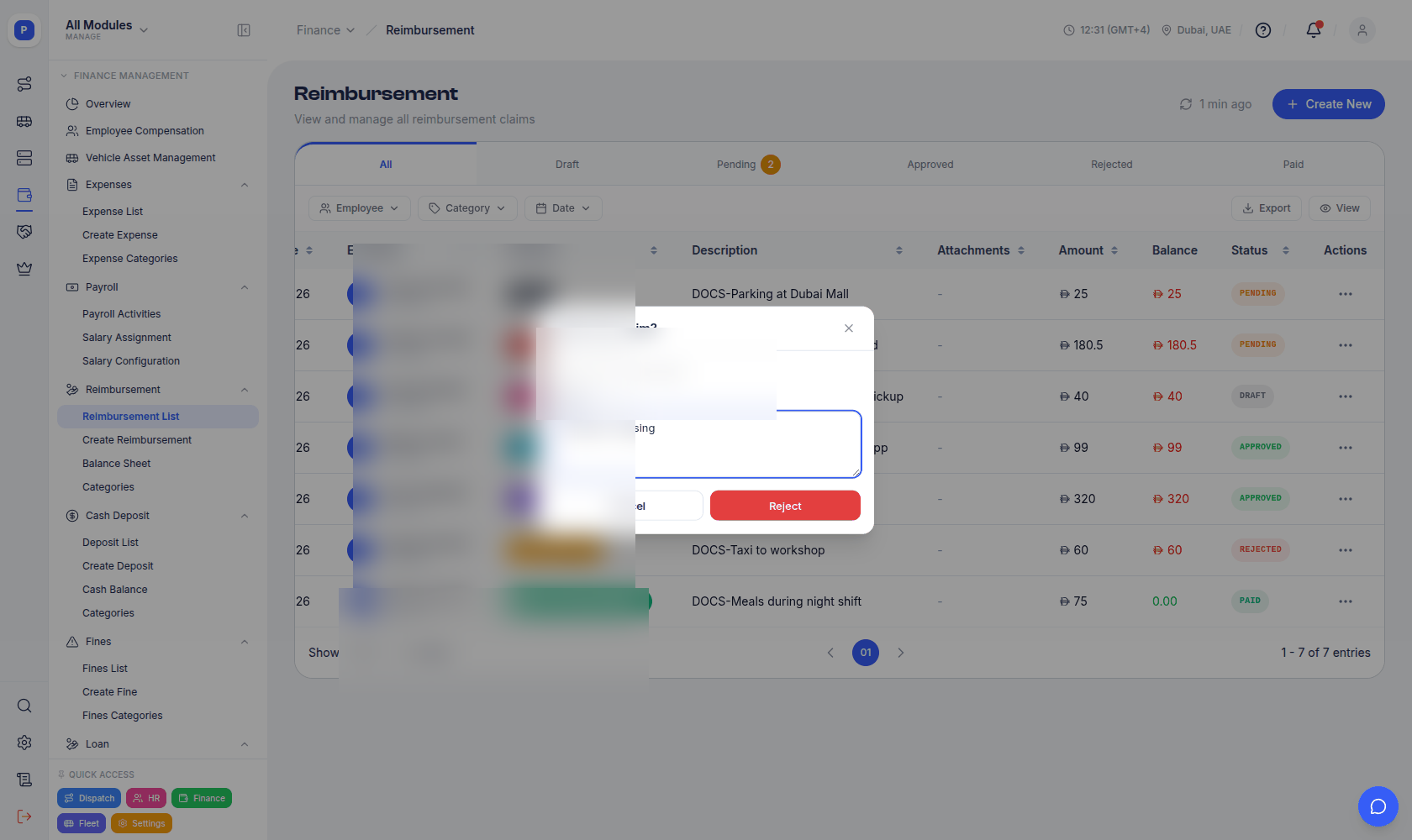
Approving and rejecting is done here, in the row Actions (or in the side panel that Open shows), and not in the edit form. The status in the edit form only moves a claim between Draft and Pending.
Deleting claims
Delete in the row menu opens Delete this reimbursement claim permanently?. You must type delete in the box before the Delete button becomes active. Tick several rows and a bar appears at the bottom with the number of claims, their Total and Clear / Delete to delete them all at once.
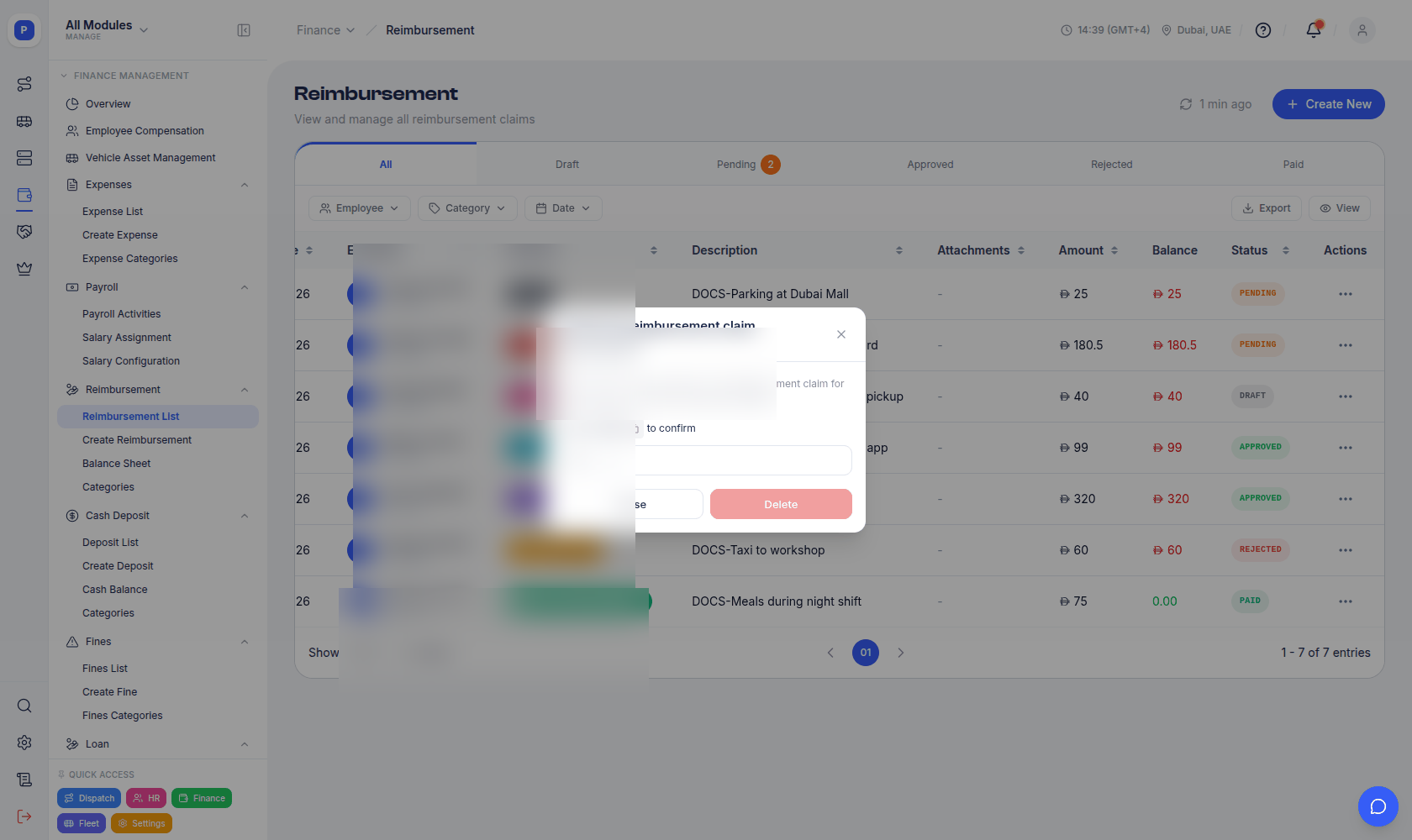
The dialog says "permanently", but the claim is only marked as deleted and leaves the list. The server does not look at the status: an approved or paid claim can be deleted too, and its payments stay on record. Delete only claims that were entered by mistake.
Exporting
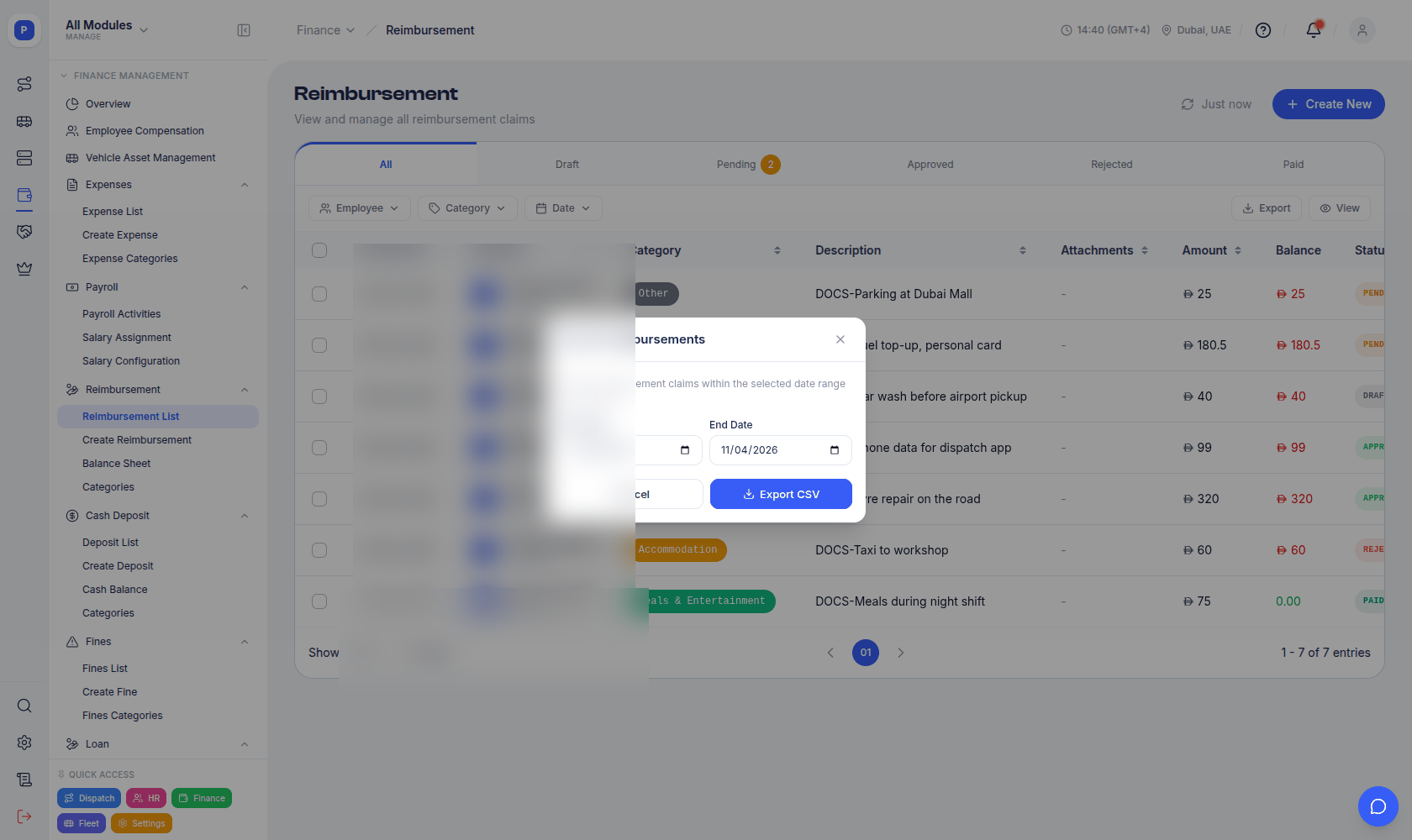
Export (top right) opens Export Reimbursements: pick a Start Date and an End Date and download the claims of that period as a CSV file.