Vehicle Registration
Generate the Arabic no-objection certificate (NOC) that lets a vehicle be registered with the RTA, and keep every certificate in a list.
Finance > Document Generator > Vehicle Registration issues the NOC for vehicle registration to RTA: an Arabic certificate of no objection on the company letterhead, for one vehicle. How the list, the preview and the letter settings work is explained in Document Generator; this page covers what is specific to this letter.
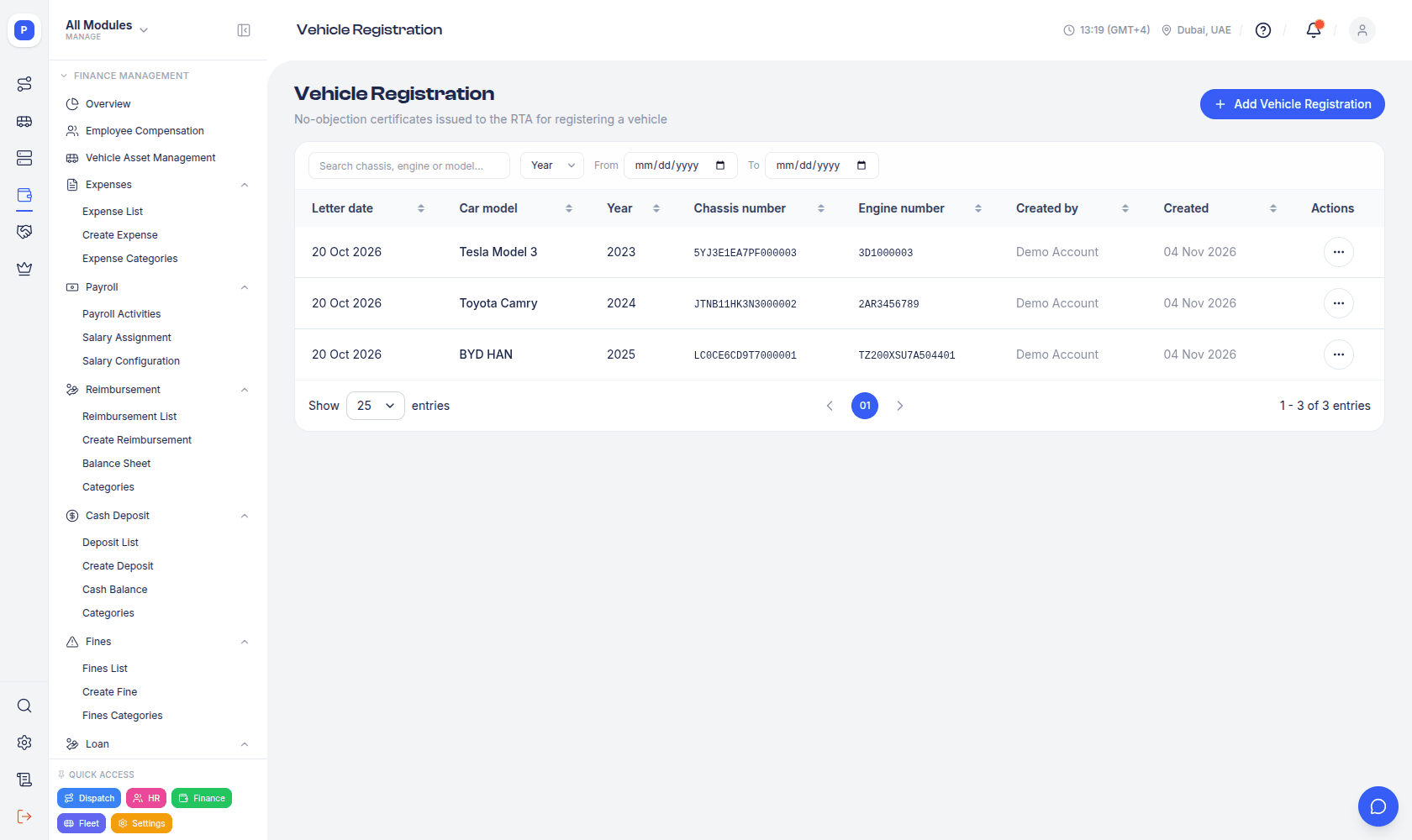
The list
| Column | Shows |
|---|---|
| Letter date | The date on the certificate |
| Car model | Make and model |
| Year | Year of manufacture |
| Chassis number, Engine number | As typed on the form |
| Created by, Created | Who generated it and when |
| Actions | The ... menu |
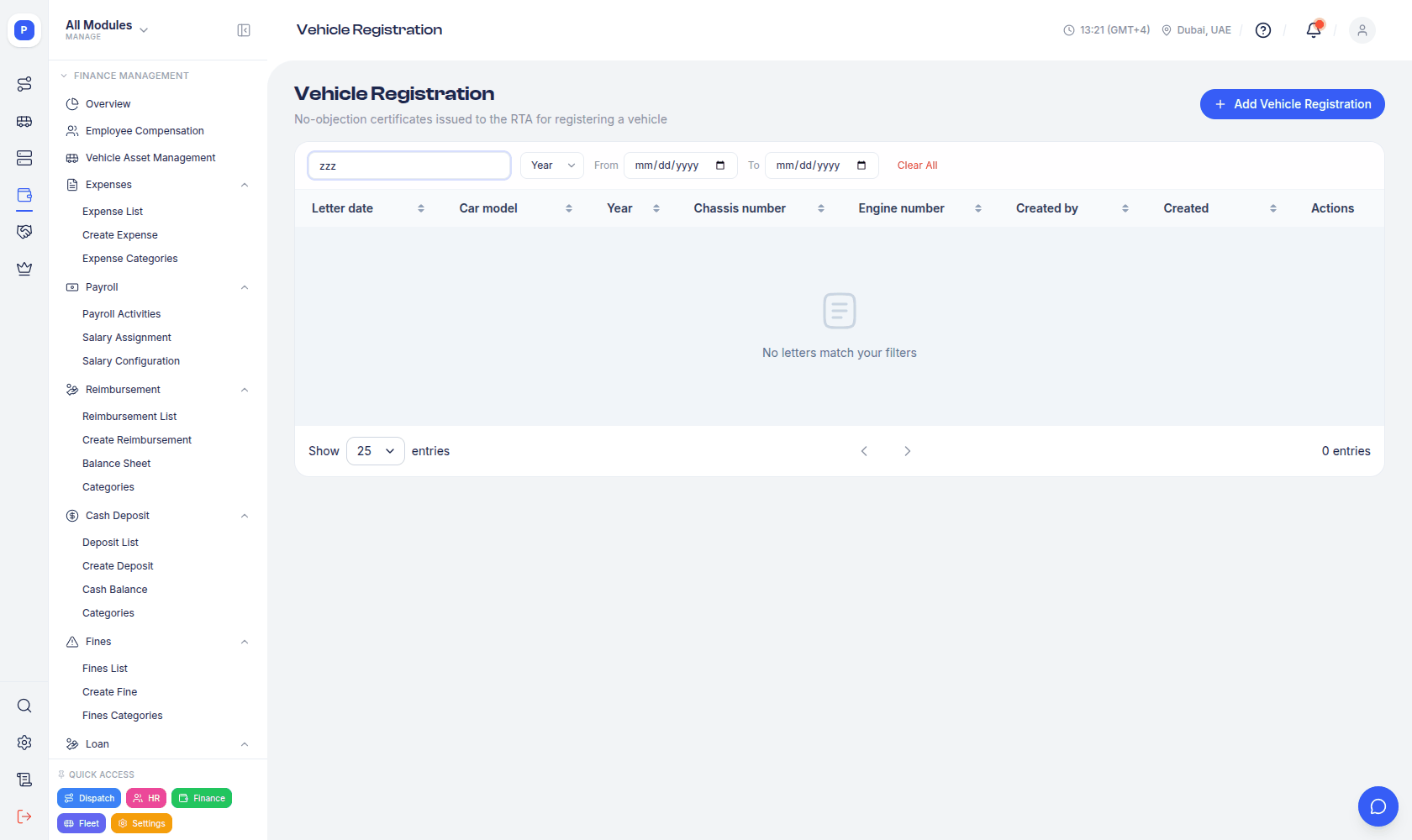
The search box finds a certificate by chassis number, engine number or car model. Year narrows the list to one year of manufacture (the list offers the years that exist) and From / To limit the letter date. Clear All resets them. With nothing to show the page says No vehicle registration letters yet, or No letters match your filters. The table is paged (25 per page by default).
Add a certificate
Add Vehicle Registration (top right, needs the add permission) opens the form.
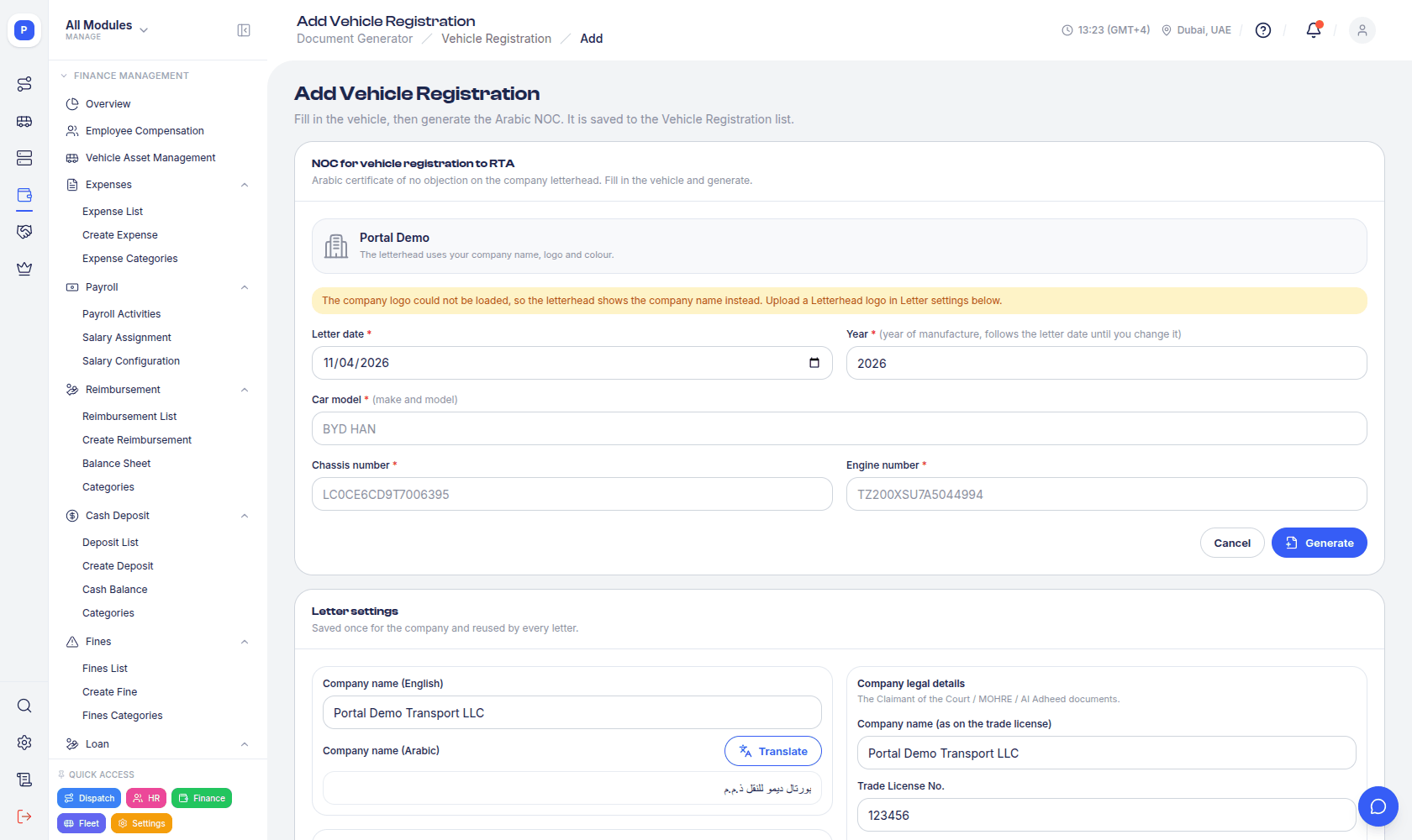
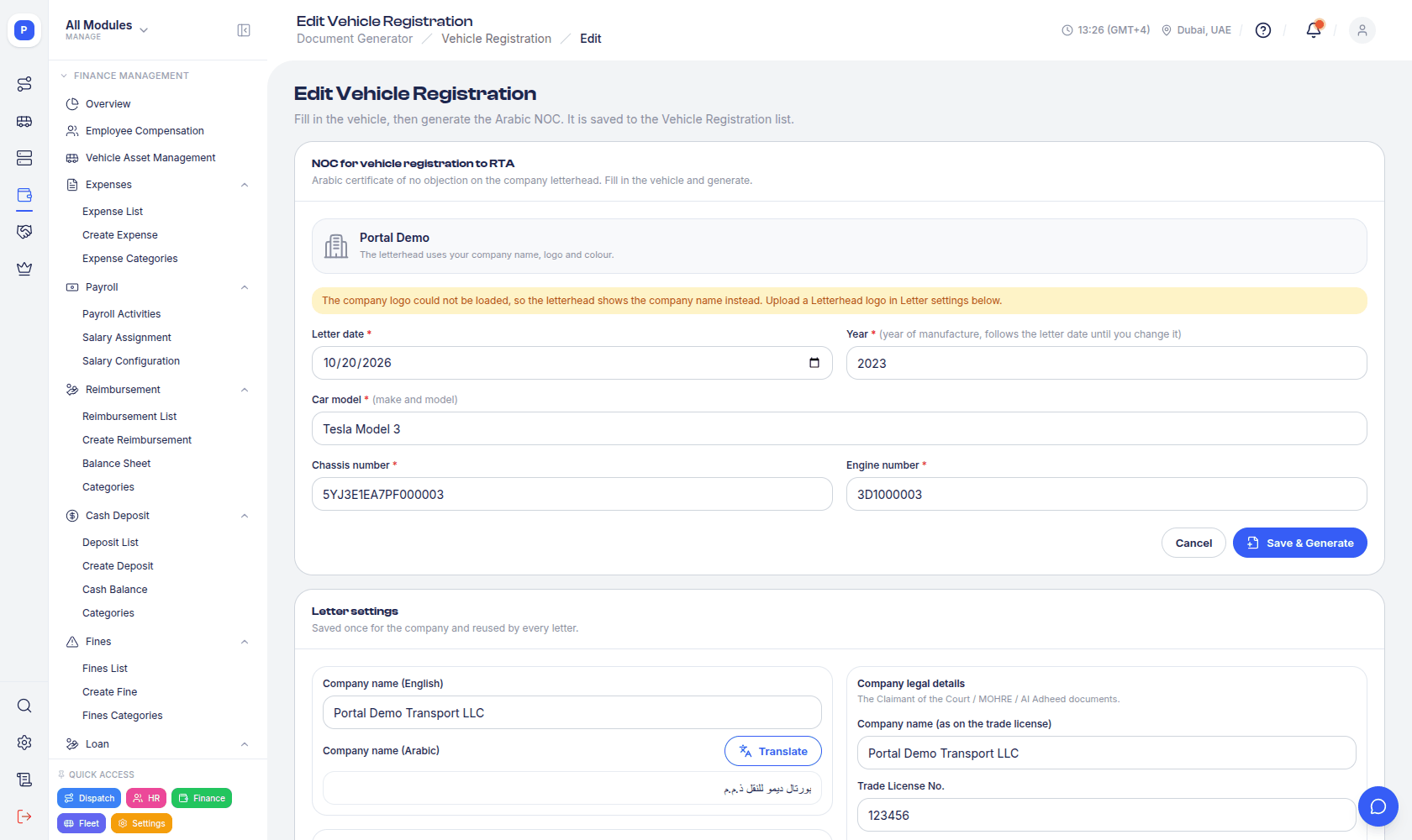
| Field | Required | Rule |
|---|---|---|
| Letter date | Yes | A date; today by default |
| Year | Yes | A whole 4-digit year (19xx or 20xx). Anything else is refused as you type. It follows the letter date until you type your own year, because a 2025 car can be on a 2026 letter |
| Car model | Yes | Make and model, for example BYD HAN: letters, numbers and . - / + ( ), 2 to 80 characters |
| Chassis number | Yes | Letters, numbers and -, 5 to 30 characters (shown in capitals) |
| Engine number | Yes | Letters, numbers and -, 5 to 30 characters (shown in capitals) |
At the top of the card the company name and logo show how the letterhead will look. Click Generate: if a field is wrong, each field shows its message (Required, A whole 4-digit year, e.g. 2026, and so on) and nothing is saved.
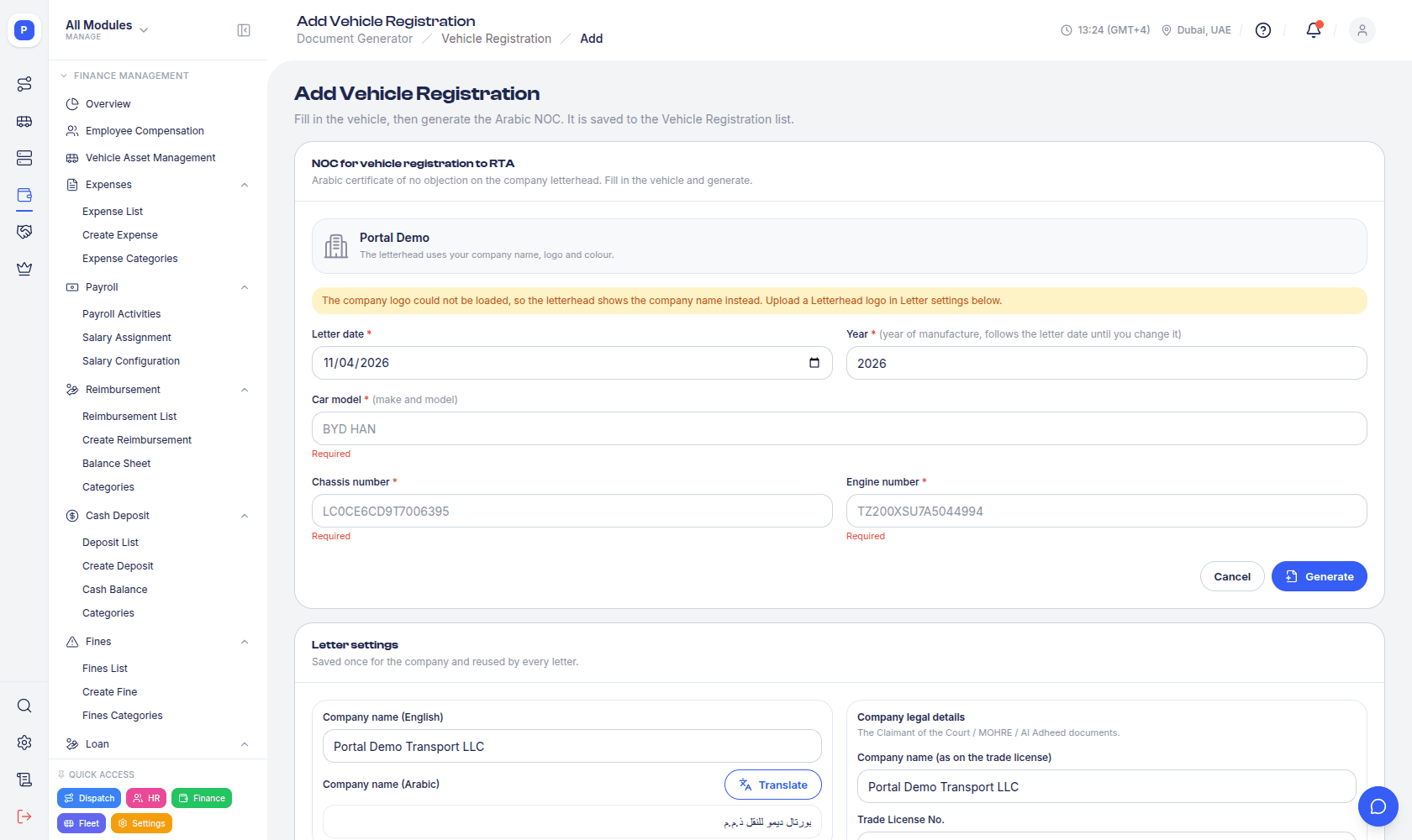
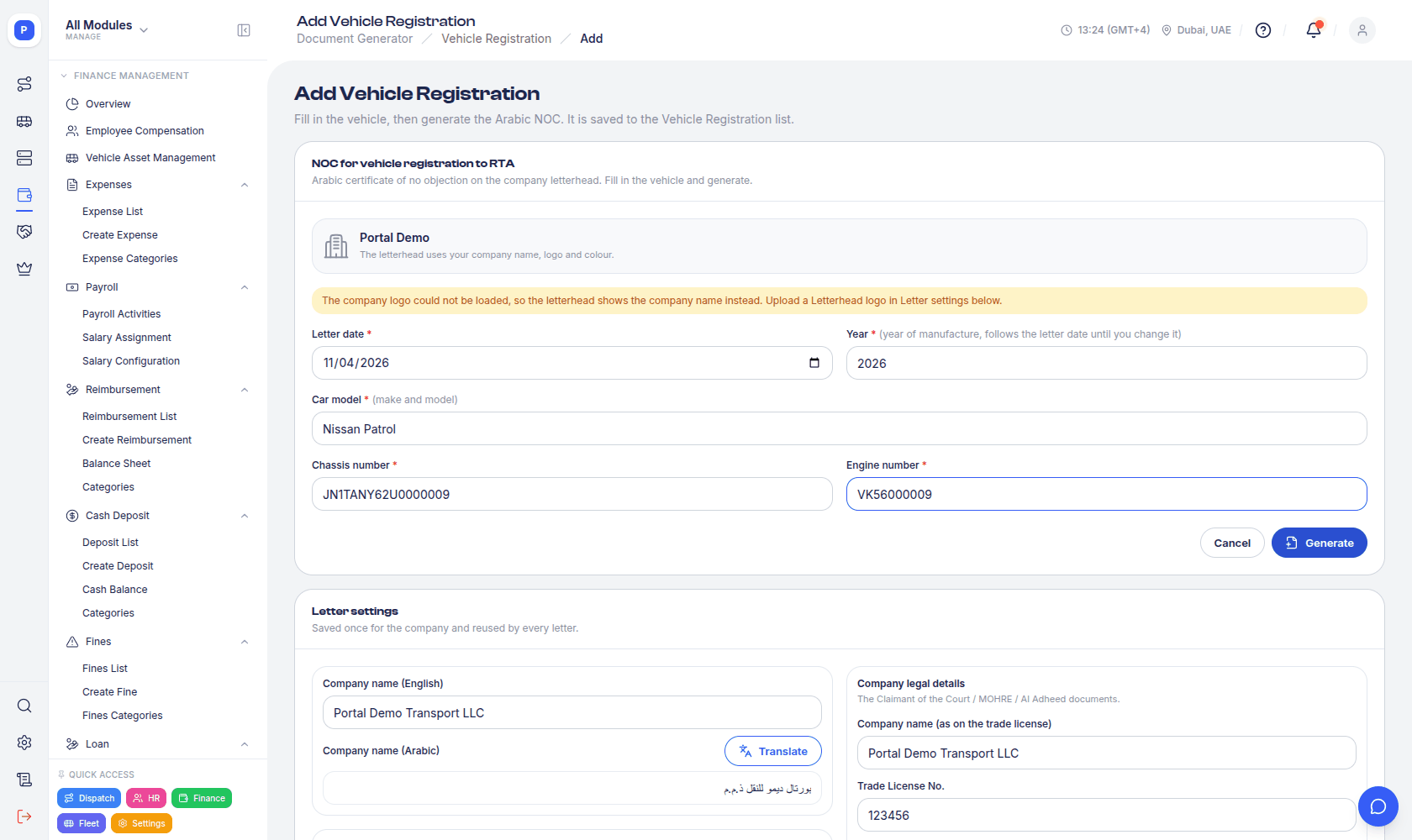
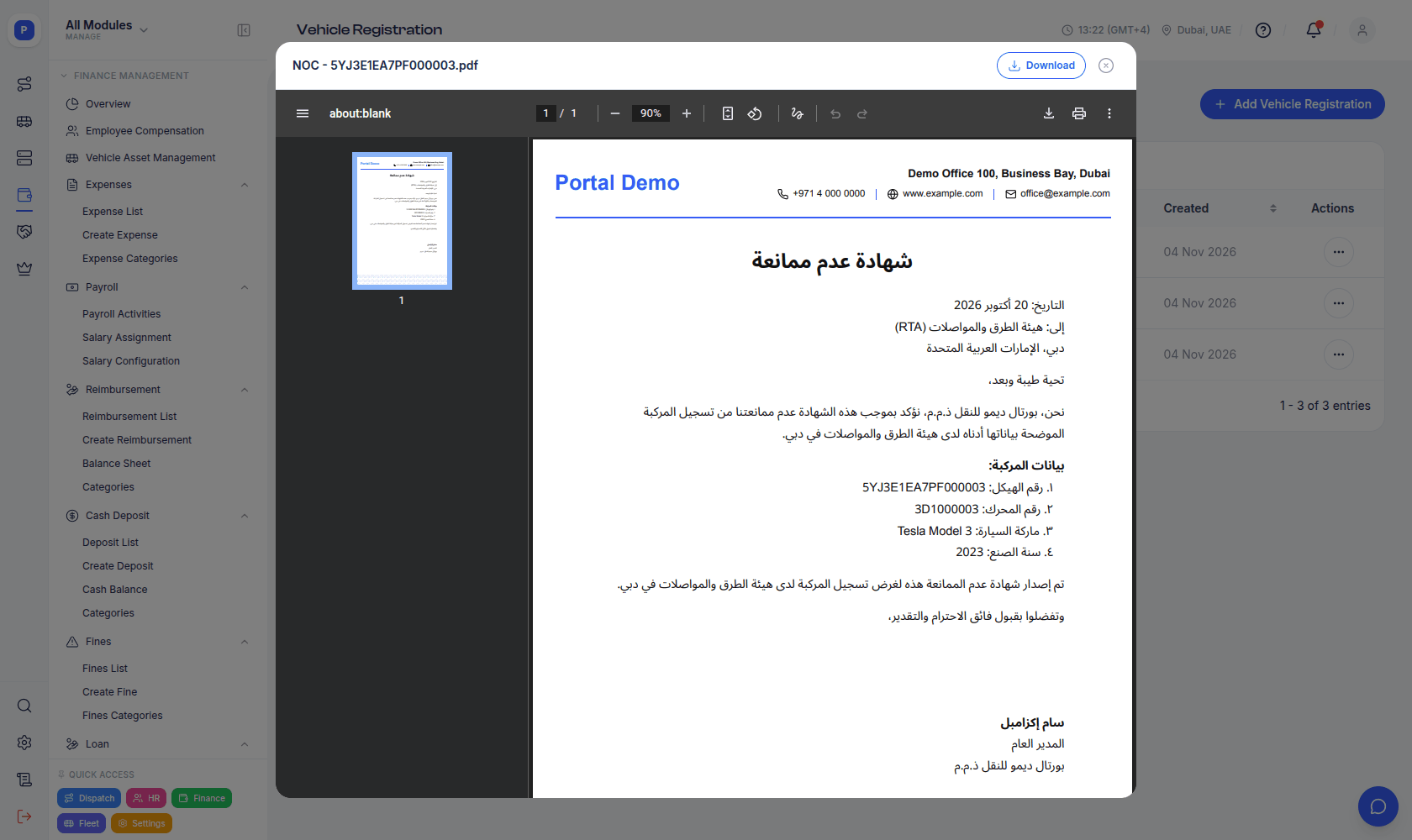
When the form is valid, Generate saves the certificate and opens the PDF in a preview window (named NOC - <chassis number>.pdf). Use Download to keep the file. Closing the window returns to the list. The button is disabled while the signer's Arabic name is missing in the letter settings ("Set the signer name (Arabic) in Letter settings before generating"). A failure shows The letter could not be generated with the reason from the server.
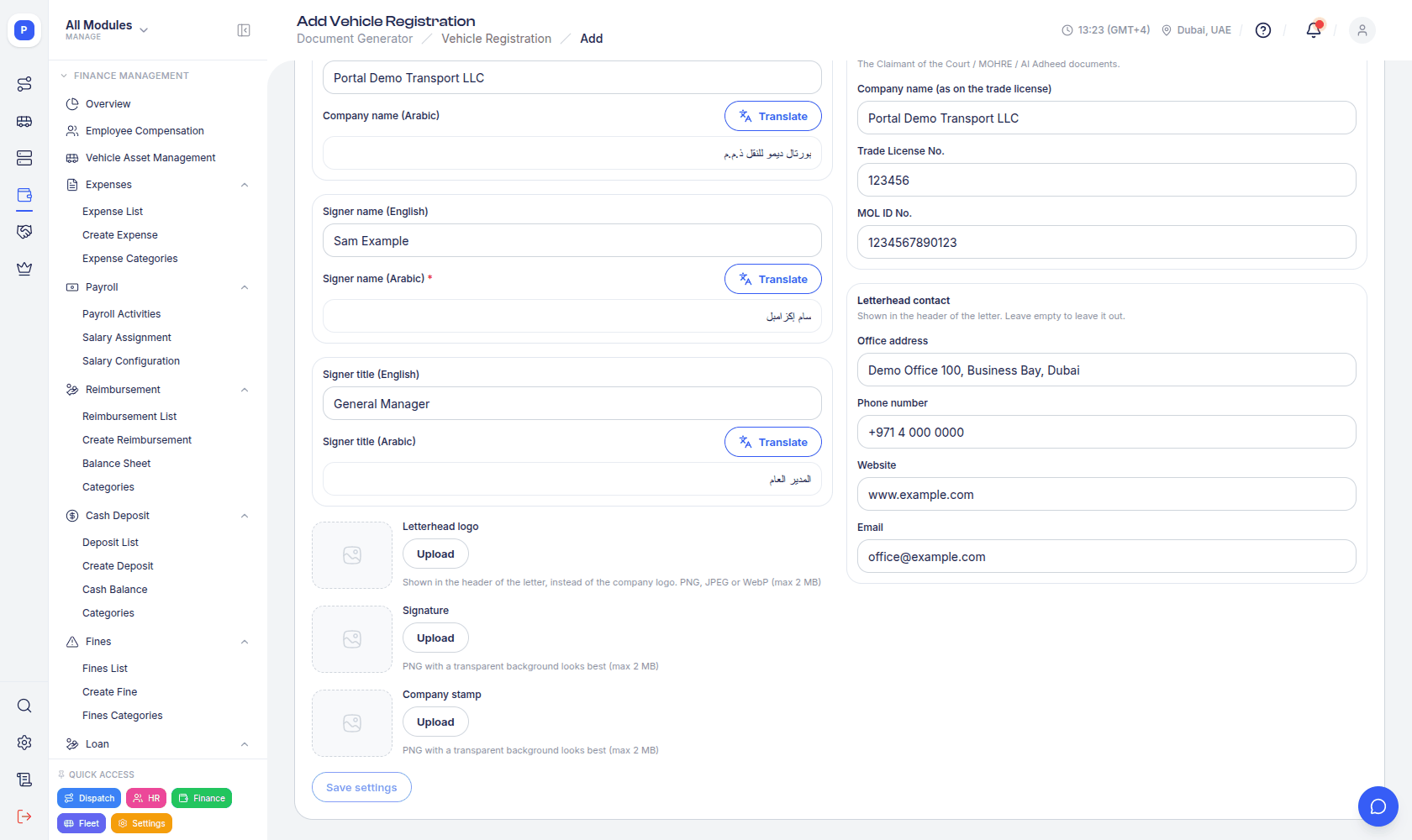
Letter settings
Under the form is the shared Letter settings panel (company names, signer, legal details, letterhead contact and the logo / signature / stamp). It is saved once for the company and reused by every letter; the fields and the Translate buttons are described in Document Generator. Generate stays disabled until the signer's Arabic name is filled in there.
Preview, download, edit and delete
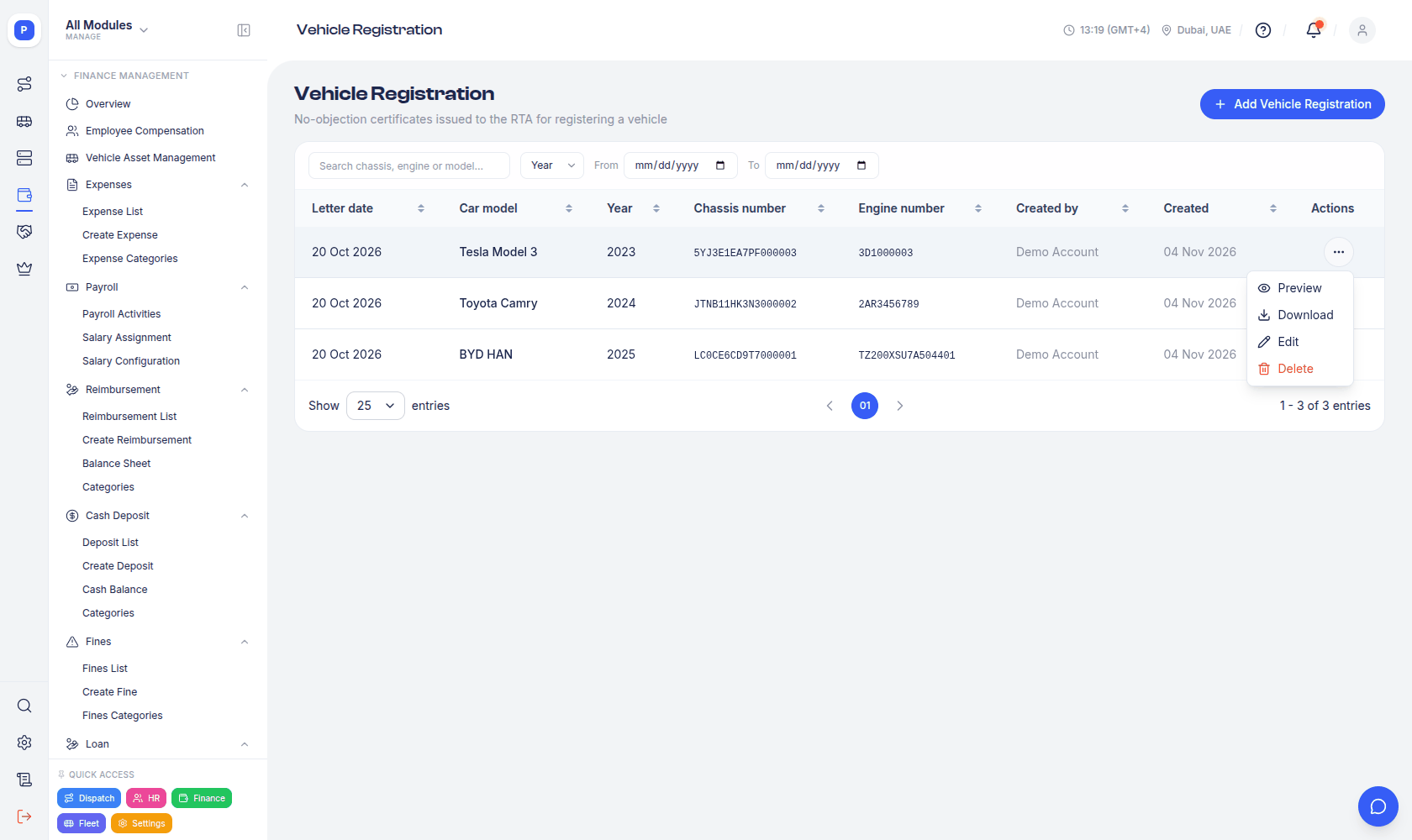
- Preview opens the saved certificate as PDF; Download saves it as a file (The letter could not be downloaded if it fails).
- Edit (needs the edit permission) opens the form with the saved values. Save & Generate updates the record and builds the PDF again.
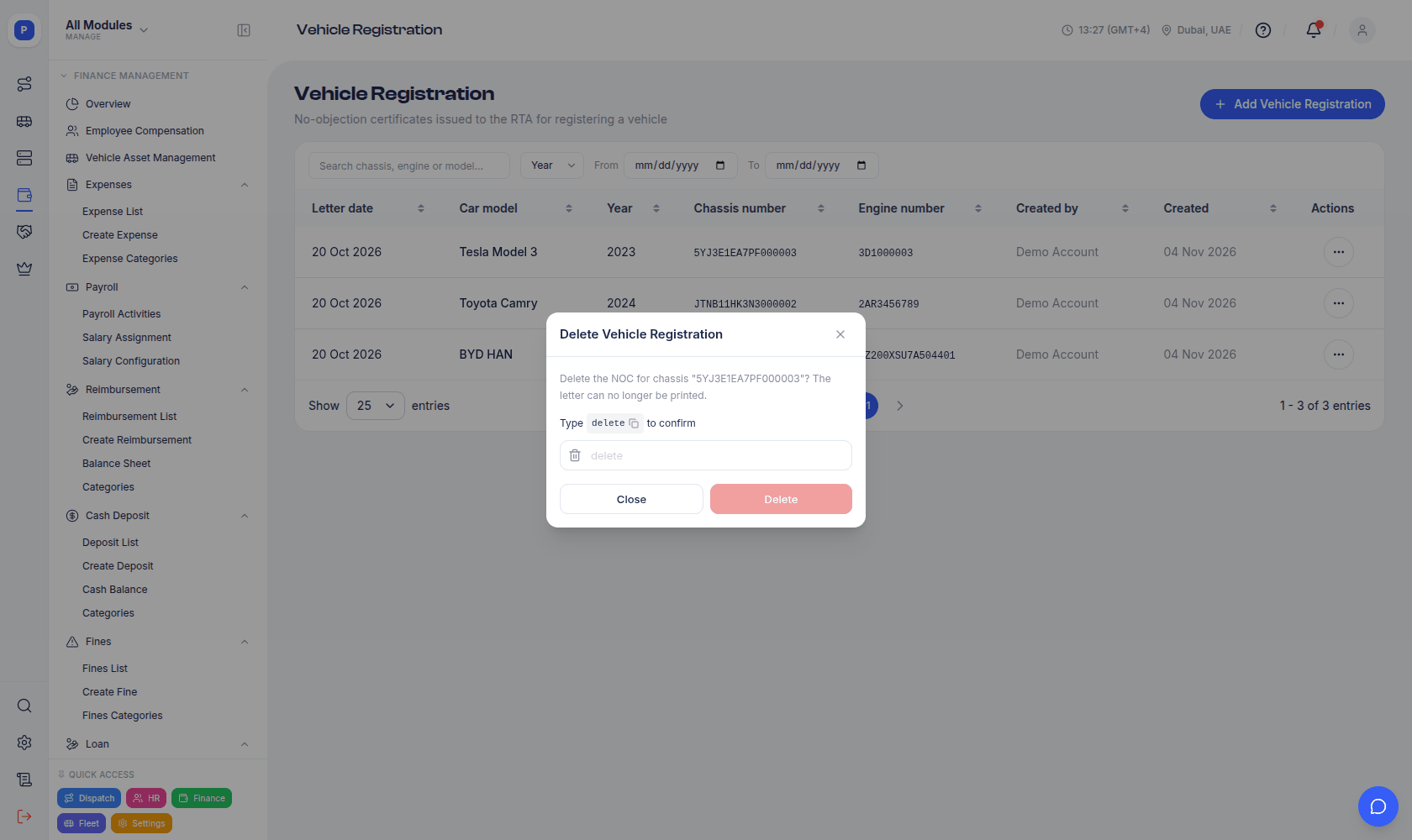
- Delete (needs the delete permission) opens Delete Vehicle Registration. Confirm and the row disappears (Vehicle registration deleted). The record is only marked as deleted in the database.
Document Generator
Generate the company's formal letters as PDF - vehicle registration and ownership transfer NOCs, court / MOHRE / Al Adheed claims and debt acknowledgement letters - and keep every one of them in a list.
Vehicle Ownership Transfer
Generate the Arabic no-objection certificate (NOC) for transferring a vehicle to a buyer at the RTA, and keep every certificate in a list.